
01Who this is for
- Agency owners who need separate departments with distinct task stages can use different Spaces to isolate status sets.
- Small teams can benefit from a single Operations Space with multiple Lists for onboarding, support, and admin work.
- Project managers handling many clients can create a Delivery Space, add a Folder per client, and place engagement Lists inside each Folder.
02Spaces, folders, and lists, explained
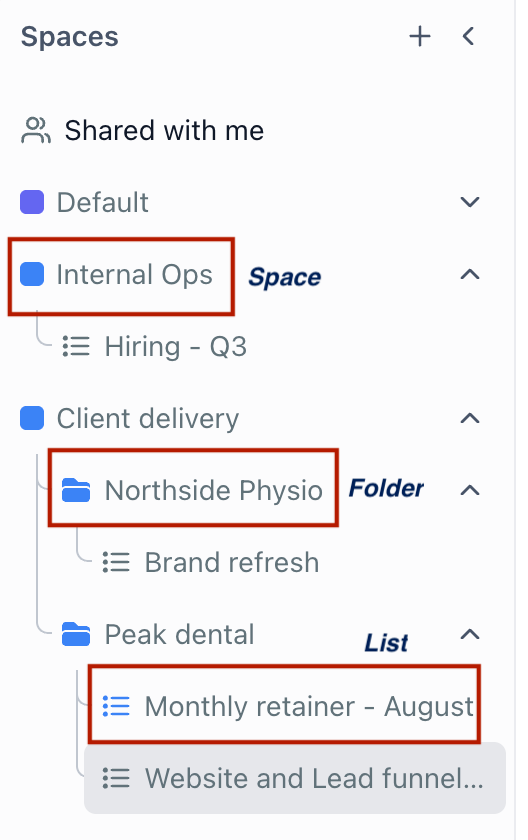
The feature provides three levels of organization: Space, Folder, and List. A Space is the top level container and stores settings such as task statuses, custom fields, member access, and a color label. Within a Space you may add optional Folders, which only group Lists and do not have their own settings. Lists are the final layer where tasks and subtasks are created.
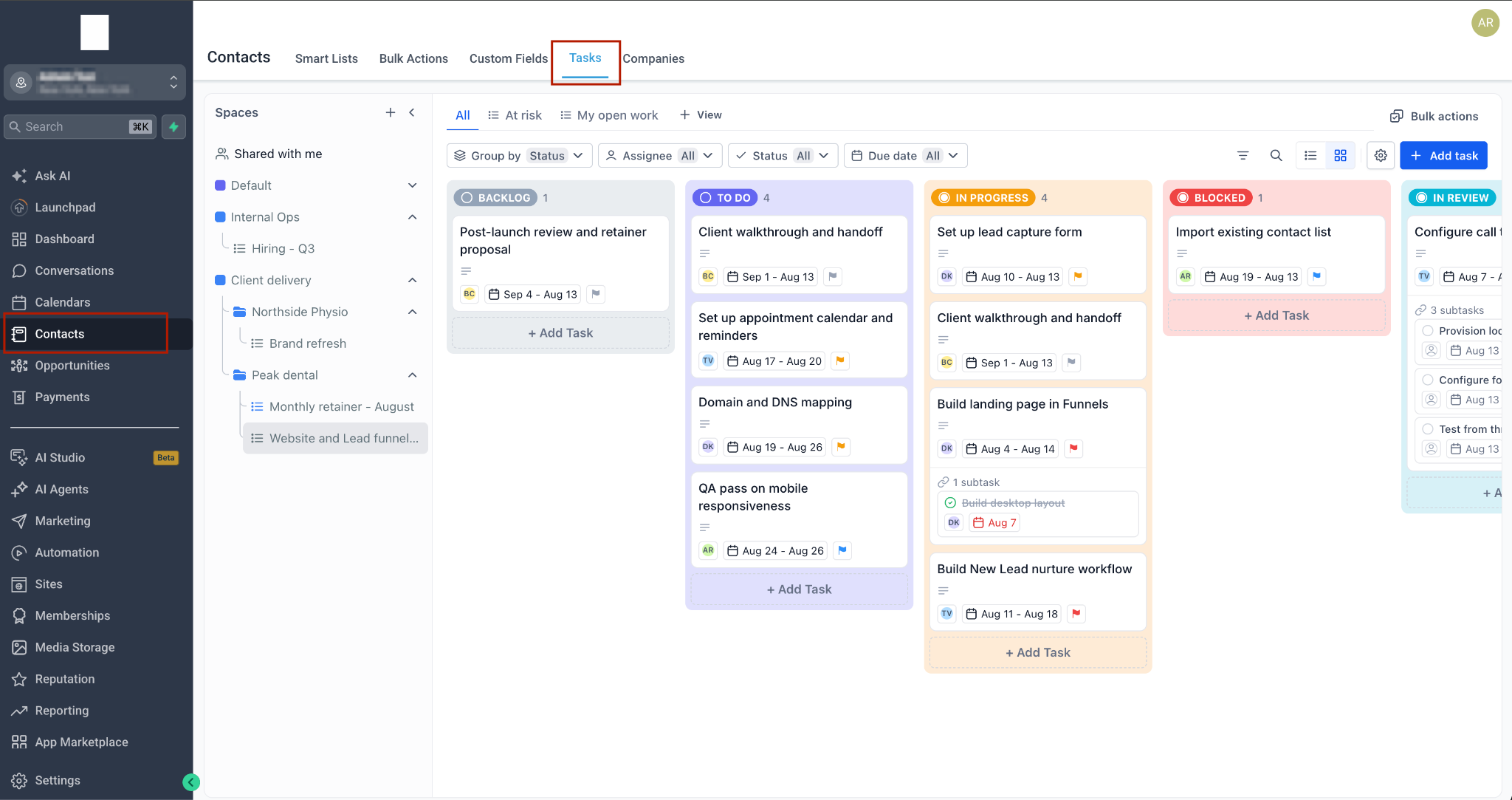
All containers appear as an expandable tree on the left side of the Tasks page under the heading Spaces. Clicking a Space or Folder arrow expands its contents; Lists show tasks directly in the main panel. The breadcrumb at the top of a task indicates its Space and List, keeping navigation clear.
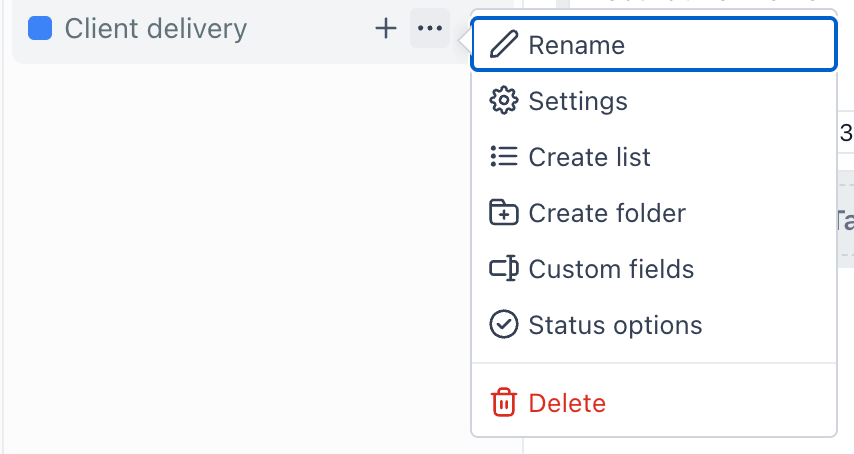
Creating, renaming, and deleting these containers is done through the options menus in the left hand tree. Changes affect the hierarchy right away and follow the rules that folders cannot contain other folders and tasks exist only in Lists.
03How businesses use spaces, folders, and lists
- Digital marketing agency. The agency creates a Space for each department, such as Delivery, and adds a Folder for each client within that Space. Inside each Folder it makes Lists for campaigns, allowing shared status sets and custom fields across all client work.
- IT support team. The team sets up a single Operations Space with Lists for Onboarding, Support Escalations, and Internal Admin. No folders are needed, and the shared statuses ensure consistent ticket handling across all support streams.
- Construction project office. A Space is created for each project phase, then a Folder for each subcontractor. Lists inside those folders track specific tasks, keeping subcontractor work organized while using the same status workflow for the whole phase.
04The numbers and rules that matter
- Project Management is now available to agencies on the $497 plan (per HighLevel's help center, checked November 2026).
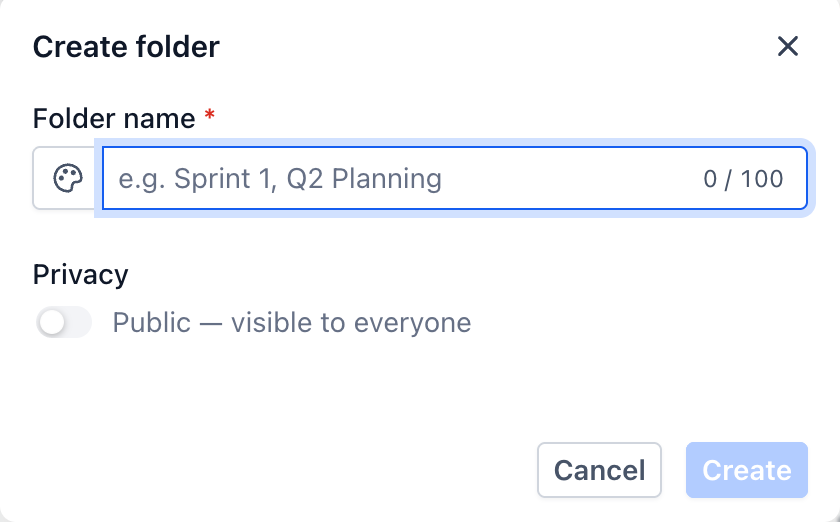
- Space name allows up to 100 characters.
- Task statuses are configured per Space.
- Custom Fields are configured per Space.
05Before you start
- Project Management must be enabled on a $497 plan via Agency or Subaccount Settings > Labs by toggling on Project Management (per HighLevel's help center, checked November 2026).
06How to set up and use spaces, folders, and lists in HighLevel
Create a new Space
- Open the Tasks page by selecting Contacts and then the Tasks tab.
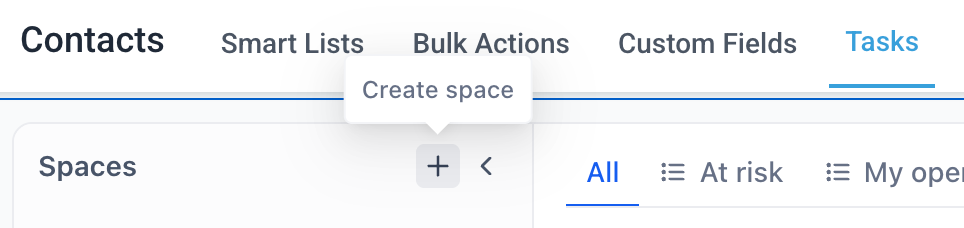
- Click the '+' control beside the Spaces heading in the left panel.
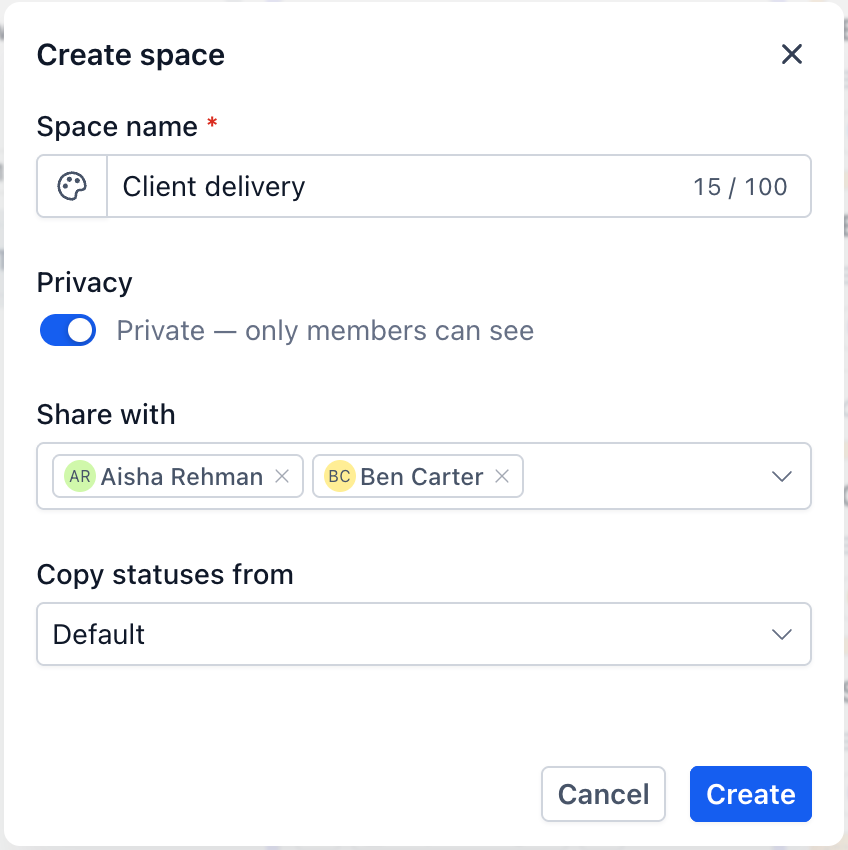
- Enter a name for the Space, watching the live character count (max 100).
- Pick a color to identify the Space in the tree view.
- Press Create to add the Space to the left hand hierarchy.
Create a Folder inside a Space
- Hover over the desired Space in the left panel and open its options menu.
- Select the Create folder option from the menu.
- Provide a folder name and save; the folder appears beneath the Space with an expandable arrow.
Create a List
- Open the options menu of the Space or Folder where the List will live.
- Choose Create list from the menu.
- Enter a descriptive name for the List and confirm.
- Click the new List in the left panel to view its tasks and start adding items.
Rename or delete a Space, Folder, or List
- Open the options menu of the item you wish to modify.
- Select Rename to change the name, or Delete to remove the item.
- Confirm the action; Rename updates the label right away, Delete permanently removes the item and its contents.
07What it looks like in HighLevel
08Settings that matter
- Task statuses. Defines the set of status labels that tasks can use within a Space.
- Custom fields. Adds extra data fields that apply to every task in the Space.
- Members and privacy. Controls who can view or edit a Space and whether the Space is private.
- Color. Assigns a visual color dot to a Space for easier scanning in the left hand tree.
09Things to know before you rely on it
- Space names are limited to 100 characters.
- A Folder cannot contain another Folder; it can only hold Lists.
- Folders do not hold tasks directly; tasks exist only in Lists.
- All Lists inside the same Space share the same task statuses.
- Project Management is available only on the $497 plan and must be enabled via Labs (per HighLevel's help center, checked November 2026).
10How it connects to the rest of HighLevel
- Start using HighLevel project management with the introductory guide Project management overview
- View tasks in board (Kanban) or list layouts Board and list views
- Save common filters with Smart Lists for quick access Smart Lists
- Check pricing and plan eligibility for Project Management Pricing
Michael's take

Jumping into project management without a clear hierarchy can quickly become chaotic, especially when teams grow or client lists expand. The nesting of Spaces, optional Folders, and Lists keeps everything tidy and prevents constant reshuffling later on.
When the structure is set up correctly, you get a clean view of work, shared status settings, and the ability to limit access per Space. That clarity alone makes the effort worth it for agencies handling many clients and for small teams that need a simple, searchable task board.