
01Who this is for
- Project managers need a visual way to track work progress across defined stages.
- Agency owners can set up separate Spaces for different client pipelines, each with its own status set.
- Support teams benefit from distinguishing between finished work that still needs review and work that is fully closed.
02Task statuses, explained
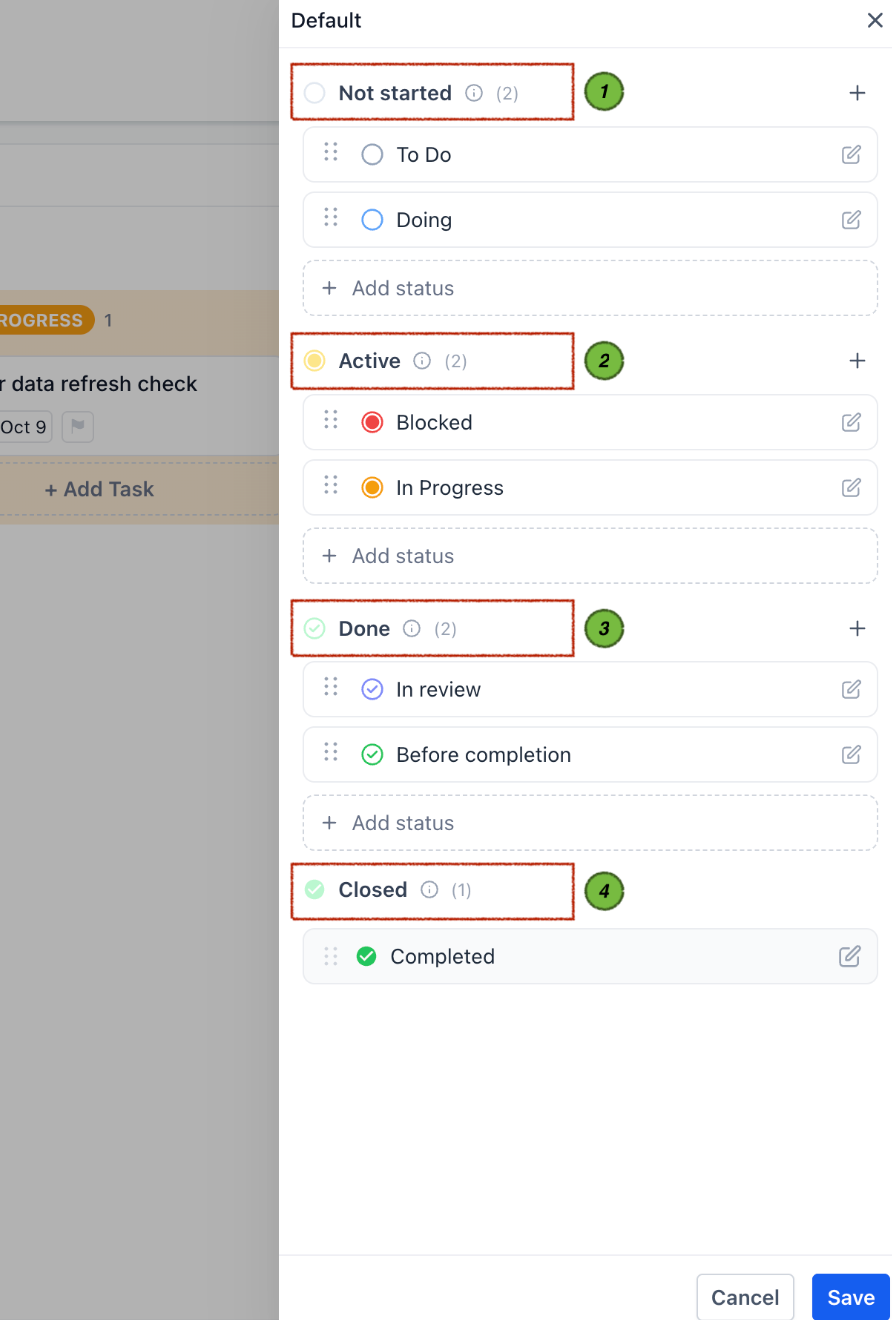
Statuses label the phase of each task, such as To Do, In Progress, or Completed. The platform groups these labels under four fixed categories, Not started, Active, Done, and Closed, so the system knows how to treat each column on a board. Custom labels can be added only to the first three groups; the Closed group remains unchanged.
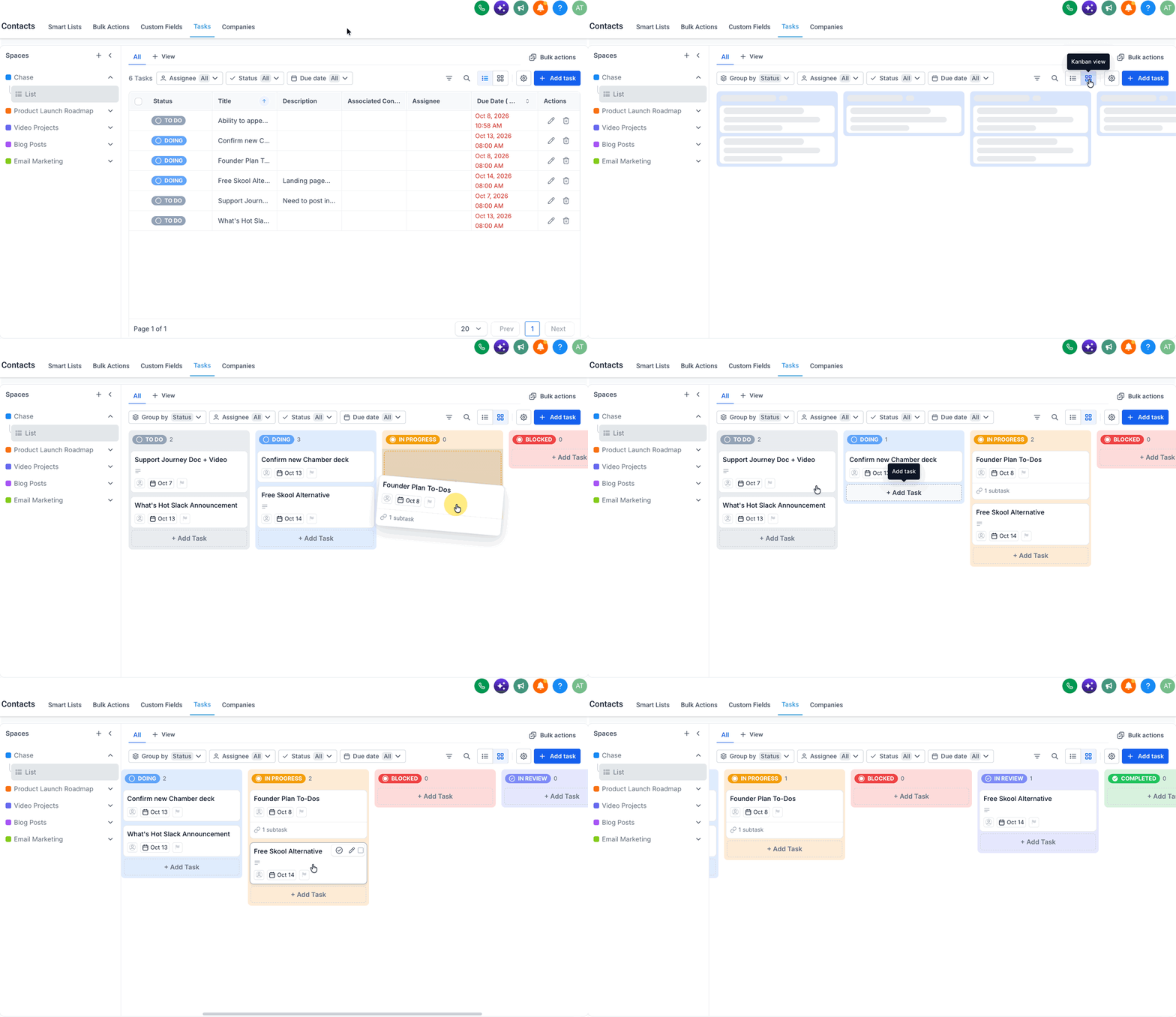
All statuses are defined at the Space level, meaning every List inside that Space shares the same columns. Changing a status moves the task card to a different column in the Kanban view or updates the Status field in the task detail panel. Reordering or recolouring statuses adjusts the board layout accordingly.
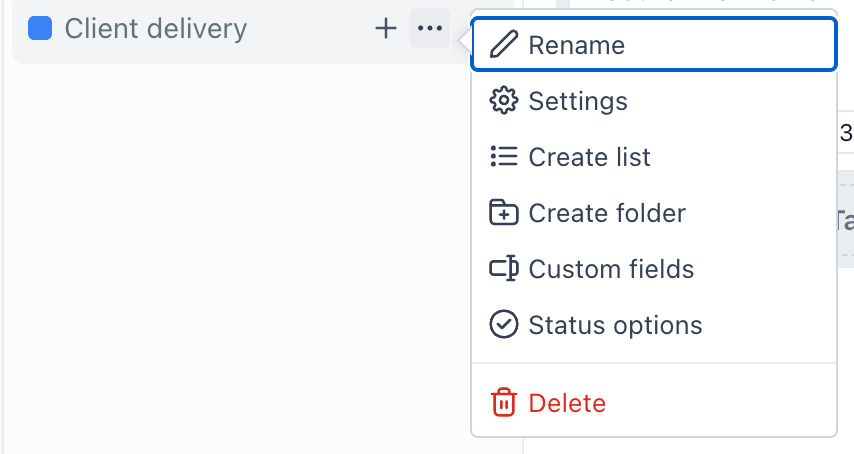
The status settings live in the Space options menu under "Status options" and are accessible from the Tasks page. Users can view, add, rename, reorder, or colour statuses, but they cannot delete them or create new status groups.
03How businesses use task statuses
- Marketing agency. The agency opens the Space for a client campaign, adds custom statuses like "Brief Approved" in Not started and "Creative Review" in Active. Team members drag tasks as they progress, keeping the board aligned with the agency's workflow.
- IT support desk. Support staff view the predefined Done and Closed groups to differentiate tickets that need final checks from those fully resolved. They edit the Status field on a ticket to mark it as Done before closing it.
- Content production team. The team creates statuses such as "Outline Draft" and "Copy Editing" within the Active group. Writers move article tasks across these columns by dragging cards, allowing the editor to see which pieces are ready for review.
04The numbers and rules that matter
- Project Management is available to agencies on the $497 plan (per HighLevel's help center, checked November 2026).
05Before you start
- Project Management must be enabled in Agency or Subaccount settings > Labs.
- The account needs to be on the $497 plan (per HighLevel's help center, checked November 2026).
06How to set up and use task statuses in HighLevel
View the status set for a Space
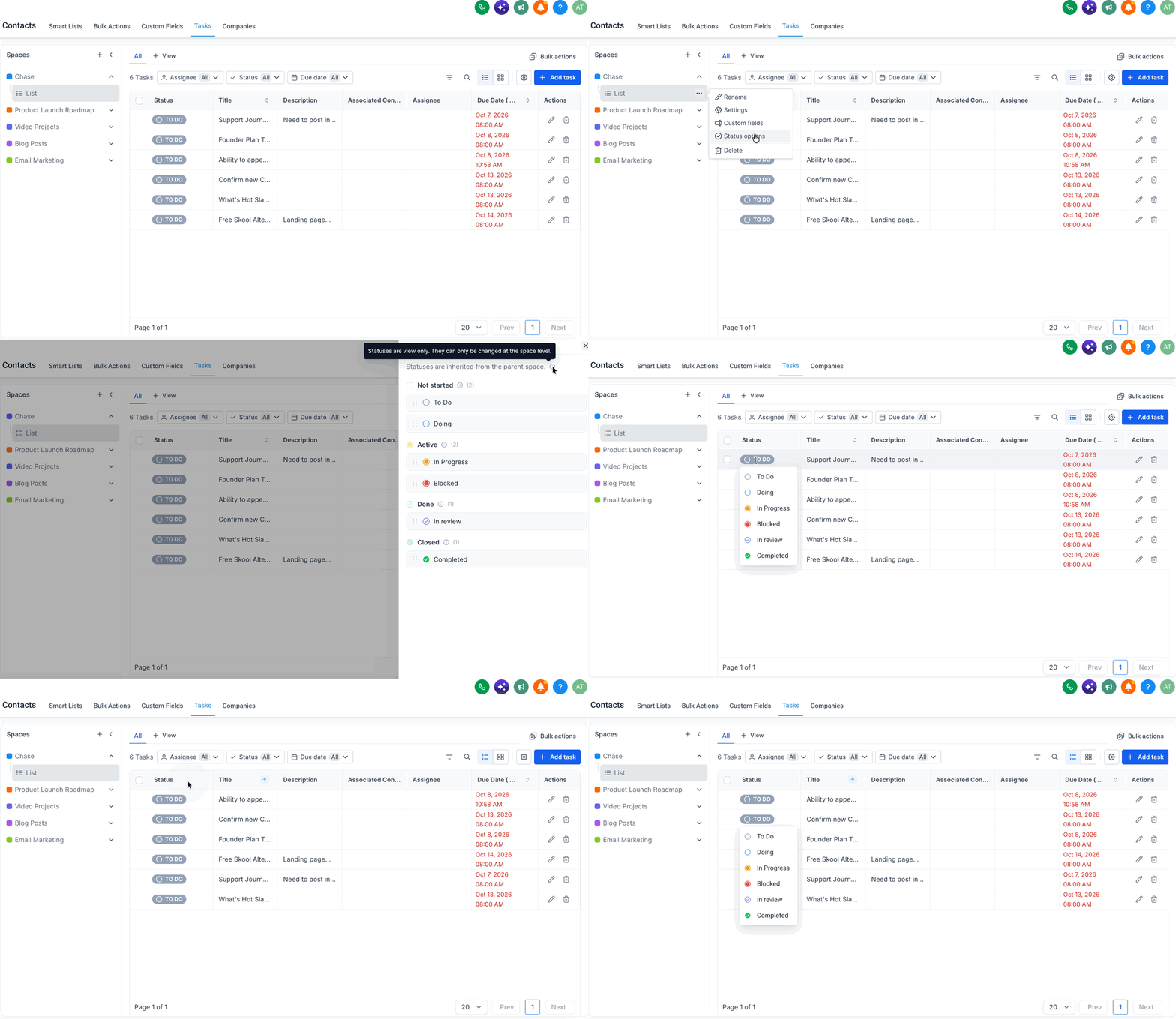
- Open the Tasks page from the left navigation.
- Select Contacts and then the Tasks tab.
- Locate the Space you want in the left sidebar.
- Hover over the Space to show the options icon.
- Click the options icon and choose "Status options" to see the groups and their statuses.
Add a custom status to a Space
- Open the Status options panel for the chosen Space.
- Select the status group that matches the task stage (Not started, Active, or Done).
- Press the button to create a new status in that group.
- Enter the status name, optionally set a colour, and save.
Change a task's status by dragging the card
- Switch to the Kanban board view for the Space.
- Click and hold the task card you wish to move.
- Release the card in the column that represents the new status.
Change a task's status through the edit panel
- Open the task detail view.
- Find the Status field within the panel.
- Choose the desired status from the dropdown and close the panel.
07What it looks like in HighLevel
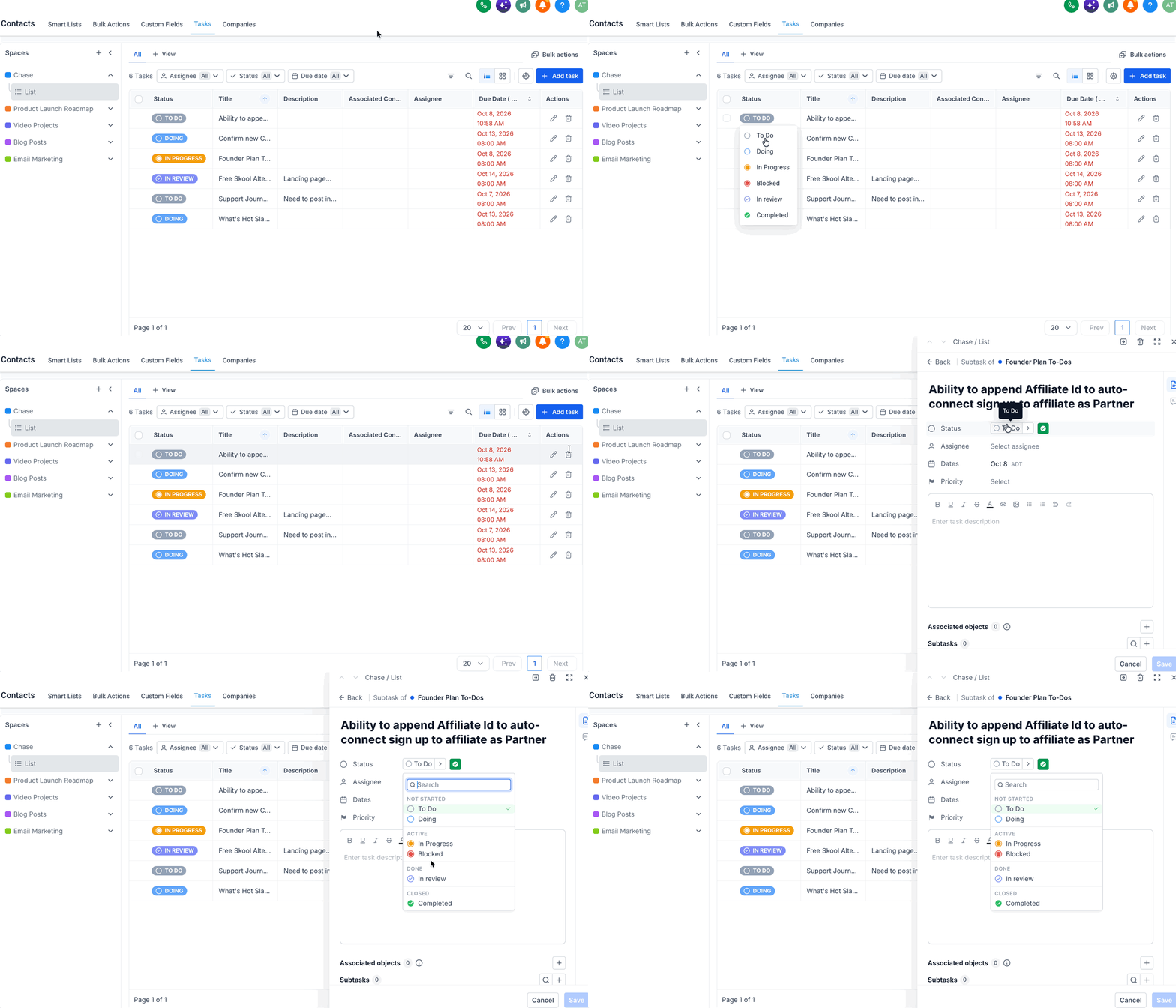
08Settings that matter
- Status options. Controls which status groups and individual statuses are available for every List in the Space.
- Status property. The field inside a task's detail panel that stores the current status label.
- Colour on a status. Allows assigning a visual colour to a status, which appears on the board column header.
09Things to know before you rely on it
- Four fixed status groups exist: Not started, Active, Done, and Closed.
- Custom statuses can be created only in Not started, Active, and Done; Closed remains system defined with a single default status.
- Statuses are defined at the Space level; all Lists inside that Space share the same set.
- A status can be renamed, reordered, and given a colour, but it cannot be deleted.
- Project Management is available only on the $497 plan and must be toggled on in Labs (per HighLevel's help center, checked November 2026).
- Empty columns stay visible on the board because the status still exists.
10How it connects to the rest of HighLevel
- Getting started with HighLevel project management Project management intro
- Create tasks and subtasks in HighLevel Create tasks
- Switch between board, kanban, and list views Board views
- HighLevel pricing and plans Pricing
- Start a 30 day HighLevel trial Free trial
Michael's take

When a team needs clear visual cues for where work sits and wants to keep board clutter low, task statuses quickly pay for themselves. The ability to label each column, move cards with a drag, and see which items are truly done versus fully closed reduces the back and forth of status clarification and keeps everyone aligned.
If your process is simple or you already have a separate system for tracking completion, the extra overhead of managing custom statuses may not add enough value. Adding too many columns can make the board harder to read, and any change to the status set requires a pause to retrain the team.