
01Who this is for
- Agency owners who need a single place to track client deliverables and assign work.
- Product teams that break large features into smaller steps for different developers.
- Event coordinators who want the same task visible to both planning and logistics teams.
02Tasks and subtasks, explained
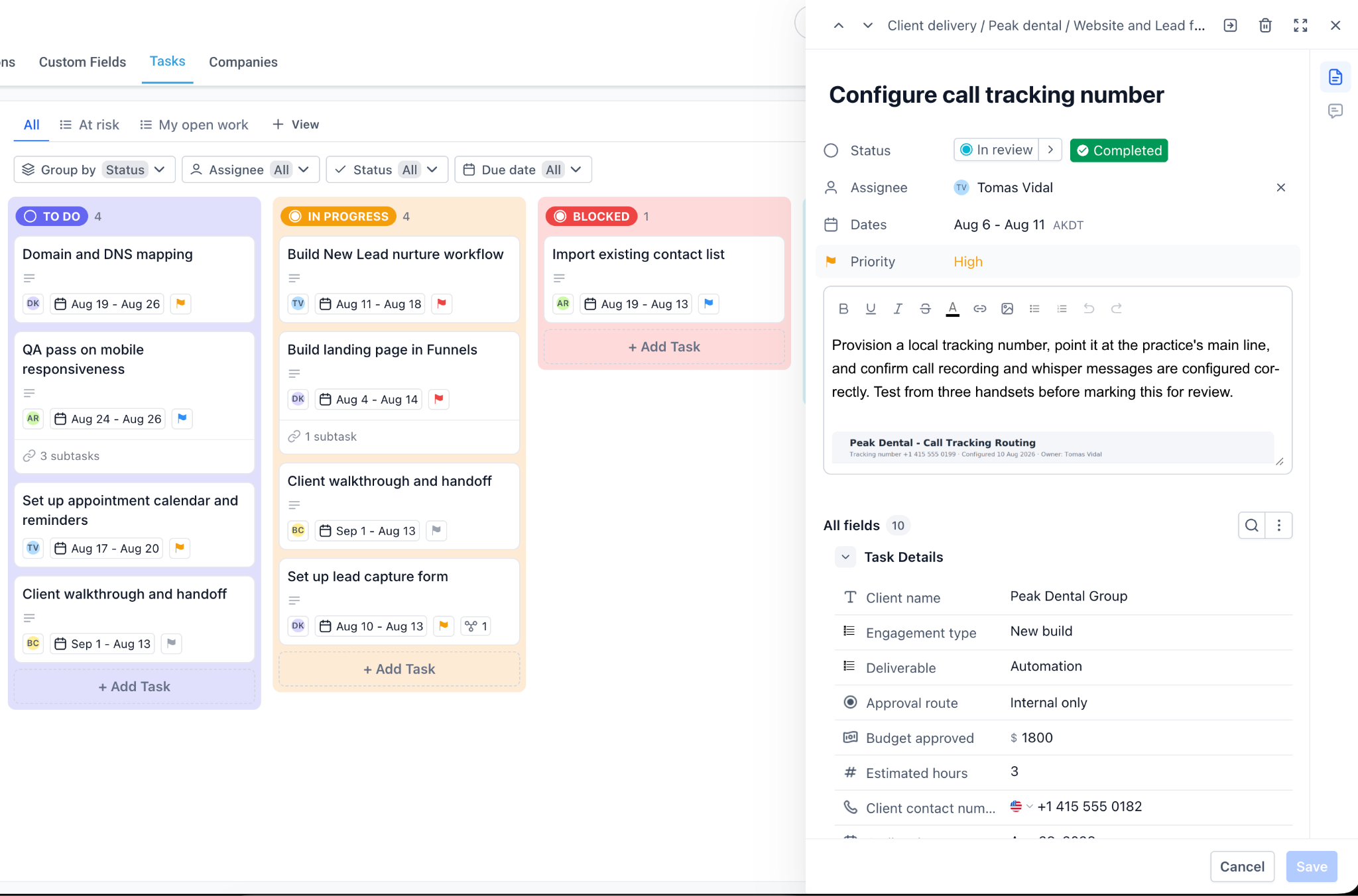
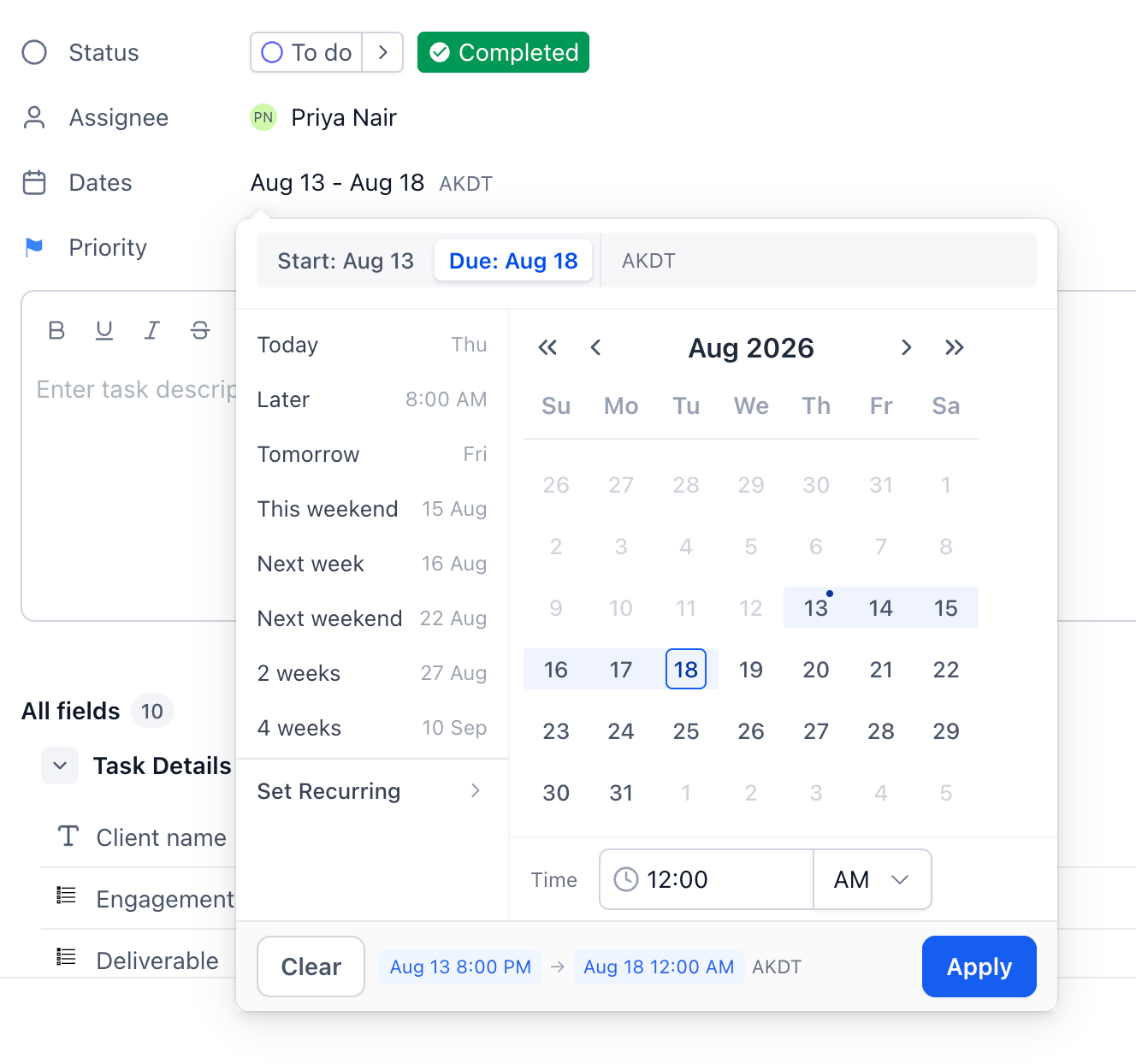
A task holds a name, description, status, assignee, dates, priority, custom fields, linked contact records, subtasks, and comments. You can view a task in a right side panel or a modal; the view you last used is remembered. The breadcrumb at the top shows the Space and List where the task originates.
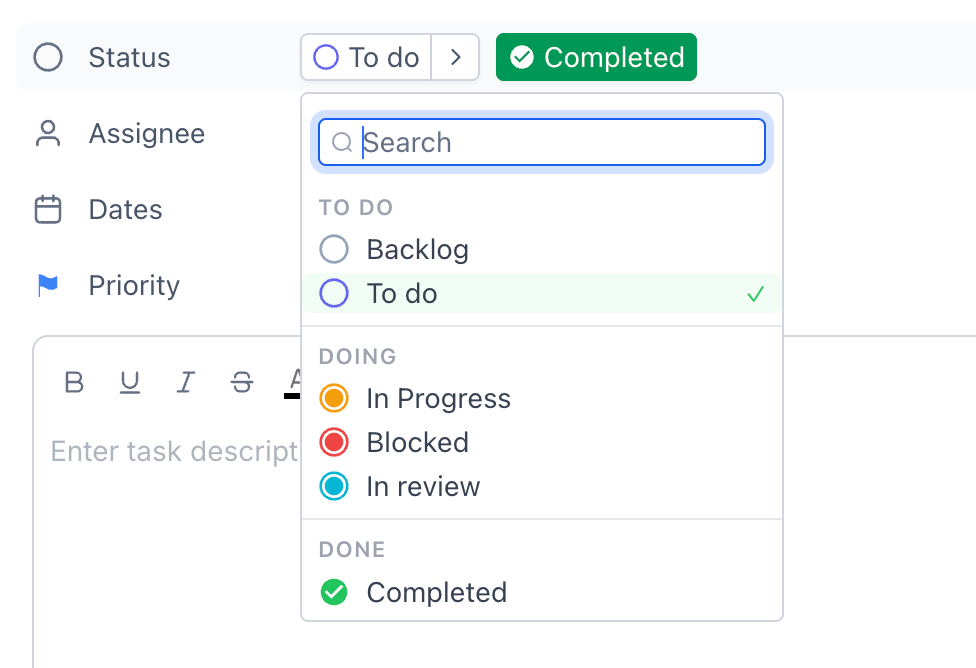
Tasks live in one List but can be moved to another List or added to additional Lists. Moving relocates the task, removing it from its original List. Adding to another List keeps the original home List and shows the same task in each selected List. Statuses belong to the home List, so a task keeps its workflow even when viewed elsewhere.
03How businesses use tasks and subtasks
- Marketing agency. The agency creates a task for each client campaign, adds subtasks for copy, design, and approval, and moves the task to the delivery List when the work is finished. The same task can be added to a reporting List for senior review.
- Software development team. Developers open a feature task, add subtasks for backend, frontend, and QA, assign each subtask to the appropriate engineer, and move the main task between backlog, in progress, and done columns as the work advances.
- Event planning firm. Planners create a task for venue booking, add subtasks for contract, payment, and confirmation, and add the task to both the logistics List and the client facing List so both teams can track progress without duplication.
04The numbers and rules that matter
- Project Management is now available to agencies on the $497 plan (per HighLevel's help center, checked November 2026).
05Before you start
- Agency must be on the $497 plan (per HighLevel's help center, checked November 2026).
- Project Management must be enabled via Agency or Subaccount settings > Labs > toggle on Project Management.
06How to set up and use tasks and subtasks in HighLevel
Create a task quickly
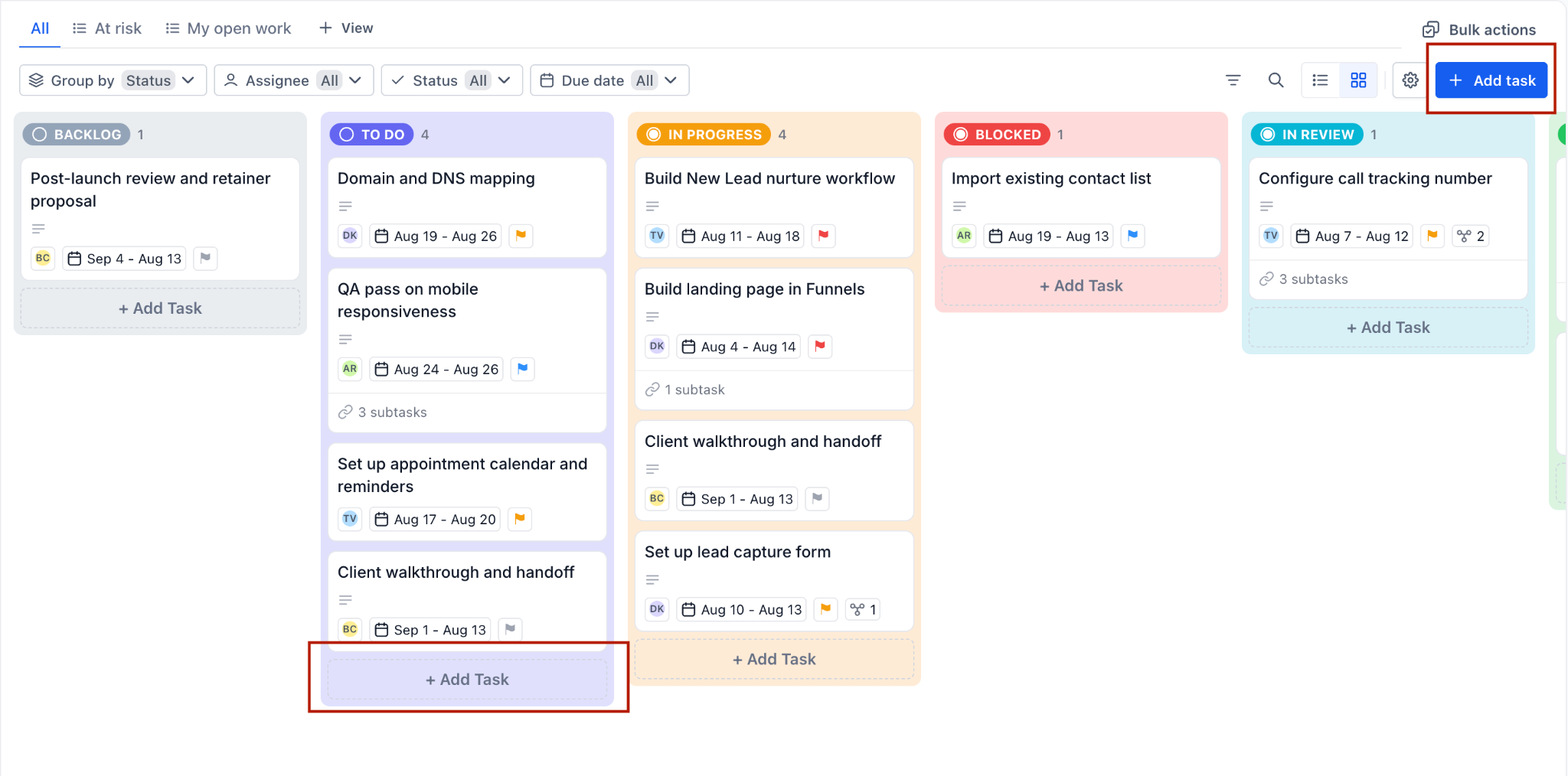
- Open the List you want the task in by clicking it in the left panel.
- Click "Add task" in the toolbar, or click "+ Add Task" at the foot of the status column where the task should start.
- Type the task name in the field that appears.
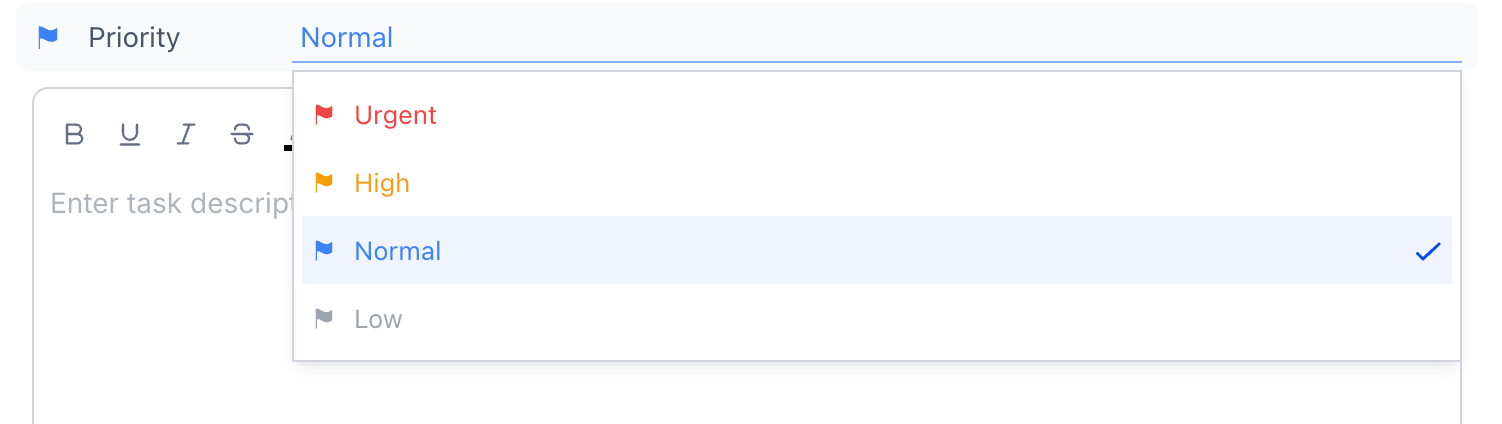
- Use the composer to add an assignee, select a date, and choose a priority.
- Click "Save" to create the task.
Add a subtask
- Open the parent task by clicking its card to open the detail panel.
- Scroll to the "Subtasks" section near the bottom of the panel.
- Click the "Add Task" button within the Subtasks section.
- Enter the subtask name in the input field.
- Click "Save" to add the subtask.
Move a task to another list
- Open the task you want to move.
- Choose the move option and select the destination List.
- If a status mapping prompt appears, confirm the status for the new Space.
- Confirm the move to relocate the task.
Add a task to another list
- Open the task you want to add.
- Choose the option to add it to another List and pick the destination.
- Repeat the add step for any additional Lists as needed.
07What it looks like in HighLevel
08Settings that matter
- Project Management. Enables the full project management experience for agencies and subaccounts when toggled on in Settings > Labs.
09Things to know before you rely on it
- Project Management is only available to agencies on the $497 plan (per HighLevel's help center, checked November 2026).
- Moving a task to a Space with a different status set triggers a status mapping confirmation.
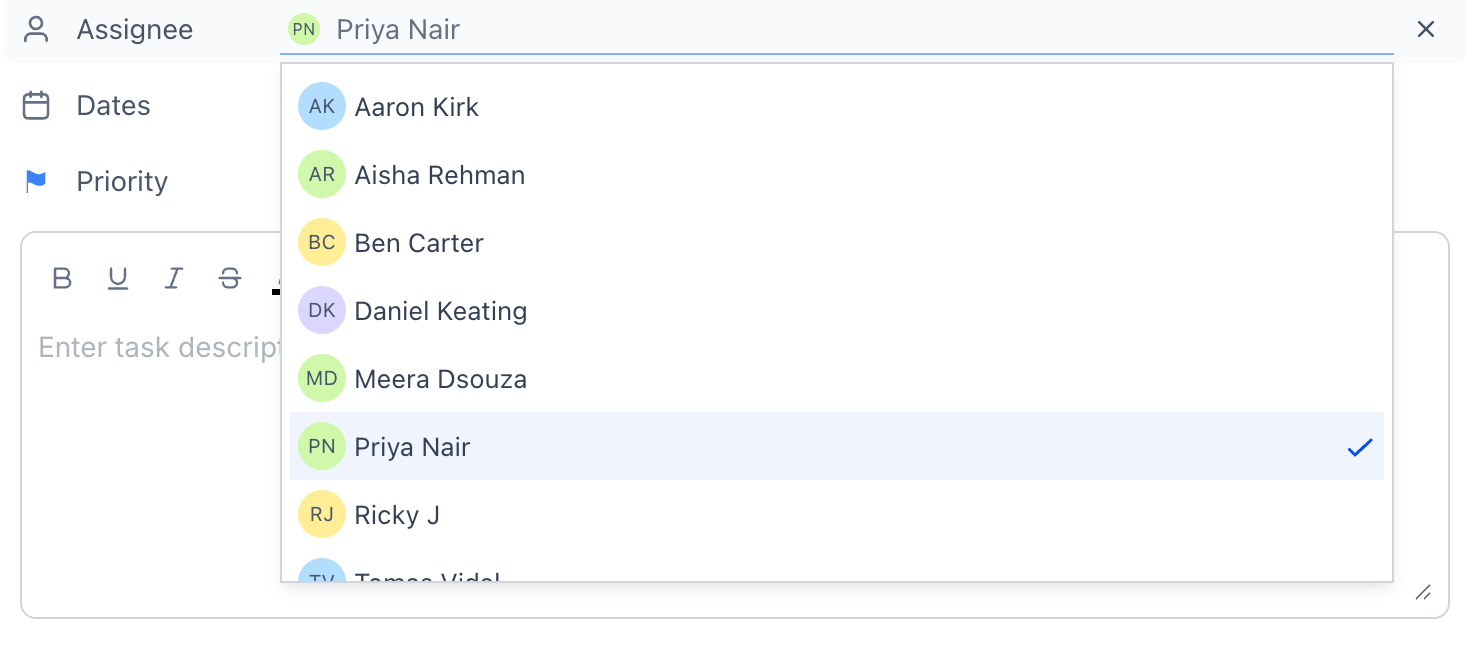
- A task can have only one assignee and follows the status workflow of its home List, even when shown in other Lists.
10How it connects to the rest of HighLevel
- Learn how to assign tasks, set priorities, and choose dates. Assign tasks
- Explore board (Kanban) and list views for visual task management. Board views
- Get started with an overview of HighLevel project management. Getting started
Michael's take

Tasks and subtasks give a small business a clear way to split work into bite size pieces and keep everyone accountable.
The ability to add a task to multiple lists means you can show the same work to sales, support or delivery teams without creating duplicate copies.
Avoid the mistake of trying to change a task’s status from a secondary list. Move the task instead.