
01Who this is for
- Agency owners who need a single system to track client work alongside contact records.
- Team leaders managing internal operations who want private Spaces for confidential tasks.
- Marketing managers who require Kanban boards to monitor campaign deliverables.
02Project Management, explained
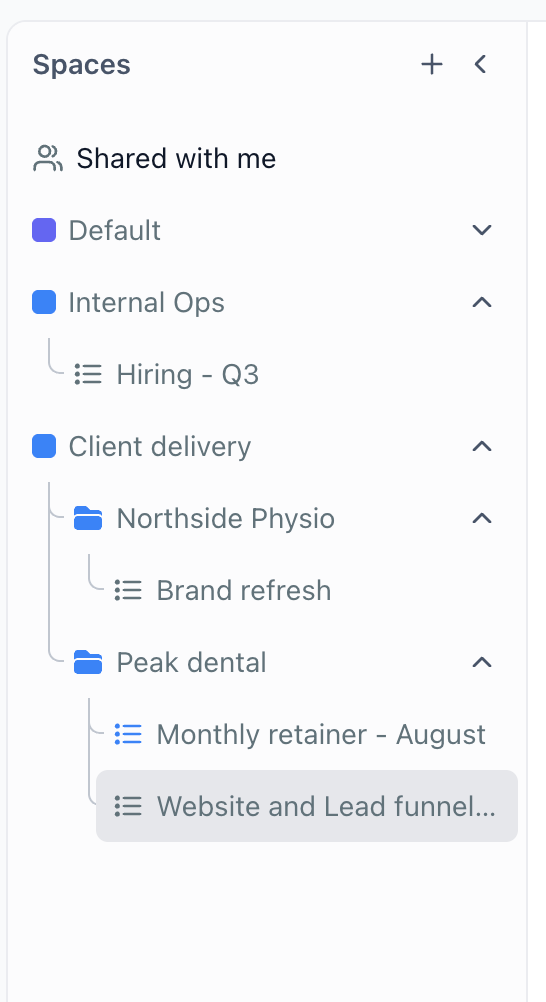
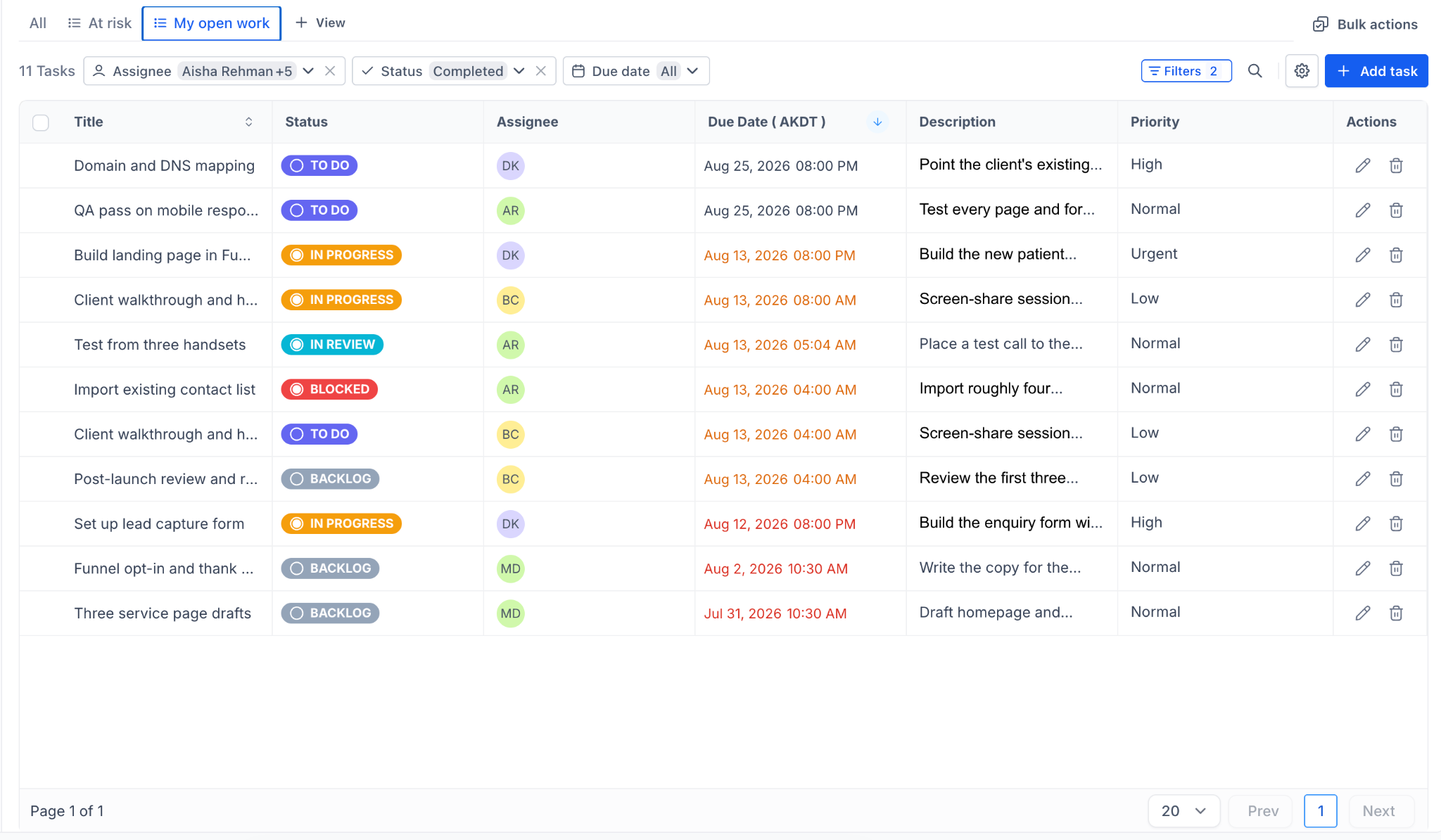
Project Management is a dedicated workspace inside each subaccount. It stores tasks in Lists, which are grouped inside Spaces and optional Folders. Every task includes a name, description, status, assignee, dates, priority, custom fields, and can link to contact records.
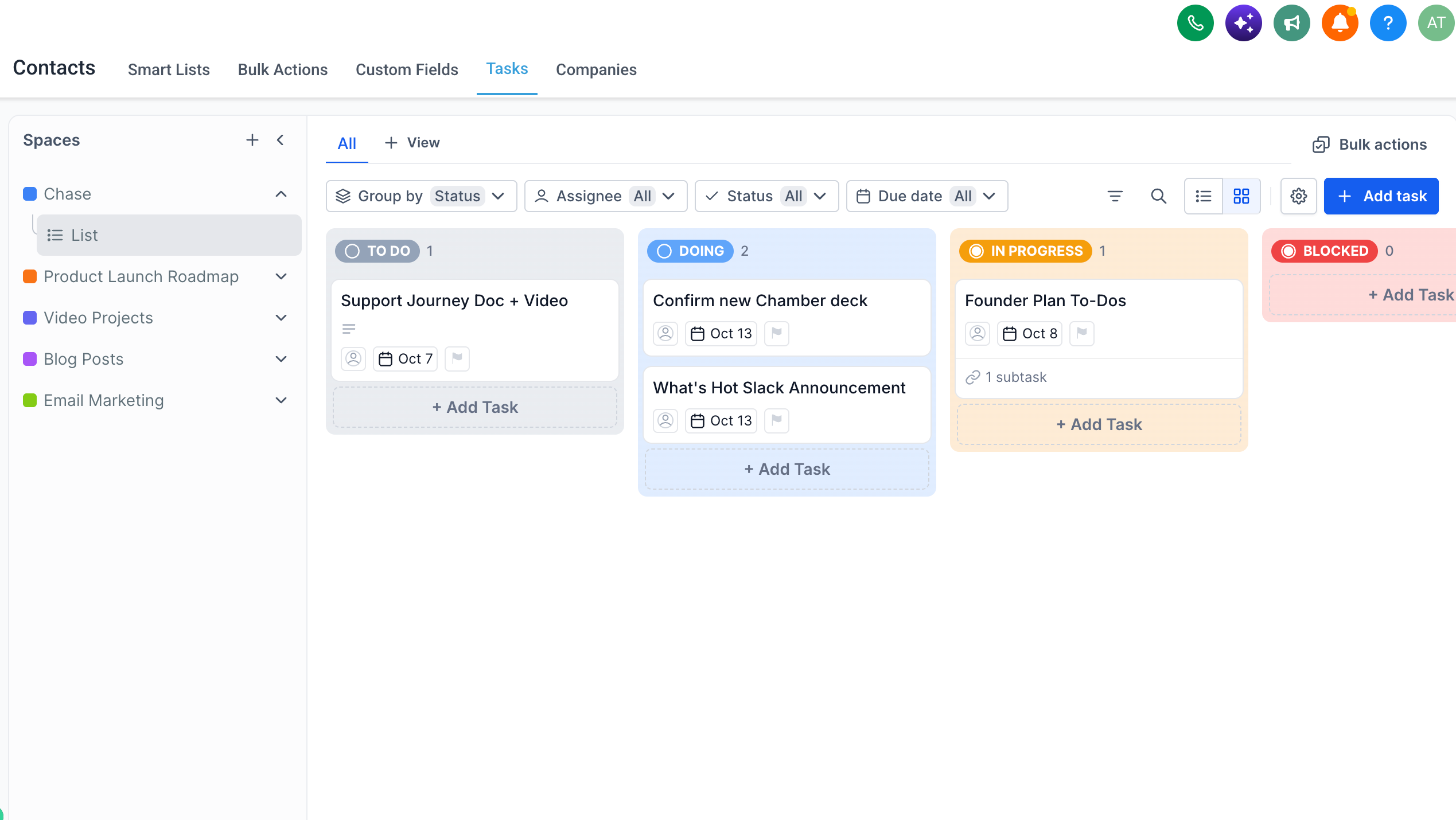
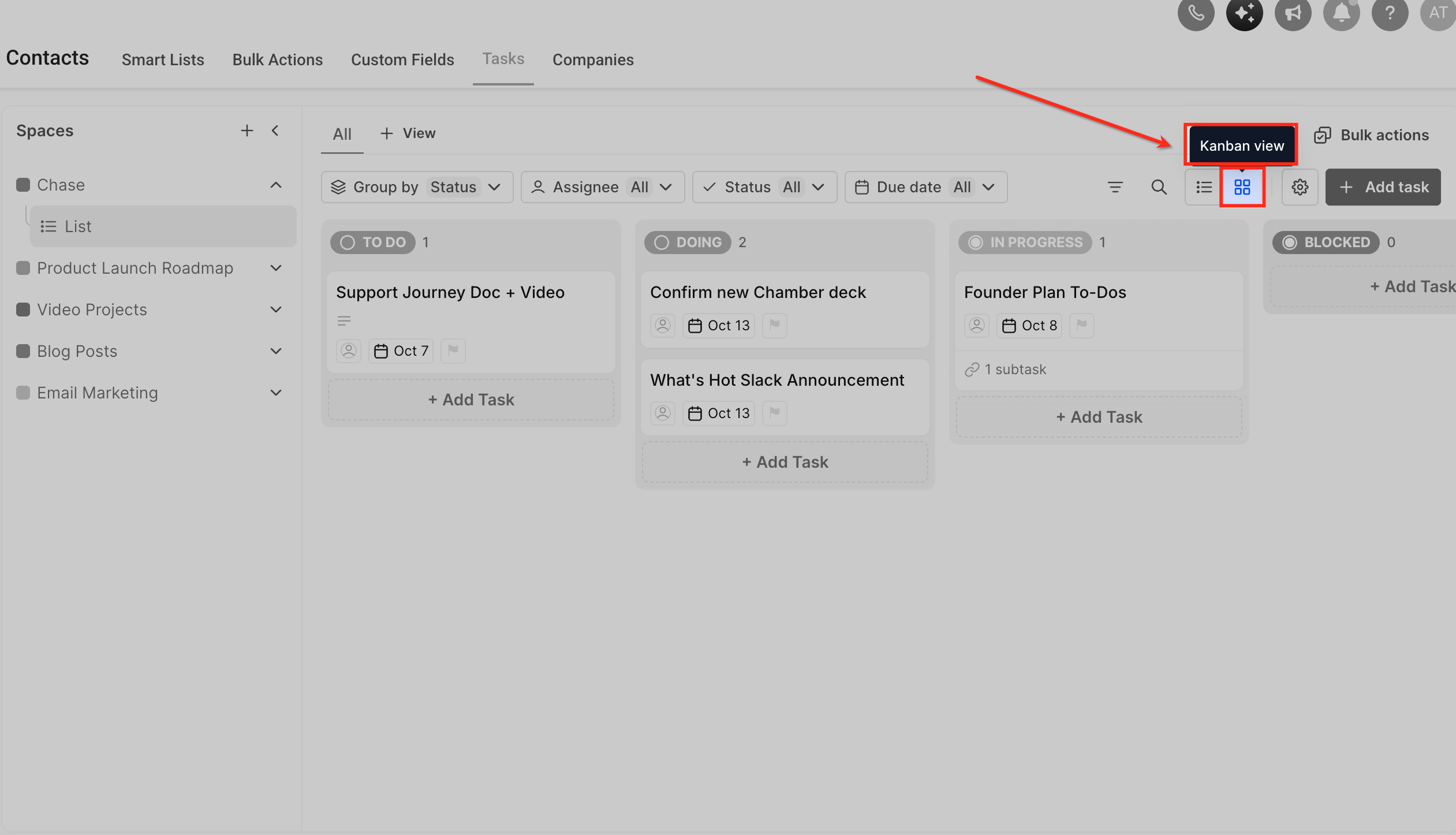
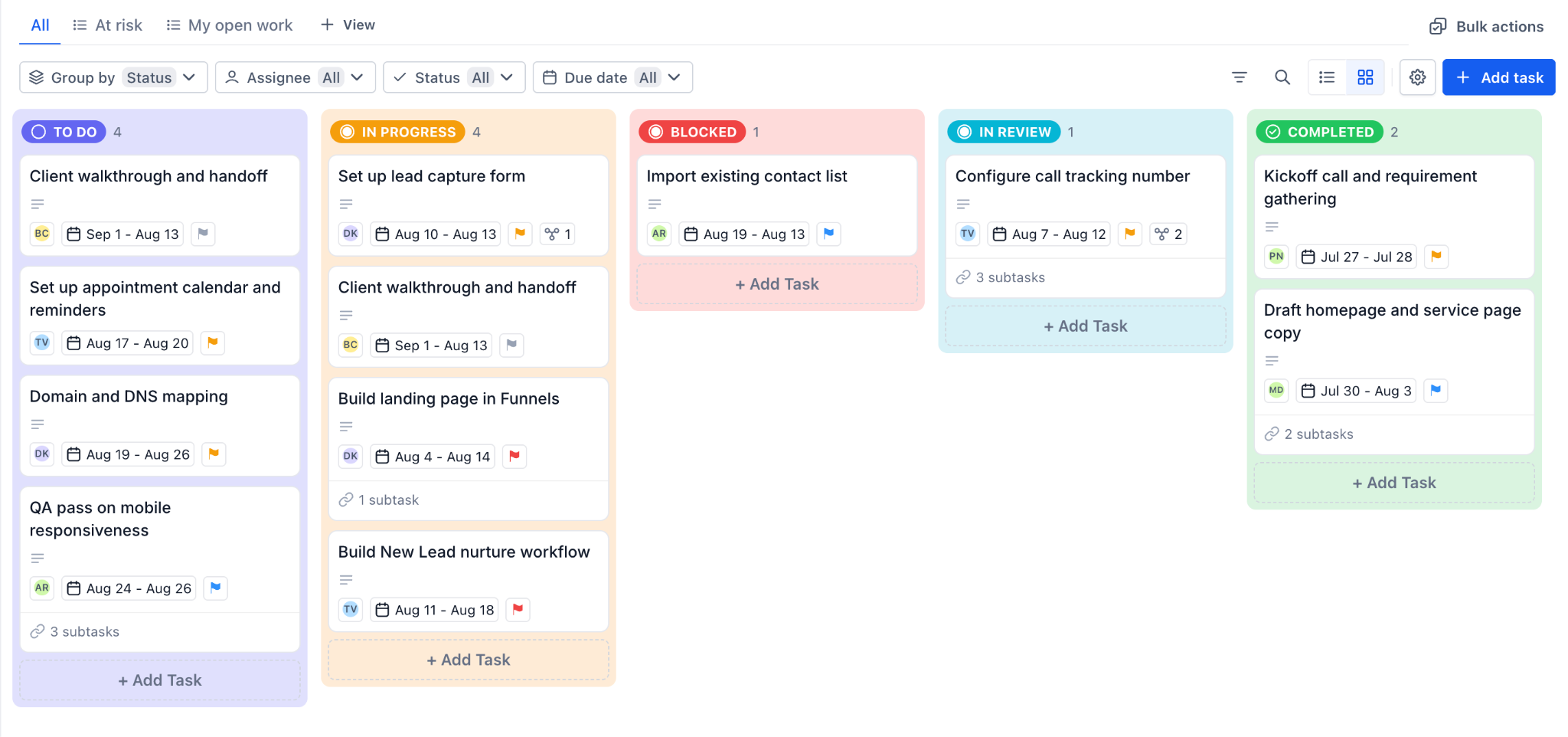
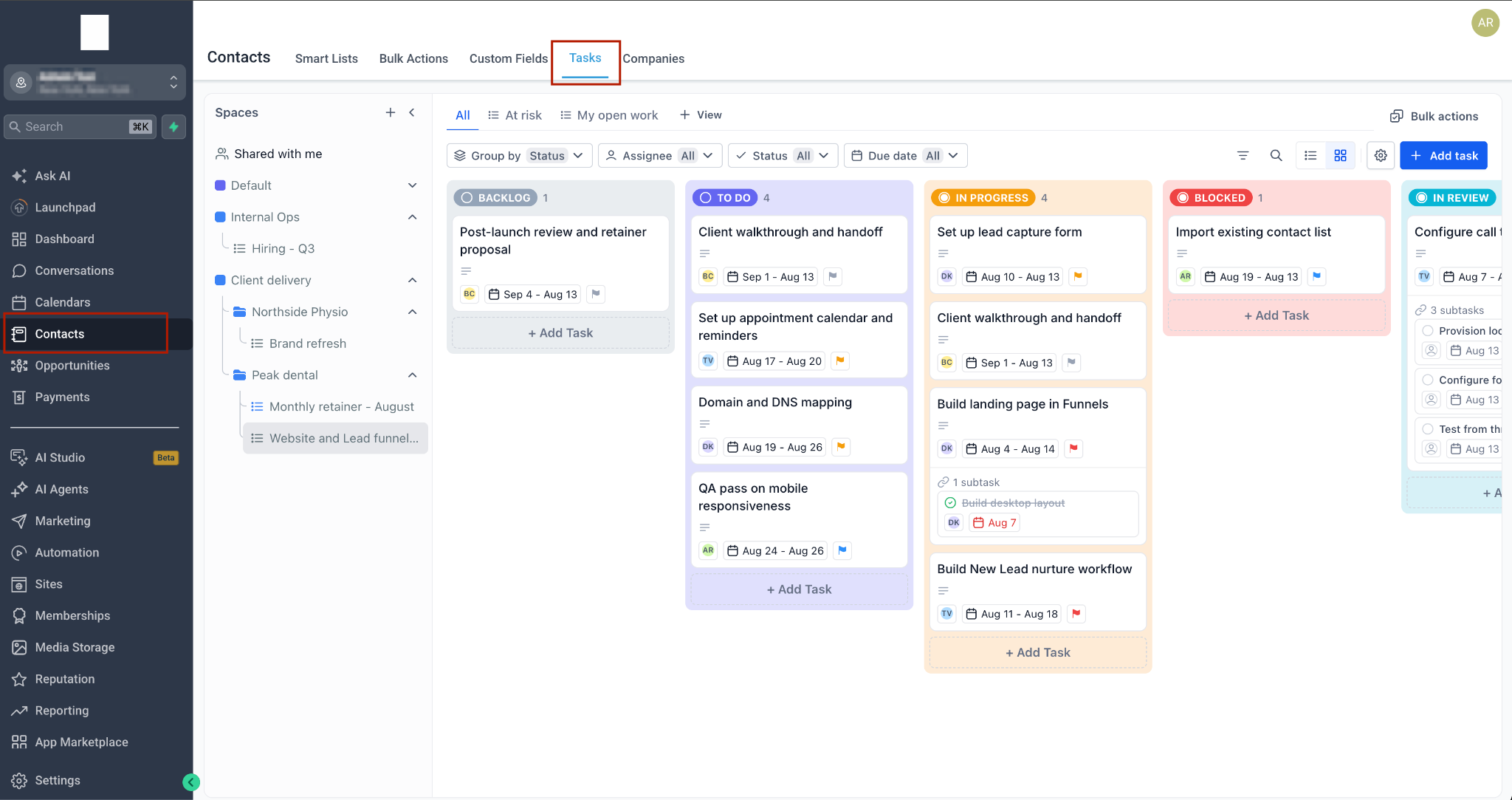
Tasks appear either as cards in a Kanban board or as rows in a List view. Switching the view only changes the layout, not the underlying data. Spaces have their own status sets, custom fields, and member lists, and can be marked private to limit visibility.
The feature lives under the Contacts menu. Selecting the Tasks tab opens the Project Management interface, and each task has a unique URL that can be copied for direct access.
03How businesses use Project Management
- Digital marketing agency. Create a Space for each client, add Lists for campaign phases, then build tasks for creative assets, assign owners, and move cards across Kanban columns as work advances.
- Recruiting team. Set up a private Space for internal hiring, make Lists for each open position, and add tasks for interview steps. Link each task to the candidate contact record for context.
- SaaS Founder. Use a Space named “Onboarding” to hold a List for each new customer. Add tasks for setup steps, assign team members, and attach the customer record so progress is visible alongside account details.
04The numbers and rules that matter
- Project Management is now available to agencies on the $497 plan (per HighLevel's help center, checked November 2026).
- Deleted items can be restored within 2 months via audit logs.
05Before you start
- Project Management must be enabled on an agency subaccount that is on the $497 plan (per HighLevel's help center, checked November 2026).
- Navigate to Agency or Subaccount Settings > Labs and toggle the Project Management switch (per HighLevel's help center, checked November 2026).
06How to set up and use Project Management in HighLevel
Getting started with Project Management
- Open the Contacts area in the left navigation and choose the Tasks tab.
- Create a new Space and give it a recognizable name and optional color.
- Hover over the new Space, open its options menu, and select Create list (or Create folder first, then add lists).
- Open the Space options menu, select Status options, and review the four status groups and any custom statuses.
- Click Add task (or + Add Task at the bottom of a column) and provide a name, assignee, date and priority.
- Open the created task, fill in the description, any custom fields, and link relevant contact records.
- In the task panel, use the Add Task control in the Subtasks section to break the work into smaller steps.
- Drag task cards between status columns as work progresses and use the toolbar filters to narrow the view.
- Open the Space options menu, choose Settings, set the Space to private, and share it with specific members.
07What it looks like in HighLevel
08Settings that matter
- Status options. Lets you define custom task statuses within the Not started, Active and Done groups for the selected Space.
- Settings. Controls privacy for a Space, allowing you to mark it private and select which members can view it.
09Things to know before you rely on it
- Project Management is only available on the $497 agency plan and must be turned on in Labs (per HighLevel's help center, checked November 2026).
- The Closed status group is system defined and does not accept custom statuses.
- Deleting a List permanently removes its tasks, but they can be restored within two months via audit logs.
10How it connects to the rest of HighLevel
- Learn how to view tasks as a Kanban board or a List. Board views
- Create tasks or subtasks within a List. Create task
- Assign owners, set priorities and dates for tasks. Assign tasks
- Check plan eligibility and pricing for Project Management. Pricing
Michael's take

Keeping customer data and the work done for that customer in separate tools creates a lot of manual copy pasting and missed updates. Project Management puts the tasks right next to the contacts and opportunities, so the whole team sees the latest status without switching apps.
I would make the Space private first and share it only with the people who need to see that work. That setting locks down sensitive projects while still letting the right members stay in the loop.