
01Who this is for
- Agencies that manage client Twilio numbers, they need the data to appear in each client’s HighLevel account.
- Call center operators using their own Twilio lines, the webhooks bring real time call activity into HighLevel dashboards.
- Businesses that run outbound campaigns and require inbound replies, correct messaging webhooks ensure replies land in Conversations.
02Twilio webhooks, explained
The feature provides a set of HTTP POST endpoints that receive inbound call, inbound message and call status events from Twilio. When a Twilio number receives a call, Twilio posts to the voice call inbound endpoint; when the call changes state, Twilio posts to the call status endpoint; when a text or MMS arrives, Twilio posts to the incoming message endpoint. These posts are then displayed inside the connected HighLevel subaccount, allowing users to view and act on the activity.
Voice configuration is applied to each individual Twilio phone number. Messaging can be configured either on the number itself or, if the number belongs to a Twilio Messaging Service, on that service. The correct endpoint URLs must be entered exactly as listed, and the HTTP method must be POST. After saving, the webhooks become active and HighLevel receives the events in real time.
03How businesses use Twilio webhooks
- Marketing agency. The agency opens each client’s Twilio number, enters the HighLevel voice call inbound URL and the call status URL, then saves. For numbers in a Messaging Service, the agency updates the service’s integration settings with the incoming message URL. This lets the agency see client calls and texts inside each client’s HighLevel portal.
- Small ecommerce store. The store configures its Twilio number’s messaging webhook to point to the HighLevel incoming message endpoint. When a customer texts the store’s number, the message appears in the store’s HighLevel Conversations view, enabling quick replies.
- Healthcare clinic. The clinic sets up the voice webhook so that patients calling the clinic’s Twilio line are routed to the HighLevel voice call inbound endpoint. Call status updates are sent to the call status endpoint, allowing the clinic to track call progress within HighLevel.
04The numbers and rules that matter
- US1 voice routing must be active for the number.
- US1 messaging routing must be active for the number.
- A2P 10DLC registration is separate from webhook configuration.
05Before you start
- Confirm the HighLevel location uses a connected Twilio account rather than LC Phone.
- Log in to the Twilio account or subaccount that owns the target number.
- Identify the exact phone number that needs the webhook update.
- Determine whether that number is linked to a Twilio Messaging Service.
06How to set up and use Twilio webhooks in HighLevel
Open the Twilio phone number in the console
- Sign in to the Twilio account or the relevant subaccount.
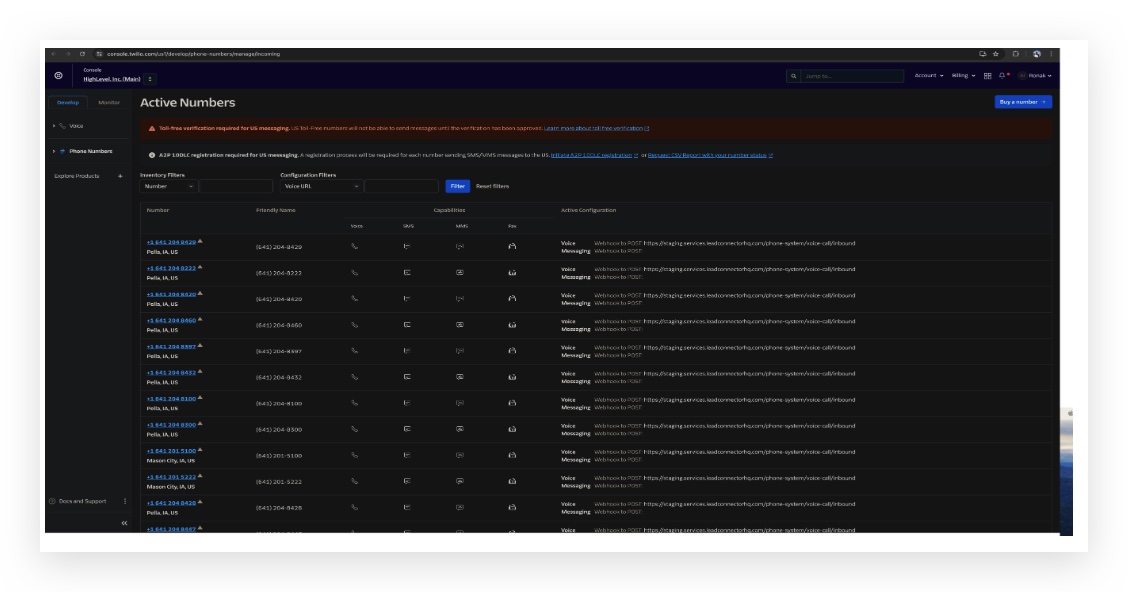
- Navigate to Phone Numbers > Manage > Active Numbers.
- Select the number that will be configured.
Access the Configure tab for the chosen number
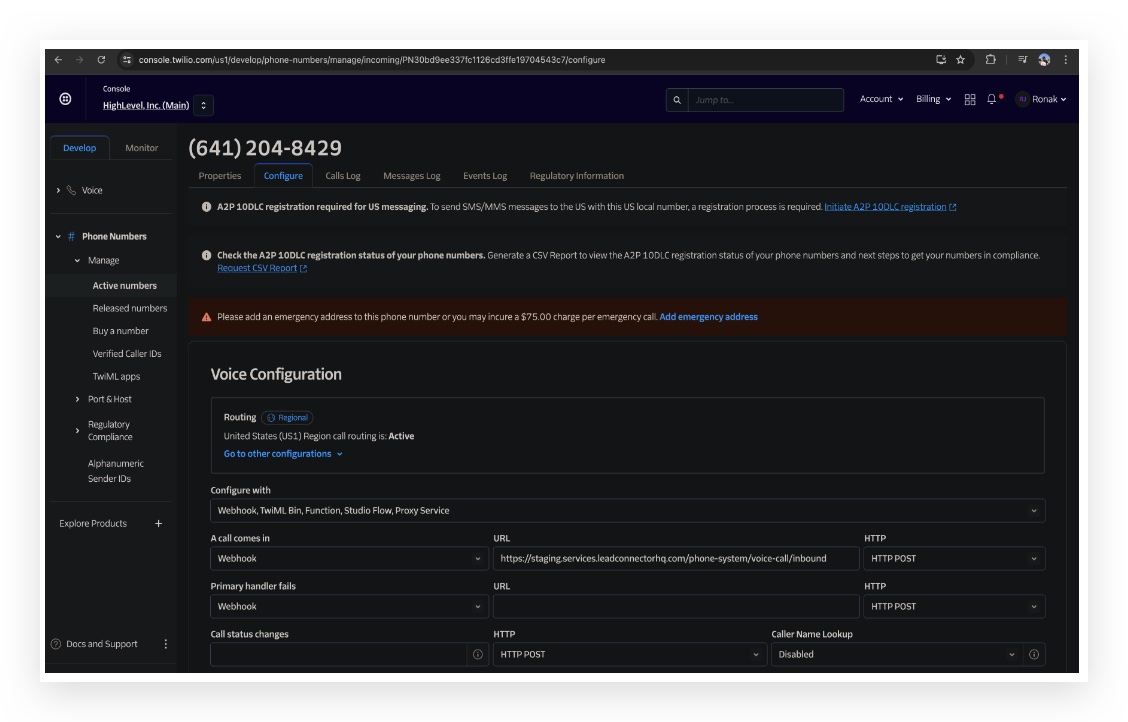
- Click the Configure tab displayed for the selected phone number.
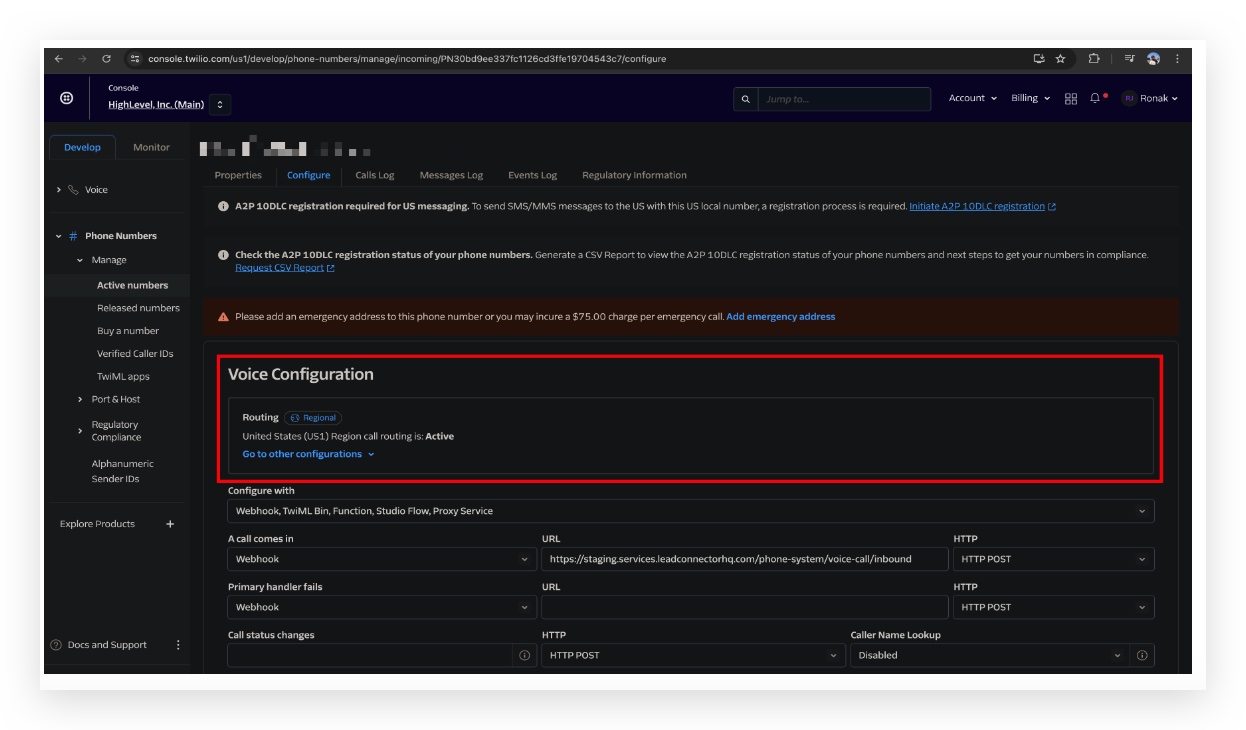
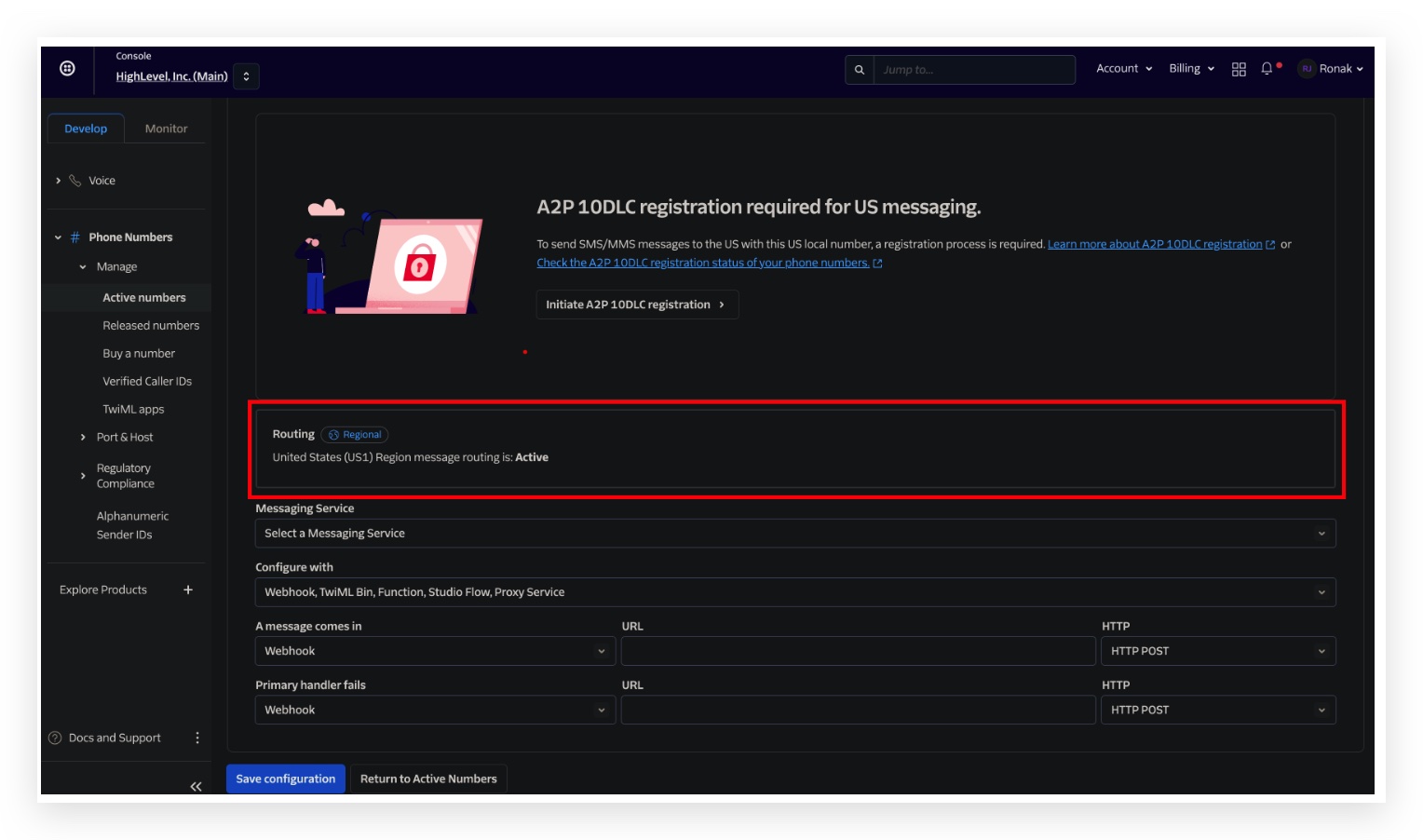
Verify US1 voice routing is active
- Look under Voice Configuration for the Routing section.
- Confirm the region shows United States (US1) and the status reads Active.
Enter voice webhook URLs and save
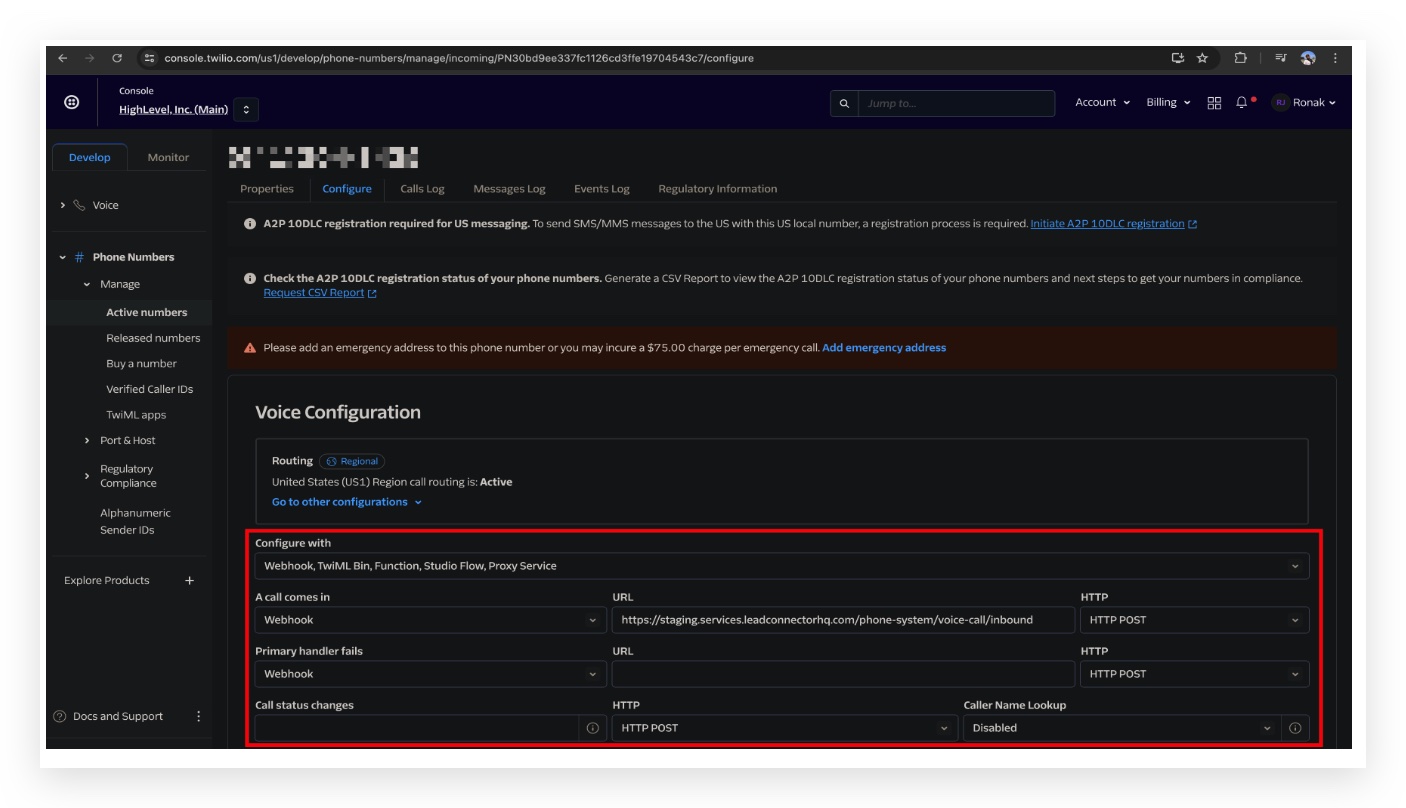
- Set "Configure with" to Webhook for the "A call comes in" field.
- Paste https://services.leadconnectorhq.com/phone system/voice call/inbound into the Incoming Call URL field.
- Choose HTTP POST as the method for the incoming call webhook.
- Set the Call status changes URL to https://services.leadconnectorhq.com/appengine/twilio/incoming_call_status.
- Choose HTTP POST for the call status webhook.
- Leave Caller Name Lookup at the current preference.
- Save the voice configuration.
Confirm US1 messaging routing is active
- In the Messaging configuration section, verify the United States (US1) Region message routing shows Active.
Configure incoming message webhook
- If the number is not attached to a Messaging Service, stay on the number’s Configure page.
- Set "Configure with" to Webhook under Messaging.
- Select "A message comes in" as Webhook.
- Enter https://services.leadconnectorhq.com/appengine/twilio/incoming_message as the URL.
- Choose HTTP POST as the method.
- Save the messaging settings.
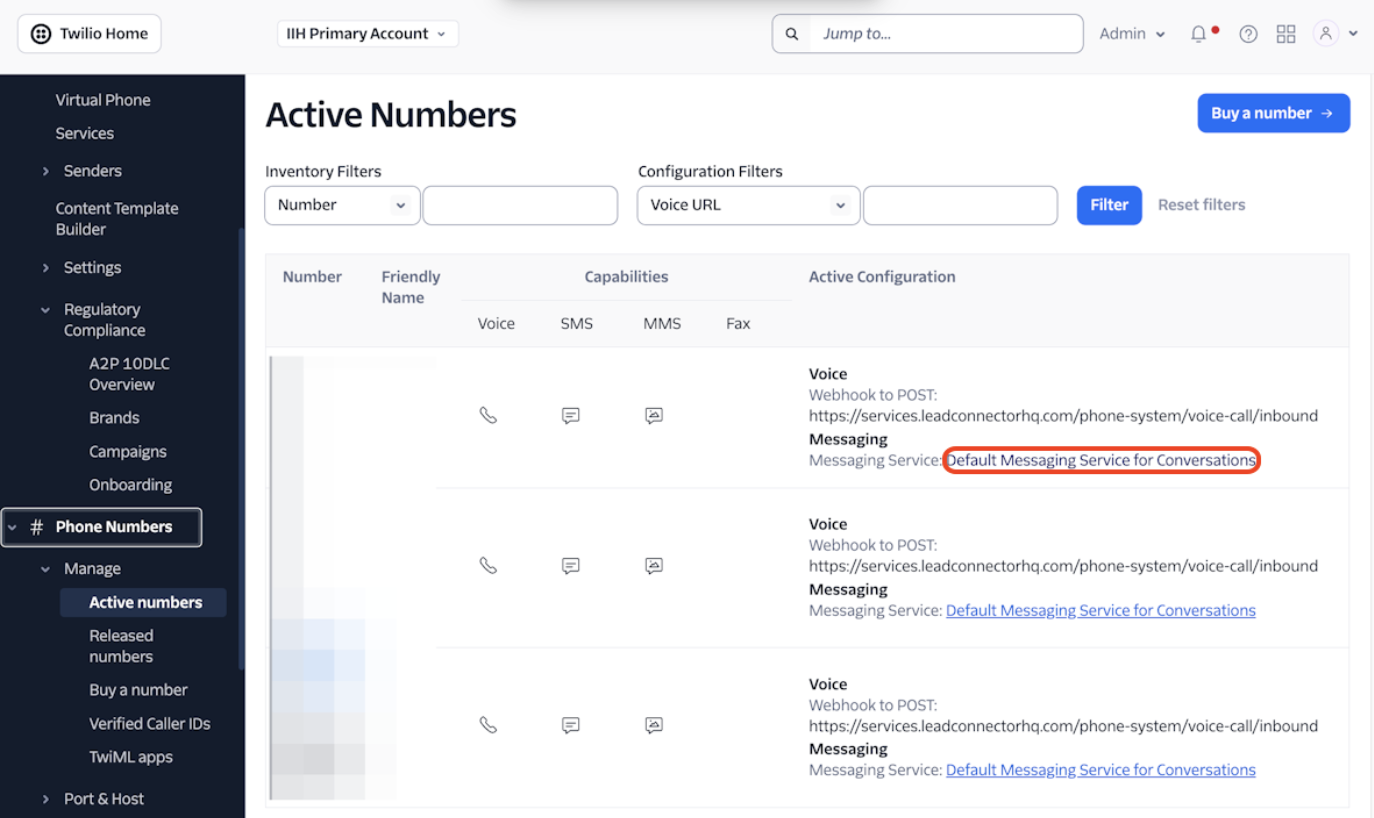
- If the number uses a Messaging Service, click the linked service from the Active Numbers list.
- Open the Integration tab of the Messaging Service.
- Choose "Send a webhook" for Incoming Messages.
- Enter https://services.leadconnectorhq.com/appengine/twilio/incoming_message as the Request URL.
- Set the Request URL method to HTTP POST.
- Enter the same URL as the Fallback URL.
- Set the Fallback URL method to HTTP POST.
- Save the Messaging Service integration.
Test the webhook configuration
- Place a call to the Twilio number from another phone and confirm the call appears in HighLevel.
- Send an SMS or MMS to the Twilio number and verify it shows up in Conversations.
- Check the associated call record in HighLevel to see that status information updates correctly.
07What it looks like in HighLevel
08Settings that matter
- Incoming Call URL. Defines where Twilio posts data when a call is received; HighLevel uses this to create a new inbound call record.
- Call status changes URL. Receives updates about call progress (e.g., ringing, answered, completed) so HighLevel can keep the call log current.
- A message comes in (Messaging webhook). Specifies the endpoint that Twilio calls when an SMS or MMS arrives; HighLevel stores the message in Conversations.
- Messaging Service Request URL. The URL used by a Twilio Messaging Service to deliver inbound messages to HighLevel.
- Fallback URL. A secondary URL Twilio calls if the primary messaging request fails; for this setup it mirrors the primary message URL.
09Things to know before you rely on it
- The steps apply only to locations that use a dedicated Twilio account, not to numbers managed by HighLevel’s native LC Phone.
- Do not replace webhook values that belong to another integration unless the number should now be routed into HighLevel.
- Voice and messaging endpoints are distinct; mixing them will prevent proper handling.
- The call status endpoint must stay in the phone number Voice Configuration, not in a Messaging Service delivery status field.
10If something goes wrong
- Incoming calls are not appearing in HighLevel. Check that the correct number is selected, US1 voice routing is Active, the inbound call webhook is set to Webhook, the URL matches exactly, the method is HTTP POST, and the configuration has been saved.
- Call status updates are missing. Verify the Call status changes URL is correct and uses HTTP POST; remember this endpoint is separate from the inbound call URL.
- Incoming SMS does not show in Conversations. Determine whether the number uses a Messaging Service. If it does, review the service’s Integration settings; otherwise, check the number level messaging webhook and ensure the number supports SMS.
- Webhooks look correct but messages still fail. Open Twilio’s Messaging Logs, confirm the message reached Twilio, note its status and Message SID, and provide those details when escalating the issue.
- Configured the wrong Twilio subaccount. Validate that the phone number belongs to the same Twilio subaccount linked to the HighLevel location before changing any webhook values.
- Webhook values keep reverting. Identify any other application or integration that may be managing the Twilio number and stop it from overwriting the webhook settings.
11How it connects to the rest of HighLevel
- Learn how to connect an existing number to HighLevel’s call forwarding feature. Call forwarding
- Review pricing details for the HighLevel phone system and rebilling information. Pricing and billing
- Read best practices for A2P 10DLC campaign approval, which is separate from webhook setup. A2P 10DLC guide
- Start a 30 day trial of HighLevel to test webhook integration in a fresh environment. 30 day trial
- Explore the Founder Plan if you need advanced phone system capabilities. Founder Plan
Michael's take

Twilio webhooks are essential if you run your own Twilio numbers and need them to feed calls and texts into HighLevel.
If you rely solely on HighLevel’s native LC Phone System, you can skip this entire setup.