
01Who this is for
- Team leaders who need consistent talk tracks for their agents, ensuring every call follows approved language.
- New hires who require step by step guidance to accelerate onboarding and reduce reliance on external notes.
- Compliance officers who want agents to reference required disclosures without searching separate documents.
02Call scripts, explained
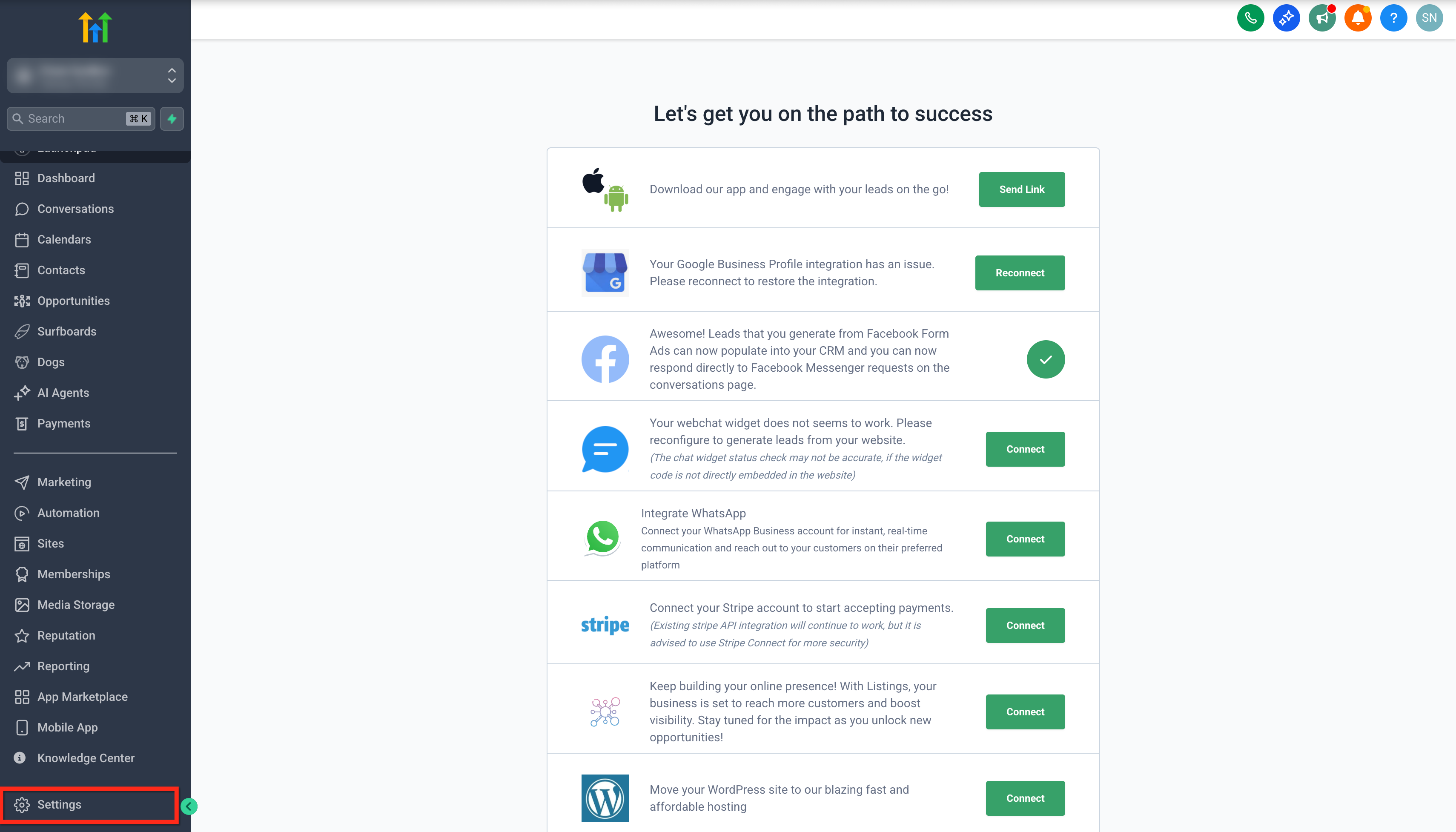
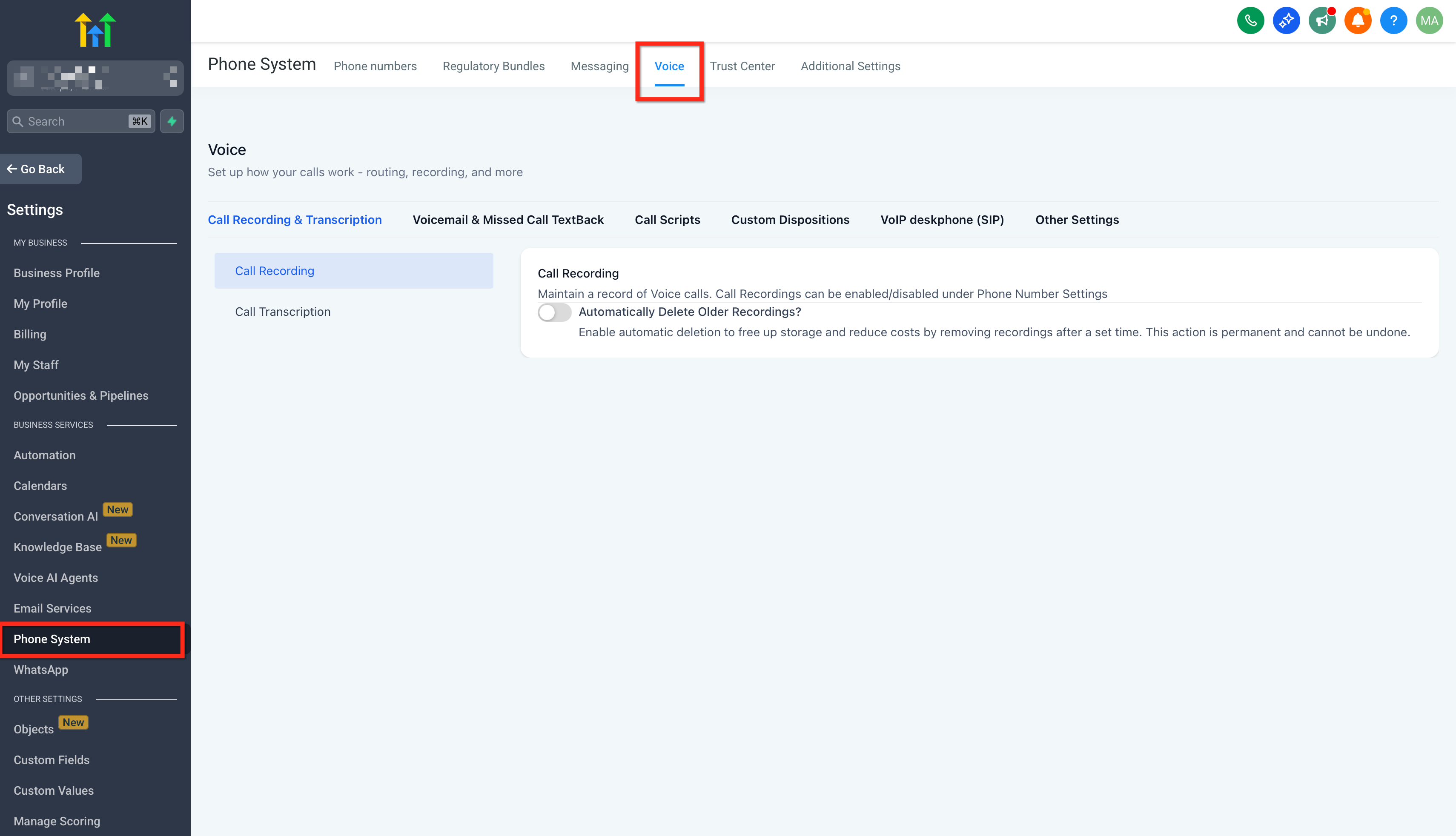
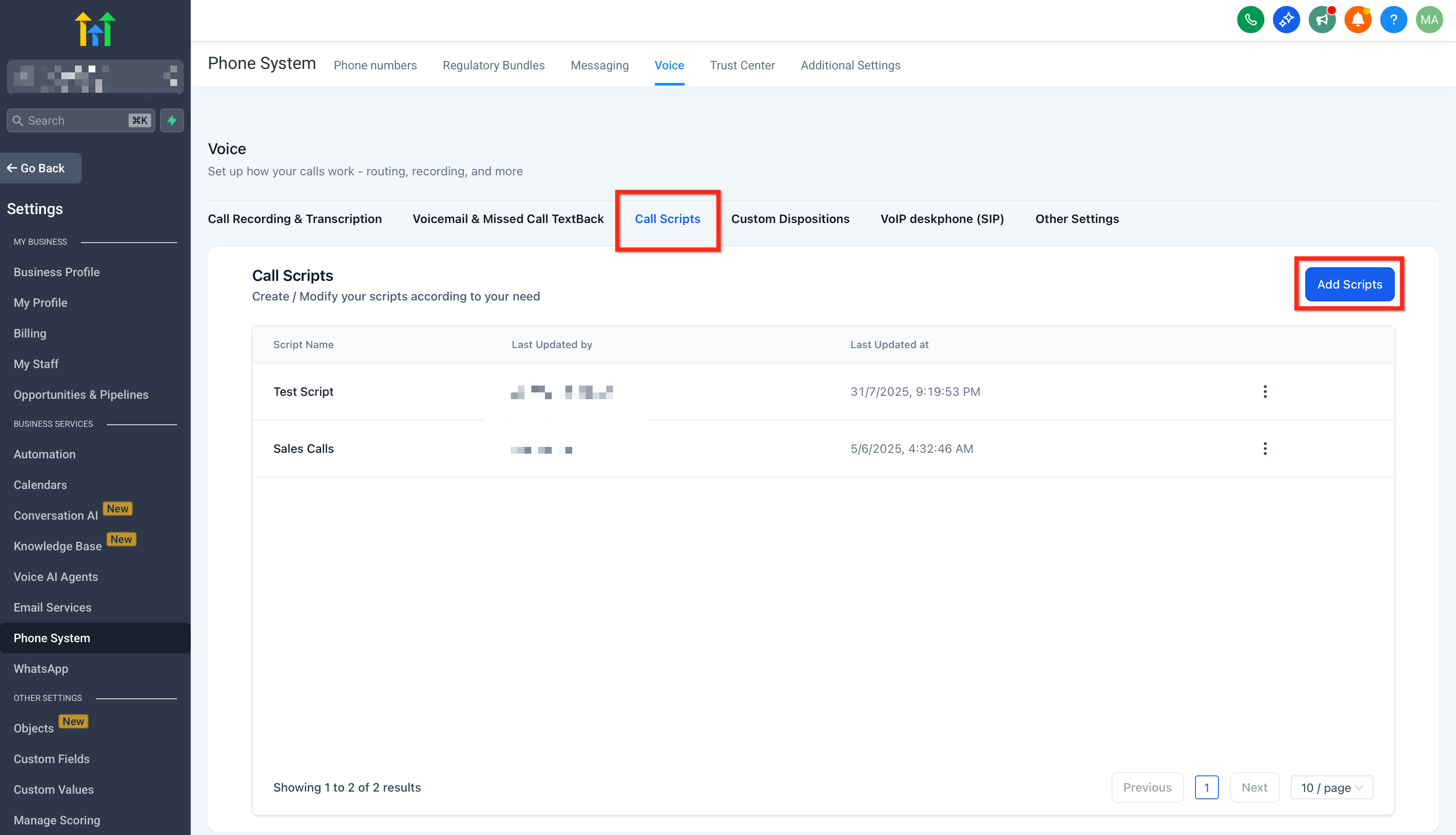
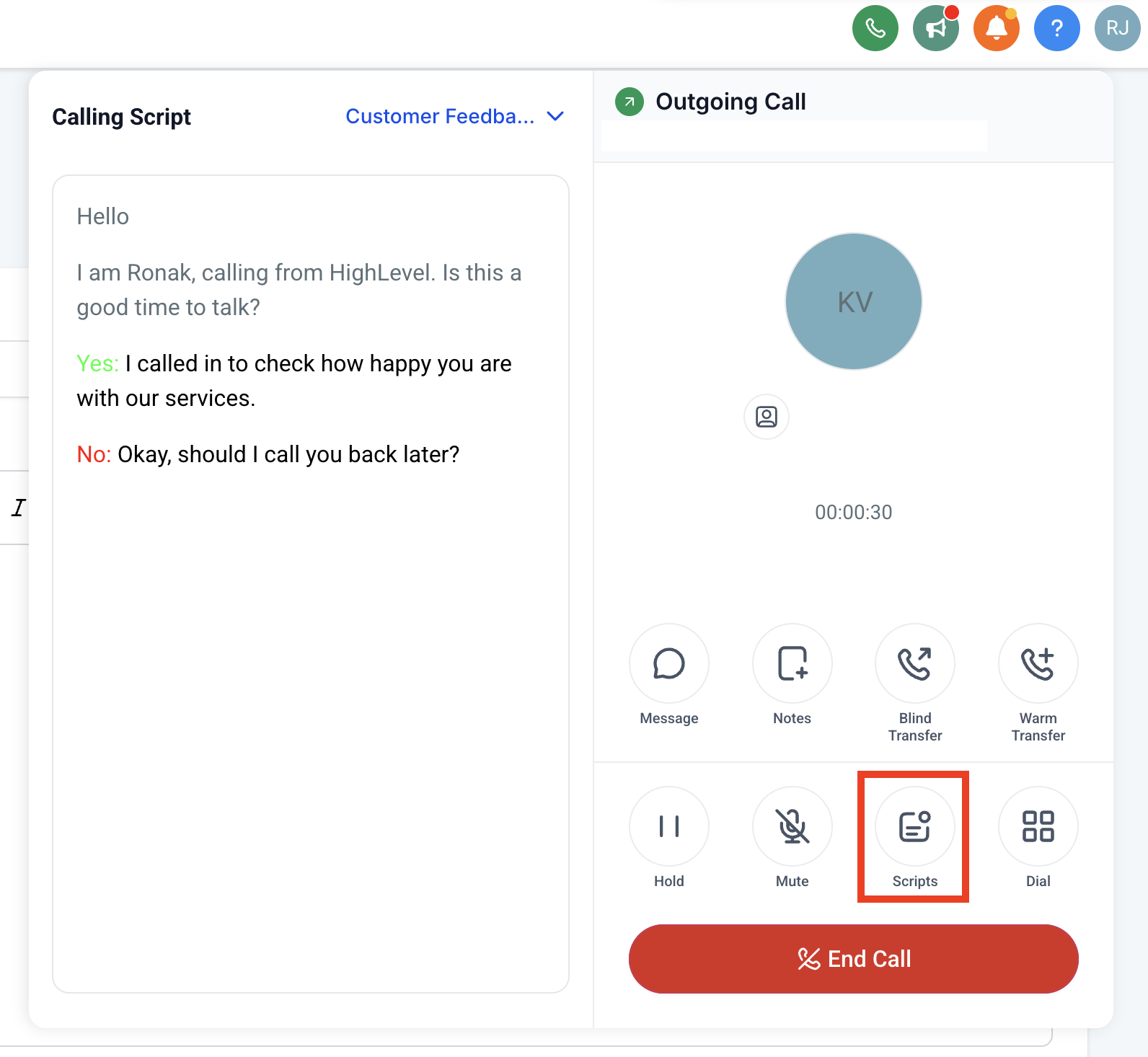
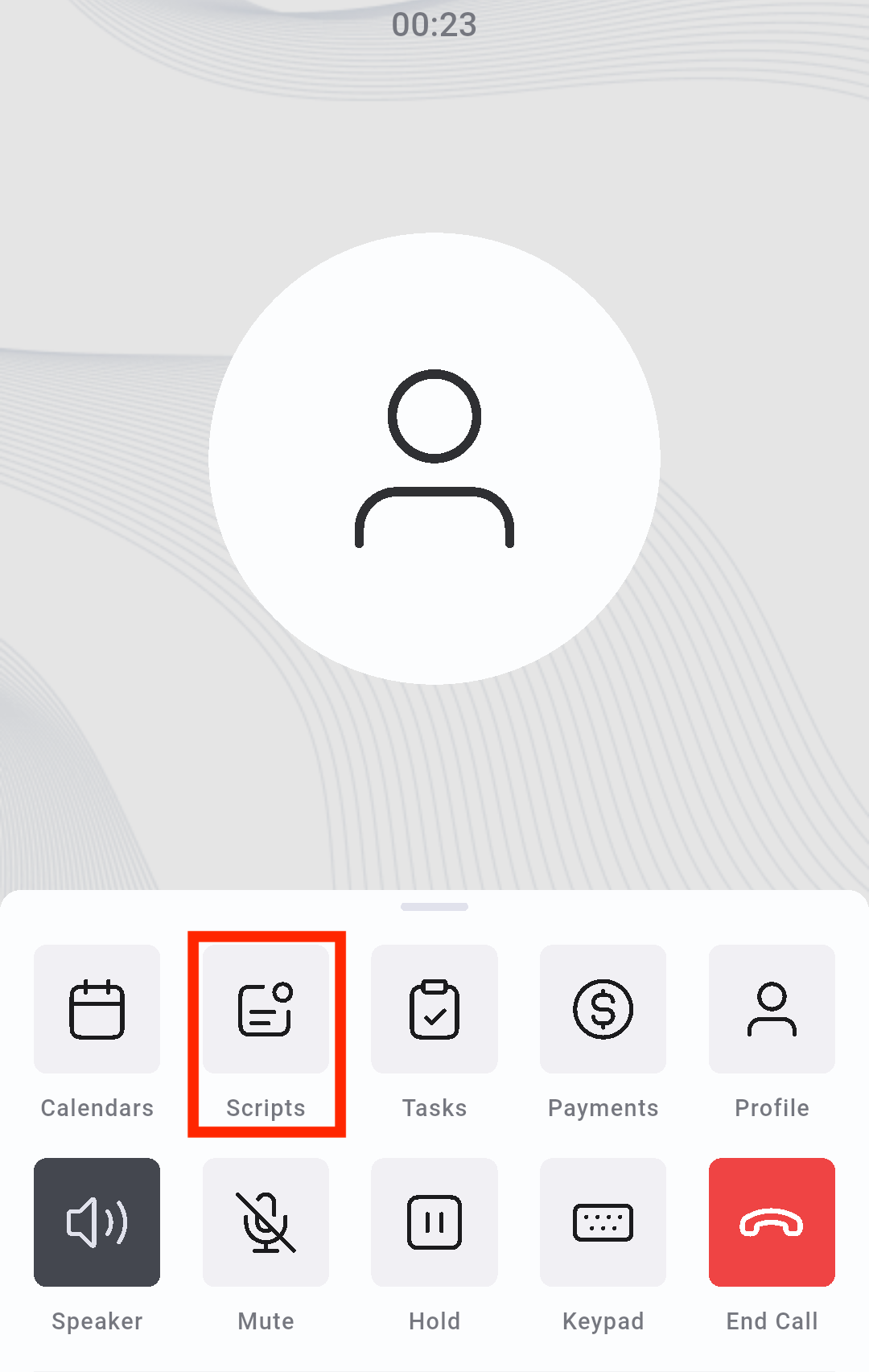
Call Scripts are stored at the subaccount level under Settings > Phone Systems > Voice > Call Scripts. Agents can open a script during an inbound or outbound call from the HighLevel Web Dialer, HighLevel Mobile App, or LeadConnector Mobile App. The script appears as a plain text pane that remains visible while the call continues.
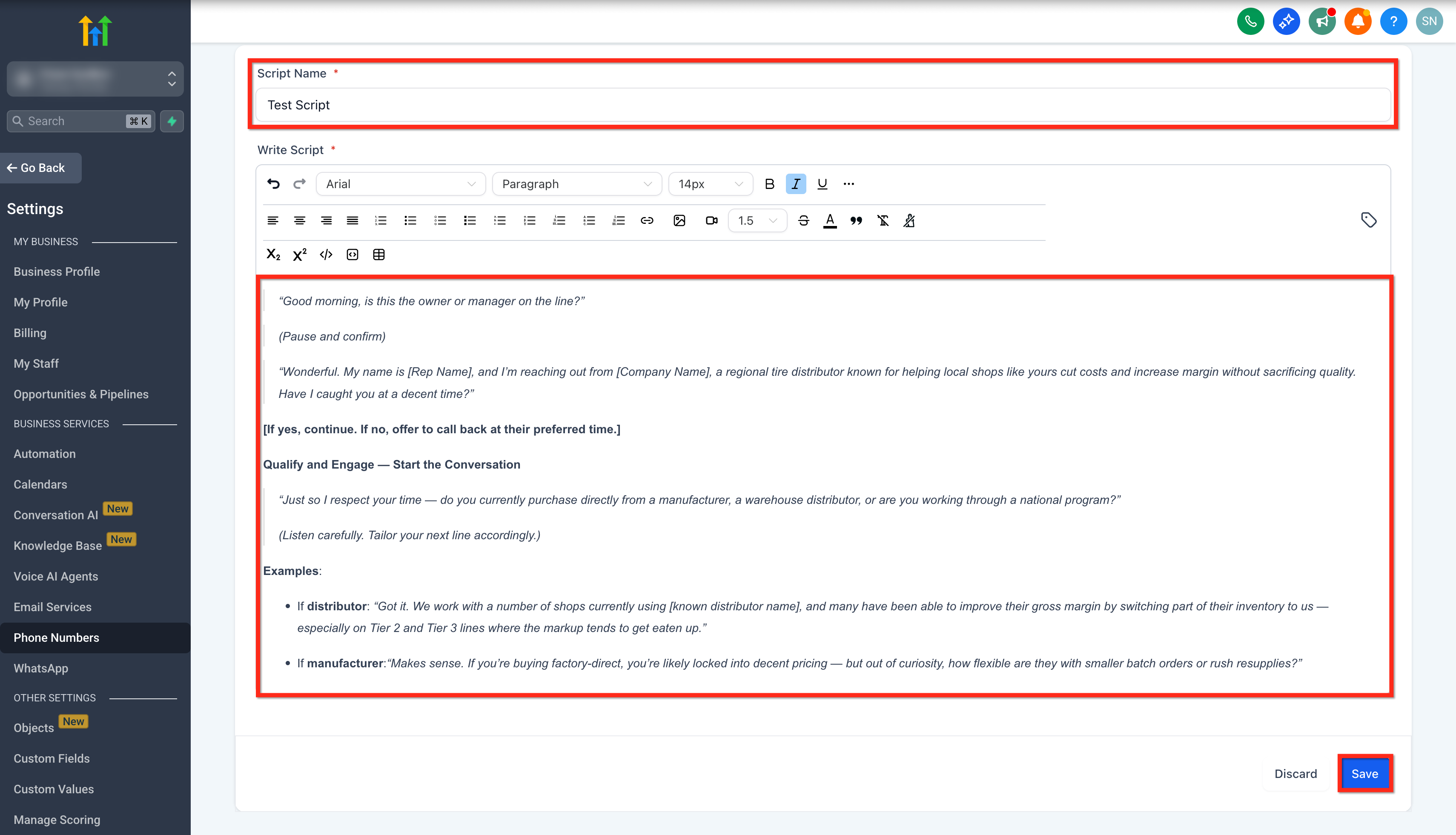
Only simple text is accepted; formatting such as bold, italics or clickable links is not available. Scripts can be edited at any time from the web interface, and saved changes appear the next time a user opens or reloads the script. Switching scripts during a call does not affect the call itself.
03How businesses use call scripts
- Real estate brokerage. Agents create a script that lists opening remarks, property qualification questions, and disclosure language. During each client call they tap Scripts, select the script, and read the prompts to keep conversations structured.
- Dental practice. Front desk staff generate a script with appointment confirmation steps and insurance verification questions. While calling patients they open the script from the mobile app and follow each line to ensure nothing is missed.
- Insurance agency. Agents build a script containing required compliance statements and objection handling responses. As they speak with prospects, they pull up the script in the web dialer and switch to a different script if the conversation moves to another product.
04Before you start
- Log in to the correct subaccount where the script will be created.
- Use the latest version of the HighLevel or LeadConnector mobile app if you plan to access scripts from a phone.
- Create at least one script before attempting to open it during a call.
05How to set up and use call scripts in HighLevel
Create a new call script
- Sign in to the subaccount and open Settings.
- Select Phone Systems, then choose Voice.
- Open Call Scripts and click the Add Scripts button.
- Enter the desired content as plain text and click Save.
Open and follow a call script during a call
- Start or answer a call using the HighLevel Web Dialer, HighLevel Mobile App, or LeadConnector Mobile App.
- While the call is active, tap or click the Scripts option.
- Pick the appropriate call script from the list.
- Read the script and follow its prompts while speaking with the contact.
- If another script fits better, select a different one to replace the current view.
06What it looks like in HighLevel
07Settings that matter
- Call Scripts. Controls the library of plain text scripts that agents can open during live calls. Allows adding, editing, and assigning scripts to users or teams.
08Things to know before you rely on it
- Only plain text is accepted; rich text formatting and hyperlinks are not supported.
- The feature works only in the HighLevel Web Dialer, HighLevel Mobile App, and LeadConnector Mobile App.
- White label app updates for call scripts must be requested separately.
09If something goes wrong
- Call Scripts do not appear in the mobile app. Install the latest version of the HighLevel or LeadConnector mobile app and verify a script exists and is assigned to the user.
10How it connects to the rest of HighLevel
- Overview of the HighLevel phone dialer and its functions Phone dialer overview
- Enable spam detection and caller ID validation for inbound calls Number intelligence
- Details on pricing and rebilling for the HighLevel phone system Phone system pricing
Michael's take

Having the script right in the dialer lets agents stay focused on the call.
A plain text script gives agents a quick reference instead of juggling external notes.