
01Who this is for
- Sales teams can dial leads without leaving the platform, keeping call history linked to contacts.
- Customer support agents can receive calls, transfer them, and access voicemails without separate phone hardware.
- Agency owners can manage multiple numbers across subaccounts and assign call scripts for consistent messaging.
02Phone dialer, explained
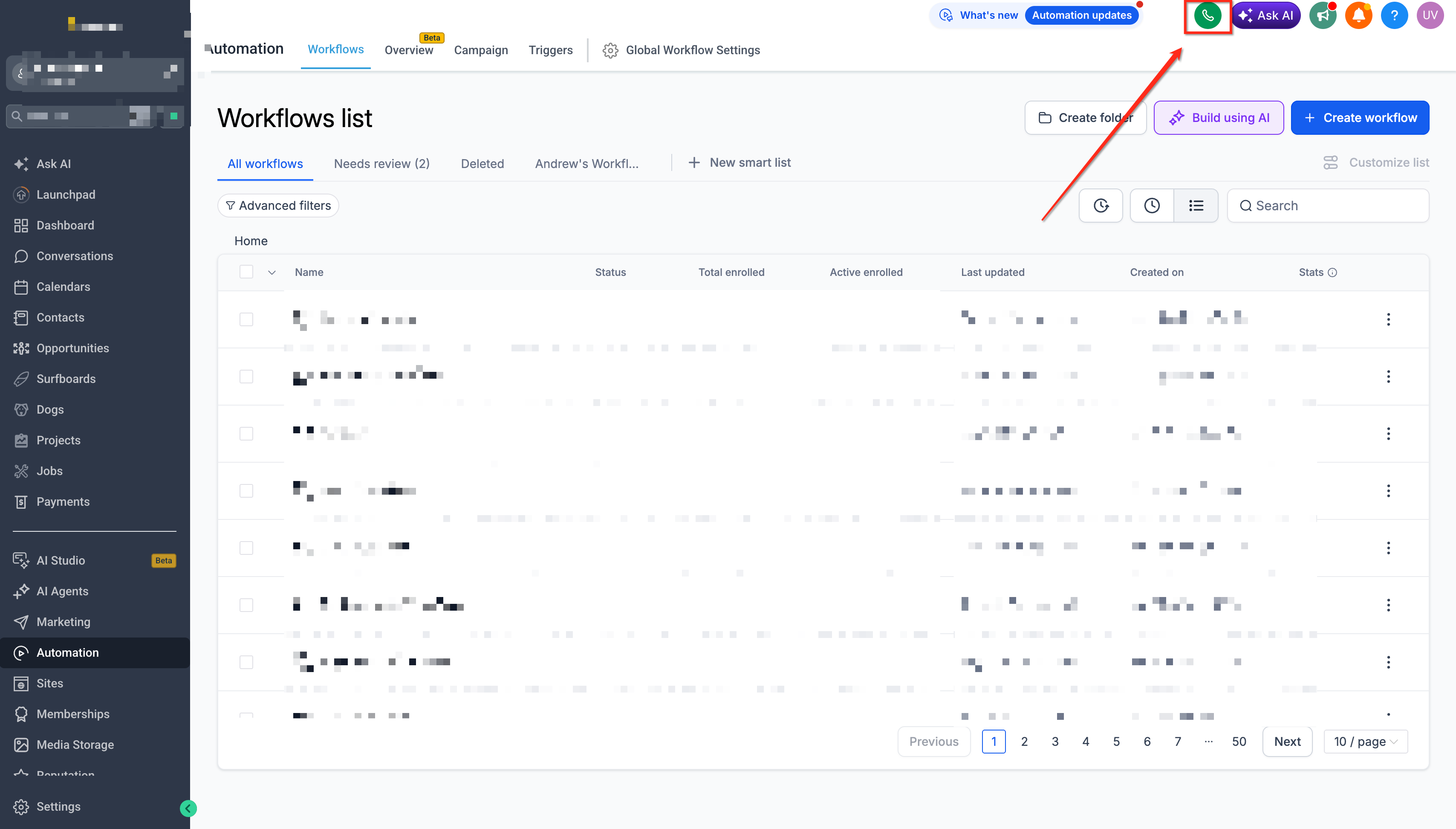
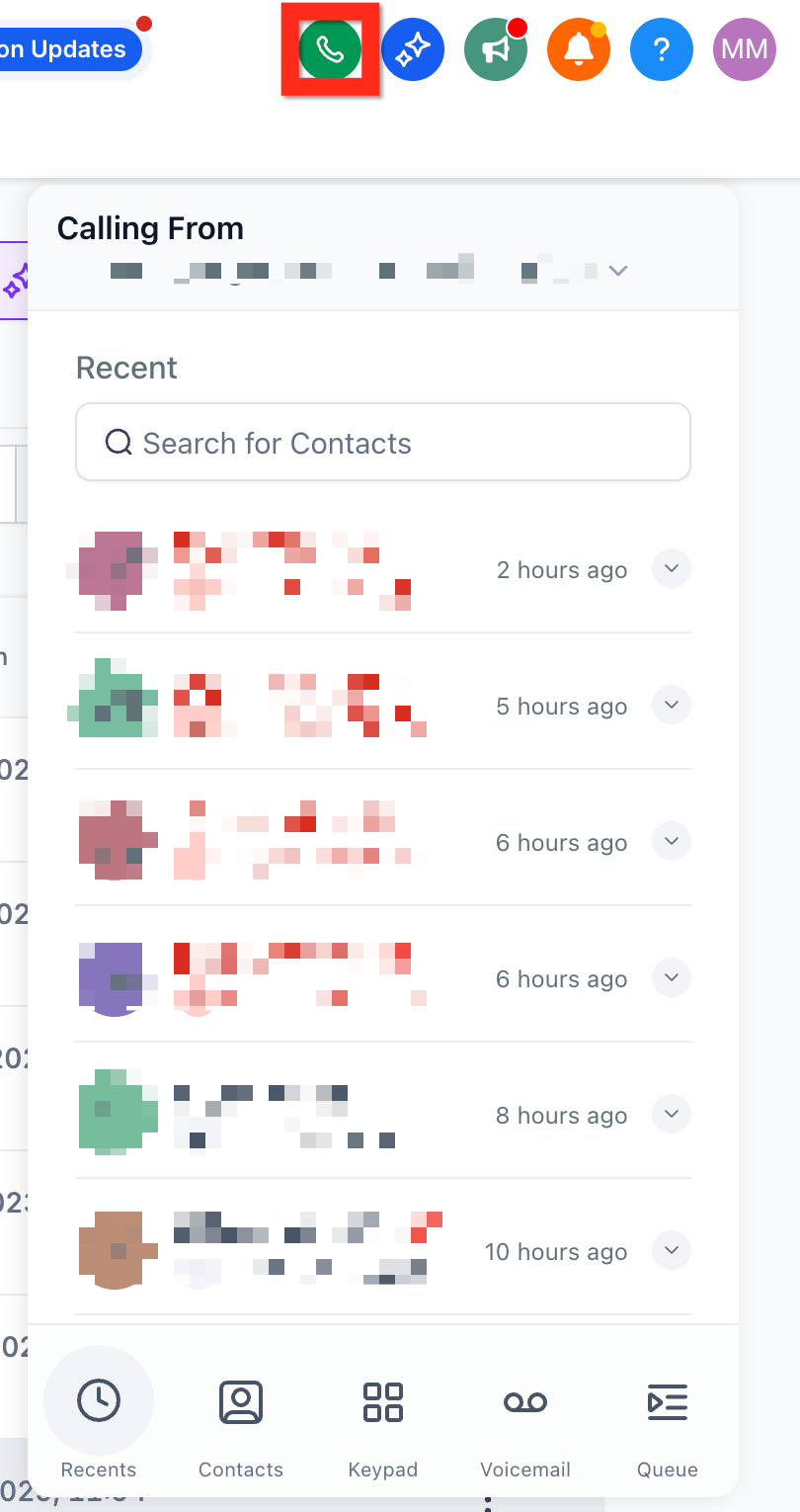
The Web Dialer is a browser based calling tool built into HighLevel. It appears when you click the phone icon in the top navigation bar. The interface allows you to search contacts, type a number, and start a call with a single click. All call activity is recorded on the related contact record.
Audio control is handled inside the dialer. You can pick a main speaker, a microphone, and optionally an extra device that rings for inbound calls. The settings are saved locally in each browser, so you must configure them on every computer you use. The dialer also supports mute, hold, warm and blind transfers, and a dialpad for IVR navigation.
When you place a call, the number shown to the recipient comes from the "Calling From" field. Users with permission see a dropdown of all numbers they can use and must confirm the correct one before dialing. The dialer works in any modern browser that grants microphone access.
03How businesses use phone dialer
- Real estate agency. Agents search a lead by name in the dialer, confirm the agency’s main number in the Calling From field, and place the call. They can use the built in dialpad to navigate any automated menus and access voicemails from the same screen.
- Dental practice. Reception staff select a patient contact, choose the clinic’s office number, and call to confirm appointments. They configure a headset as the microphone and speaker, test the devices, and use the voicemail list to listen to missed messages.
- Marketing agency. Outbound prospectors open the dialer, load a pre written call script, and follow the script while speaking. They can warm transfer a prospect to a specialist by placing a second call before bridging, all without leaving HighLevel.
04Before you start
- Subaccount must have an active phone number or a configured caller ID.
- User must have permission to access calling features.
- Browser must be allowed to use the microphone.
- Preferred speaker, headset, and microphone should be connected.
- If extensions, VPNs, or restrictive networks are used, test without them.
05How to set up and use phone dialer in HighLevel
Set up the Phone Dialer
- Click the phone icon in the top navigation bar to open the Web Dialer.
- When the browser prompts, grant permission for microphone use.
- Open the gear icon, pick the main speaker, microphone, and optional additional ring device, then test them.
- Save the audio settings.
- Check the Calling From field and, if needed, select the correct business number from the dropdown.
- Use the contact search box to find a contact or type a phone number directly in the dialpad.
- Make a test call to confirm that audio and calling functions work as expected.
06What it looks like in HighLevel
07Settings that matter
- Main Speaker. Selects which speaker output the call audio will use.
- Additional Ring Device. Optional device that rings for inbound calls, useful for headsets or external speakers.
- Microphone. Chooses the audio input device for your voice during calls.
- Calling From. Dropdown that determines which business phone number is displayed to the call recipient.
08Things to know before you rely on it
- Audio preferences are stored locally in each browser and do not sync across devices.
- If only one browser or device shows problems, reconfigure audio permissions and device choices in that environment.
- The dialer requires a valid outbound number; calls cannot be placed without it.
09If something goes wrong
- No microphone or audio. Check browser permissions and Audio Device Settings. Verify that the browser has microphone access and the correct device is selected.
- Wrong microphone or speaker. Open the dialer gear icon, choose the desired device, and use the test tools to confirm it works.
- Dialer cannot place outbound calls. Ensure a valid outbound number is available, review the Calling From setting, and confirm user permissions allow outbound calls.
- Calls fail or disconnect. Temporarily disable browser extensions or VPNs, then test again. Verify outbound call timeout and settings are correct.
- Only one browser or device is affected. Reconfigure audio permissions and device preferences in that specific browser. Settings do not carry over to other browsers.
10How it connects to the rest of HighLevel
- Configure speaker and microphone for the Web Dialer Audio device settings
- Create and use call scripts within the dialer Call scripts guide
- Explore all phone system capabilities Phone system overview
Michael's take

The Phone Dialer keeps all calling activity inside HighLevel, which many users find convenient.