
01Who this is for
- Remote sales teams benefit by routing call audio to a headset while still hearing ring alerts on a desk speaker.
- Call center managers can ensure agents never miss inbound calls by setting a secondary ring device.
- Home based entrepreneurs can match their audio setup to their workspace using laptop speakers or external devices.
02Audio device settings, explained
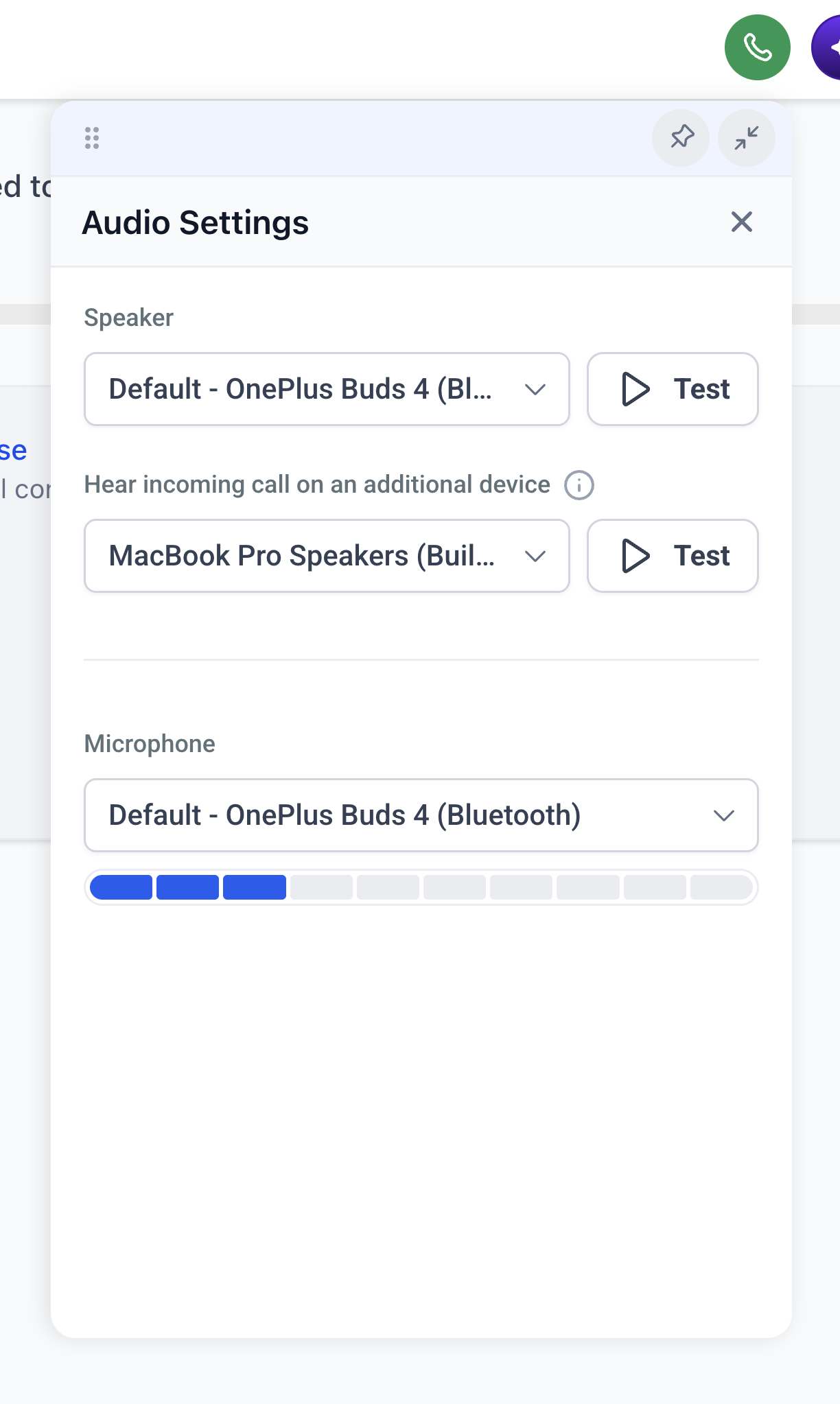
Audio Device Settings are a panel inside the Web Dialer where you pick the hardware that handles call sound. You select a main speaker for both inbound and outbound call audio, a microphone for speaking, and optionally an additional device that only rings for incoming calls. The panel includes dropdown menus, test buttons for speakers, and a live volume meter for the microphone.
The settings are stored locally in the browser you configure them in. Changing devices on another computer or in a different browser requires repeating the configuration. Once saved, the choices apply automatically each time you open the Web Dialer on that device.
03How businesses use audio device settings
- Call center. The manager opens the gear icon in the Web Dialer, sets the headset as the main speaker, selects the office speaker as the additional ring device, picks the headset microphone, tests each option, and saves. The setup lets agents hear rings on both devices and use the headset for conversation.
- Remote sales consultant. The consultant clicks the audio settings gear, chooses a Bluetooth speaker as the main speaker, selects the laptop built in mic, optionally adds a second device for ringing, tests the audio, and saves. This lets calls sound through the preferred speaker while the mic captures their voice clearly.
- Home based business owner. The owner accesses the audio settings, picks a wired headset as the main speaker, adds the desktop speaker as the additional ring device, selects the headset mic, uses the volume meter to confirm sound, and saves. The configuration ensures rings are heard even when the headset is not worn.
04How to set up and use audio device settings in HighLevel
Configure audio device settings for the Web Dialer
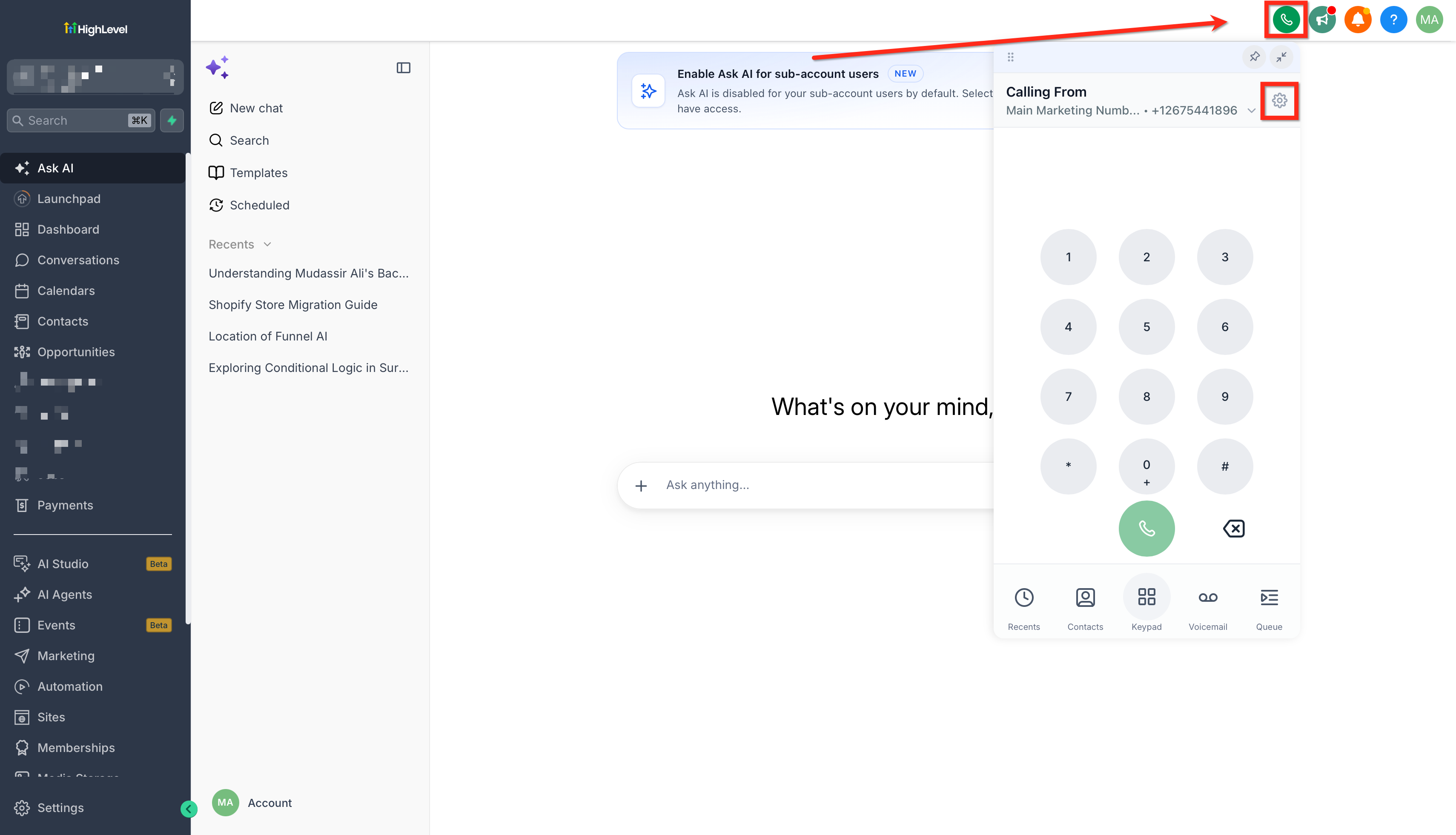
- Click the gear icon in the Web Dialer header to open the audio settings panel.
- Choose the desired main speaker from its dropdown and use the test button to preview it.
- If needed, select an additional ring device from its dropdown and test its ring behavior.
- Pick a microphone from its dropdown and verify its activity with the live volume meter.
- Press the save button to apply the chosen devices for future calls.
- If an audio device disconnects during a call, the browser may switch to another device; reopen the audio settings and re select the correct devices.
05What it looks like in HighLevel
06Settings that matter
- Main Speaker. Determines which output device plays all call audio during a conversation.
- Additional Ring Device. Specifies a second device that rings only for inbound calls; it does not handle call audio.
- Microphone. Selects the input device that captures your voice, showing a live volume meter for verification.
07Things to know before you rely on it
- Only one main speaker and one additional ring device can be configured; more than two devices cannot ring simultaneously.
- The additional ring device does not play audio once a call is answered; only the main speaker does.
- Audio device settings are saved locally in the browser; they do not transfer automatically to other browsers or computers.
08If something goes wrong
- Audio device does not appear in the dropdown menus. Make sure the device is properly connected, refresh the Web Dialer or restart the browser, and verify the device is available in the operating system’s sound settings.
- Settings are not applied on another computer. Configure the audio devices again on the new computer or in a different browser, as settings are stored per browser.
09How it connects to the rest of HighLevel
- Overview of the HighLevel web dialer for outbound calls Web dialer overview
- Create and use call scripts within HighLevel dialers Call scripts
- Set up call forwarding to your HighLevel phone number Call forwarding
Michael's take

Missing an inbound call because the ring goes to a device you’re not looking at is frustrating for any small business that relies on phone leads. The first thing I would make sure of is that the main speaker is set to the headset you use for calls so the conversation is clear, and the additional ring device is set to your computer speaker so you hear the ring even when you step away.
Once that’s set, I’d run a quick test of the microphone and speakers using the built in test buttons. It’s a simple way to confirm everything works before you start taking calls on a new computer or browser.