
01Who this is for
- Agency admins, keep onboarding consistent across new client subaccounts by pre defining phone system settings.
- Marketing agencies, ensure each new client starts with the correct messaging limit and Number Intelligence enabled.
- Call center managers, have the phone system automatically linked for every new subaccount, reducing manual setup.
02Default phone preferences, explained
Default phone preferences are agency level options that decide how certain LC Phone features are set when a subaccount is first created. They let agencies apply a uniform configuration for system linking, A2P registration, Number Intelligence and messaging capacity.
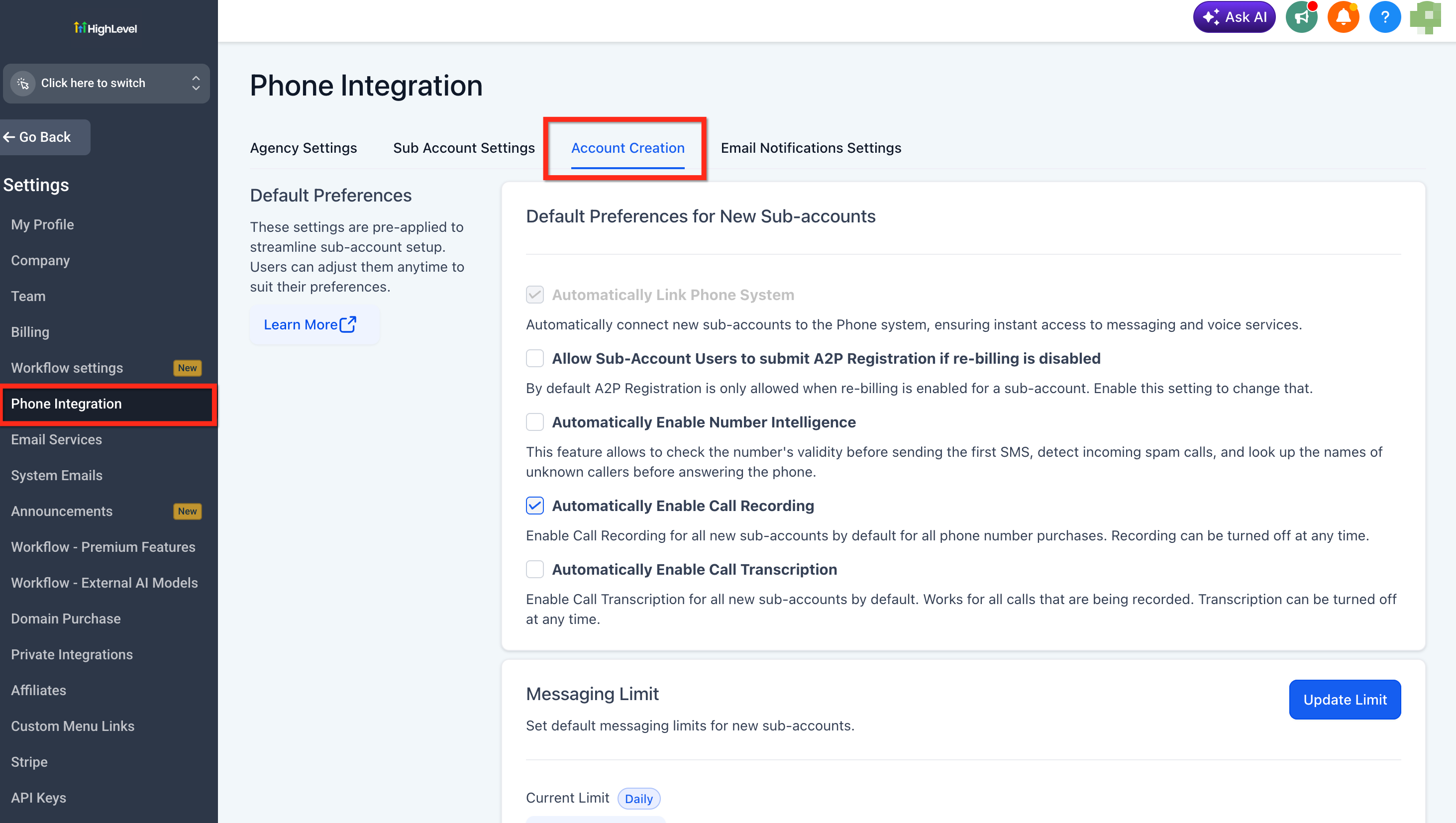
These preferences live under the Phone Integration section of Agency Settings. Within the Account Creation tab, admins can toggle each option and choose the messaging limit that new subaccounts inherit. Changes take effect only for subaccounts created after the adjustment.
03How businesses use default phone preferences
- Marketing agency. The agency enables Number Intelligence as a default so every new client subaccount validates numbers, blocks spam calls and shows caller names. This is set once in the Account Creation tab and applies automatically to all future subaccounts.
- Call center provider. The provider activates the Automatically Link Phone System option so new subaccounts immediately gain access to voice and messaging services without additional configuration steps.
- Compliance consultancy. The consultancy allows subaccount users to submit A2P registration even when rebilling is off, giving clients the ability to start the registration process while the consultancy handles compliance requirements.
04The numbers and rules that matter
- Allow Subaccount Users to Submit A2P Registration if ReBilling is Disabled. Optional setting.
- Messaging Limit. Current limit is Messaging Ramp (default).
05How to set up and use default phone preferences in HighLevel
Modify default phone preferences
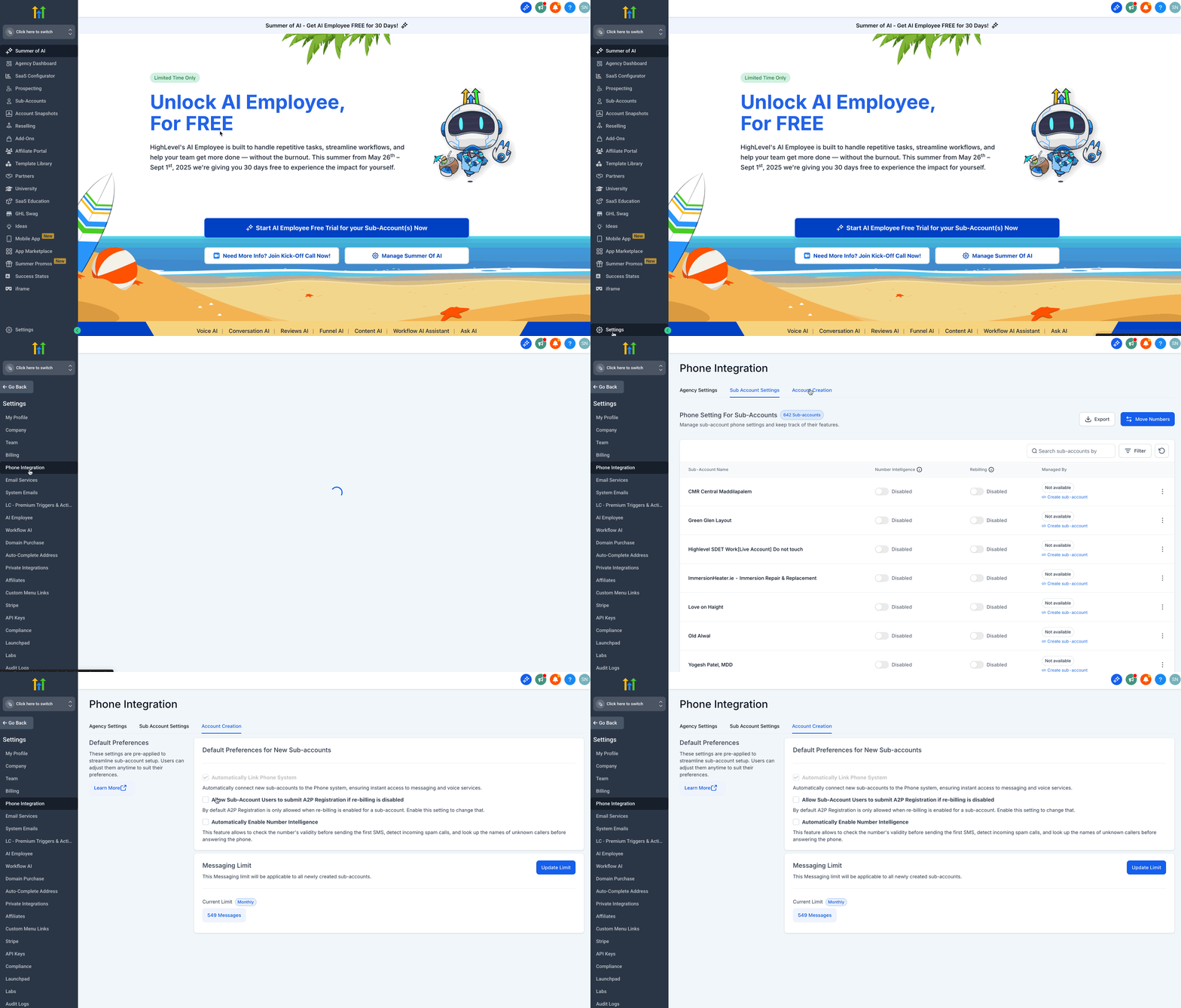
- Log in to the Agency Account and open Settings.
- Select Phone Integration.
- Open the Account Creation tab.
- Adjust the preferences as needed.
06What it looks like in HighLevel
07Settings that matter
- Automatically Link Phone System. Determines whether new subaccounts are connected to the phone system automatically.
- Allow Subaccount Users to Submit A2P Registration if Re, Billing is Disabled. Controls if subaccount users can initiate A2P registration when rebilling is not active.
- Automatically Enable Number Intelligence. Turns on Number Intelligence for new subaccounts, providing number validation, spam detection and caller name lookup.
- Messaging Limit. Sets the default messaging capacity for newly created subaccounts.
08Things to know before you rely on it
- Defaults apply only during the creation of new subaccounts; they do not change existing ones.
- The Allow Subaccount Users to Submit A2P Registration setting is optional and does not register the subaccount automatically.
- Number Intelligence can be enabled or left disabled as a default; it is optional.
- The default Messaging Limit is set to Messaging Ramp, but can be modified for future subaccounts.
09How it connects to the rest of HighLevel
- Learn more about Number Intelligence and its spam detection features. Number Intelligence
- See how to connect an existing phone number to the HighLevel system. Call forwarding
- Review pricing details and rebilling rules for the phone system. Pricing guide
Michael's take

Ever wonder why every new subaccount you add seems to need the same phone settings tweaked? The default phone preferences let you set those choices once at the agency level, so each fresh subaccount arrives ready to send texts and take calls without you reclicking the same boxes.
If I were setting up a new agency, I’d turn on automatic phone linking and number intelligence right away. Then I’d double check the messaging limit matches the compliance rules I need, and I’d leave the A2P registration toggle off until I’m sure rebilling is part of the workflow.