
01Who this is for
- Office managers appreciate having a dedicated handset that logs call activity in HighLevel, keeping records organized.
- Sales team leaders benefit from quick extension dialing and blind transfers between reps without leaving the deskphone.
- Customer support supervisors can route inbound calls directly to agents’ deskphones while maintaining call tracking.
02Physical voip deskphones, explained
The physical VoIP deskphone (SIP) integration lets a compatible handset register with HighLevel so that calls are handled through the platform while the user works with a traditional phone. Each device receives a SIP domain, username or extension, and password that HighLevel generates. Once registered, the deskphone can make outbound calls, receive inbound calls routed to the assigned user, and participate in extension dialing and blind transfer workflows.
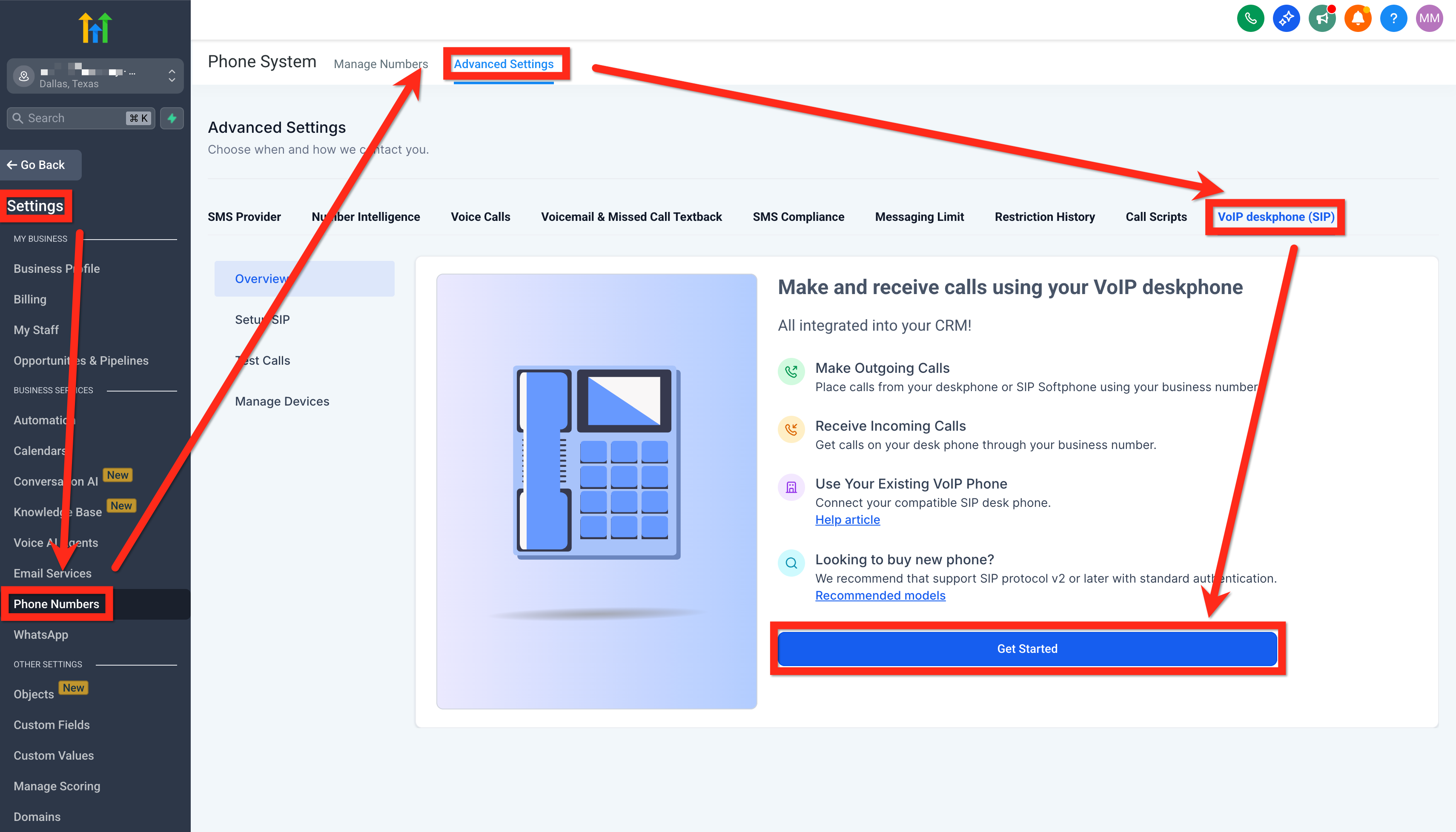
Configuration lives under Settings > Phone Numbers > Advanced Settings > VoIP deskphone (SIP). From there you set the SIP domain, create SIP users, assign devices to users, and manage inbound routing in Settings > My Staff. The Manage Devices screen lets you edit passwords or delete devices. Test Calls provides built in outbound and inbound verification tools.
Calls made from the deskphone keep full integration with HighLevel features such as call recording, transcription (when the Voice Intelligence add on is enabled) and activity logging. Extensions allow direct internal dialing, and blind transfers let a user move a call to another deskphone without dialing an external number.
03How businesses use physical voip deskphones
- Law firm. Attorneys register a deskphone, assign it to their user profile, and enable Deskphone (SIP) for inbound routing. Calls automatically appear in client records, and partners can dial each other's extensions for quick case discussions.
- Real estate agency. Agents set up deskphones, configure Ring All to ring all devices, and use blind transfers to hand off leads to specialists. The built in test calls validate that the network allows SIP traffic before agents go live.
- IT consulting company. Technicians register deskphones for each support tier, use unique extensions for internal calls, and run the outbound and inbound test calls to confirm registration and audio quality after a new office installation.
04The numbers and rules that matter
- Outbound SIP ports: 5060/5061.
- RTP audio ports: UDP 10000, 20000.
05Before you start
- A compatible open SIP deskphone that supports manual SIP account entry.
- Network that allows outbound SIP ports 5060/5061 and UDP ports 10000 to 20000 for RTP.
- Administrative role (Agency Admin or Subaccount Admin) with permission to provision deskphones.
06How to set up and use physical voip deskphones in HighLevel
Set up a physical VoIP deskphone (SIP)
- Open Settings > Phone Numbers > Advanced Settings > VoIP deskphone (SIP) and click Get Started.
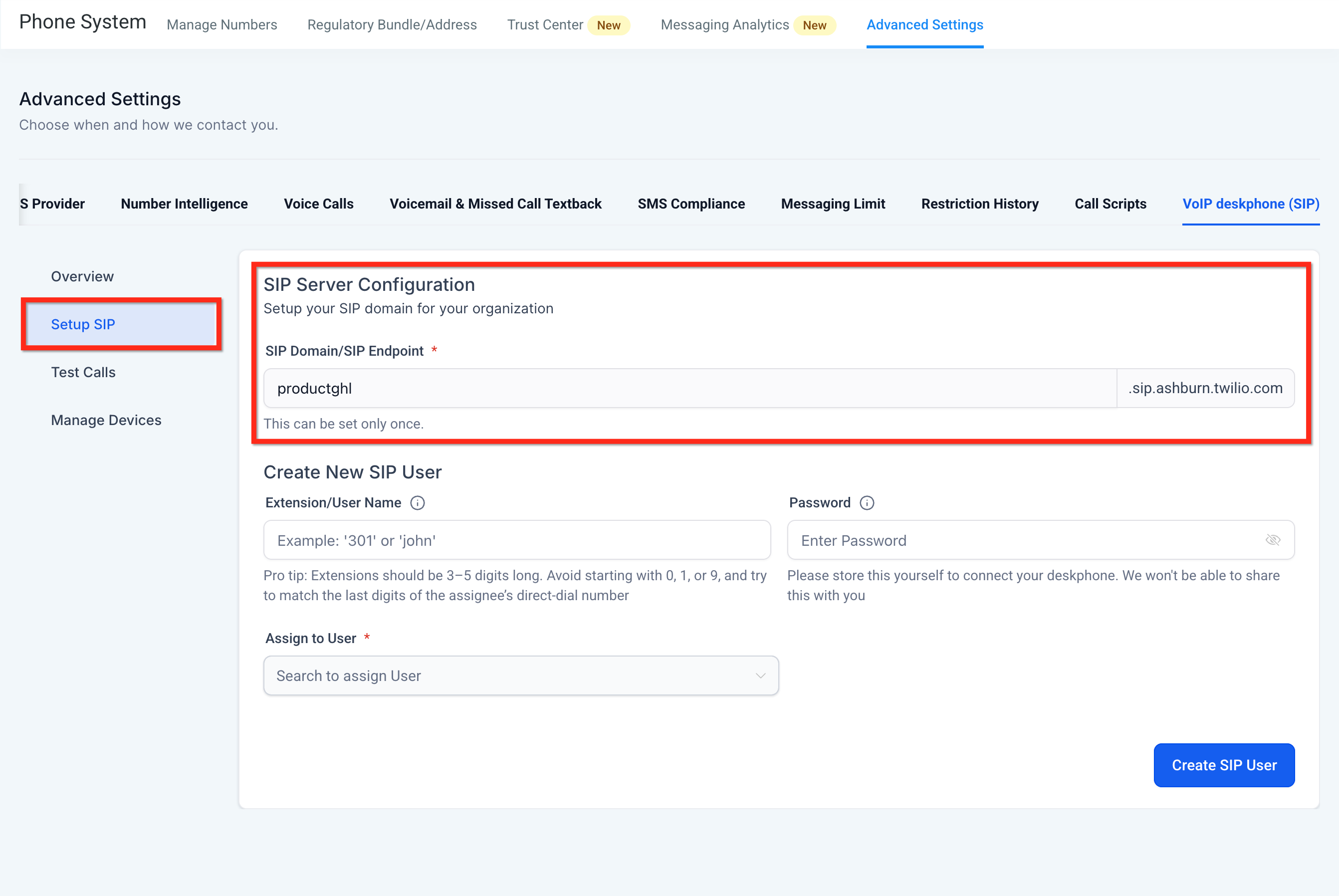
- Review the SIP Domain shown under Setup SIP, choose the organization prefix, and save the configuration.
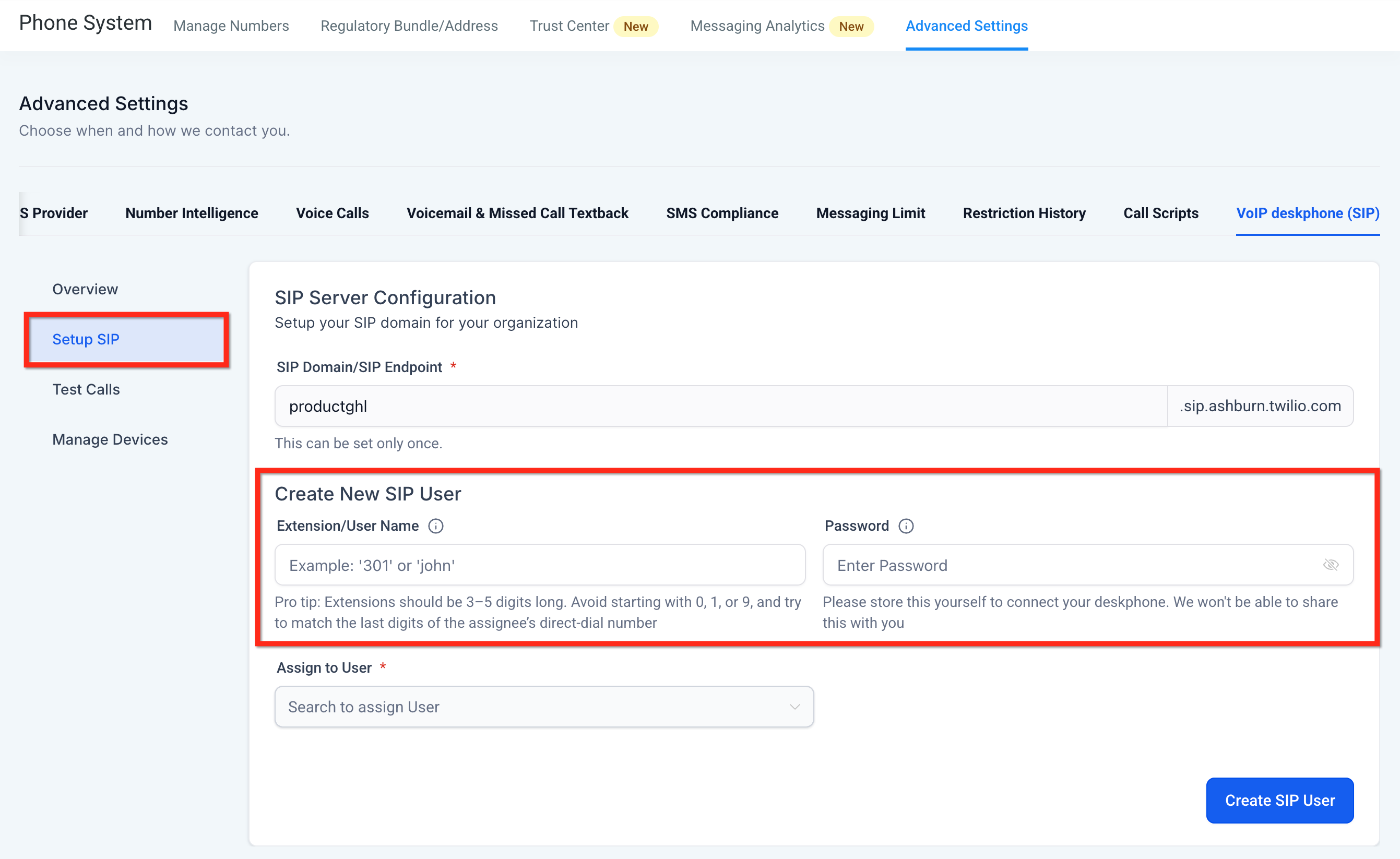
- Create a SIP user by entering an extension or username, choose a 3 to 5 digit format, set a strong password, and save.
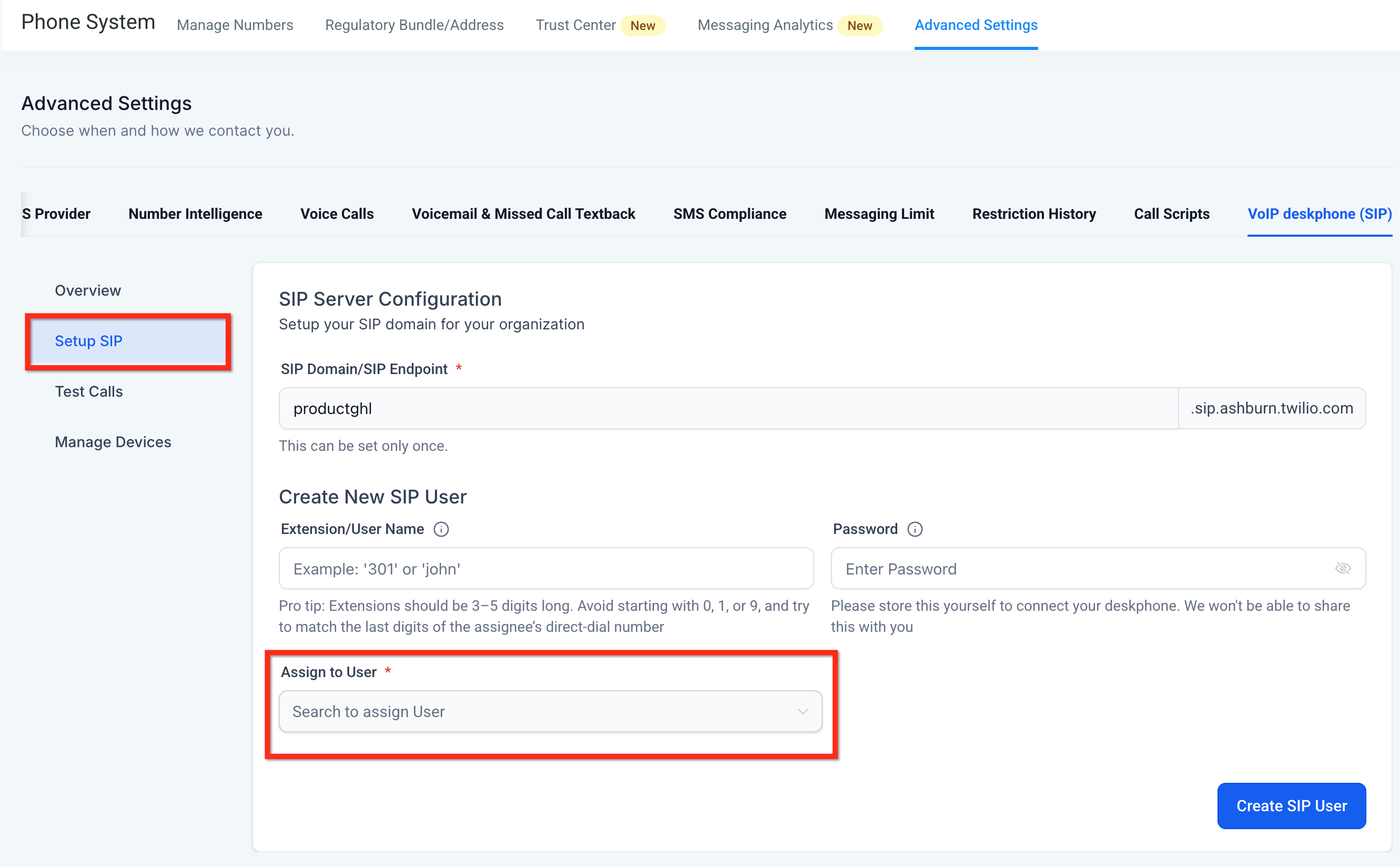
- Assign the new SIP device to a HighLevel user using the Assign to User option.
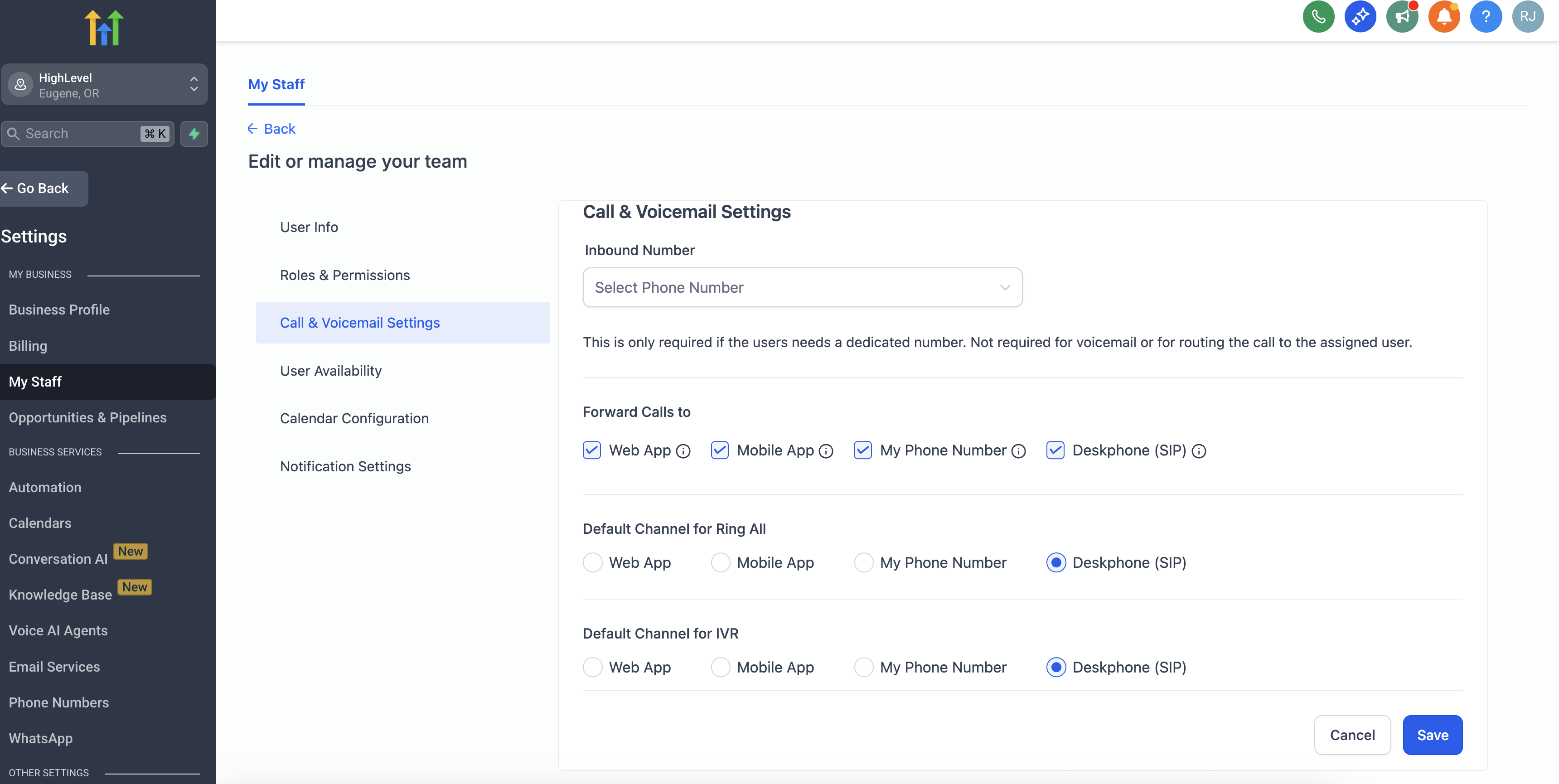
- Open Settings > My Staff, edit the assigned user, go to Call & Voicemail Settings, and enable Deskphone (SIP) under Forward Calls to.
- In the same Call & Voicemail Settings, set Deskphone (SIP) as the Default Channel for Ring All and for IVR where needed.
- On the physical handset, open the SIP account settings and enter the SIP Domain, username/extension, and password generated by HighLevel, then save.
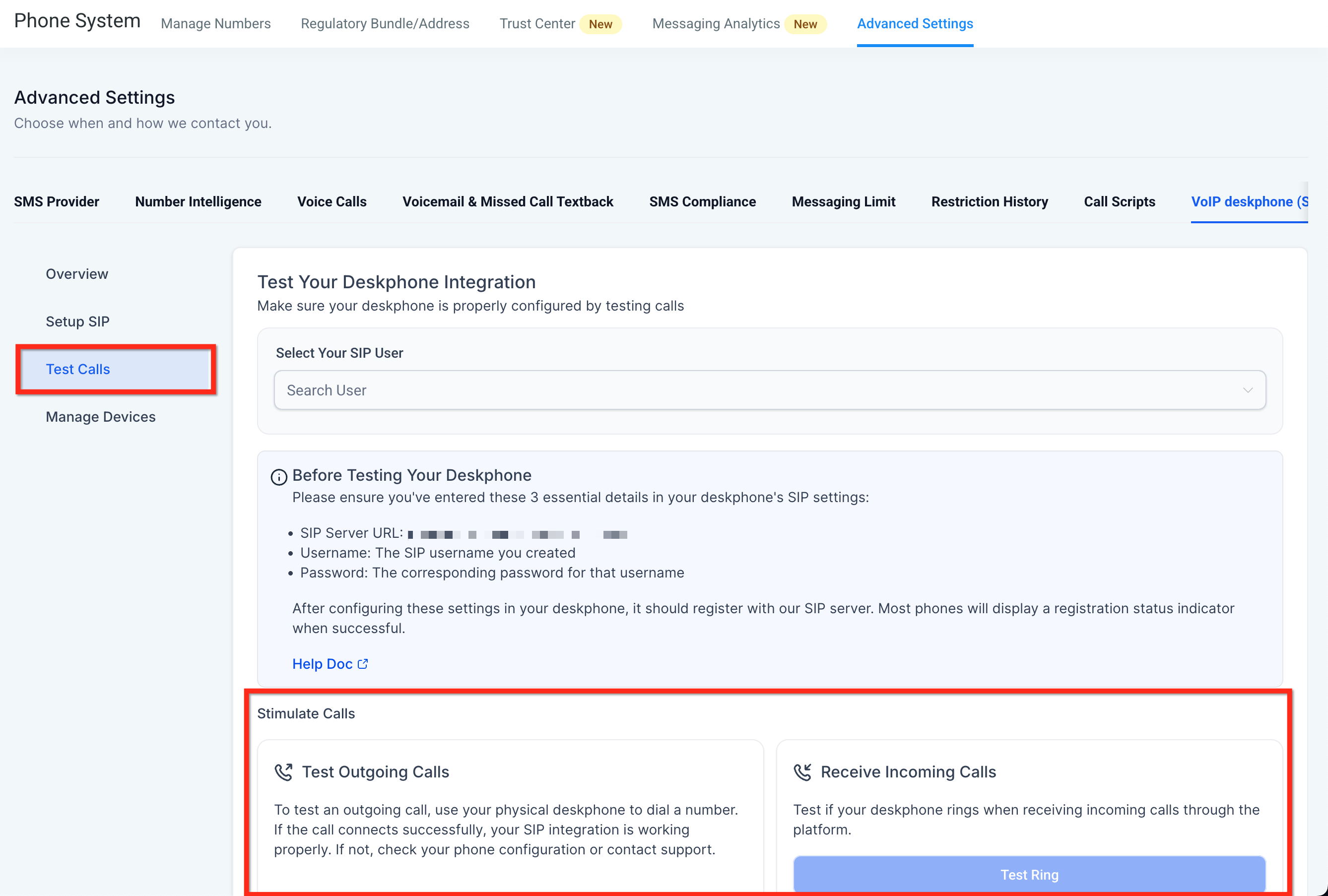
- Use VoIP deskphone (SIP) > Test Calls to run both outbound and inbound test calls and confirm they succeed.
Reset a SIP user password
- Open Settings > Phone Numbers > Advanced Settings > VoIP deskphone (SIP) > Manage Devices.
- Click the pencil icon next to the SIP user you want to modify.
- Enter a new password and save the change.
- Update the physical handset with the new password.
Delete a SIP device
- Open Settings > Phone Numbers > Advanced Settings > VoIP deskphone (SIP) > Manage Devices.
- Locate the SIP user you wish to remove.
- Click the trash can icon beside that SIP user to delete it.
07What it looks like in HighLevel
08Settings that matter
- Registrar / SIP Server / Server. Specifies the SIP domain or endpoint that the deskphone contacts to register with HighLevel.
- Username / Extension / User ID. Provides the SIP identity used by the handset to authenticate with the server.
- Password. Secret used for SIP authentication; it is only shown when created and must be updated on the handset if changed.
- Transport. Determines whether SIP messages are sent over UDP, TCP, or TLS, matching both the phone and network configuration.
- Keep Alive. Sends periodic messages to maintain registration; the recommended type is Options when the handset supports it.
09Things to know before you rely on it
- The SIP domain can be saved only once and cannot be edited later.
- SIP passwords are not viewable after creation; resetting requires updating the handset.
- Deskphones support only blind transfers between extensions; warm transfers are not available.
- Call transcription is available only if call recording is enabled and the paid Voice Intelligence add on is purchased.
- SIP ALG must be disabled if it interferes with registration, answering, or audio.
- Network must permit outbound SIP ports 5060/5061 and RTP ports 10000 to 20000; exposing these ports publicly is not required.
10If something goes wrong
- Inbound calls work but outbound calls fail. Confirm the phone shows a Registered status, verify the SIP Domain, username and password, ensure outbound ports 5060/5061 are allowed, check RTP ports 10000 to 20000, disable SIP ALG if needed, and run the built in outbound test.
- Outbound calls work but inbound calls do not ring. Run the inbound Test Ring, confirm the SIP user is assigned to the correct HighLevel user, enable Deskphone (SIP) in the user’s Call & Voicemail Settings, set it as the Default Channel for Ring All or IVR, enable Keep Alive Options, and disable SIP ALG if necessary.
11How it connects to the rest of HighLevel
- Review pricing and usage charges for phone calls and optional features. Phone system pricing guide
- Learn about HighLevel’s native phone system that powers deskphone integration. LC Phone overview
- Enable call transcription for recorded calls to extend deskphone functionality. Call transcription guide
- Migrate agency and subaccount settings when moving to the native LC Phone system. Migration guide
Michael's take

The physical deskphone provides a traditional handset experience while keeping call activity in HighLevel.
For teams that already rely on a PBX or mobile devices, the additional hardware and configuration may not be necessary.