
01Who this is for
- International agencies that purchase foreign phone numbers, because they can keep required compliance documents organized within the subaccount.
- Digital marketing firms managing multiple client campaigns, to ensure each client’s regulated numbers have the proper address or regulatory data attached.
- Ecommerce businesses expanding globally, so they can prepare compliance bundles before buying international numbers and avoid failed purchases.
02Regulatory bundles and address bundles, explained
Address Bundles hold business or personal identity plus a physical address. Regulatory Bundles add country specific compliance fields and supporting documents needed for certain number types. Both are created in the subaccount that will own the phone number.
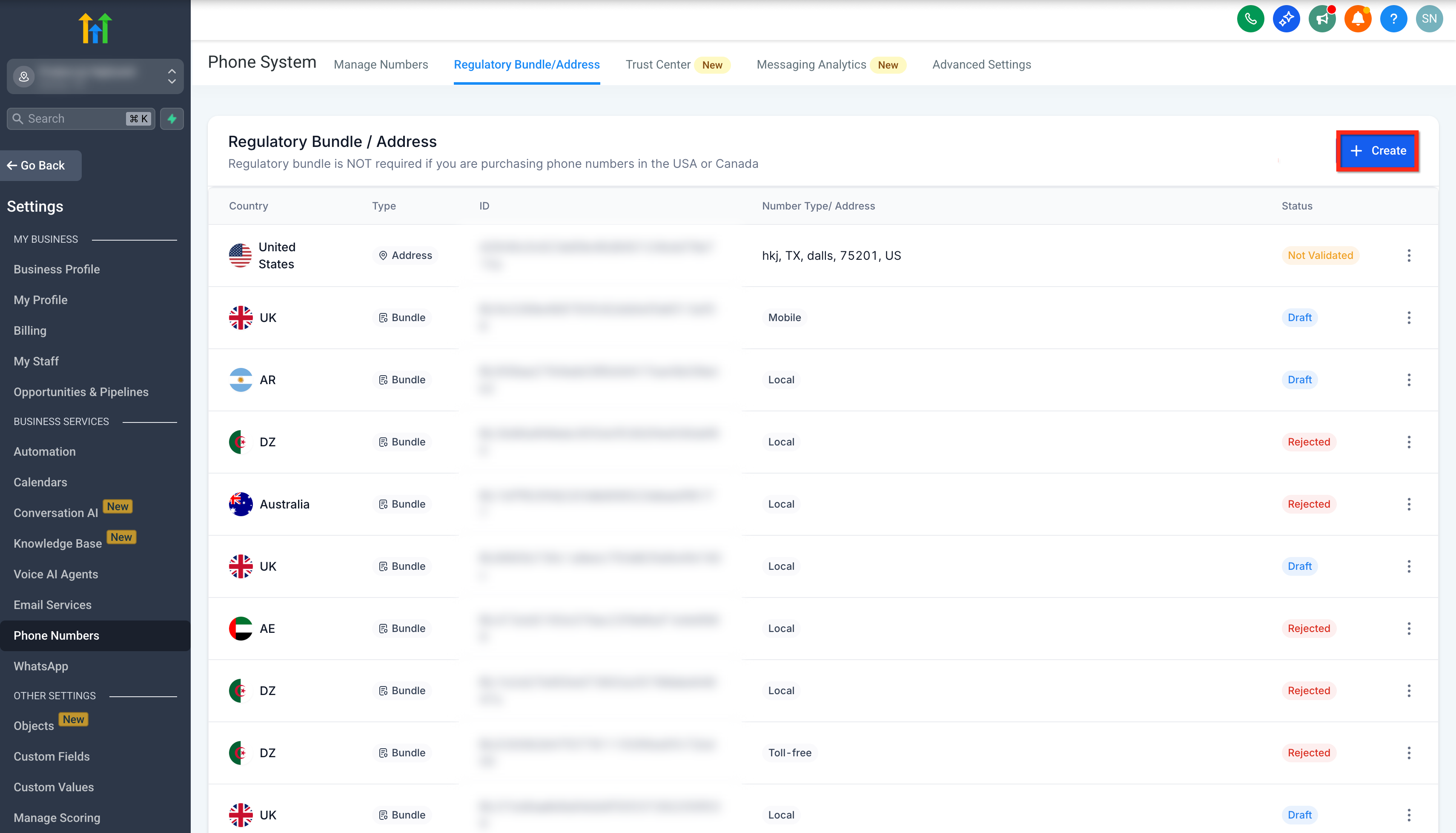
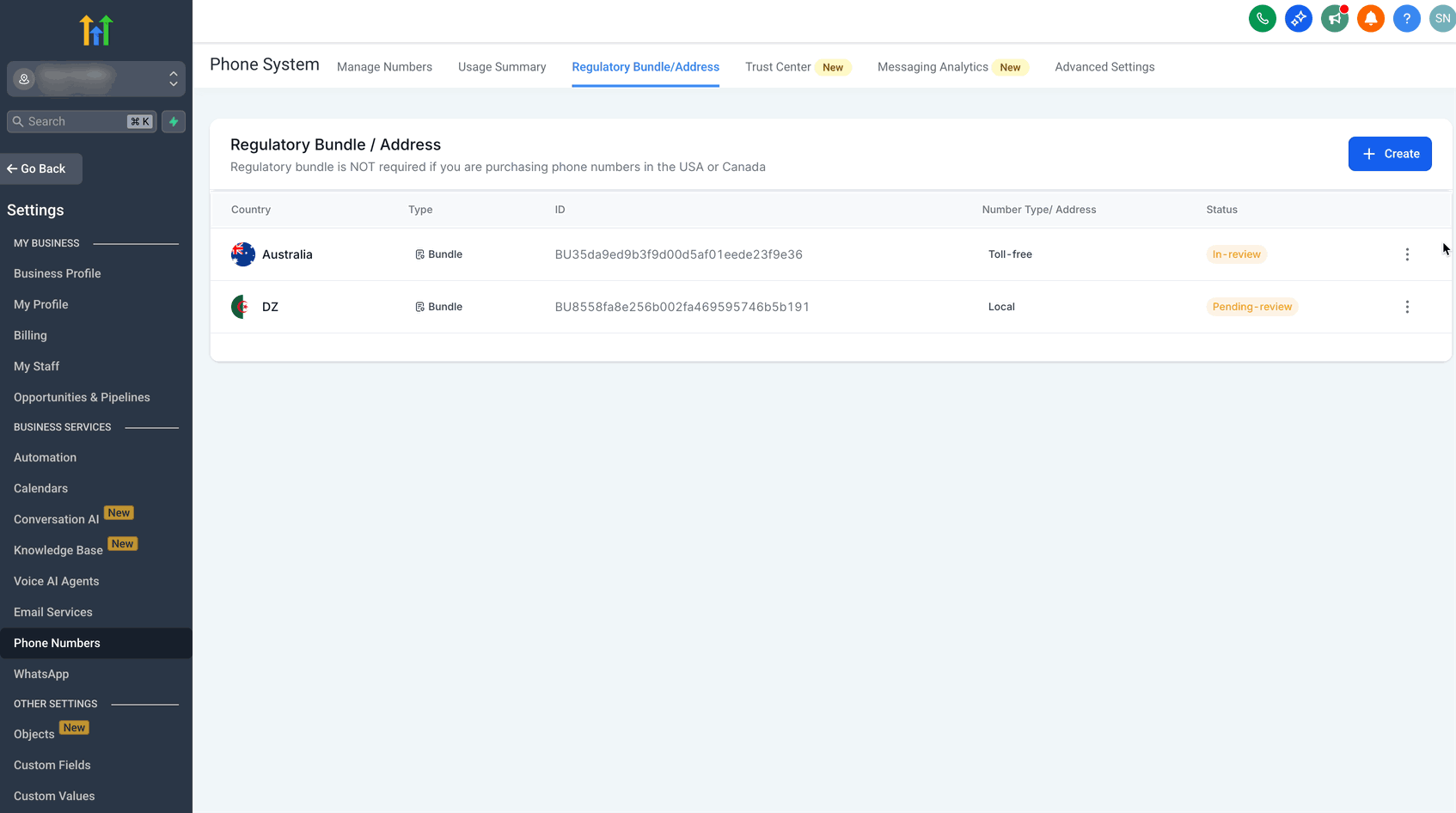
The bundles appear in the Phone System > Regulatory Bundle/Address list where you can see their type, country, bundle ID, number type and current review status. Status updates show whether a bundle is pending, approved or rejected.
When a regulated number is being bought, HighLevel prompts you to select an approved Address or Regulatory Bundle. After linking, the number can be provisioned. Bundles can later be deleted, but deletion is blocked while a bundle is still tied to an active number.
03How businesses use regulatory bundles and address bundles
- International travel agency. The agency creates an Address Bundle with its office address, then submits a Regulatory Bundle for a foreign toll free number. Once approved, it selects the bundle during the number purchase to complete provisioning.
- Online retailer expanding to Europe. The retailer opens the Regulatory Bundle/Address area, builds a Regulatory Bundle for a European mobile number, uploads the required business documents, and monitors the review status before buying the number.
- Digital marketing firm managing client accounts. The firm creates separate Address Bundles for each client, assigns the appropriate bundle when purchasing a regulated international number for a campaign, and later deletes bundles that are no longer needed.
04Before you start
- You must have access to the subaccount that will use the phone number.
- The subaccount must have the Phone System feature enabled under Settings > Business Services.
05How to set up and use regulatory bundles and address bundles in HighLevel
Open the Regulatory Bundle/Address area
- Log into the subaccount that will own the phone number.
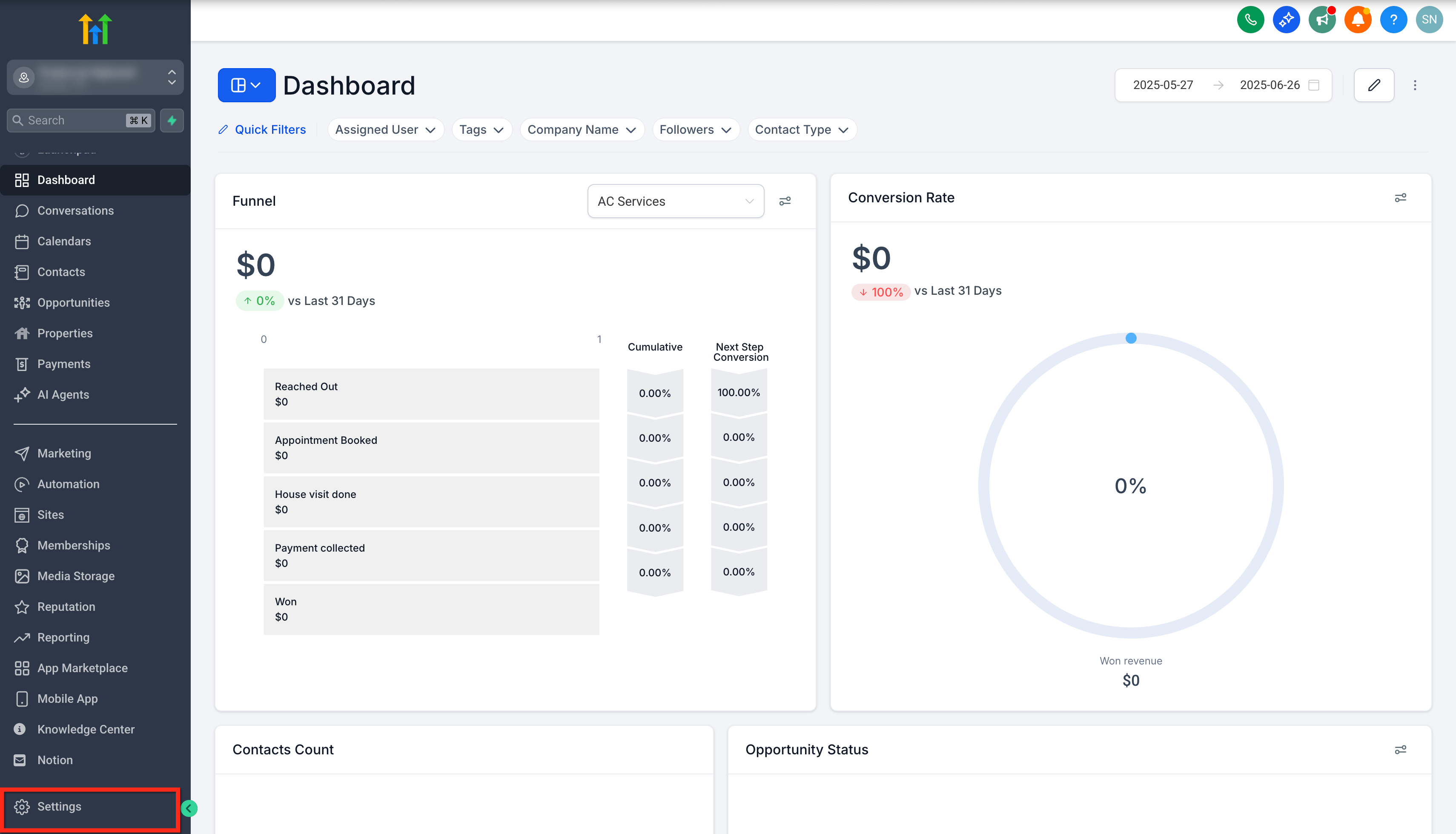
- Select Settings from the sidebar.
- Under Business Services, open Phone System.
- Click the Regulatory Bundle/Address option.
Create an Address Bundle
- Press the + Create button.
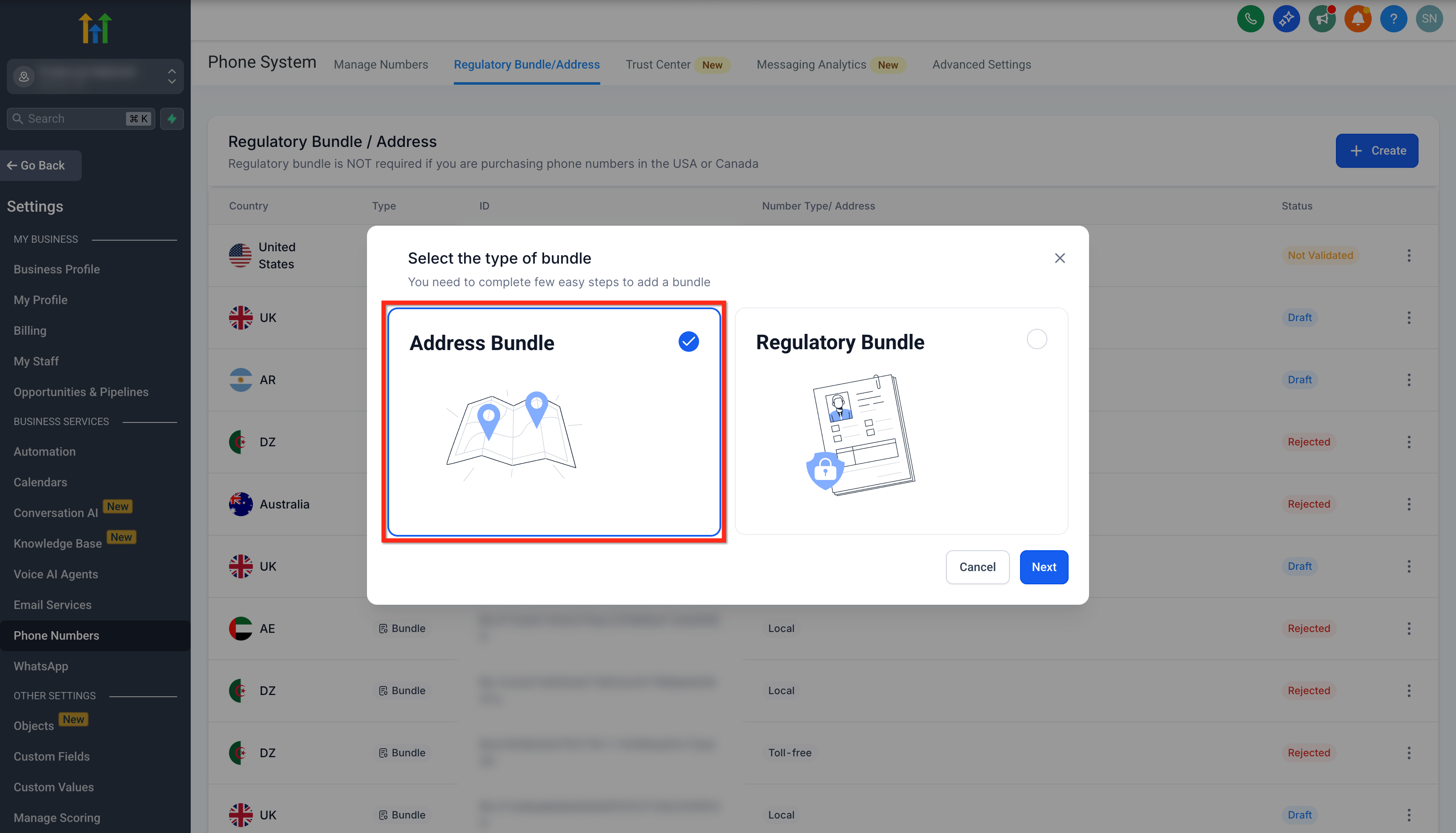
- Read the options for Address and Regulatory Bundles.
- Choose Address Bundle, which is pre selected.
- Select Next to continue.
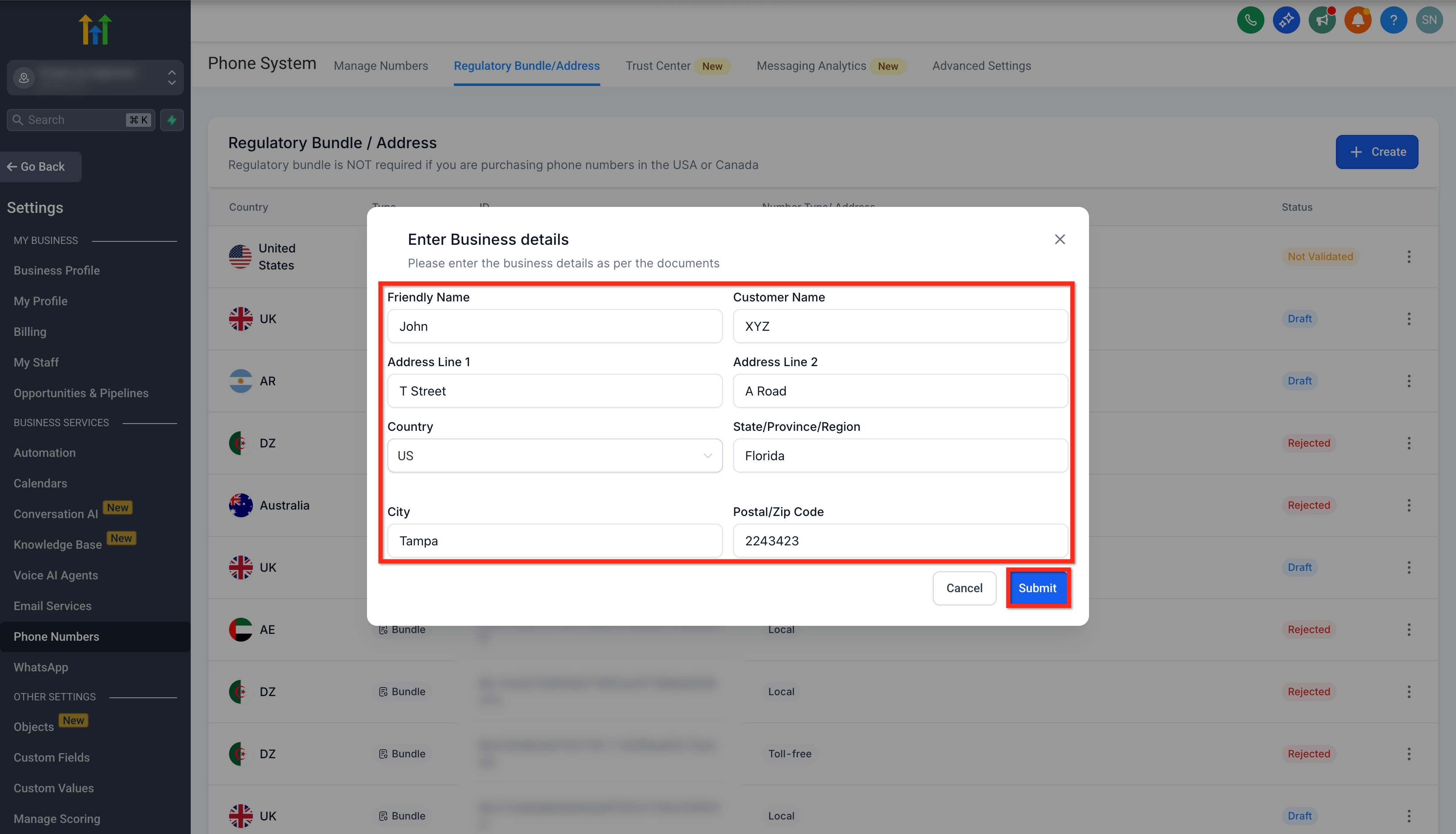
- Enter or verify the required business and address details.
- Press Submit to send the bundle for review.
Create a Regulatory Bundle
- Return to Phone System > Regulatory Bundle/Address.
- Click the + Create button.
- Select Regulatory Bundle from the picker.
- Pick the required Country for the number.
- Select the appropriate Number Type (Local, Mobile, National, or Toll Free).
- Fill in the requested business, individual, or representative information.
- Upload each supporting document that the form asks for.
- Review all entries and submit the bundle for review.
Assign an approved bundle to a phone number
- Open the subaccount where the number will be added.
- Navigate to Settings > Phone System.
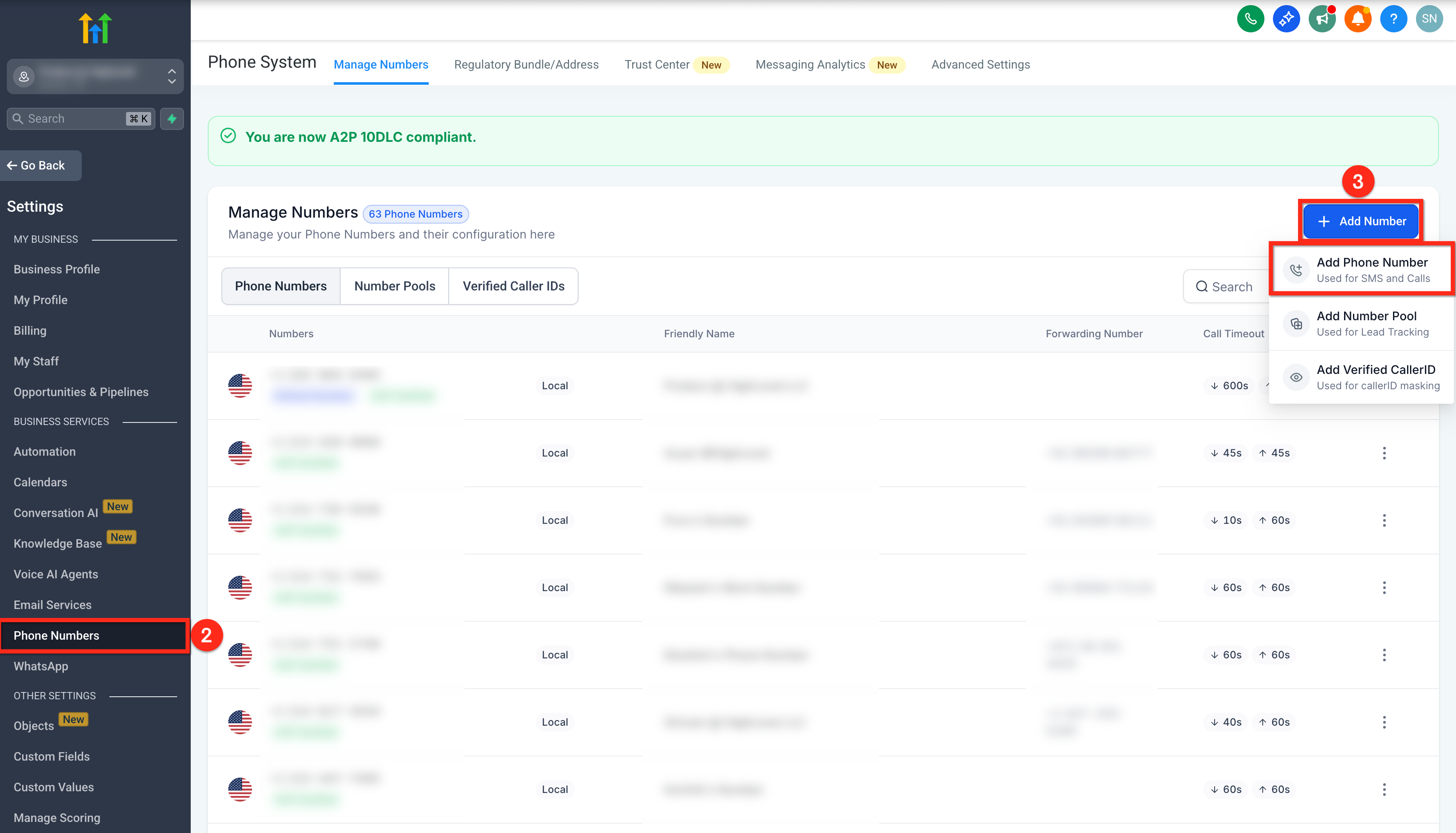
- Open the Manage Numbers section.
- Click + Add Number and choose Add Phone Number.
- Select the desired country, number type, and a visible phone number.
- Proceed to the purchase screen.
- If prompted, pick the approved Address Bundle or Regulatory Bundle.
- Finish the remaining purchase steps.
Delete a bundle or address
- Go to Phone System > Regulatory Bundle/Address.
- Find the bundle or address you want to remove.
- Open the actions menu and choose Delete.
- Read the confirmation modal carefully.
- Confirm that the Type, Country, and Bundle ID match, then confirm deletion.
06What it looks like in HighLevel
07Settings that matter
- Regulatory Bundle/Address. Provides the interface for creating, submitting, monitoring, and deleting address and regulatory bundles.
- Phone System. Enables access to phone related features such as number management, bundle creation, and call/SMS settings.
- Manage Numbers. Allows you to add new phone numbers and link approved bundles during the purchase flow.
08Things to know before you rely on it
- A Regulatory Bundle is not required for standard United States or Canada phone number purchases.
- Deletion is blocked while a bundle or address is still connected to an active number or provisioning workflow.
- Review times vary by country, number type, and documentation quality; no fixed approval period is guaranteed.
09If something goes wrong
- Phone number cannot be purchased. Check whether the selected number requires an Address Bundle, Regulatory Bundle, identity verification, or another compliance step and complete the needed requirement before trying again.
- Regulatory Bundle was rejected. Read the rejection reason, correct any mismatched name, address, or document fields, and resubmit when the interface allows.
- Correct bundle does not appear during purchase. Verify that the bundle was created in the correct subaccount, matches the required country and number type, and has an approved status.
- Delete option is disabled. Identify and remove or update the active dependency shown in HighLevel before attempting deletion again.
10How it connects to the rest of HighLevel
- Explore pricing for HighLevel phone system features Phone system pricing guide
- Learn about HighLevel’s native LC Phone capabilities LC Phone overview
- Read the guide for migrating agencies and subaccounts to LC Phone Migration guide
- Start a 30 day trial of HighLevel 30 day trial
Michael's take

Regulatory bundles and address bundles are essential for buying international numbers, but they add extra steps that aren’t needed for US or Canada numbers. Teams that only use domestic US/Canada numbers can skip this feature.