
01Who this is for
- Founders of agencies that send client updates by text, because the feature guarantees required compliance language on every first message.
- Small business owners who run marketing campaigns via SMS, as it reduces the chance of carrier blocking by adding opt out text automatically.
02SMS compliance settings, explained
SMS compliance settings live under the Phone System area of HighLevel. They consist of toggles that add a sender identification line and an opt out phrase to outbound messages when those elements are not present. The first message in any conversation always receives both pieces of text.
If you enable the periodic update option, the platform checks every X days (1 to 60) and reinserts the compliance lines on the next outbound message, but only when they are missing. The system detects a complete opt out phrase and avoids duplicating it.
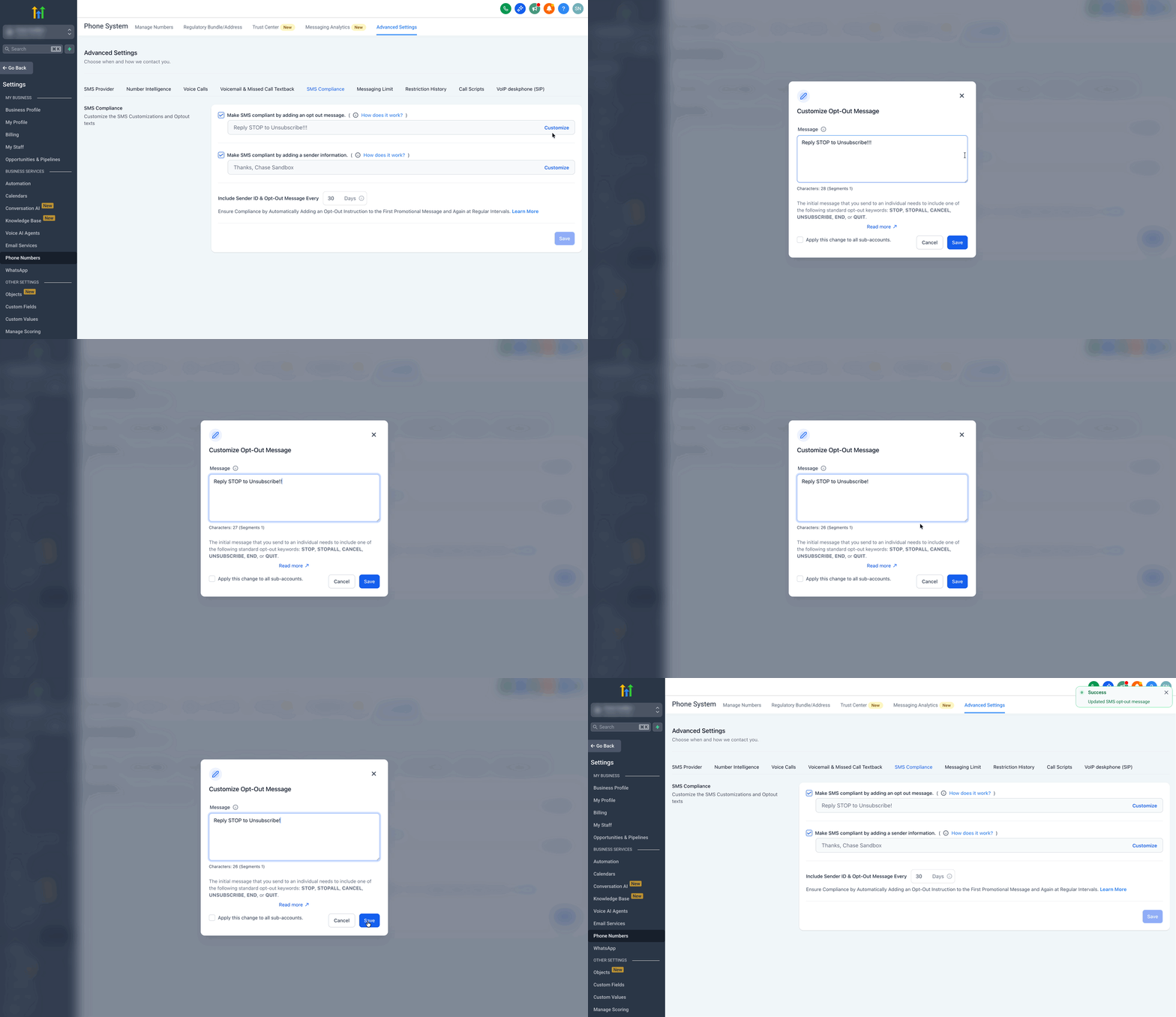
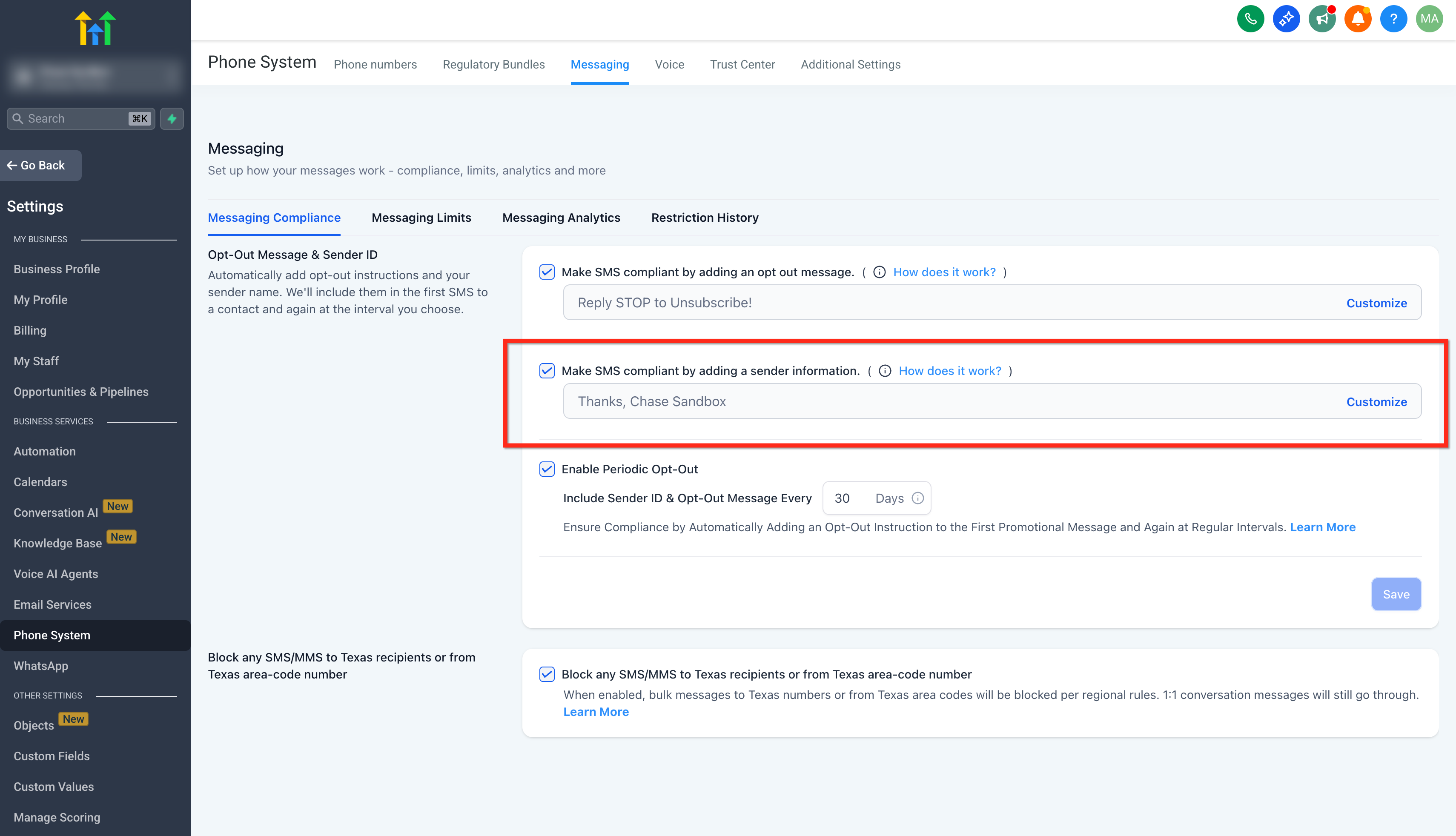
These controls are accessed via Settings > Phone System > Messaging. Custom text can be entered for both the sender ID and the opt out message.
03How businesses use SMS compliance settings
- Dental practice. The practice turns on the opt out toggle and customizes the text to say "Reply STOP to unsubscribe." It also sets the sender ID to "Thanks, Dr Smith at Smile Dental." This ensures every appointment reminder meets carrier rules.
- Real estate agency. Agents enable the periodic compliance toggle and choose a 30 day interval. The platform then re adds the sender ID and opt out line to any follow up text after a month, keeping outreach compliant without extra effort.
- Fitness studio. The studio customizes the sender identification to ", Team FitLife" and activates the opt out feature. When a class cancellation text is sent, HighLevel automatically appends the required opt out phrase if it is not already present.
04The numbers and rules that matter
- Enter a value between 1 and 60 in Include sender ID and opt out message every [1, 60] days.
- Locations/subaccounts created within the last 15 days cannot disable these checkboxes.
05Before you start
- Log in to the appropriate subaccount.
- Decide whether to use custom sender information or the default text.
- Determine if periodic compliance reminders are needed for ongoing conversations.
06How to set up and use SMS compliance settings in HighLevel
Configure SMS compliance settings
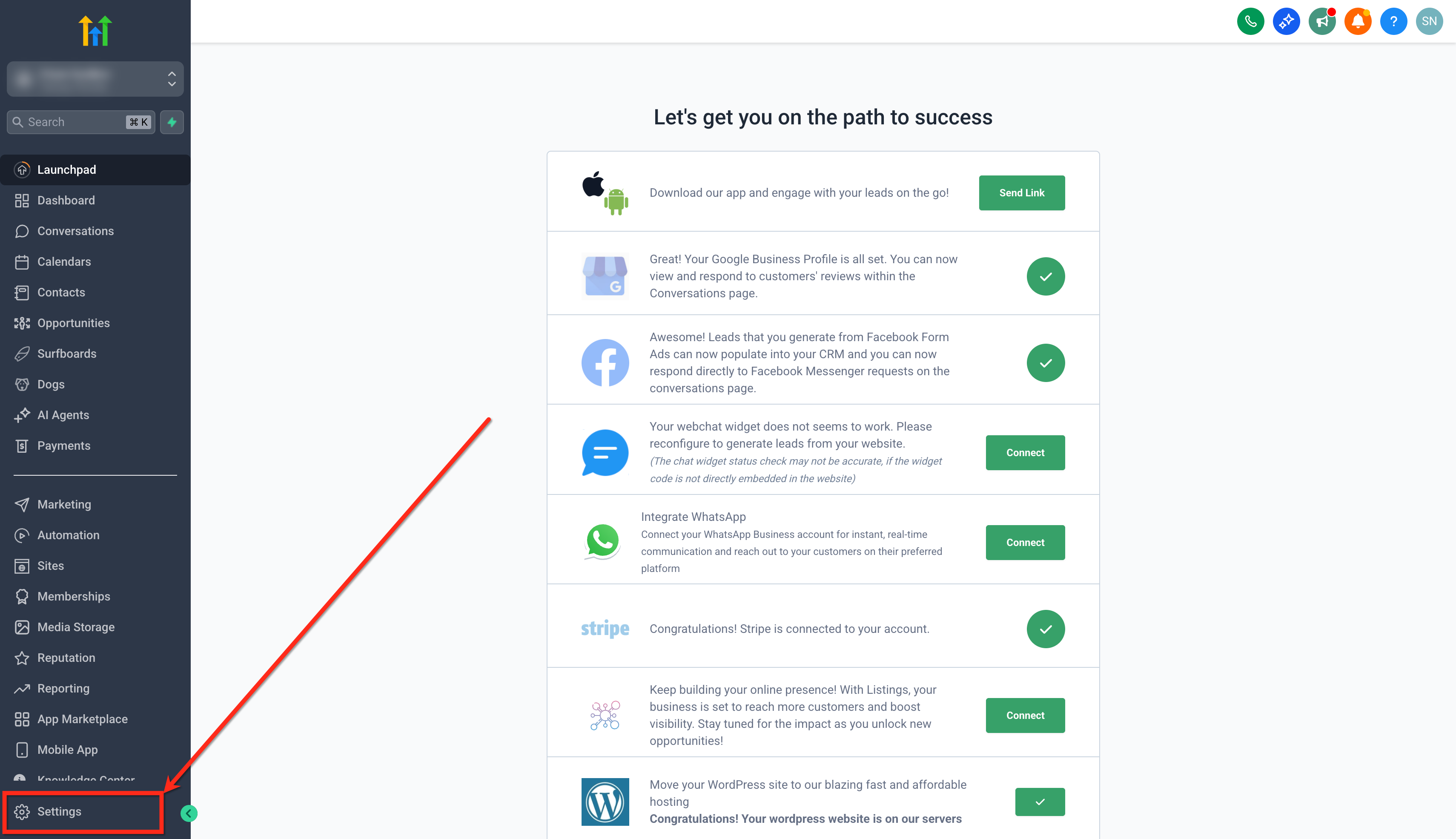
- Open the left menu and select Settings.
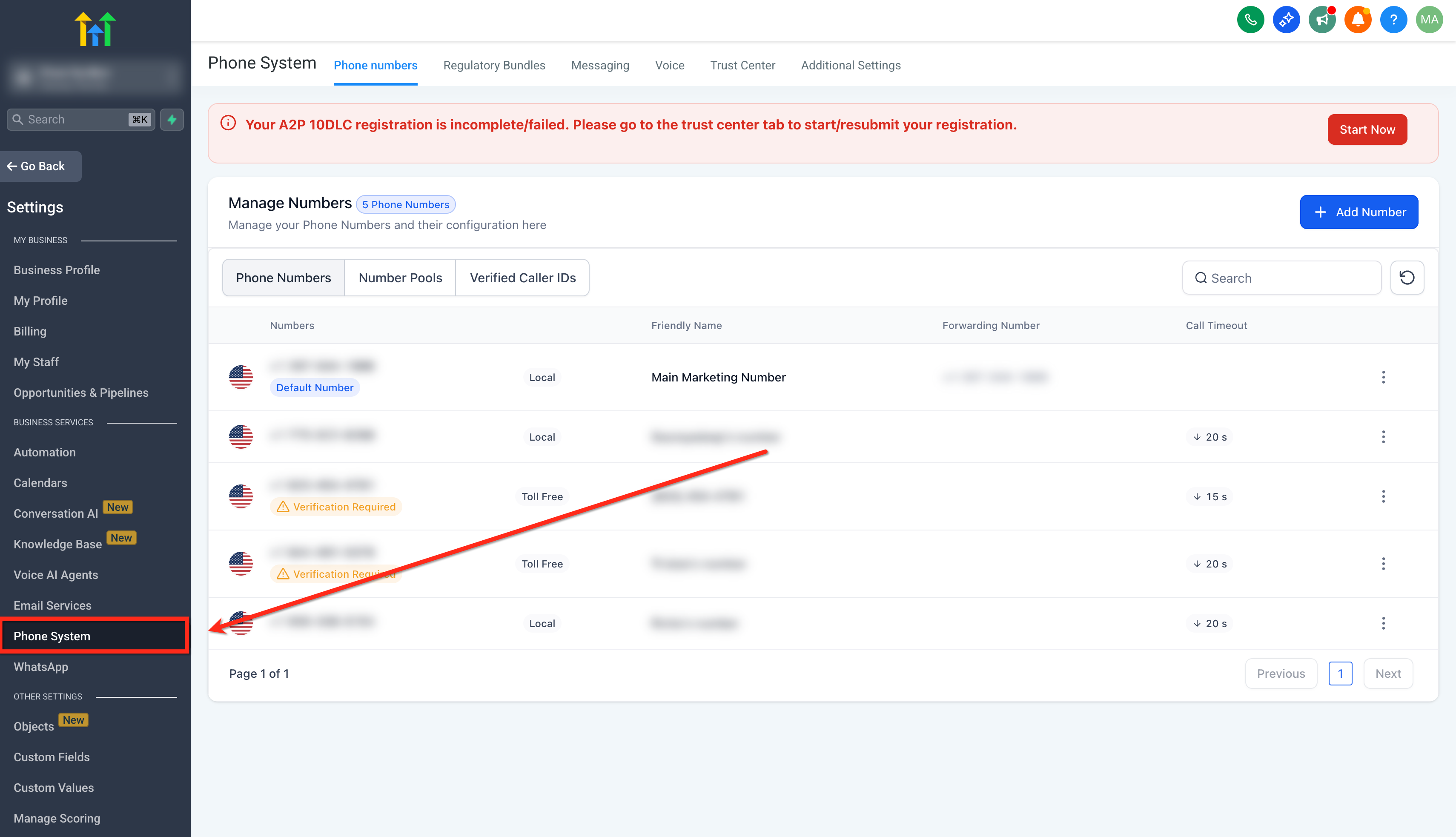
- Choose the Phone System tab.
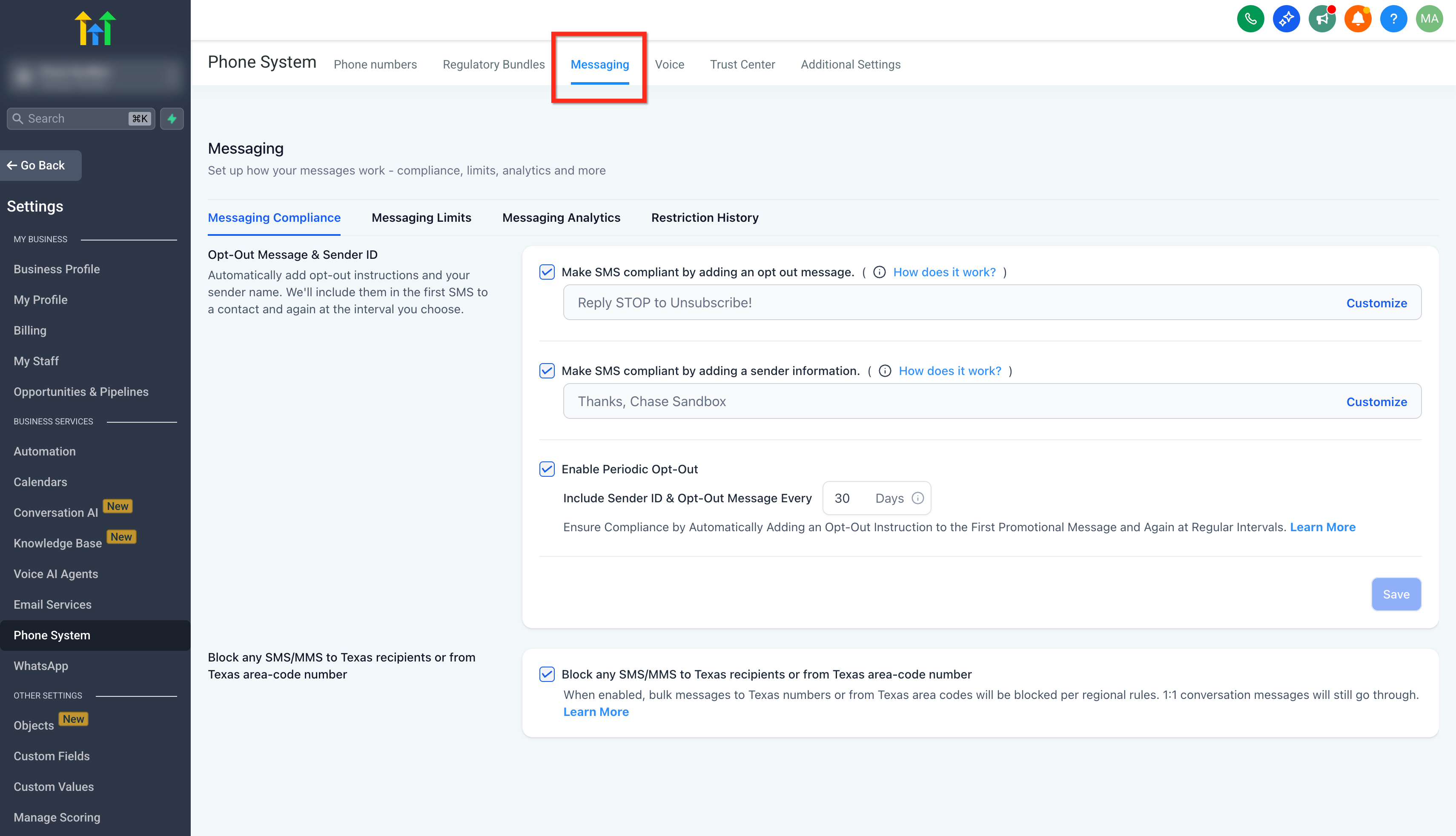
- Select Messaging from the top menu bar.
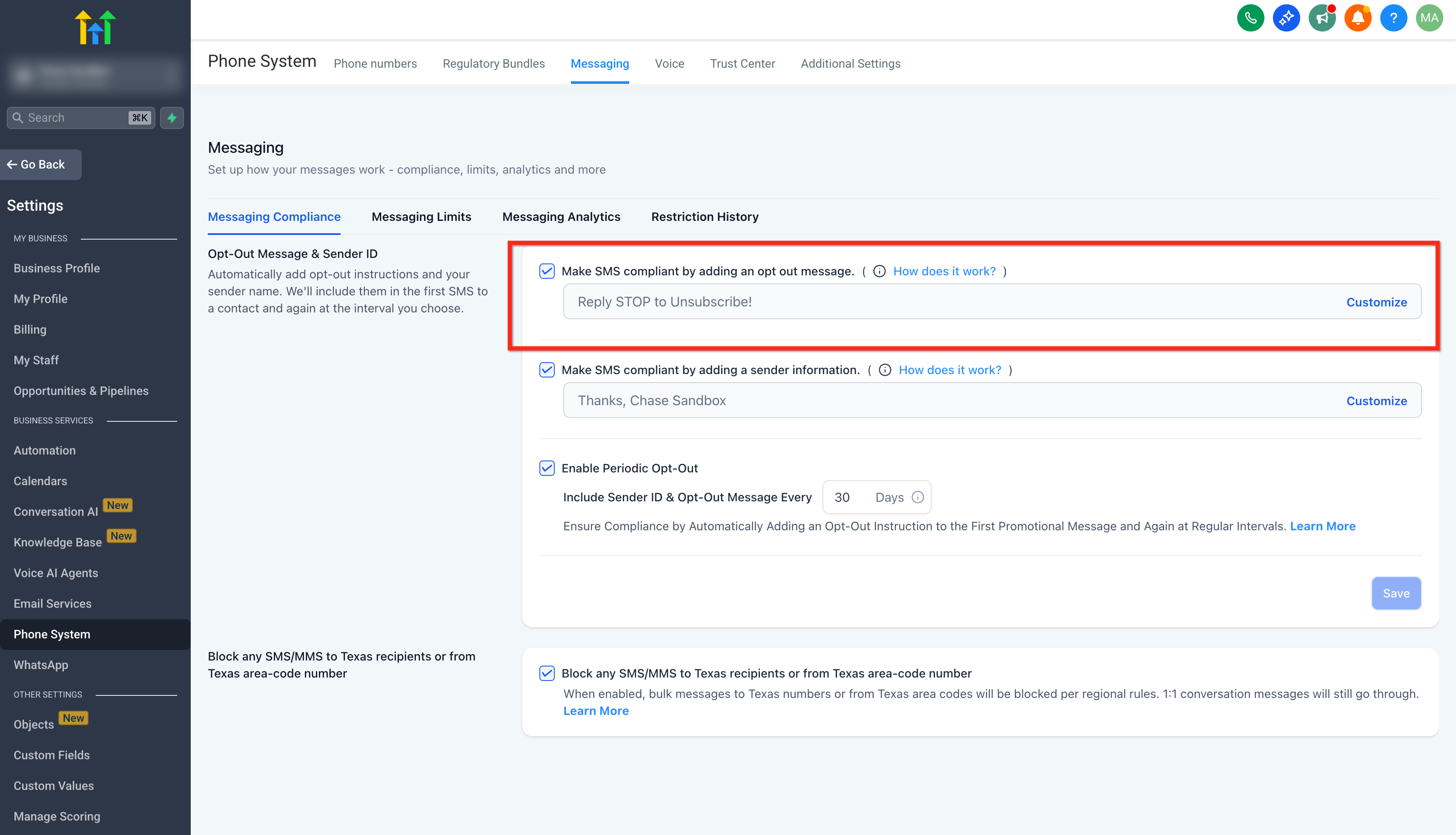
- Toggle Make SMS compliant by adding an opt out message to ON.
- Click the Customize button and edit the opt out text.
- Toggle Make SMS compliant by adding sender information to ON.
- Click the Customize button and edit the sender identification text.
- Toggle Enable periodic opt out & sender info to ON.
- Enter a value between 1 and 60 days for the re insertion interval.
- Click Save to apply the changes.
07What it looks like in HighLevel
08Settings that matter
- Make SMS compliant by adding an opt out message. Controls whether HighLevel automatically appends an opt out instruction to outbound texts that lack it.
- Make SMS compliant by adding sender information. Controls whether a sender identification line is automatically added to outbound texts that do not already contain it.
- Enable periodic opt out & sender info. Determines if the platform re adds compliance lines on a recurring schedule for ongoing conversations.
- Include sender ID and opt out message every [1 to 60] days. Sets the number of days between checks that trigger re insertion of missing compliance text.
09Things to know before you rely on it
- Agencies in trial mode cannot turn off any of the compliance toggles.
- Subaccounts that are less than 15 days old are required to keep the settings enabled.
- Users lacking permission cannot disable the options.
- The periodic re insertion interval must be set between 1 and 60 days.
- New subaccounts have compliance toggles enabled by default; existing ones have them disabled by default.
10How it connects to the rest of HighLevel
- Learn about the built in LC Phone system for agencies LC Phone overview
- View the phone system pricing and rebilling guide Pricing guide
- Read the SMS policy for carrier compliance SMS policy
Michael's take

SMS compliance settings are a small but essential safeguard for any business that texts customers. They automatically add the required footers, keep your messages from getting blocked, and let you focus on the content you want to send.
The biggest mistake is turning them off without confirming you’re exempt from carrier rules.