
01Who this is for
- Sales managers who need quick written summaries of calls to assess performance.
- Customer support leaders who require searchable text for compliance and training.
- Compliance officers who must keep written records of phone interactions.
02Call transcriptions, explained
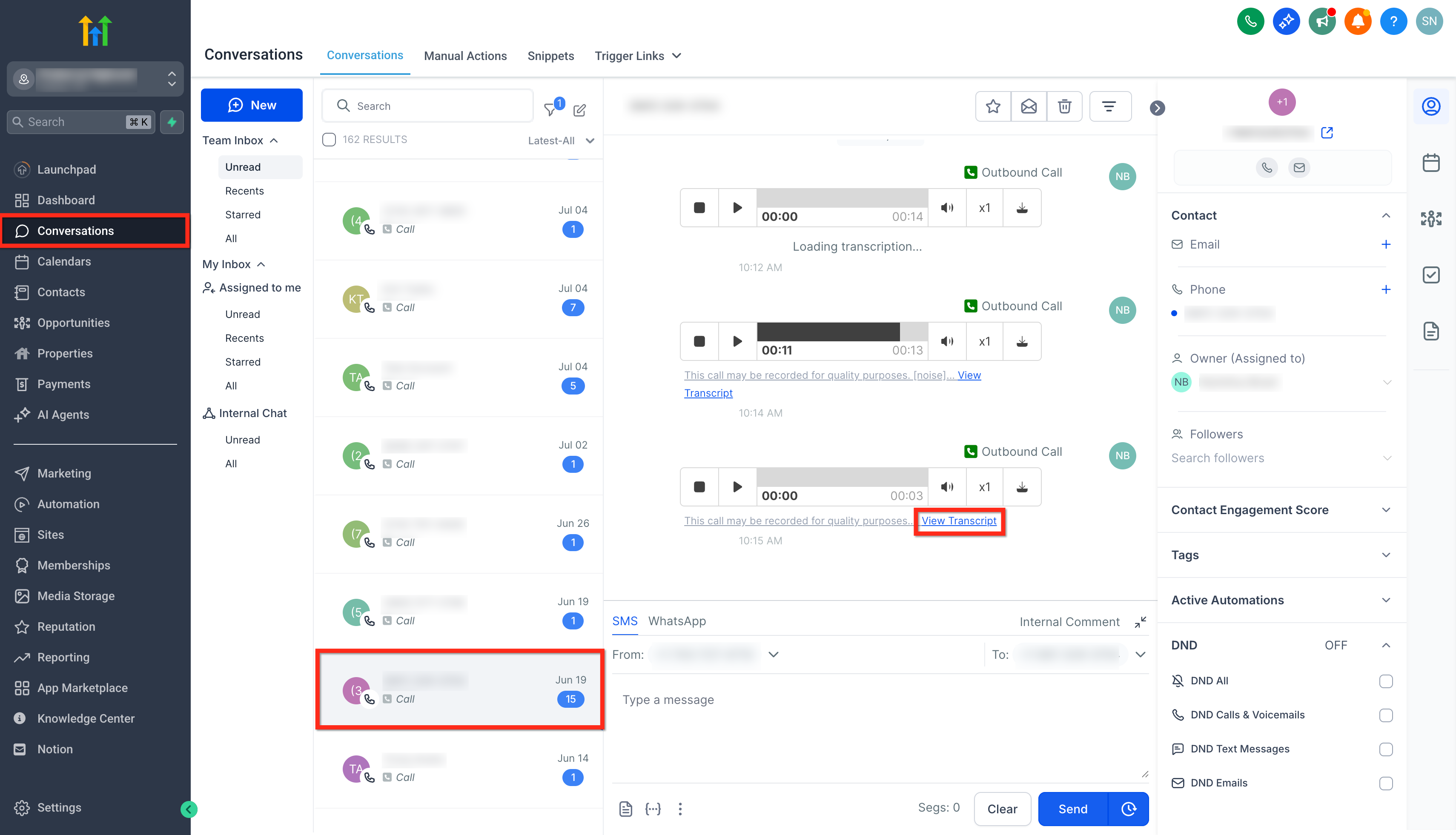
The call transcription feature adds a Voice Intelligence service to your HighLevel account. After activation, every call that is recorded will be processed and a text version will be generated. The transcript is displayed on the same Conversations record as the audio playback, allowing users to read instead of listen.
You activate the add on from the subaccount Settings under Phone System > Voice. The option titled Enable Call Transcription toggles the service on. Transcripts are then created only for calls recorded after the toggle is turned on. To view a transcript, open the Conversations tab, locate the contact’s call entry, and select View Transcript under the playback controls.
The service costs $0.024 per recorded minute and is billed in addition to the standard call recording fees (per HighLevel's help center, checked November 2026). No transcripts are created for calls recorded before the feature is enabled, and transcription requires that call recording is already turned on for the phone numbers.
03How businesses use call transcription
- Real estate brokerage. The broker enables transcription to quickly read client conversations without replaying lengthy calls. Agents open the contact’s record in Conversations and click View Transcript to review key details before follow up.
- Dental practice. The office turns on transcription to keep written logs of patient appointment calls. Staff locate a patient’s call in Conversations and read the transcript to confirm treatment plans and scheduling notes.
- SaaS startup. The Founders activate transcription to capture feedback from demo calls. After each recorded demo, the product team accesses the transcript in Conversations to extract feature requests without listening to the entire recording.
04The numbers and rules that matter
- $0.024 per recorded minute, charged on top of standard call recording fees (per HighLevel's help center, checked November 2026).
- Mobile app version 4.27.x and later supports multiple recordings view.
- Position indicator such as "1 of 3" identifies selected recording.
05Before you start
- Call recording must be enabled for the phone numbers you intend to transcribe.
- The Voice Intelligence add on is a paid service; ensure you are prepared for the per minute charge.
06How to set up and use call transcription in HighLevel
Enable call transcription
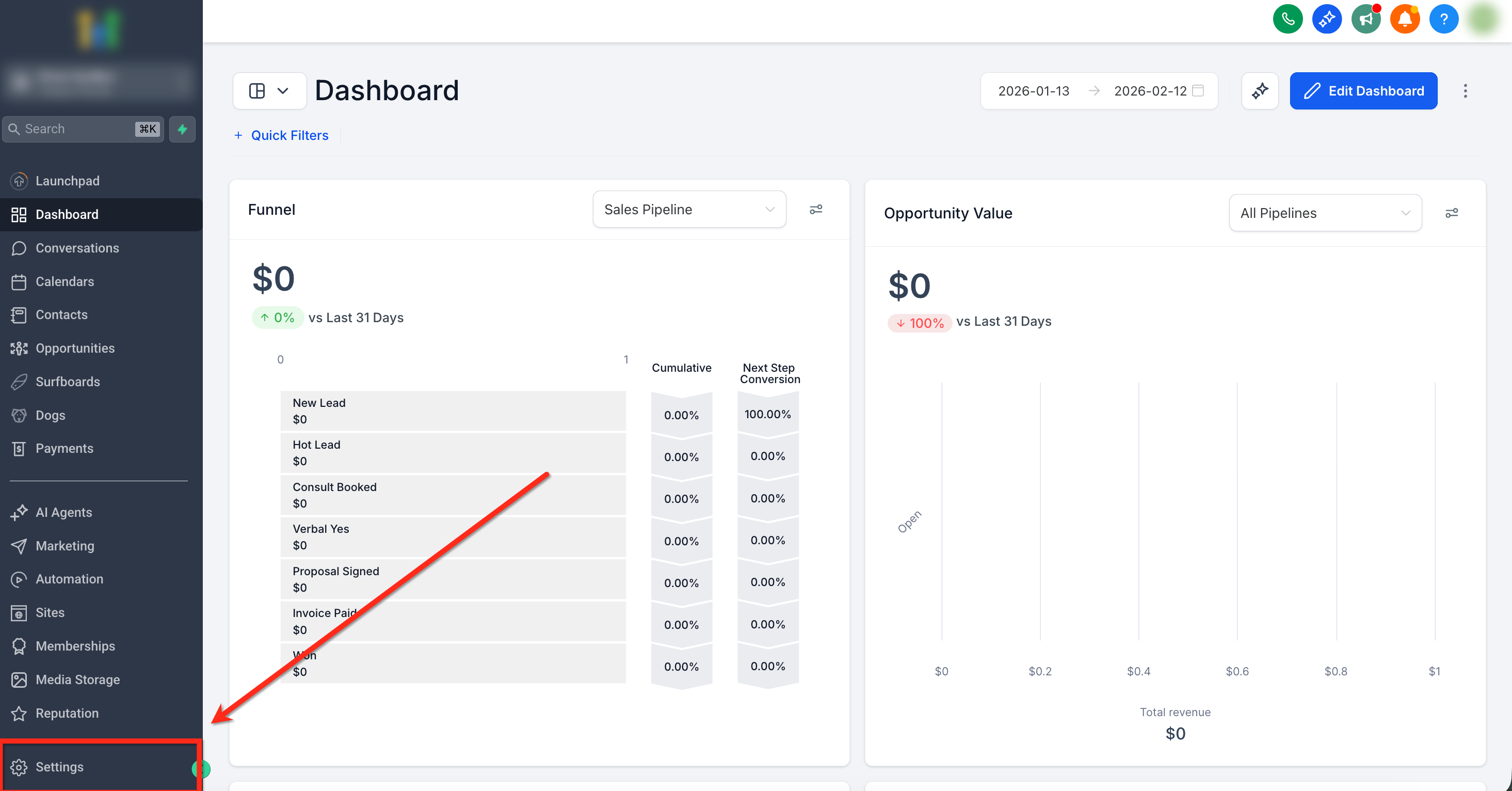
- Open Settings in the chosen subaccount.
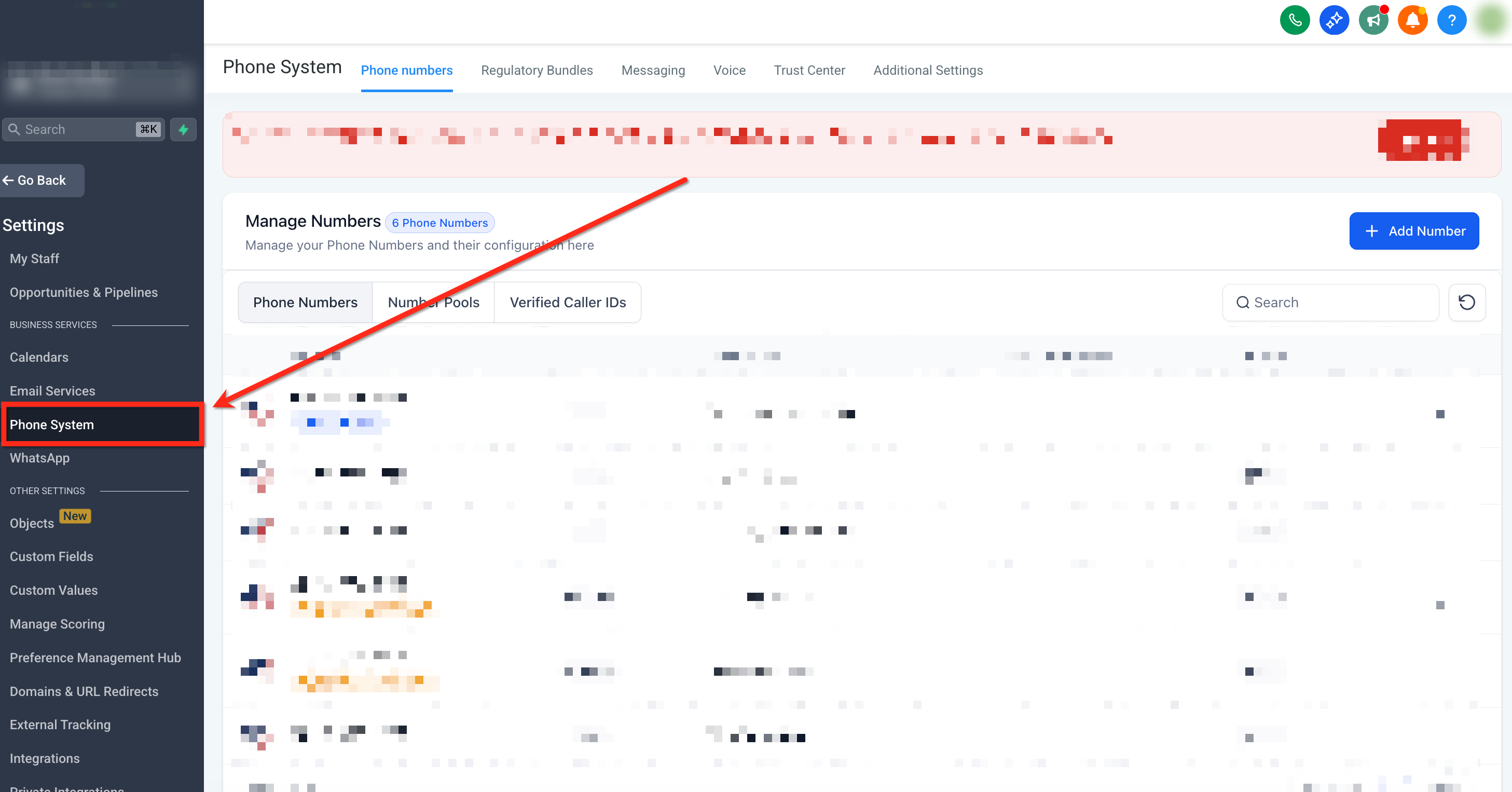
- Select Phone System.
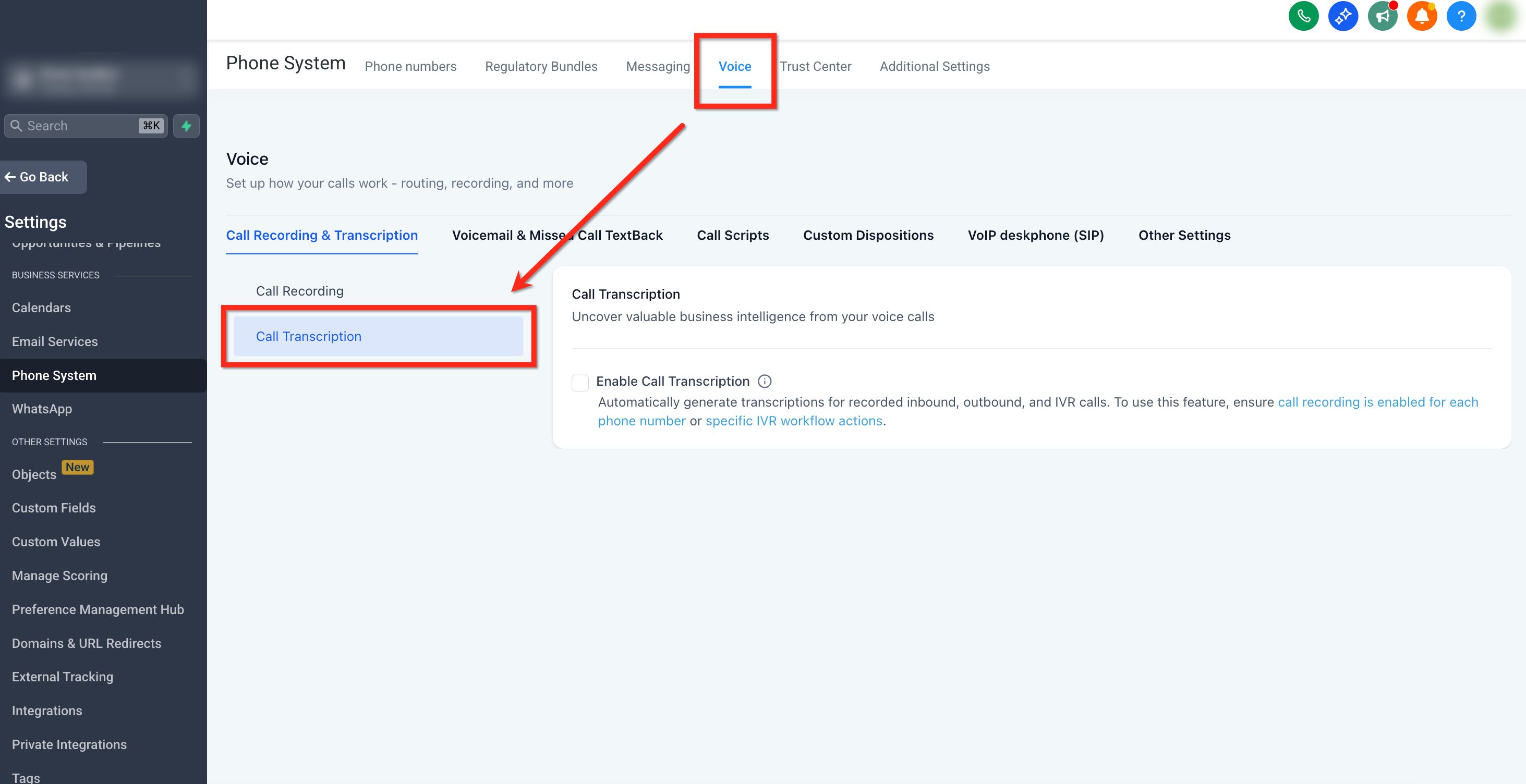
- Choose the Voice tab and locate Call Transcription under the Call Recording and Transcription section.
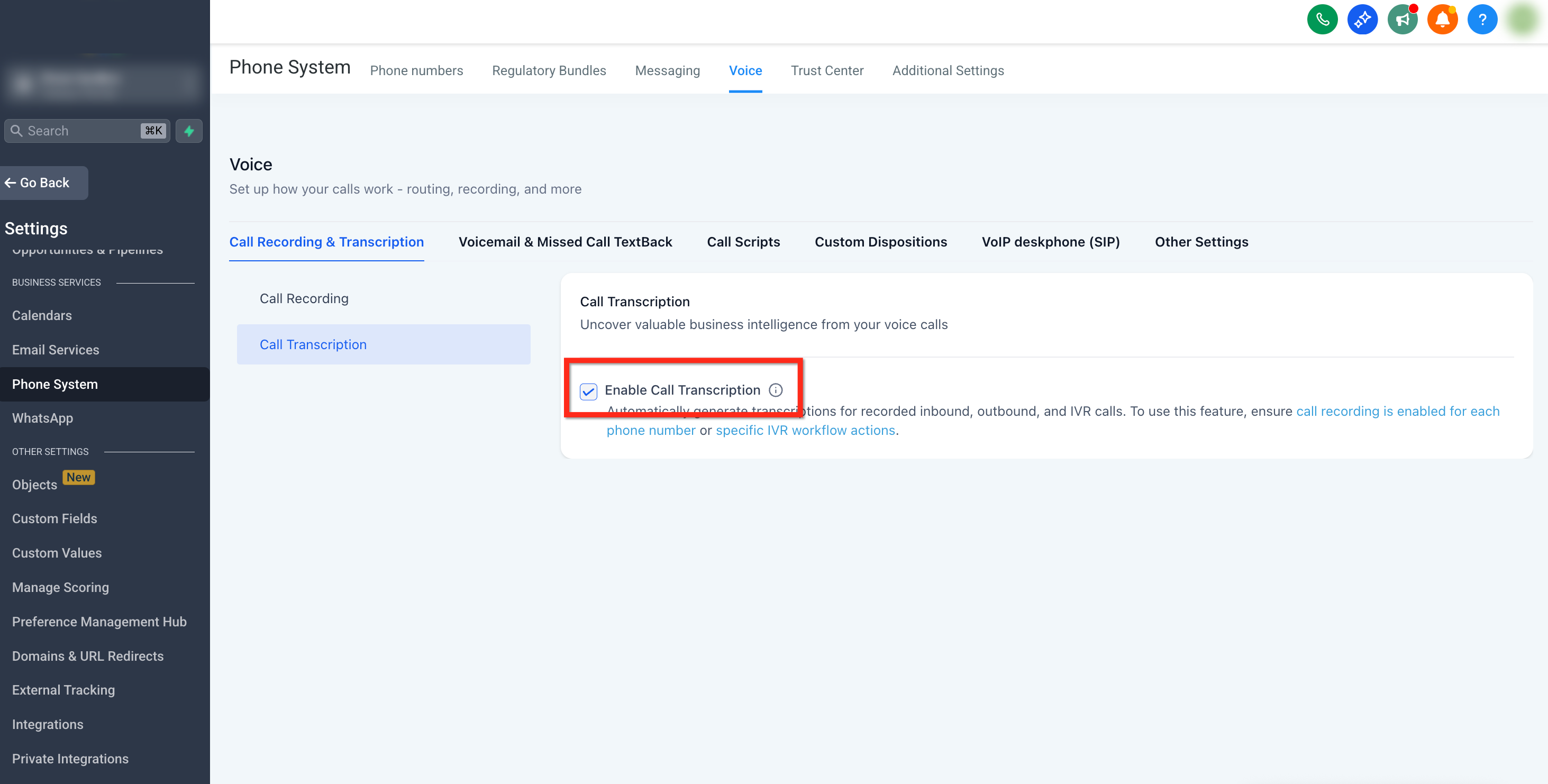
- Check the Enable Call Transcription box under Voice Intelligence to turn the feature on.
Find call transcriptions
- Navigate to the Conversations tab of the subaccount.
- Search for the contact whose call you want to review.
- Click the View Transcript button that appears beneath the playback control for that call.
07What it looks like in HighLevel
08Settings that matter
- Enable Call Transcription. Controls whether the Voice Intelligence service creates written transcripts for newly recorded calls.
09Things to know before you rely on it
- Transcripts are generated only for calls recorded after the feature is enabled.
- Each transcript incurs a charge of $0.024 per recorded minute, billed in addition to standard recording fees (per HighLevel's help center, checked November 2026).
- A transcript appears only when the system has produced one for that specific recording.
10How it connects to the rest of HighLevel
- Review the pricing details for phone system add ons, including the transcription per minute cost. Phone system pricing guide
- Learn about HighLevel’s native LC Phone, which provides the underlying calling infrastructure for recordings and transcriptions. LC Phone overview
- Start a trial to explore HighLevel’s features, including call recording and transcription. 30 day trial
Michael's take

The transcription only works on recordings made after the feature is turned on.
I would flip the switch, let a few new calls run, then check the Conversations tab to confirm the text shows up next to the playback. Once I see it working, I’d start using the transcripts for quick reviews and coaching sessions.