
01Who this is for
- Team managers who need to prevent staff being called after their shift hours.
- Support agents who rely on shift based availability while keeping existing voicemail backups.
02Inbound call routing by working hours, explained
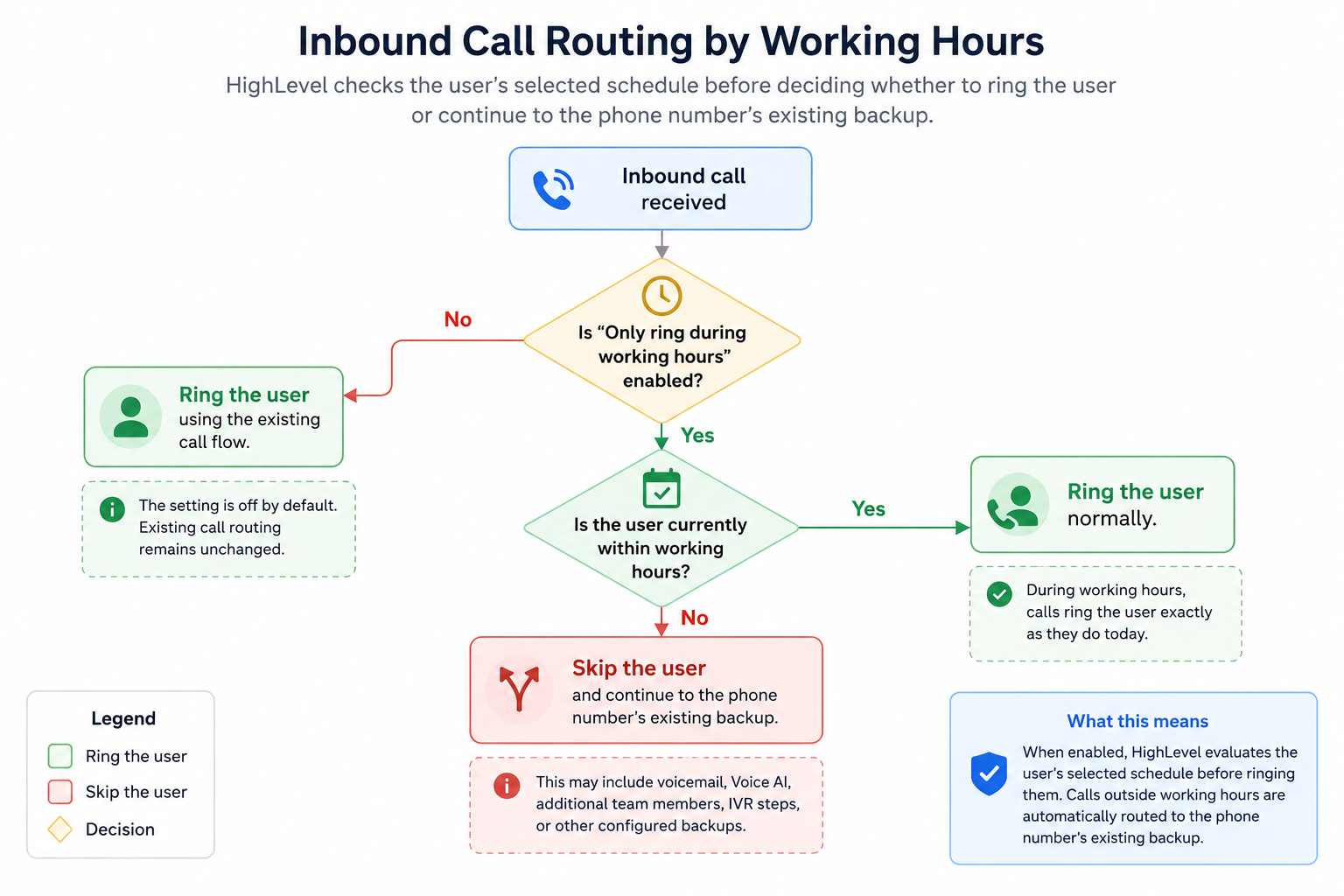
The feature adds a toggle called Only ring during working hours. When turned on, HighLevel looks at a selected availability schedule to decide whether an inbound call should ring the user. By default the toggle is off, so call routing works as it always has.
During the defined working hours calls ring exactly as before. Outside those hours the user is skipped and the call follows the phone number’s existing backup handling, such as voicemail or Voice AI. In Ring All or IVR scenarios, only the users whose schedules are active continue to receive the call.
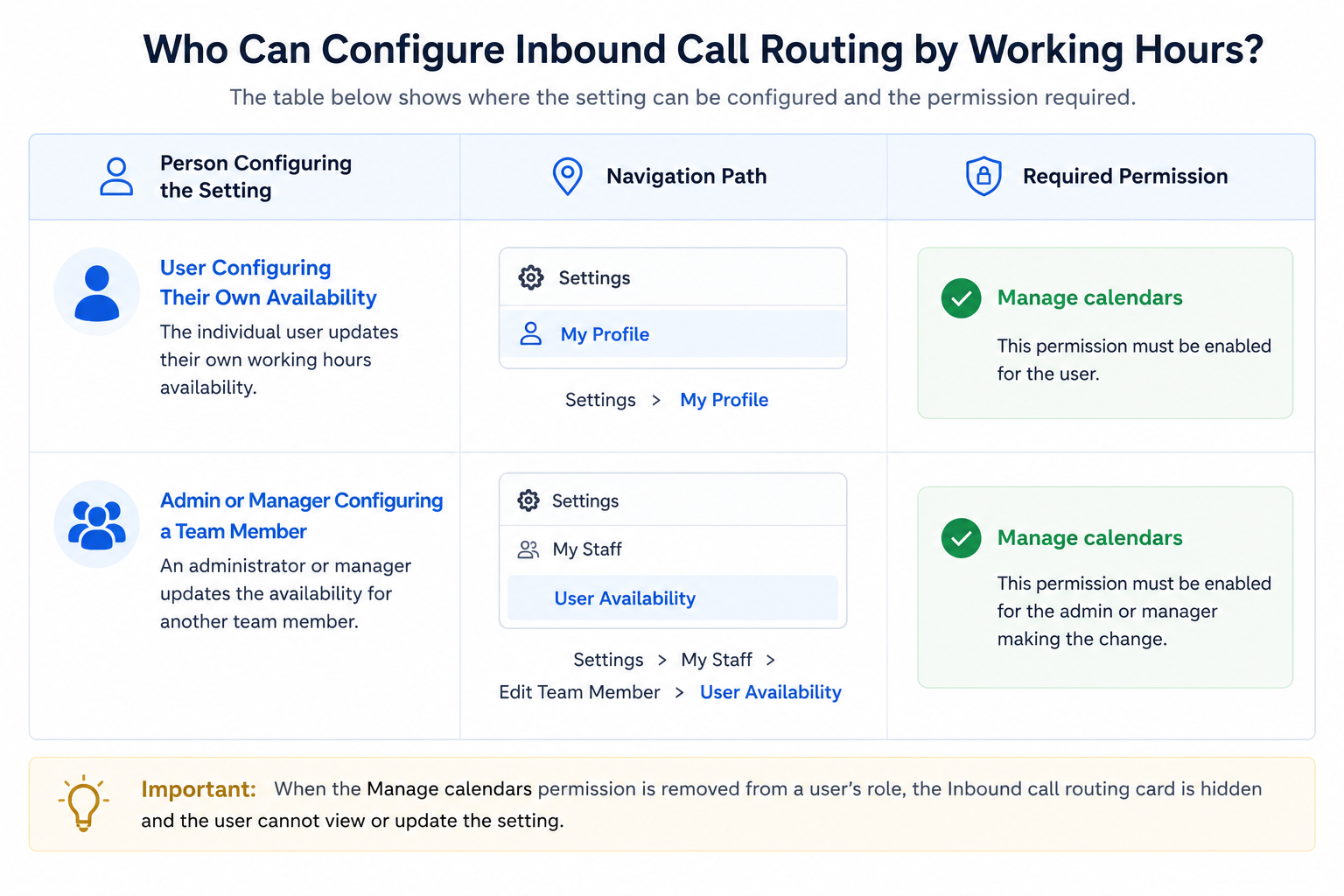
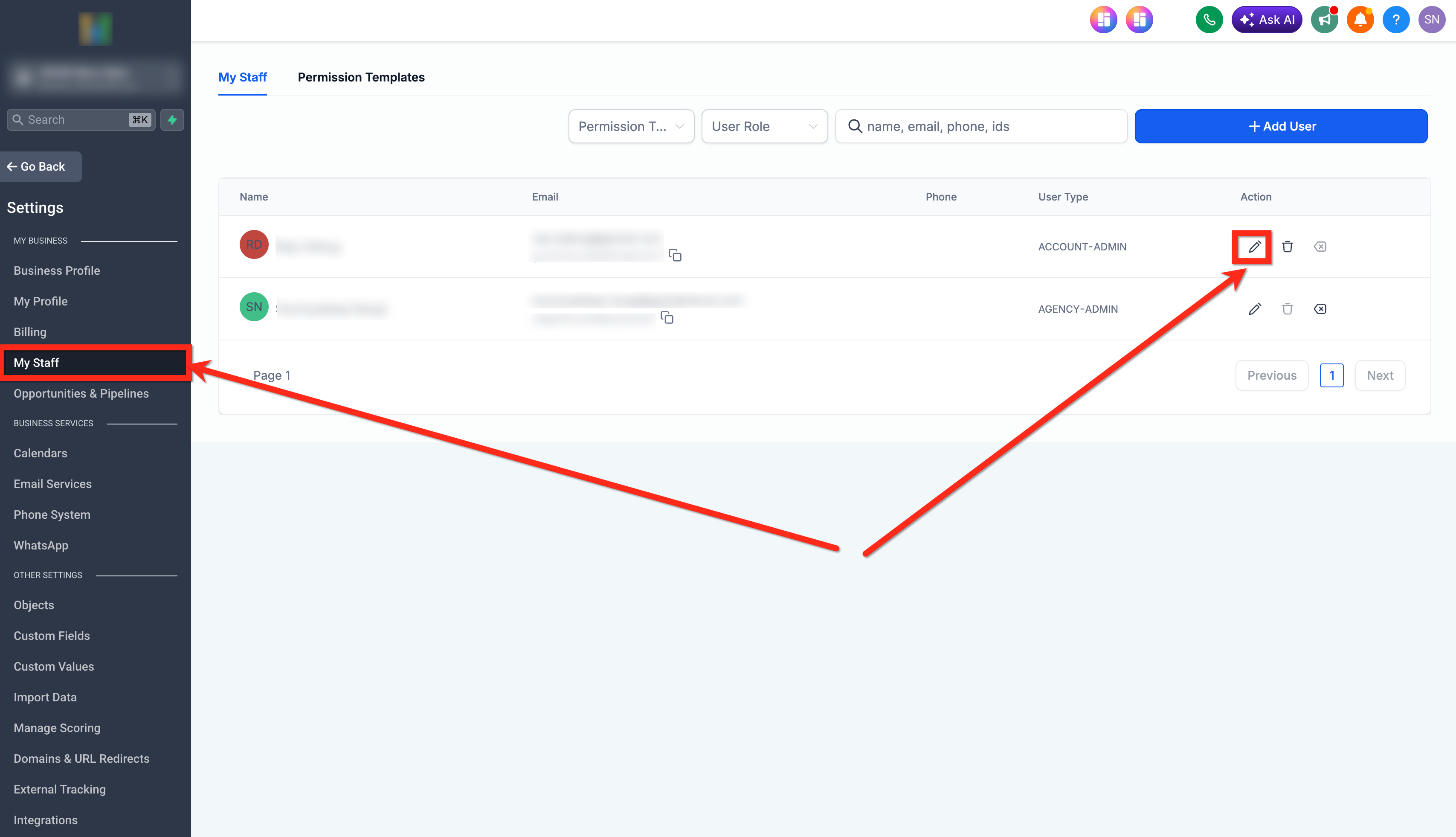
Settings are found under Settings. For an individual profile go to Settings > My Profile. For a team member an administrator goes to Settings > My Staff, edits the user, and updates the Inbound call routing card.
03How businesses use inbound call routing by working hours
- Dental practice. The office sets a schedule that matches clinic hours. When the toggle is enabled for each dentist, callers outside those hours are automatically sent to the practice’s existing voicemail, preventing after hours interruptions.
- Real estate agency. Each agent selects a personal schedule reflecting showing times. With Only ring during working hours active, calls to unavailable agents are skipped, allowing other on call agents to pick up while preserving the agency’s backup routing.
- IT support firm. The manager enables the setting for the support team and uses a shared schedule that aligns with shift work. In Ring All configurations, team members outside their shift are ignored, and on call technicians continue to receive the inbound call.
04Before you start
- A schedule with the desired weekly hours, date specific entries, and correct timezone must already exist.
- The administrator editing a team member must have the Manage calendars permission.
05How to set up and use inbound call routing by working hours in HighLevel
Enable only ring during working hours for your own profile
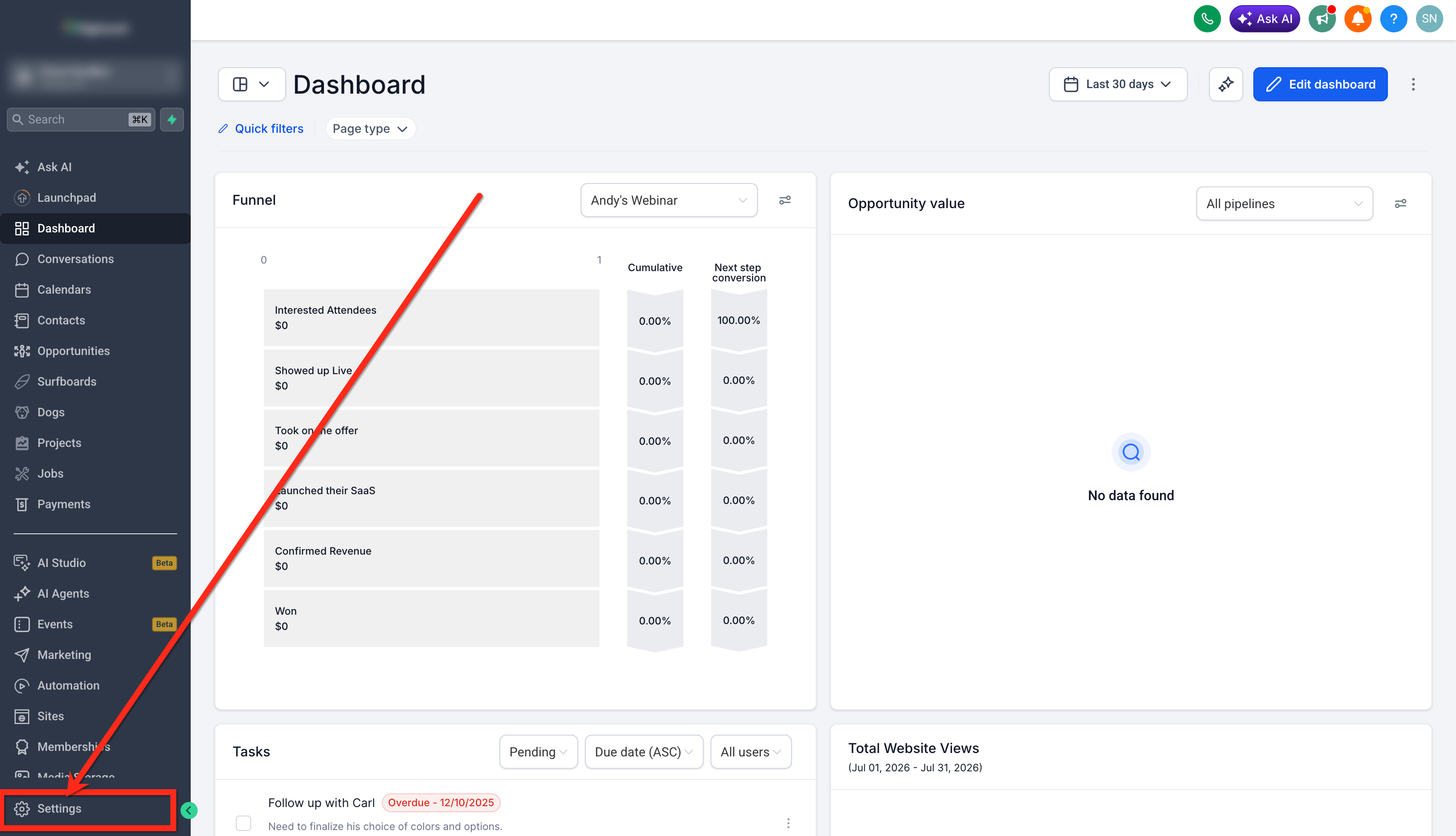
- Open Settings.
- Select My Profile.
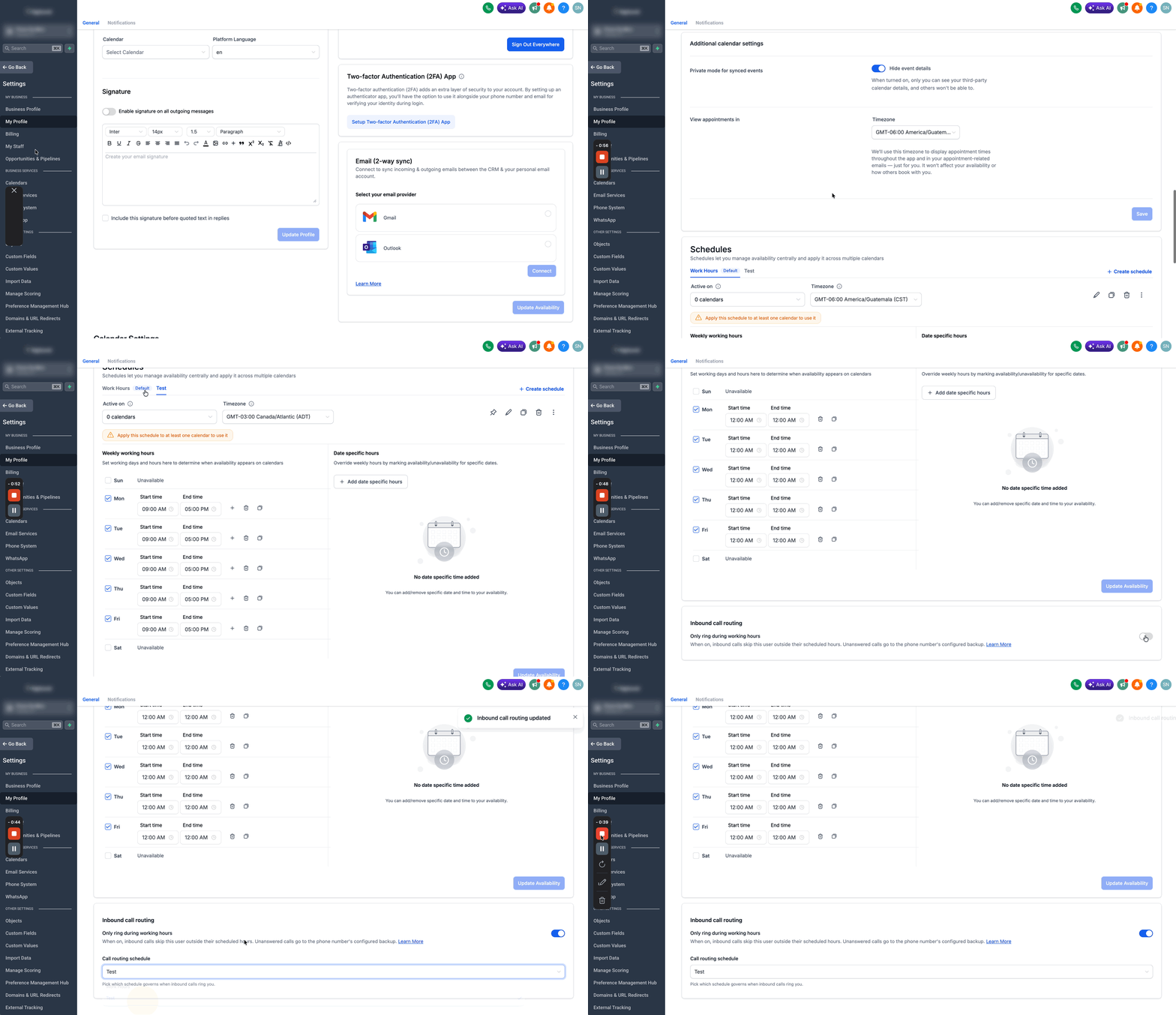
- Scroll to the Inbound call routing card.
- Turn on the Only ring during working hours toggle.
- Open the Call routing schedule dropdown.
- Choose the schedule that defines your working hours (the choice saves automatically).
Enable only ring during working hours for a team member
- Open Settings.
- Navigate to My Staff.
- Click the edit icon for the team member you want to update.
- Select User Availability.
- Find the Inbound call routing card.
- Turn on the Only ring during working hours toggle.
- Pick the schedule that defines the team member’s working hours.
- Save the team member’s settings when prompted.
06What it looks like in HighLevel
07Settings that matter
- Only ring during working hours. Controls whether inbound calls are filtered based on the selected availability schedule.
- Call routing schedule. Specifies which availability schedule HighLevel checks to determine a user’s working hours.
08Things to know before you rely on it
- Transferred calls are not filtered; they follow the existing transfer behavior.
- The feature does not create a separate after hours destination; calls outside the schedule use the phone number’s current backup routing.
- The setting applies per user; each person who should be excluded must enable it and select a schedule.
- The accuracy of routing depends on the schedule’s weekly hours, any date specific entries, and its timezone.
- The toggle is off by default, so no call behavior changes until it is turned on.
09If something goes wrong
- Calls still ring after hours after the setting is enabled. Confirm the correct schedule is selected, ensure the current time falls outside that schedule, verify the schedule’s timezone, and check that the toggle is enabled for the proper user profile. For holidays, make sure the date specific entry has no available hours.
10How it connects to the rest of HighLevel
- Explore all phone system capabilities Phone system overview
- Review pricing and rebilling details for the phone system Pricing guide
- Learn how to disable the LC Phone system if needed Disable LC Phone
Michael's take

This feature helps keep personal time separate from work calls without fiddling with phone settings.
Don’t forget to verify the schedule’s timezone; a mismatch will let calls slip through.