
01Who this is for
- Agency owners: need to enable RCS for client messaging campaigns and must follow carrier requirements.
- Ecommerce Founders: want to send order confirmations and promotions with brand visuals via RCS.
- Healthcare providers: require verified contact details and opt in proof for appointment reminders.
02RCS senders, explained
RCS messaging adds a branded, verified sender to the HighLevel phone system. The sender appears in Google Messages with a logo, banner, and contact links. Messages can include images, video and tappable buttons.
The feature lives under Settings > Phone System > RCS Messaging. After activation in Labs, the RCS Messaging tab becomes visible. Registrations progress through brand identity, country selection, sender details, US carrier registration and final review.
Once submitted, the sender status shows as In review. After approval, the branded profile is live and RCS messages are billed according to the account plan.
03How businesses use the RCS sender
- Ecommerce retailer. The retailer uploads a square logo and a banner, enters support phone, email and website, and provides a screenshot of the checkout opt in page. After filling US carrier details, the retailer submits the sender to send order updates with brand visuals.
- Healthcare clinic. The clinic adds a privacy policy URL, terms of service URL, and designates the clinic manager as the authorized representative. It describes appointment reminder use cases, uploads opt in evidence, completes the US carrier registration and submits the profile for review.
- Real estate agency. The agency selects Canada and the United States as launch countries, creates a brand name, color and description, and inputs contact information. It records the opt in flow for property alerts, provides US carrier business details, and submits the sender to deliver branded property notifications.
04The numbers and rules that matter
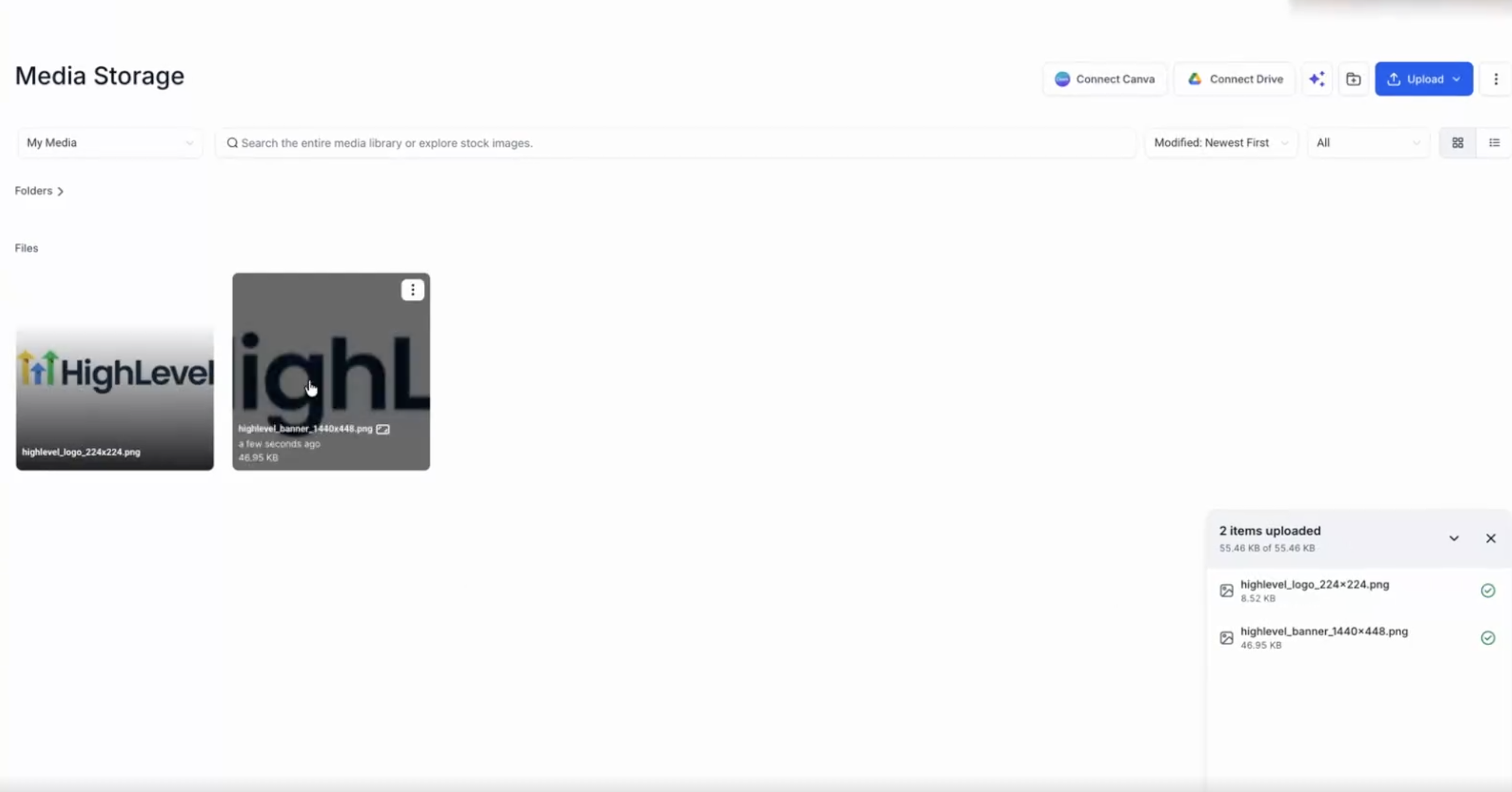
- Brand logo: Square, 224 × 224 px, max 50 KB.
- Banner image: 1440 × 448 px, max 200 KB.
- Brand name: Up to 25 characters.
- Brand description: Up to 100 characters.
- Draft registrations are kept for 30 days.
- Available countries include Austria, Belgium, Canada, Czech Republic, Denmark, Finland / Åland Islands, France, Germany, Ireland, Italy, Mexico, the Netherlands, Norway, Poland, Portugal, Romania, Singapore, Slovakia, Spain, Sweden, United Kingdom, United States.
05Before you start
- A square brand logo (224×224 px, max 50 KB).
- A banner image (1440×448 px, max 200 KB).
- Customer facing phone number, support email and website.
- Privacy policy URL and terms of service URL.
- An authorized representative with name, email and business title.
- Opt in evidence: screenshot of the opt in page and a demo video of the opt in flow.
- For US messaging: legal business name, entity type, industry, Tax ID (EIN) and rough estimates of monthly website visits and RCS messages.
06How to set up and use the RCS sender in HighLevel
Open RCS Messaging and start a registration
- Navigate to Settings > Phone System and open the RCS Messaging tab.
- Click the + Start new registration button under RCS senders.
- Note that progress saves automatically, allowing you to resume later.
Step 1: Brand identity
- Enter a brand name of up to 25 characters.
- Select a brand color, which the platform checks for contrast against white.
- Provide a brand description of up to 100 characters.
- Upload the brand logo using Click to upload and Insert media.
- Upload a banner image using the same upload flow.
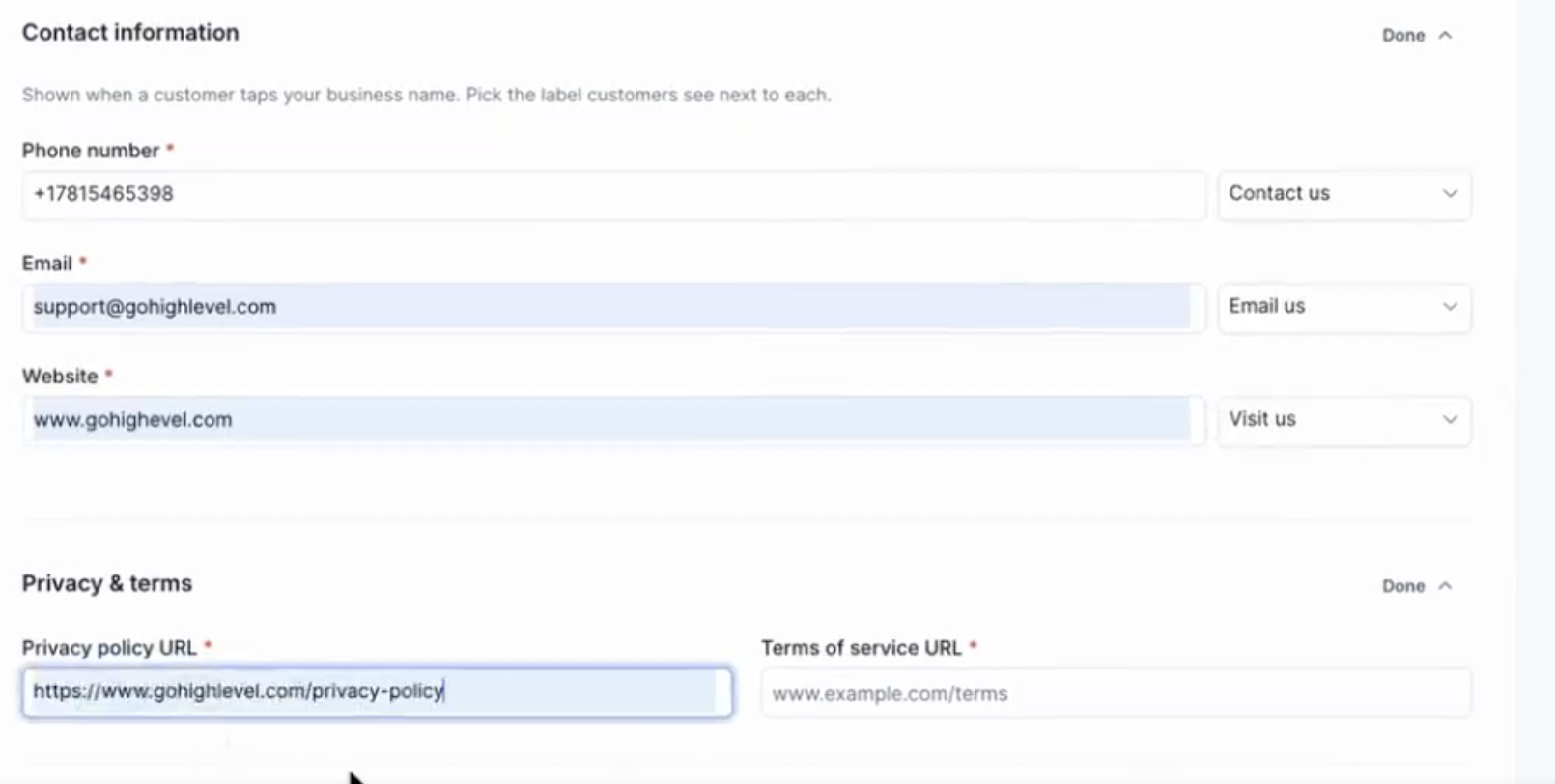
- Enter a phone number, email address and website, and choose the label shown to customers.
- Add the privacy policy URL and terms of service URL, then click Continue.
Step 2: Countries
- Select every country you plan to message from the list.
- Click Continue; country selection is final after submission.
Step 3: Sender details
- Enter the first name, last name, email and business title of an authorized representative.
- Provide the website URL, a description of the use case, the trigger event, opt in description and access instructions.
- Upload a screenshot of the opt in page and a demo video showing the opt in and opt out flow.
- Review the information and click Continue.
Step 4: US carrier registration
- Enter the legal business name, entity type, industry and Tax ID (EIN).
- Verify the pre filled business address or click Edit to change it.
- Provide rough estimates of monthly website visits and RCS messages.
- Choose a use case from the dropdown list.
- Write a campaign overview and include a sample messaging flow.
- Supply a HELP sample flow and click Continue.
Step 5: Review and submit
- Examine each section for accuracy.
- Use the Edit buttons to modify any part if needed.
- Click Submit for review.
07What it looks like in HighLevel
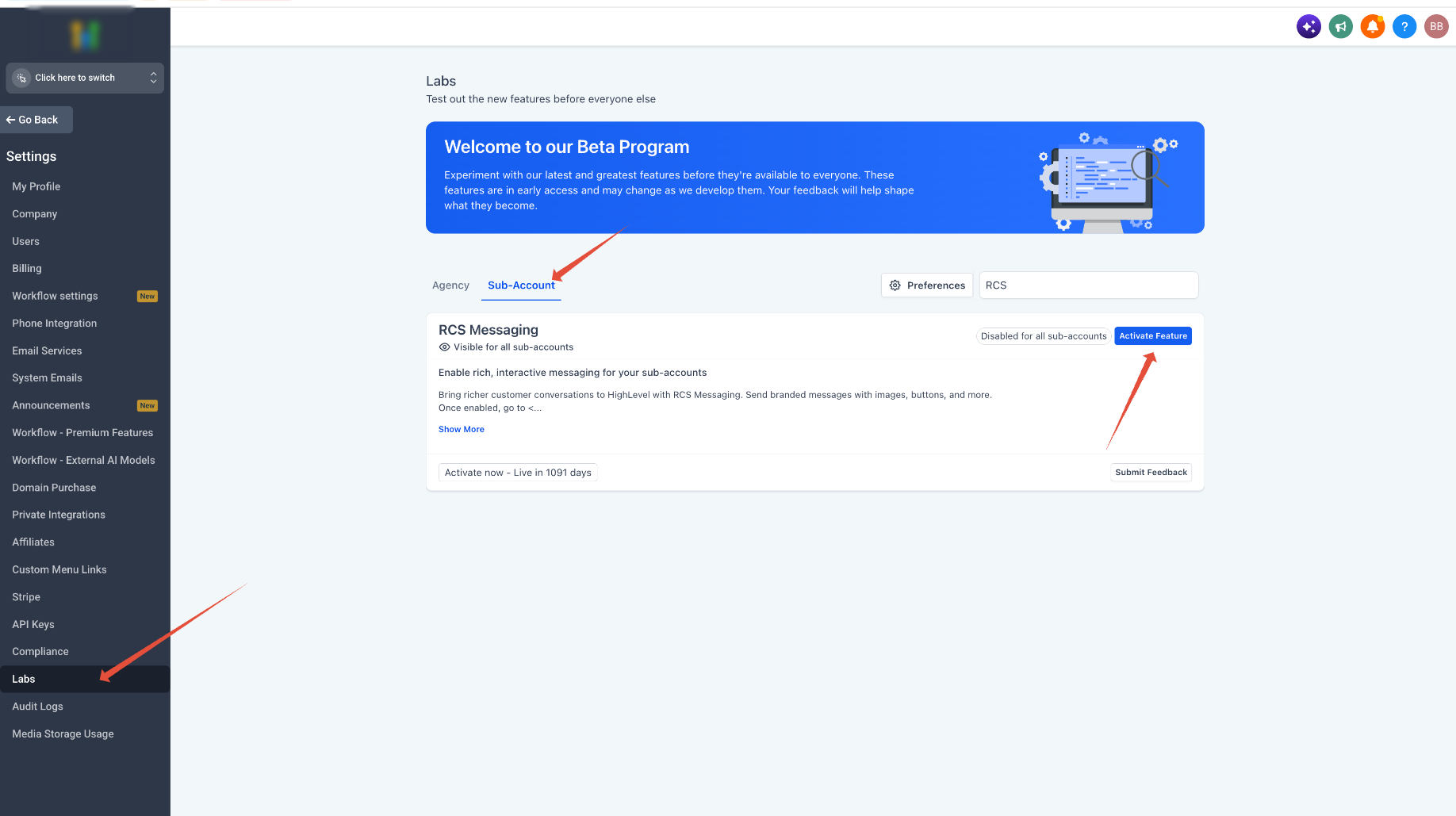
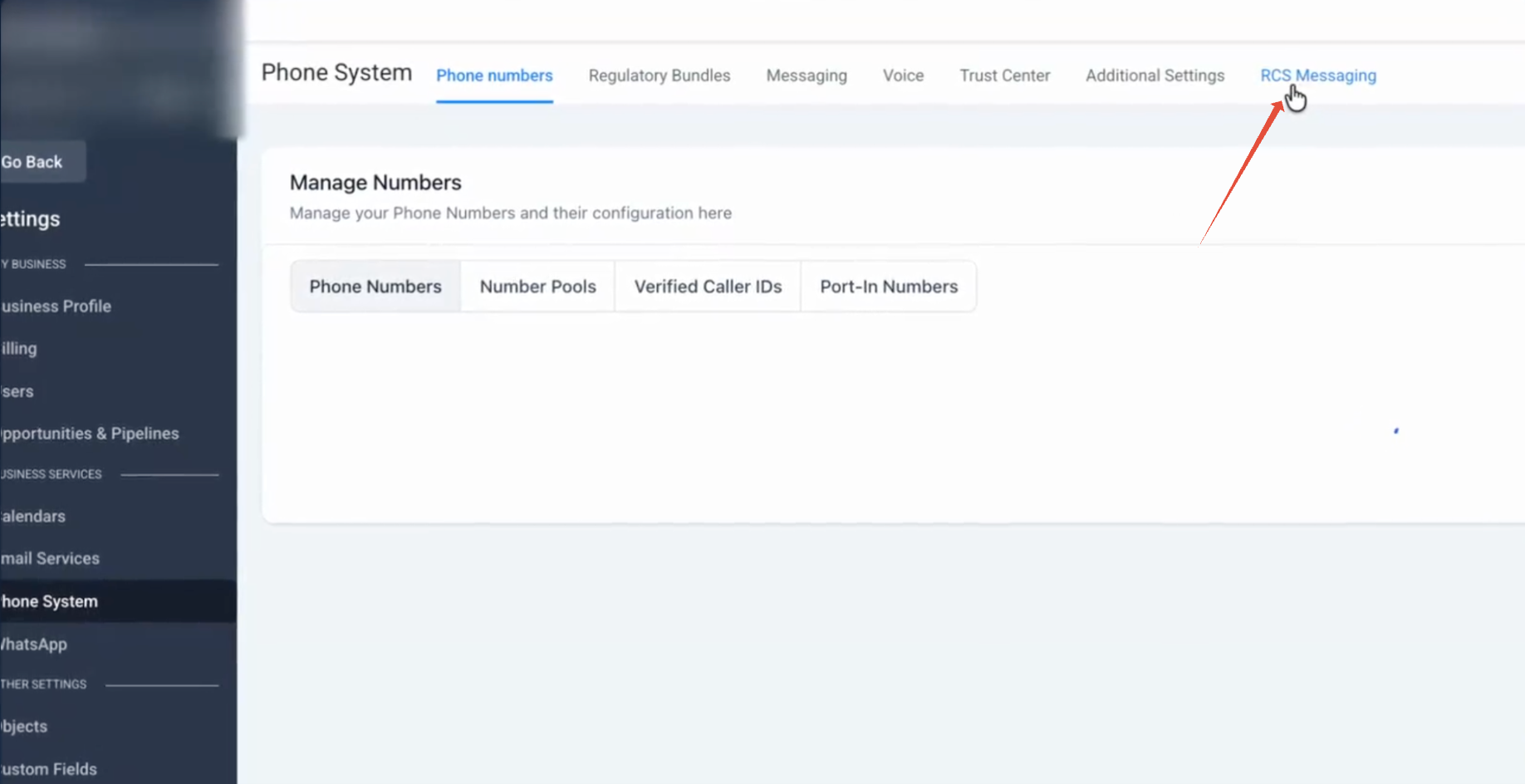
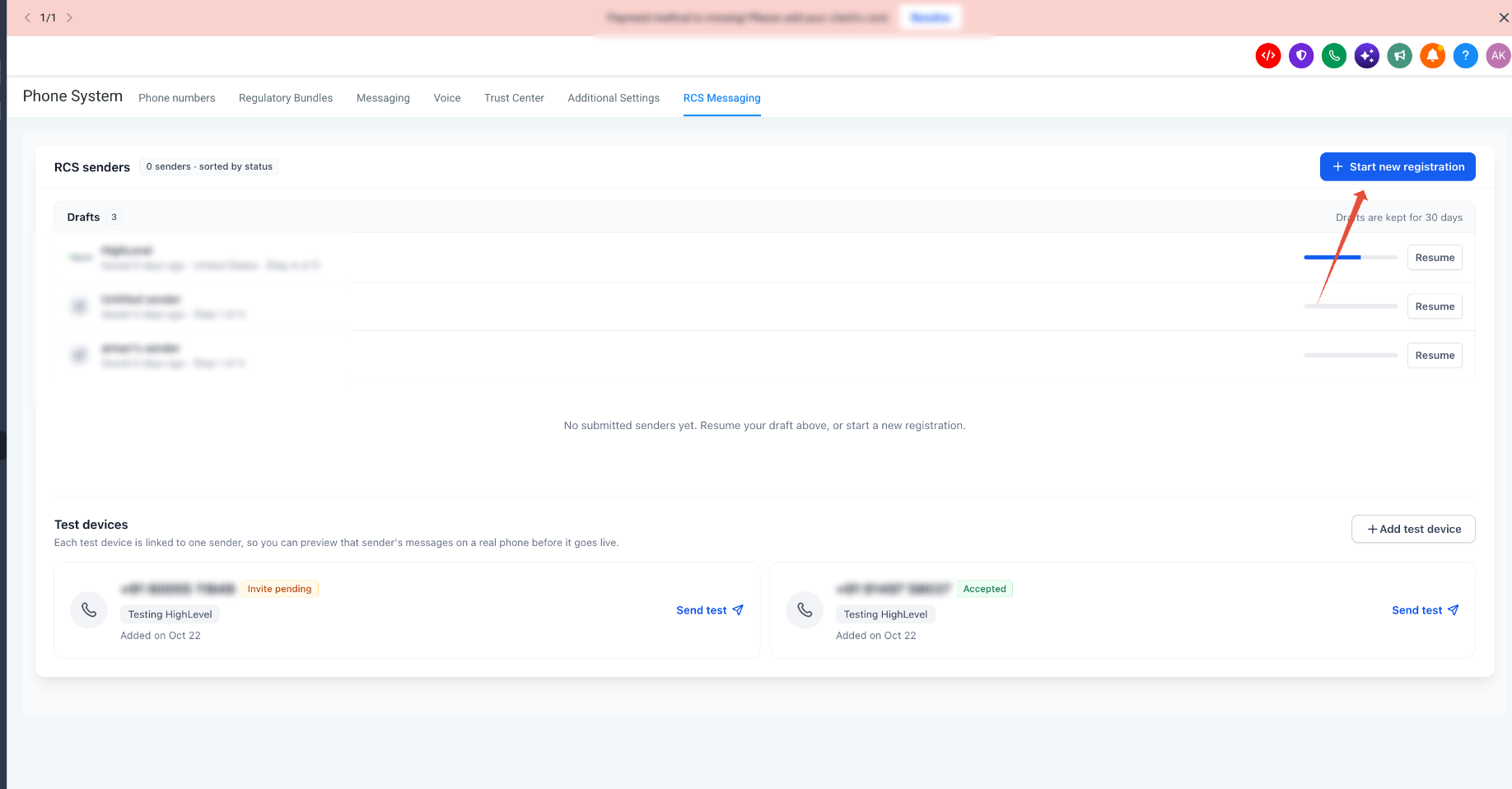
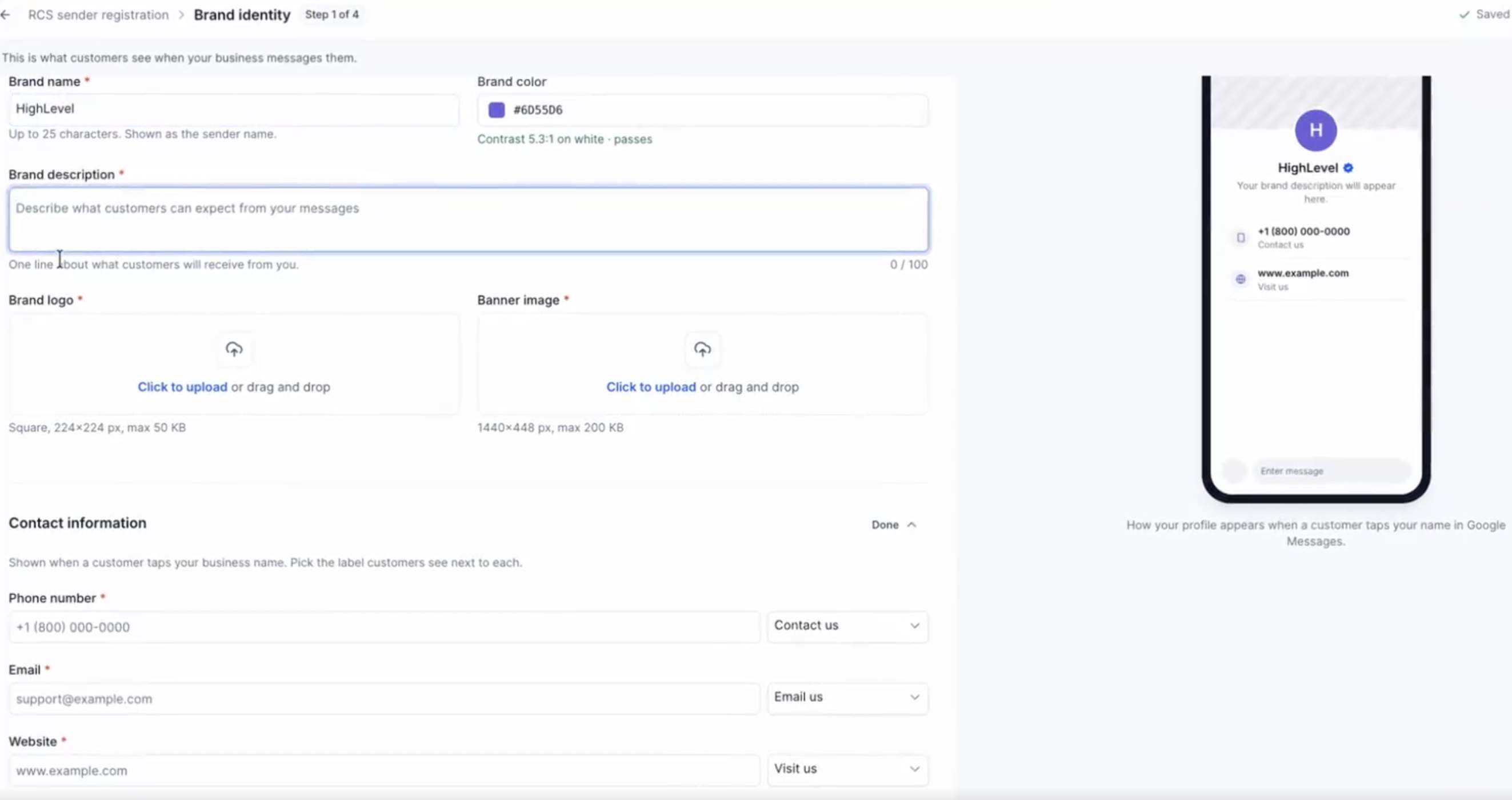
08Settings that matter
- Brand name. Sets the sender name that appears to customers.
- Brand color. Defines the accent color for buttons in the RCS message.
- Brand description. Provides a brief line describing what customers will receive.
- Brand logo. Uploads the square image shown next to the sender name.
- Banner image. Uploads the wide image displayed when customers tap the sender name.
- Phone number. Shows a phone contact that customers can tap.
- Email. Shows an email contact that customers can tap.
- Website. Shows a website link that customers can tap.
- Privacy policy URL. Links to the privacy policy displayed to customers.
- Terms of service URL. Links to the terms of service displayed to customers.
- Authorized Representative. Identifies the person Google and carriers may contact for verification.
09Things to know before you rely on it
- Country selection cannot be changed after the sender is submitted.
- Choosing the United States adds a one time US registration fee.
- Brand logo must be 224 × 224 px and smaller than 50 KB.
- Banner image must be 1440 × 448 px and smaller than 200 KB.
- Draft registrations remain available for 30 days.
- RCS is available only for customers using LC Phone.
- Multi country registrations may require separate regional sender profiles.
10How it connects to the rest of HighLevel
- LC Phone provides the underlying SMS and calling capabilities required for RCS. LC Phone overview
- Review pricing details for RCS usage and the one time US registration fee. Pricing guide
- Start a trial to explore RCS messaging alongside other HighLevel features. Start trial
Michael's take

RCS senders are a small convenience for businesses that already use the LeadConnector Phone System and want richer messages. They add brand presence without a major workflow change, but they do require a few minutes of set up and a one time US registration fee if you target the United States.
A good fit is a local service provider that books appointments online. They can use the brand logo, a friendly contact number and a clear opt in page to send appointment reminders with images and tappable buttons. I would begin with gathering the logo, banner and opt in proof, then run through the five step registration to get the sender live.