
01Who this is for
- Marketing agencies that send promotional videos via SMS and need to stay within carrier limits to avoid delivery failures.
- Real estate teams that email property brochures and must keep files under 20 MB for direct email attachment.
- Dental practices that share patient forms by SMS/MMS and require reliable delivery without extra hosting.
02File size limits, explained
The attachment size limits feature defines the maximum file size that can be sent directly through SMS/MMS or email. For SMS, any media that fits the carrier’s MMS limits is delivered as MMS; otherwise HighLevel posts a Media Library link. Email messages can carry files up to 20 MB; larger files are also turned into Media Library links.
The limits differ by channel. Direct MMS support varies by carrier and number type, with a practical recommendation to keep files under 500 KB. Short codes and toll free numbers may accept up to 5 MB, but carrier rules still apply. Email limits are set at 20 MB regardless of the recipient’s mail provider.
All attachment handling occurs inside the Conversations view. Users can upload files from their device or select existing Media Library items. The platform automatically decides whether to send the file directly or replace it with a link based on the size and type rules.
03How businesses use file size limits
- Marketing agency. An agency drafts a client campaign in Conversations, attaches a video thumbnail under 500 KB, and sends it as MMS. If the video exceeds the limit, the system uploads it to the Media Library and includes a clickable link, ensuring the message still reaches recipients.
- Real estate brokerage. A broker composes an email to a prospective buyer, attaches a property brochure that is 15 MB, and sends it directly. Because the file is under 20 MB, the email delivers the attachment without converting it to a Media Library link.
- Dental practice. The office staff copies a patient intake form to the clipboard, clicks into the message composer, and pastes it. The form is added as an attachment and follows the same size checks, becoming a Media Library link if it exceeds the direct limits.
04The numbers and rules that matter
- Carrier MMS limits: AT&T 1.0 MB (Long Code), 0.6 MB (Toll Free, Short Code).
- Carrier MMS limits: T-Mobile 1.5 MB (Long Code), 0.6 MB (Toll Free), 1.0 MB (Short Code).
- Carrier MMS limits: Verizon 1.0 MB (Long Code), 0.6 MB (Toll Free), 1.2 MB (Short Code).
- Conservative best practice for direct MMS: Keep attachments under 500 KB.
- Long Code (10DLC) supports MMS with size varying by carrier.
- Short Code and Toll Free numbers support MMS up to 5 MB.
- HighLevel email composer limit: 20 MB per attachment.
- Supported image types for direct MMS: JPEG, PNG, GIF.
- Other media types (MP3, MP4, PDF) may be handled differently by carriers.
05How to set up and use file size limits in HighLevel
Upload attachment in Conversations
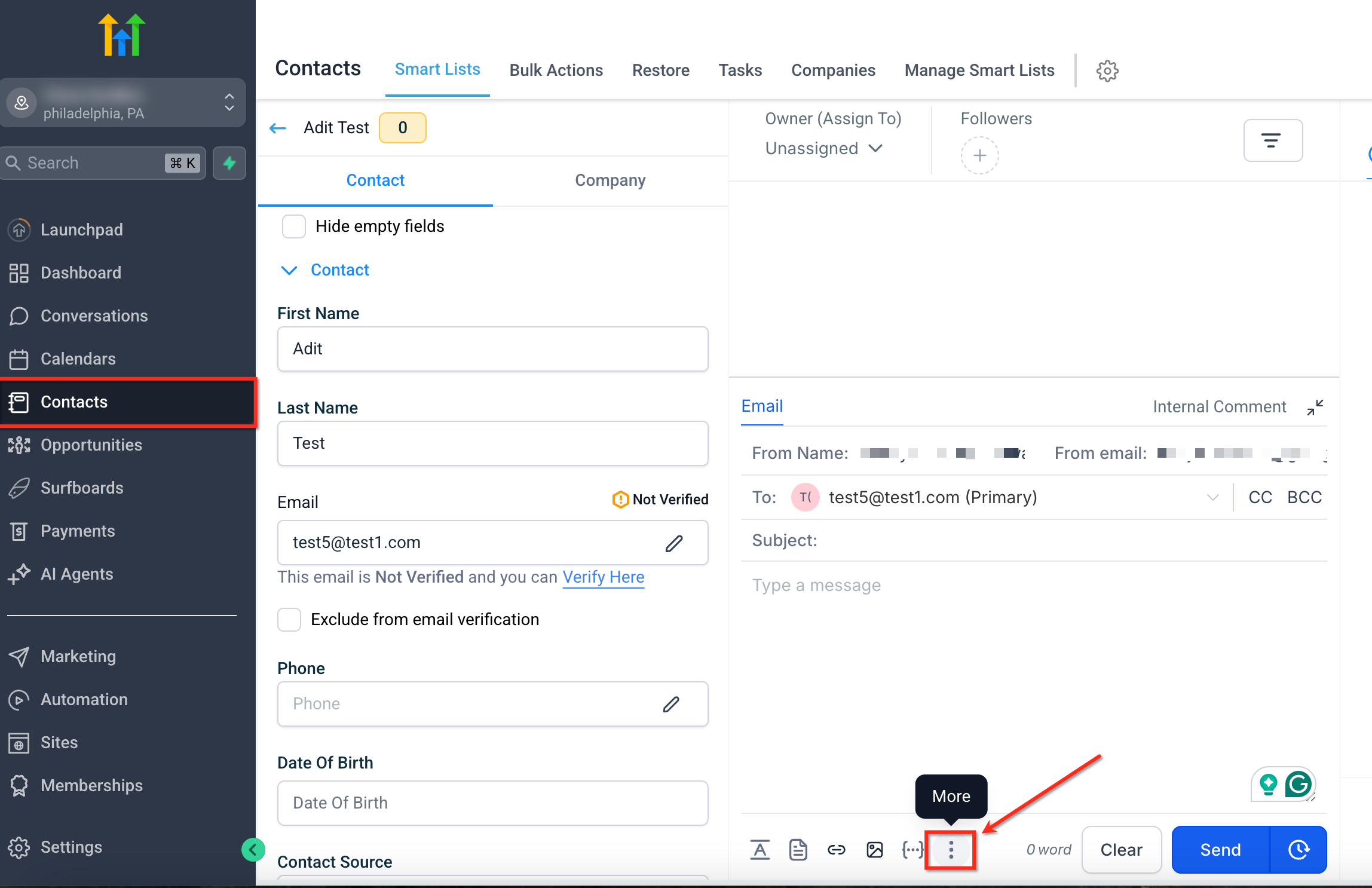
- Open a conversation under the Conversations tab and click the three dot icon in the message composer.
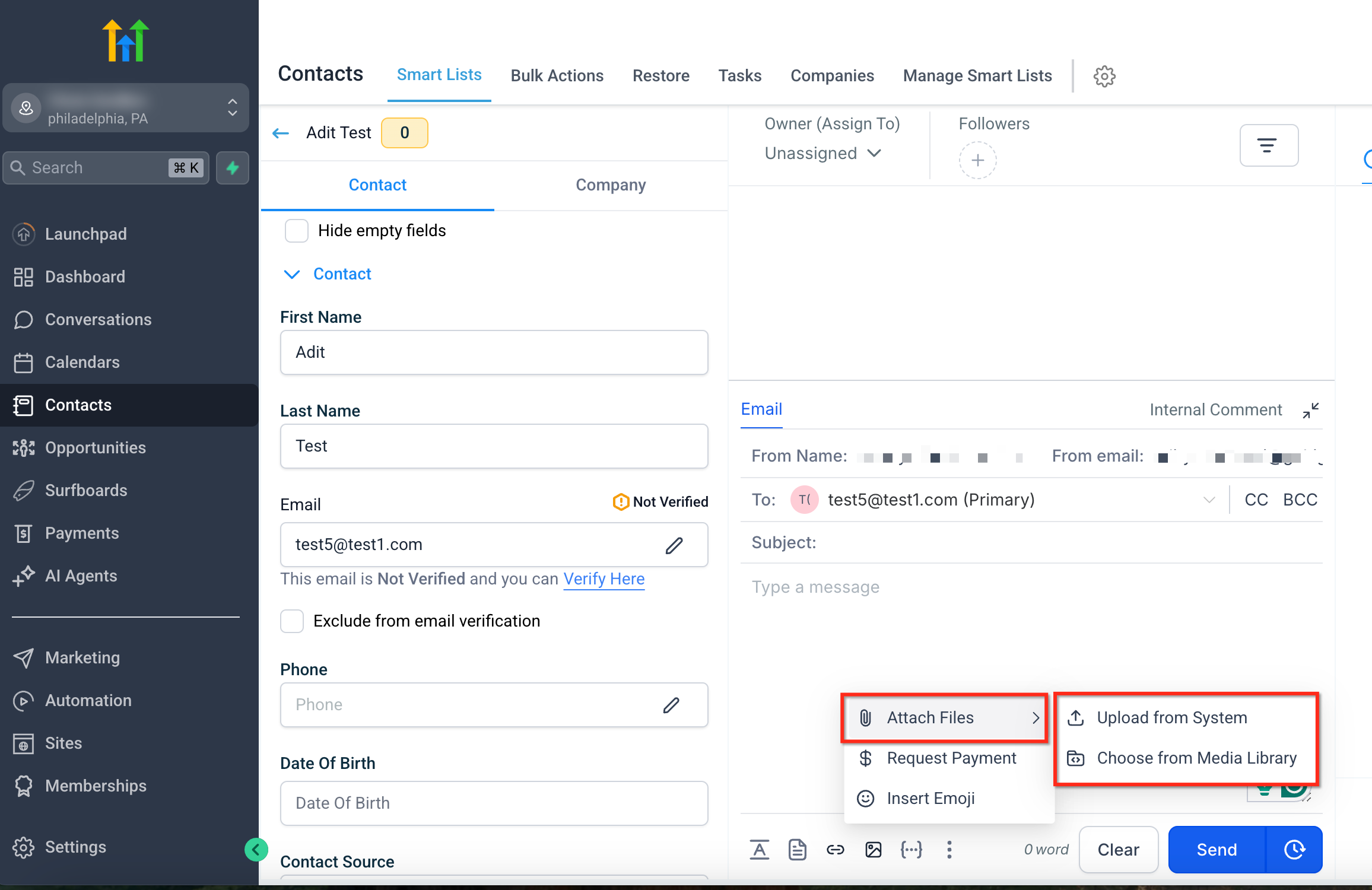
- Select “Attach Files” from the menu that appears.
- Pick either “Upload from System” to browse the computer or “Choose from Media Library” to use an existing file.
- After the file is added, HighLevel sends it directly if it meets size and type limits; otherwise it inserts a Media Library link.
Paste attachment from clipboard
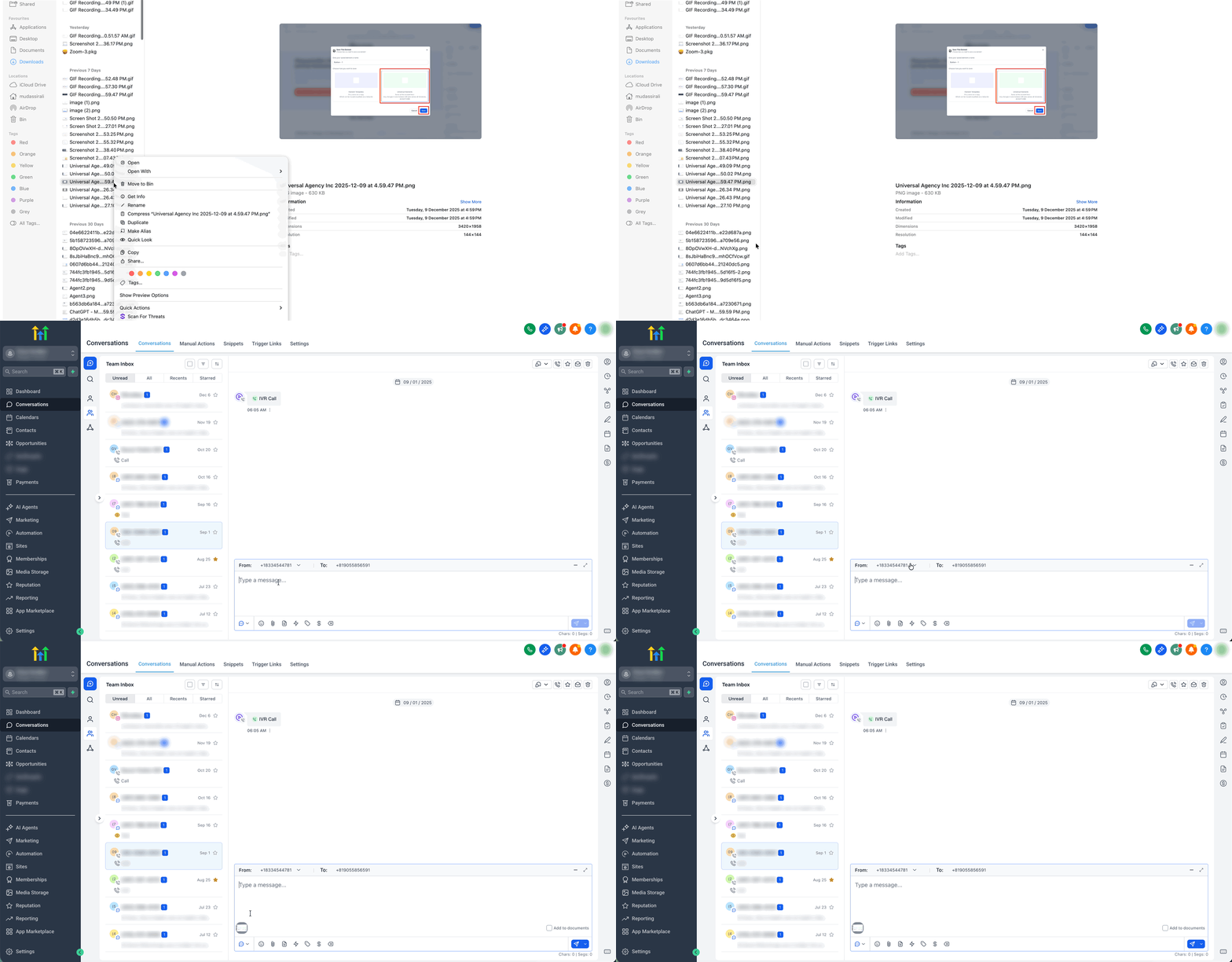
- Copy a supported file or image to the clipboard.
- Click inside the message composer in a conversation.
- Press Ctrl + V (Windows) or Cmd + V (Mac), or right click and choose Paste.
- The pasted file appears in the message and follows the same size and delivery rules as other attachments.
Video thumbnail generation (email only)
- When a video file is uploaded through the Media Library for an email, HighLevel may generate a GIF thumbnail.
- The thumbnail appears in the email as a visual preview and link to the hosted video.
06What it looks like in HighLevel
07Things to know before you rely on it
- Direct MMS attachments should generally stay under 500 KB for the widest carrier compatibility.
- Carrier specific MMS limits range from 0.6 MB to 1.5 MB depending on the carrier and number type.
- Short code, toll free, and long code numbers can support MMS, but maximum sizes vary and are not guaranteed.
- Email attachments are limited to 20 MB in the HighLevel composer; larger files become Media Library links.
08How it connects to the rest of HighLevel
- SMS compliance settings for opt out and sender ID SMS compliance
- HighLevel phone system pricing and billing guide Pricing guide
- All Phone System features overview Phone system features
Michael's take

Wondering if you really need to worry about attachment sizes when you message customers? The short answer is yes. Knowing the limits saves you from failed sends and endless back and forth. HighLevel lets you attach small images directly, but once you hit carrier caps or the 20 MB email ceiling, it uploads the file to the Media Library and inserts a clickable link, keeping the conversation moving.
If I were setting up a new campaign, I’d test a tiny image first to confirm it lands as an MMS, then try a larger file to see the link appear. That quick check shows whether the audience receives the content directly or via a link, and you can adjust the file size or host it elsewhere accordingly.