
01Who this is for
- Users who configure call forwarding and want to keep inbound calls reliable.
- Team managers assigning phone numbers to staff profiles and needing to avoid call interruptions.
02Call loops, explained
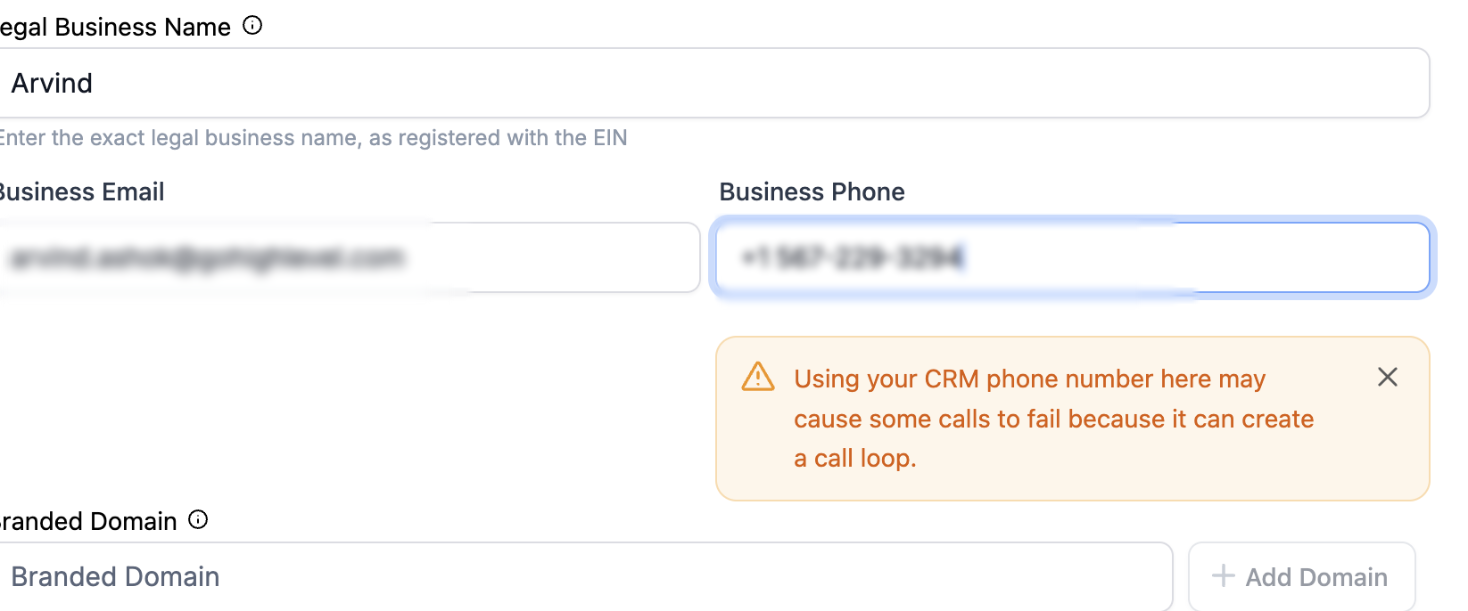
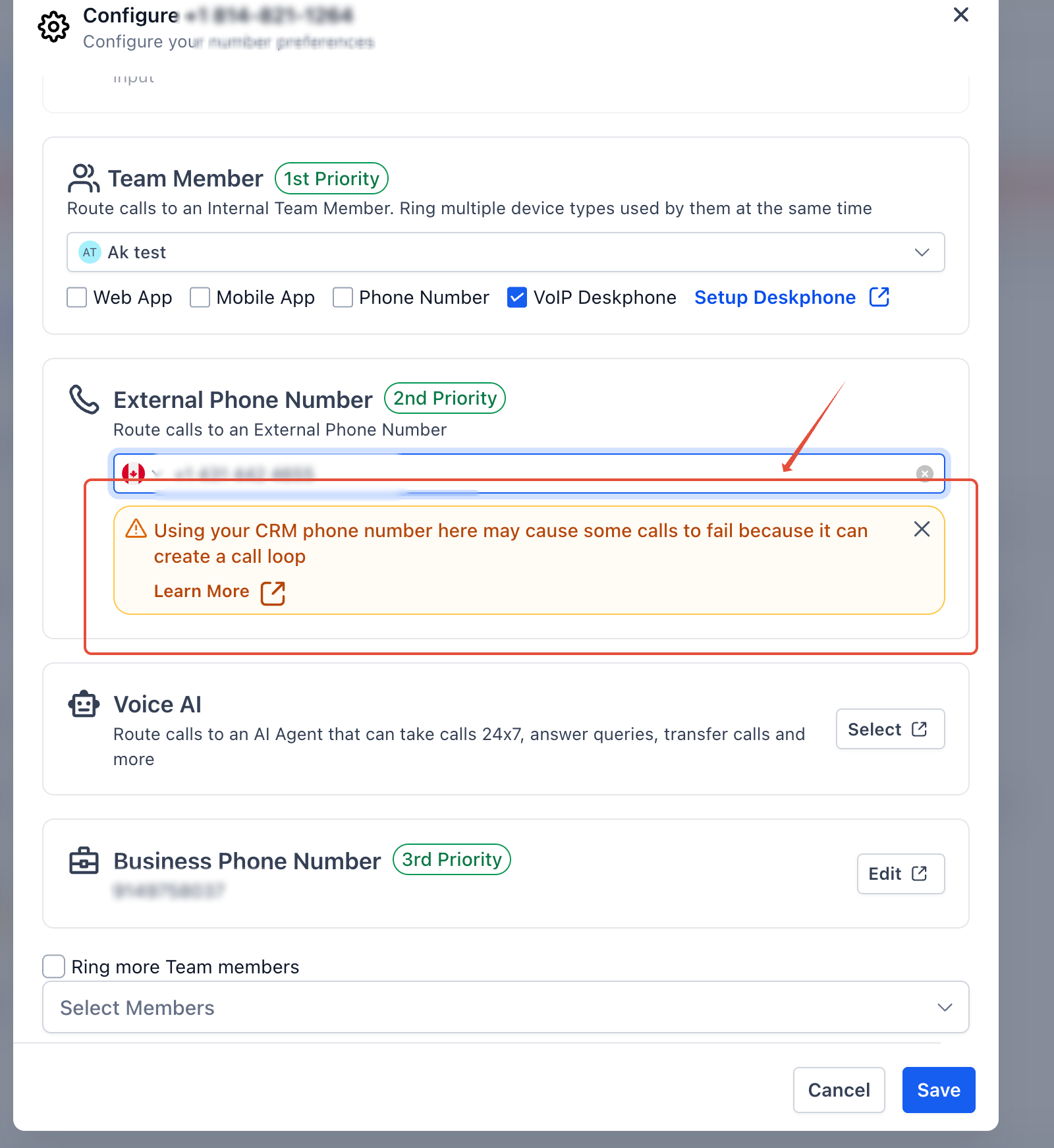
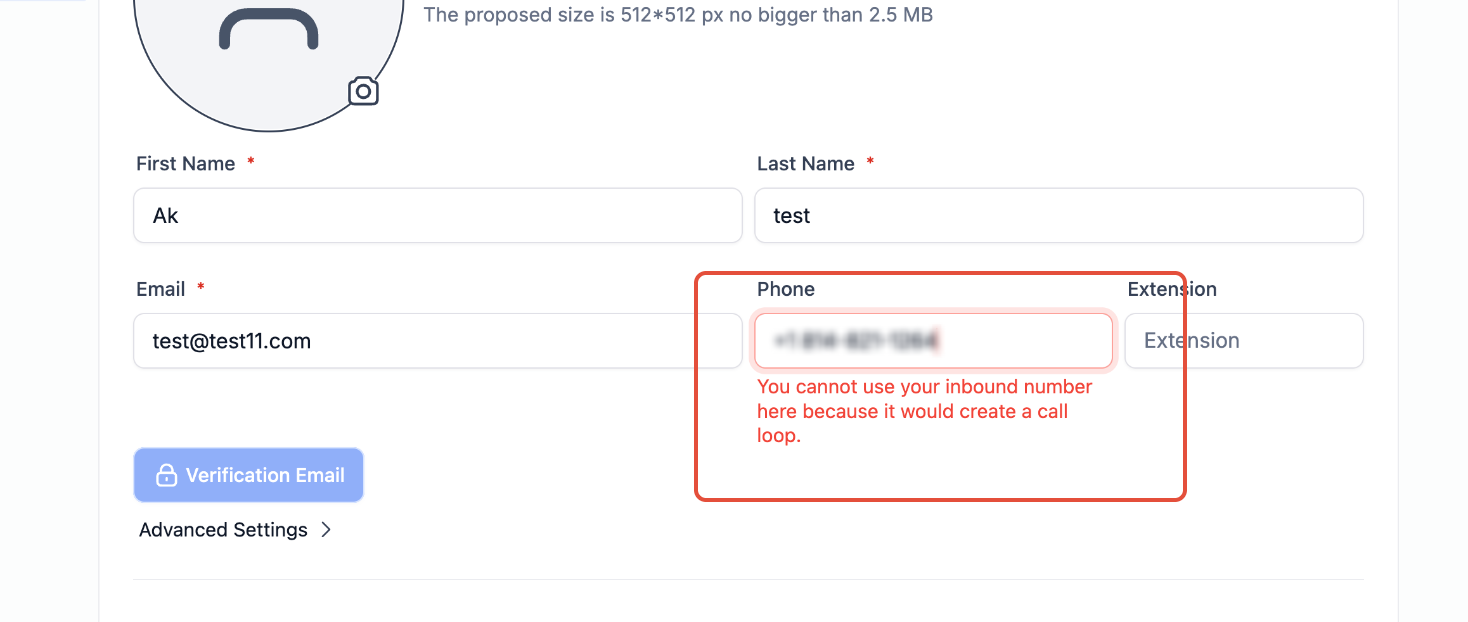
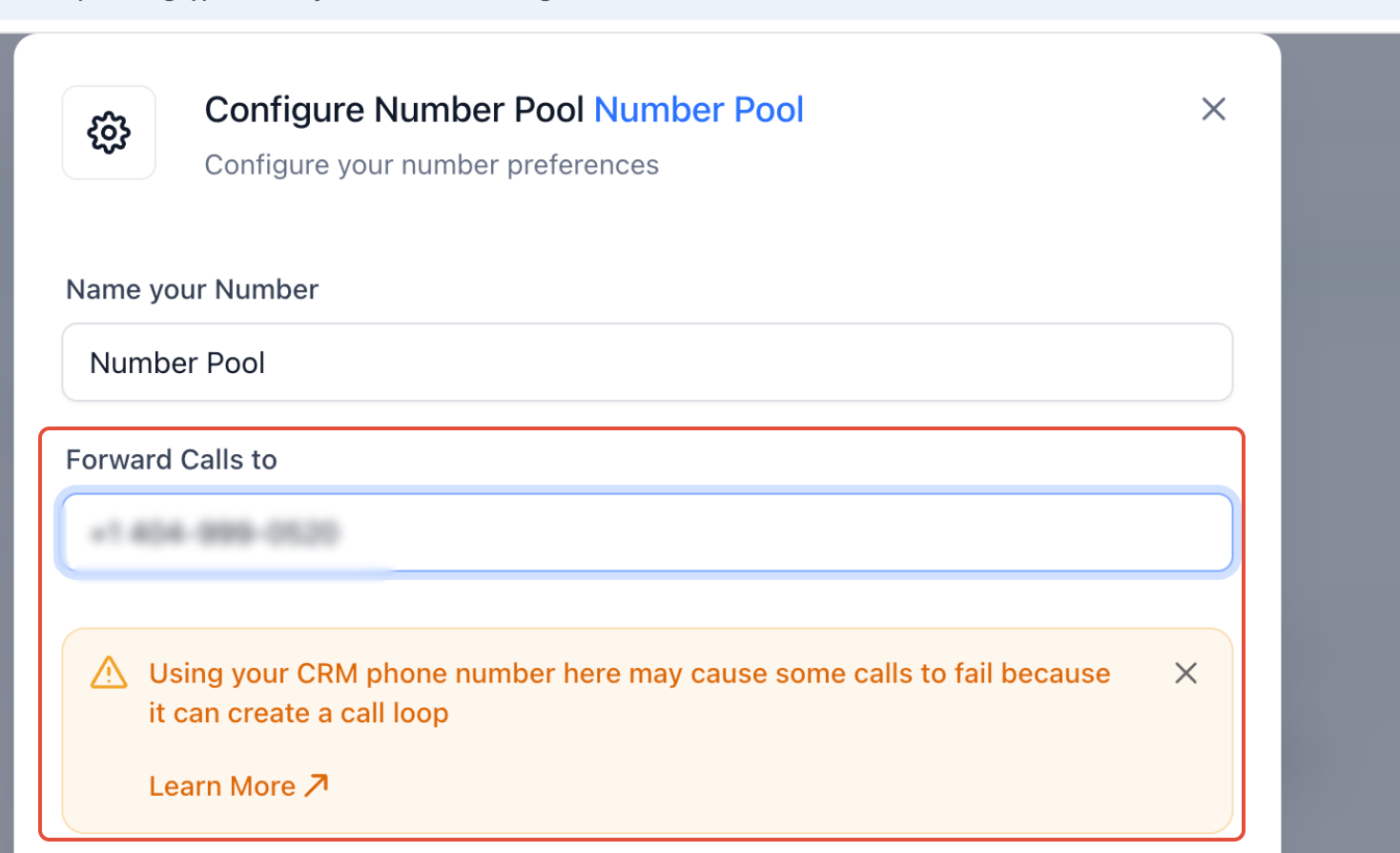
HighLevel allows the same platform phone number to be used in several places, such as call forwarding, business profiles, staff profiles, and the number pool. When the same number is used as a destination, the system may route a call back into itself, creating a loop. When a potential loop is detected, HighLevel displays an informational warning that the configuration may cause calls to fail. The warning does not block the save action, giving you freedom to continue while being aware of the risk. The warning appears in Phone Number Settings (Call Forwarding), Business Profile (Business Phone Number), Staff Profile (User Phone Number), and Number Pool.
03How businesses use call loops
- Marketing agency. Set up a client’s call forwarding number using an external line to prevent the platform from looping calls back to the agency’s main number. Verify the flow in the call routing builder and save after confirming no warning appears.
- Local retail store. Enter the store’s business phone number in the Business Profile. Review the warning that appears; if the number is also used for forwarding, replace it with a landline to avoid loops, then save the profile.
- Customer support team. Assign each support agent a user phone number in their Staff Profile. If an internal number is chosen, check that incoming calls are not routed back to the same extension, test the configuration, and monitor call logs for drops.
04How to set up and use call loops in HighLevel
Apply best practices to avoid call loops
- Use an external mobile, landline, or VoIP number for call forwarding whenever possible.
- If you must use a HighLevel number, confirm that the call flow does not send calls back to that same number.
- Save the configuration and test the routing to ensure calls connect as expected.
- Watch the call logs for any failed or dropped calls and adjust the routing if needed.
05What it looks like in HighLevel
06Settings that matter
- Phone Number Settings (Call Forwarding). Controls which destination number receives forwarded calls; using a HighLevel number here can trigger a loop warning.
- Business Profile (Business Phone Number). Sets the public phone number for the business; a loop warning appears if the same number is used elsewhere in routing.
- Staff Profile (User Phone Number). Assigns a phone number to a team member; reusing a HighLevel number can cause the platform to alert about potential loops.
- Number Pool. Collects numbers for assignment across the account; adding a HighLevel number that is also a call destination may generate a warning.
07Things to know before you rely on it
- The warning is informational only and does not stop you from saving the configuration.
- Call loops can cause calls to fail, disconnect, or not reach the intended recipient.
- Using an external number for forwarding reduces the risk of loops.
08How it connects to the rest of HighLevel
- HighLevel phone system pricing and billing guide Pricing guide
- HighLevel’s LC Phone: built in SMS and calling for agencies LC Phone overview
- HighLevel guide to setting up SIP deskphones for office teams SIP deskphones guide
Michael's take

Dropping a HighLevel phone number into a call forwarding rule can create a loop where the call bounces back into the system, causing it to fail or drop.
I would swap the internal number for a mobile or landline whenever I can, then run a quick test call after saving. If I must keep the internal number, I double check the flow so the call never returns to the same extension and I keep an eye on the call logs for any hiccups.