
01Who this is for
- Sales teams who need to collect payments quickly during a chat, because the link can be sent directly from the conversation.
- Service providers who want on brand invoices without building a website, as the checkout page matches their brand colors.
- Account managers who must track payment activity in the same thread as other messages, simplifying follow up.
02Text to pay links, explained
Text to Pay Links generate a secure checkout URL that a customer can open from a received SMS. The link supports one time or recurring products, optional discounts, tax adjustments, and a configurable due date.
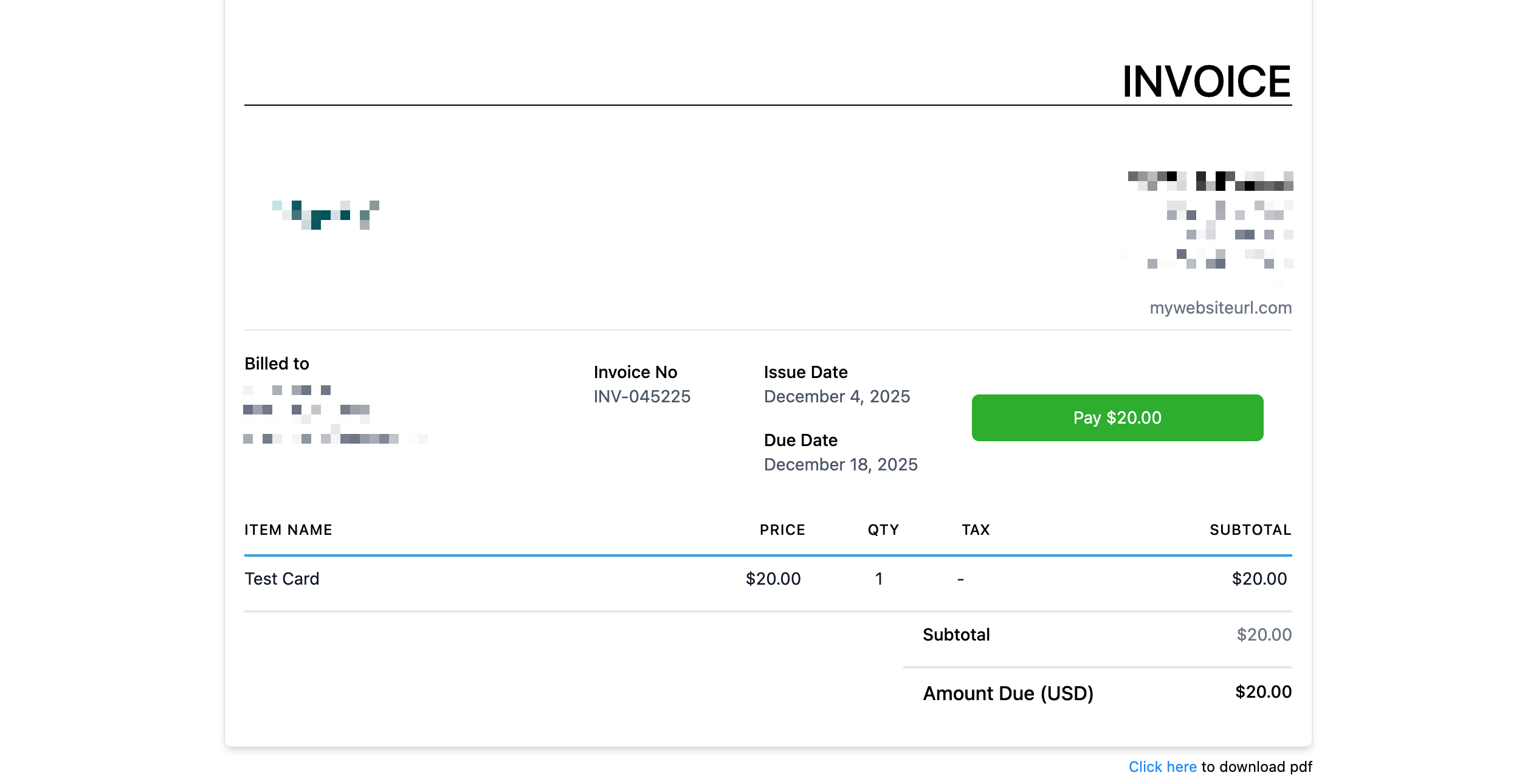
The feature lives inside the Conversations area of HighLevel. After selecting a contact thread, the user chooses SMS as the channel, clicks the request payment icon, configures the payment details in the modal, and sends the link. All activity stays linked to the contact record.
03How businesses use text to pay links
- Consulting firm. A consultant opens a client’s SMS thread, selects the consulting package, applies a discount, sets a due date, and sends the link. The client pays through the generated checkout page.
- Fitness studio. The studio staff picks a membership product in a conversation, adds tax, previews the branded checkout page, and delivers the link via SMS for immediate payment.
- Home repair service. A technician selects a service item, applies a promotional discount, chooses a due date, and sends the text to pay link directly after the repair discussion.
04Before you start
- An active HighLevel Payments (Stripe) connection in the subaccount.
- An active phone number in the subaccount.
- At least one active product.
05How to set up and use text to pay links in HighLevel
Send a text to pay link from conversations
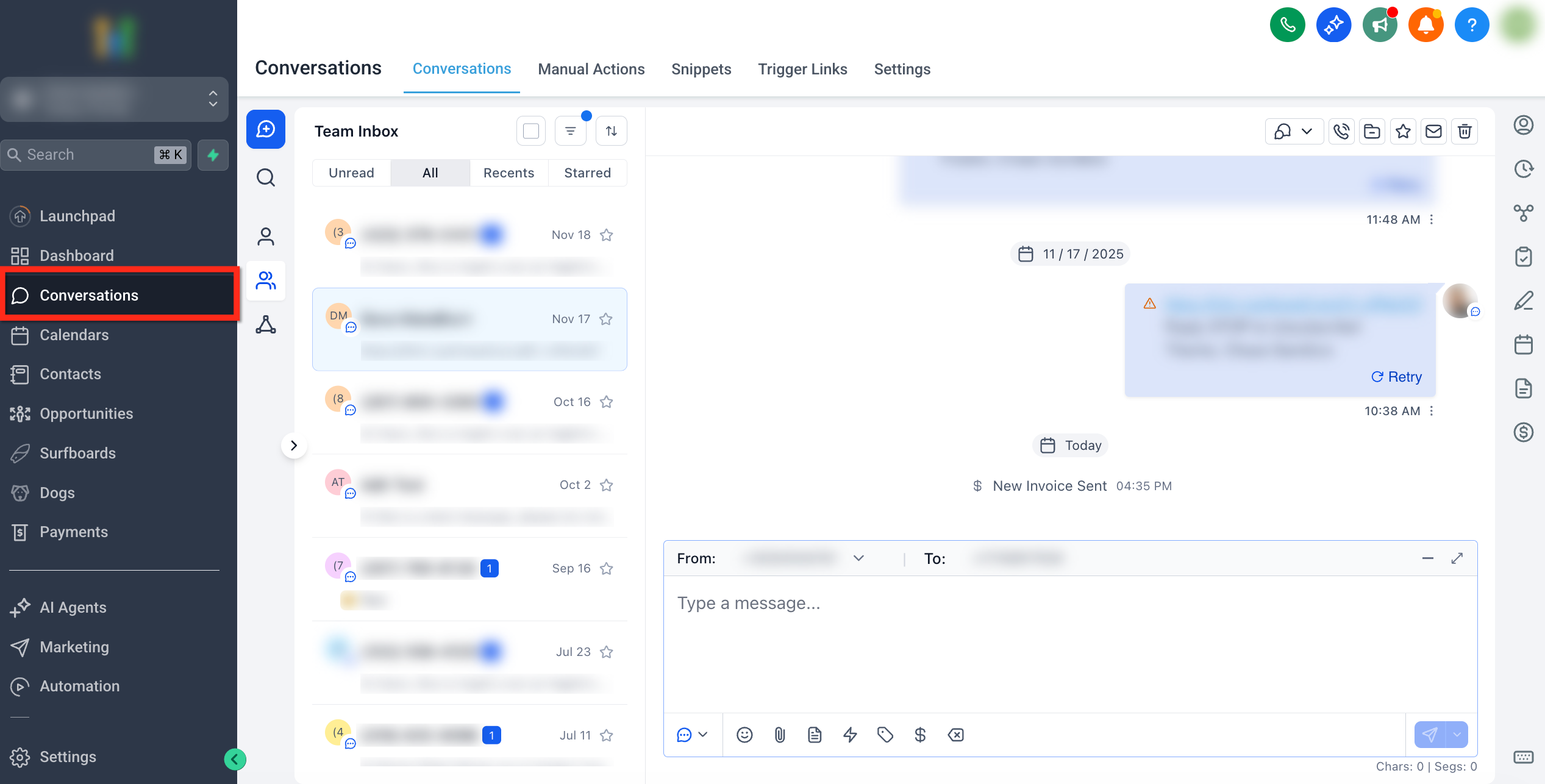
- Open Conversations and select the thread with the contact.
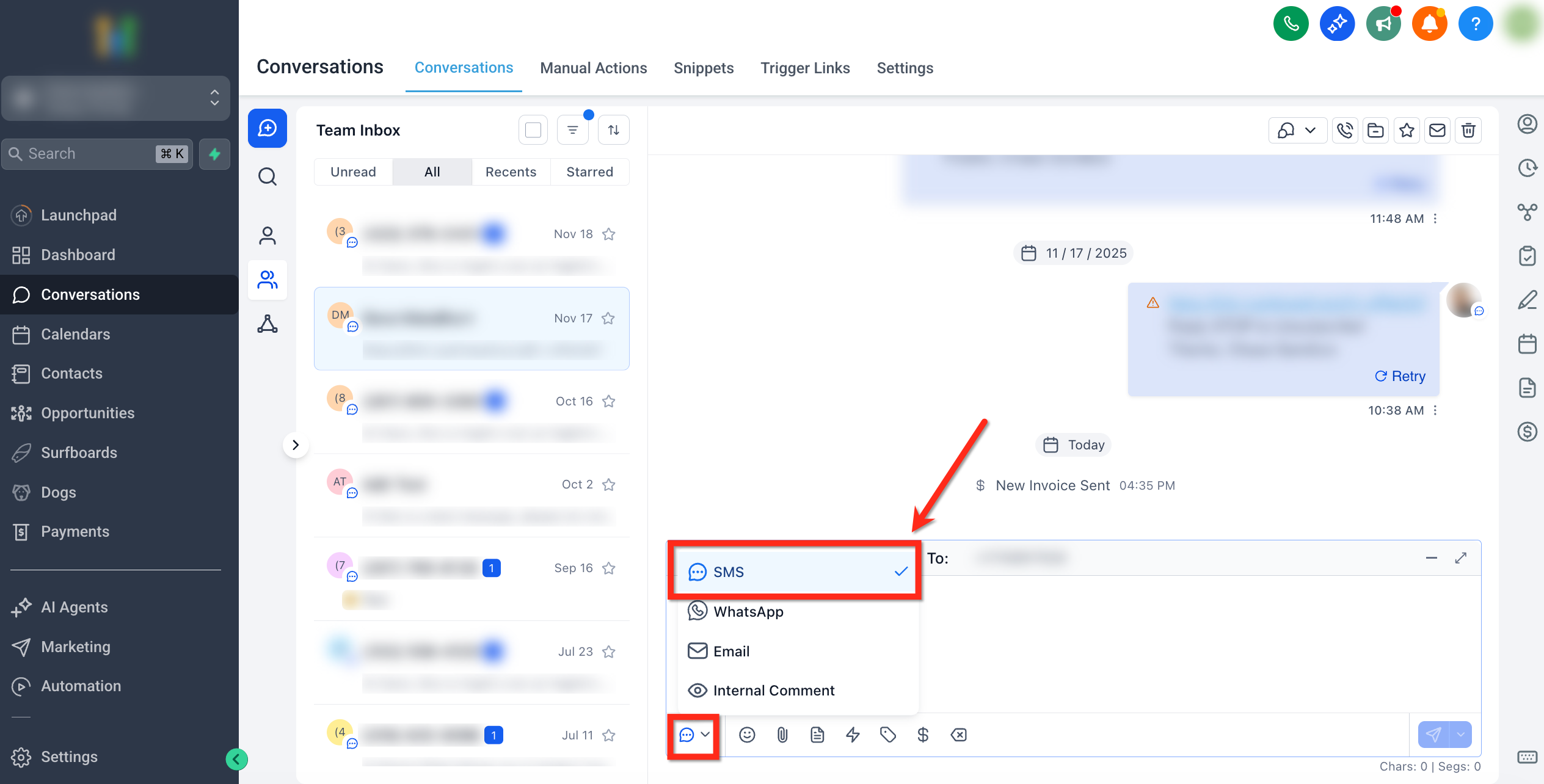
- In the message box channel picker, choose SMS.
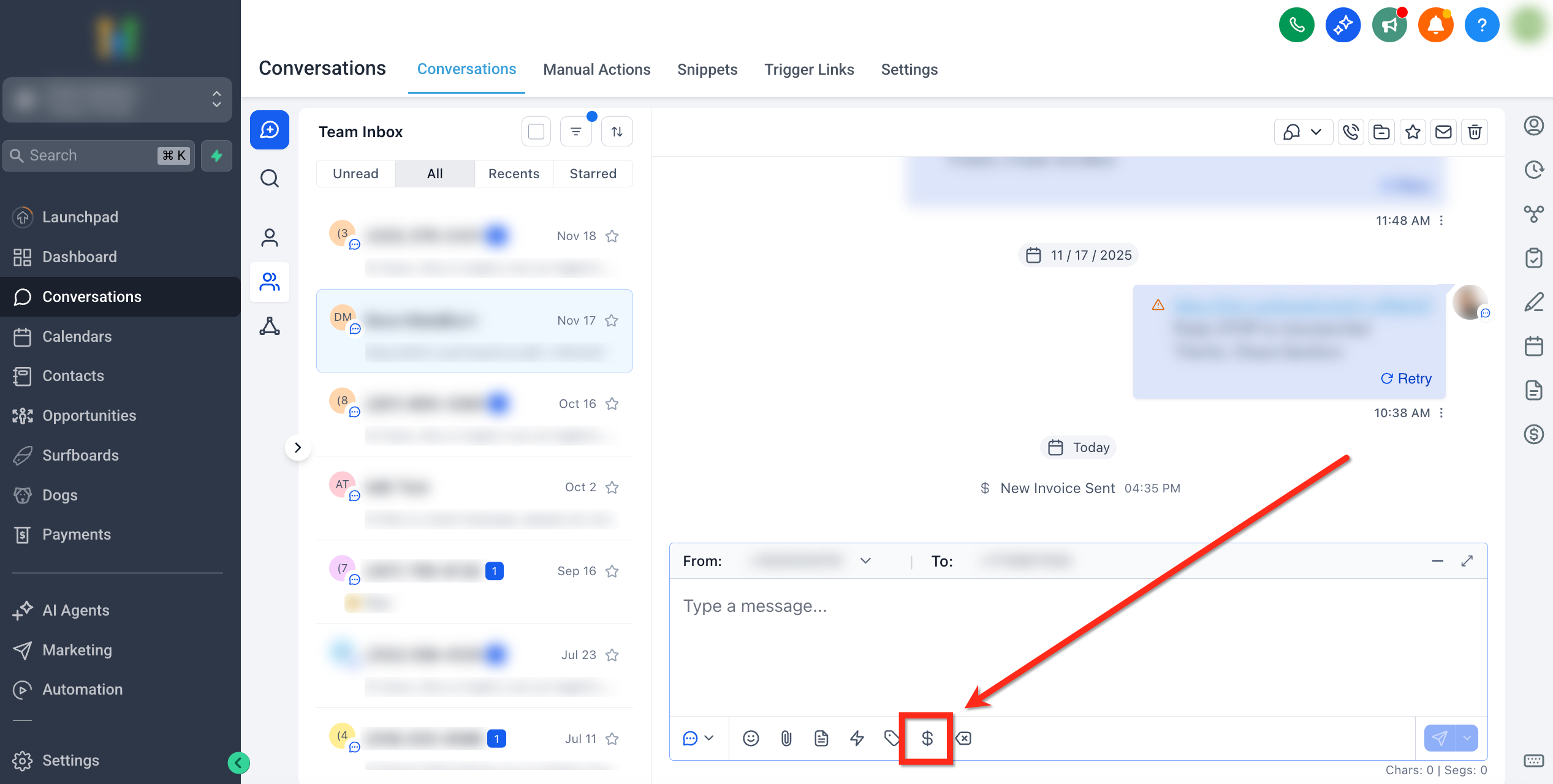
- Click the Request Payment ($) icon below the text editor.
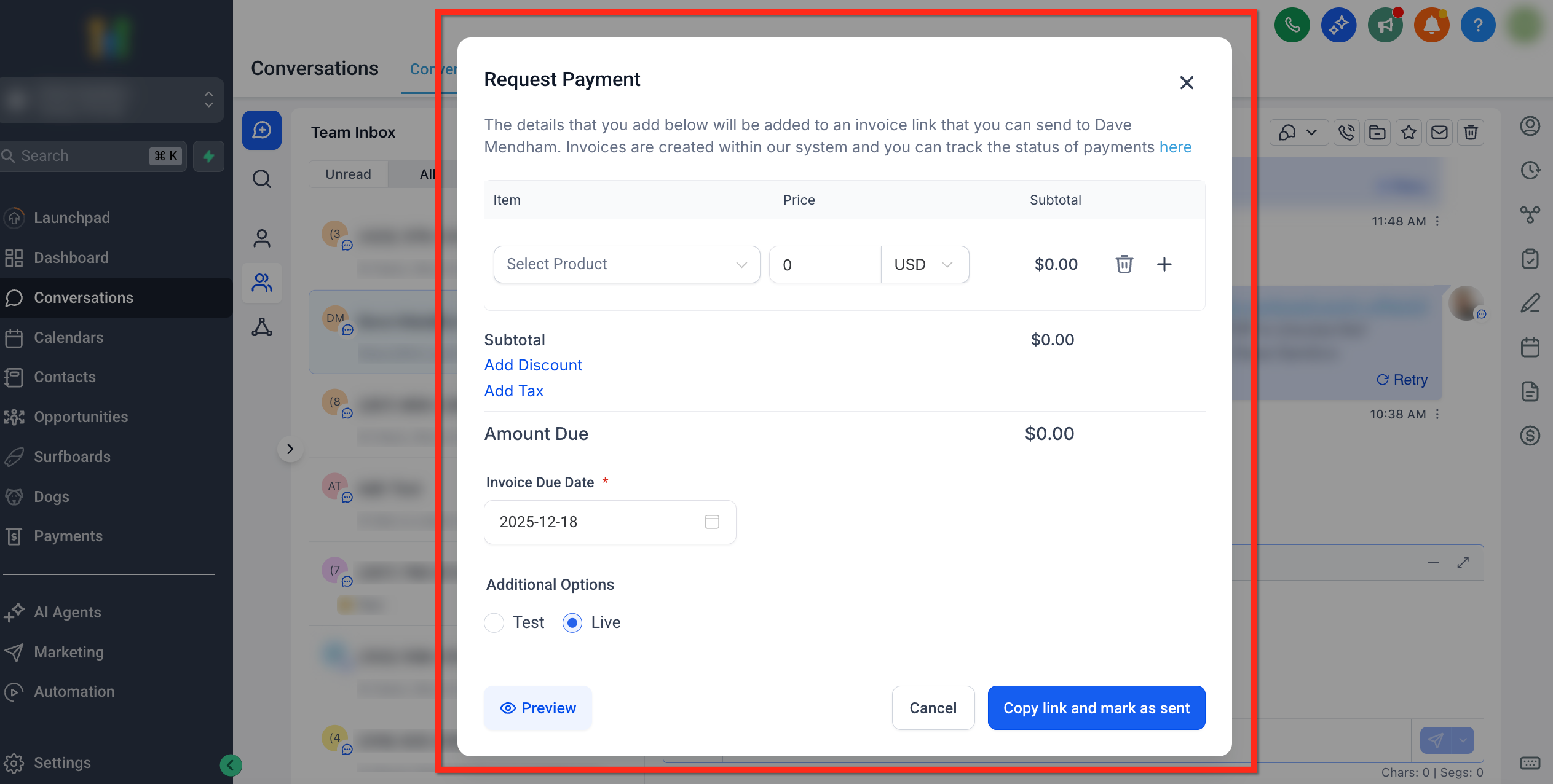
- In the Request payment modal, pick a product, set price, add discount or tax, set a due date, choose Test or Live mode, then preview or copy the link.
- Click Send to deliver the text to pay link.
06What it looks like in HighLevel
07Settings that matter
- Test mode. Sends the link in a non production environment for verification before real charges.
- Live mode. Processes actual payments when the link is sent to the customer.
- Discount. Option to subtract a specified amount or percentage from the product price at send time.
- Tax. Adds applicable tax to the product price when the link is created.
- Due date. Sets a deadline for the customer to complete payment.
08Things to know before you rely on it
- A link can only be sent after a Stripe connection, a phone number, and at least one product are active.
- Test mode is intended for non production checks only.
09How it connects to the rest of HighLevel
- Learn more about generic payment links in HighLevel. Payment links
- See how to customize the checkout page with your brand colors. Brand colors
- Set up a payment link that includes multiple products, one time and recurring. Multiple products
Michael's take

Wondering if you really need a web page just to collect a quick payment? With Text To Pay Links you can send a payment request right from an SMS chat, so the customer pays in a few taps and you keep the entire interaction in one thread.
I’d use it the first time I need to lock in a deposit during a sales call. Just send the link, set a due date, and watch the payment land without switching tools.