
01Who this is for
- Small business owners who need to collect payments from many clients quickly, because each link is auto filled with the client’s information.
- Marketing teams that run campaign driven sales, as bulk sending saves time and keeps messaging consistent.
02Personalized payment links, explained
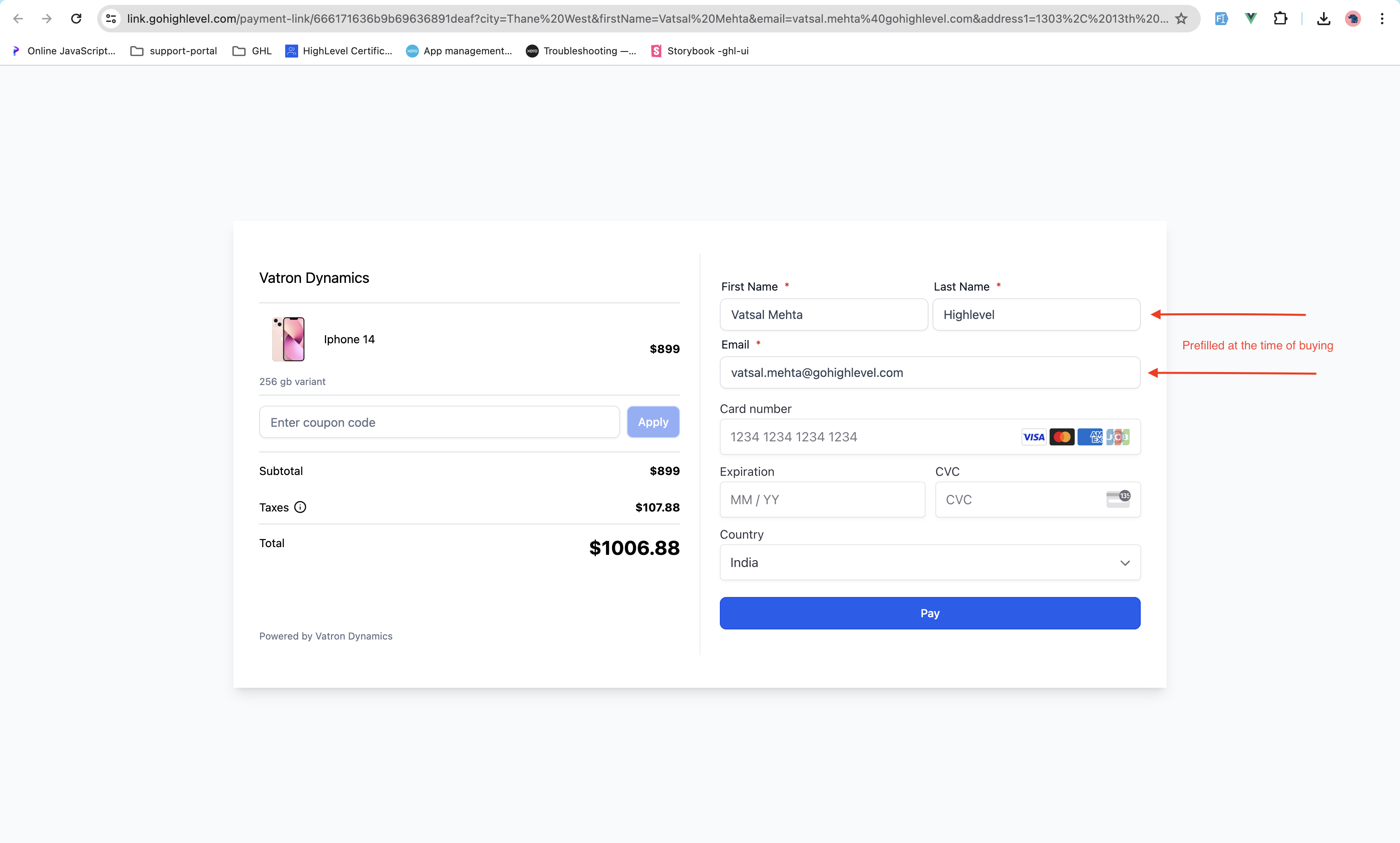
The platform lets users generate a payment link and then personalize it for each contact. When a recipient opens the link, their name, email and phone appear already entered, so they only need to approve the payment.
Personalization works when the contact record contains a valid email address and a valid phone number. The system will not send links to contacts flagged with Do Not Disturb. Up to 50 contacts can be processed in a single bulk action.
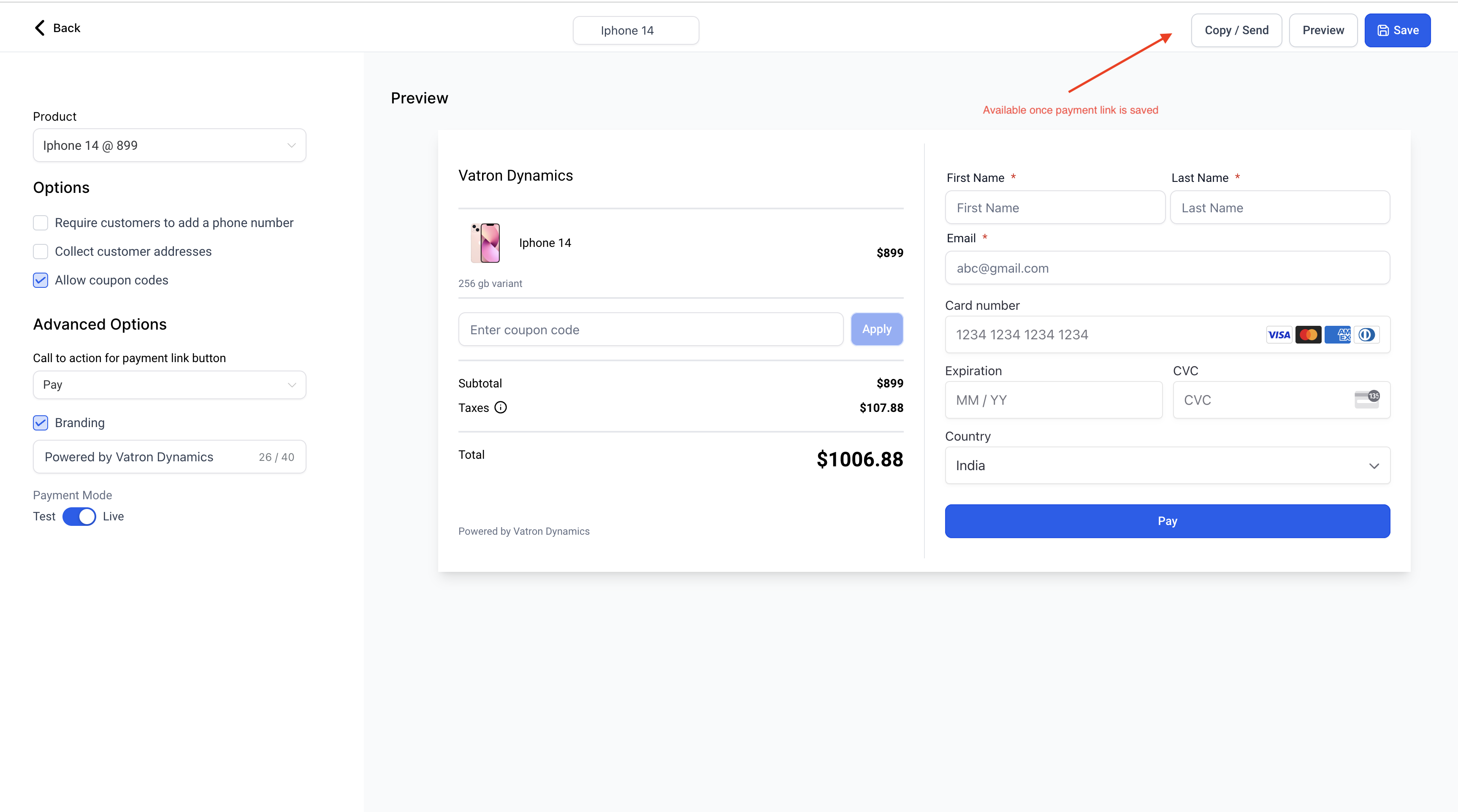
The feature lives inside the Payments area. After a link is saved, a Copy / Send button appears in the editor’s top right corner, giving access to template selection, contact picking, and bulk dispatch.
03How businesses use personalized payment links
- Fitness studio. The studio creates a monthly membership payment link, selects up to 50 members from the contact list, chooses the default email template, and hits Send. Each member receives a link that already contains their member ID, name and contact details.
- Online retailer. The retailer builds a one time checkout link for a flash sale, edits the SMS template to match the promotion, picks the list of shoppers who opted in, and sends the personalized links via text message.
- Consulting firm. The firm configures a custom email template with branding, selects several client contacts, and uses the Copy / Send button to email each client a link that pre populates their invoicing information.
04The numbers and rules that matter
- Maximum of 50 contacts can be sent personalized links in bulk in one time.
05Before you start
- A payment link must be saved in the Payments > Payment Links area before the Copy / Send button appears.
- Each contact needs a valid email address and a valid phone number stored in their record.
- Contacts with Do Not Disturb enabled will be excluded from the bulk send.
06How to set up and use personalized payment links in HighLevel
Send personalized payment links to multiple contacts
- Open the Payments tab, choose Payment Links, and click Edit on the desired link.
- Make sure the link is saved, or create a new link and save it.
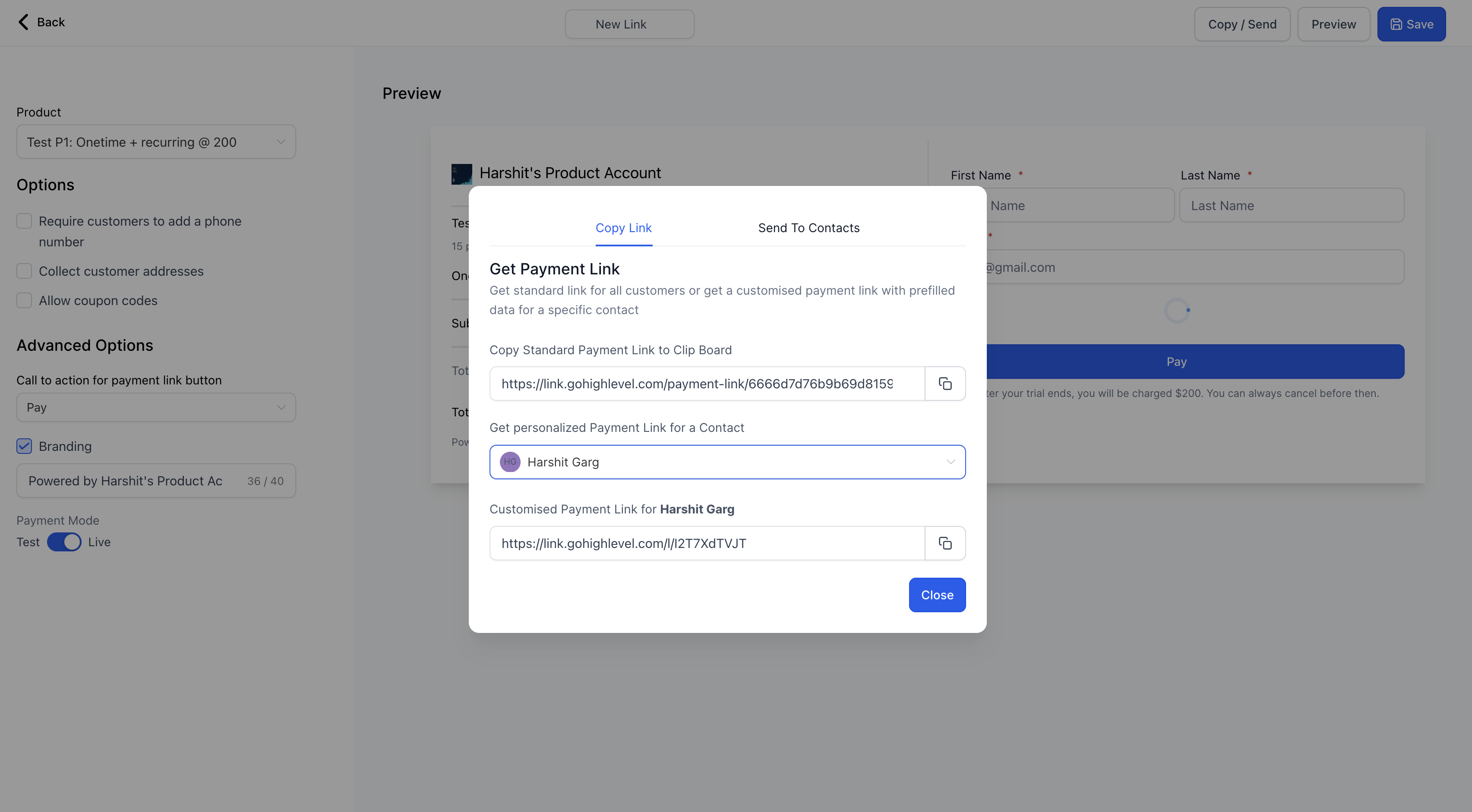
- Click the Copy / Send button that appears in the top right corner.
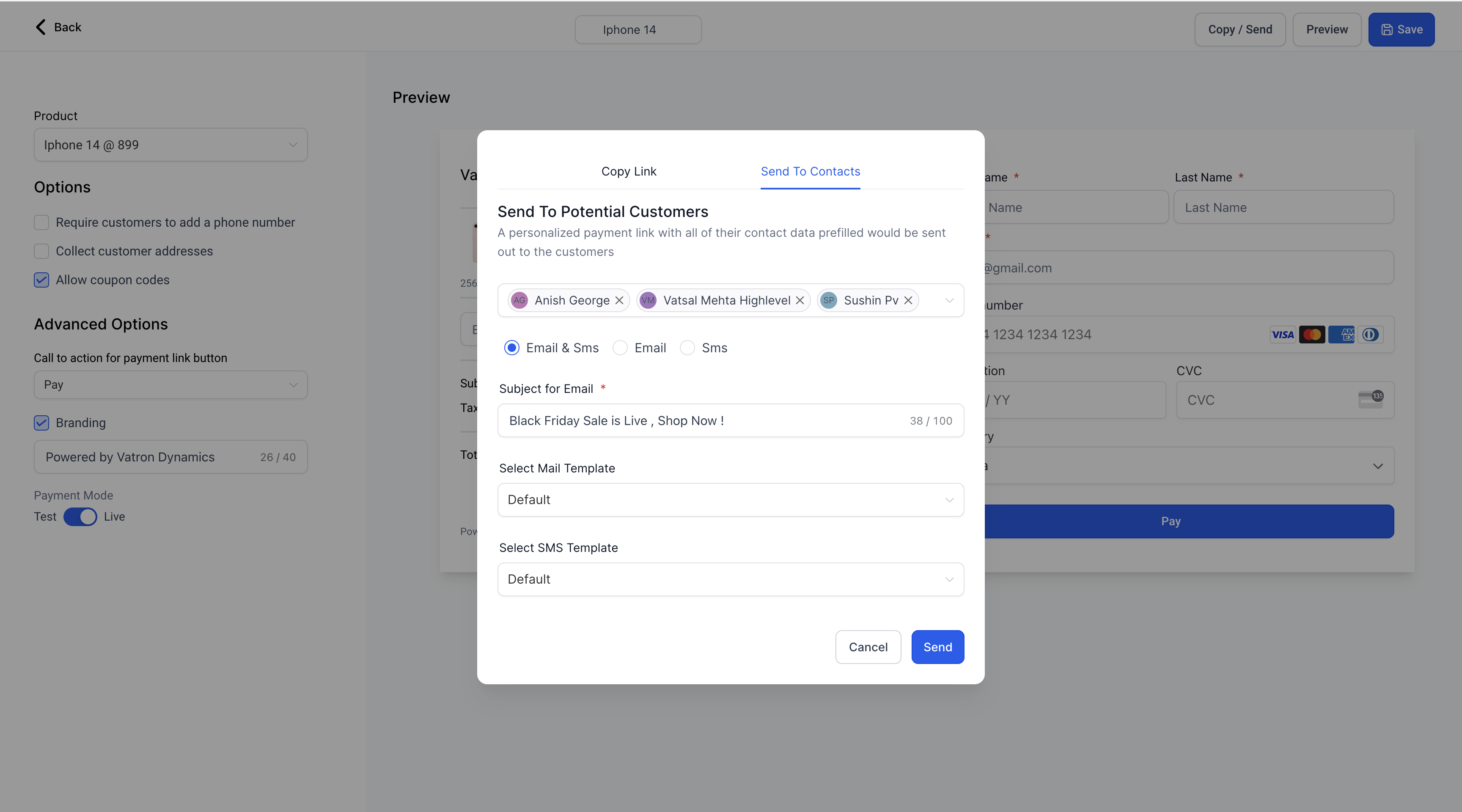
- Select up to 50 contacts from the dropdown list.
- Choose or edit the email and SMS templates that will accompany the link.
- Press Send to deliver the personalized payment links via email and SMS.
07What it looks like in HighLevel
08Settings that matter
- Email template. Controls the content of the email message sent with each personalized payment link.
- SMS template. Controls the text message body that accompanies the link when it is sent via SMS.
09Things to know before you rely on it
- A maximum of 50 contacts can receive personalized payment links in a single bulk operation.
- Links are only sent to contacts that have both a valid email address and a valid phone number.
- Contacts flagged with Do Not Disturb will not receive the link.
10How it connects to the rest of HighLevel
- Set up a standard payment link first Payment link setup
- Learn how to use text to pay links for SMS campaigns Text to pay links
- Review HighLevel pricing and plan options Pricing
Michael's take

Personalized payment links let you send a payment request that already includes the buyer’s name, email and phone, so they can pay with just a click.
Make sure every prospect has a valid email and phone number; otherwise the bulk send won’t work and DND rules may block some messages.