
01Who this is for
- Ecommerce merchants benefit because they can keep price tags stable for customers by including tax in the listed price.
- Service providers with varied tax rates across regions can choose tax exclusive pricing to show tax as a separate line item.
- Subscription businesses can switch models to align with regulatory requirements while managing how recurring invoices calculate tax.
02Tax inclusive or exclusive pricing, explained
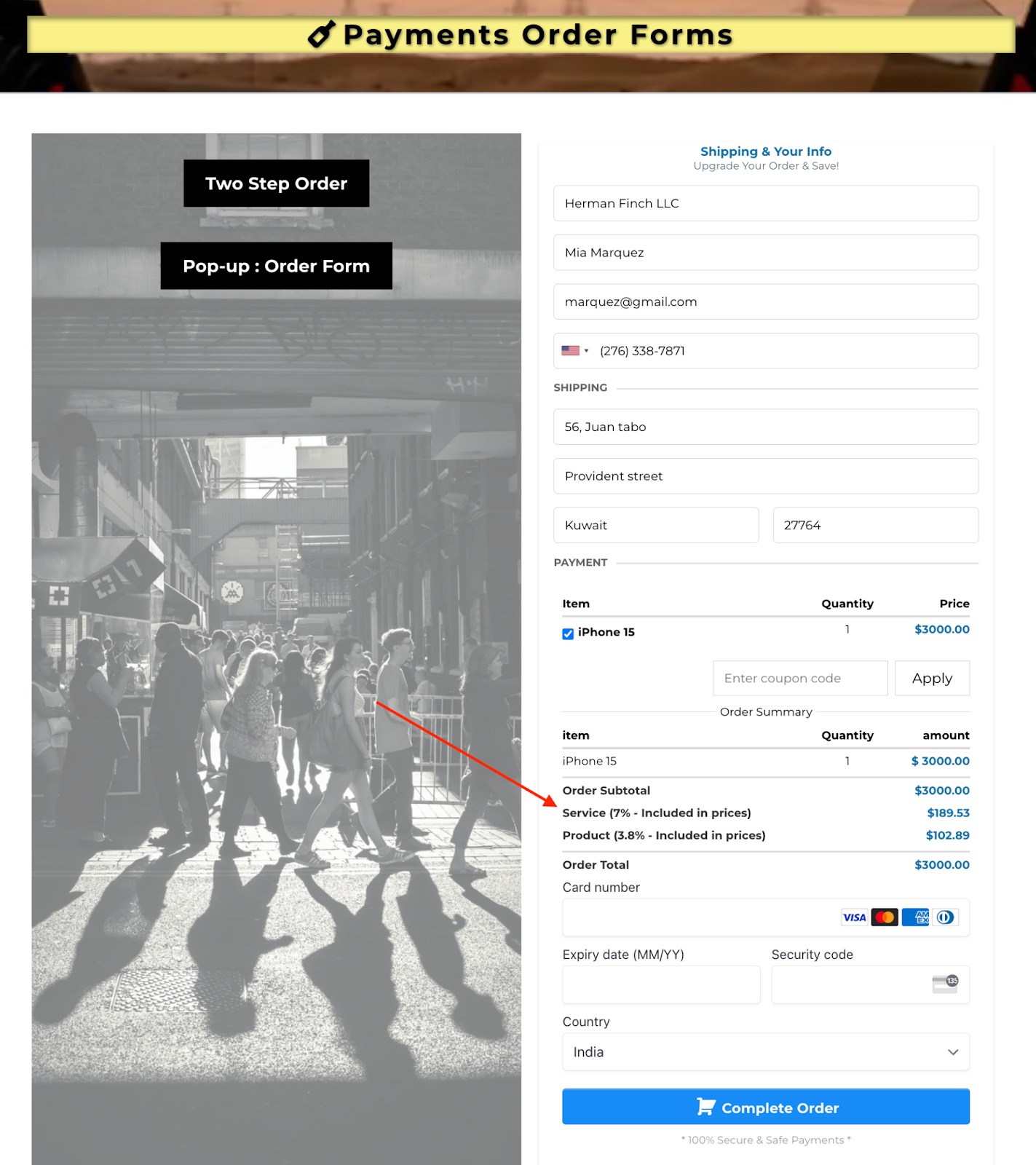
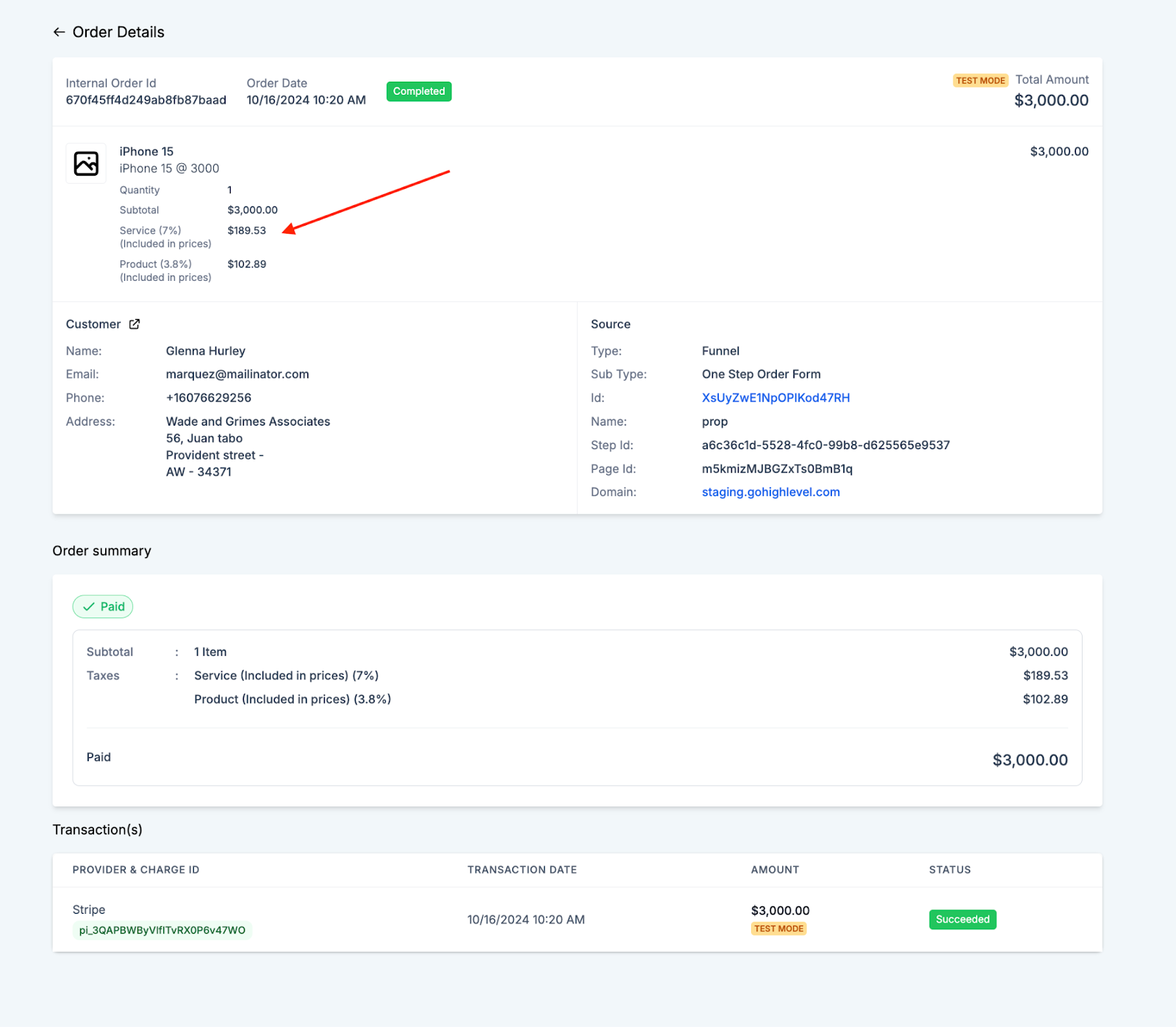
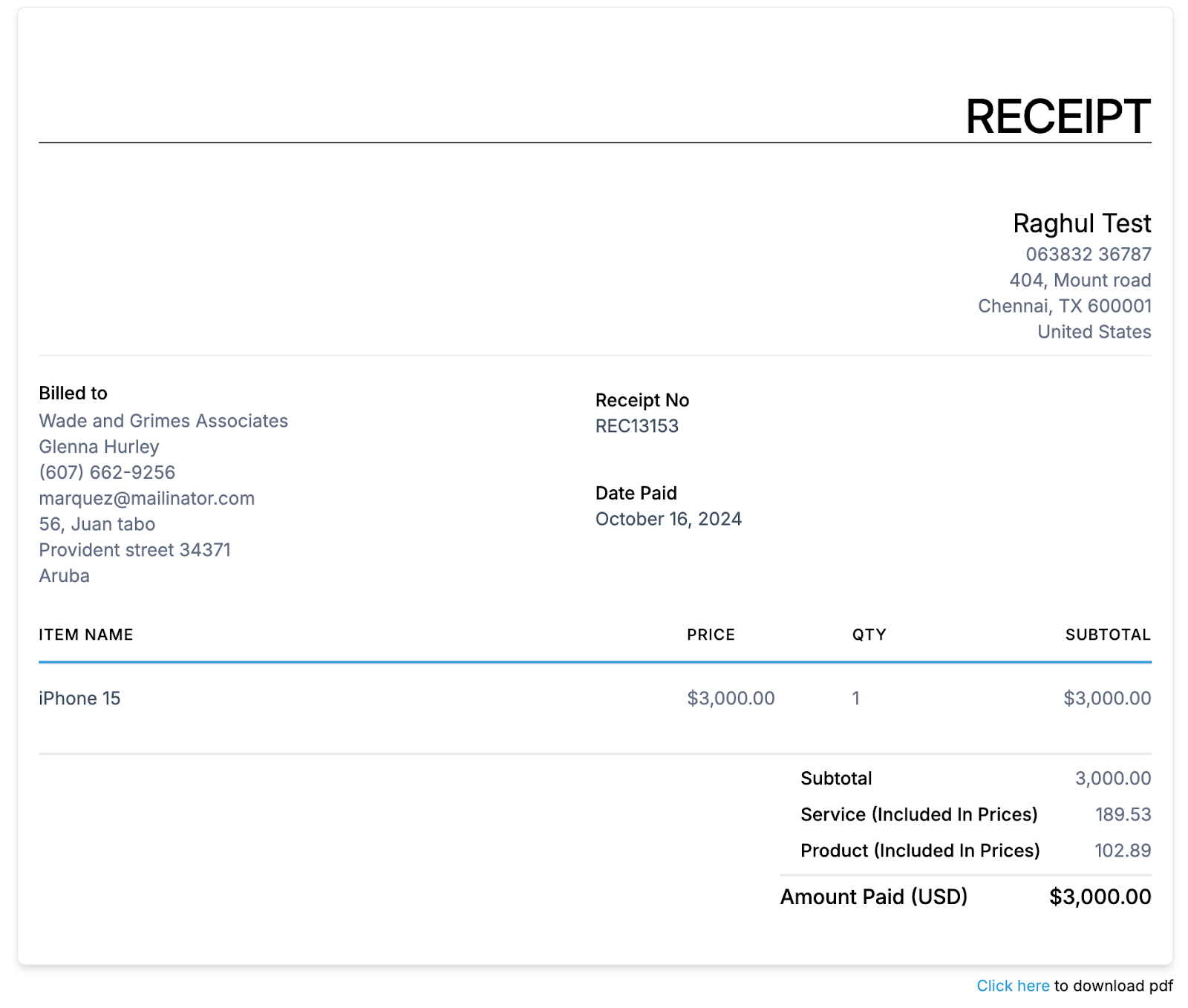
The feature adds a tax handling mode to product pricing. When tax inclusive is chosen, the tax amount is baked into the listed price; when tax exclusive is selected, tax is shown as an additional charge. The platform stores this preference either at a global account level or per individual product.
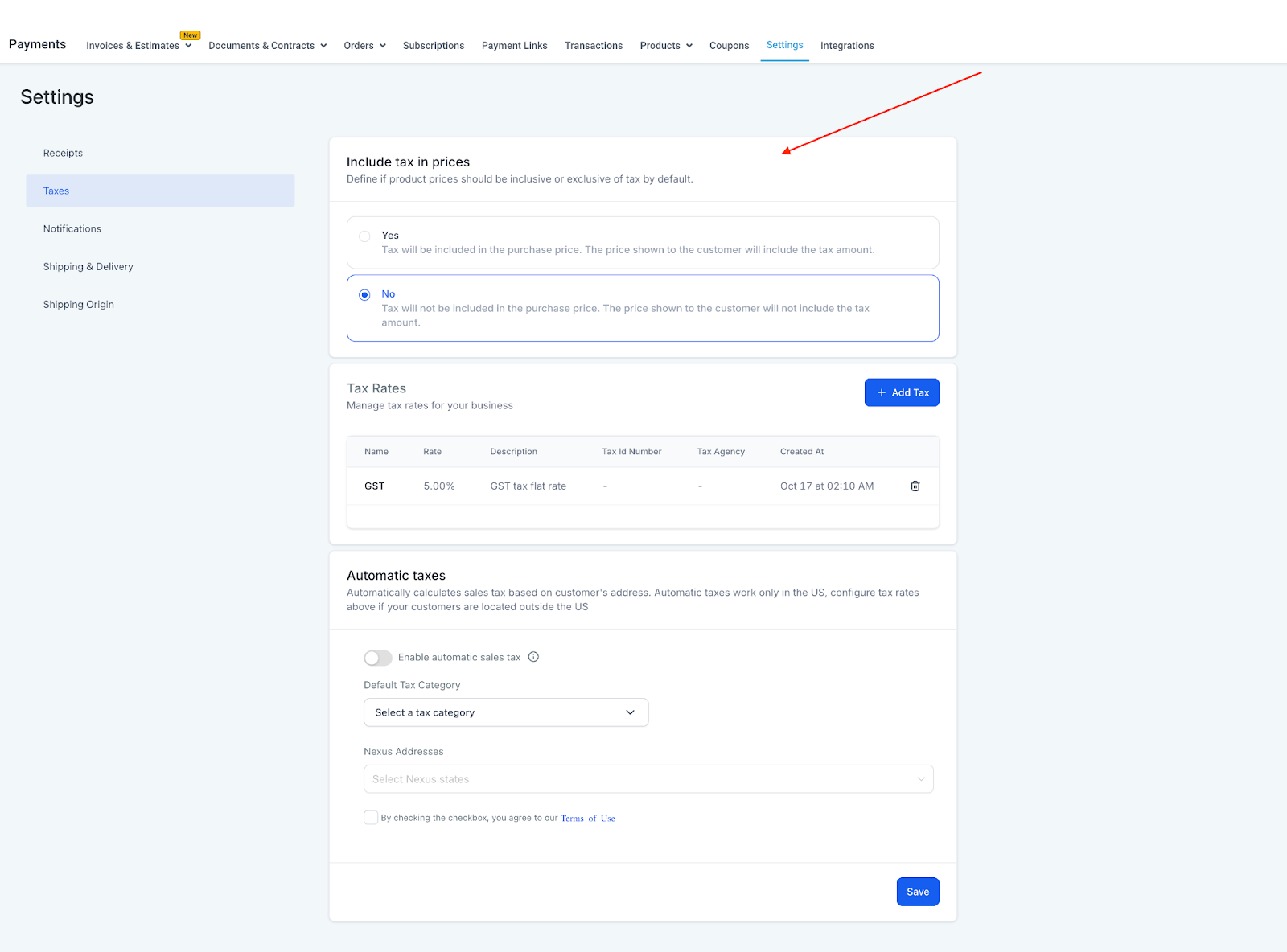
Global settings live under Payments > Settings > Taxes. Here the account owner answers “Include tax in prices” with Yes to make all prices tax inclusive or No for tax exclusive. If nothing is chosen, the system defaults to tax exclusive.
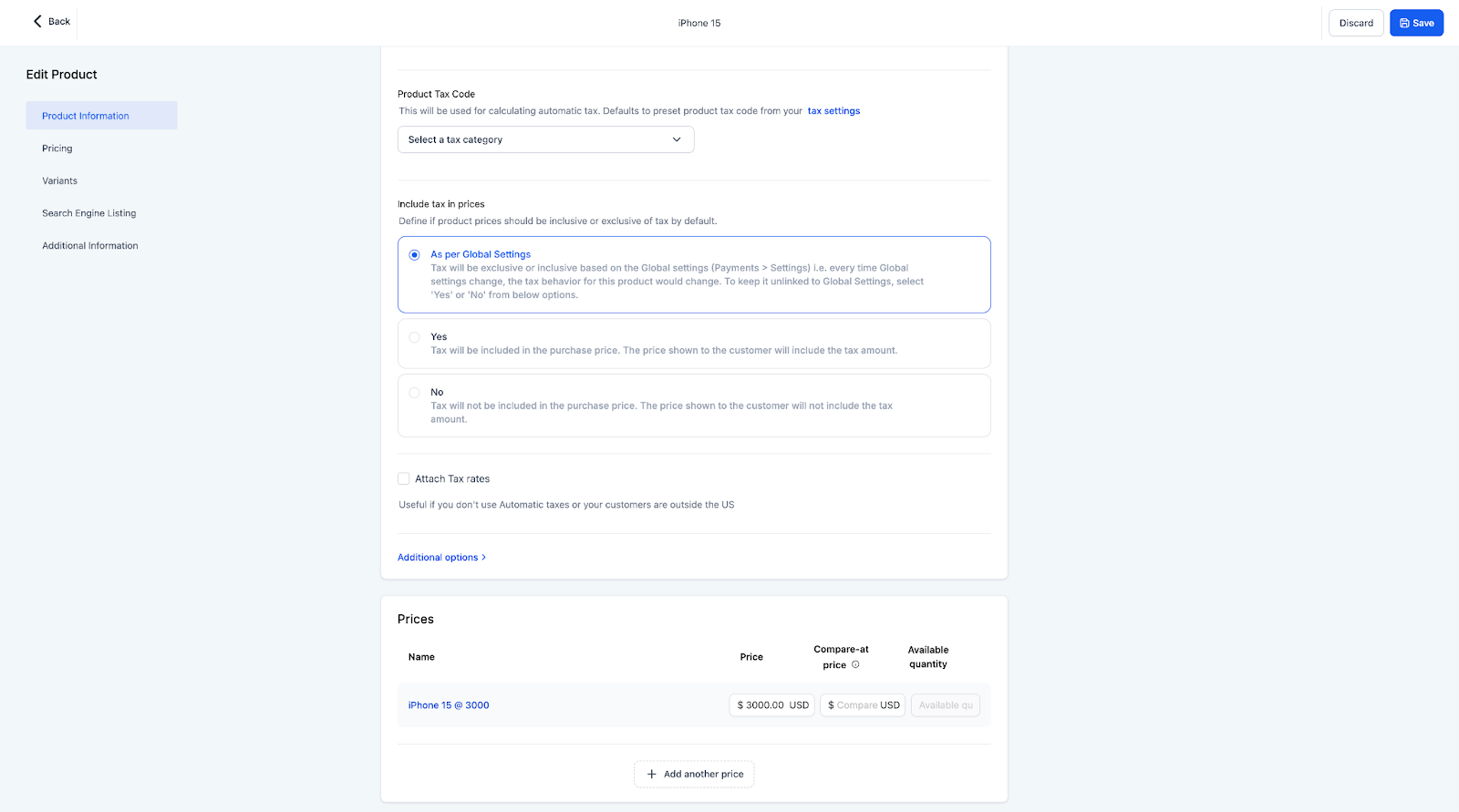
At the product level, the same question appears while creating or editing a product. Options include following the global setting, forcing tax inclusive, or forcing tax exclusive. Changing a product’s setting detaches it from the global rule, so later global changes do not affect that product.
03How businesses use tax inclusive or exclusive pricing
- Online retailer. Sets the global preference to tax inclusive so shoppers see a single price that already contains tax; new items inherit this setting automatically.
- SaaS platform. Uses tax exclusive globally but overrides high value plans to tax inclusive when required for specific markets, ensuring each plan reflects the correct tax handling.
- Local service business. Keeps the global setting tax exclusive but applies tax inclusive to a particular service in a city with a flat tax rate, allowing that estimate to display a single total price.
04The numbers and rules that matter
- Default product selection is “As per Global settings”.
- All products created in the past have default tax settings “As per Global settings”, which follow changes to the global setting unless manually changed.
05How to set up and use tax inclusive or exclusive pricing in HighLevel
Set tax preference for an individual product
- Open the product list and select the product you want to edit.
- In the product form locate the “Include tax in prices” field.
- Choose Tax Inclusive or Tax Exclusive.
- Save the changes.
- Note: Changing the tax mode may affect existing invoices or subscriptions, so review any open transactions before saving.
06What it looks like in HighLevel
07Settings that matter
- Include tax in prices (global). Determines whether the platform treats all product prices as tax inclusive (Yes) or tax exclusive (No) by default.
- Include tax in prices (product level). Lets a specific product follow the global rule, or override it with its own tax inclusive or tax exclusive choice.
08Things to know before you rely on it
- If no global selection is made, the default is tax exclusive.
- Products created before this feature default to “As per Global settings” and will follow any later global change unless manually overridden.
- New products start with the “As per Global settings” option, which can be changed during creation or later editing.
09If something goes wrong
- Changing the pricing model may affect existing invoices or quotes.. Review all outstanding transactions before adjusting the tax setting.
- Switching tax mode can impact existing subscriptions or recurring invoices.. Manually update the affected subscriptions to match the new pricing model.
10How it connects to the rest of HighLevel
- Manage tax rules across the account Tax settings overview
- Create and edit invoices that use tax preferences Invoice workflow
- Review HighLevel pricing and plan options Pricing plans
Michael's take

Tax inclusive or exclusive pricing is worth the effort for any small business that wants predictable checkout totals or needs to comply with local tax rules. It lets you decide whether the price you show already contains tax or if tax is added at the end, and you can change that setting at any time.
Avoid changing the tax model without first checking how it will impact open invoices or existing subscriptions.