
01Who this is for
- Founders who want branding consistency across client communications, because they can style notifications to match their visual identity.
- Finance teams that need to include exact invoice amounts, due dates, and URLs, reducing back and forth clarification.
- Customer support managers who wish to limit unnecessary alerts by disabling non essential notifications.
02Invoice notification customizations, explained
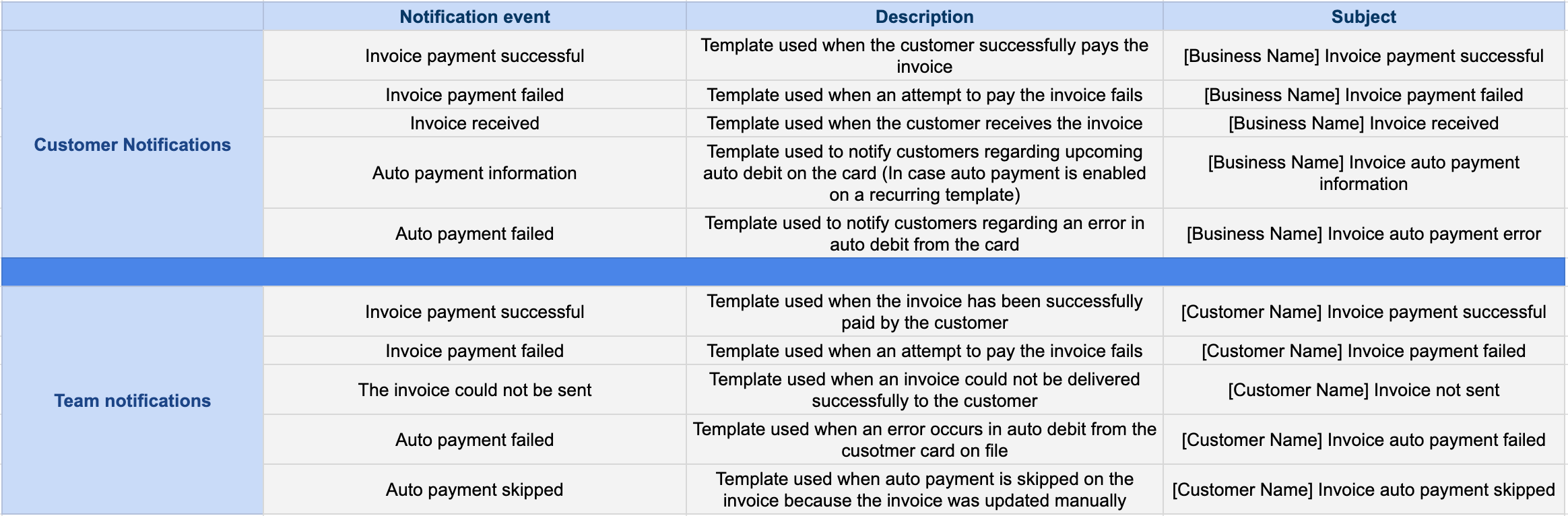
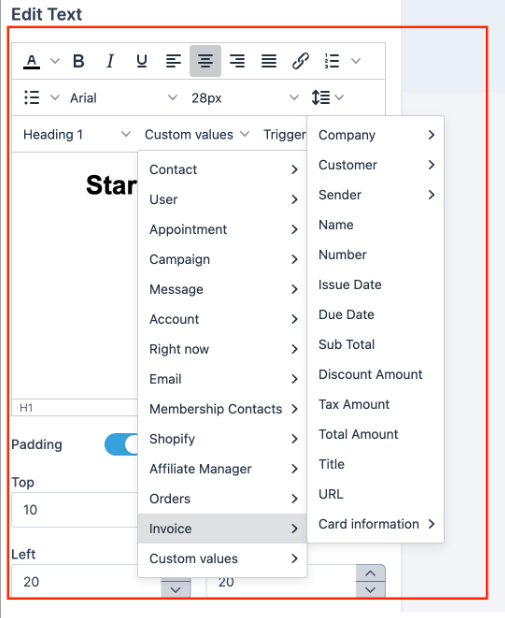
This feature lets you create and edit email and SMS templates that are sent when an invoice is issued or when a payment schedule is received. Templates can include dynamic placeholders such as the client name, address, total amount, due date, and a link to the invoice. The configuration screens are found under Payments > Invoices & Estimates > Settings; the Notifications tab shows Customer and Team sections where each notification can be toggled on or off, except the mandatory Invoice Received and Estimate Received alerts for customers. Users cannot edit the subject line of email templates, and payment schedule related placeholders render empty if the invoice has no schedule. Transactional invoice emails bypass email Do Not Disturb settings, while marketing messages respect them.
03How businesses use invoice notification customizations
- Dental practice. The practice creates a branded email template for the Payment Schedule Received alert, inserting patient name, appointment cost, and a link to view the invoice. When a treatment plan includes installments, the system sends the customized text to keep patients informed.
- SaaS startup. The startup builds SMS templates for invoice notifications and enables them for internal team members only. When a client pays partially, the platform sends a concise SMS with the remaining balance, using the payment schedule fields.
- Event management company. The company designs email templates that display the event name, venue address, total due, and a payment link. It disables non essential alerts for clients while keeping the mandatory Invoice Received notice active.
04Before you start
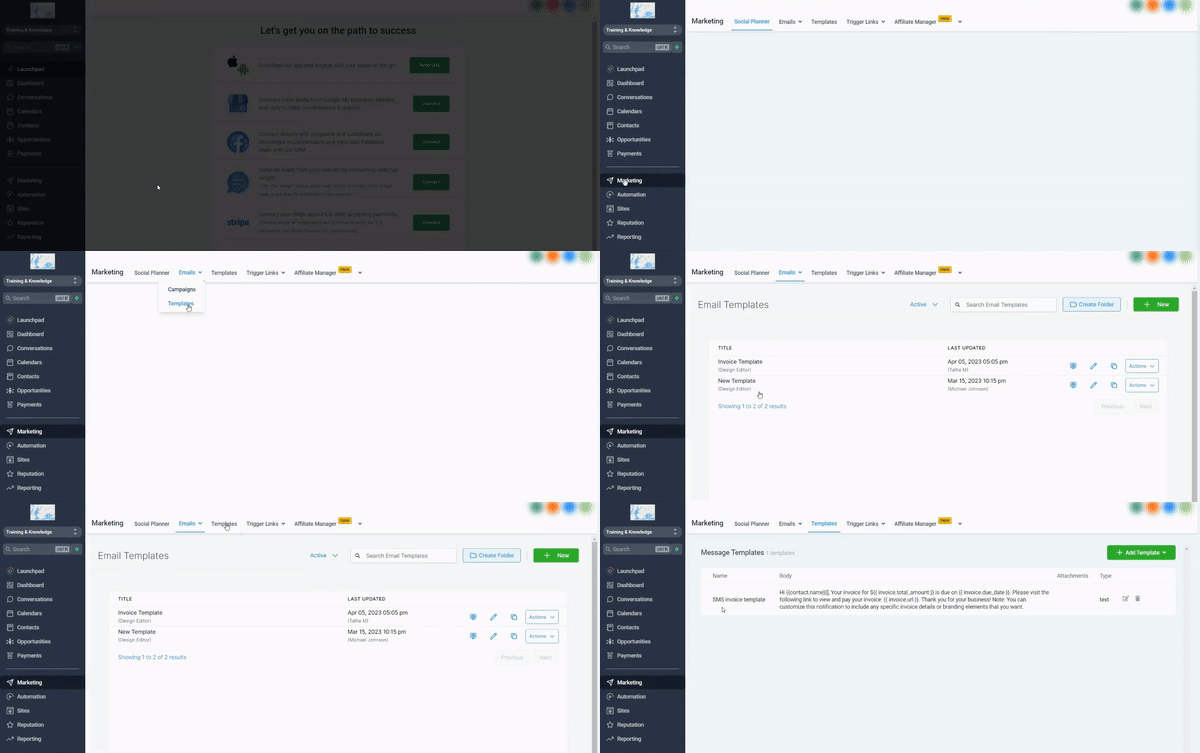
- Create email templates in Marketing > Emails > Templates if they do not already exist.
- Create SMS templates in Marketing > Templates before assigning them to notifications.
- Ensure the invoice includes a payment schedule when using payment schedule related placeholders.
05How to set up and use invoice notification customizations in HighLevel
Configure Payment Schedule Received notification
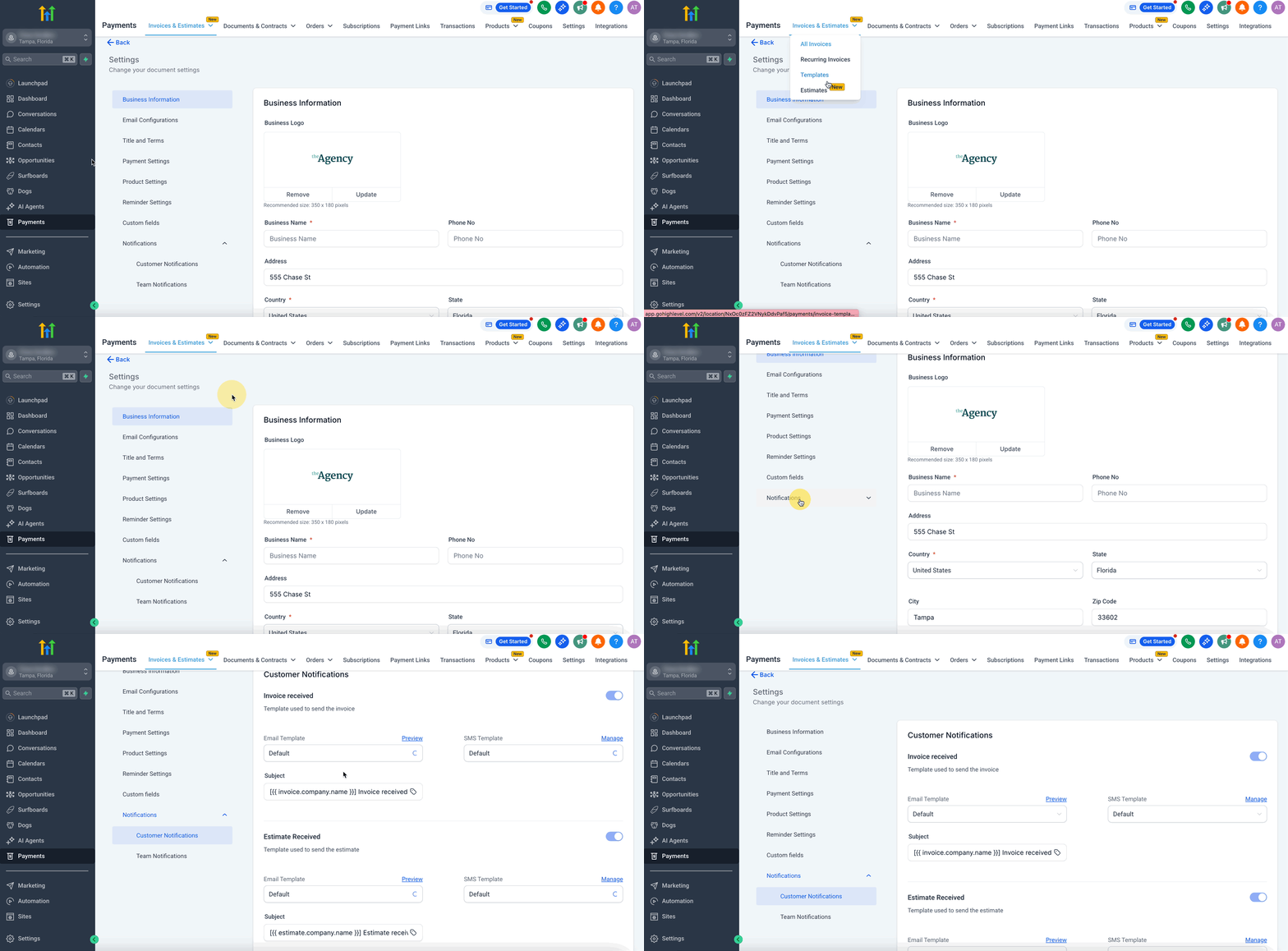
- Navigate to Payments > Invoices & Estimates > Settings.
- Open the Notifications section and select Customer Notifications.
- Find the Payment Schedule Received entry and switch it on or off as required.
- Click Manage beside the Email or SMS option to modify the template content.
- Save the changes to the template.
Configure invoice notifications
- Go to Marketing > Emails > Templates and build the email version of the invoice notification.
- Go to Marketing > Templates and construct the SMS version of the invoice notification.
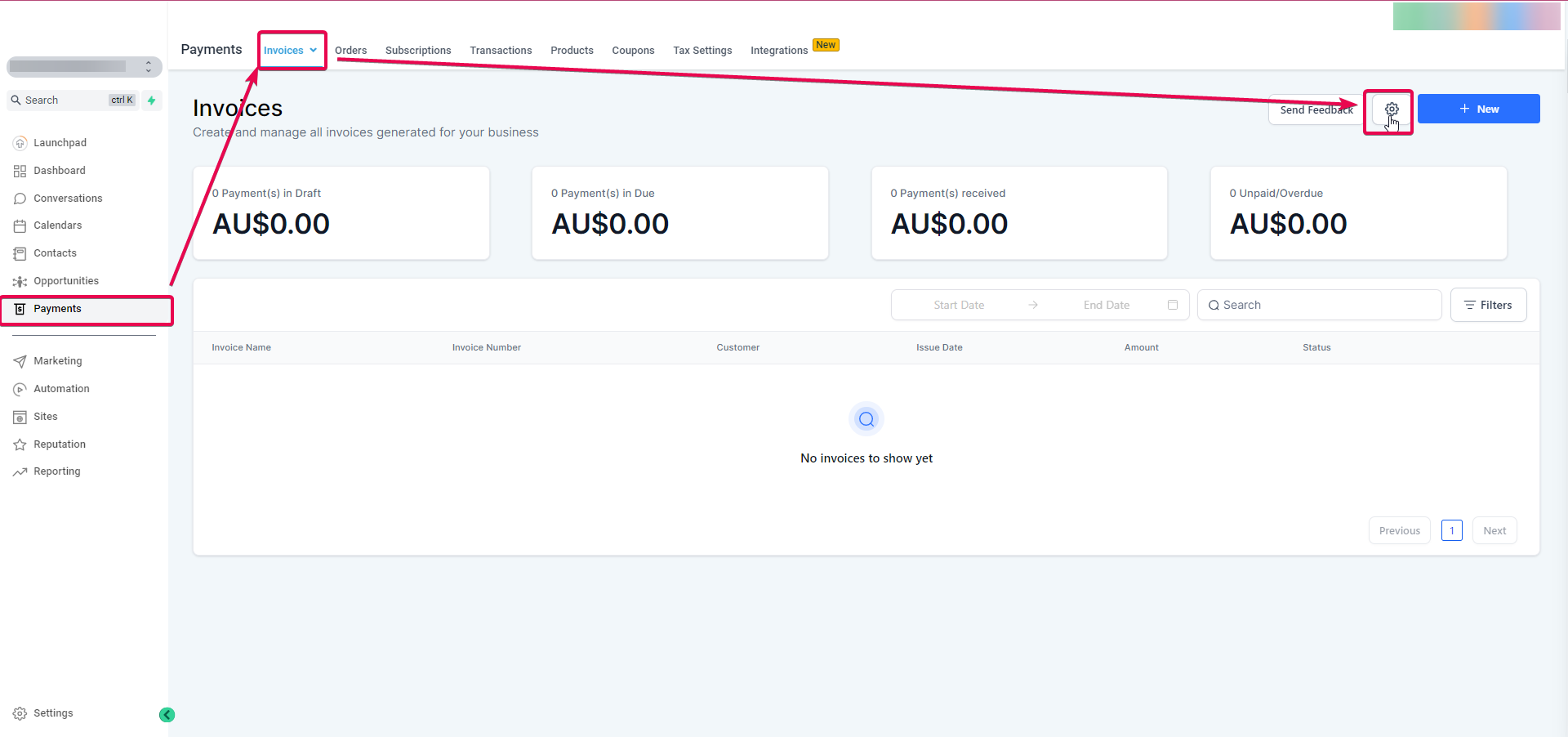
- Open Payments > Invoices and click the gear icon to choose templates for each notification type.
- In Settings, expand the Notifications tab on the left menu to locate Customer and Team notifications.
- Toggle desired notifications on or off (Invoice Received and Estimate Received cannot be disabled for customers) and edit their templates as needed.
- Remember that the subject line of email templates cannot be edited.
- Scroll to the bottom of the page and press Save.
06What it looks like in HighLevel
07Settings that matter
- Payment Schedule Received. Controls whether a client receives an email or SMS when an invoice includes an installment plan; also provides a button to edit its template.
- Invoice Received. A mandatory customer alert sent whenever an invoice is issued; it cannot be turned off.
- Estimate Received. A mandatory customer alert sent whenever an estimate is issued; it cannot be turned off.
- Customer Notifications. The group of alerts sent to clients; each can be toggled except the mandatory ones.
- Team Notifications. The group of alerts sent to internal users; each can be enabled or disabled independently.
08Things to know before you rely on it
- The subject line of email templates cannot be edited.
- If an invoice lacks a payment schedule, any schedule related placeholders appear blank in the message.
- Invoice related transactional emails bypass email Do Not Disturb settings, while marketing emails respect them.
- Only the Invoice Received and Estimate Received alerts are required for customers; other alerts can be turned off.
09How it connects to the rest of HighLevel
- Manage automatic sales receipts Sales receipts
- Set up tax rules for invoices Tax settings
- Review all payment related features Payments overview
Michael's take

Getting the right look on invoicing alerts can cut down the endless "did you get my invoice?" emails you get from customers. The first thing I would get right is the email and SMS templates. Lock in your brand colors, fonts, and the key invoice details so the message is clear the moment it lands in a client’s inbox.
Once the templates are set, I’d flip the toggles for any extra alerts you don’t need. That keeps the inbox tidy while still giving you the mandatory Invoice Received and Estimate Received notices that your clients expect.