
01Who this is for
- Coaches who schedule appointments need proof of payment sent right away to clients after booking.
- Ecommerce Founders selling products via order forms want branded receipts that match their brand identity.
- Service providers who issue invoices appreciate the ability to turn off automatic receipts and manage them manually.
02Sales receipts, explained
The automatic receipt feature creates a PDF of the transaction and attaches it to an email sent to the buyer. It works for one step and two step order forms, upsells, calendar appointments, subscription payments and invoice settlements. When a payment clears, the system generates the receipt and dispatches it without further input.
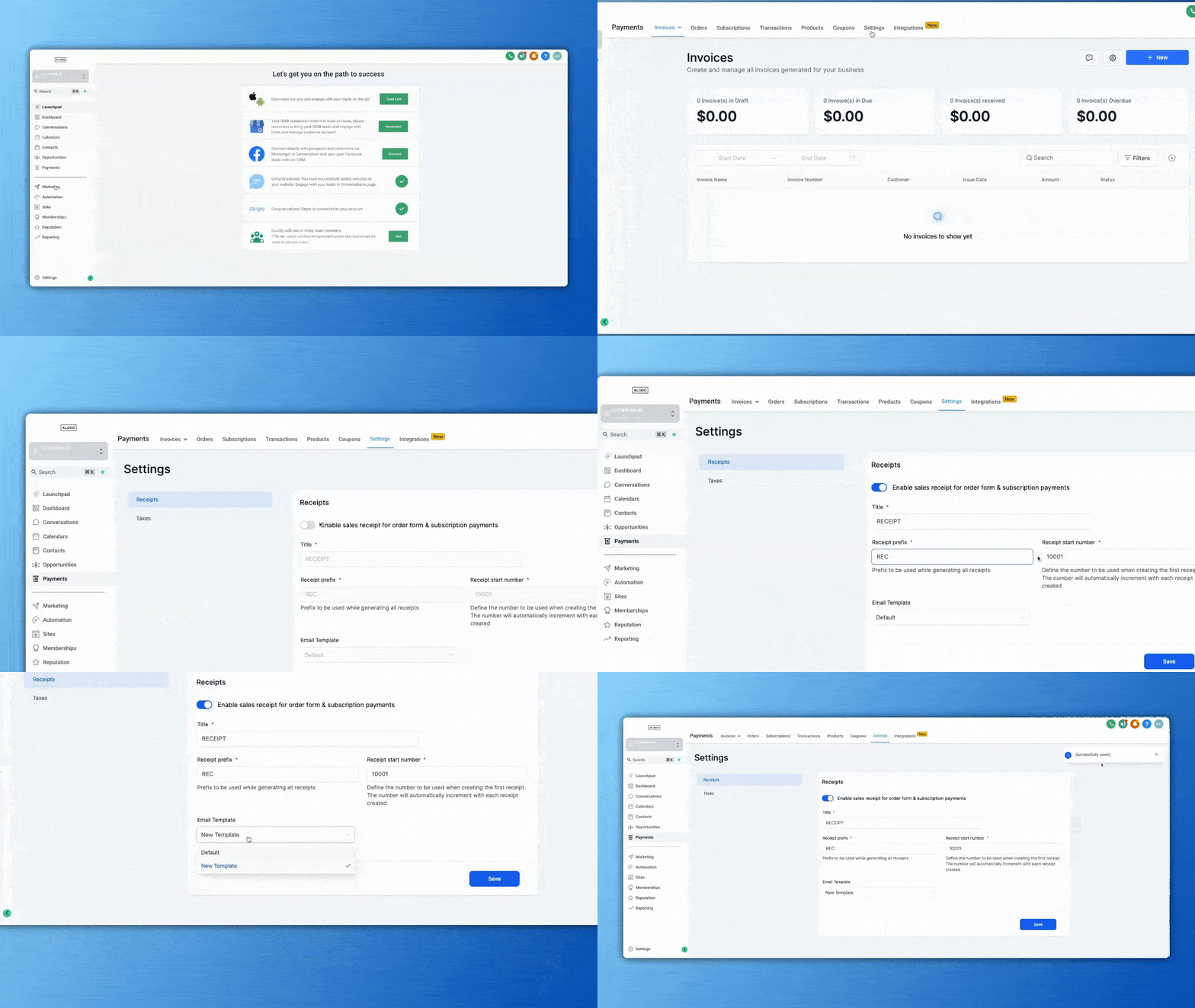
The receipt settings reside under the Payments section. Inside Settings you open the Receipts tab, where a toggle controls the global sending of receipts. Additional fields let you set a custom title, define a prefix and starting number for receipt IDs, and edit the email template used for the delivery message.
Disabling the toggle stops all outbound receipt emails while still logging every payment under the Transactions view, preserving the internal record of each sale.
03How businesses use sales receipts
- Coaching business. Enable automatic receipts so clients receive a PDF after booking a session. Adjust the email template to include the coach’s logo and a welcome note.
- Online retailer. Customize the receipt title and number prefix to align with the store’s branding. Keep automatic receipts on to deliver proof of purchase for every order form sale.
- Consulting firm. Turn off automatic receipts and manually send them after invoice approval, ensuring the firm can add custom wording in the email before dispatch.
04How to set up and use sales receipts in HighLevel
Disable automatic sales receipts
- Open the Payments area from the left navigation panel.
- Select the Settings button located at the top of the page.
- Click on the Receipts tab within the settings menu.
- Find the toggle labeled Enable automatic sales receipts for payments.
- Switch the toggle to the OFF position and press Save.
05What it looks like in HighLevel
06Settings that matter
- Enable automatic sales receipts for payments. Controls whether the platform sends a receipt email automatically after any payment is processed.
- Custom Title. Sets the heading displayed on each generated receipt, allowing brand specific wording.
- Receipt Numbers. Allows you to define a prefix and a starting number; the system then increments the number for each new receipt.
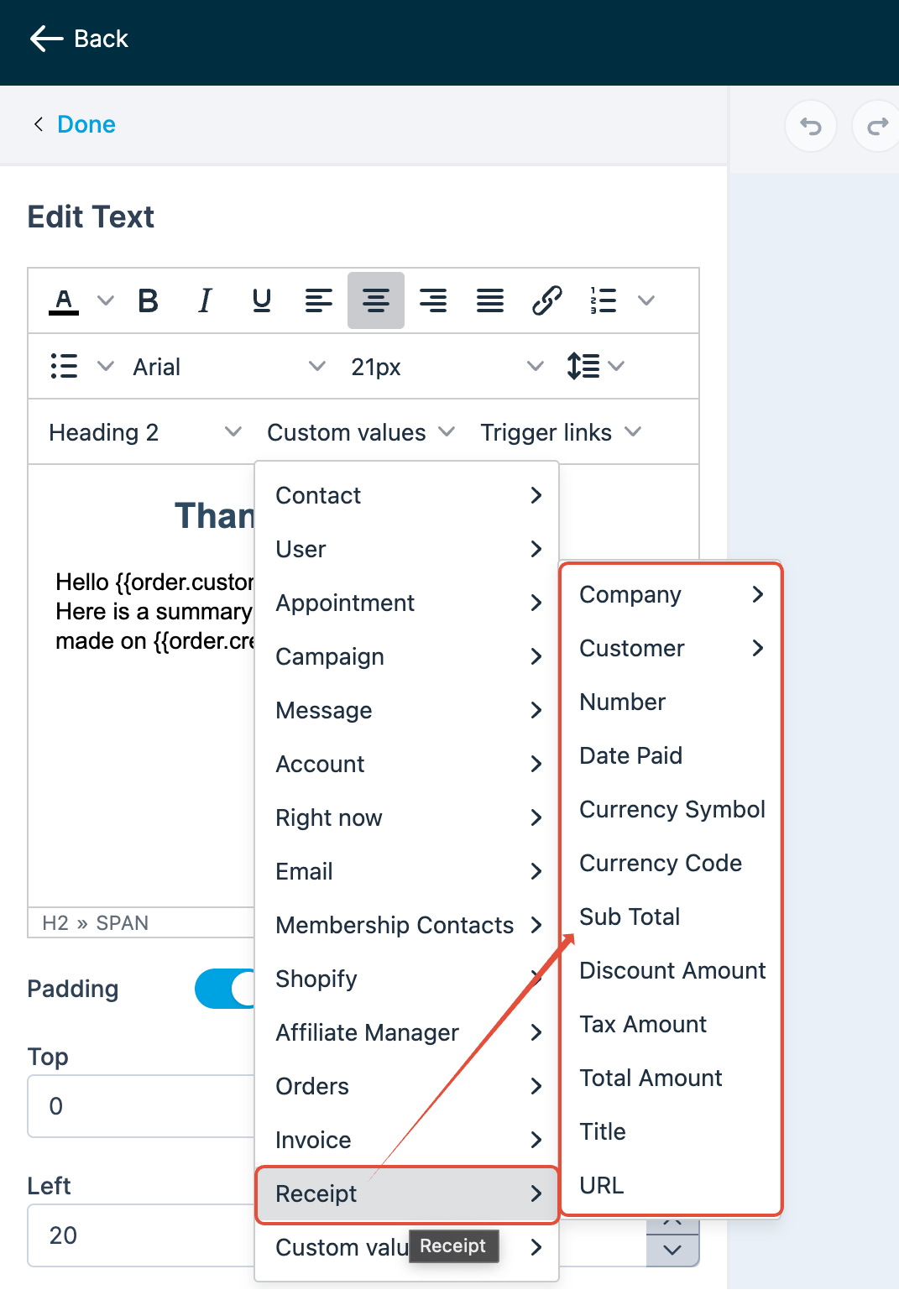
- Email Template. Lets you edit the content of the email that carries the receipt PDF, adding branding or a standard message.
07Things to know before you rely on it
- Automatic receipts are sent for all payment types; you cannot limit them to specific products or services.
- Receipt numbers are generated sequentially and cannot be edited, reset, or set to a lower value.
- Custom fields or personalized messages beyond the standard transaction details cannot be added to the receipt itself.
- Delivery timing depends on external email servers, so occasional delays are possible.
08How it connects to the rest of HighLevel
- Customize email and SMS notifications for invoicing Email template settings
- HighLevel invoice workflow: create, edit, tax, discount, send Invoice creation guide
- Selling products on order forms with available payment providers Order form payments
Michael's take

Wondering if you need to waste time manually emailing receipts after every sale? HighLevel’s automatic receipts handle that for you, sending a PDF straight to the customer’s inbox after the payment clears. It works for order forms, calendar bookings and invoices, so you don’t have to set up separate rules for each channel.
If I were setting this up, I’d first turn on the feature, give the receipt a clear title that matches my branding, and set a prefix that fits my accounting flow. Then I’d tweak the email template so the message feels consistent with my other communications. Even though you can’t add Custom Fields, the built in details cover the basics and the delivery logs let you confirm everything went out.