
01Who this is for
- Digital marketing agencies can keep client invoicing accurate across many regions.
- Ecommerce stores can apply correct sales tax to each product at checkout.
- SaaS Founders can use Stripe tax to calculate taxes for subscription plans.
02Tax settings, explained
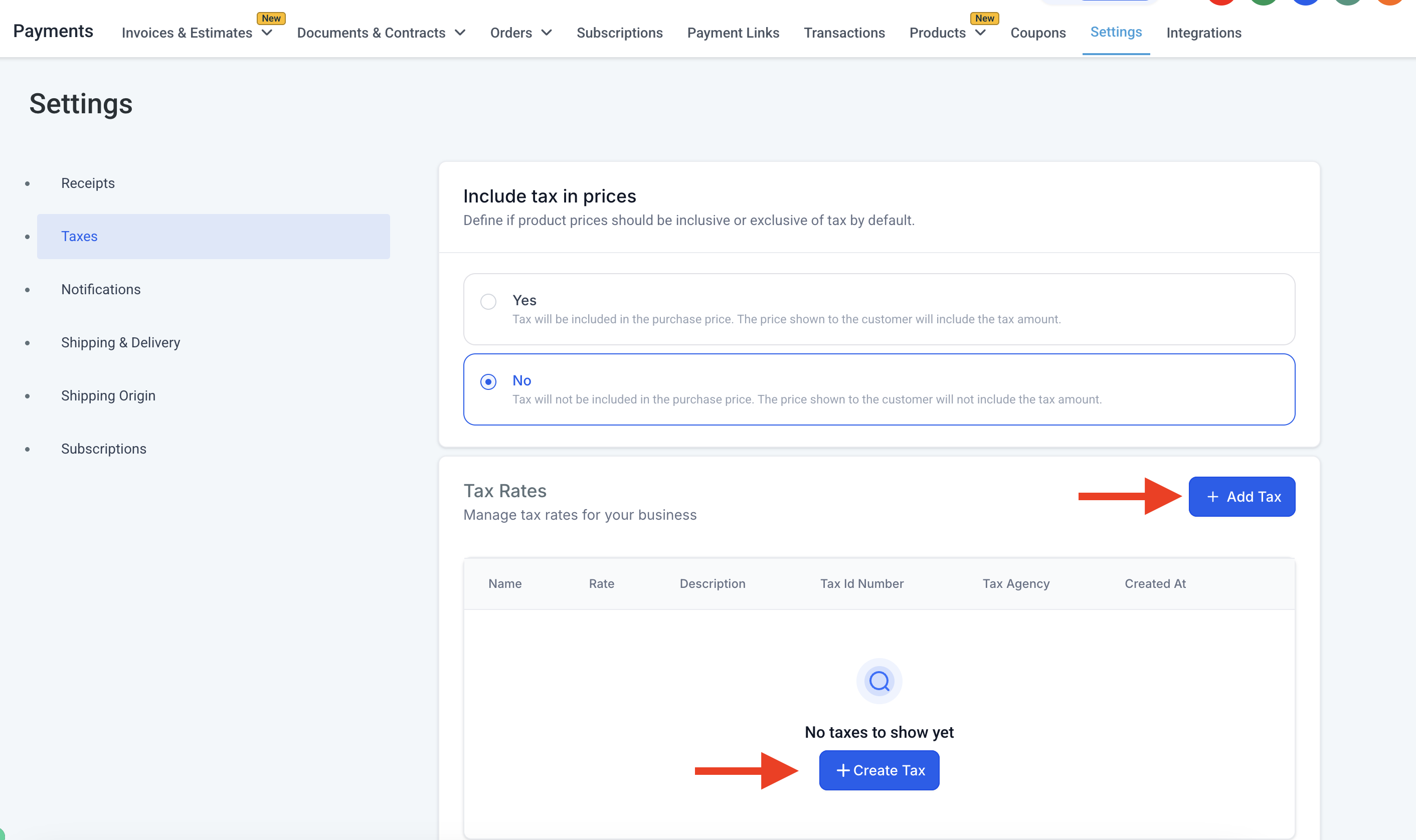
Tax Settings live under the Payments section of HighLevel. In the Taxes area you can create tax records, give each a name, rate and optional identifiers, and save them to a list. Once saved, the tax rates appear in product edit screens and on invoice creation dialogs.
Manual tax rates act as a fallback when automatic taxes are also enabled. You can disable automatic taxes or adjust nexus addresses to prefer manual rates for specific jurisdictions. Tax rates are shown with up to four decimal places, while the calculated tax amount rounds to two decimal places according to currency rules.
03How businesses use tax settings
- Digital marketing agency. The agency creates tax records for each region it serves, attaches the appropriate rates to service products, and adds taxes on invoices before sending them to clients.
- Ecommerce store. The store sets up tax rates for different product categories, checks the Attach Tax Rates box when editing a product, and ensures each checkout includes the correct tax amount.
- SaaS company. The company enables Stripe Tax Management, creates tax rates in Stripe, links those rates to its subscription payment links, and shares the direct links with prospects.
04The numbers and rules that matter
- HighLevel calculates and displays tax rates up to 4 decimal places (for example, 7.1250%).
- Tax amounts round to 2 decimal places based on currency standards (for example, $1.78) (per HighLevel's help center, checked November 2026).
05Before you start
- Enable Stripe Tax Management on your Stripe account before configuring tax rates.
- Access the Payments > Settings > Taxes section in HighLevel.
06How to set up and use tax settings in HighLevel
Create and add taxes
- Open Payments > Settings > Taxes and click Add Tax or Create Tax.
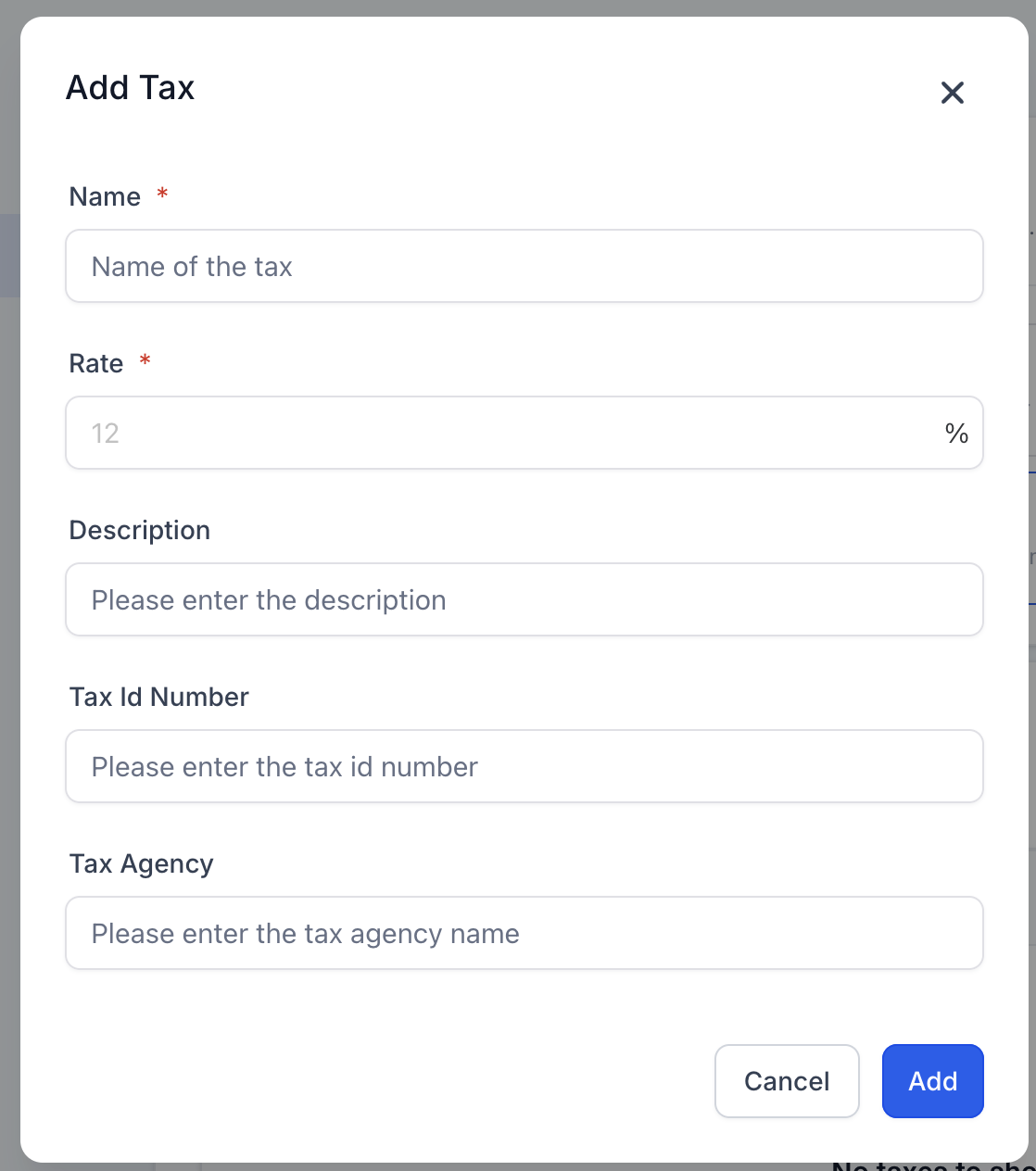
- Enter the tax name, rate, optional description, tax ID number and tax agency if needed.
- Press Add to save the new tax.
- Locate the newly created tax in the tax list.
Manage and use taxes
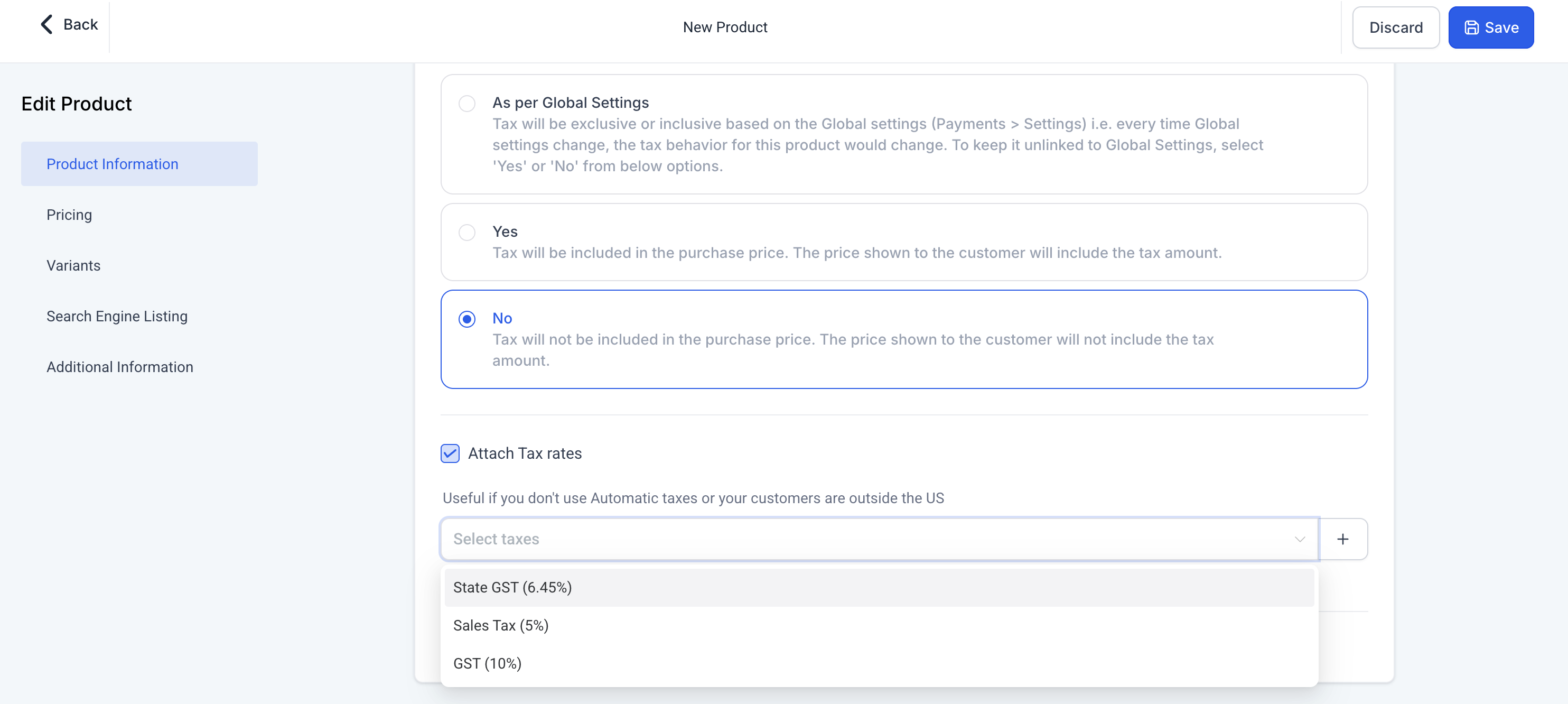
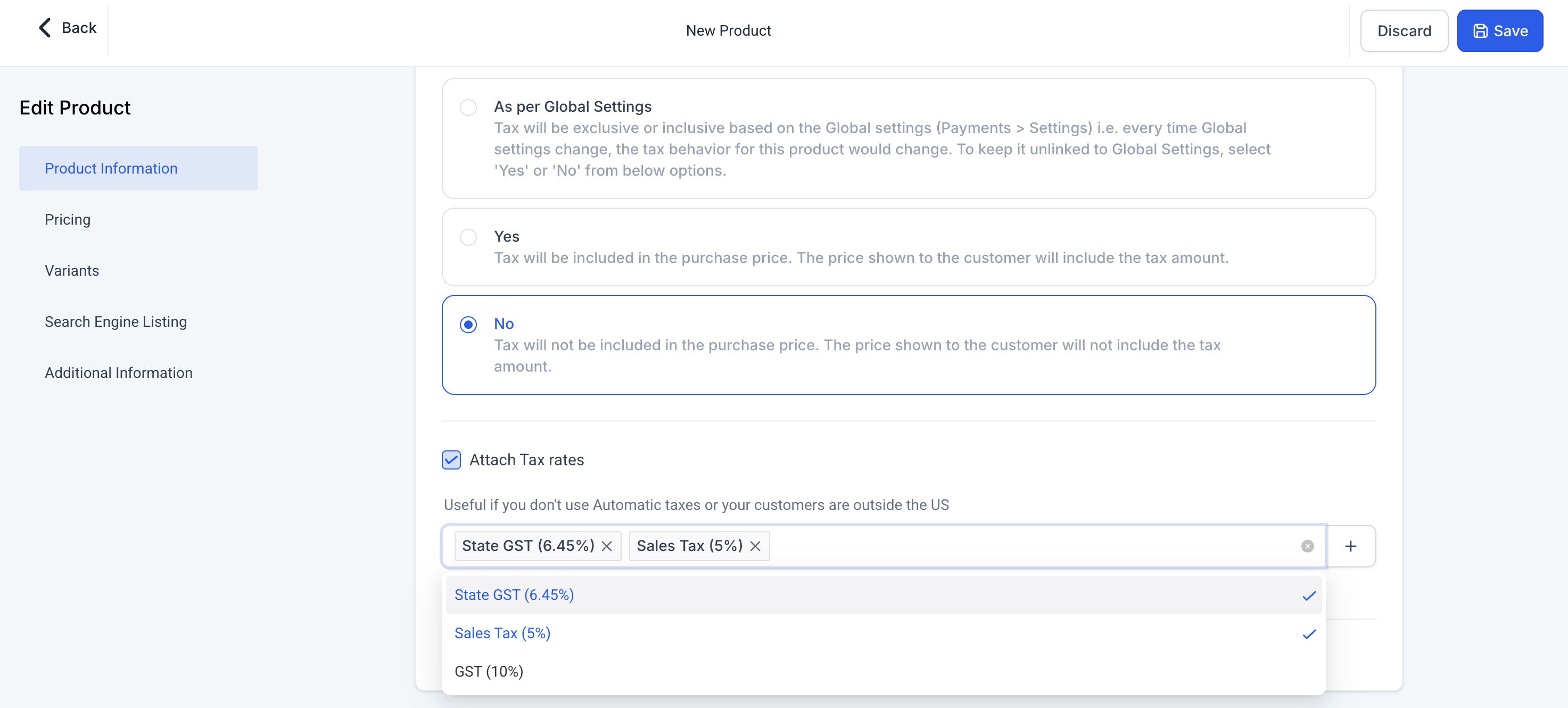
- When adding or editing a product, enable the Attach Tax Rates checkbox to view available rates.
- Select one or more rates from the drop down or click the + icon to create a rate right away.
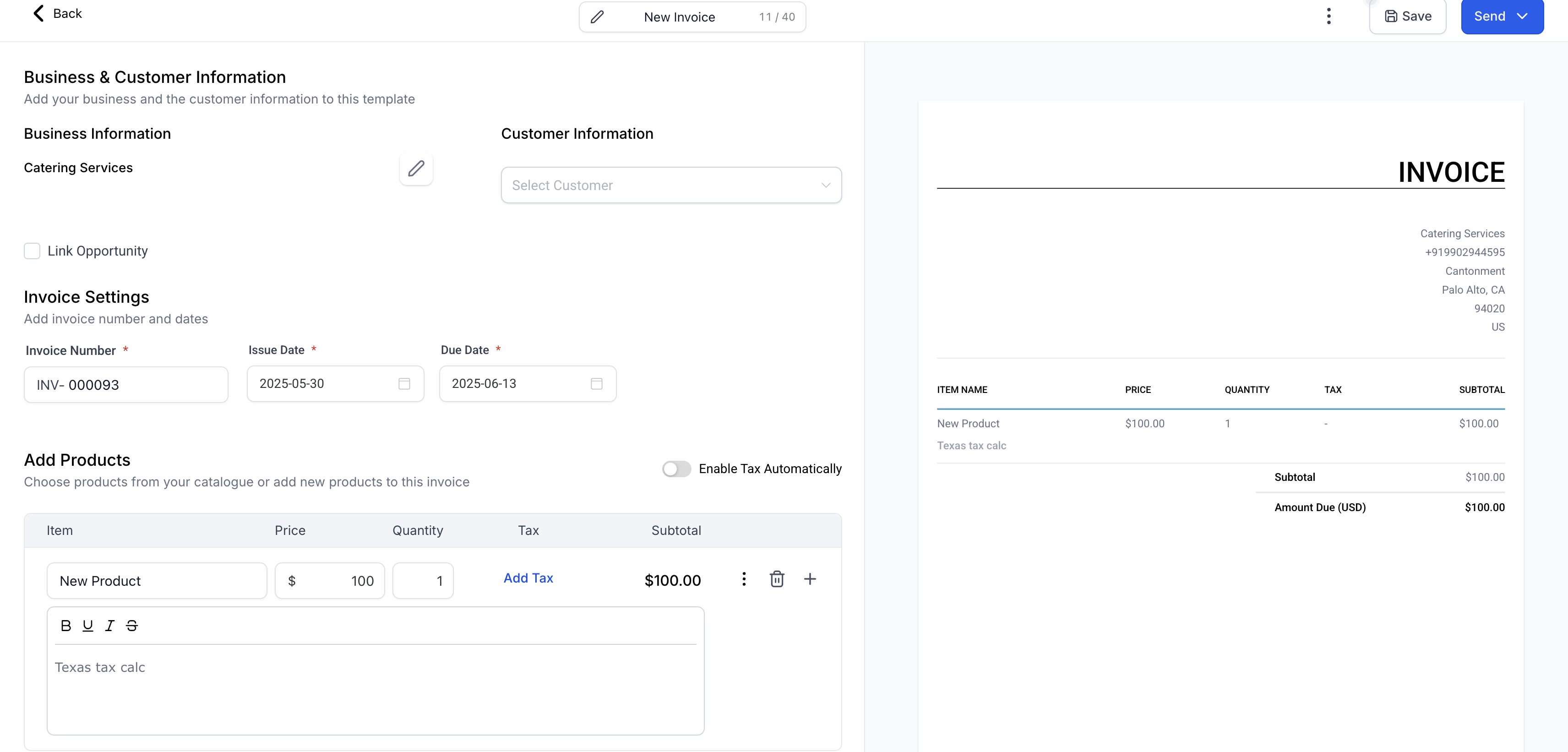
- Go to Payments > Invoices and open a draft or new invoice.
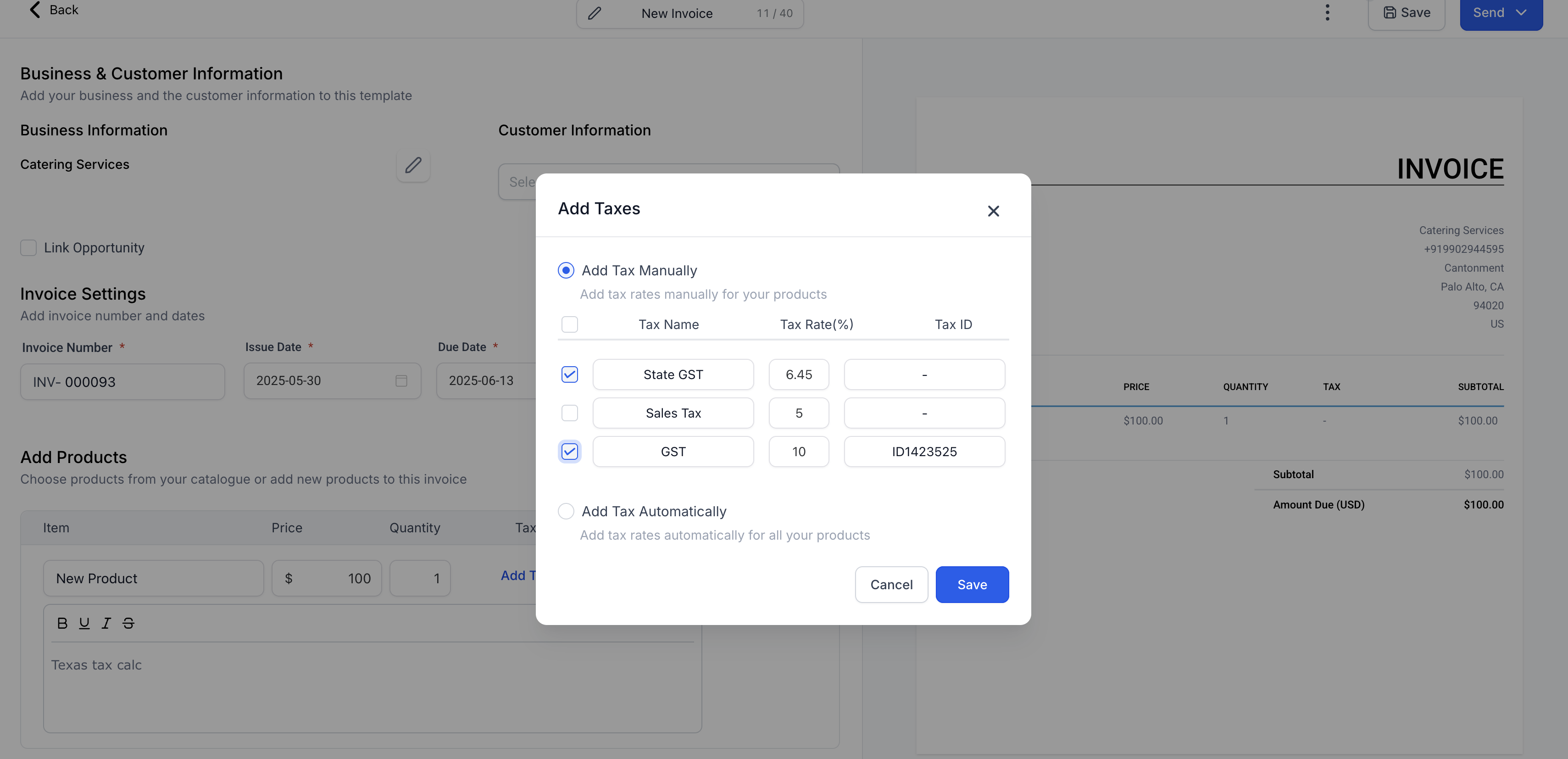
- Click Add Tax next to a product, choose the desired taxes in the popup, then save.
- To remove a tax, click its delete icon and adjust automatic tax settings or nexus addresses if manual rates should apply.
Set up tax rates in Stripe
- Log in to your Stripe account.
- Navigate to Products > Tax Rates and click New.
- Provide a tax name, percentage, and specify whether the tax is inclusive or exclusive.
- Click Add Tax Rate to store the rate.
Apply tax rates to existing customers in Stripe
- Open the Customers section in Stripe.
- Select the customer whose subscription you need to modify.
- Choose Edit subscription.
- Under Add Tax, pick the tax rate created earlier and save the changes.
Apply tax rates for new customers in Stripe
- Confirm that Stripe Tax Management is active on your account.
- Add the created tax rate to your SaaS product’s payment link in Stripe.
- Set the tax behavior (inclusive or exclusive) on each price as required.
- Copy the direct sale link and share it with prospects.
07What it looks like in HighLevel
08Settings that matter
- Attach Tax Rates. Controls which manually created tax rates are linked to a product.
- Automatic taxes settings. Determines whether HighLevel calculates taxes automatically and which nexus addresses are considered.
- Add Tax. Allows you to add selected tax rates to a product line on an invoice.
09Things to know before you rely on it
- The Stripe tax workaround currently supports only SaaS direct payment links.
- Tax rates display with four decimal places, but the final tax amount rounds to two decimal places.
- Manual tax rates act as a fallback when automatic taxes are also enabled.
- Consult a tax professional to ensure compliance; the article is for demonstration only.
10How it connects to the rest of HighLevel
- How to manage Stripe payment methods in HighLevel Stripe payment methods
- Managing sales receipts for order forms, calendar and invoices Sales receipts
- HighLevel pricing and plans Pricing
Michael's take

Tax settings in HighLevel help you manage taxes across regions, reducing errors and keeping you compliant.
Don’t forget to update a customer's tax rate whenever their address changes.