
01Who this is for
- Ecommerce Founders, they can reduce checkout friction for customers who prefer Apple Pay or Google Pay.
- Service based businesses offering subscription plans, they can manage wallet settings separately for recurring payments.
- Online retailers using one step order forms, they can activate wallets to speed up single purchase flows.
02Apple Pay and Google Pay, explained
The feature adds Apple Pay and Google Pay as payment methods on HighLevel order forms that use Stripe. When a wallet is enabled for the appropriate product area, it may appear alongside other payment options during checkout. Visibility depends on test or live mode, Stripe account eligibility, the customer’s location, device, browser, and wallet setup. Apple Pay also requires domain verification before it can be shown.
Configuration lives in the Payments area of a HighLevel subaccount. From the Stripe integration you open Manage Payment Methods, select the product area (One Step or Two Step order form), enable the desired wallets, and save. Test and Live environments are configured independently, and subscription checkouts have their own wallet settings that become available after a subscription product is added in Live mode.
03How businesses use Apple Pay and Google Pay
- Fitness studio. The studio enables Apple Pay on its One Step order form so members can pay for class packages with a single tap. The owner configures the wallet in the Stripe integration, selects the appropriate product area, and saves the setting.
- Online retailer. The retailer turns on Google Pay for its Two Step order form, allowing shoppers to complete purchases using saved payment information. The retailer verifies the setting in the Test or Live mode as needed before publishing the form.
- Subscription SaaS provider. The provider adds a subscription product in Live mode, then opens the Subscriptions payment method configuration to enable Apple Pay and Google Pay for recurring checkouts. The provider saves the changes so returning customers can use their digital wallets.
04The numbers and rules that matter
- Wallets are supported on eligible Funnels, One Step Order Form and Funnels, Two Step Order Form.
05Before you start
- Stripe must be connected to the HighLevel subaccount.
- The wallet must be enabled for the specific Order Form product area.
- Apple Pay requires completed domain verification before it can appear.
06How to set up and use Apple Pay and Google Pay in HighLevel
Set up Apple Pay and Google Pay for order forms
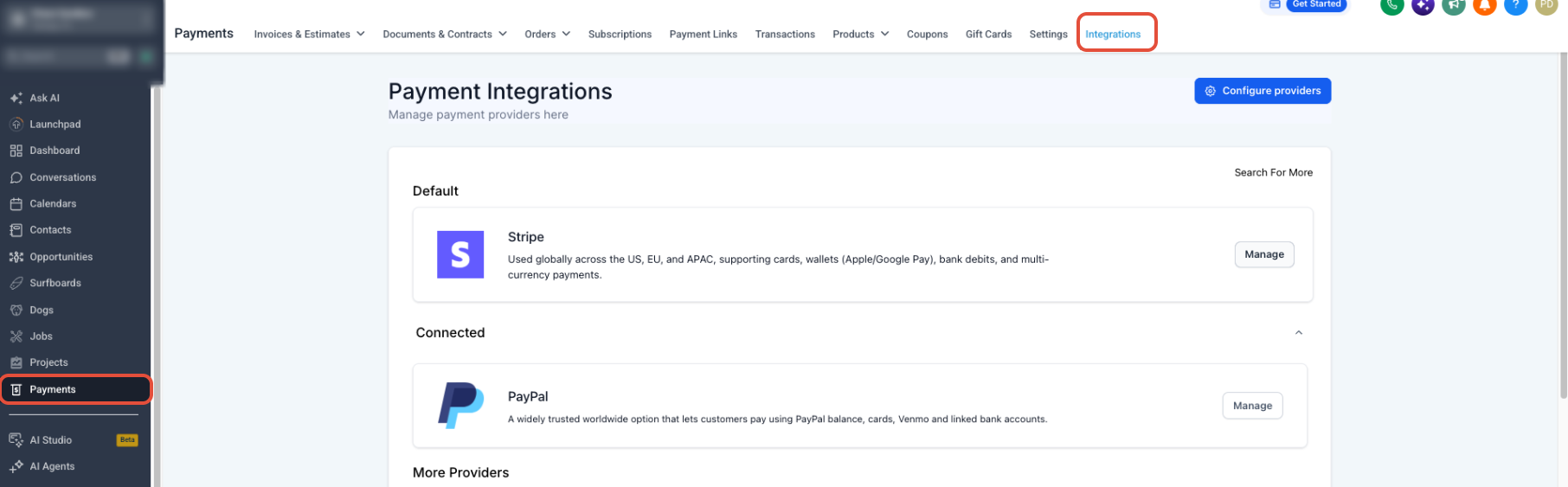
- From the HighLevel subaccount view, go to Payments.
- Select Integrations.
- Find Stripe in the list of integrations.
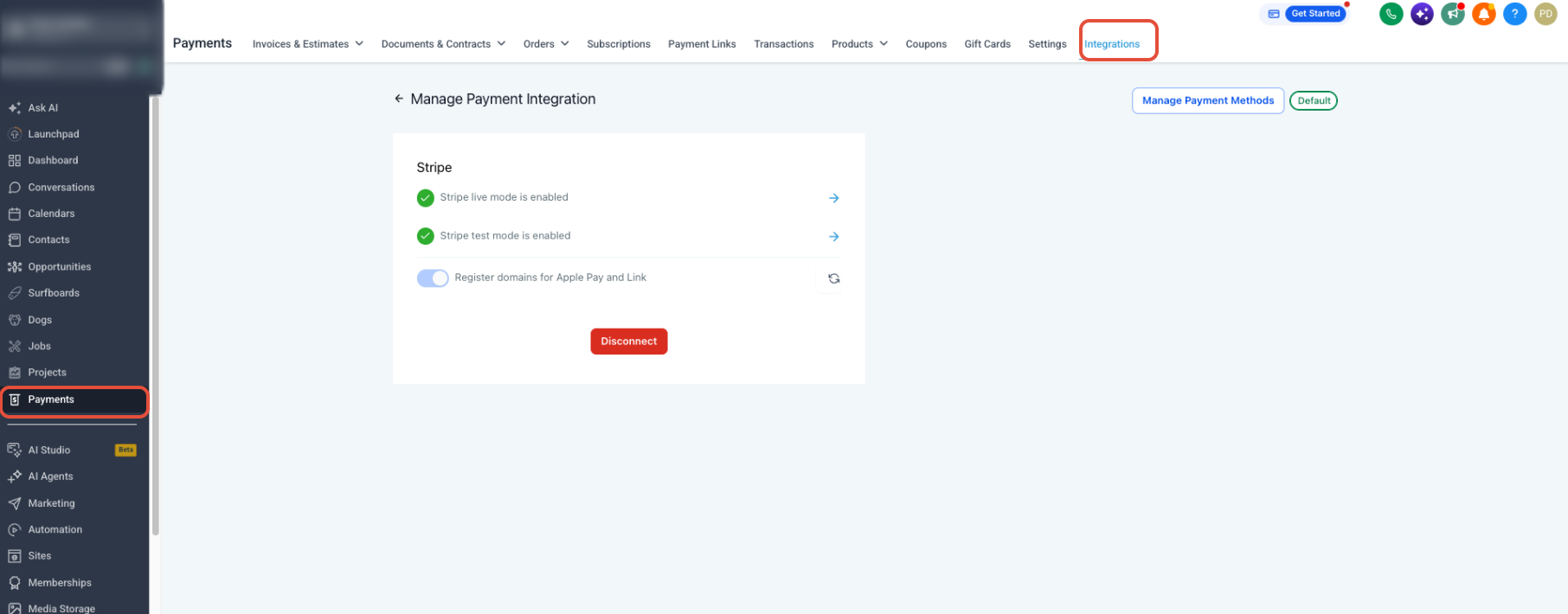
- Click Manage to open the Stripe settings page.
- On the Manage Payment Integration page, click Manage Payment Methods.
- Locate the product area (Funnels, One Step Order Form or Funnels, Two Step Order Form) and enable Apple Pay and Google Pay as needed.
- Confirm you are editing the correct Test or Live mode and enable the wallets there.
- If Apple Pay is enabled, ensure domain verification is completed.
- If the form includes subscription products, open the Subscriptions payment method configuration, enable the wallets, and save all changes.
07What it looks like in HighLevel
08Settings that matter
- Apple Pay. Controls whether the Apple Pay digital wallet is offered as a payment option for the selected product area and environment.
- Google Pay. Controls whether the Google Pay digital wallet is offered as a payment option for the selected product area and environment.
09Things to know before you rely on it
- Enabling a wallet does not guarantee it will be shown to every customer.
- Wallet visibility depends on product area, Test or Live mode, Stripe account eligibility, customer location, device, browser, and wallet setup.
- Apple Pay also requires completed domain verification before it can appear.
- Subscription specific wallet settings are only available after at least one subscription product is added in Live mode.
10If something goes wrong
- Apple Pay does not appear at checkout. Confirm Apple Pay is enabled for the relevant Order Form, verify the correct Test or Live mode, check the Subscriptions payment method settings if applicable, ensure the Stripe account is active and eligible, and verify that domain verification for Apple Pay is complete.
- Google Pay does not appear at checkout. Confirm Google Pay is enabled for the relevant Order Form, verify the correct Test or Live mode, check the Subscriptions payment method settings if applicable, and ensure the Stripe account and payment method are eligible.
11How it connects to the rest of HighLevel
- Manage Stripe payment methods inside HighLevel Stripe payment methods
- Sell products on HighLevel order forms with available payment providers Order form payments
- HighLevel pricing and plans Pricing
Michael's take

Apple Pay and Google Pay are worth the effort for businesses that already use Stripe Order Forms and want a smoother checkout for tech savvy customers. Companies that don’t sell online or don’t have Stripe set up should skip this feature.