
01Who this is for
- Customer support agents, need quick tools to resolve disputes and billing errors.
- Ecommerce managers, handle order cancellations, returns and exchange refunds efficiently.
- Finance staff, track successful and failed refund attempts within each transaction.
02Refunds, explained
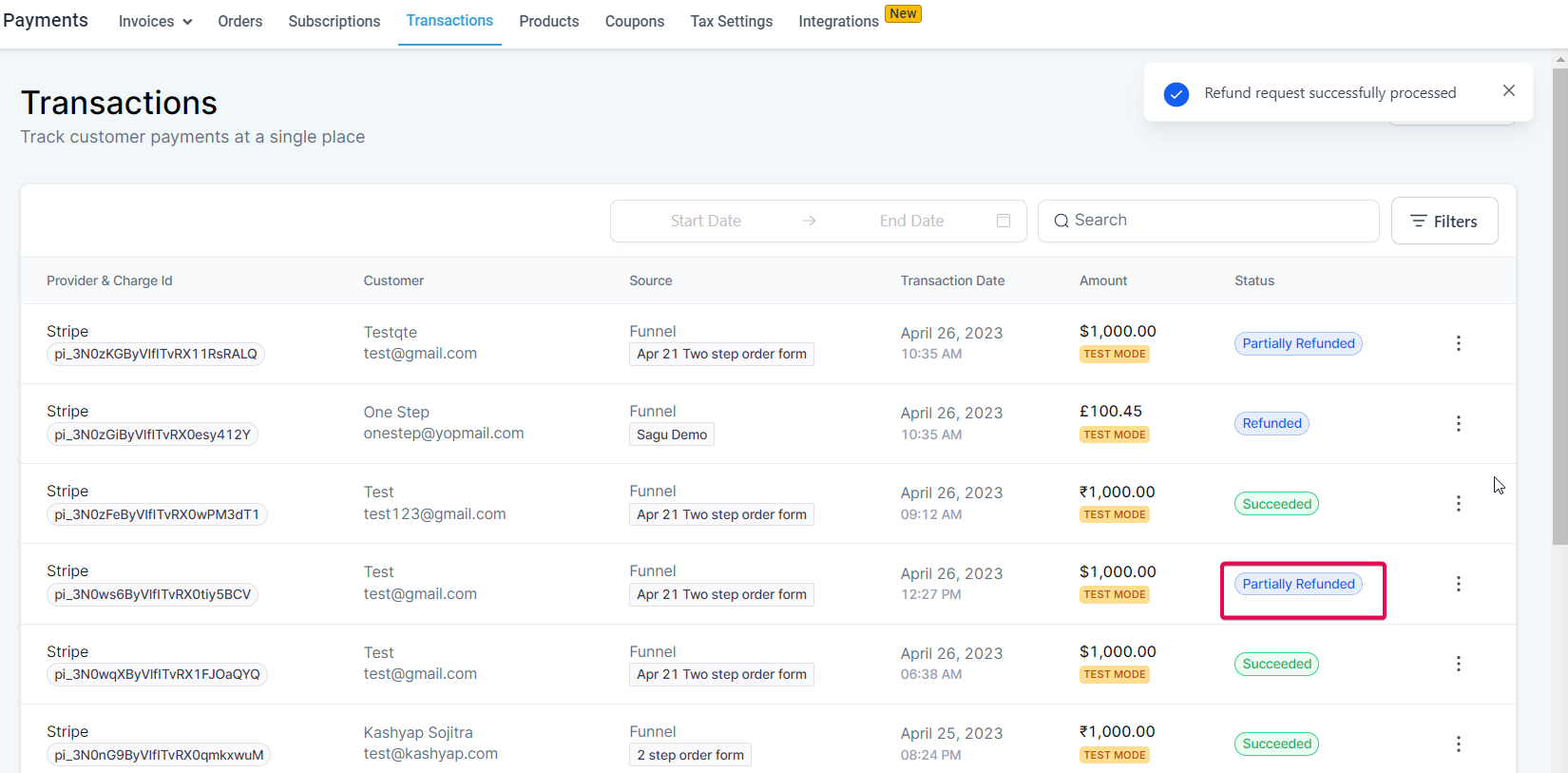
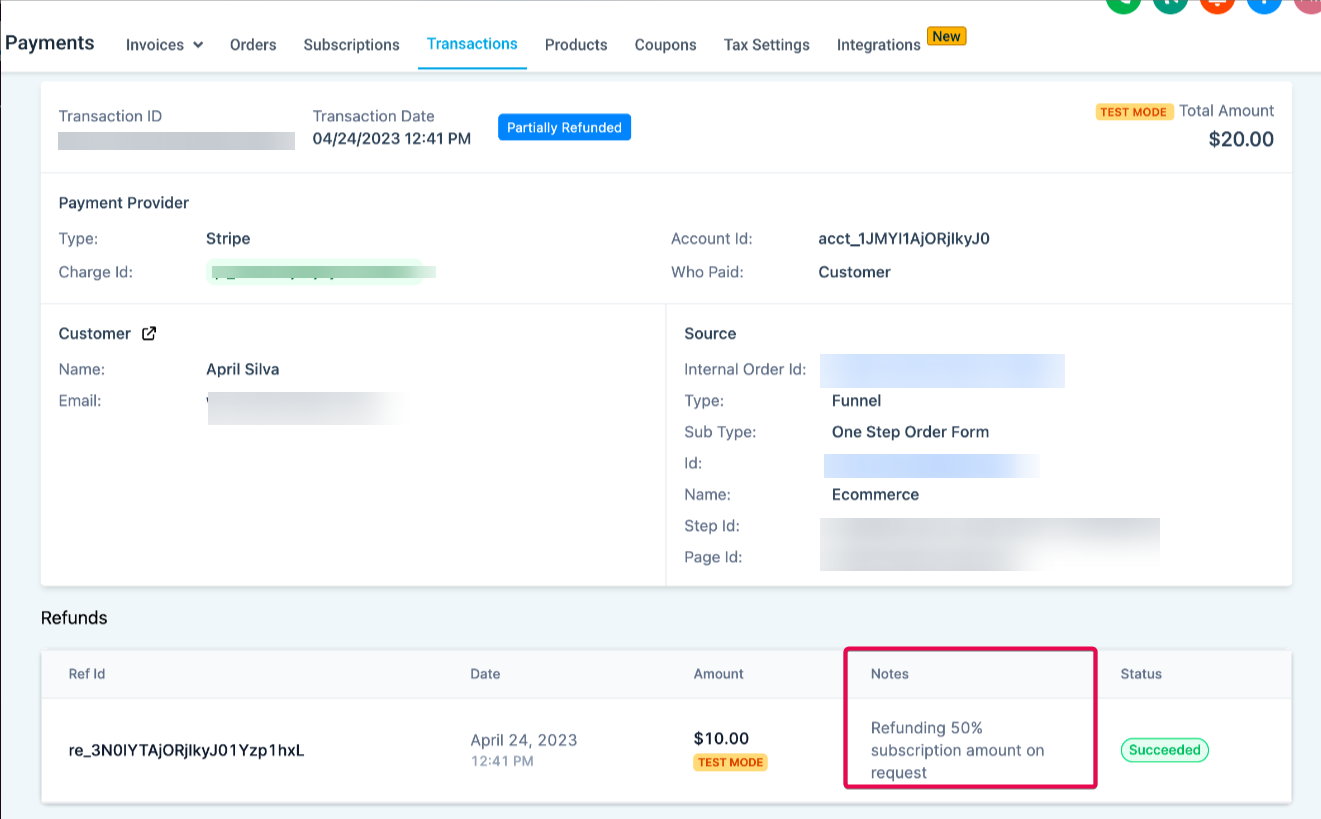
The Refunds feature is built into HighLevel’s payment platform. It works with the major payment gateways supported by the system: Stripe, Authorize.net, NMI and PayPal. It also accepts refunds for Google Pay, Apple Pay and standard card payments. When a refund is processed, the platform records the attempt on the Transaction Details page, showing amount, status and any notes you add.
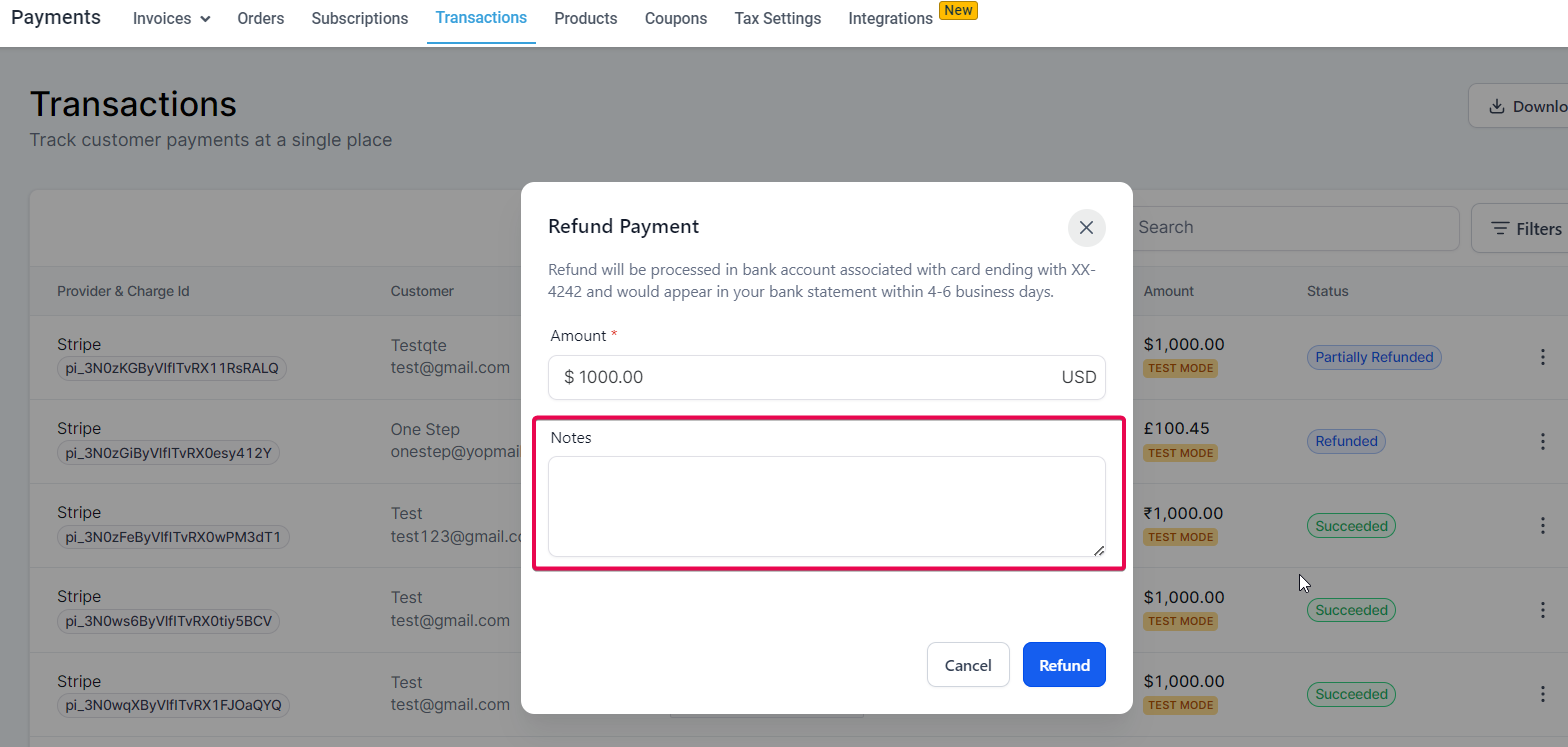
Refunds can be full, returning the entire transaction amount, or partial, letting you specify a lower amount. The interface pre fills the amount for a full refund, while a partial refund lets you edit the field before confirming. Notes you type are stored under the Notes column for that refund, providing an audit trail.
The feature lives under the Payments section of the dashboard. It does not yet support user specific permissions, and it cannot refund recurring subscription payments. Daily limits are not imposed by the platform, though individual gateways may have their own rules.
03How businesses use refunds
- Dental practice. When a patient is overcharged for a service, the office can issue a partial refund to return the excess amount. The refund is logged on the original transaction, and the staff can add a note explaining the adjustment.
- Ecommerce store. If a shopper returns only part of an order, the store can process a partial refund for the returned items while keeping the rest of the sale intact. The refund details appear in the transaction record for future reference.
- SaaS subscription business. When a customer cancels a one time purchase or reports a billing error, the company can issue a full refund through the Payments > Transactions view, ensuring the amount is returned to the card or digital wallet used.
04The numbers and rules that matter
- Supported payment providers: Stripe, Authorize.net, NMI, PayPal.
- Supported payment methods: Google Pay, Apple Pay, card payments.
- No fixed daily limit on refunds, but check provider policies.
- Authorize.net allows refunds only after 24 hours from the transaction time.
05Before you start
- A payment provider must be configured and the transaction must exist in the Payments > Transactions list.
- The transaction you want to refund must be visible in the platform.
06How to set up and use refunds in HighLevel
Issue a full or partial refund for a transaction
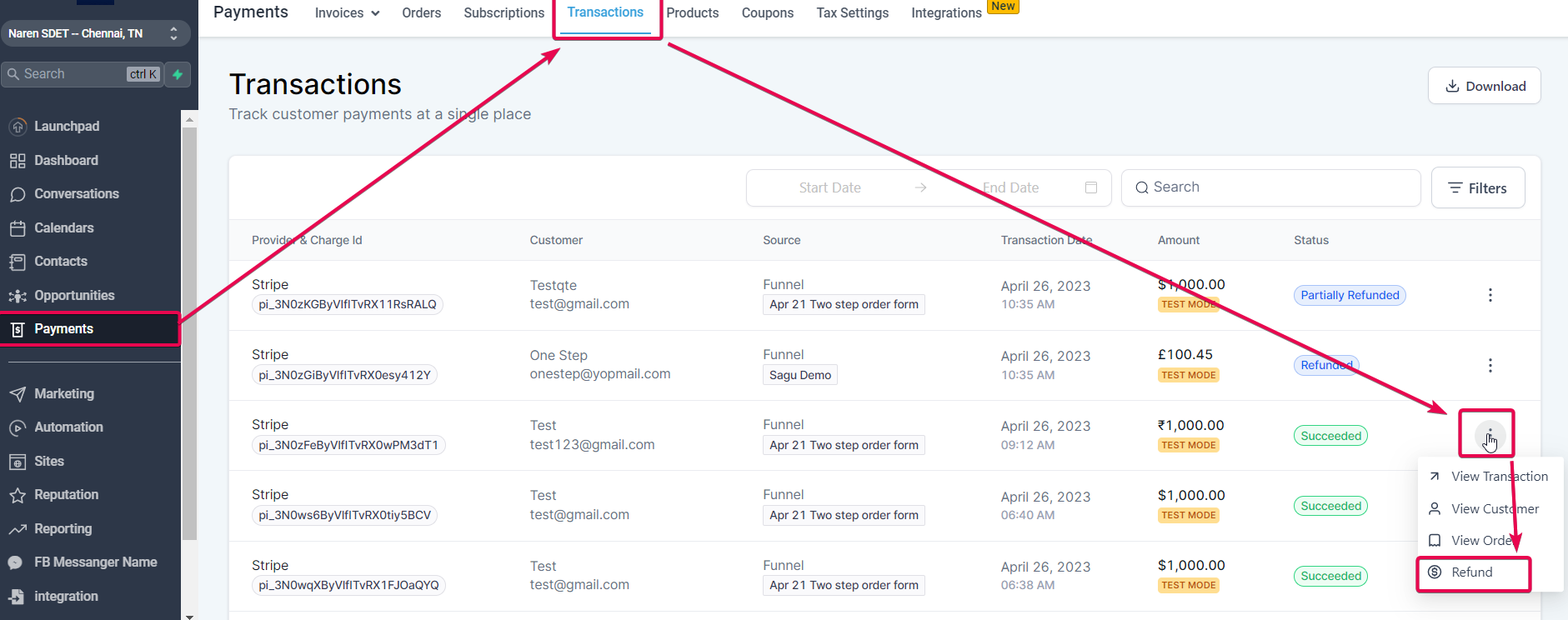
- Open Payments > Transactions, locate the payment, click the three dots next to it, and choose Refund.
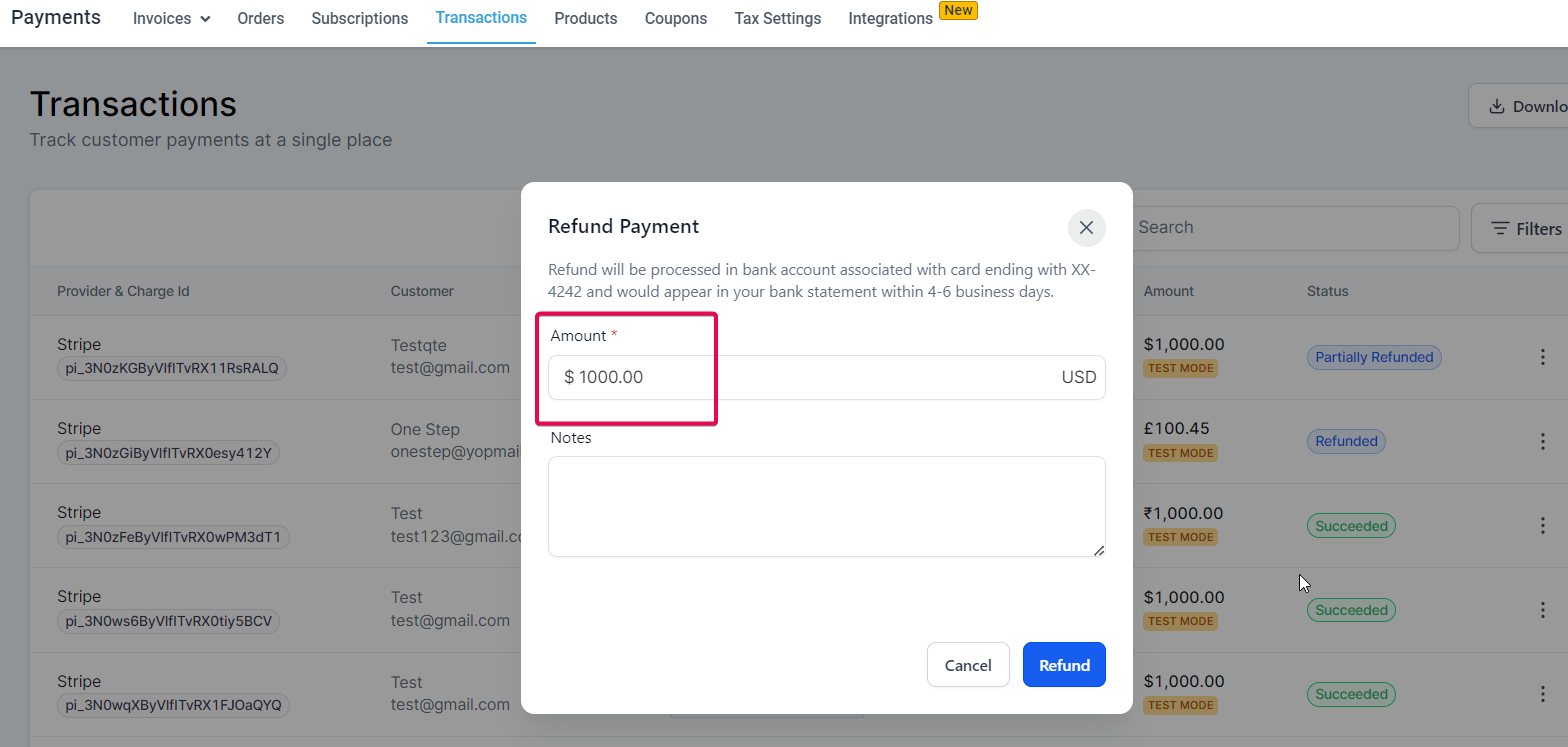
- For a full refund, the amount field will already contain the total transaction value.
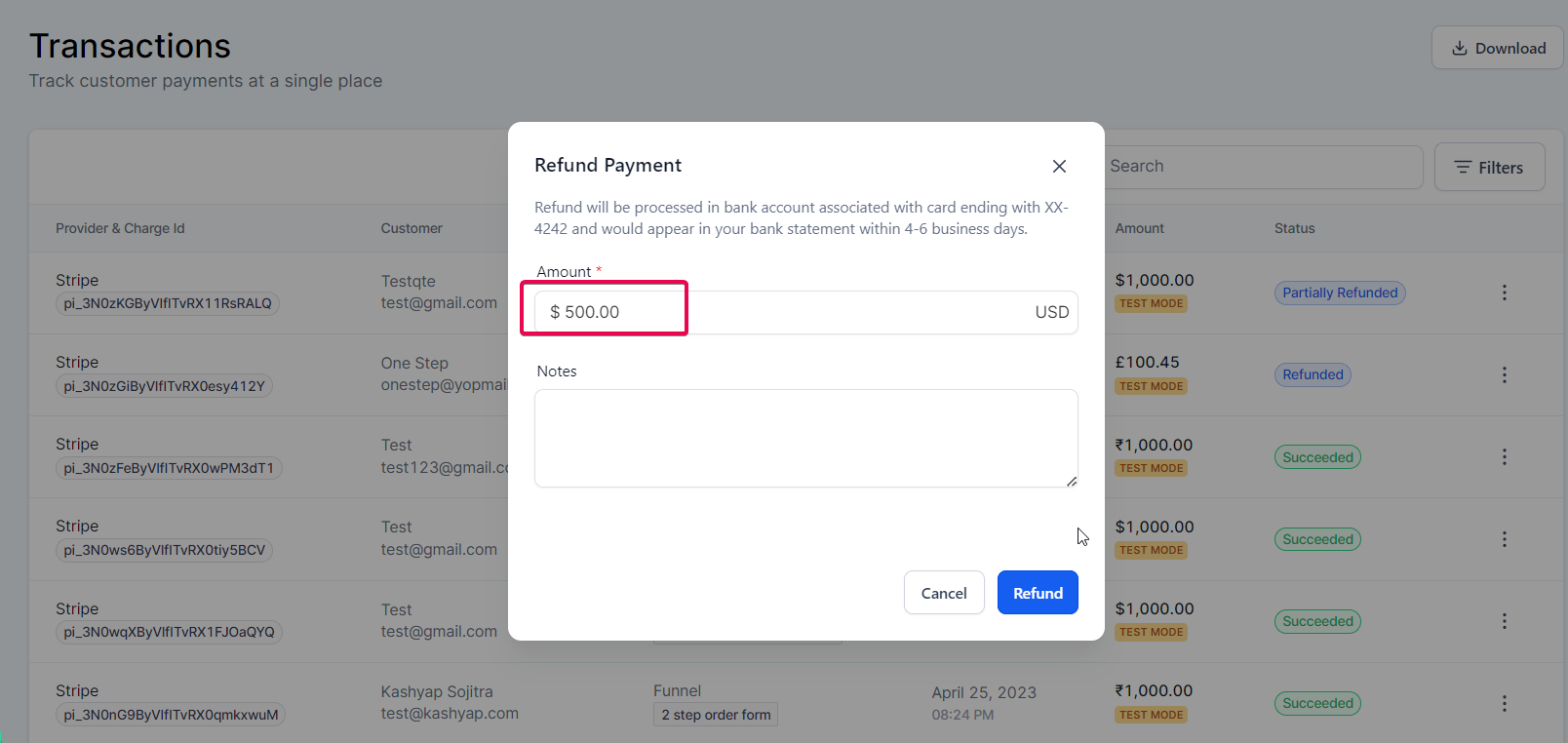
- For a partial refund, modify the amount to a value lower than the total before confirming.
- Enter any internal note in the Notes area; it will appear in the Refund details for that transaction.
07What it looks like in HighLevel
08Settings that matter
- Notes. Allows you to add a free form comment that is saved with the refund record and shown in the Refund details column.
09Things to know before you rely on it
- User specific permissions for refunds are not available yet; all users who can access Payments can issue refunds.
- The platform does not set a daily cap on refunds, but each gateway may enforce its own limits.
- Refunds cannot be applied to subsequent recurring subscription payments.
- Authorize.net only permits refunds after the transaction is at least 24 hours old; older refunds depend on the provider’s policy.
- Multiple partial refunds are allowed as long as the combined amount does not exceed the original transaction total.
10If something goes wrong
- Unable to process a refund with Authorize.net, error says the transaction does not meet criteria for a credit.. Confirm the transaction is older than 24 hours, then retry. If the problem persists, review Authorize.net’s refund rules or contact their support.
11How it connects to the rest of HighLevel
- See the full list of payment capabilities in HighLevel. All Payments features
- Learn how to manage sales receipts that are generated for refunds and other payments. Managing sales receipts
- Customize the email and SMS messages sent when a refund is processed. Customize invoicing notifications
Michael's take

Refunds are handy for businesses that need to return money quickly, but if you don’t handle disputes or returns, you can skip it.
The feature is straightforward: Pull up the transaction, hit the three dot menu and select Refund. Adjust the amount for partial refunds, add a note, and you’re done.