
01Who this is for
- Ecommerce Founders who sell products with varying sizes, because they can charge different rates per item group.
- Store managers using third party print on demand apps, as they can override app generated rates with custom profiles.
02Shipping profiles, explained
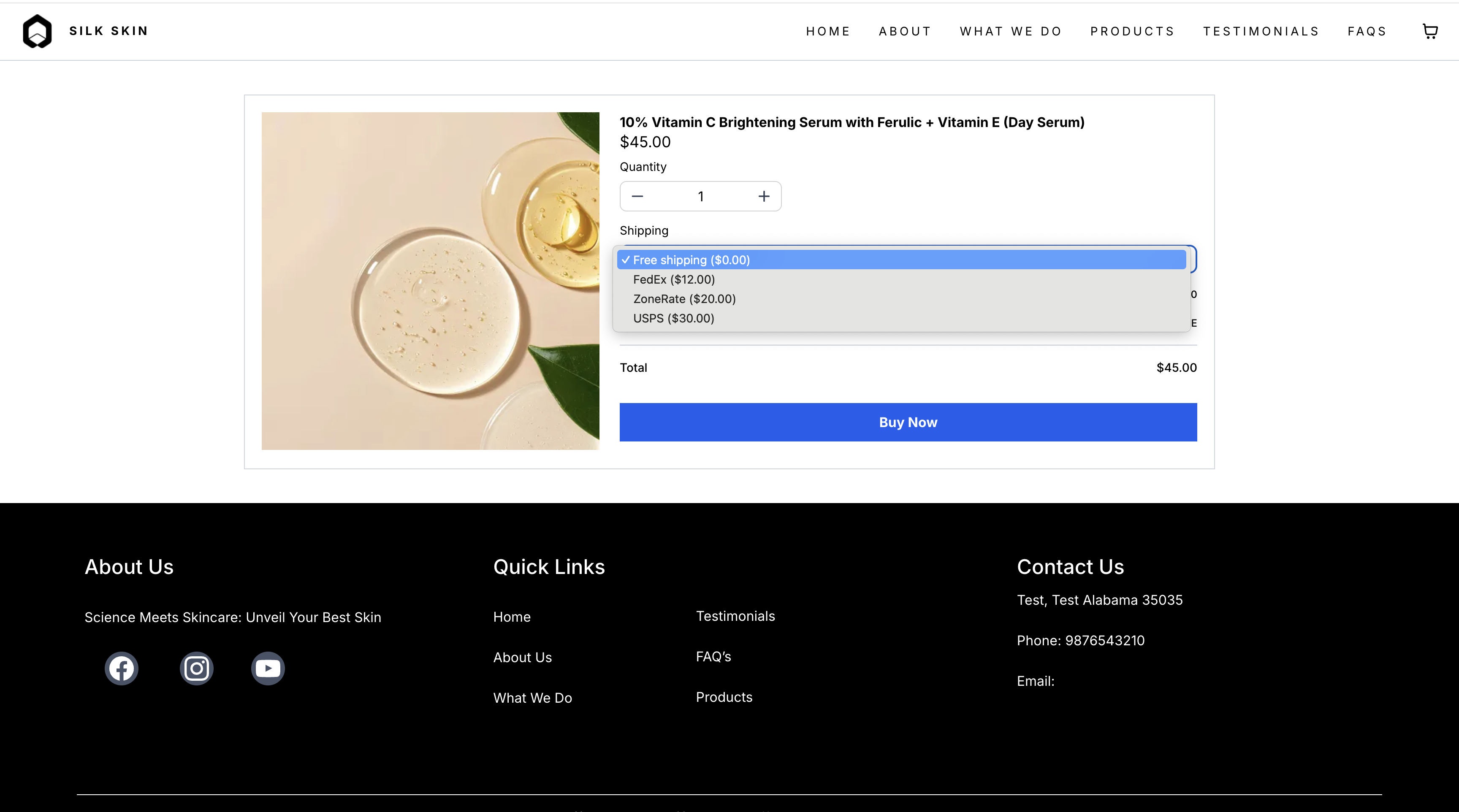
Shipping Profiles are a feature inside the Payments area of the platform. They let you create rules that apply only to the products you choose, the stores you select, and the geographic zones you define. When a shopper adds items from several profiles, the system adds the applicable rates together and shows a single shipping line on checkout.
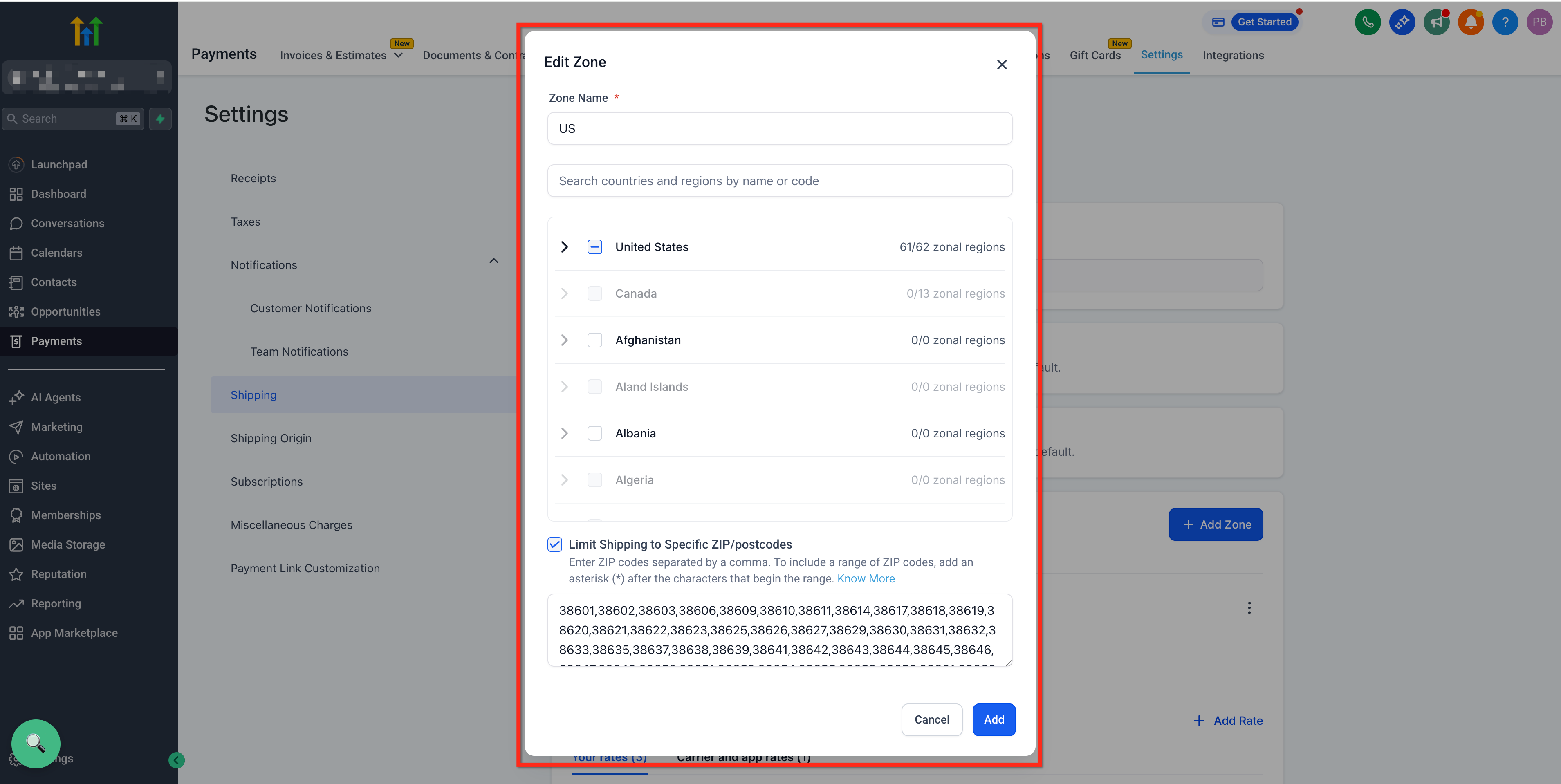
The platform automatically creates a General Shipping Profile that acts as a fallback for any product that does not belong to a custom profile. Custom profiles can use flat fees, weight based calculations, price based thresholds or offer free shipping. Zones can be limited further by ZIP or postcode using exact codes, comma separated lists or trailing asterisk wildcards.
03How businesses use shipping profiles
- Furniture retailer. The retailer creates a custom profile for large items and sets weight based rates for each delivery zone. Smaller accessories stay in the General Profile with a flat fee. At checkout, the platform adds the two rates into one shipping total.
- Food delivery service. The service defines zones by city and limits each zone to specific ZIP codes. It adds a free shipping rate for orders over a certain price. When a customer selects a ZIP that matches the restriction, the appropriate rate appears automatically.
- Apparel ecommerce store. The store assigns premium clothing lines to a custom profile with a higher flat rate, while standard items use the General Profile. The platform combines the rates when a cart contains both types, showing a single shipping charge.
04The numbers and rules that matter
- Wildcards are allowed only as a trailing asterisk (example: 56*).
05How to set up and use shipping profiles in HighLevel
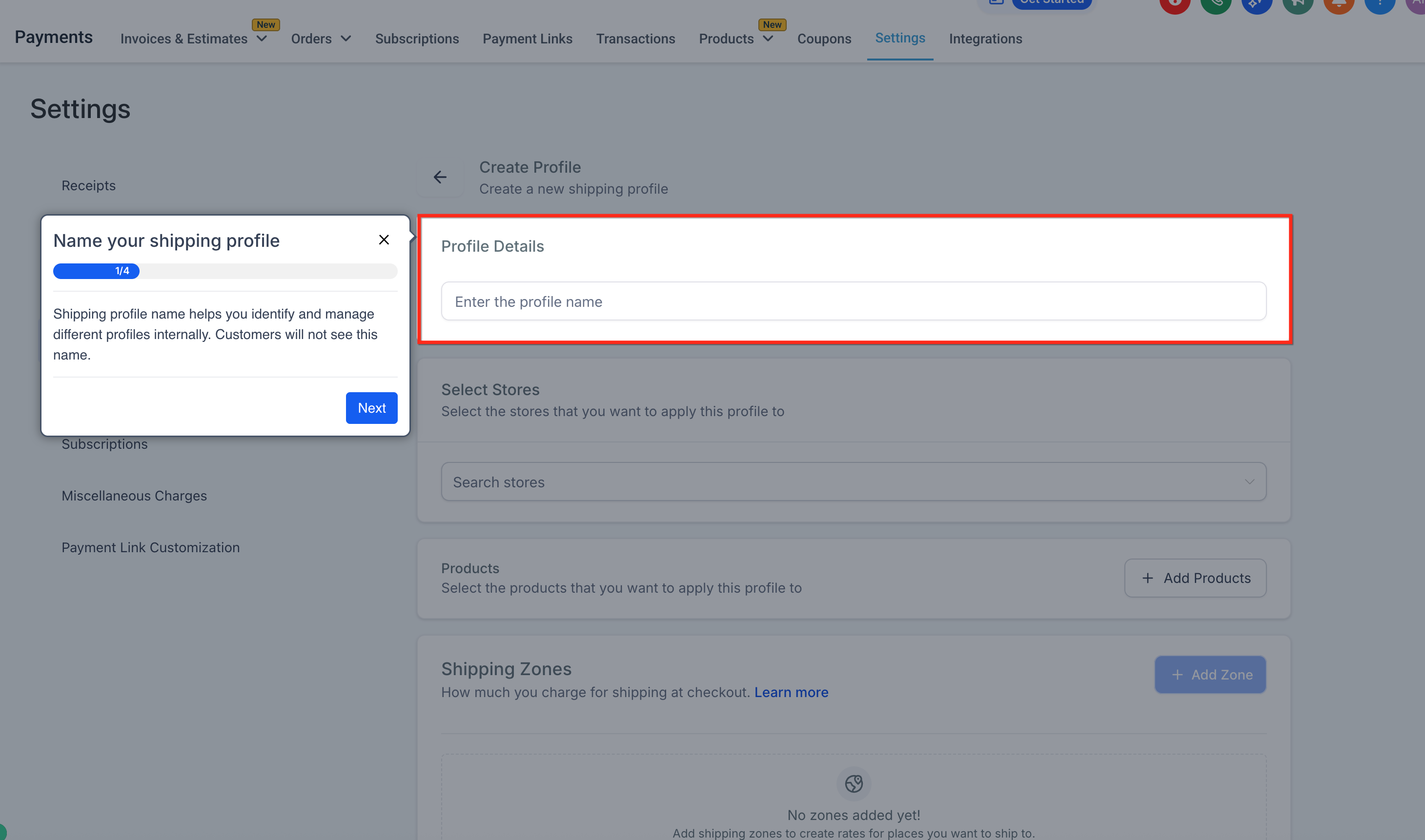
Create and configure a custom shipping profile
- Navigate to Payments > Settings > Shipping & Delivery > Custom Profiles.
- Click Add Custom.
- Enter a unique profile name for internal reference.
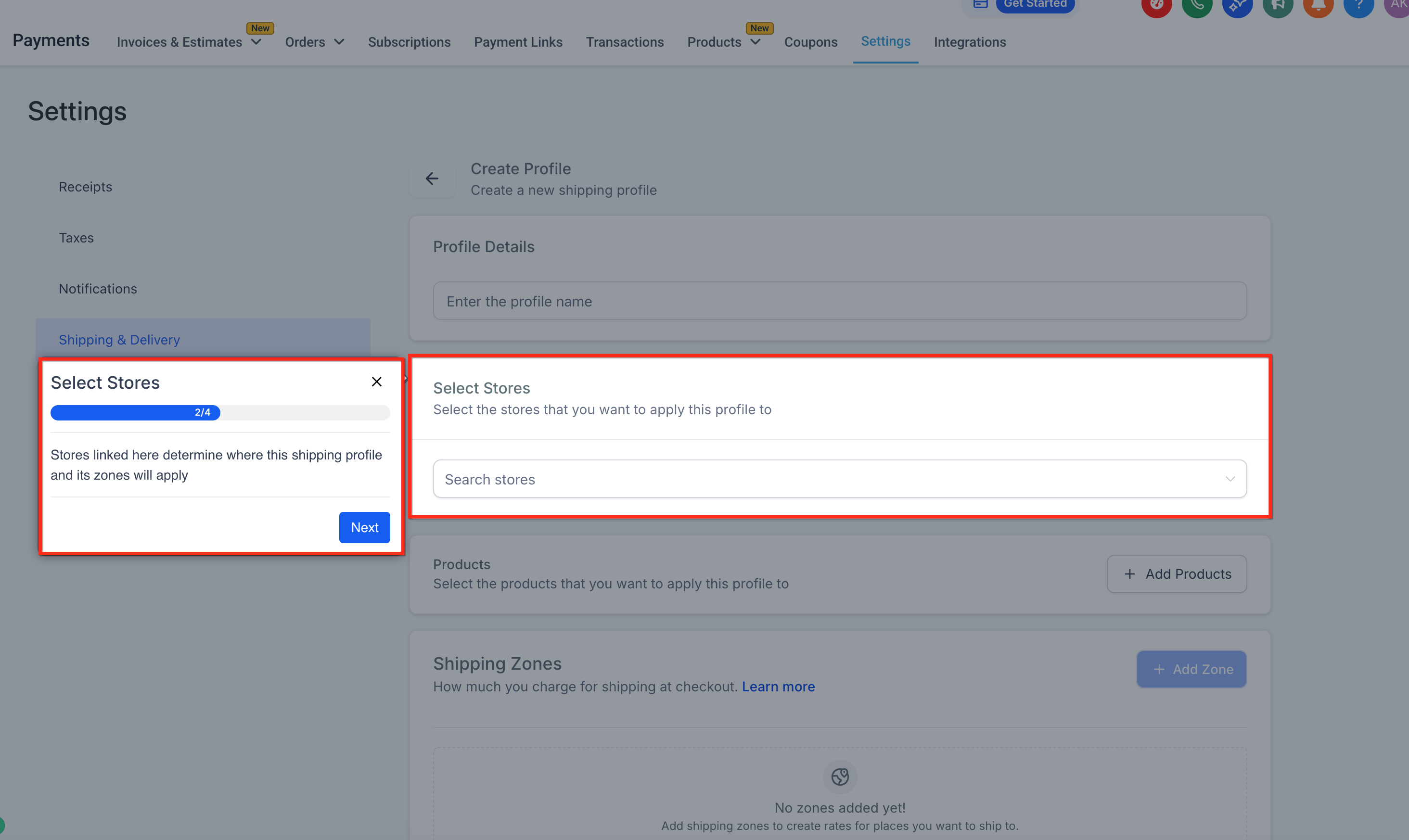
- Select the store or stores the profile should apply to.
- Choose the products or product groups to include in the profile.
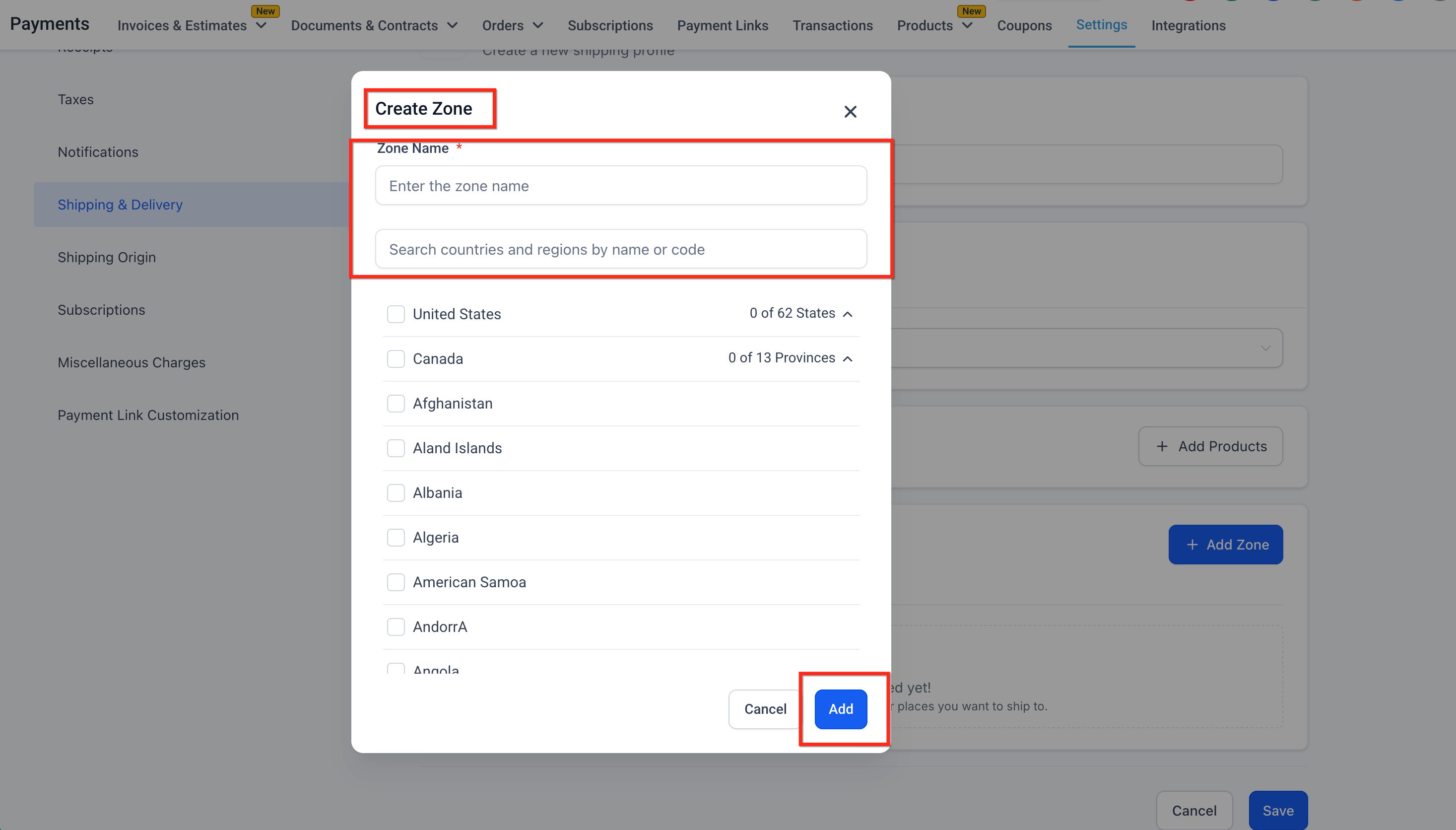
- Click Add Zone and select the countries or regions for delivery.
- Within each zone, add one or more rate types such as flat, price based, weight based, or free shipping.
- Click Save when all zones and rates are defined.
- Place a test order to confirm the correct shipping rates appear at checkout.
- Pro Tip: Create the General Profile first before adding any custom profiles.
06What it looks like in HighLevel
07Settings that matter
- Flat rate. Specifies a fixed shipping charge for the selected zone.
- Price, based rate. Sets a shipping charge that can change based on the order total, for example free shipping over a certain amount.
- Weight, based rate. Defines a cost according to the weight range of the items in the zone.
- Free shipping. Offers no charge for shipping within the chosen zone.
- ZIP/Postcode Restriction. Limits a zone to specific ZIP or postcode entries, using single codes, comma separated lists, or trailing asterisk wildcards.
08Things to know before you rely on it
- A product can belong to only one custom profile at a time; assigning it to another profile replaces the previous assignment.
- Each profile must have a unique name; duplicate names are not allowed.
- When ZIP/Postcode restriction is enabled, at least one valid entry must be provided; otherwise the zone cannot be saved.
- Wildcard entries are permitted only as a trailing asterisk, such as 56*.
- Invalid or duplicate ZIP/Postcode entries are blocked during input.
- Manual edits to system generated Printful or Printify profiles are not recommended; removing products from them disables live shipping rates.
09How it connects to the rest of HighLevel
- Explore all payment related features in HighLevel. All Payments features
- Review HighLevel pricing and plan options. HighLevel pricing and plans
- Start a free trial to test shipping profiles. 30 day HighLevel trial
Michael's take

Many store owners spend hours hunting down why a checkout shows the wrong shipping cost or why a product suddenly becomes free to ship. Shipping profiles solve that by letting you lock in exactly the rate each product should use, and then falling back to a catch all profile when nothing else matches. The first setting I’d get right is the General Shipping Profile so there’s always a baseline rate in place.
Once the baseline is set, I’d layer in custom profiles for those heavy duty items or regional fees that need special handling. A quick test order confirms everything lines up before you open the store to customers.