
01Who this is for
- Billing teams can see all subscription activity in one place, reducing the need to log into each payment provider.
- SaaS Founders benefit from automatic alignment of plan upgrades or downgrades with Stripe subscription data.
02Payments subscriptions page, explained
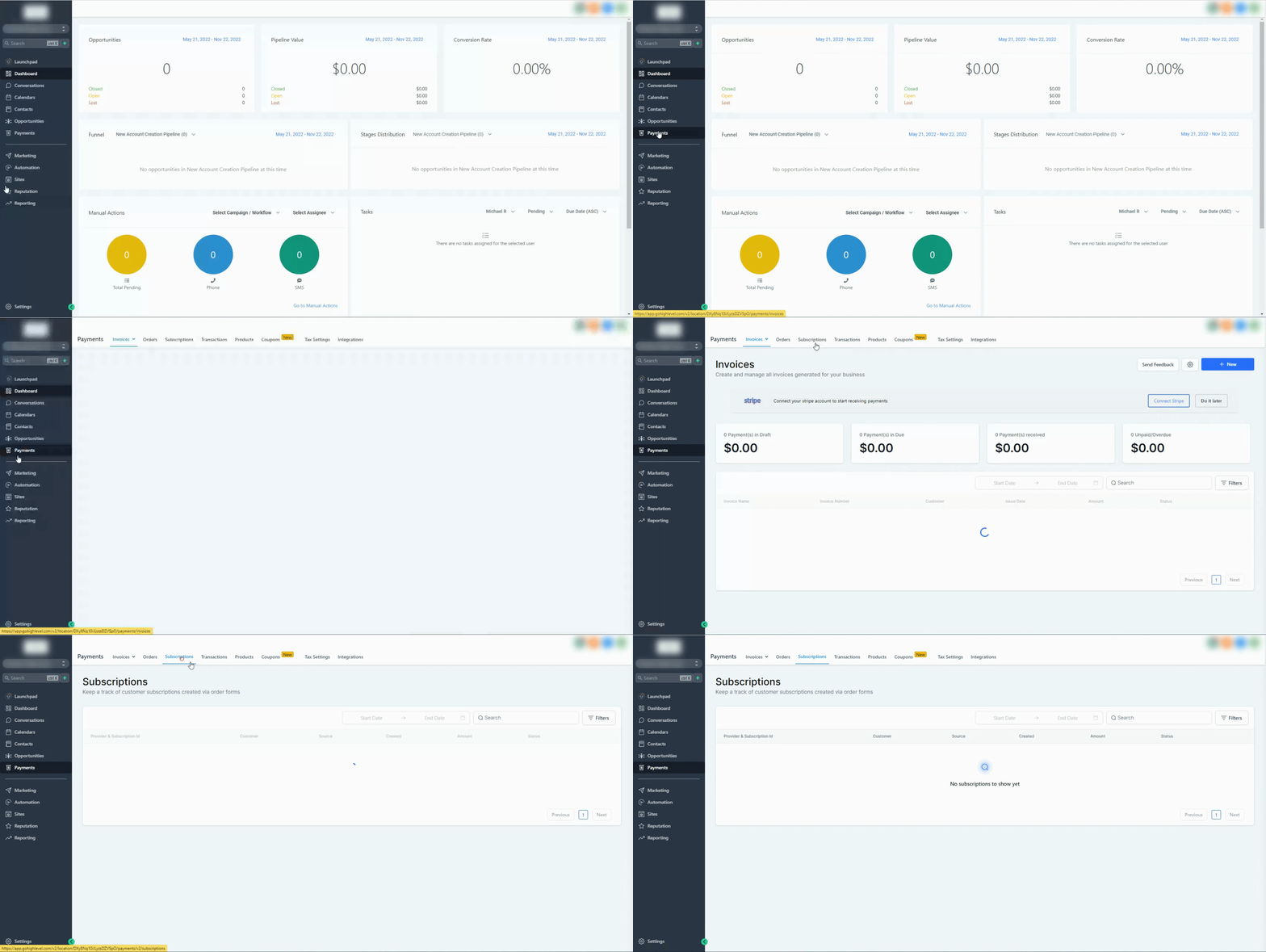
The Subscriptions page lives under Payments in each subaccount. It lists each recurring subscription with columns for payment provider, subscription ID, customer, source, creation date, amount and current status. Clicking a row opens a detail view that adds provider information, billing data, metadata and recent transactions for Stripe based records.
Provider specific lifecycle states are mapped to a common set of HighLevel statuses such as Trial, Active, Canceled, Suspended, Failed, Incomplete and Unpaid. This mapping gives a consistent view even when Stripe and PayPal use different terminology. The page also indicates which actions, update, pause, resume, cancel, are available based on the provider, subscription status and the user’s Payments permissions.
03How businesses use the payments subscriptions page
- SaaS subscription business. Open the Subscriptions page, locate a customer’s active plan, and use the Update action to change the product or quantity without canceling. The platform then syncs the change to Stripe and keeps the selling subaccount record aligned.
- Online store with recurring orders. Navigate to the Subscriptions list, find a subscription in a paused state, and select the Resume action if permissions allow. The store can also export the list to CSV for external reporting.
- Consulting firm that bills monthly. From the Subscriptions view, identify a canceled subscription and choose the Refund option via Payments > Transactions to return the last payment. The firm can also view transaction history directly on the subscription detail page.
04The numbers and rules that matter
- Supported sources: Manual creation, 1 Step and 2 Step order form purchases.
- Eligible SaaS V1 plan changes update both the Stripe subscription and the selling subaccount subscription.
05Before you start
- User must have the appropriate Payments permissions for viewing and managing subscriptions.
- The user must be logged into the correct subaccount where the subscriptions were created.
06How to set up and use the payments subscriptions page in HighLevel
Access and use the Subscriptions page
- Open the target subaccount.
- Select Payments > Subscriptions from the left navigation.
- Search the list using customer name, status, provider or other visible fields.
- Click the desired subscription to open its detail view.
- Examine the listed actions before proceeding.
- If eligible, choose Update to modify product, quantity or dates.
- If supported, select Pause, Resume or Cancel based on provider, status and permissions.
- For a refundable payment, go to Payments > Transactions and run the Refund action on the related transaction.
- Use the Export button on the Subscriptions page to download the current list as a CSV file.
07What it looks like in HighLevel
08Things to know before you rely on it
- Subscriptions that fail to create on the first payment attempt do not appear on the page.
- Recurring invoice templates and Membership created subscriptions are excluded from the list.
- PayPal subscriptions do not continuously sync status or subsequent payments like Stripe does.
- SaaS V1 plan changes only affect future updates; past mismatches are not backfilled.
- Available actions depend on the payment provider, current subscription status and the user’s Payments permissions.
09How it connects to the rest of HighLevel
- Refund a payment linked to a subscription Refund payments
- Pause and resume subscriptions when supported Pause/resume
Michael's take

Be aware that the subscriptions page will not show every type of recurring payment. Failed initial creations, invoice templates and Membership based subscriptions are excluded, so you might think something is missing when it’s simply not tracked here.
When you need a quick, unified view of Stripe and PayPal subscriptions, the page gives you the core details and lets you act on eligible records without hopping to each provider’s dashboard.