
01Who this is for
- Founders who need to update a client’s recurring plan without creating a new subscription, preserving billing continuity.
- Small business owners who sell multiple products on the same schedule and must adapt orders as customer needs evolve.
- Account managers handling trial, scheduled, or active subscriptions and requiring precise control over product quantities.
02Modify existing subscriptions, explained
The Modify Subscription feature lives in Payments > Subscriptions. It lets you edit an existing subscription’s product list, quantity values, and start or end dates. Only subscriptions that are scheduled, trialing, or active can be changed, and the payment provider must be Stripe, Square, NMI, or Authorize.
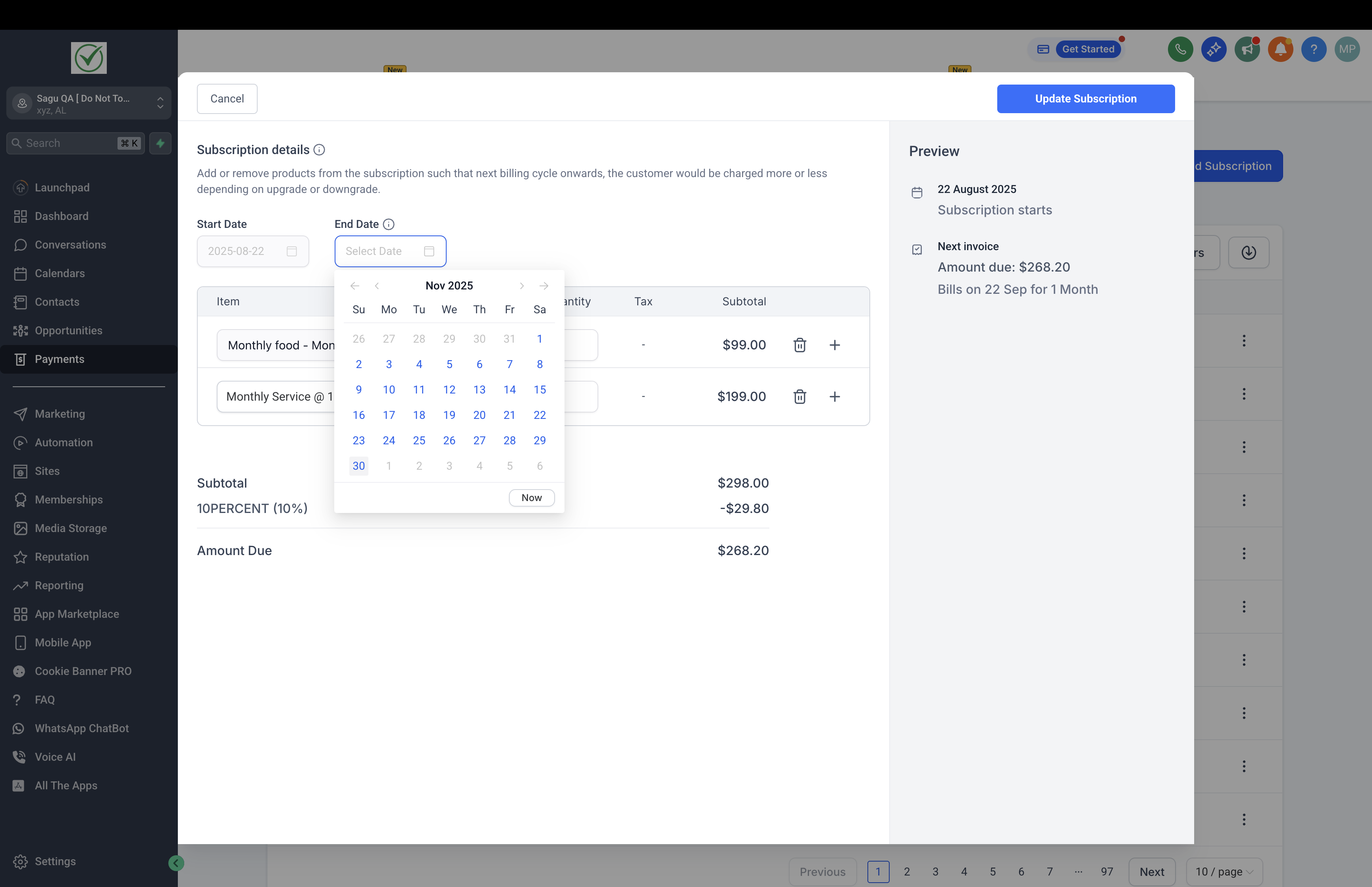
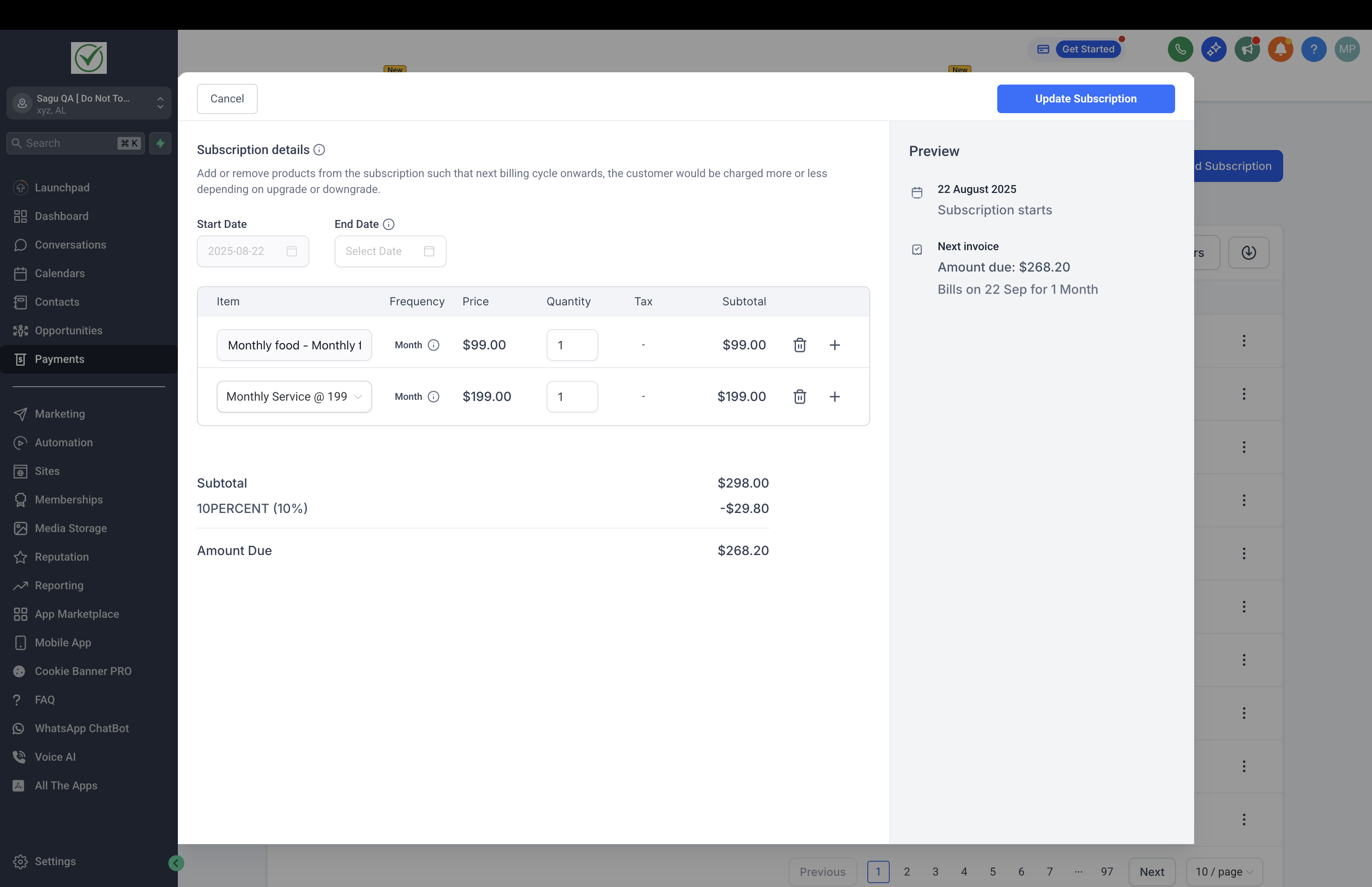
When you open a subscription and choose Update, you can add products that share the subscription’s billing frequency and currency, delete products, adjust the Quantity field (between 1 and 1000), and set a new Start Date for scheduled subscriptions or a new End Date for active ones. A preview shows the revised product lineup, quantities, dates, and total amount before you confirm.
After saving, the updated settings take effect from the next billing cycle. Charges are not prorated; the new total appears on the next charge date. All changes are logged on the Subscription Details page for auditing.
03How businesses use modify existing subscriptions
- Digital marketing agency. The agency adds an extra reporting package to a client’s active subscription, selects the product that matches the current monthly billing frequency, updates the quantity, and saves. The new package appears in the next month’s invoice.
- Fitness studio. When a member upgrades from a basic to a premium class bundle, the studio edits the member’s scheduled subscription, removes the basic class product, adds the premium bundle, adjusts the quantity, and confirms. The change takes effect at the next billing date.
- Software SaaS startup. The startup updates a trialing subscription by extending the end date to reflect a longer evaluation period. They open the subscription, edit the End Date field, preview the change, and save it, keeping the trial schedule intact.
04The numbers and rules that matter
- Quantity can be set between 1, 1000.
- Supported payment providers: Stripe, Square, NMI, Authorize.
05Before you start
- You must have access to Payments > Subscriptions.
- The subscription you want to edit must be in scheduled, trialing, or active status.
- Your payment provider must be Stripe, Square, NMI, or Authorize.
06How to set up and use modify existing subscriptions in HighLevel
Modify a subscription
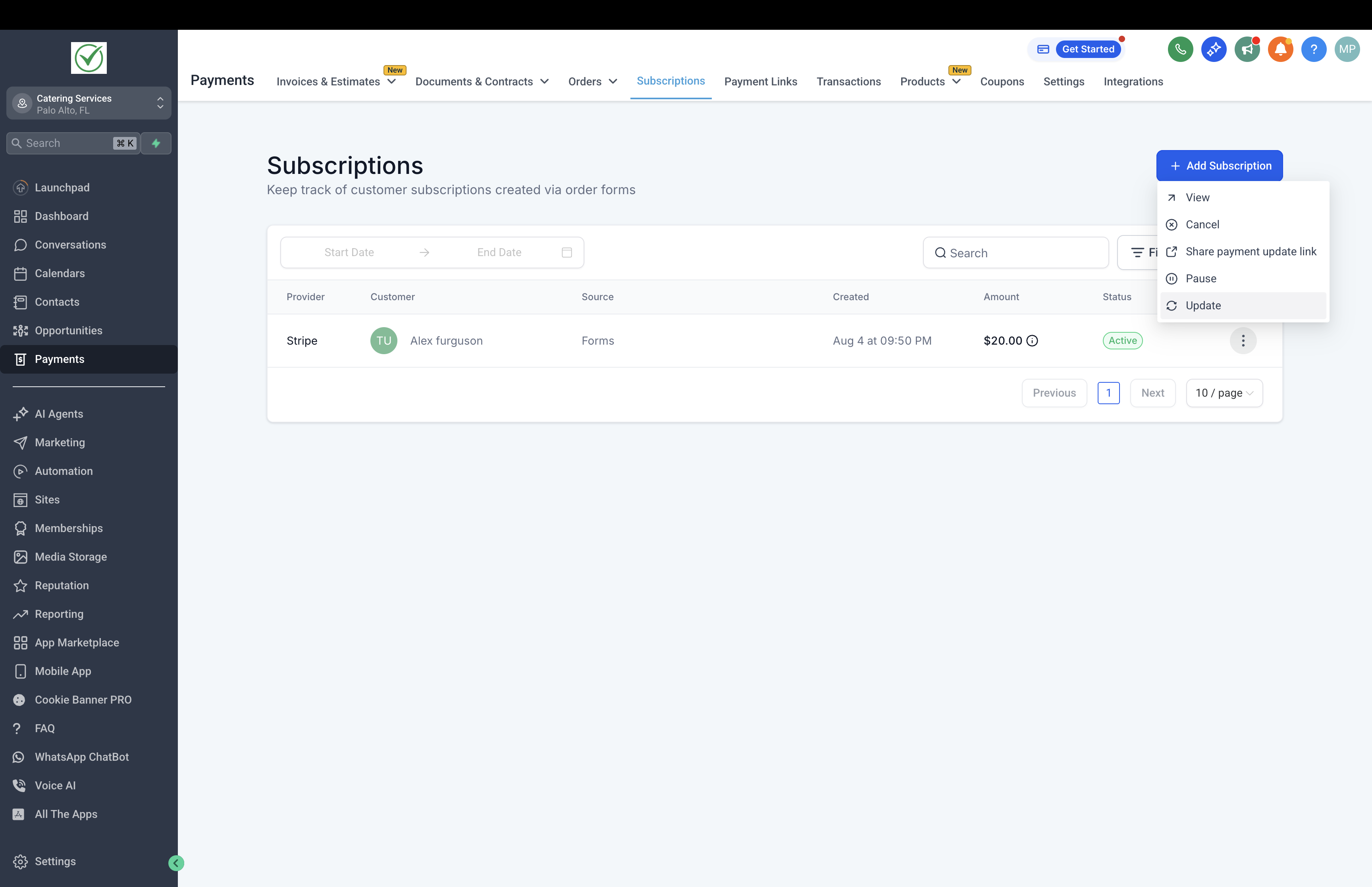
- Navigate to Payments > Subscriptions.
- Locate and select the subscription you want to edit.
- Open the menu for that subscription and click Update.
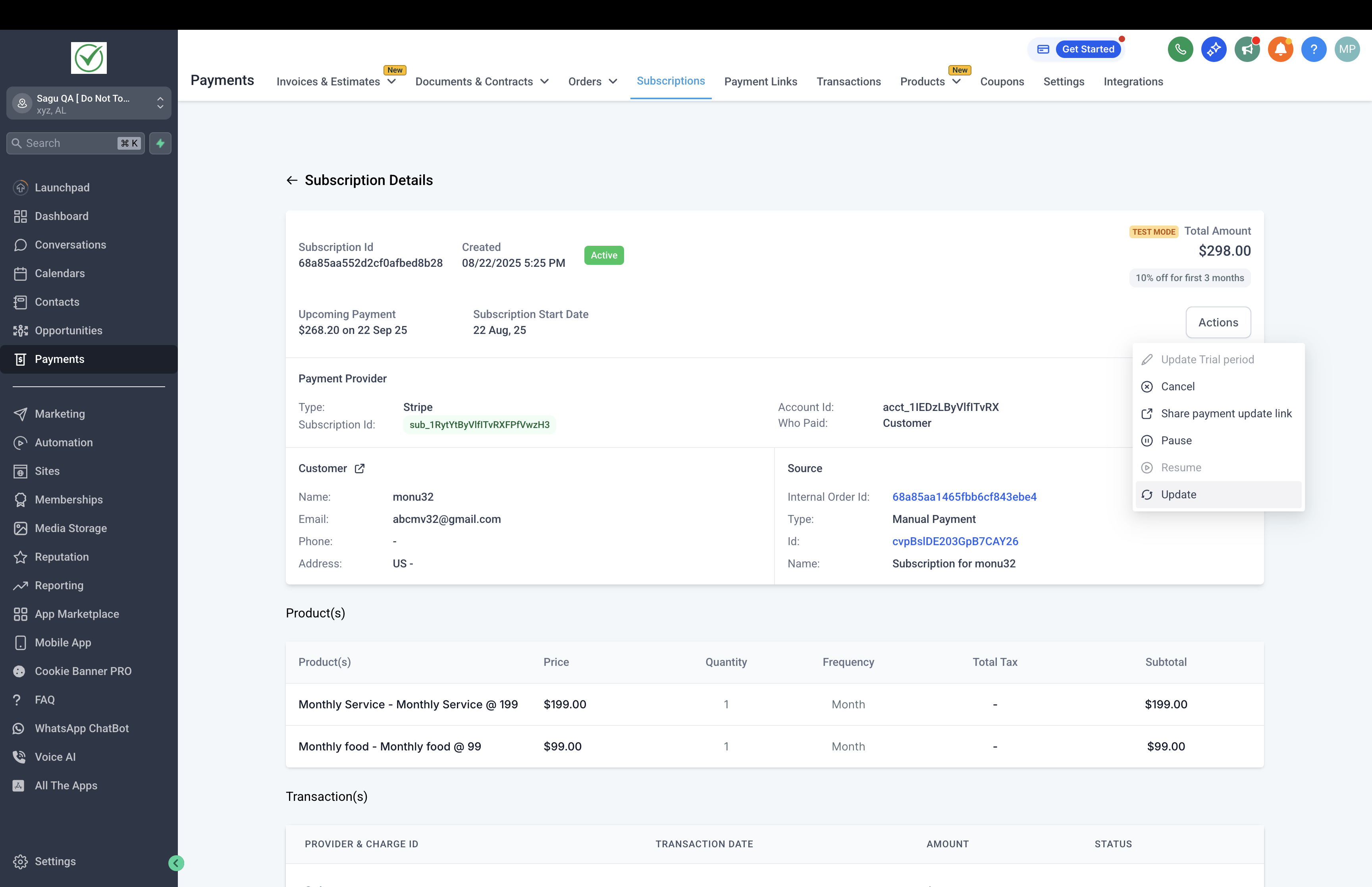
- Alternatively, open the Subscription Details page and choose Update under Actions.
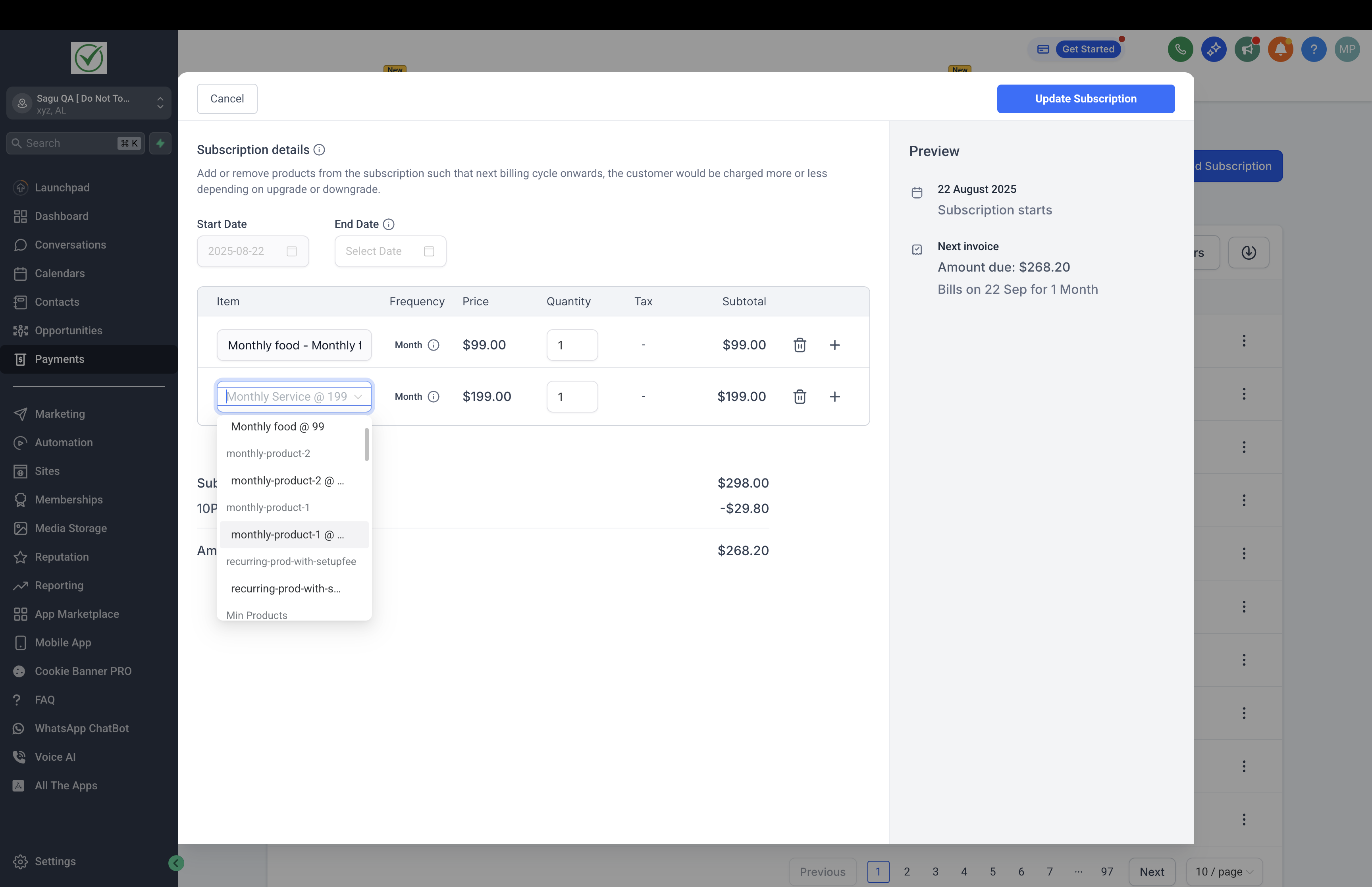
- Click the ‘+’ button to add a product that matches the subscription’s billing frequency.
- Press the delete icon beside a product name to remove it from the subscription.
- Enter a new number in the Quantity field to change the product quantity (between 1 and 1000).
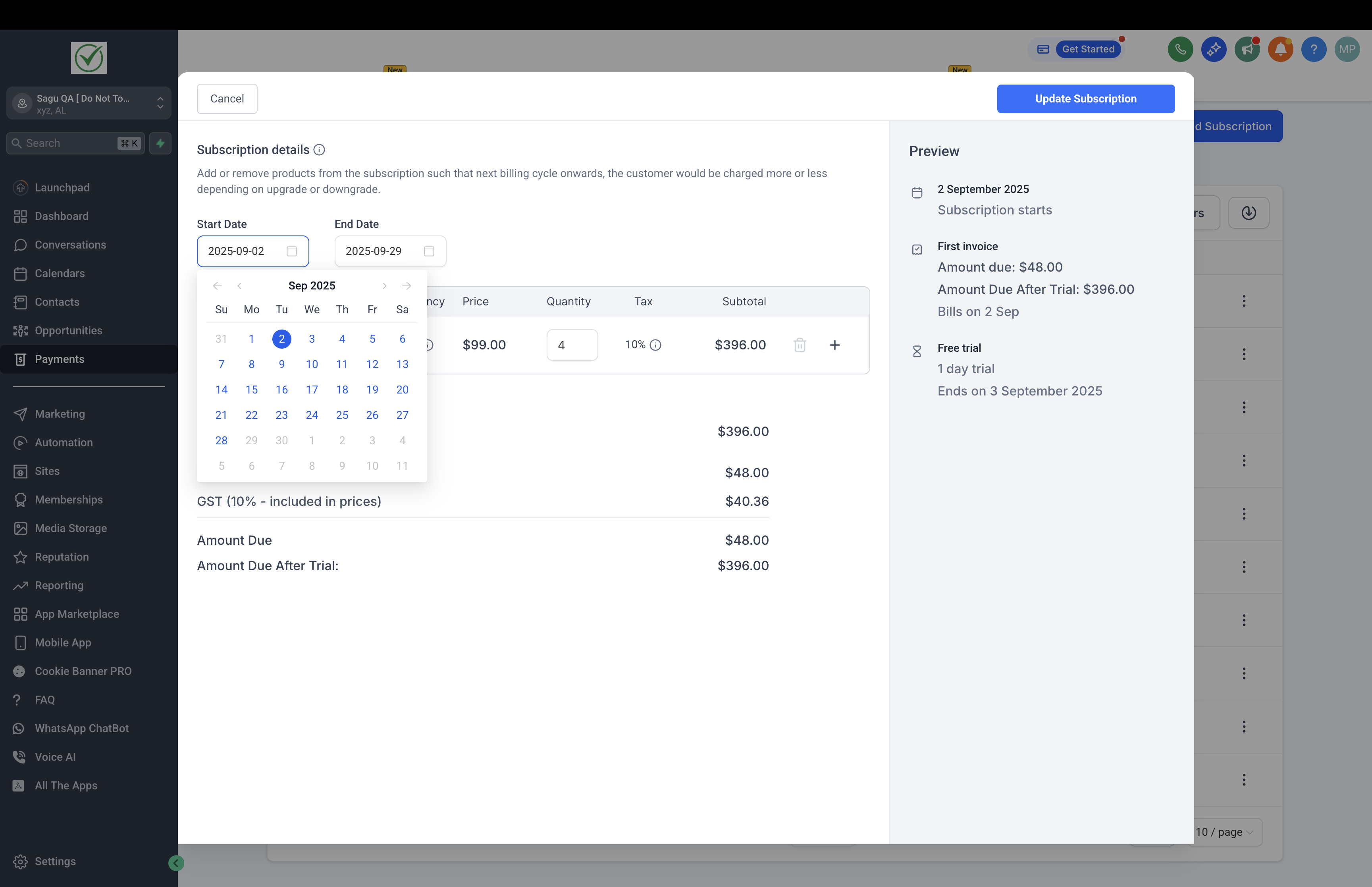
- Select a new Start Date if the subscription is scheduled but not yet active.
- Change the End Date for an active subscription where needed.
- Review the preview showing updated products, quantities, dates, and total, then confirm to save the changes.
- Note: Functionality to prorate charges is coming soon. Currently the new total applies on the next charge date.
07What it looks like in HighLevel
08Settings that matter
- Quantity field. Controls how many units of a product are included in the subscription, accepting values from 1 to 1000.
- Start Date. Sets the beginning date for a scheduled subscription that has not yet become active.
- End Date. Defines the termination date for an active subscription.
09Things to know before you rely on it
- Products added must share the same billing frequency and currency as the existing subscription.
- Quantity can only be set between 1 and 1000.
- Modifications are not allowed for subscriptions with Cancelled, Overdue, or Unpaid statuses.
- Charges are not prorated; the new total applies on the next billing cycle.
- Changing coupons on an ongoing subscription is not yet available.
10How it connects to the rest of HighLevel
- Automation triggers for subscription changes subscription triggers
- Pause and resume subscriptions pause and resume
- Failed payment retry settings failed payment retries
Michael's take

When a customer needs a new feature or an extra seat, you don’t have to cancel the whole plan and start fresh. That’s the problem this feature solves. Adjusting a subscription in place while keeping the billing rhythm intact. The first setting I’d get right is making sure the products I add share the same billing frequency and currency so the update goes through without a hitch.
Once that’s set, I’d walk through the update steps with a test account, just to see the preview and confirm the totals before saving. It gives peace of mind that the next charge will reflect the change.