
01Who this is for
- Support staff who need to look up orders or transactions without the ability to modify or refund them, keeping customer data safe.
- Finance administrators who must issue refunds, edit tax settings, and manage product catalogs, while restricting these capabilities from other team members.
- Store managers who handle order updates and product information but should not delete records or change global payment settings.
02Granular payment permissions, explained
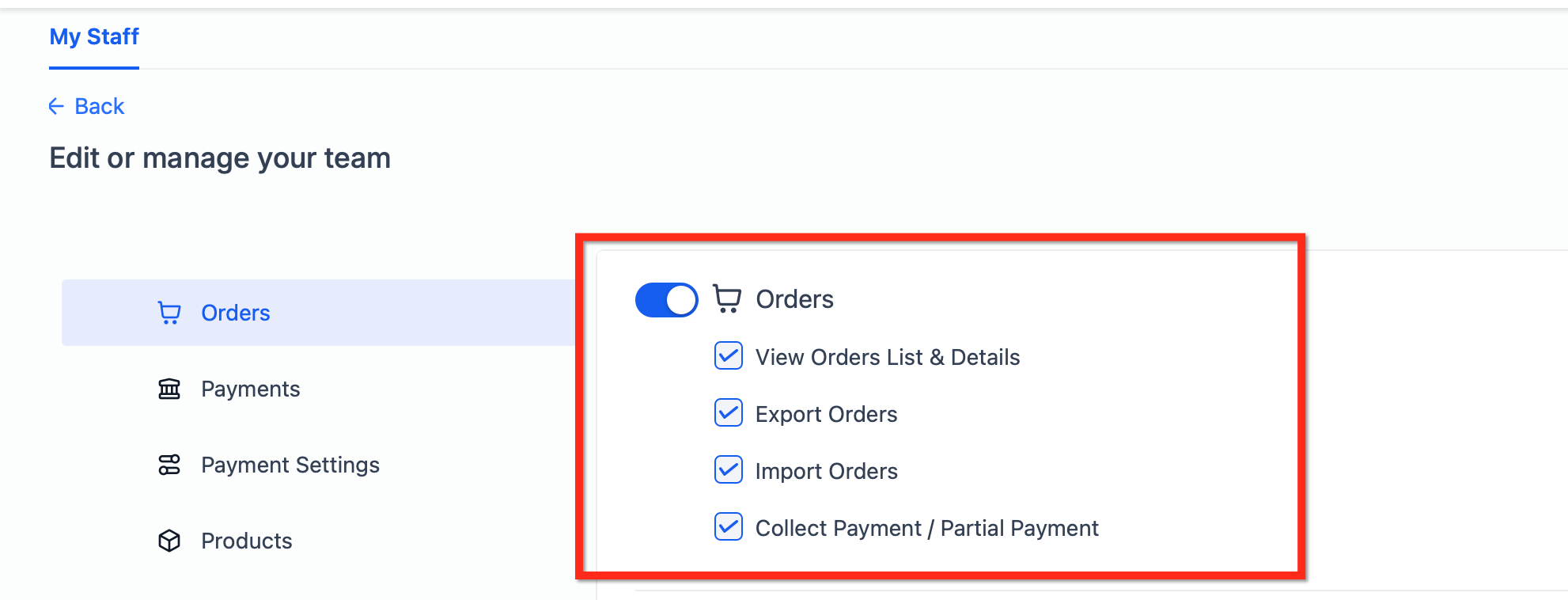
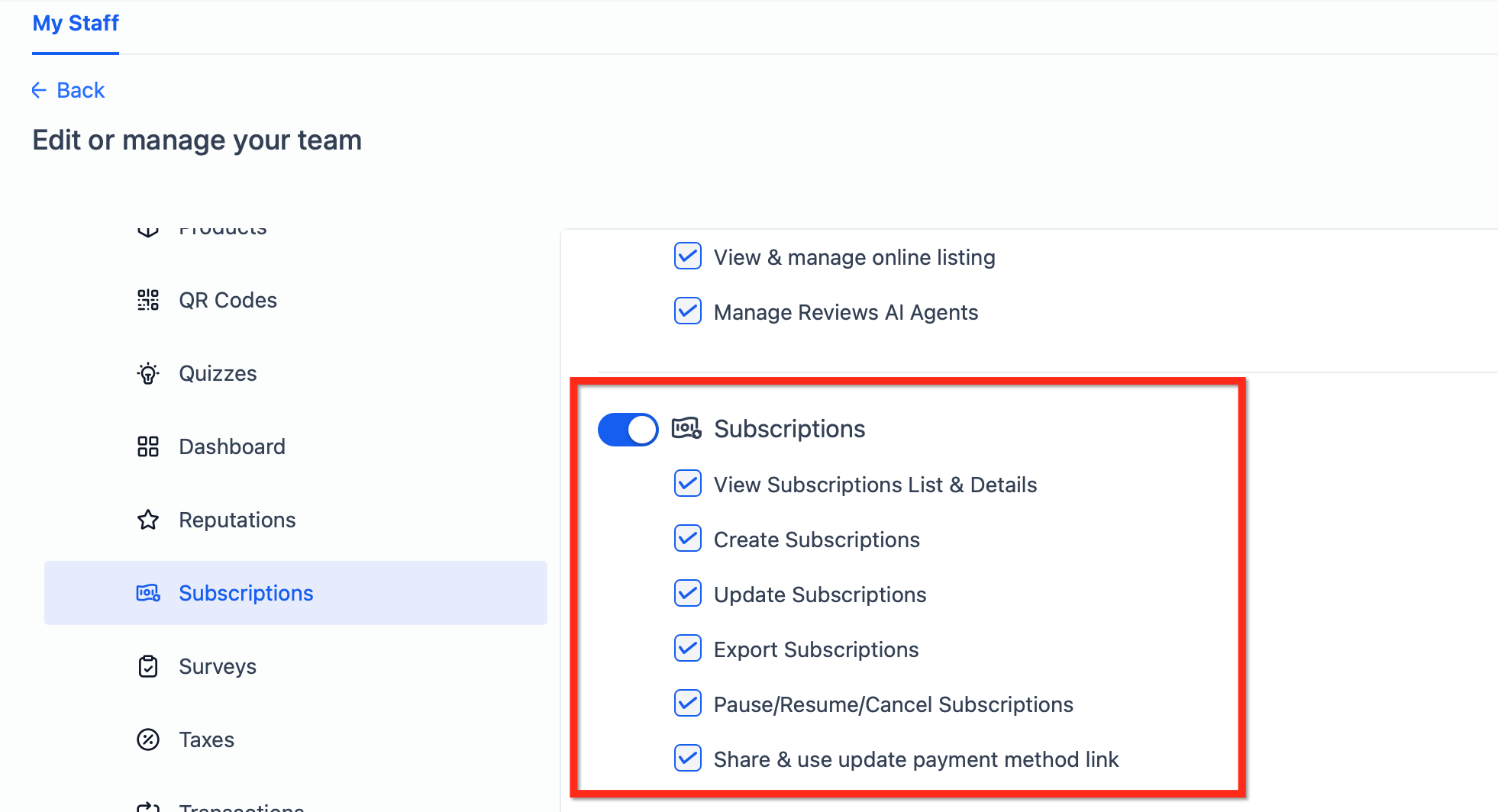
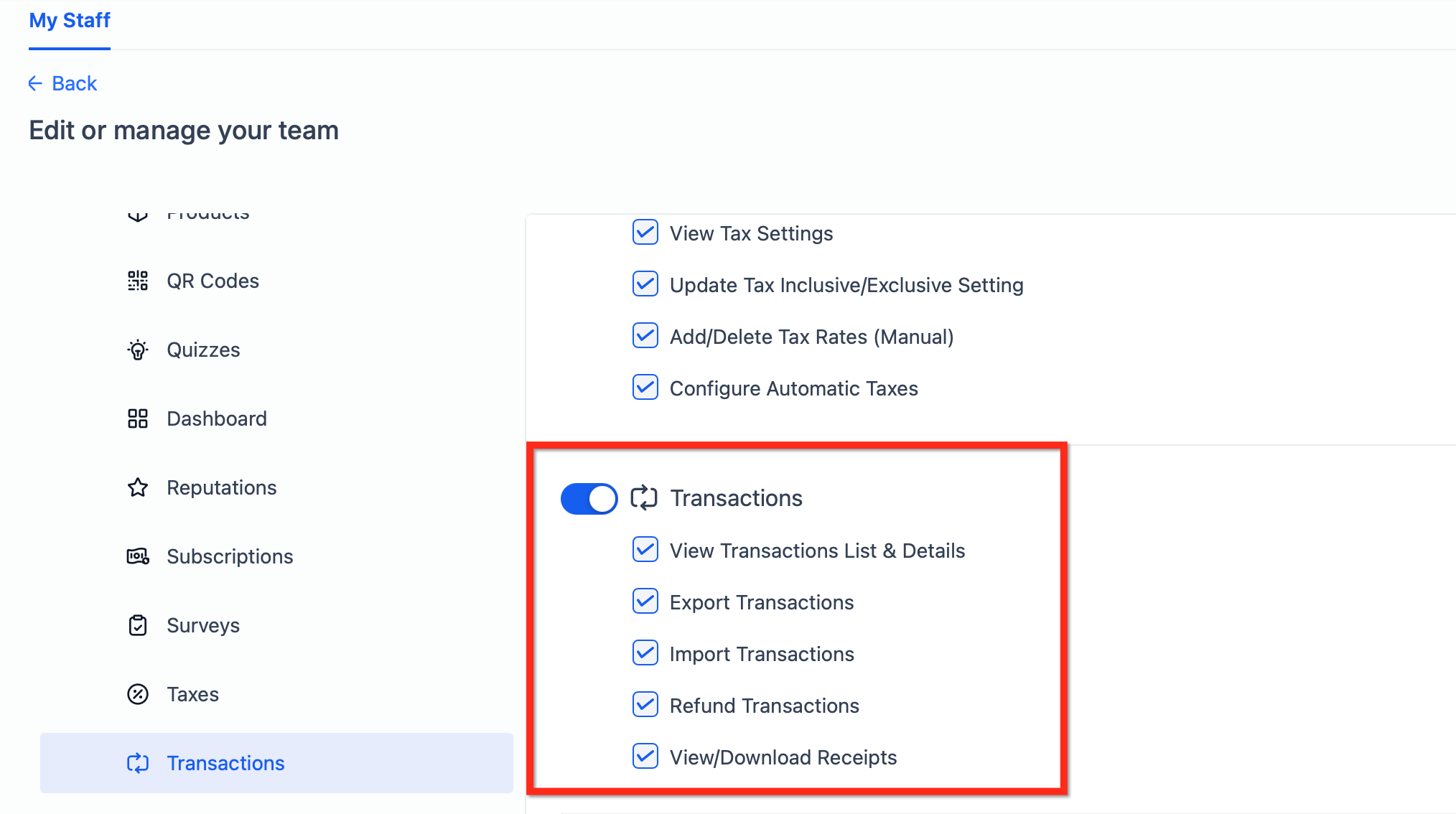
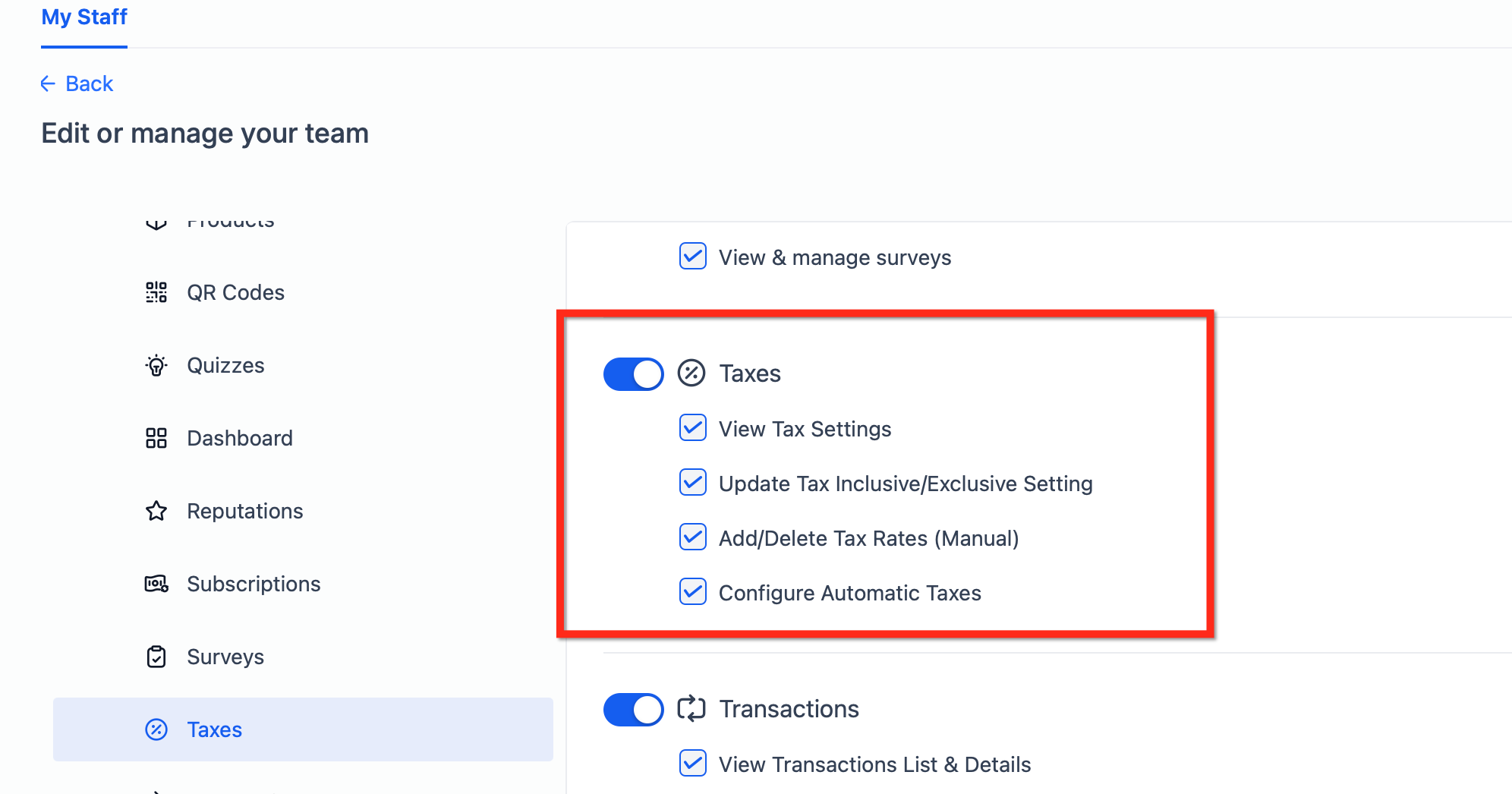
Granular payment permissions replace the single Payments toggle with six focused categories. Each category, Orders, Subscriptions, Transactions, Taxes, Products and Payment Settings, has a standard set of actions: View, Create, Update, Delete, Export and Configure. Administrators assign these actions at the location (subaccount) level, creating role based access that matches job functions.
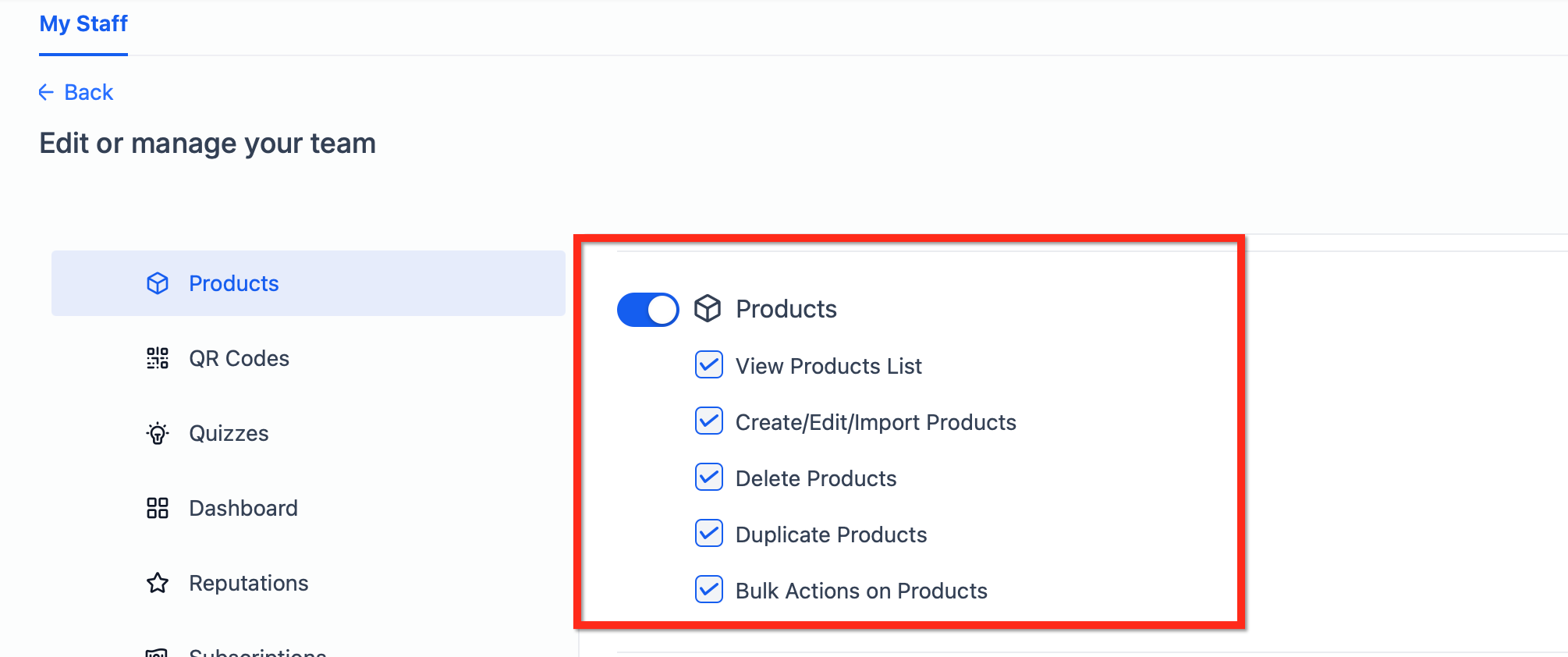
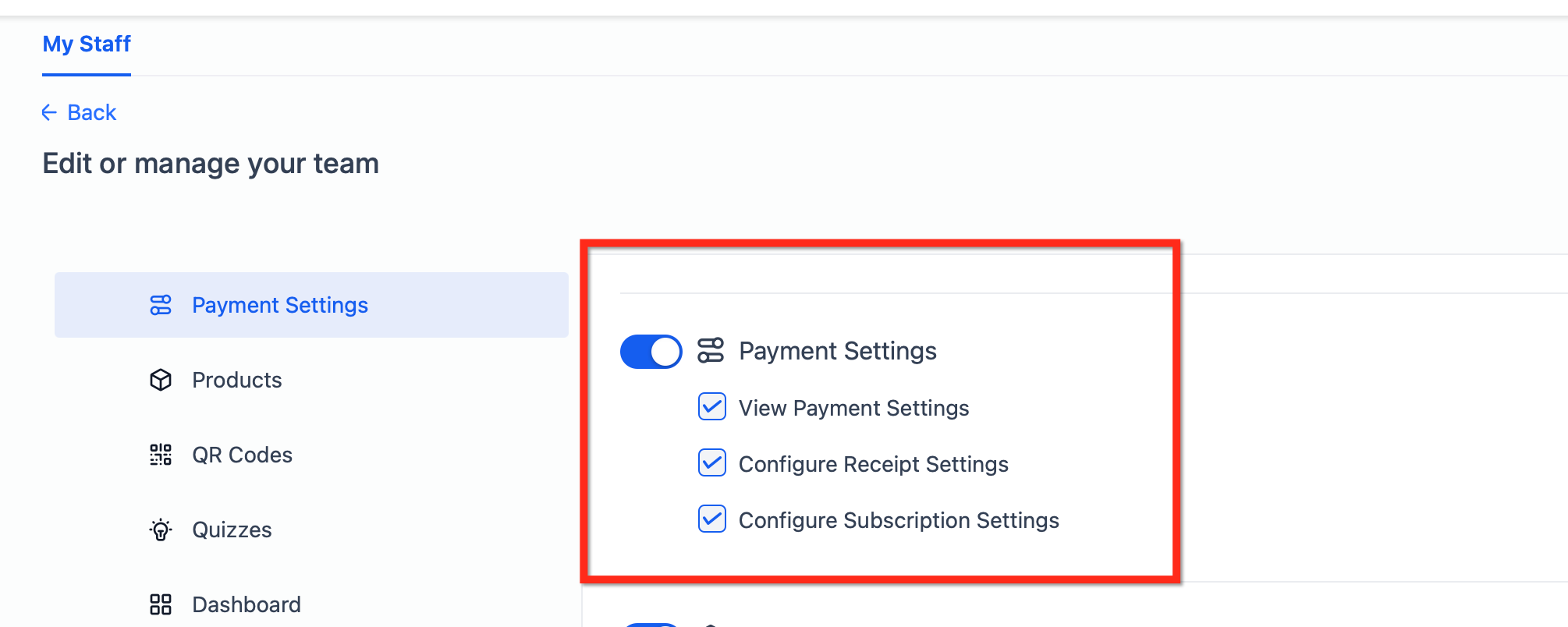
The permissions live in Subaccount Settings under My Staff. When editing a user, the Roles & Permissions section shows each category with toggle switches for the six actions. The system enforces dependencies, so bulk import or export tools only appear when the user has Create or Update rights for that category. All changes are recorded in Audit Logs for traceability.
03How businesses use granular payment permissions
- Online retailer. A retailer assigns Store Manager users View, Export and Update rights in the Orders category so they can ship orders and adjust charges. The same users receive View rights in Products to see catalog items without the ability to delete or import new products.
- Subscription SaaS business. The finance team receives View, Create, Update, Pause/Resume and Cancel rights in Subscriptions to manage recurring plans. Support staff get only View rights in Subscriptions and Transactions, allowing them to answer billing questions without issuing refunds.
- Accounting firm. Accountants are granted View, Export and Refund rights in Transactions, plus Configure rights in Taxes, enabling them to process refunds, download receipts and adjust tax rates while protecting product and order settings from accidental changes.
04The numbers and rules that matter
- Action set per category: View, Create, Update, Delete, Export, Configure.
- Bulk, import, and export tools may be unavailable without Create/Update privileges.
05How to set up and use granular payment permissions in HighLevel
Set up granular payment permissions for a user
- Open Subaccount Settings and select My Staff.
- Find the user to edit and click the pencil icon.
- Expand the Roles & Permissions section and choose a permission category.
- Toggle the required actions, View, Create, Update, Delete, Export, Configure, for each category.
- Click Save to apply the changes.
- Optionally click Copy Permissions to duplicate the setup for another user.
- Have the user sign out and back in, then validate access with a test record such as opening a product or viewing a transaction.
06What it looks like in HighLevel
07Settings that matter
- Orders. Controls who can view, create, update, delete, export or configure one time orders and charges.
- Subscriptions. Controls access to creating, updating, pausing, resuming, canceling and configuring recurring billing plans.
- Transactions. Governs the ability to view completed payments, issue refunds, export receipts and download transaction records.
- Taxes. Determines who can view, create, update, delete, export or configure tax rates and automatic tax calculation settings.
- Products. Sets permissions for creating, editing, duplicating, importing, exporting or deleting products used in payment links and stores.
- Payment Settings. Manages who can configure global payment preferences such as receipts, subscription defaults and notification settings.
08Things to know before you rely on it
- Bulk import or export tools appear only when the user has Create or Update rights for the relevant category.
- Disabling product permissions does not stop existing checkout pages from selling, but the user cannot edit the underlying product records.
- Permissions are assigned at the location level; agency wide roles do not automatically apply to all locations.
09If something goes wrong
- Buttons are greyed out in Payments. Check the user’s role configuration and ensure they have the necessary Create, Update or Export permissions for the affected category.
10How it connects to the rest of HighLevel
- View all Payments features Payments overview
- See HighLevel pricing and plans Pricing page
- Start a 30 day HighLevel trial Trial signup
Michael's take

Granular payment permissions feel like a small convenience that can become a real shift for teams that juggle orders, subscriptions, and refunds daily. Giving each person the exact rights they need cuts down on mistakes and keeps audit trails clean.
A subscription based SaaS business fits the bill perfectly. The billing team can view and export transaction data, while only a senior finance lead gets the refund button. The first thing I would do is set up a role that lets support see orders without the ability to delete or alter them, then test a few scenarios to confirm everything works as expected.