
01Who this is for
- Retail Founders, see which gift card amounts sell most and plan inventory.
- Fitness studio owners, track how many members purchase cards and which values are popular.
- Restaurant entrepreneurs, monitor gift card revenue and identify top denomination trends.
02Gift card dashboard, explained
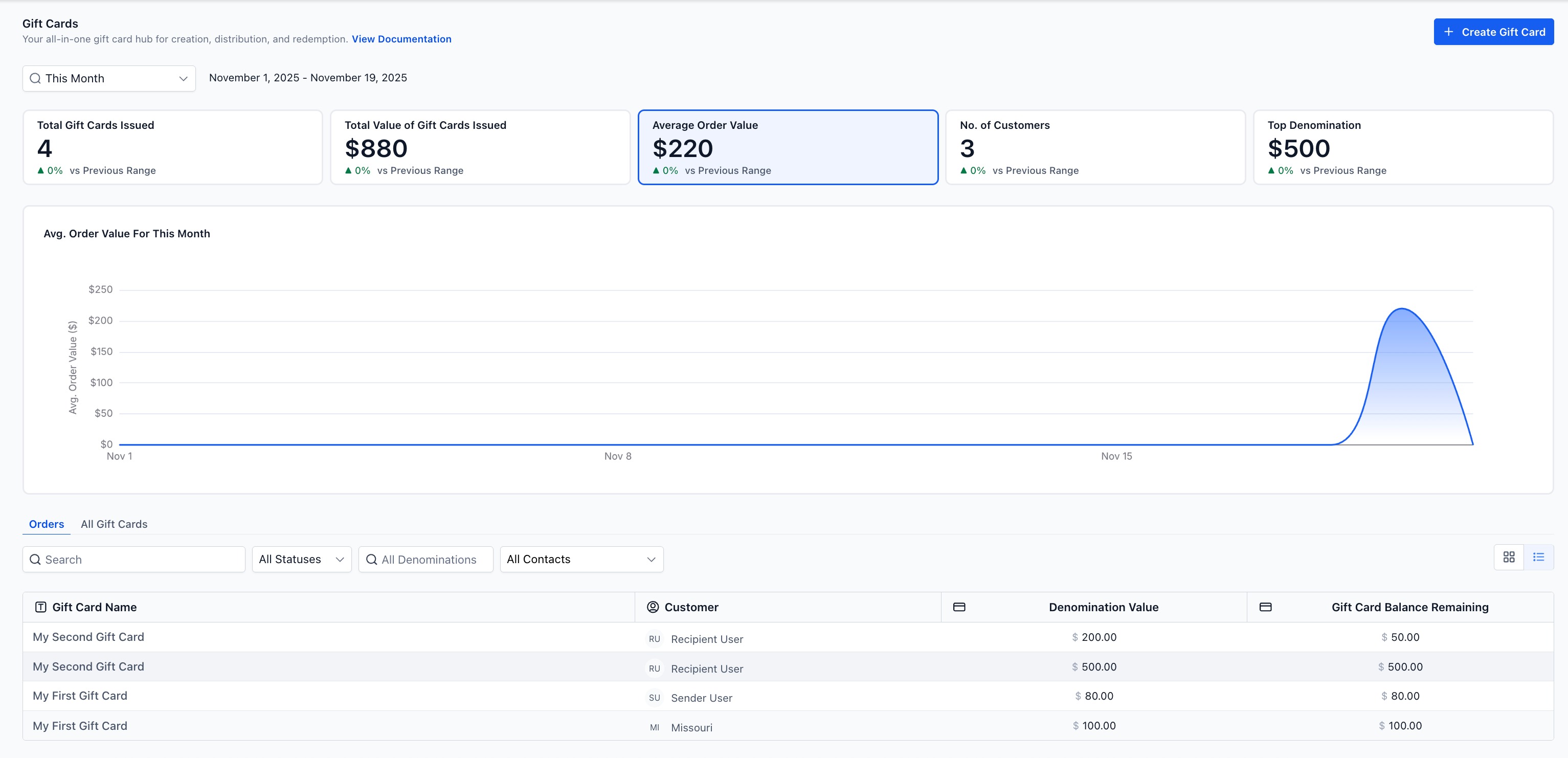
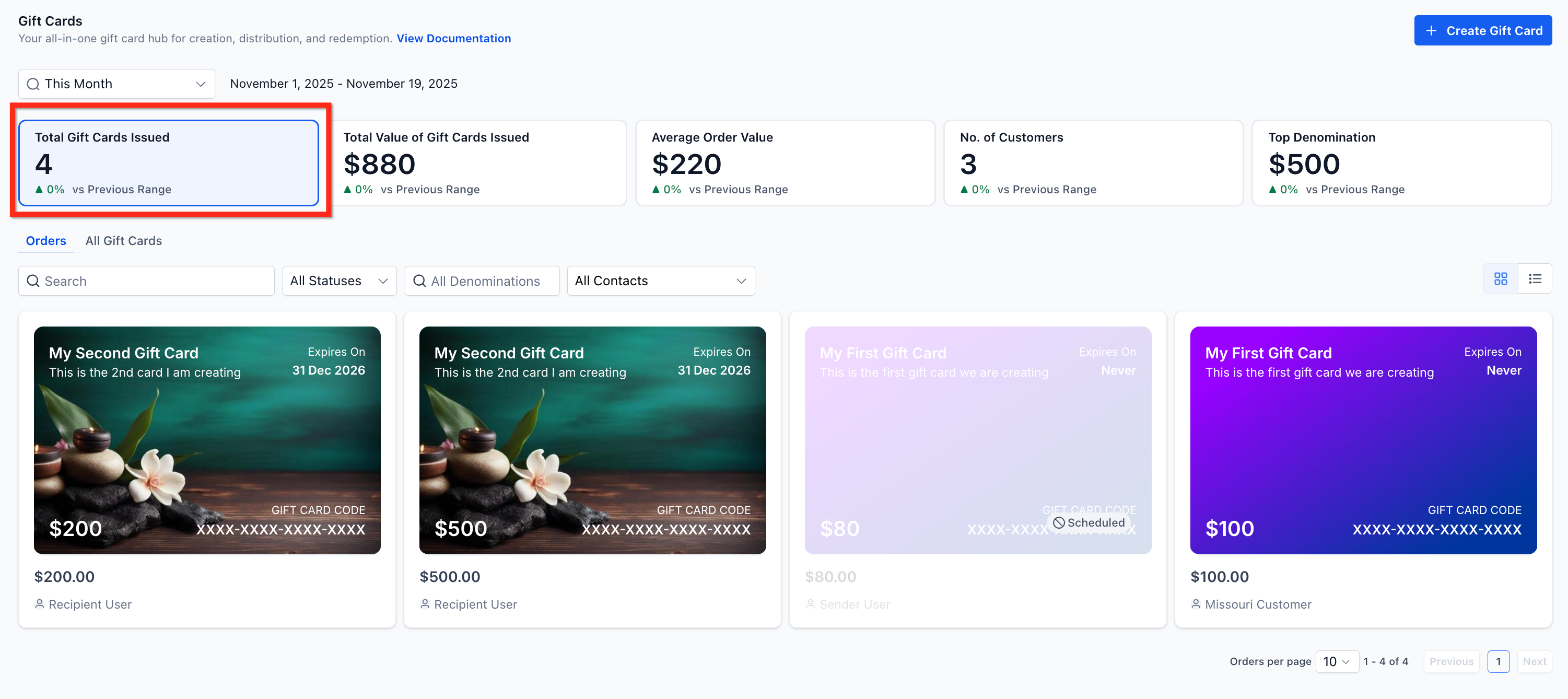
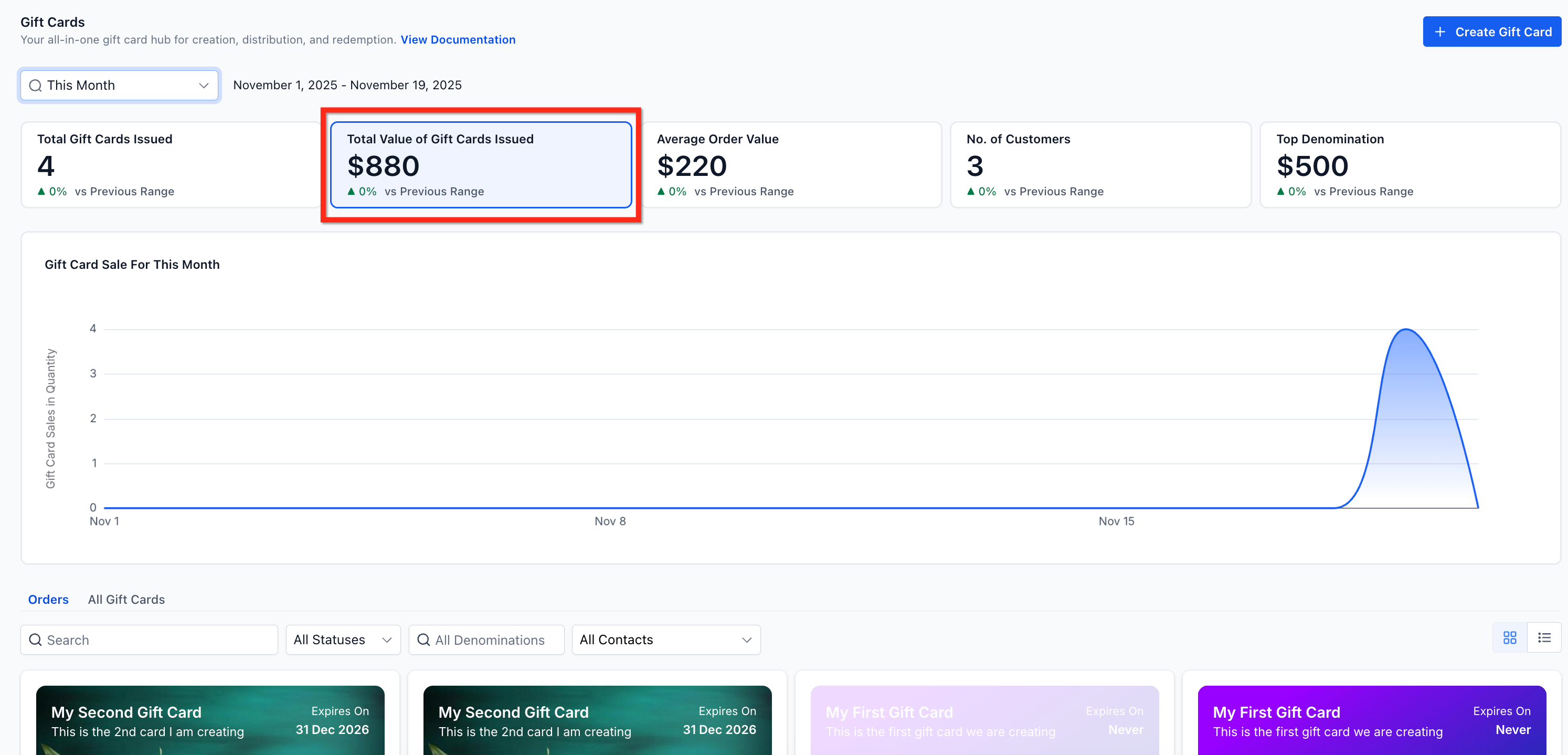
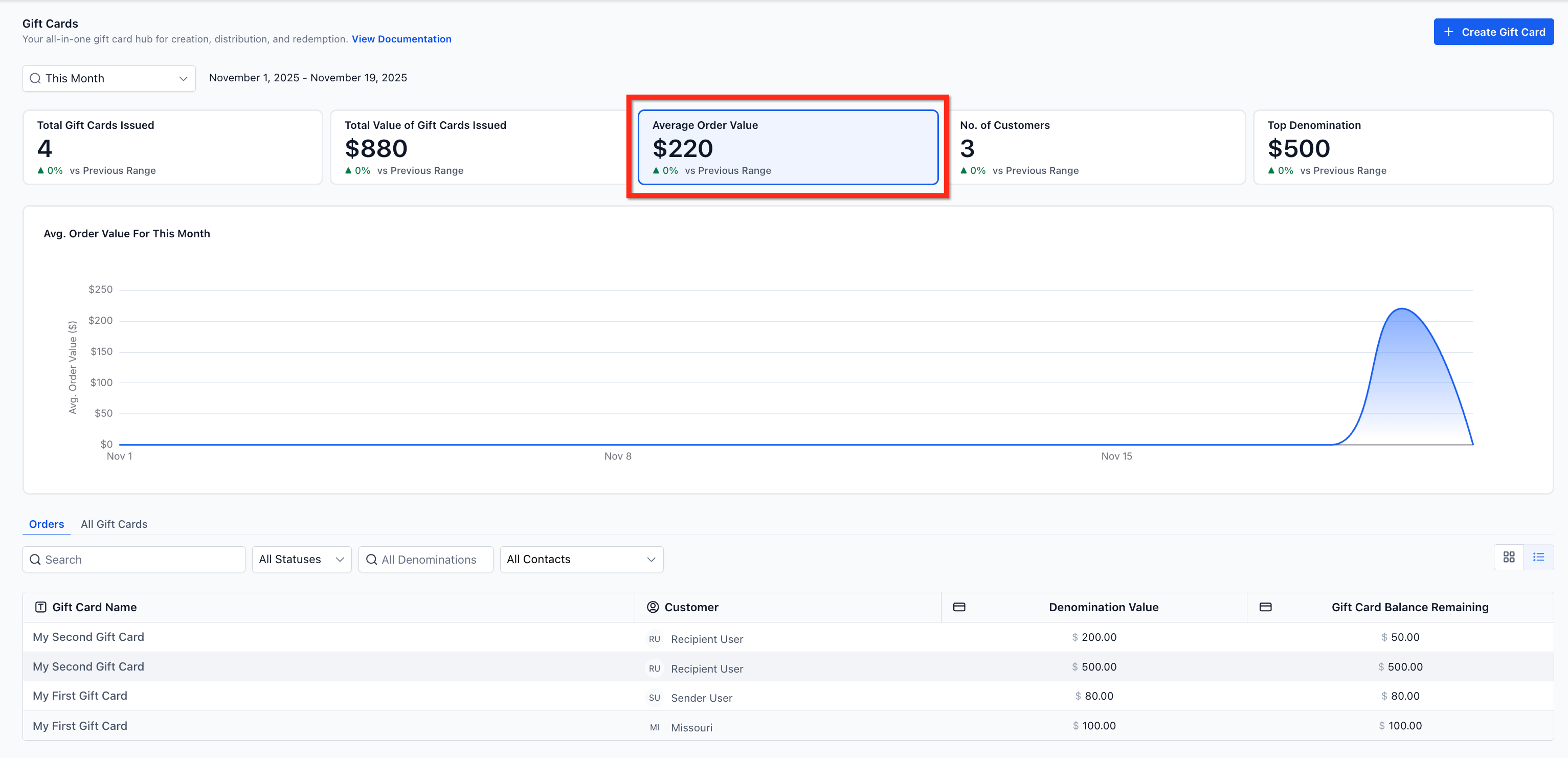
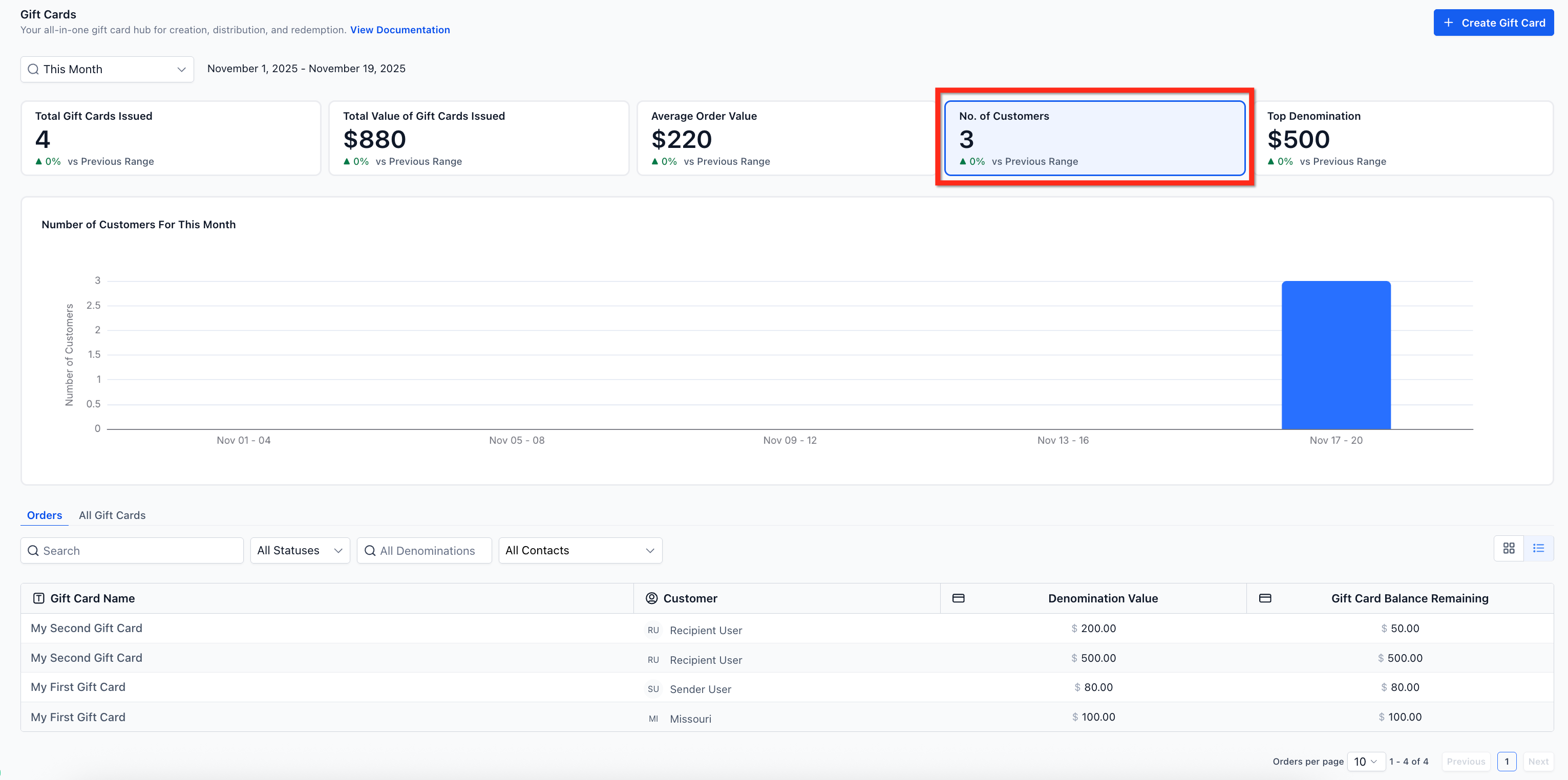
The Gift Card Dashboard lives under Payments > Gift Cards. It displays a summary of card issuance, total value, average order amount, number of unique customers and the most frequent denominations. A trend chart shows value changes over the selected period.
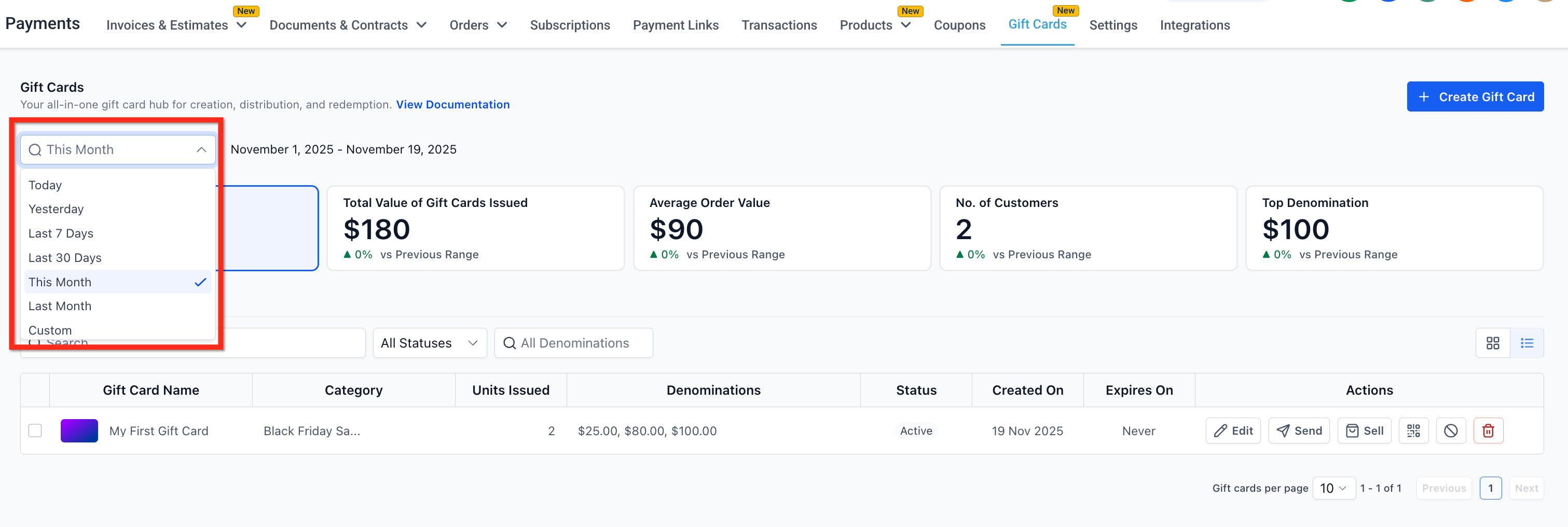
Filters sit in the top left corner of the Gift Cards landing page. Users can pick predefined ranges such as Today, Yesterday, Last 7 days, Last 30 days, This Month, Last Month, or define a custom date window. The same filter bar appears whether you view the Gift Card Products page or the All Orders page.
Below the summary, the Gift Card Orders list shows every sold or sent card with its status, remaining balance and customer details. Clicking an order opens a detail view that serves as the single source of truth for that card.
03How businesses use gift card dashboard
- Boutique clothing retailer. The owner opens the Gift Card Dashboard, reviews the top five denominations, and adjusts the gift card amounts offered in the store or online based on the data.
- Fitness studio. The manager looks at the number of unique customers and total value issued during a promotion, then uses the date filter to compare the results with previous weeks.
- Restaurant. The chef owner clicks on individual gift card orders to verify balances and delivery status before honoring a card during a dining reservation.
04The numbers and rules that matter
- Predefined filters: Today, Yesterday, Last 7/30 days, This/Last Month, custom date ranges.
05How to set up and use gift card dashboard in HighLevel
Viewing and analyzing gift card performance
- Select Payments > Gift Cards from the main navigation.
- The Gift Card Dashboard appears, showing issuance counts, total value, average order value, unique customers and top denominations.
- Use the filter menu in the top left to choose a preset range or set custom start and end dates.
- Scroll to the Gift Card Orders list, then click any order to open its detailed view.
06What it looks like in HighLevel
07Settings that matter
- Status filter. Filters the dashboard data by card status such as Scheduled, Active, or Expired.
08Things to know before you rely on it
- Cards created in Test mode are excluded from all dashboard metrics.
- Scheduled gift cards are counted in issuance totals for the selected date range.
- The default date range shown on the dashboard is This Month.
09How it connects to the rest of HighLevel
- Read the full guide on creating, selling and sending gift cards in HighLevel. Getting started with gift cards
- Learn how to sell HighLevel gift cards across multiple sales channels. Sell gift cards
- Find instructions for sending gift cards directly from the platform. Send gift cards
Michael's take

People often think the dashboard is only for spotting big sales spikes, but most miss the day to day insight it gives on denomination choices and repeat gifter behavior. Ignoring those details can leave you pricing cards poorly or missing upsell chances.
I would begin with pulling the Top Denominations chart each week and matching those numbers to your upcoming promotions. If the data shows a surge in $500 cards, for example, I’d run a targeted campaign around that value and watch the average order value climb.