
01Who this is for
- Customer support agents, they can quickly apply a Gift Card when finalizing a payment for a caller, eliminating the need for the customer to complete a separate checkout.
- Account managers, they can reduce the amount due on a new subscription’s initial invoice by using a Gift Card, keeping the onboarding experience smooth.
- Front desk staff at service based businesses, they can combine a Gift Card with a saved card when a client pays for an appointment, ensuring the transaction completes even if the card does not cover the full cost.
02Gift cards, explained
The feature adds a Gift Card field to several internal payment screens. When you type a valid code and click Apply, HighLevel checks the card’s status and balance and then deducts what it can from the current payment.
If the card covers the entire amount, the transaction finishes without charging any other method. If it only covers part of the amount, the remaining balance must be collected using a saved or new payment method. The system shows a clear validation message for invalid, expired, or empty cards.
Redemption works in order, invoice, contact, subscription, and appointment payment flows, but it does not work in POS or for future dated subscription charges. After a successful payment, the Gift Card order updates to reflect the new remaining balance.
03How businesses use gift cards
- Spa or wellness center. When a client pays for a treatment, the front desk staff enters the client’s Gift Card code on the payment screen, applies the balance, and then adds a saved card if any amount remains. The transaction records the Gift Card portion separately.
- Online course provider. During enrollment, an admin opens the contact’s record, selects Charge Now, enters the student’s Gift Card code, and applies it. If the course fee exceeds the Gift Card value, the admin adds a new credit card to capture the difference.
- Equipment rental business. For a rental appointment, the staff opens the appointment, goes to Collect Payment, types the renter’s Gift Card code, and clicks Apply. The system deducts the available balance, then the staff records any remaining amount on a saved payment method.
04The numbers and rules that matter
- A Gift Card must be active, not expired, and have an available balance to be redeemed.
- Only one Gift Card can be applied per payment.
05Before you start
- An eligible Gift Card must exist.
- At least one Gift Card product must be created.
- The Gift Card must have been sold or sent to the customer.
- The Gift Card must be active, not expired, and have an available balance.
06How to set up and use gift cards in HighLevel
Redeem a gift card during a business initiated payment
- Confirm that an eligible Gift Card exists.
- Make sure at least one Gift Card product has been created.
- Verify the Gift Card has been sold or sent to the customer.
- Check that the Gift Card is active.
- Ensure the Gift Card is not expired.
- Confirm the Gift Card still has a balance available.
- Open a supported payment flow that matches the transaction you are processing:
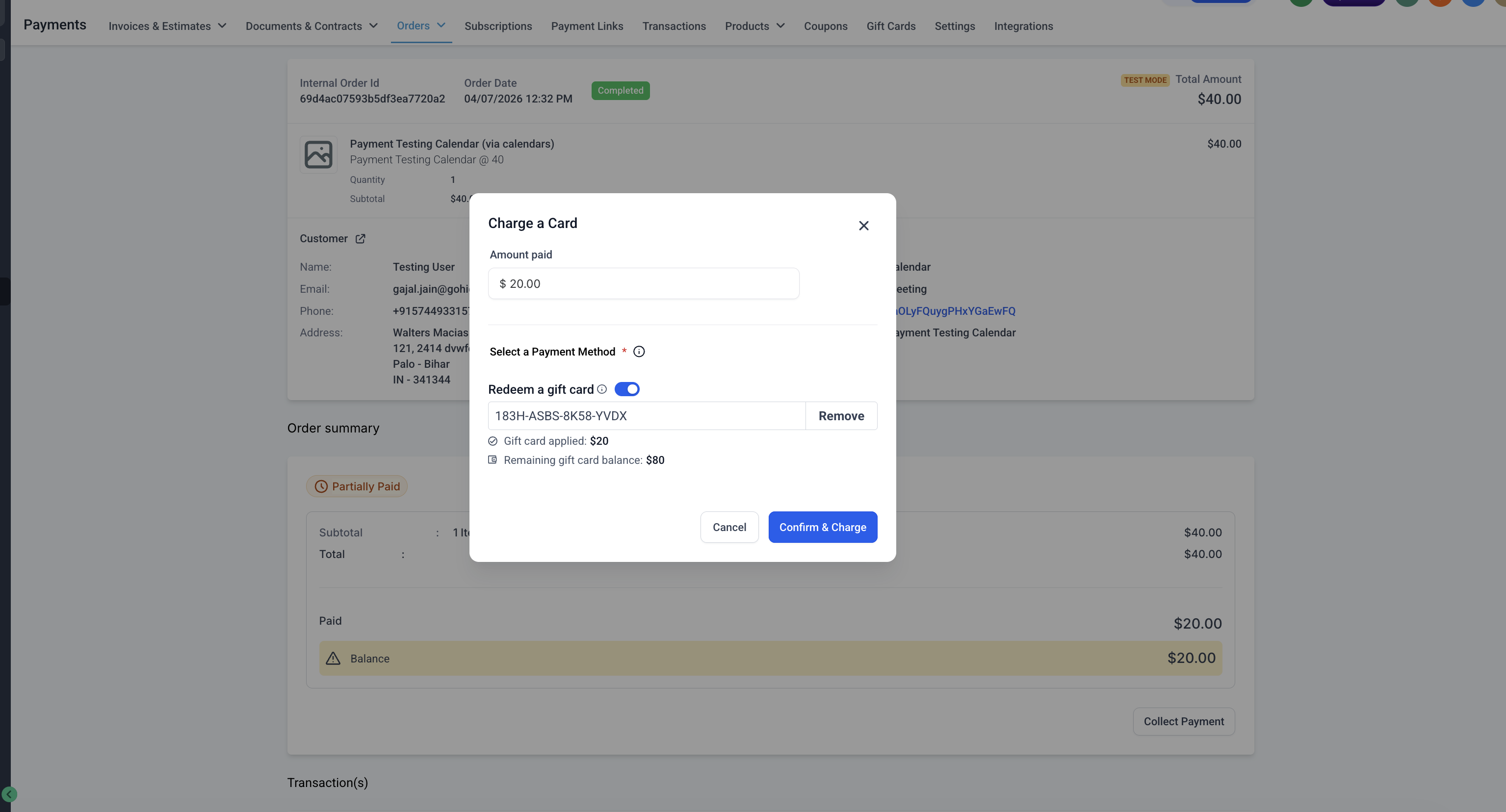
- Payments > Orders > Open Order > Record Payment > Charge a Card
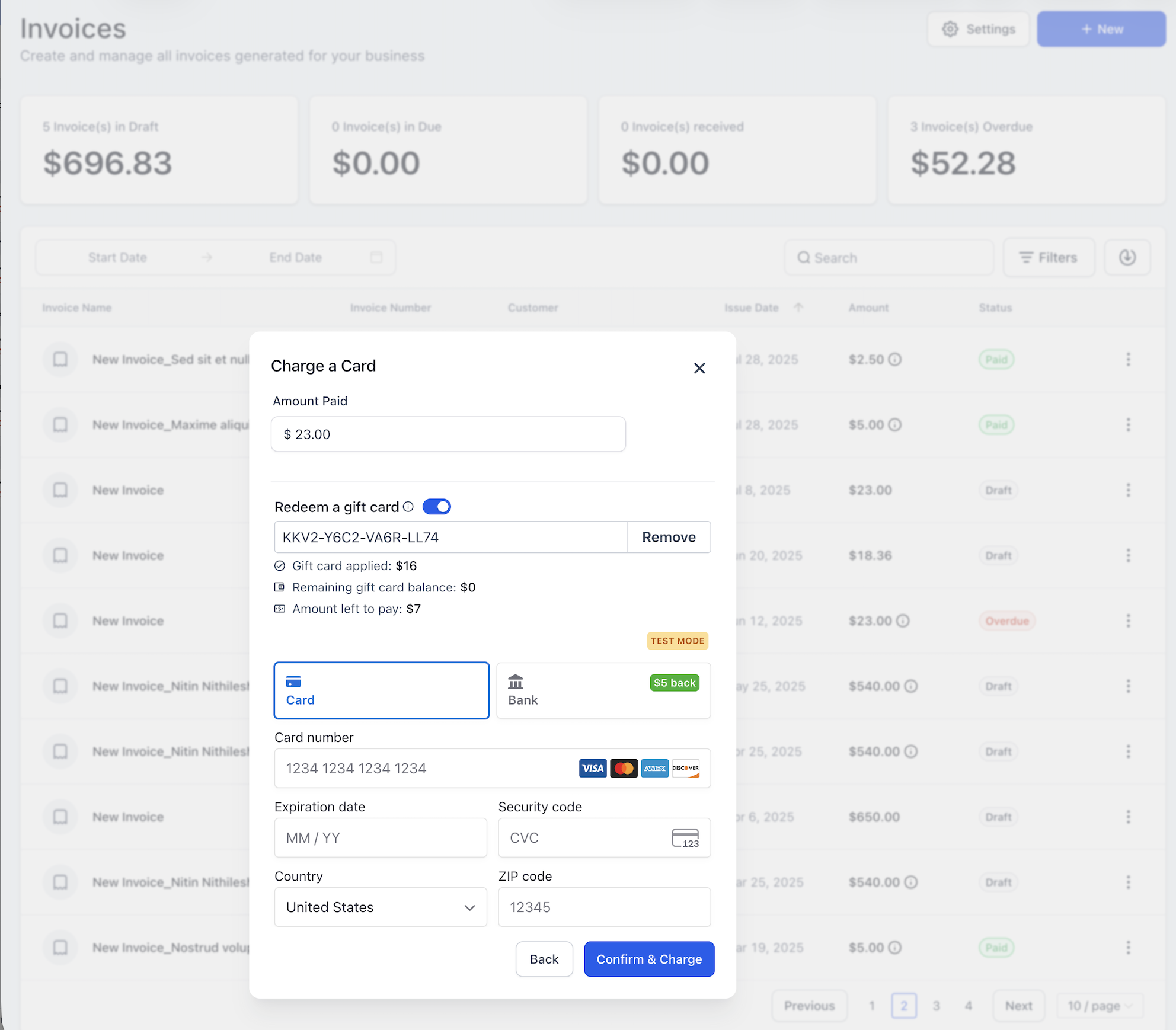
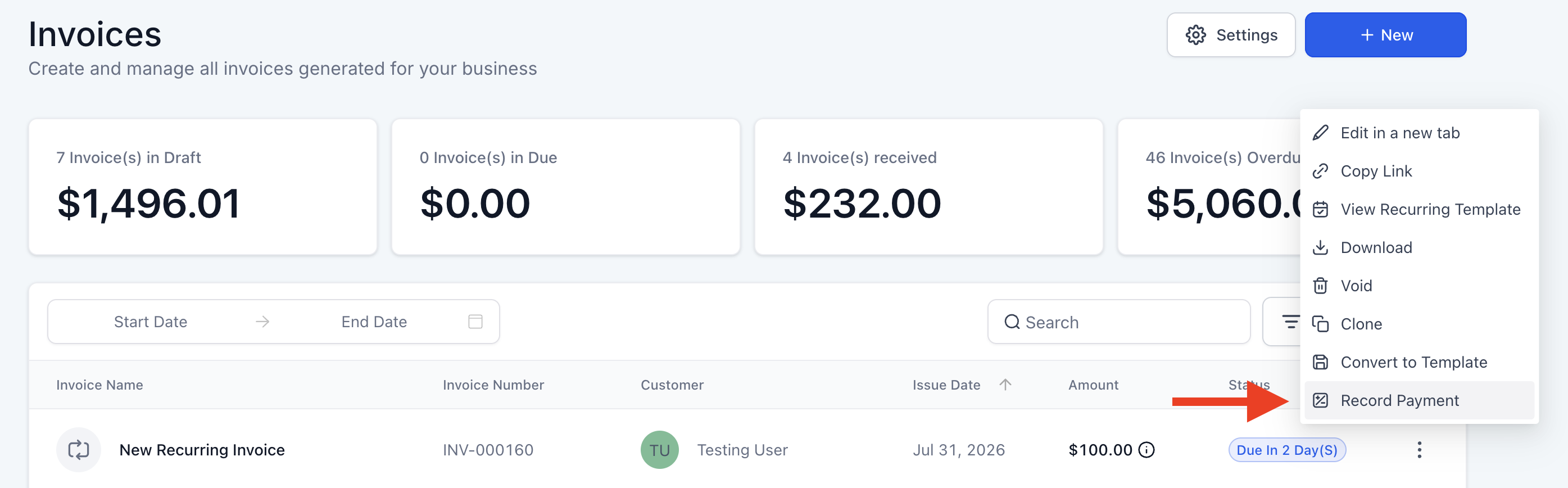
- Payments > Invoices > Open Invoice > Record Payment > Charge a Card
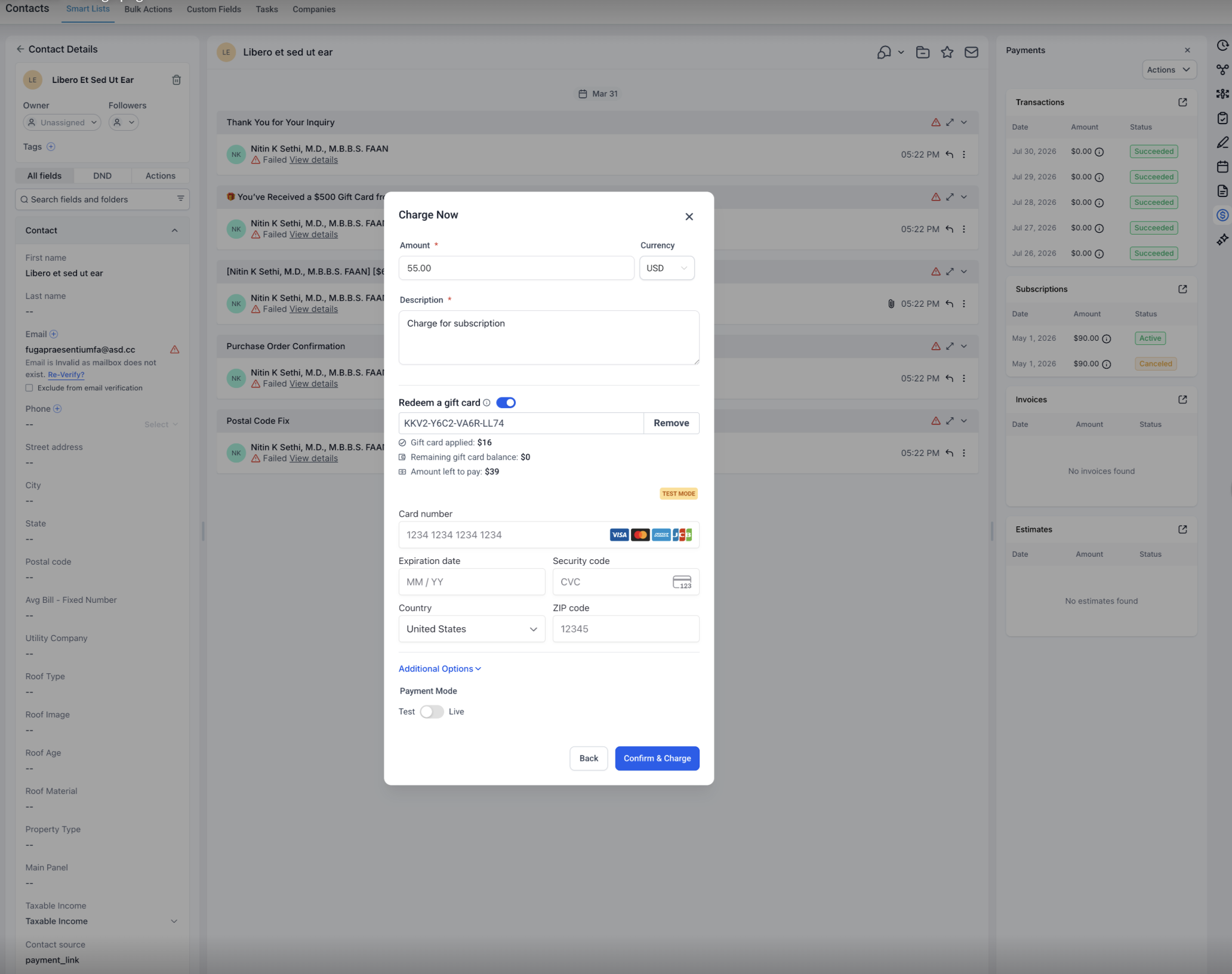
- Contacts > Open Contact > Charge Now
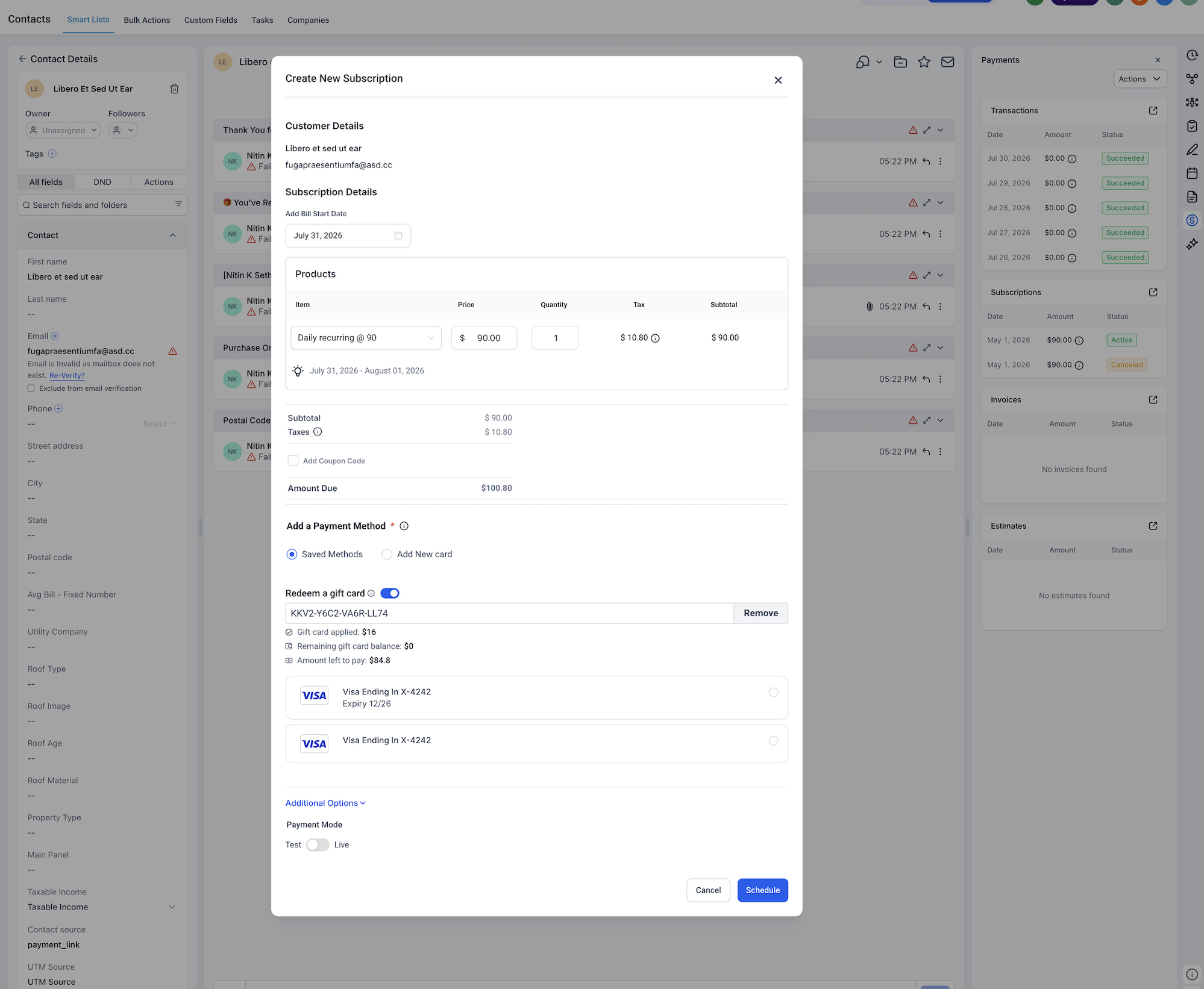
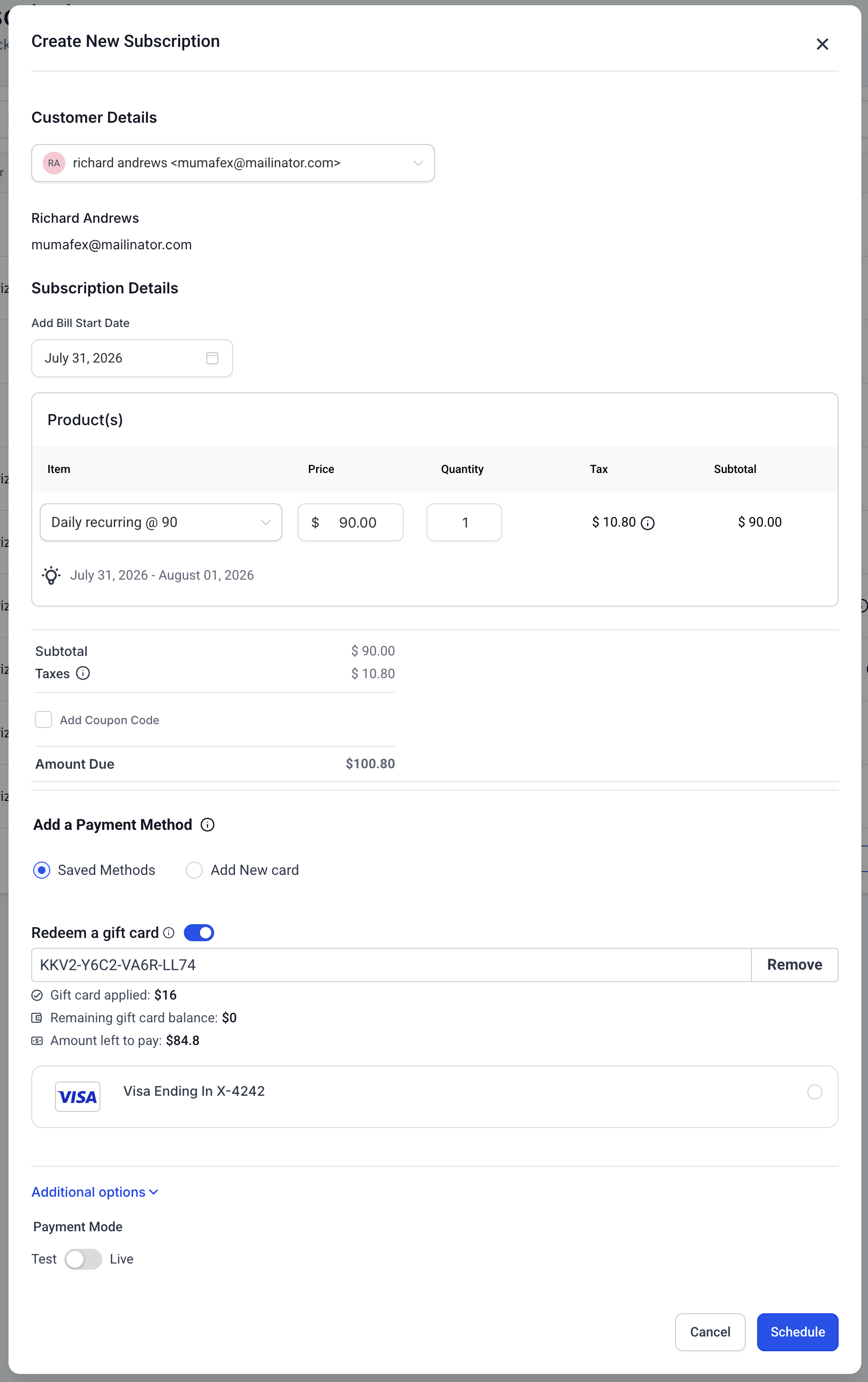
- Contacts > Open Contact > Create Subscription
- Payments > Subscriptions > Create Subscription
- Calendars > Appointments > Open Appointment > Payments > Collect Payment > Charge a Card
- Locate the Gift Card field, enter the customer’s code, and click Apply.
- Review the amount that the Gift Card will cover and confirm it.
- If the Gift Card covers the full amount, no additional payment method is charged.
- If a balance remains, select a saved card or add a new card to collect the rest.
- Complete the payment.
- Open Transaction Details to confirm the Gift Card amount used.
- Review the associated Gift Card order to confirm its updated remaining balance.
07What it looks like in HighLevel
08Settings that matter
- Gift Card field. The input area where you paste or type a Gift Card code during a payment and trigger validation by clicking Apply.
09Things to know before you rely on it
- Redemption is not available in POS payment collections.
- Gift Cards cannot be used for future dated or scheduled subscription charges.
- Only one Gift Card can be applied per payment.
- Test Mode Gift Cards work only in Test Mode payments; Live Mode cards work only in Live Mode payments.
- There is no dedicated user permission for redeeming Gift Cards; users need access to the payment area.
10If something goes wrong
- Gift Card shows as invalid, expired, or has zero balance.. Confirm the card is active, not past its expiration date, and still has an available balance before attempting redemption.
- Gift Card does not cover full amount and no payment method is on file.. Add a new credit card on the payment screen to collect the remaining balance.
11How it connects to the rest of HighLevel
- Getting started with Gift Cards Gift Card basics
- How to send Gift Cards in HighLevel Send Gift Cards
- HighLevel pricing and plans Pricing
Michael's take

When a customer calls asking you to apply their Gift Card while you’re processing a payment, you need a quick way to honor that request without sending them through a separate checkout. The first thing I would get right is making sure the Gift Card field is visible in the payment screen you’re using, so you can enter the code and see the balance right away.
Once the field is in place, verify the card’s status before you click Apply. If the card is active, not expired, and has a balance, the system will apply what it can and let you collect any leftover amount with another card.