
01Who this is for
- Marketing managers who need a branded way to reward loyal customers and drive repeat purchases.
- Customer support teams that want to issue free credit for service recoveries or VIP perks.
- Ecommerce owners looking to add a digital gift option alongside physical products.
02Gift Cards, explained
Gift Cards are created as products inside the Payments section. Each product defines a name, description, terms, expiry date and a link to redemption instructions. The visual appearance can be a gradient or a custom image that matches the brand. Once saved, the product provides one or more denominations, inventory counts and optional tax handling.
The platform generates a dedicated checkout for each card product. That checkout can be shared as a live link, embedded on any webpage, or turned into a QR code. Customers select a value, choose whether the card is for themselves or someone else, add an optional message, pick a delivery date and pay. After payment the system creates a Gift Card Order and delivers the digital card.
A separate Send flow lets a business issue a prepaid card without a transaction. The user picks a contact, writes a message, selects a denomination and chooses a delivery method such as email, SMS, QR or PDF. The card is issued right away or on a scheduled date and appears in the Gift Card Orders list.
03How businesses use Gift Cards
- Boutique retailer. The shop creates a Gift Card product with its logo, shares the checkout link on social media and embeds the code on its homepage, letting shoppers buy cards for gifts. Every purchase is recorded in Gift Card Orders.
- Salon owner. When a client experiences a service issue, the salon selects the Send option, picks an existing client record, writes an apology note, and emails the card right away. The client receives the code and can use it at the next booking.
- Fitness studio. The studio schedules a promotional campaign that sends a card to all members on their birthdays. It uses the Send flow, selects the member list, sets a delivery date for each birthday and chooses PDF delivery. The cards appear in the Gift Card Orders view for tracking.
04The numbers and rules that matter
- Gift Card Products can include name, description, terms & conditions, expiry date, URL to redemption instructions, artwork or gradient, denominations, inventory quantity, automatic taxes and category.
- Gift Card redemption is fully supported with Stripe, NMI, Authorize and Square; there is limited support for PayPal, Adyen and custom payment providers.
- Supported checkouts: Forms, Funnels, Payment Links, Invoices, Store, Calendars, Services V2.
05Before you start
- User must have access to Payments > Gift Cards in the account.
- At least one Gift Card Product must be created before any sell or send action.
- Active checkouts (Forms, Funnels, Payment Links, Invoices, Store, Calendars, etc.) need to exist for redemption.
06How to set up and use Gift Cards in HighLevel
Create a Gift Card Product
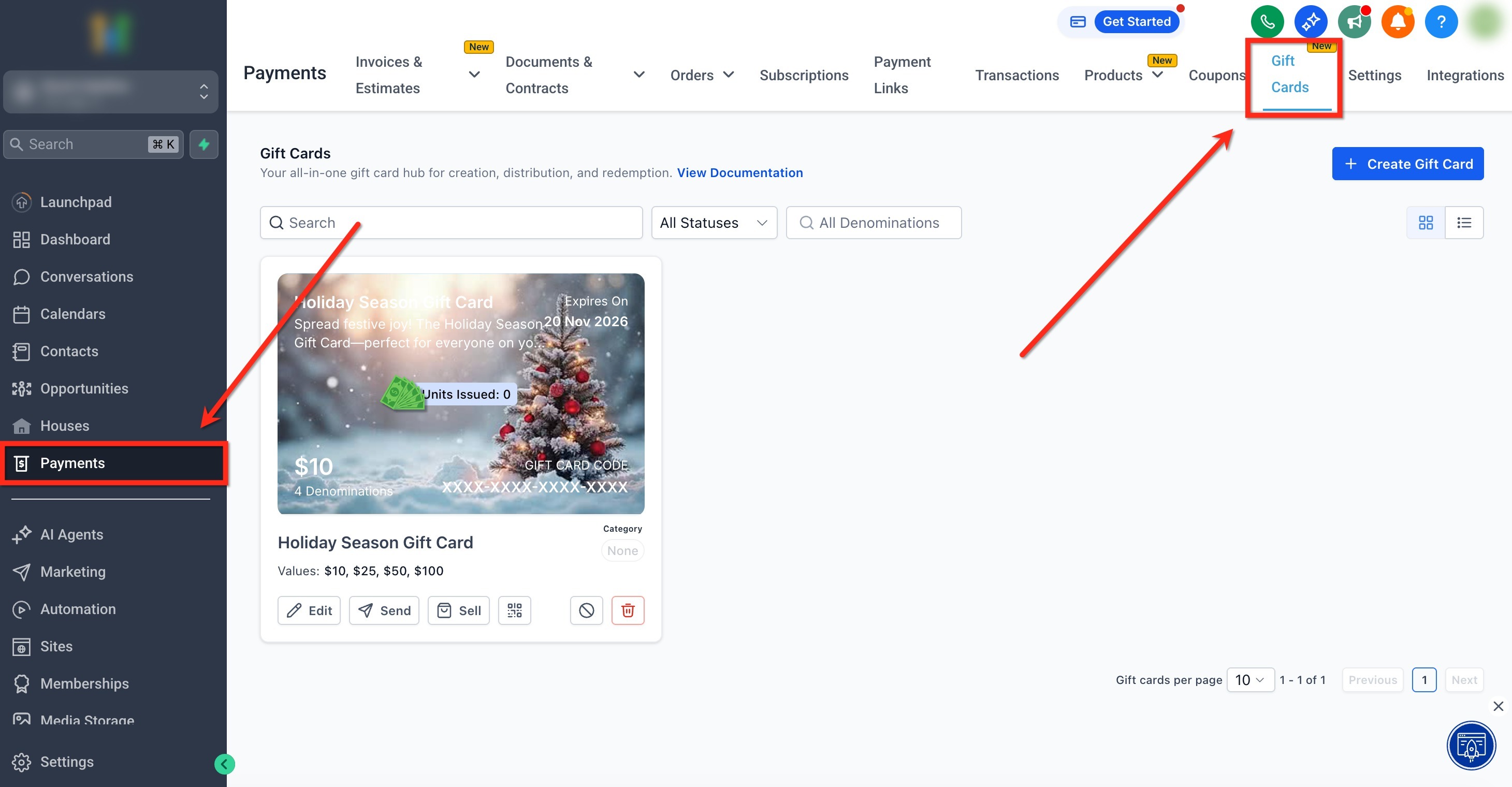
- Open the Payments menu and click Gift Cards to reach the dashboard.
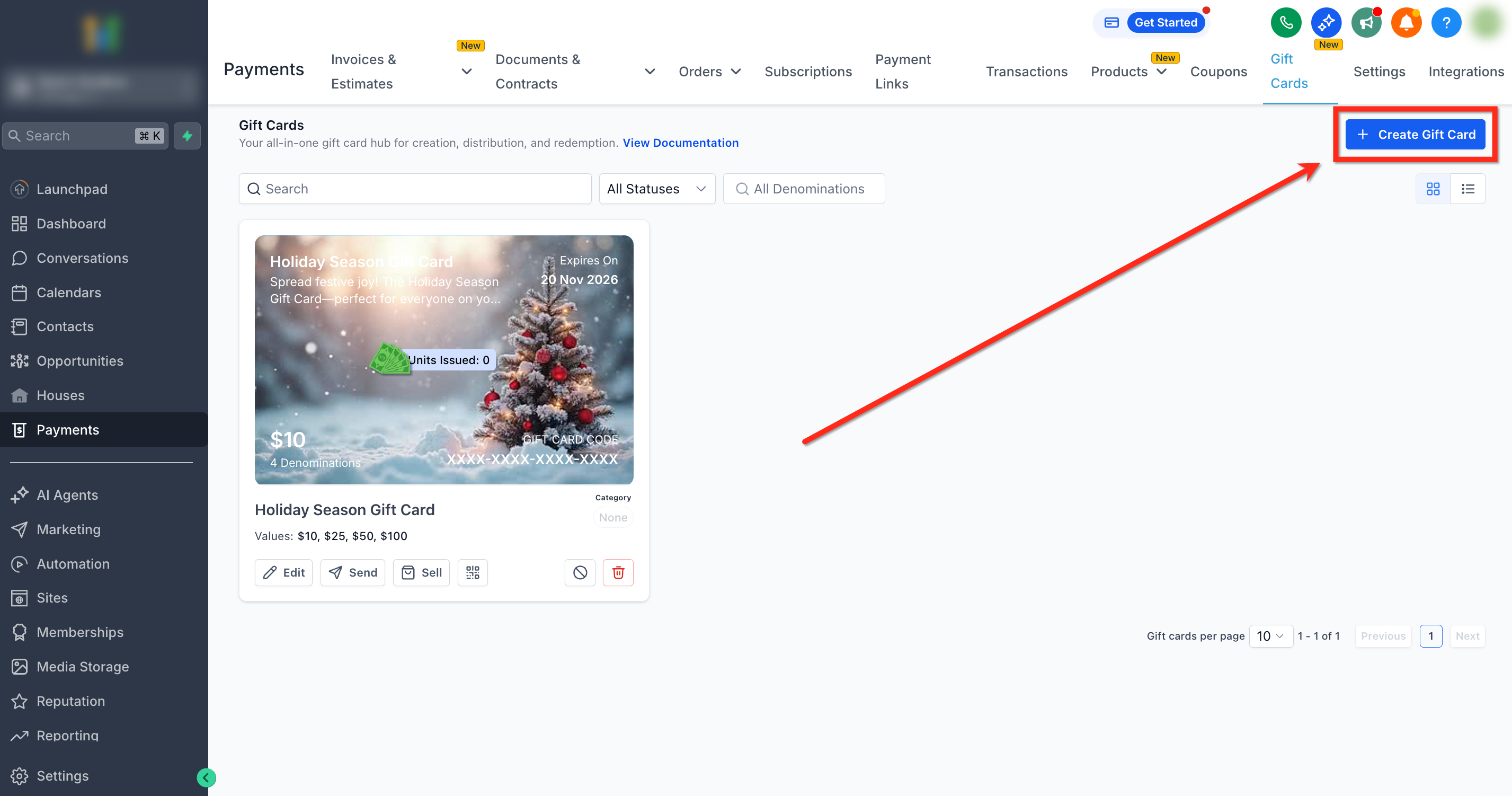
- Press the blue + Create Gift Card button.
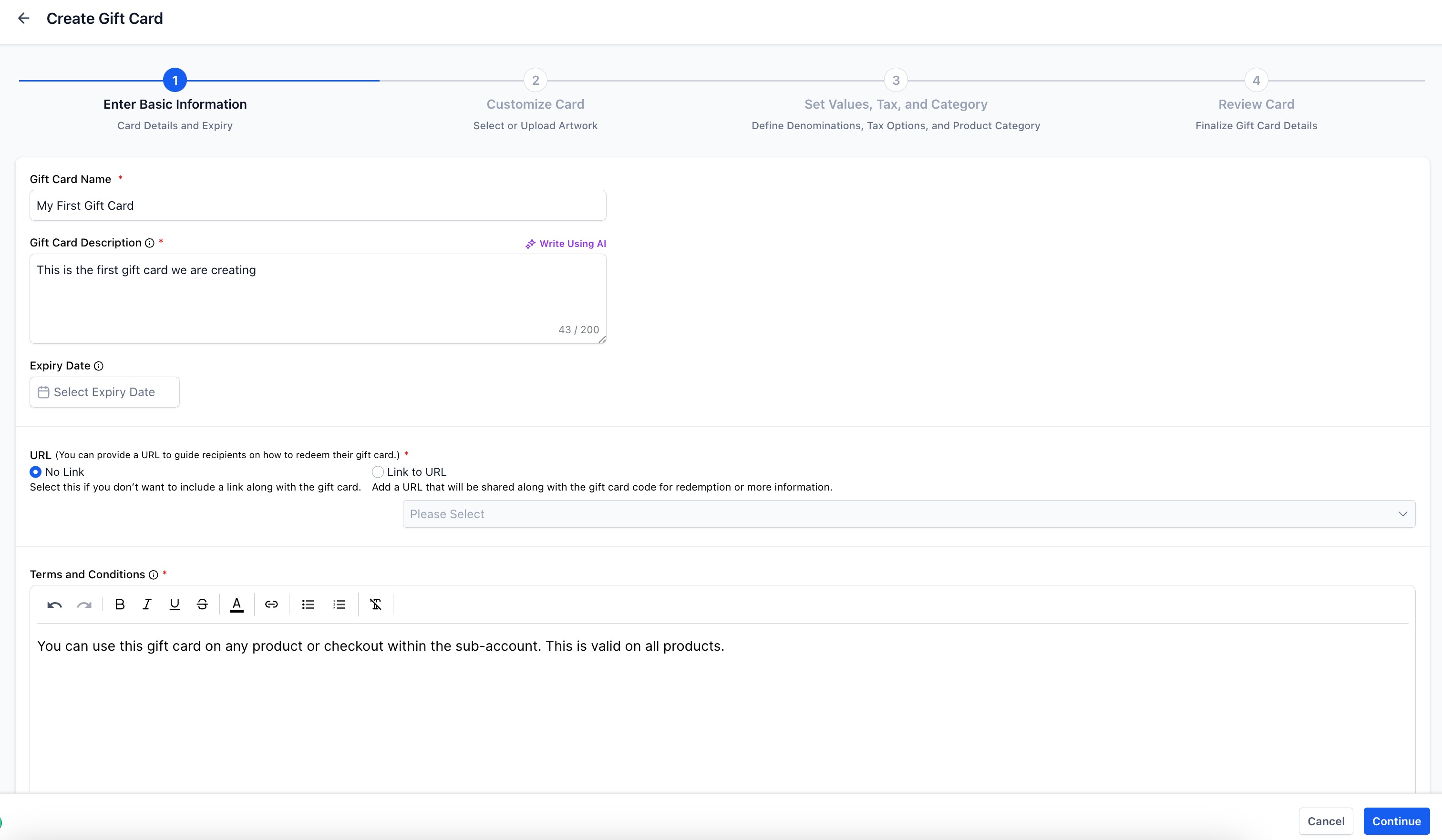
- Enter basic details such as name, description, terms & conditions, expiry date and a URL for redemption instructions.
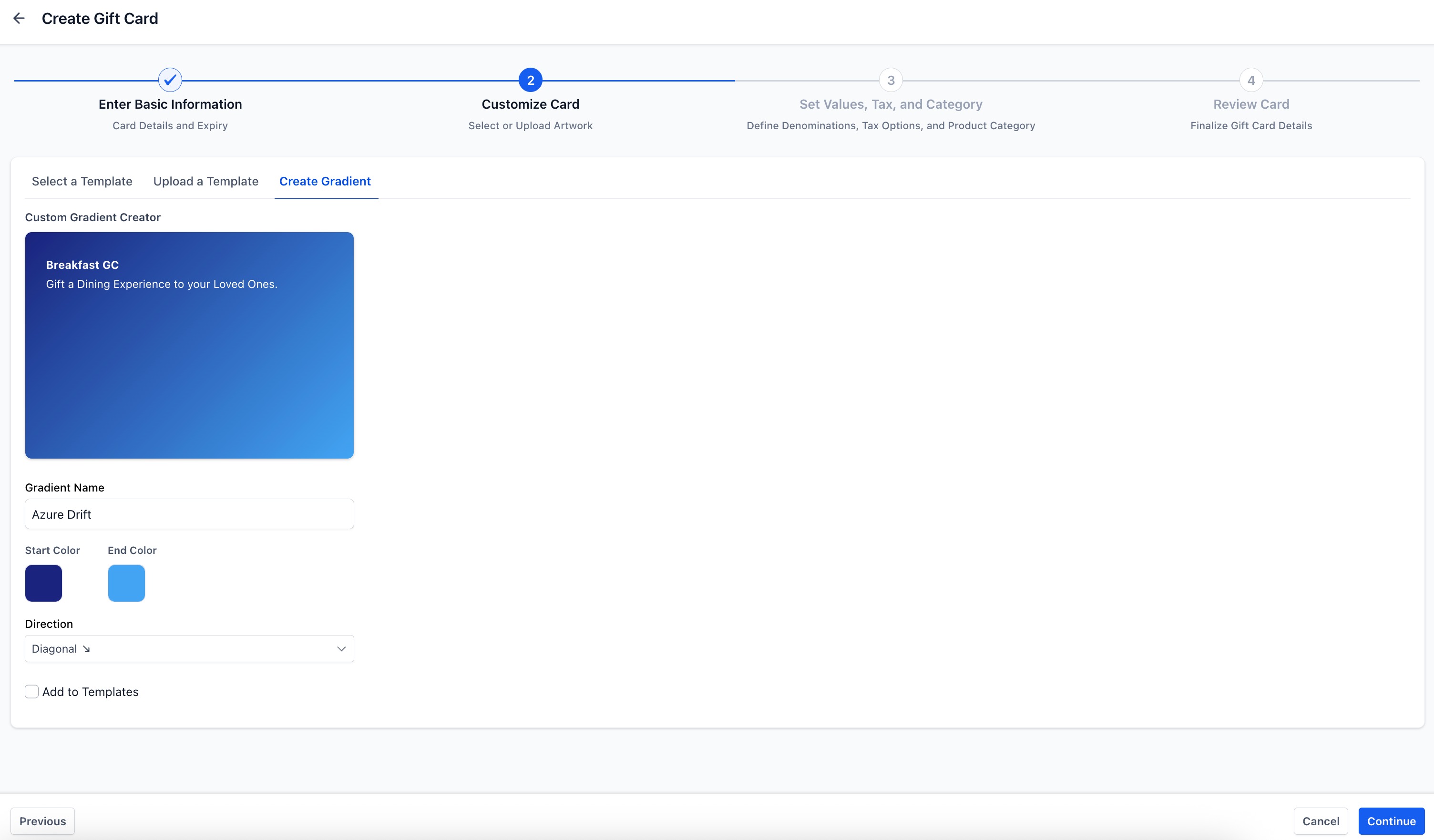
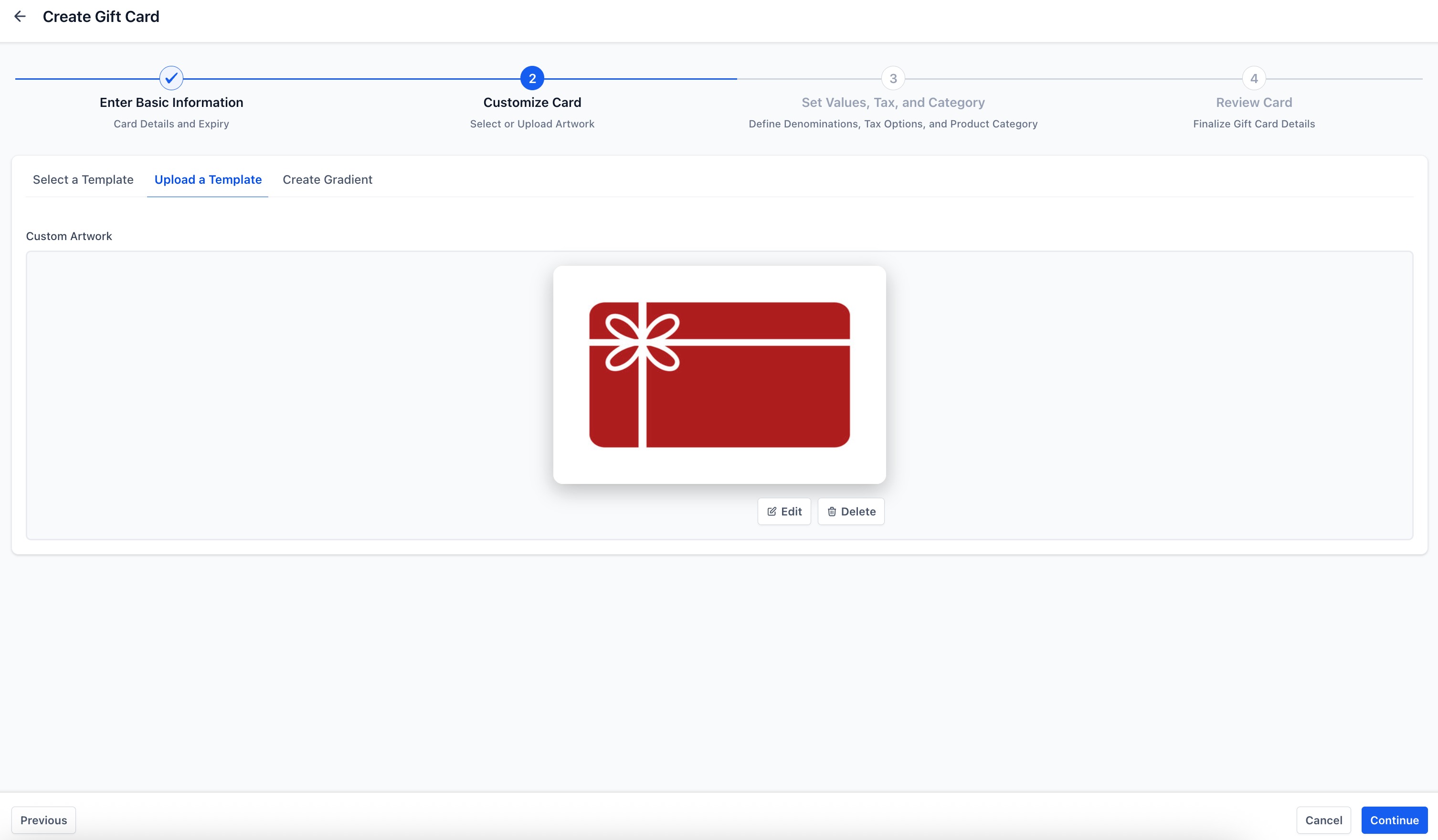
- Select a visual style by building a gradient or uploading a high resolution artwork image.
- Add one or more denominations, set an inventory quantity, optionally enable automatic taxes and assign a category.
- Review the preview and click Create Gift Card to finalize.
Sell Gift Cards through the dedicated checkout
- Navigate to Payments > Gift Cards to open the dashboard.
- Find the desired card tile and click Sell.
- Copy either the live checkout link or the embed code using the provided buttons.
- Distribute the link or embed it on a website so customers can purchase the card.
Send a Gift Card without payment
- Go to Payments > Gift Cards to open the dashboard.
- Select the chosen card and click Send.
- Pick an existing contact or add a new one, then add a personalized message and continue.
- Choose a preset denomination and a delivery method (email, SMS, QR via email, or PDF via email); optionally schedule the send date.
- Review the automatically generated preview that includes amount, message, expiry date, instructions and artwork.
- Click Send Gift Card to issue the free card.
07What it looks like in HighLevel
08Settings that matter
- Basic Information. Collects the product’s name, description, terms & conditions, expiry date and a URL that points to redemption instructions.
- Gradient. Defines a two tone background using chosen colors and direction, used when no custom artwork is uploaded.
- Upload Custom Artwork. Allows a high resolution PNG or JPG image to be attached to the card so it matches brand visuals.
- Denominations. Specifies the monetary values customers can select when buying the card.
- Quantity (Inventory). Sets how many cards are available for each denomination; the same count applies to every denomination listed.
- Automatic taxes. Enables tax calculation for the card product if the account has tax settings enabled.
- Category. Adds a label that helps group and report on gift card products.
09Things to know before you rely on it
- Inventory is defined once per product and applies equally to each denomination; setting a quantity creates that many cards for each denomination.
- Test mode cards can only be redeemed on test checkouts; live mode cards work only on live checkouts.
- Gift Cards cannot be purchased with another Gift Card, and they are not yet usable on Memberships, Donation Forms, Rentals or Services V1.
- Redemption on PayPal, Adyen and custom providers works only when the card fully covers a one time order without subscriptions.
10How it connects to the rest of HighLevel
- Detailed steps to sell gift cards from any checkout Sell gift cards
- Guide on sending gift cards without a payment Send gift cards
- How to monitor issued cards and performance metrics Track gift cards
- Explore all payment related features Payments features
- Review HighLevel pricing and plan options Pricing
Michael's take

Gift Cards are a straightforward way to add branded digital credit to your sales toolkit.