
01Who this is for
- Salon owners can let front desk staff see Gift Card sales without exposing full codes.
- Ecommerce managers can grant product managers the ability to edit Gift Card products while restricting code visibility.
- Gym administrators can allow trainers to send Gift Cards to members but keep redemption settings limited.
02Gift Card user permissions, explained
Gift Card user permissions are a set of granular controls that dictate what a staff member can see or do within the Gift Card section of HighLevel. Each permission covers a specific function, such as viewing orders, opening detail pages, revealing the full code, managing products, or accessing sell links.
These permissions are applied to individual users through the subaccount’s Roles and Permissions settings. An admin can enable or disable each option, and can also combine them with the platform’s Only Assigned Data restriction to further limit which records a user can access.
The permission controls live inside the staff member’s profile under Roles and Permissions, separate from the broader payment area where Gift Card redemption occurs.
03How businesses use Gift Card user permissions
- Salon. A salon manager enables View Gift Card Orders for reception staff so they can confirm purchases, but disables View Full Gift Card Code to keep the actual codes private. The manager also grants Send Gift Card permission to the owner for issuing gift cards directly to clients.
- Online retailer. The retailer grants Create/Edit Gift Card Products to the product team, allowing them to add new denominations. At the same time, View Full Gift Card Code remains unset for these users, preventing them from seeing sensitive code data.
- Gym. A gym administrator enables Access Sell Link / Share via QR for marketing staff, letting them distribute QR codes for membership gift cards, while restricting Delete/Deactivate Gift Card to senior staff only.
04Before you start
- Each staff member must have a role assigned in the subaccount.
- Admin users already have full subaccount access, so permissions are only needed for non admin users.
05How to set up and use Gift Card user permissions in HighLevel
Configure Gift Card user permissions
- From the Subaccount view, select Settings.
- Select My Staff.
- Locate the staff member whose Gift Card access you want to configure.
- Click the Edit pencil icon.
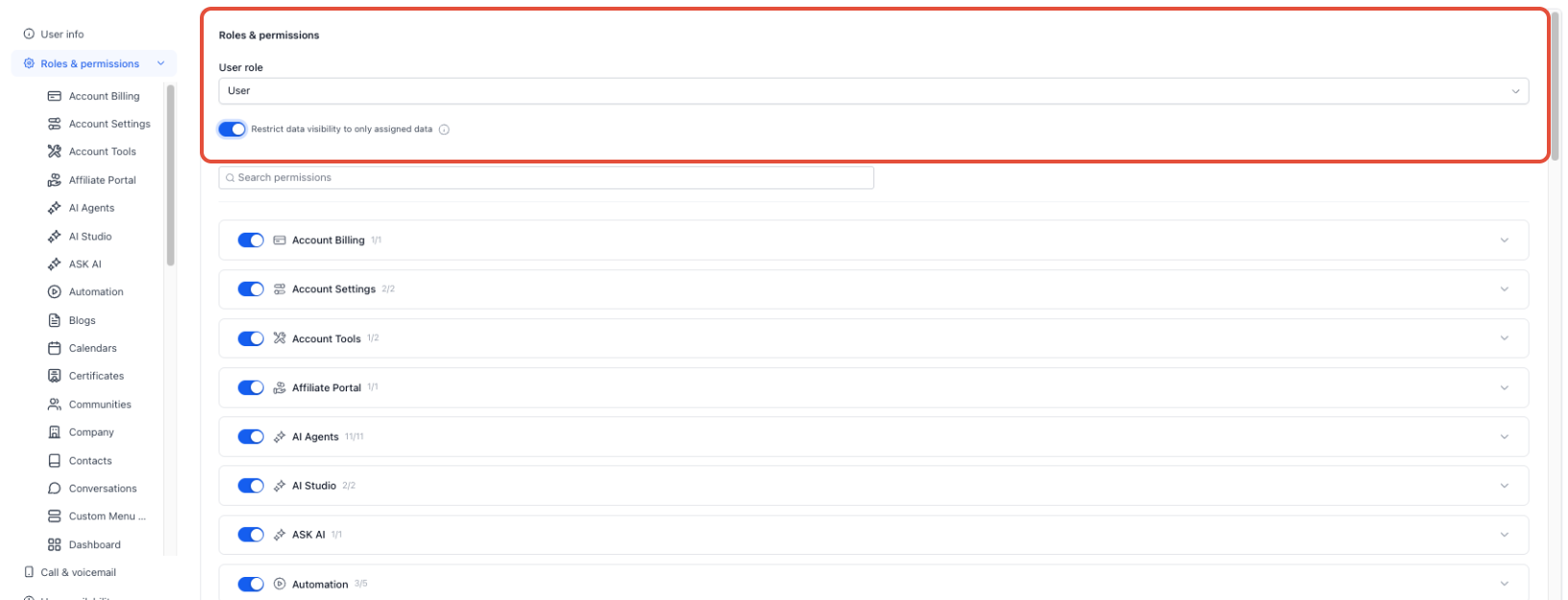
- Open Roles and Permissions.
- Confirm the staff member is configured with the appropriate role.
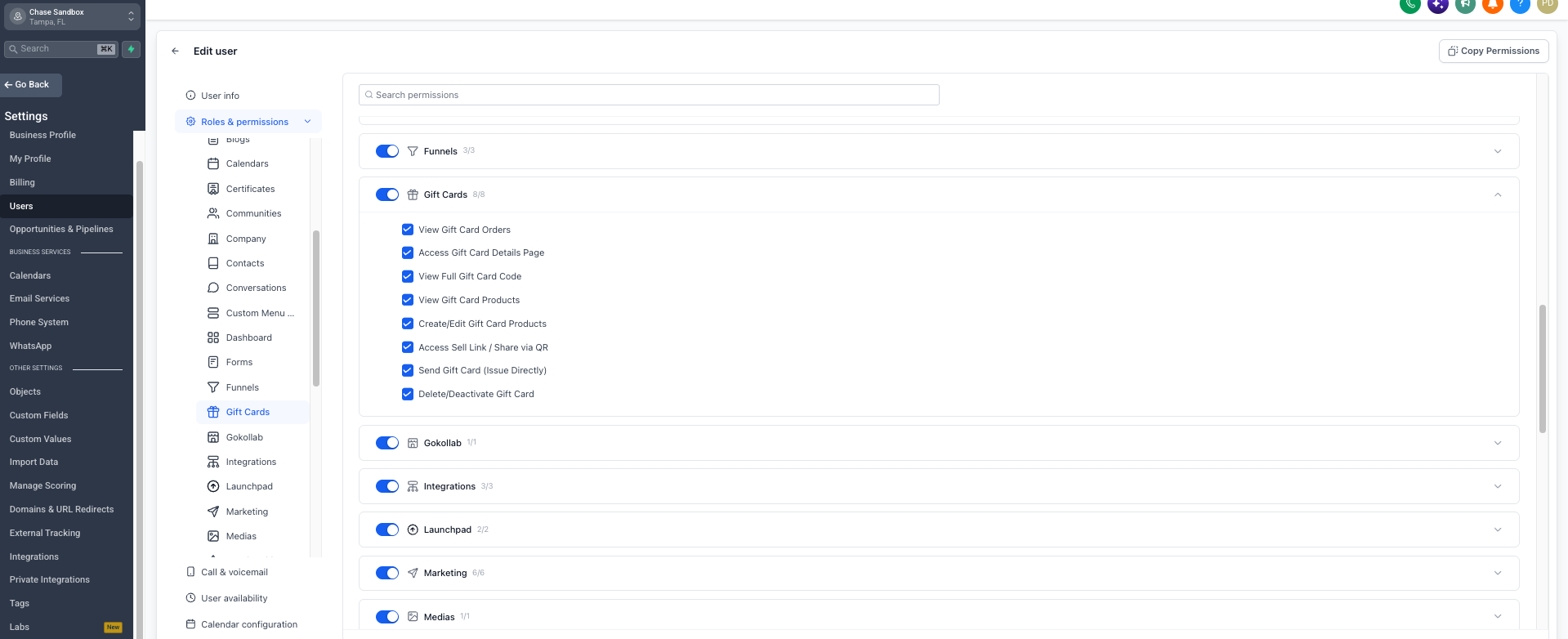
- Locate the Gift Cards permission section.
- Enable only the Gift Card permissions the staff member needs.
- Leave permissions disabled when the user should not access that information or action.
- Review Only Assigned Data when the User's data visibility should also be restricted.
- Save the changes.
- Best practice: Grant only the permissions required for the user's responsibilities and limit full Gift Card code and product deletion access to trusted users.
06What it looks like in HighLevel
07Settings that matter
- View Gift Card Orders. Allows the user to see the list of issued Gift Cards and the order information.
- Access Gift Card Details Page. Lets the user open the details page for an individual Gift Card order.
- View Full Gift Card Code. Enables the user to reveal the complete Gift Card code from the details page.
- View Gift Card Products. Grants access to see Gift Card products and their settings without editing rights.
- Create/Edit Gift Card Products. Permits the user to create new Gift Card products or modify existing ones.
- Access Sell Link / Share via QR. Provides the ability to use selling links and QR codes for Gift Card distribution.
- Send Gift Card (Issue Directly). Allows the user to issue Gift Cards directly to customers through the Send flow.
- Delete/Deactivate Gift Card. Controls whether the user can delete or deactivate a Gift Card product.
08Things to know before you rely on it
- The permission set does not include a dedicated Gift Card redemption permission; redemption access depends on payment area rights.
- Admin users retain full subaccount access by default; granular permissions are only needed for non admin users.
- Only Assigned Data can further limit visibility but does not replace the required Gift Card permission for a page or action.
09How it connects to the rest of HighLevel
- Start creating and sending Gift Cards in HighLevel. Getting started with Gift Cards
- Learn how to sell Gift Cards across multiple channels. Sell Gift Cards
- See how to send Gift Cards directly to customers. Send Gift Cards
Michael's take

Gift Card user permissions help keep sensitive codes and product changes in the right hands while letting staff handle day to day card tasks.
Avoid giving full code access to anyone who only needs to view orders.