
01Who this is for
- Ecommerce owners can add gift cards to their online store so shoppers can purchase them alongside physical products, increasing cash flow before redemption.
- Service based businesses can sell gift cards via appointment calendars, allowing clients to book and pay for future services as a gift.
- Marketers can share live checkout links or QR codes in email campaigns, social posts or print ads to reach audiences where they already engage.
02Gift cards, explained
Gift cards are created in the Payments > Gift Cards area and become a product that can be purchased. Each card generates a live checkout URL, an embed snippet and a QR code that all lead to the same purchase page. The checkout can be set to live or test mode, keeping real and sandbox transactions separate. When a buyer finishes payment, HighLevel creates a Gift Card Order and delivers the card by email or download based on the chosen delivery option.
The feature lives on the platform’s Payments dashboard. From there you can copy links, embed code or QR images, and enable the card as a product in any checkout that supports product selection, such as Forms, Funnels, Stores, Payment Links, Invoices or Calendars. Test mode links work only with test mode redemptions, while live links create real balances.
Gift cards can be customized with artwork and gradients to match branding. They cannot be used to purchase other gift cards, and redemption is limited to supported providers Stripe, NMI, Authorize.net and Square.
03How businesses use gift cards
- Fitness studio. The studio creates a gift card product and adds it to its class booking calendar. Clients select the gift card form, pay through the calendar flow, and the studio automatically emails the purchased card to the recipient on the scheduled date.
- Online boutique. The boutique enables the gift card in its online store. Shoppers add the card to their cart like any other item, complete checkout, and receive a downloadable card right away, which they can forward to friends.
- Consulting firm. The firm generates a live checkout link and QR code, then embeds the link in email newsletters and prints the QR on flyers. Prospects scan or click the link, choose a denomination, and the firm receives payment before delivering the consultation credit.
04Before you start
- Create and activate at least one Gift Card product (Payments > Gift Cards > Create Gift Card).
- Set up a connected payment method so the platform can collect funds.
05How to set up and use gift cards in HighLevel
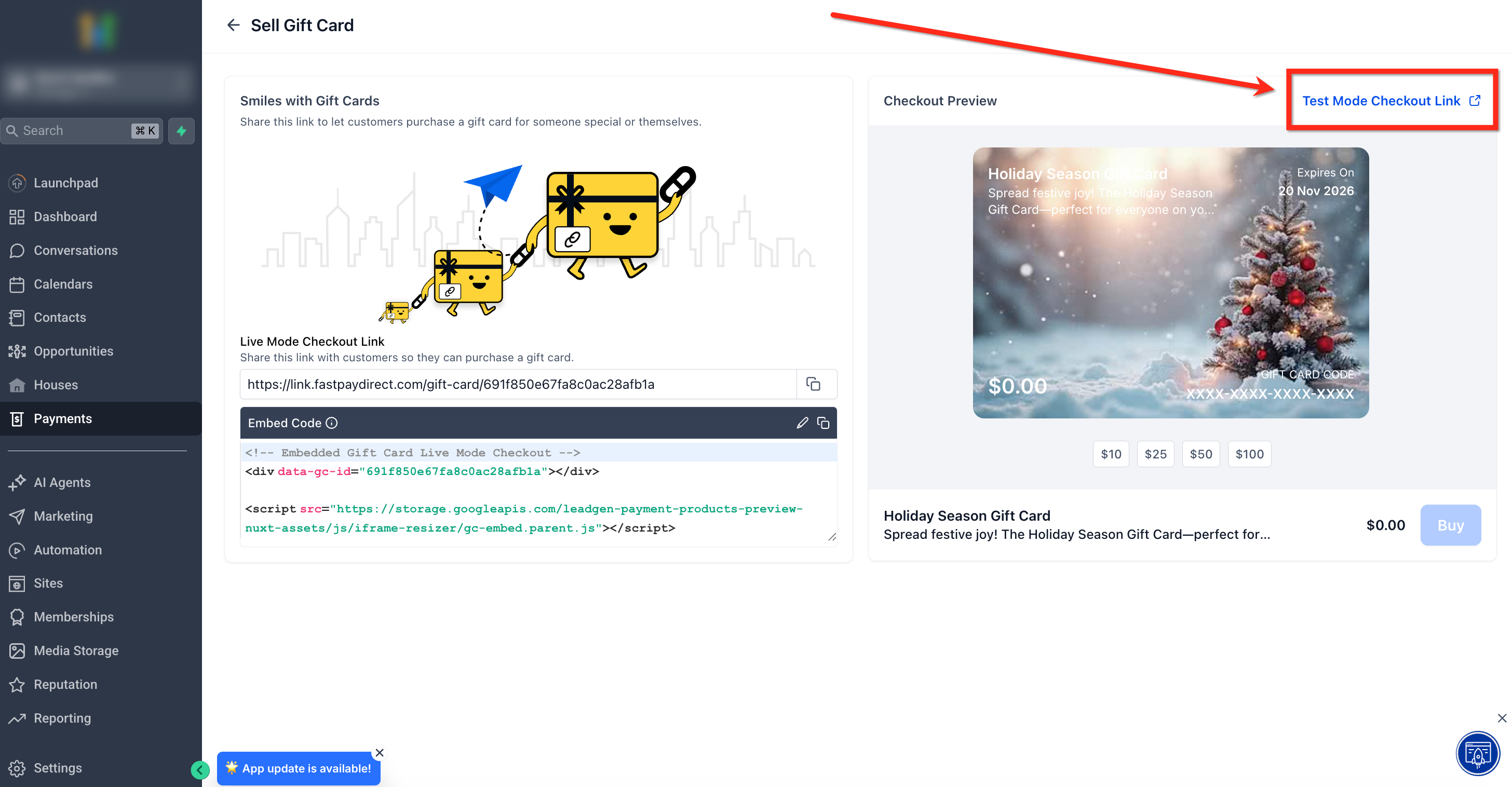
Copy live dedicated checkout link
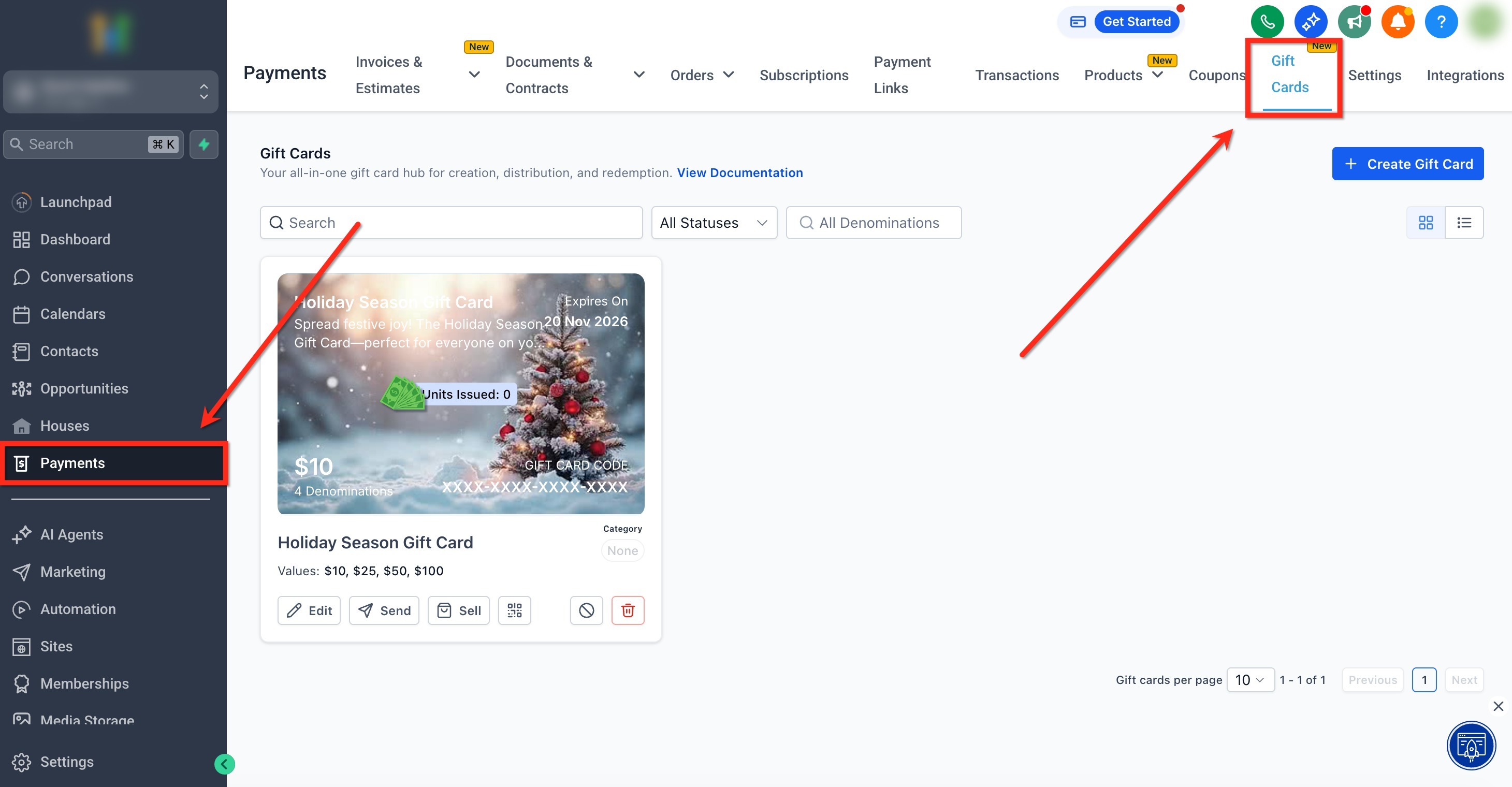
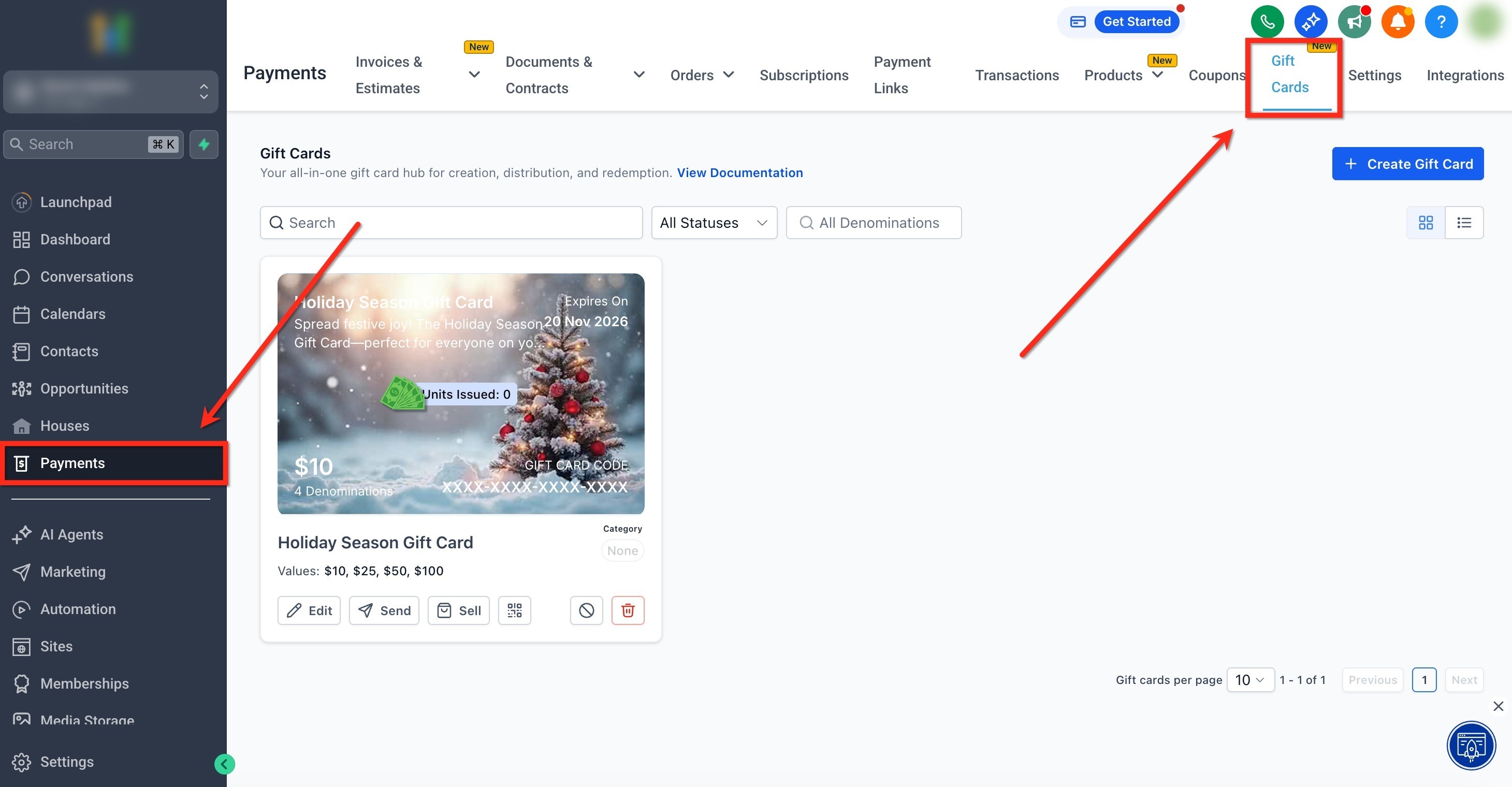
- Open the Payments tab in the left menu, then click Gift Cards on the top ribbon.
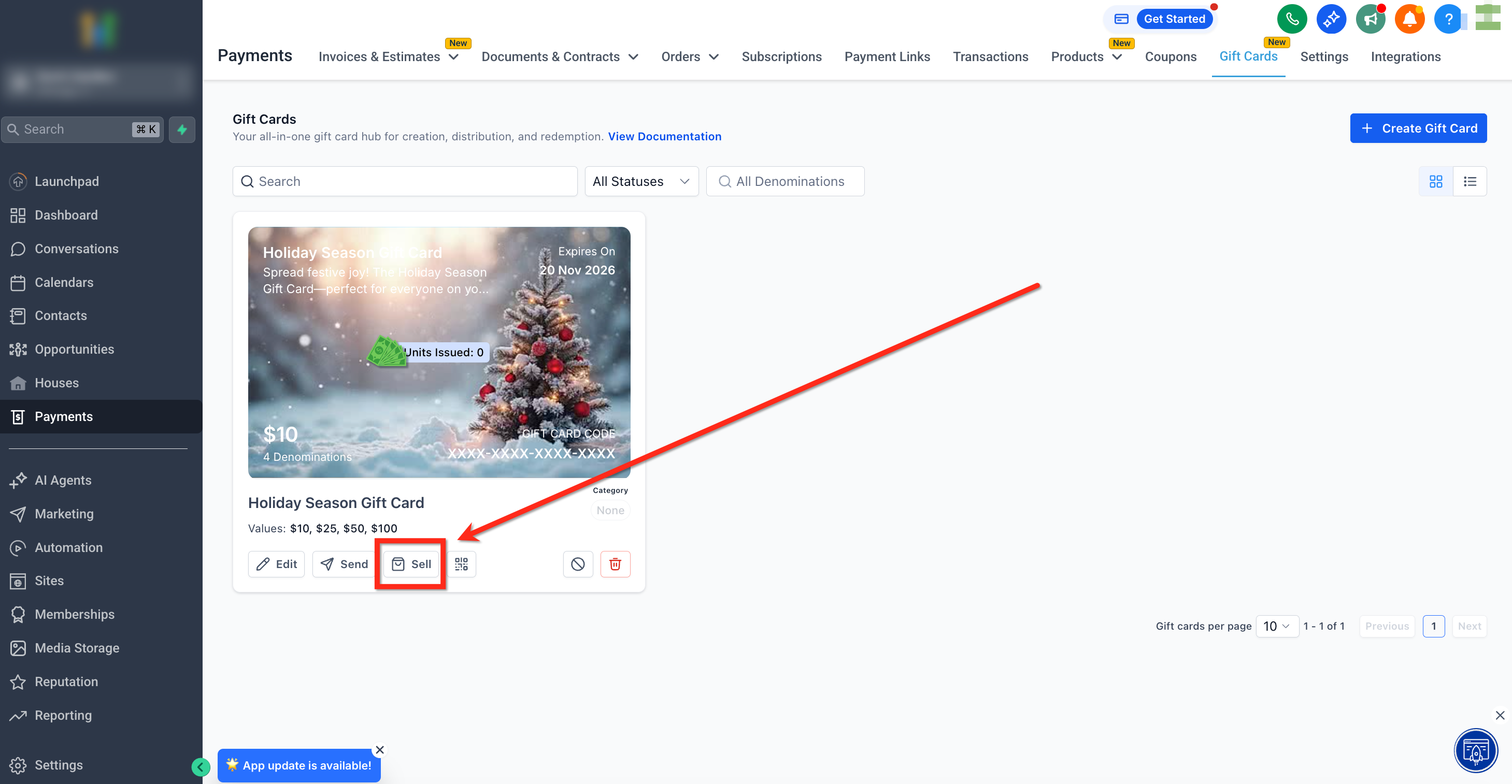
- Find the desired gift card tile and press Sell.
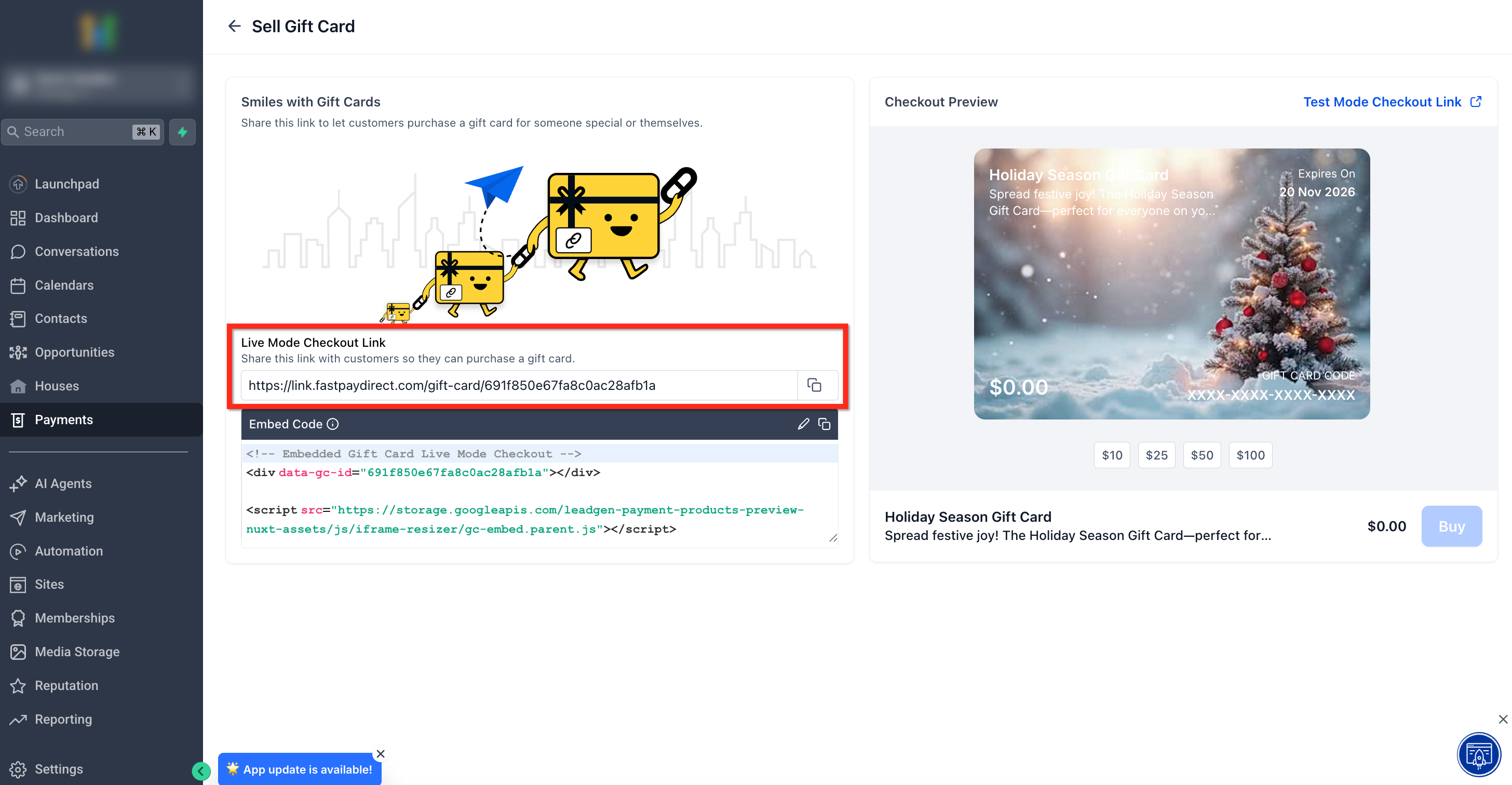
- Click the copy icon to copy the Live Mode checkout link.
Copy test checkout link
- Open the Payments tab in the left menu, then click Gift Cards on the top ribbon.
- Find the desired gift card tile and press Sell.
- Click Test Mode Checkout Link in the upper right corner to copy the test link.
Embed checkout on external page
- Open the Payments tab in the left menu, then click Gift Cards on the top ribbon.
- Locate the card and press Sell.
- Click the Copy button to copy the embed code.
- Paste the embed code into the HTML of any external webpage.
Download and share QR code
- Open the Payments tab in the left menu, then click Gift Cards on the top ribbon.
- Click QR Code on the chosen card tile.
- Download the QR image or use Share > Copy to obtain a shareable link.
Sell through a form
- Navigate to Sites > Forms and open or create a form.
- Drag the Sell Products element from Payments onto the form.
- Open the element settings, click Add Product and select the gift card.
- Save the form.
Sell through a funnel
- Navigate to Sites > Funnels and open or create a funnel.
- Drag a Form element onto the desired funnel page.
- Choose the form that contains the gift card product (or create one) and publish the funnel.
- Publish the funnel after the form is added.
Sell through a store
- Navigate to Sites > Stores and open or create a store.
- Open the Products tab inside the store.
- Check the box beside the gift card, then choose Bulk Actions > Include in this store.
- Preview the store to confirm the card appears with other products.
Sell through a payment link
- Navigate to Payments > Payment Links and create a new link.
- Select the gift card as the product and click Save.
- Use the Copy/Send button to obtain the shareable payment link.
Sell through an invoice
- Open Payments > Invoices & Estimates and create or edit an invoice.
- Under Add Products, select the gift card(s) to include.
- Send the invoice; the card will be delivered once payment is received.
Sell through a calendar
- Open Calendar Settings and edit the desired calendar.
- In Forms & Payments, pick the previously built gift card form from the Select Form dropdown.
- Toggle on Accept Payments.
- Save the calendar.
06What it looks like in HighLevel
07Settings that matter
- Test Mode Checkout Link. Provides a sandbox checkout URL that creates test only gift cards.
- Accept Payments. Enables payment processing for a calendar when selling gift cards.
08Things to know before you rely on it
- Test mode purchases generate gift cards redeemable only in test mode; live purchases generate cards redeemable only in live mode.
- Sending a gift card without payment is available only in live mode.
- A deactivated Gift Card product disables its checkout link and removes it from stores, but it remains usable in other checkouts until manually removed.
- Gift cards cannot be used to buy other gift cards.
- Redemption works only with Stripe, NMI, Authorize.net and Square payment providers.
09How it connects to the rest of HighLevel
- Read the full guide on creating, selling and sending gift cards in HighLevel. Gift card basics
- Learn how to send gift cards via email or scheduled delivery. Send gift cards
- Track sales performance and analytics for your gift cards. Gift card analytics
- Explore pricing plans and trial options for HighLevel. Pricing
- Start a free 30 day trial of HighLevel. 30 day trial
Michael's take

Gift cards are a small convenience that can become a real shift for businesses that rely on cash flow and want to give customers a simple way to share services. The ability to sell them through a link, embed or QR code means you can start accepting prepaid value wherever your customers already shop.
A boutique spa, for example, can add a $50 gift card as an extra product on its appointment booking flow. A client books a massage, adds the gift card, pays, and the recipient gets an email with the code fast. If I were setting it up, I’d begin with the dedicated checkout link to validate the flow, then embed it on the website for a smooth experience.