
01Who this is for
- Customer support teams can issue a card to compensate a client after a service issue, because the flow does not need a checkout.
- Marketing managers can reward loyal members or run a giveaway, as the feature lets them choose the delivery channel and schedule the send date.
02Gift cards, explained
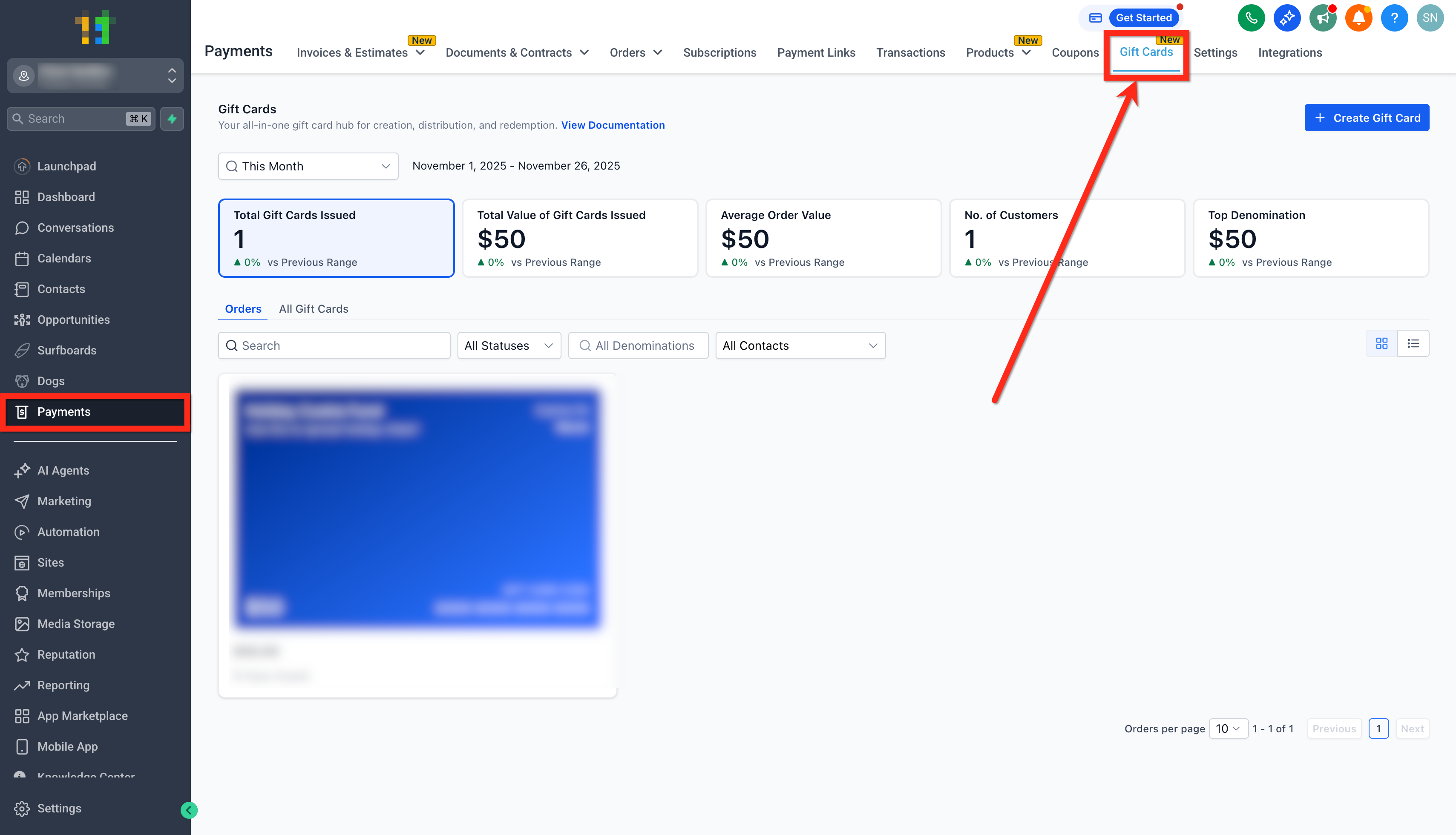
The Send Gift Card flow lets a business generate a prepaid credit and deliver it directly to a chosen contact. The card appears as a code and, depending on the delivery option, as an email with artwork, an SMS link, a downloadable PDF or a QR image. No payment is collected from the recipient during this process.
The feature lives under Payments > Gift Cards. After selecting an active Gift Card Product, users click the Send button, which opens a wizard where they define the recipient, message, amount, delivery method and timing. Once sent, the card is recorded in the Gift Card Orders list, where balance, expiry and status can be reviewed.
03How businesses use sending gift cards
- Fitness studio. The studio creates a gift card for a member who missed a class, selects the member’s email, writes a brief thank you note, schedules delivery for the next day, and sends it. The member receives an email with the card code and can redeem it at the studio’s checkout.
- Online SaaS provider. When a user reports a billing error, the support agent generates a gift card, picks the customer’s phone number, opts for SMS delivery, adds a custom apology message, and sends it right away. The user gets a text with a redemption link to apply toward their next subscription payment.
- Retail boutique. For a seasonal promotion, the boutique selects a contact, chooses PDF delivery via email, includes a festive graphic, sets the amount, and schedules the card to arrive on the opening day of the sale. The recipient can print the PDF and use the code in store.
04The numbers and rules that matter
- One recipient per Send flow.
- Scheduled delivery occurs at 12:00 AM on the chosen date.
05Before you start
- An active Gift Card Product must exist in the system.
- The recipient must have a valid email address for email delivery or a phone number for SMS delivery.
06How to set up and use sending gift cards in HighLevel
Send a gift card
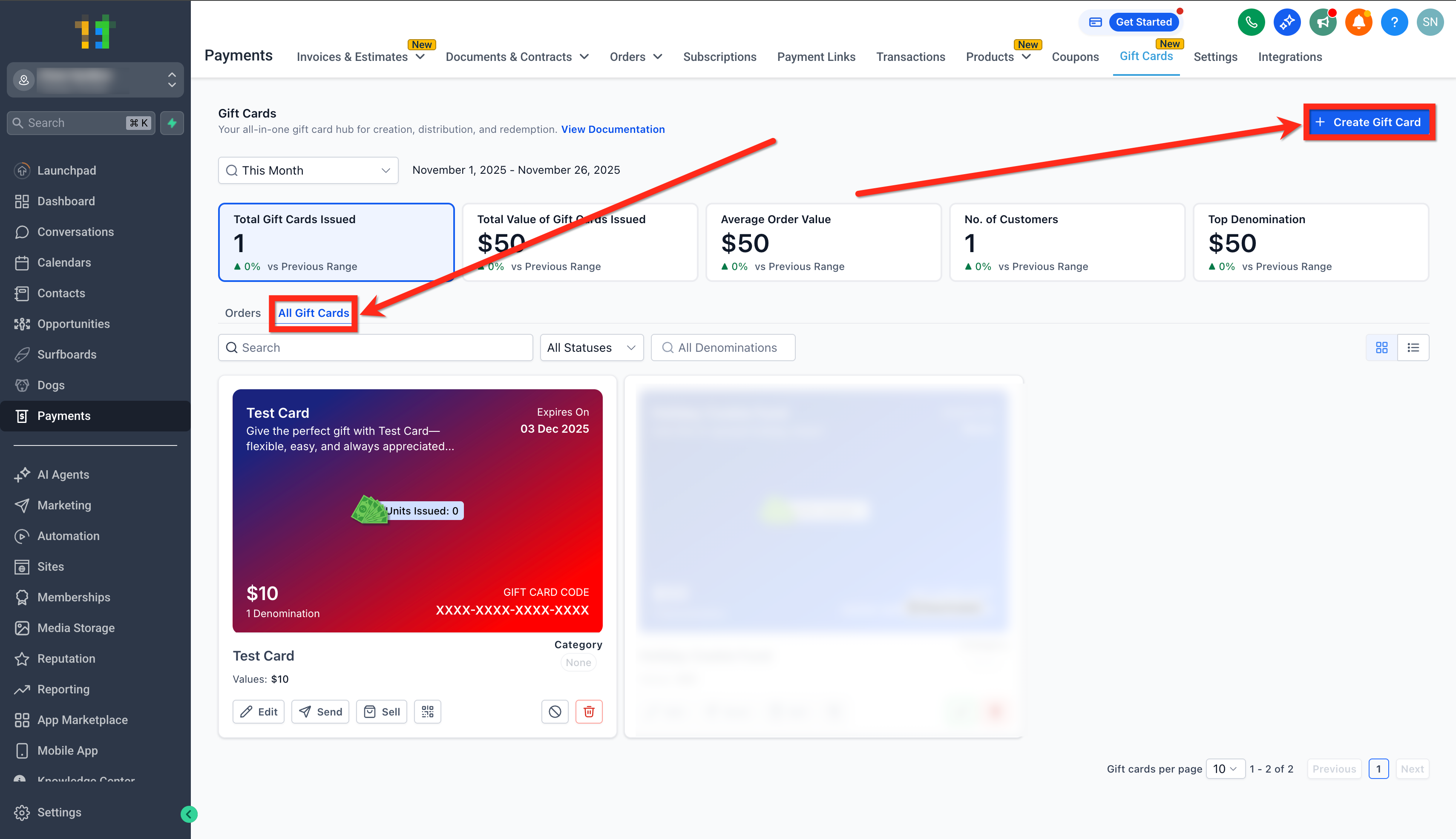
- Open Payments from the main menu, choose Gift Cards, and click All Gift Cards to reach the dashboard.
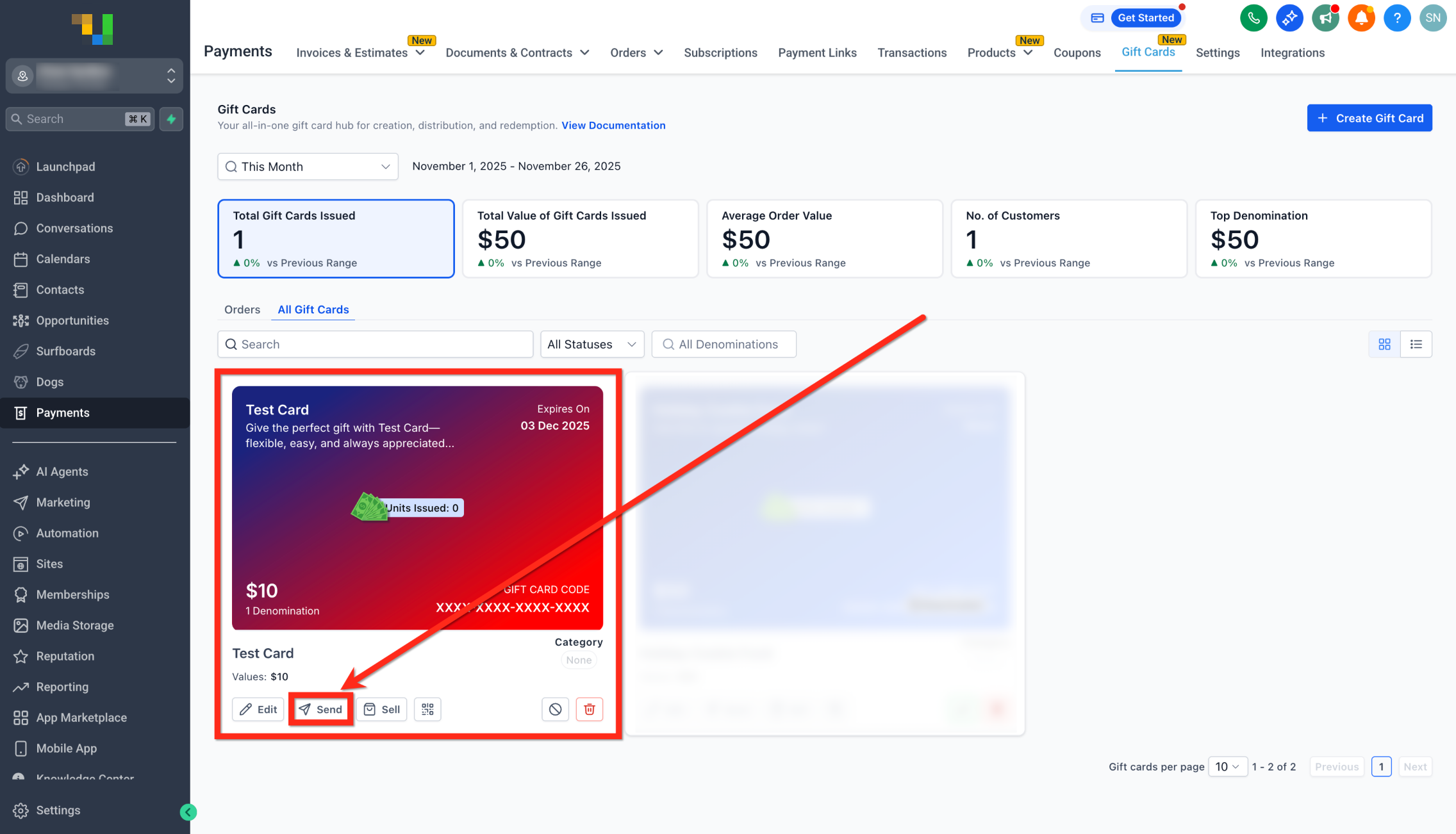
- Select the desired active Gift Card Product and click the Send button to launch the wizard.
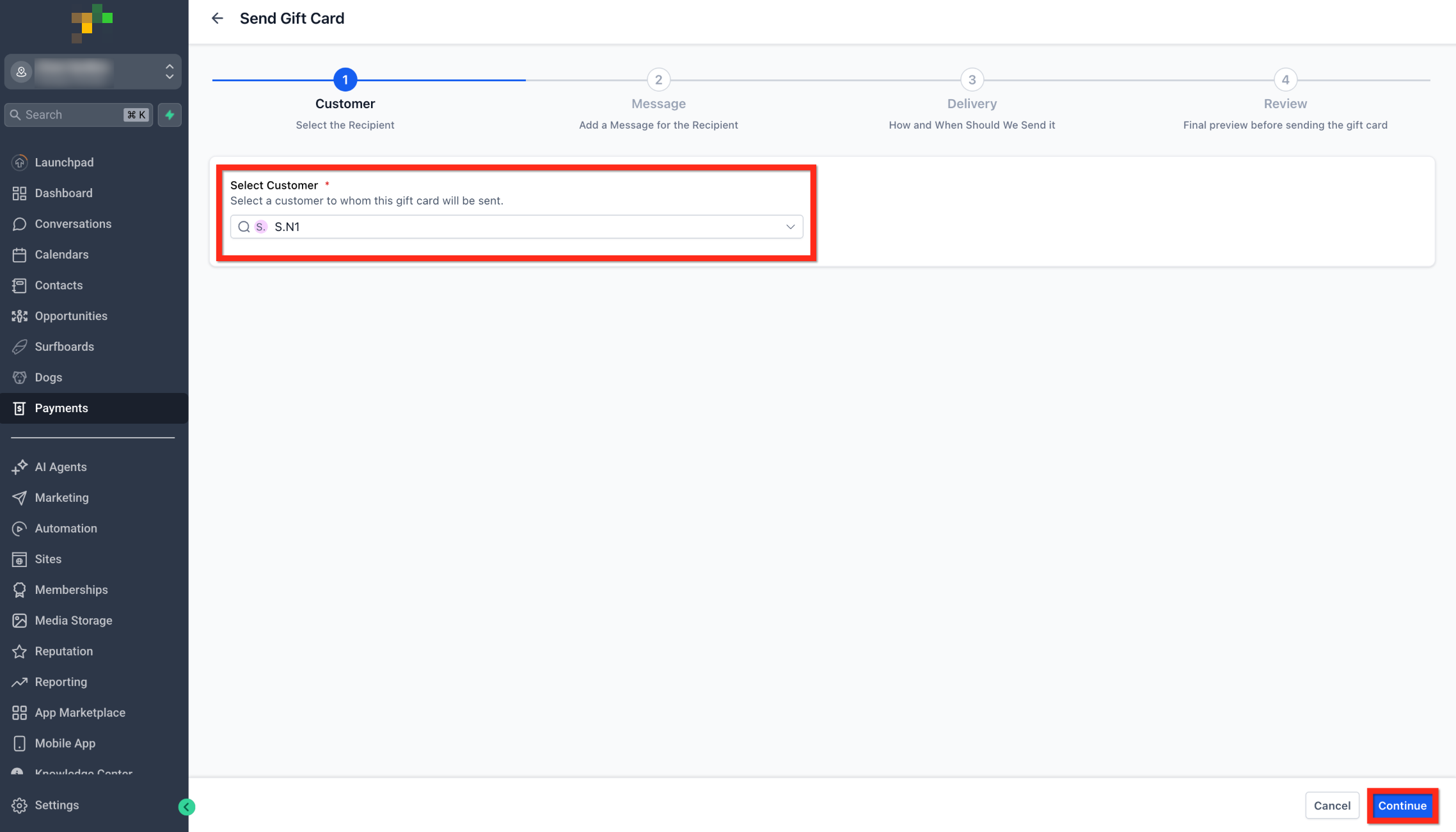
- Pick an existing contact or add a new one, ensuring the record contains the required email or phone number, then press Continue.
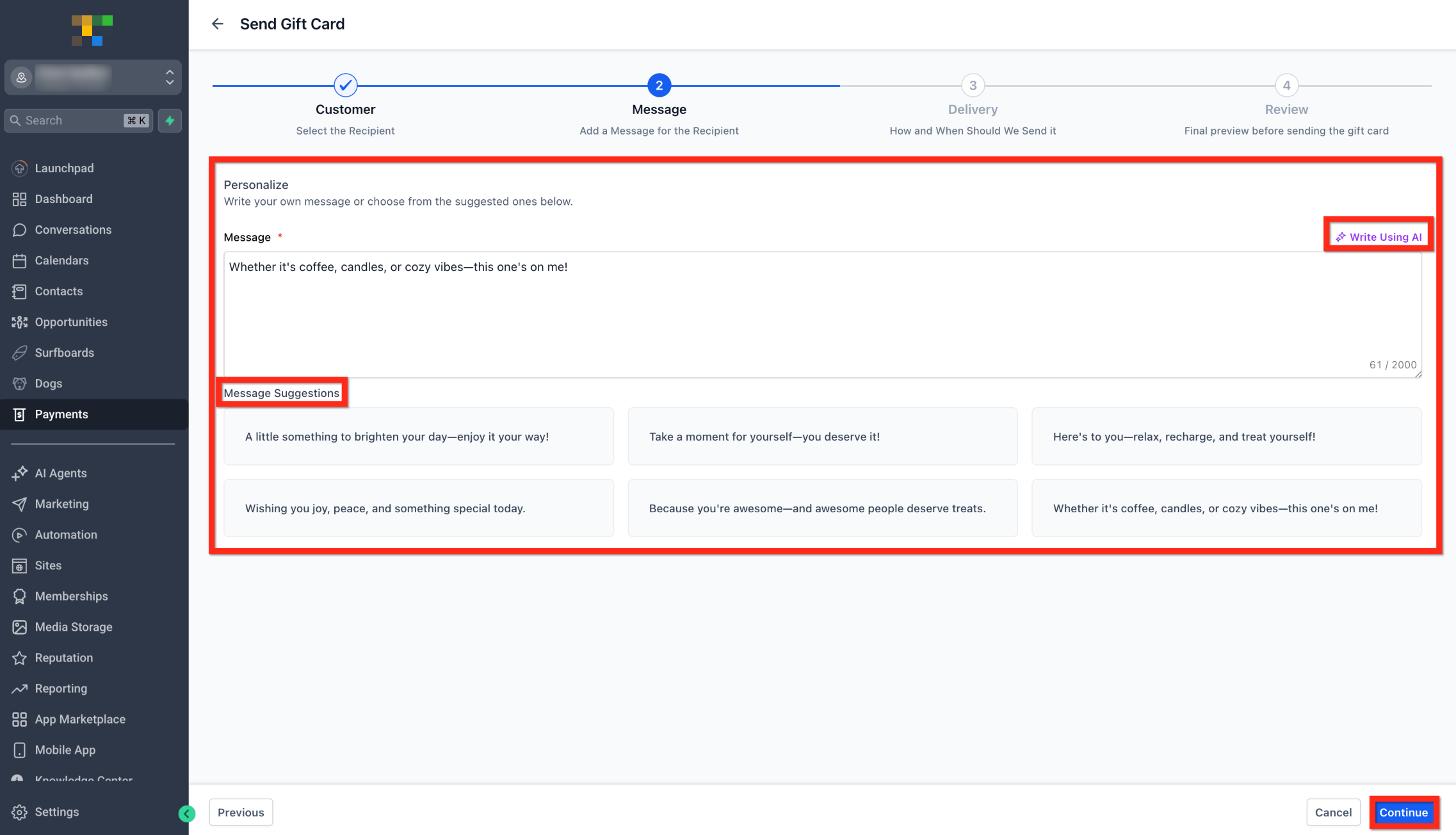
- Enter a custom note, select a prepared template, or generate a message with the AI helper, and click Continue.
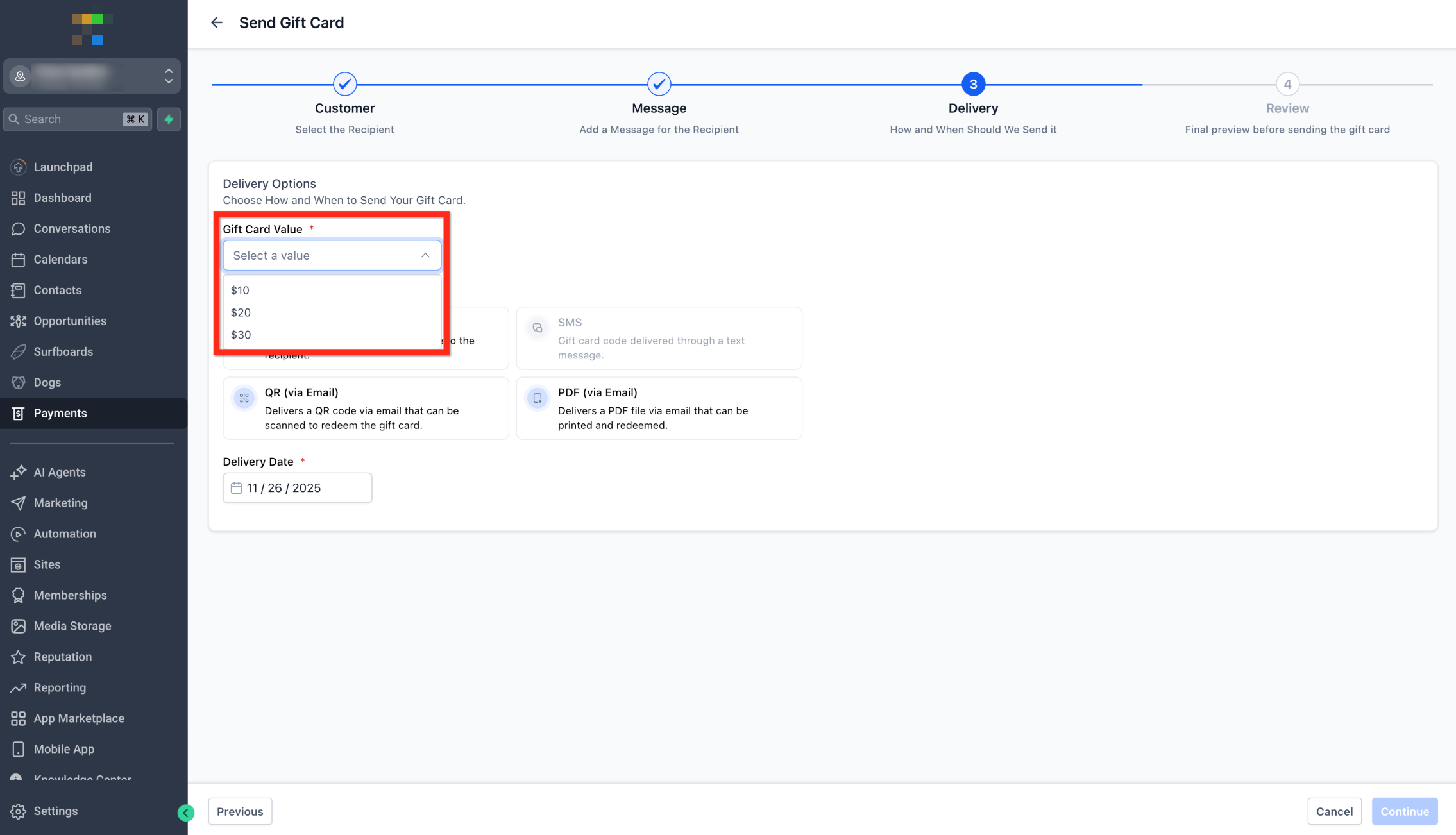
- Choose one of the preset amounts listed for the product.
- Pick a delivery option, Email, SMS, PDF (via Email) or QR Code (via Email), based on the contact’s available information.
- Select Immediate, Tomorrow, After One Week, or a specific future calendar date, respecting any expiry limits, then continue.
- Review the language, preview the email or SMS, confirm the amount, message, expiry and delivery date, and click Send Gift Card.
07What it looks like in HighLevel
08Settings that matter
- Delivery Method. Determines whether the gift card is sent by email, SMS, as a PDF attachment, or as a QR code image.
- Delivery Date. Sets the exact day the card is dispatched; options include immediate send or a future date, subject to any product expiry constraints.
09Things to know before you rely on it
- Only works while the account is in Live Mode; test mode cannot be used.
- One card can be sent to one recipient per use of the flow.
- No payment is collected from the recipient during the send process.
- Sent cards are listed under Payments > Gift Cards > Gift Card Orders, not under the regular Orders list.
- The email and SMS templates are system generated and cannot be edited within this flow.
10If something goes wrong
- No delivery method is selectable. Confirm the contact record contains a valid email address for email delivery or a phone number for SMS delivery.
- Unable to schedule a delivery date. Check that the selected gift card product has an expiry date; the chosen date must fall between today and the expiry.
11How it connects to the rest of HighLevel
- Track performance of sent gift cards with analytics Gift card analytics
- Learn how to create and sell gift cards for customers Create gift cards
- Read about redeeming gift cards at checkout Redeem gift cards
Michael's take

When you need to reward a client, smooth over a service hiccup, or run a small giveaway, sending a gift card lets you issue a prepaid credit without requiring the recipient to pay. The card is tracked in Gift Card Orders so you can see its balance and redemption status.
If you’re planning bulk giveaways, large influencer campaigns, or need anonymous gifting, this feature won’t cover those needs. It only handles one to one sends in Live Mode, so you’ll have to repeat the flow for each recipient and accept the system generated email or SMS templates.