
01Who this is for
- Founders who issue client invoices and want to reduce manual follow up.
- Small business owners managing recurring billing and needing consistent payment prompts.
02Automated invoice reminders, explained
The reminder system adds a set of customizable notifications to the invoice workflow. Each reminder has its own name, email or SMS template, subject line, timing rule and a limit on how many times it can be sent.
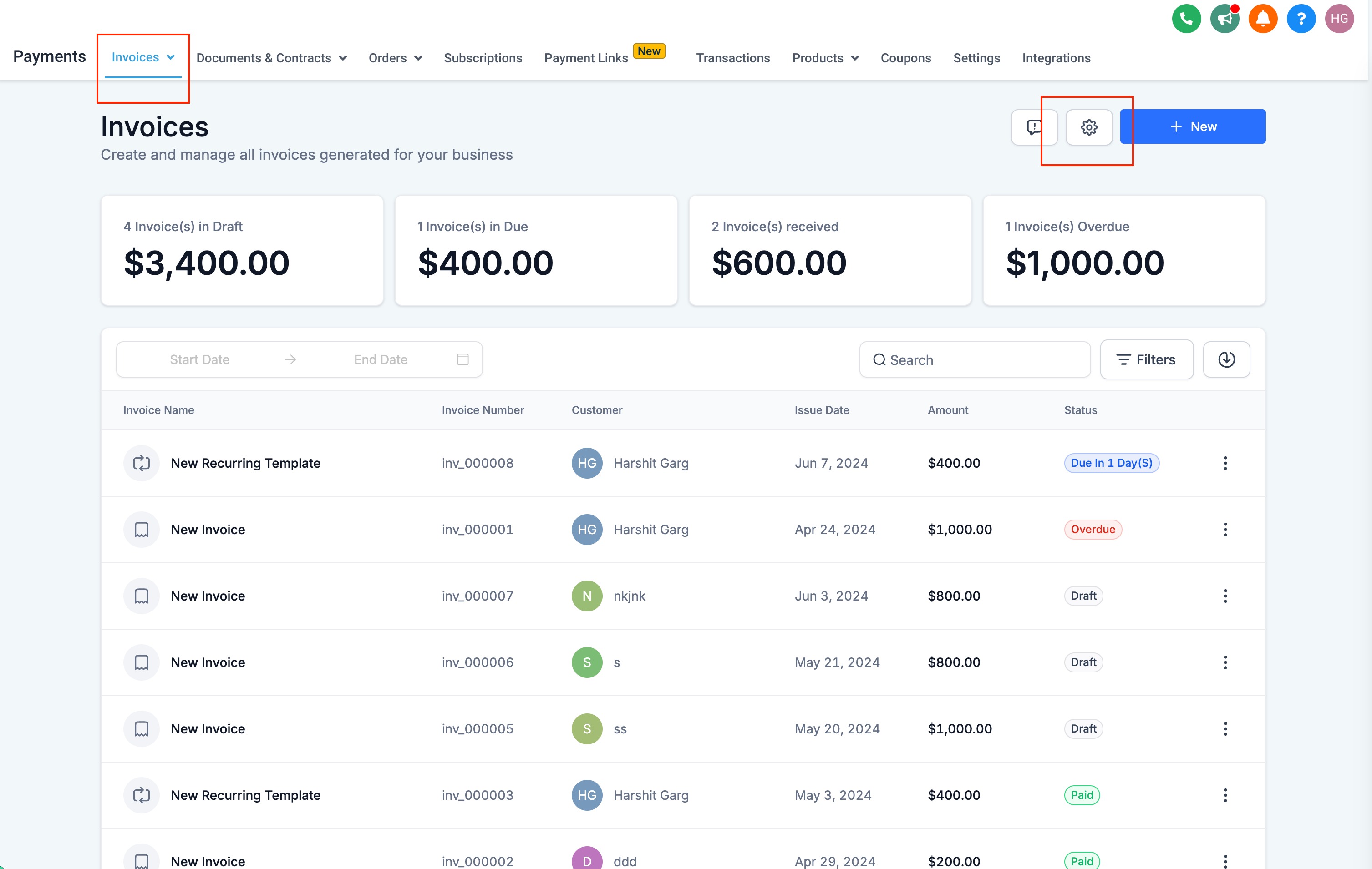
Reminders are created in Settings > Invoices > Reminder Settings. After a reminder is toggled on, the platform automatically sends it based on the defined rule, but only for invoices generated after the feature is enabled.
Existing overdue invoices are not affected; they must be handled manually. Changes to invoice due date settings affect only future invoices, not those already issued.
03How businesses use automated invoice reminders
- General business invoicing. Create a reminder that emails customers a set number of days before the invoice due date to encourage timely payment.
- Service providers. Configure an SMS reminder that sends after an invoice is sent, providing a quick follow up without needing manual outreach.
- Recurring billing management. Set a maximum number of reminder sends so that each recurring invoice receives a consistent number of nudges.
04The numbers and rules that matter
- Set Maximum reminders to limit when the reminder will stop.
05How to set up and use automated invoice reminders in HighLevel
Set up automated invoice reminders
- Navigate to Settings within Invoices.
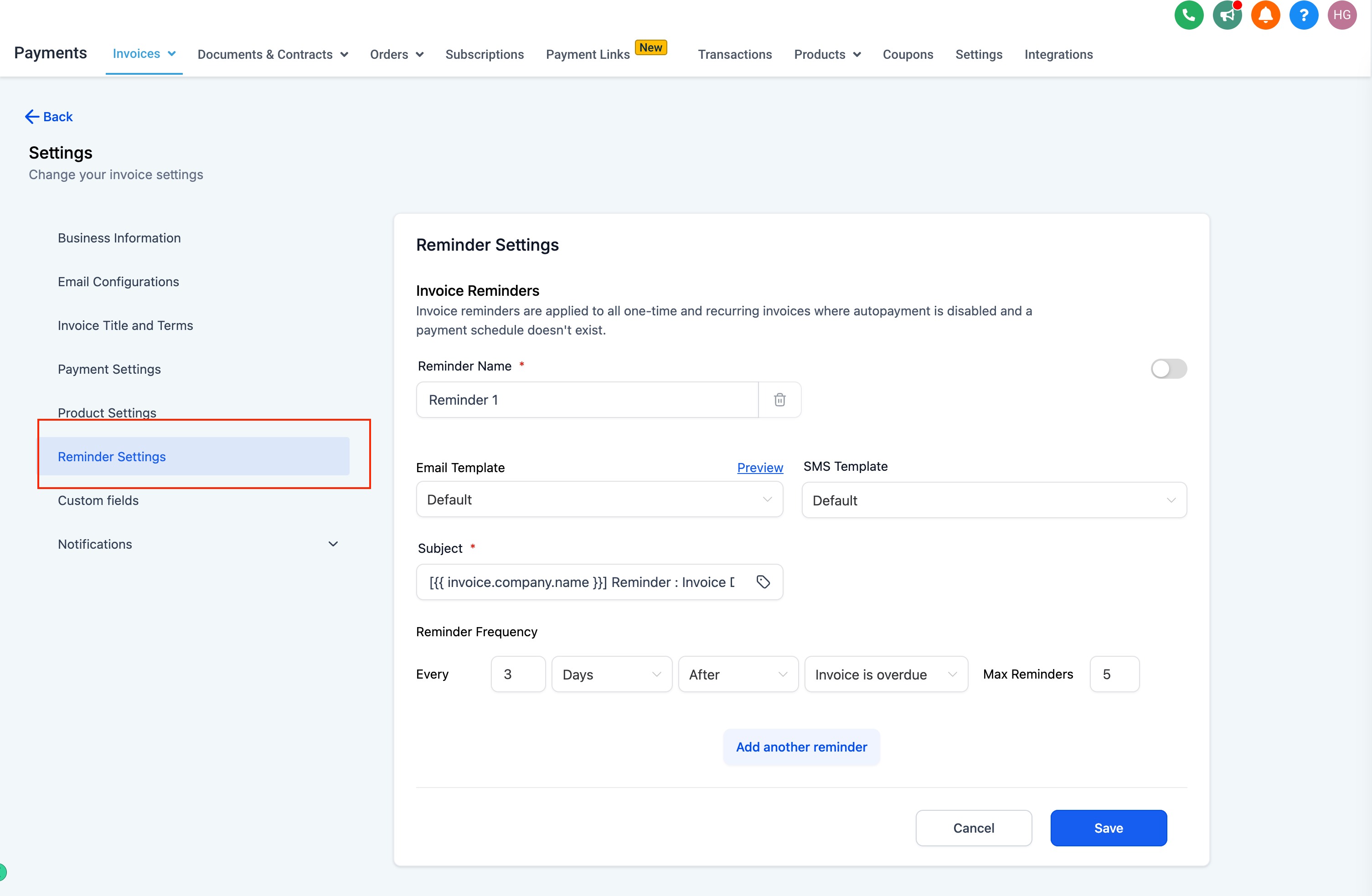
- Select Reminder Settings.
- Enter a Reminder Name.
- Choose a Reminder Template for Email and SMS, using an existing template or editing/creating a new one.
- Edit the Subject line of the email.
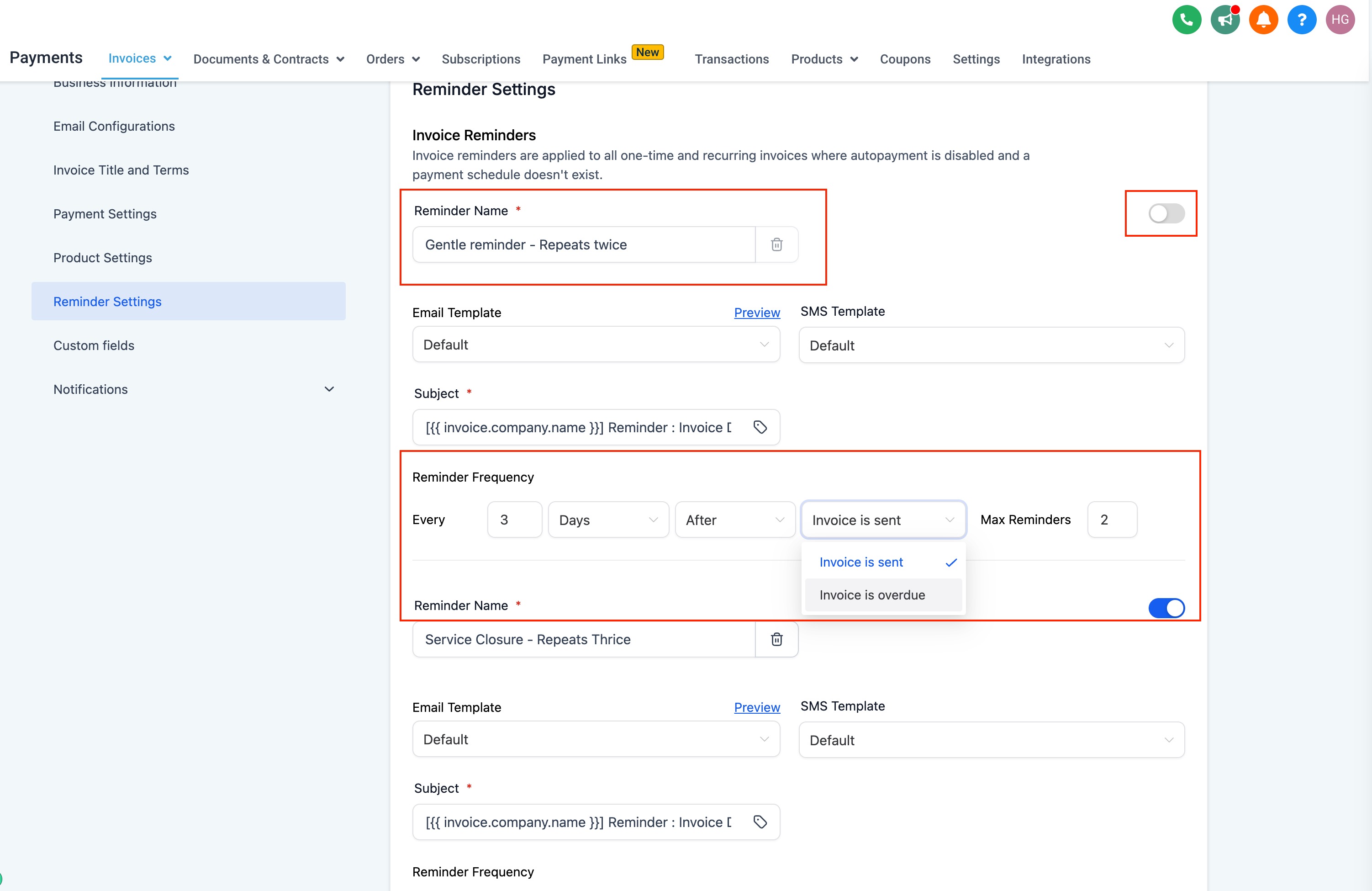
- Define the reminder frequency using the format: Every [X] [Days/Months/Hours…] [After/Before] [Invoice Due date/Invoice sent date].
- Set the Maximum reminders count to limit how many times the reminder sends.
- Click Add New Reminder to create additional reminders if needed.
- Delete a reminder or turn it off using the toggle switch.
- Remember that reminders only trigger after they have been enabled and they apply only to invoices created after activation.
06What it looks like in HighLevel
07Settings that matter
- Reminder Name. Identifies the specific reminder in the list of configured notifications.
- Reminder Template for Email and SMS. Specifies which email or SMS content to send; you can select an existing template or edit/create a new one.
- Subject. Sets the subject line for the reminder email.
- Reminder frequency. Controls when the reminder is sent, based on a number of days, months, hours, etc., and whether it is measured before or after the invoice due or sent date.
- Maximum reminders. Limits the total number of times the system will send this specific reminder for a single invoice.
- Toggle (enable/disable). Activates or deactivates a reminder without deleting its configuration.
08Things to know before you rely on it
- Multiple reminders can be created, each with its own timing rule.
- Reminders only trigger after they have been enabled with the toggle.
- Automated reminders do not apply to invoices that were already overdue before the feature was turned on.
- Changes to Invoice Due After settings affect only future invoices, not existing ones.
- Manual reminder messages do not auto populate dynamic invoice fields such as amount or due date.
09How it connects to the rest of HighLevel
- Learn how to customize email and SMS invoice notifications for more personalized reminders. Customize notifications
- Review the full invoice workflow to see how reminders fit with creation, editing, taxes, and discounts. Invoice workflow
- Find out how to manage automatic sales receipts that are sent together with invoice payments. Sales receipts
Michael's take

Late payments hurt cash flow and keep owners up at night. Automated invoice reminders give you a simple way to nudge customers before a bill slips past its due date.
The reminder frequency can be set to send before or after the due date, and you can choose the interval.