
01Who this is for
- Agency owners who need to present their VAT number on client invoices for compliance.
- Consultants who must record each client’s tax registration number for audit purposes.
02Business and client tax ids on invoices, explained
The feature adds two pieces of identification data to the invoice template. A custom field captures a client’s Tax ID on their contact record, while a custom value stores the agency’s Business Tax ID as static text. During invoice generation, the layout pulls these values and places them in the appropriate sections.
The configuration lives in two areas of the platform. Custom Fields and Custom Values are managed under Settings > Other Settings. The invoice appearance is edited under Payments > Settings > Invoices & Estimates, where you customize the layout and map the fields. Once set up, any invoice created will automatically include the numbers if the data exists.
03How businesses use business and client tax ids on invoices
- Legal services firm. The firm creates a custom field named Tax ID for each client contact. It also defines a custom value with the firm’s registration number. When drafting a bill, the invoice layout shows both identifiers, satisfying client documentation requirements.
- Marketing agency. The agency adds a VAT ID as a custom value and stores each client's tax number in the contact record. The customized invoice template pulls these values, ensuring the agency’s tax registration appears on every invoice sent.
- Freelance developer. The developer sets up a Tax ID field for customers and a fixed Business Tax ID value. After adjusting the invoice layout, each invoice generated from the Payments area displays both IDs without extra manual entry.
04The numbers and rules that matter
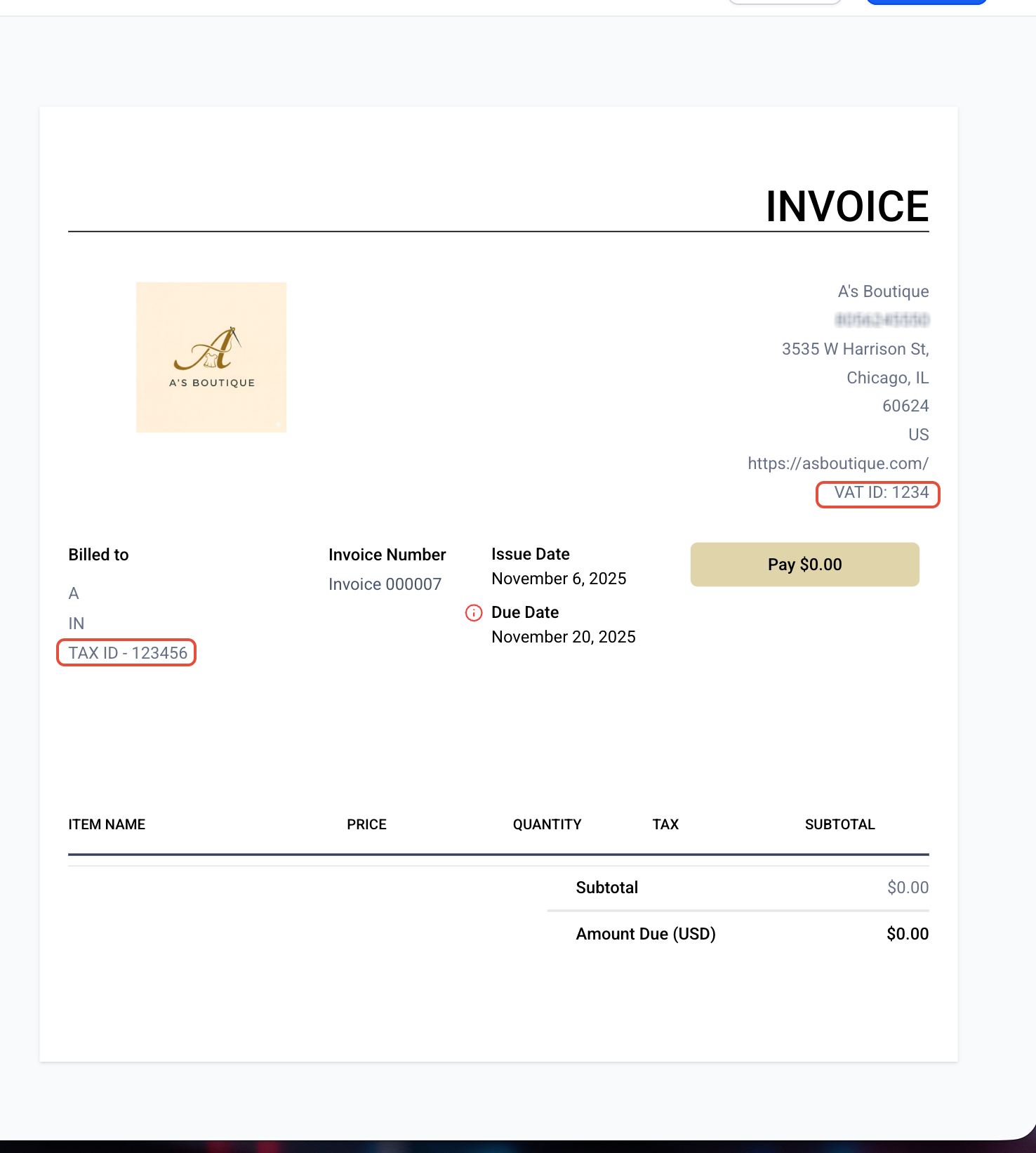
- Custom value example: VAT ID: 1234.
05How to set up and use business and client tax ids on invoices in HighLevel
Create custom field for contact Tax ID
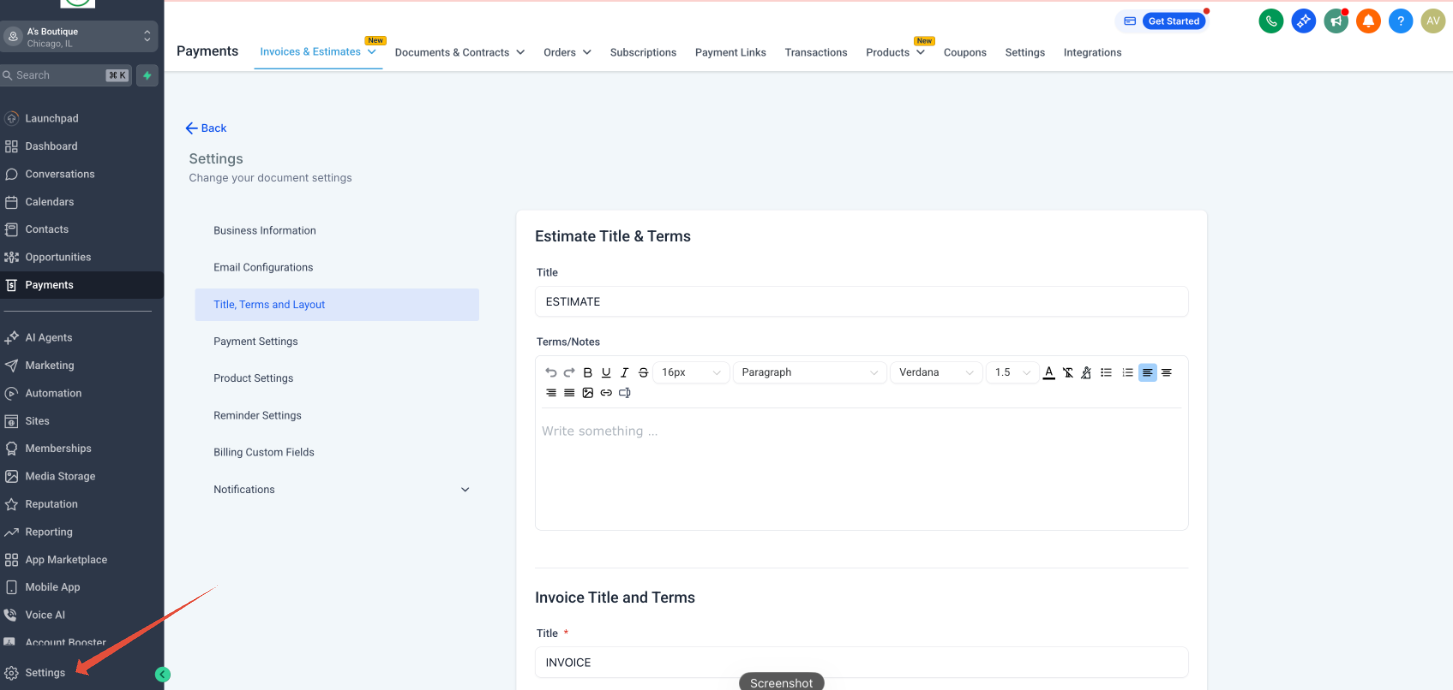
- Open Settings from the left navigation panel.
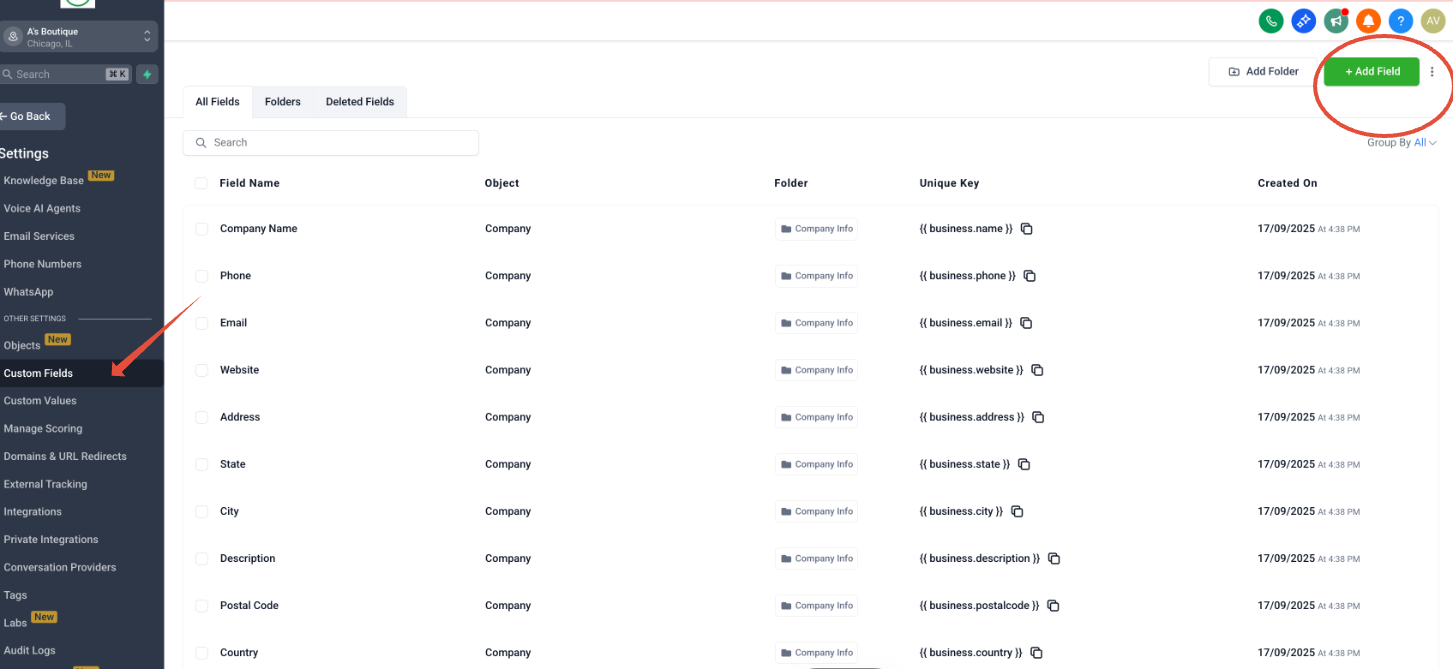
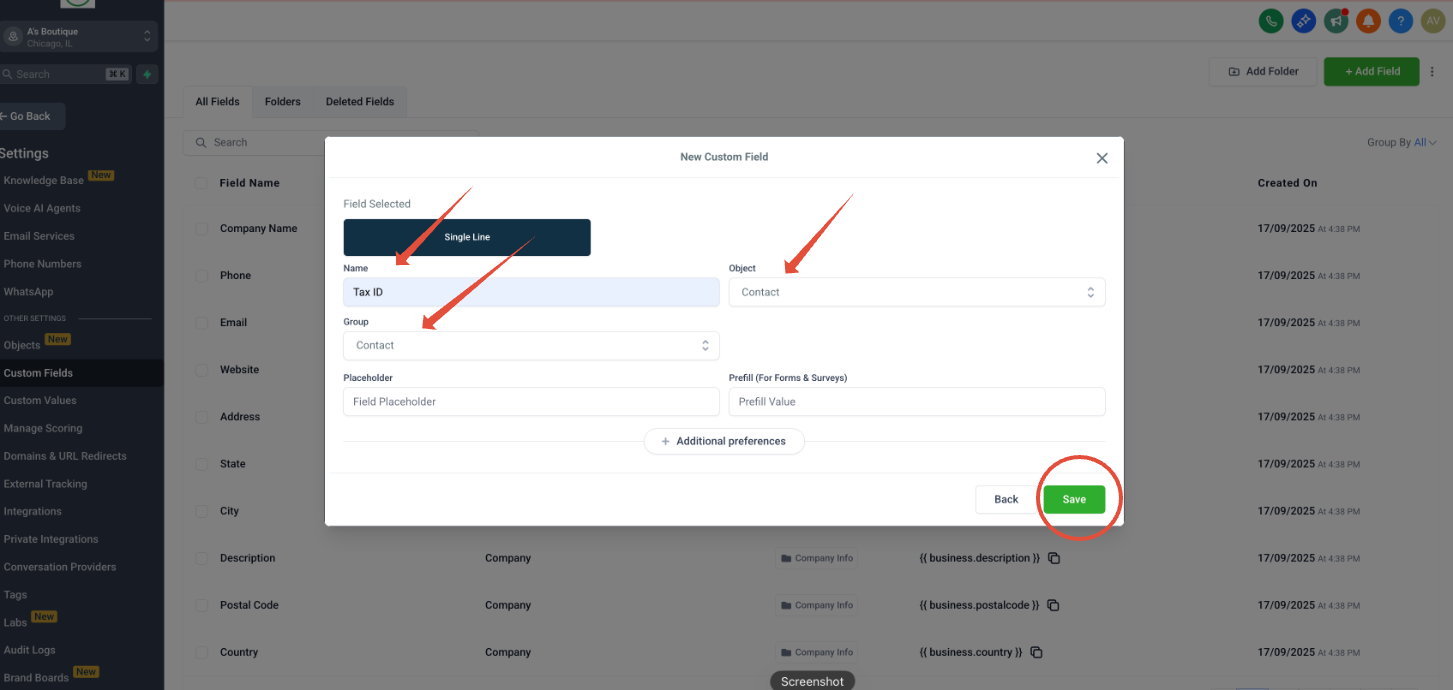
- Select Custom Fields under Other Settings and click the +Add Field button.
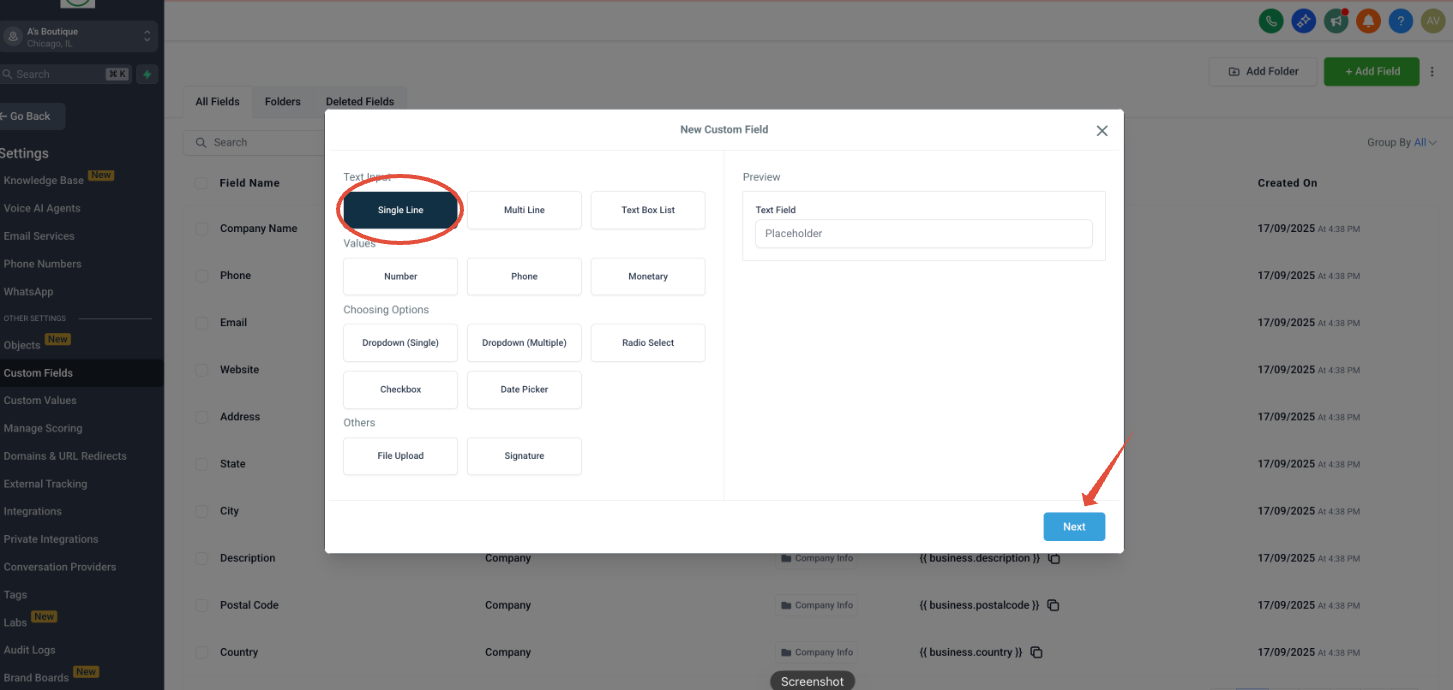
- Choose Single Line as the text input type and proceed to the next screen.
- Enter "Tax ID" as the name, set both Object and Group to Contact, then save the field.
- Verify the new Tax ID field appears in the list of custom fields.
Create custom value for business Tax ID
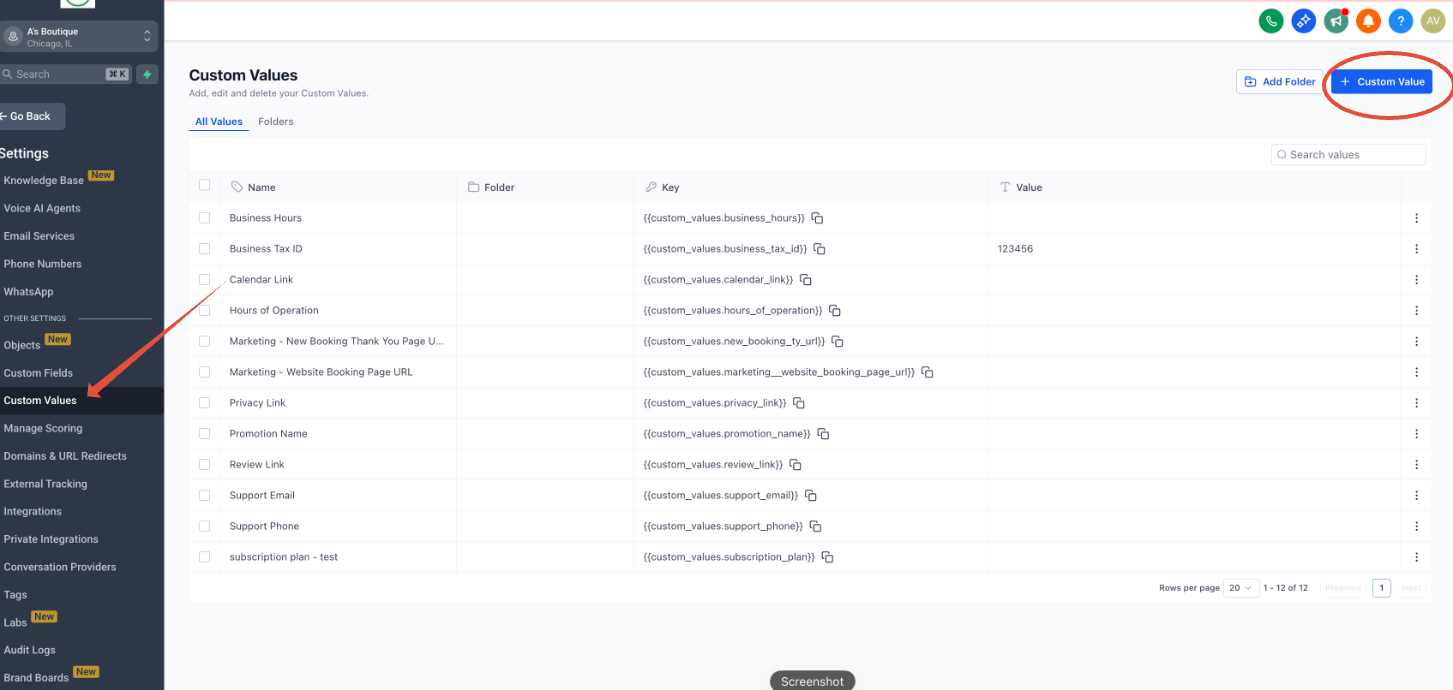
- Return to Settings and open Custom Values under Other Settings.
- Click the +Custom Value button to start a new entry.
- Provide a name such as "VAT ID" and enter the fixed number, for example 1234.
- Press Create to save the custom value.
Customize the invoice layout
- Go to Payments and select Settings under the Invoices & Estimates section.
- Scroll to Title, Terms and Layout, then click Customize Layout.
- In the Layout tab under Business Information, add a Custom Value and pick Business Tax ID from the dropdown.
- In the Layout tab under Contact Information, add a Custom Field and choose Tax ID.
- Check the preview for correct placement and click Save changes.
Add Tax ID to contact and create invoice
- Open a contact record and navigate to the Additional info tab.
- Click the TAX ID field, type the client’s tax number, and save the record.
- From the Actions menu choose Create Invoice, or go directly to Payments > Create Invoice.
- Confirm that the invoice shows both the client Tax ID and the Business VAT ID.
06What it looks like in HighLevel
07Settings that matter
- Tax ID. A custom field that holds an individual client’s tax identification number on their contact record.
- VAT ID. A custom value that contains a fixed business tax identification number used on every invoice.
- Invoice Layout. Controls which fields appear on the invoice and where, allowing you to place the Business Tax ID and Contact Tax ID in the desired sections.
08Things to know before you rely on it
- The Business Tax ID will only display if a custom value has been defined.
- A client’s Tax ID appears on an invoice only when it has been entered for that contact.
09How it connects to the rest of HighLevel
- See the full invoice creation workflow and where tax fields fit. Invoice workflow
- Review how tax settings are created and managed within HighLevel. Tax settings guide
- Explore pricing and plan options that include invoice customization features. Pricing page
Michael's take

Most people set up the invoice layout first and then wonder why the numbers never show up. The tax IDs have to exist as data before the layout can reference them, so start by creating the custom field and custom value.
If I were doing this, I’d add the custom field, fill a few contacts, then preview an invoice to confirm the placement. A quick check avoids reediting the layout later.