
01Who this is for
- Founders of ecommerce sites benefit because they can quickly reuse a customer’s card for repeat orders without re entering details.
- Fitness studio owners gain efficiency by storing member cards for recurring class fees and easy check ins.
- Service providers with subscription plans see value in being able to delete a card that is no longer valid and avoid failed auto payments.
02Cards on file, explained
The cards on file feature lets you retrieve a customer’s saved payment methods from the connected provider. Only the last three or four digits and the expiration date are shown, ensuring compliance with card data rules. You can add new cards, view existing ones, or delete them from the contact’s payment area.
On the desktop, the controls appear under the Payments icon on a contact’s detail page. The mobile app provides the same capabilities inside the Payments tab of a contact record. All actions are performed through the payment provider; HighLevel does not store full card numbers.
Both live mode and test mode cards are supported. Deleting a card that is attached to an active subscription removes the payment method for future auto deduction, leaving the subscription without a card.
03How businesses use cards on file
- Dental practice. The practice adds a patient’s card through the contact record, allowing future appointment fees to be charged without re entering card details. Staff can view the masked card numbers to verify payment sources and delete cards that are no longer valid.
- Fitness studio. When a member signs up for a monthly membership, the studio saves the card on file via the mobile app. The saved card appears during recurring invoice creation, speeding up the checkout process for returning members.
- Online SaaS business. The SaaS team stores a subscriber’s card on file so that renewal invoices can charge the saved method automatically. If a card expires, they delete it from the contact and prompt the subscriber to add a new one.
04The numbers and rules that matter
- Only the last 3/4 digits and expiry date are fetched from the provider and shown on the UI.
05Before you start
- A contact record must be opened in HighLevel.
- Payments integration with a supported provider (e.g., Stripe) must be active.
06How to set up and use cards on file in HighLevel
Add a card on file from desktop
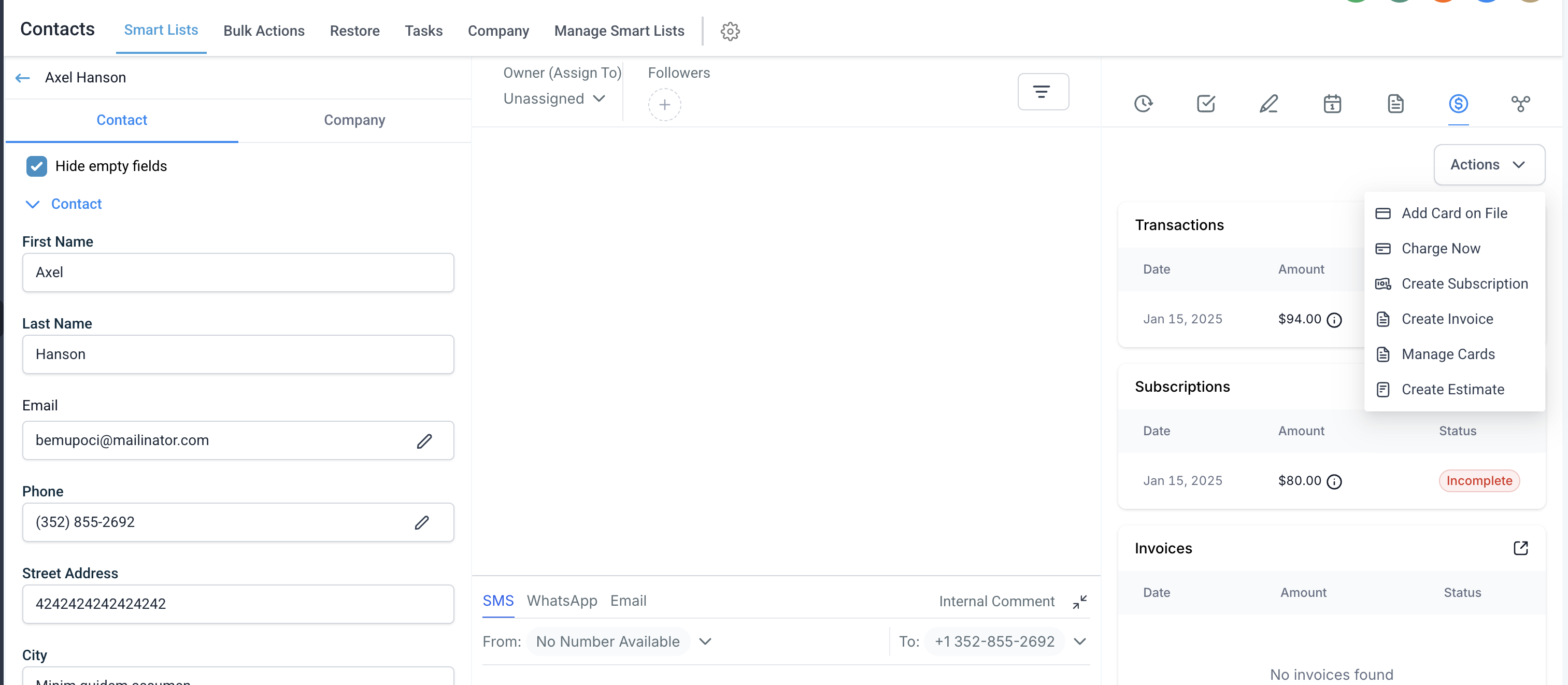
- Select the Add Card on File button located under Actions.
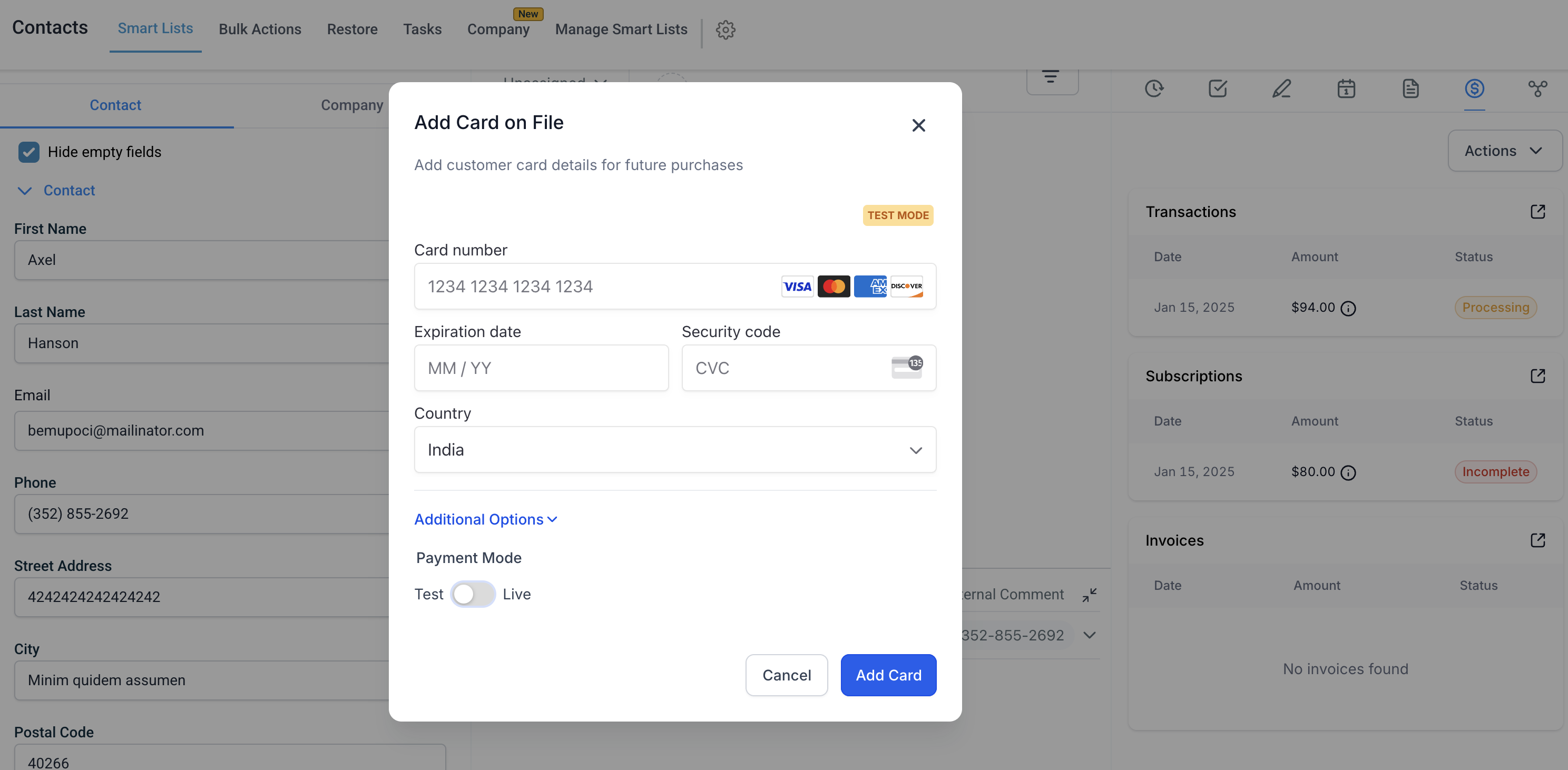
- Enter the card number, expiration date, CVV and choose the Country.
- Review the entered information for accuracy.
- Click Add Card to store the card; this works for live and test modes.
View cards on file from desktop
- Press the Manage Cards button under Actions.
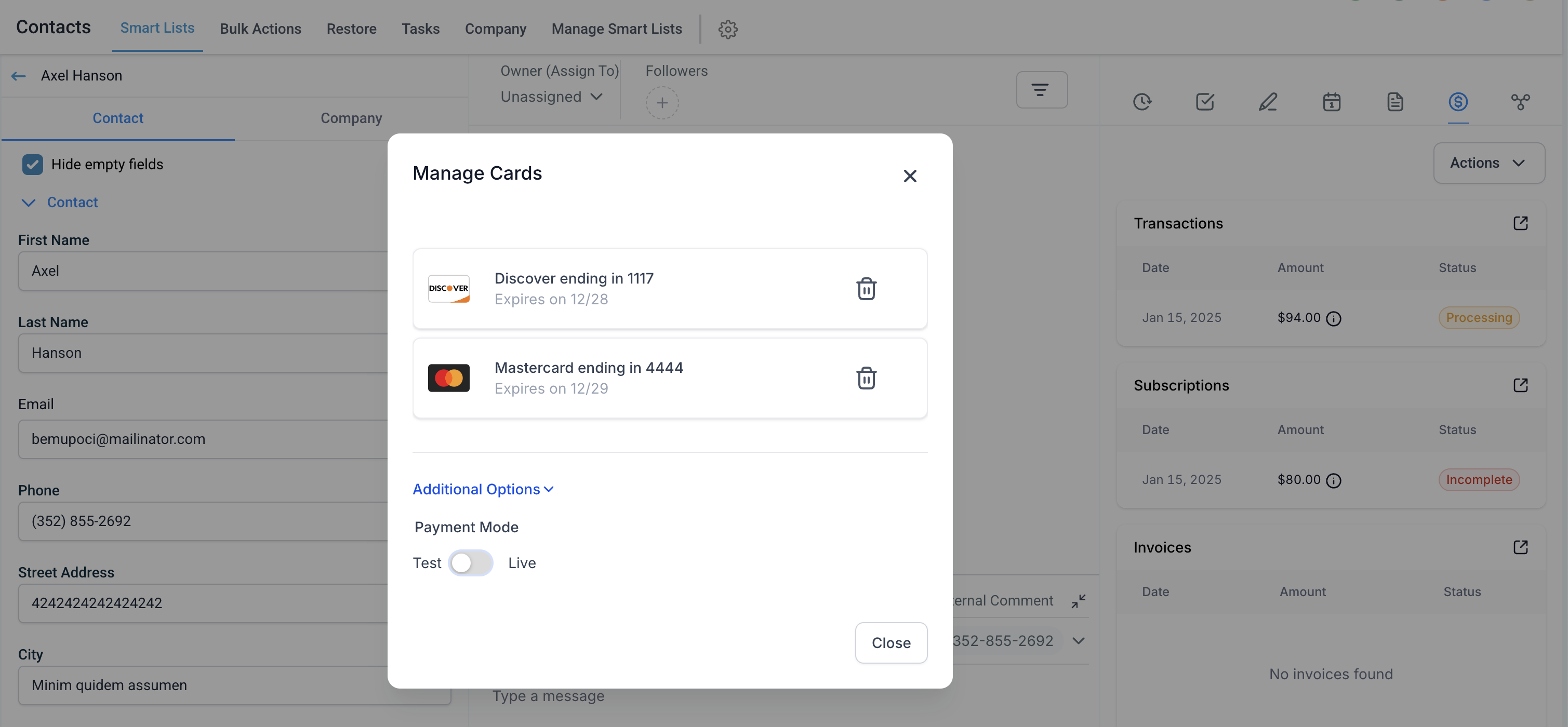
- The system fetches cards from the provider and lists the last digits with expiry dates.
- Review the list, noting any labels and whether cards are in live or test mode.
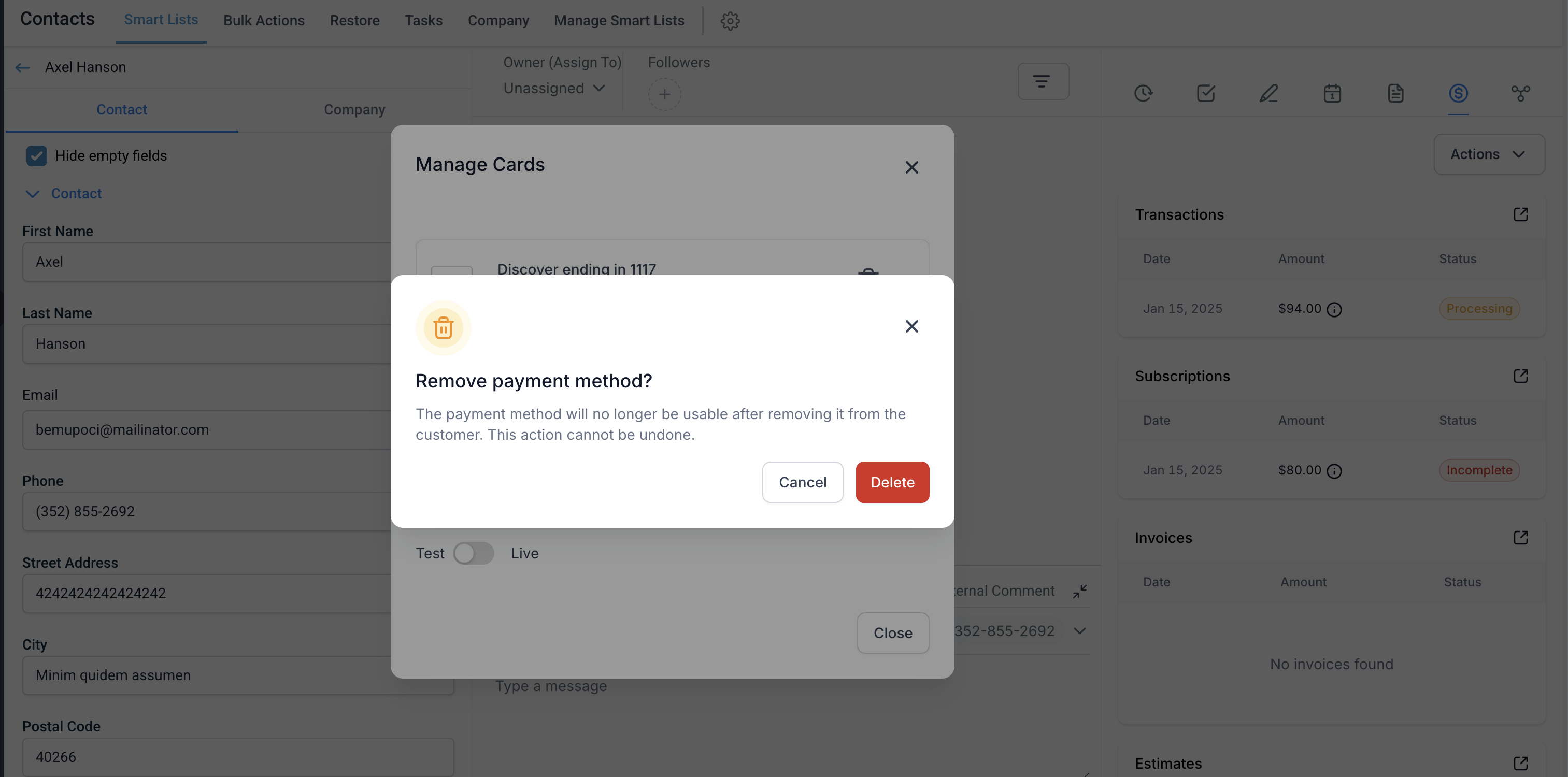
Delete a card on file from desktop
- Find the card you want to remove in the displayed list.
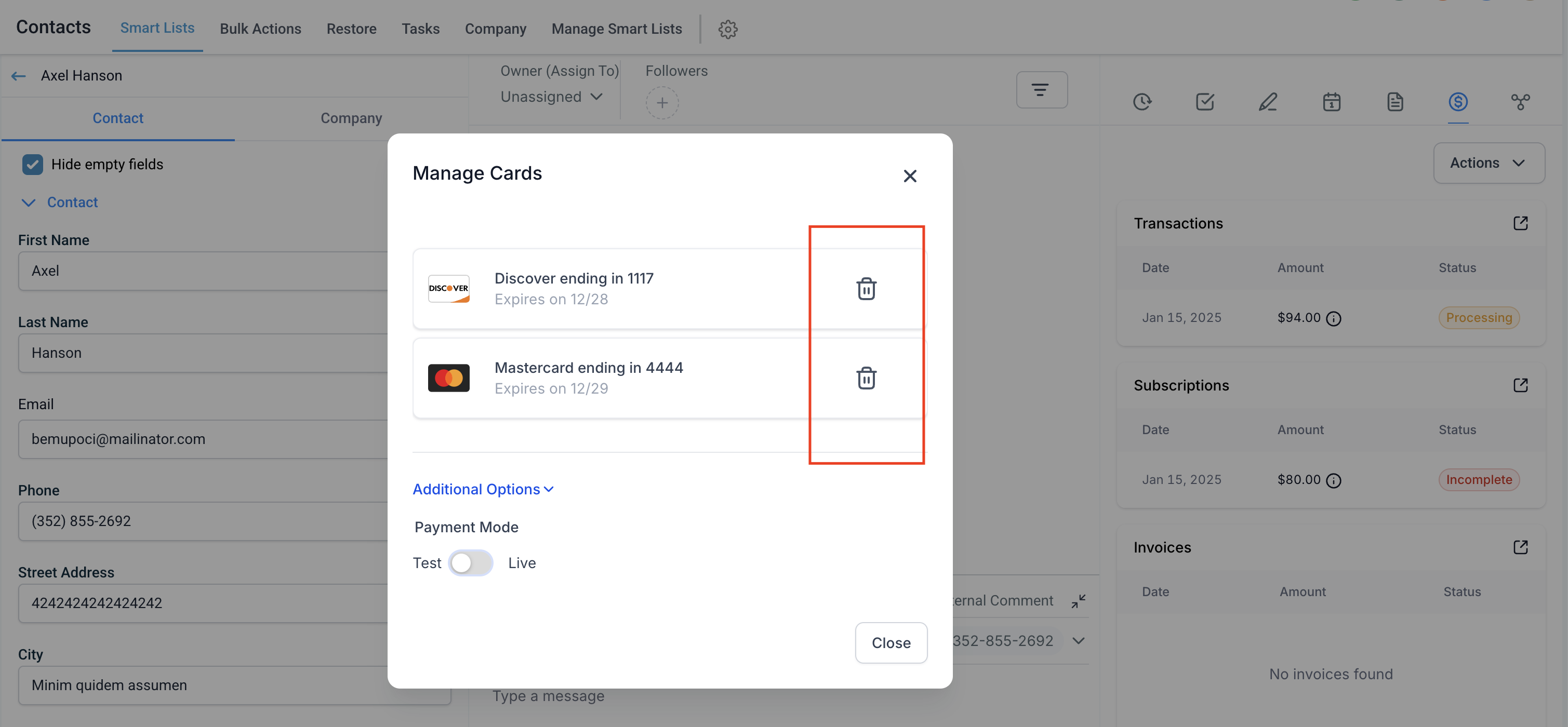
- Click the Delete button next to that card.
- Confirm the removal in the pop up dialog.
- Deletion works for both live and test cards.
- If the card belongs to an active subscription, a warning appears before confirmation; removing it leaves the subscription without a payment method.
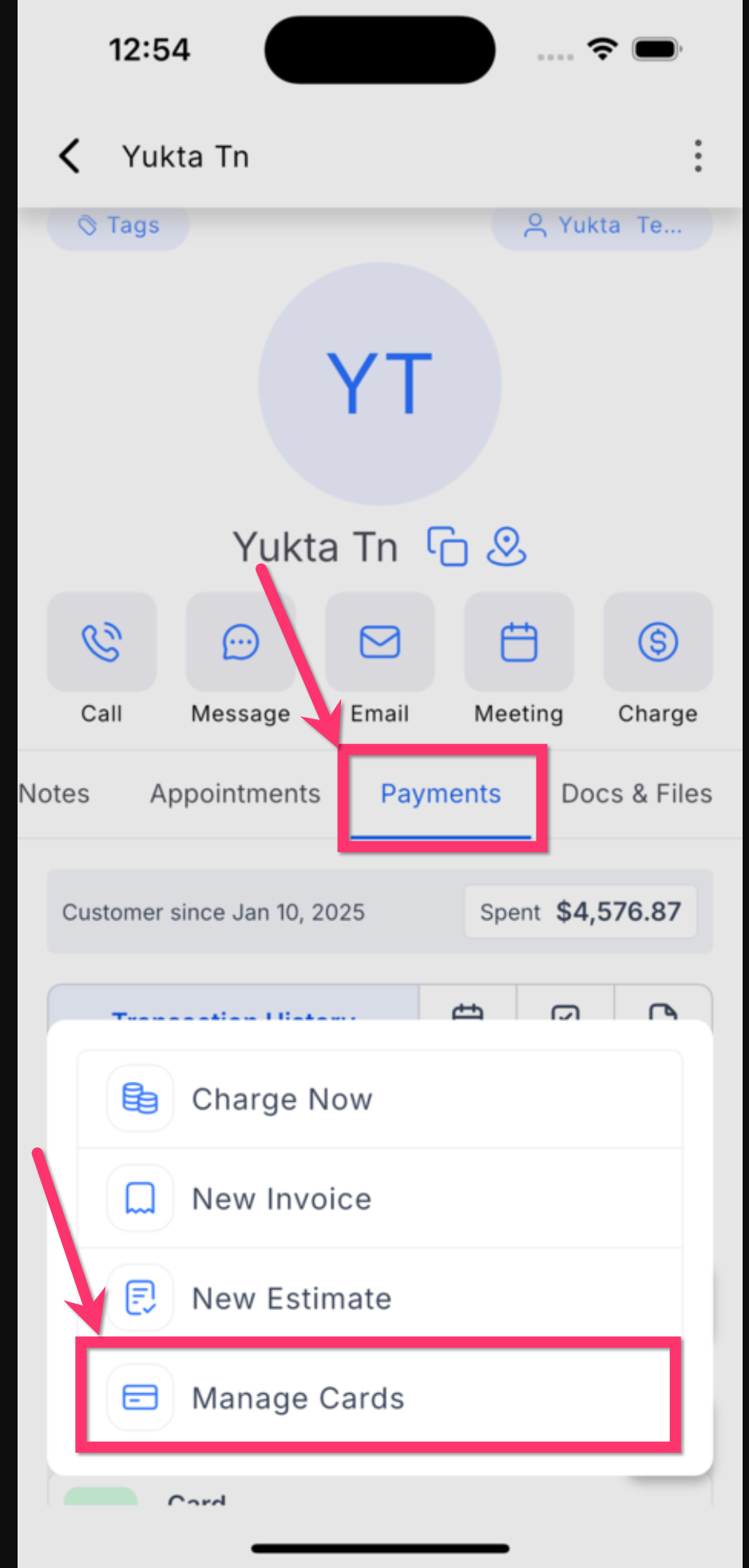
Add a card on file from the mobile app
- Open the HighLevel app and go to Contacts.
- Select the contact to edit.
- Tap the Payments tab for that contact.
- Choose Manage Cards and then tap New card.
- Enter the card number, expiration date, CVV and set the Country.
- Tap Save to add the card.
Remove a saved card from the mobile app
- Open Manage Cards for the desired contact.
- Locate the card you wish to delete.
- Swipe left on the card entry.
- Tap the Delete or Remove button shown.
- Confirm the deletion when prompted.
07What it looks like in HighLevel
08Settings that matter
- Add Card on File. Triggers the flow to capture a new payment card’s details and send them to the payment provider.
- Delete. Initiates removal of the selected card from the provider’s records via the platform.
- Country. Specifies the cardholder’s country when adding a new card, informing the payment provider of the issuing region.
09Things to know before you rely on it
- Only the last three or four digits and the expiry date are displayed; full card numbers are never stored.
- Cards are fetched fresh from the payment provider each time the modal opens; no persistent storage occurs on HighLevel.
- Both live and test mode cards can be added, viewed, and deleted.
- Deleting a card linked to an active subscription removes the payment method for auto deduction, leaving the subscription without a card.
10How it connects to the rest of HighLevel
- Manage Stripe payment methods in HighLevel Stripe payment methods
- How to manage refunds in HighLevel Refund management
- HighLevel pricing and plans Pricing
Michael's take

Cards on file feel like a small convenience that can become a real shift for businesses that sell repeatedly. Storing a card once and reusing it cuts the back and forth of asking a client for their details each time, especially when you’re on the go with the mobile app.
A membership studio, for example, can add each member’s card the first time they sign up and then charge monthly without ever touching the card again. I would test the flow on a test card first, make sure the delete warning shows up for an active subscription, and then roll it out to the live environment.