
01Who this is for
- Accountants who need to keep billing records accurate when a client modifies an order after an initial payment.
- Subscription managers who must adjust future installment amounts without voiding the original invoice.
02Partially paid invoices, explained
The feature allows changes to an invoice after a portion of the balance has been received. You can edit the invoice name, due date, terms, notes, business information, product list, quantities, unit prices, taxes, and payment schedule entries. Payments already recorded stay linked to the invoice.
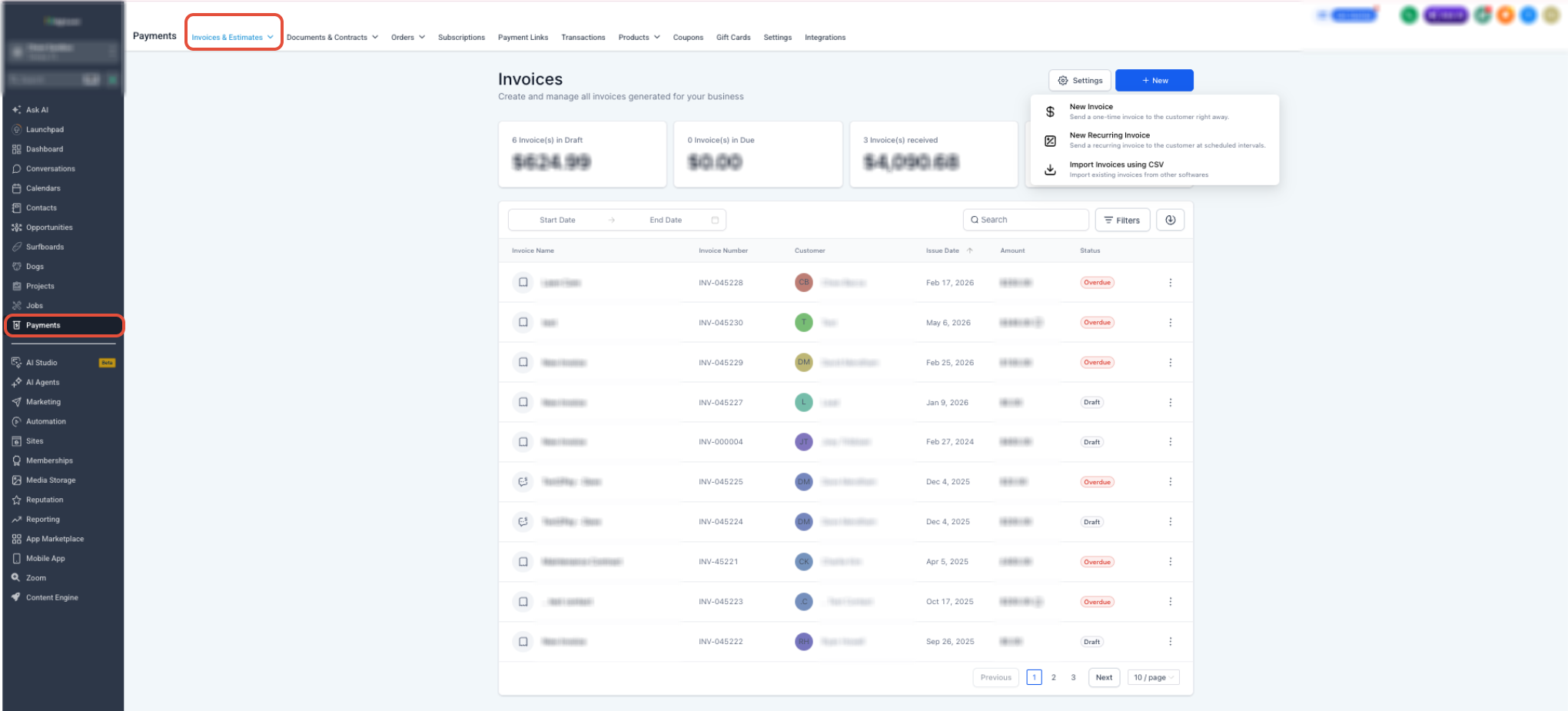
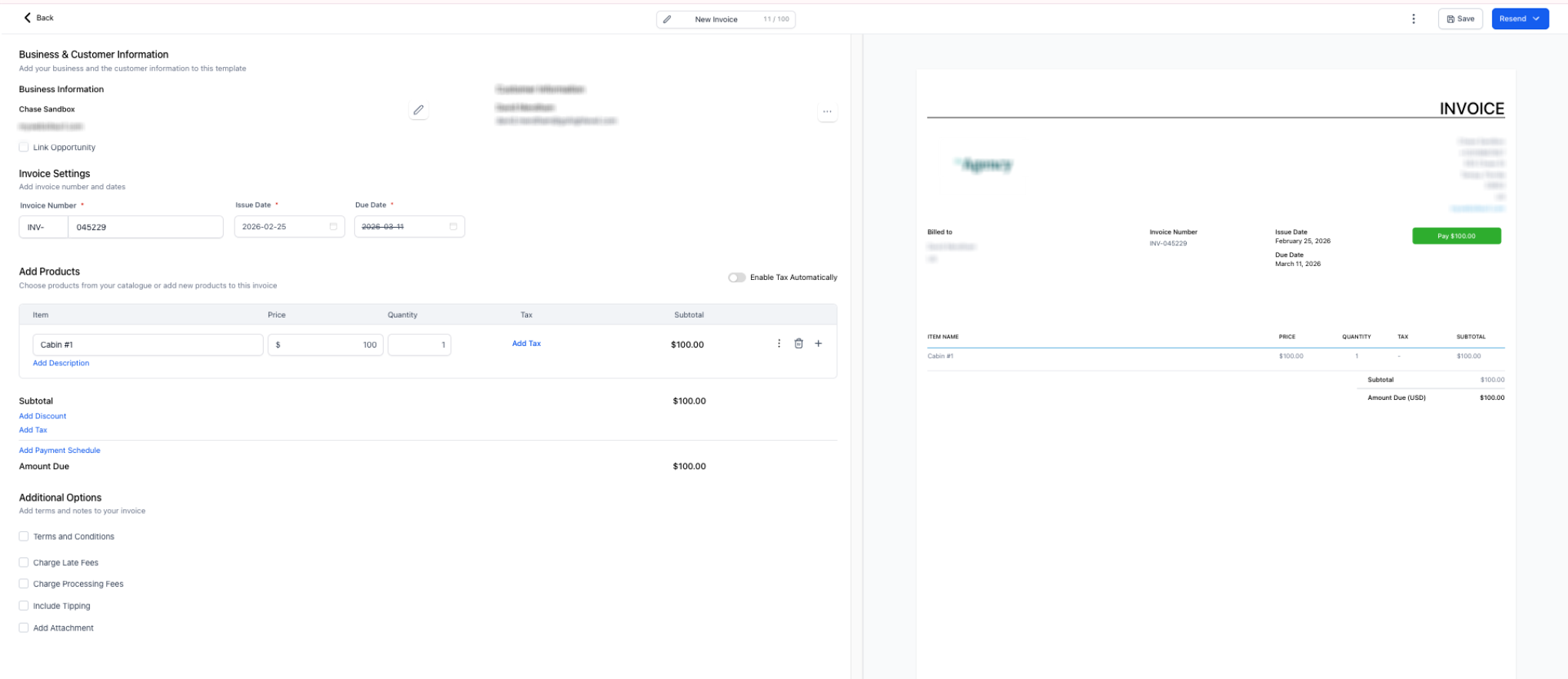
Editing is available from the Invoices & Estimates list under the Payments menu. When you select the edit option, a preview pane shows the customer facing version, letting you verify modifications before saving. After saving, you can resend the updated invoice directly from the editor.
The capability stops once the invoice status changes to Paid. It also does not allow changing the customer linked to the invoice after a payment, and rental booking invoices follow separate rules.
03How businesses use partially paid invoices
- Digital marketing agency. When a client adds a new service after the first payment, the agency opens the invoice, adds the new product line, adjusts the total, and saves. The updated invoice is then resent so the client sees the revised amount.
- Fitness studio. If a member switches to a different membership tier mid cycle, the studio edits the existing invoice, updates the membership price and due date, and saves. The studio then resends the invoice to reflect the new terms.
- Software consultancy. After a scope change, the consultant modifies the product quantities and unit prices on the partially paid invoice, adjusts the tax rate if needed, saves, and uses the resend button to deliver the corrected invoice to the client.
04Before you start
- The invoice must be in Partially Paid status before editing.
05How to set up and use partially paid invoices in HighLevel
Edit a partially paid invoice
- Navigate to Payments > Invoices & Estimates.
- Locate the invoice that shows a Partially Paid status.
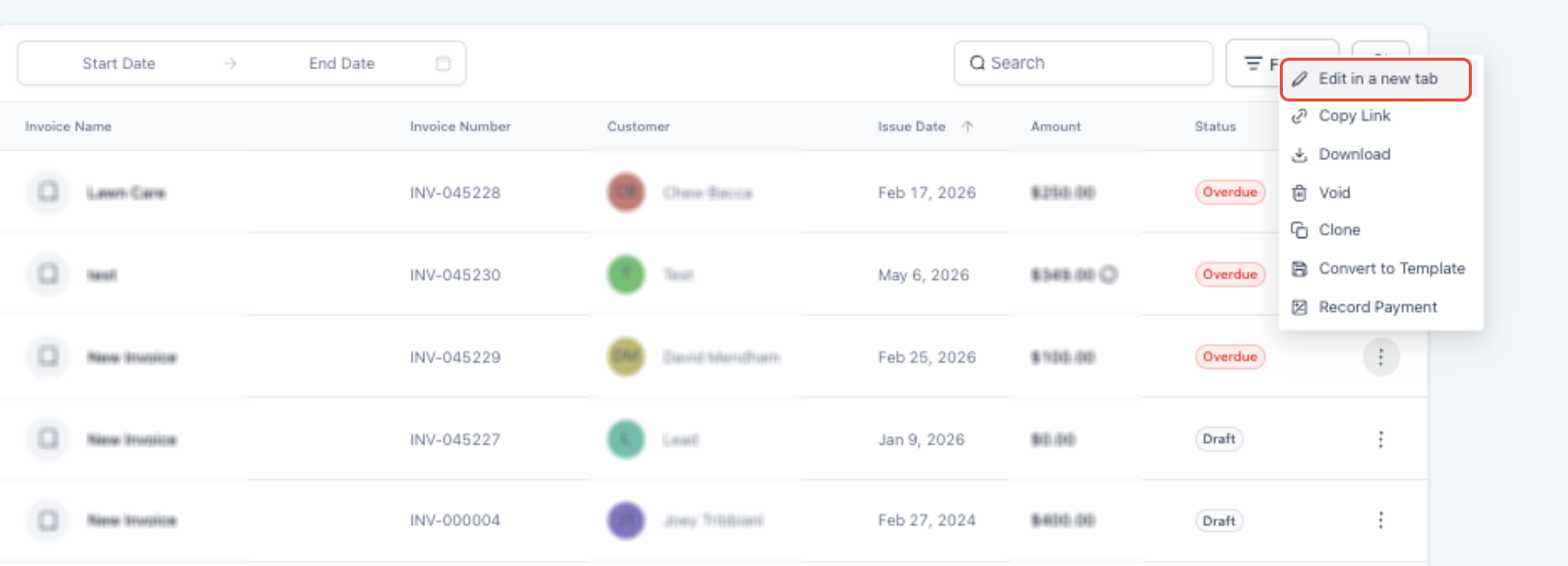
- Click the three dot menu on the right side of the invoice and choose Edit in a new tab.
- Review the current invoice preview on the right side of the editor.
- Update any eligible fields such as business information, due date, products, quantities, unit prices, taxes, or payment schedule entries.
- Confirm that the preview reflects the intended changes.
- Click Save to apply the modifications while keeping prior payments attached.
- After saving, click Resend to send the updated invoice to the customer.
06What it looks like in HighLevel
07Settings that matter
- Invoice name. Controls the title displayed at the top of the invoice.
- Due date. Sets the date by which the remaining balance is expected.
- Terms. Defines the payment conditions shown on the invoice.
- Notes. Allows additional information to be added for the customer.
- Business information. Updates the seller’s contact details and address shown on the invoice.
- Taxes. Adjusts applicable tax rates or amounts for the invoice.
- Payment schedule entries. Adds, edits, or removes predefined installment amounts and due dates.
08Things to know before you rely on it
- Editing is only possible while the invoice remains in Partially Paid status; once it becomes Paid, the feature is unavailable.
- The customer linked to the invoice cannot be changed after any payment has been recorded.
- Rental booking invoices follow separate editing rules and are not covered by this feature.
09How it connects to the rest of HighLevel
- See the full invoice workflow, including creation and tax handling. Invoice workflow guide
- Explore common payment scenarios and tips for using invoices. Payments and invoices tips
- Learn how to create and send a one time invoice using the revamped UI. One time invoice guide
Michael's take

Wondering if you can tweak an invoice after a client has already paid a deposit? Yes, HighLevel lets you edit invoices that are still marked Partially Paid, so you can add new services, adjust pricing, or change installment dates without wiping out the payment you already have.
I’d start by opening the invoice, making the needed changes, and then hitting Save. After saving, you can Resend the updated invoice to keep the client in the loop.