
01Who this is for
- Sales managers, can limit pipeline visibility to protect revenue figures.
- Contractors, receive only the pipelines they need, keeping other deals hidden.
02Pipeline permissions, explained
Pipeline Permissions are controls inside the Opportunities module that decide who can view or modify each sales pipeline. An admin selects a sharing mode and then assigns an access level for individual users, roles, or exclusions. The settings apply across the web interface, the mobile apps, and any API calls, ensuring consistent data exposure.
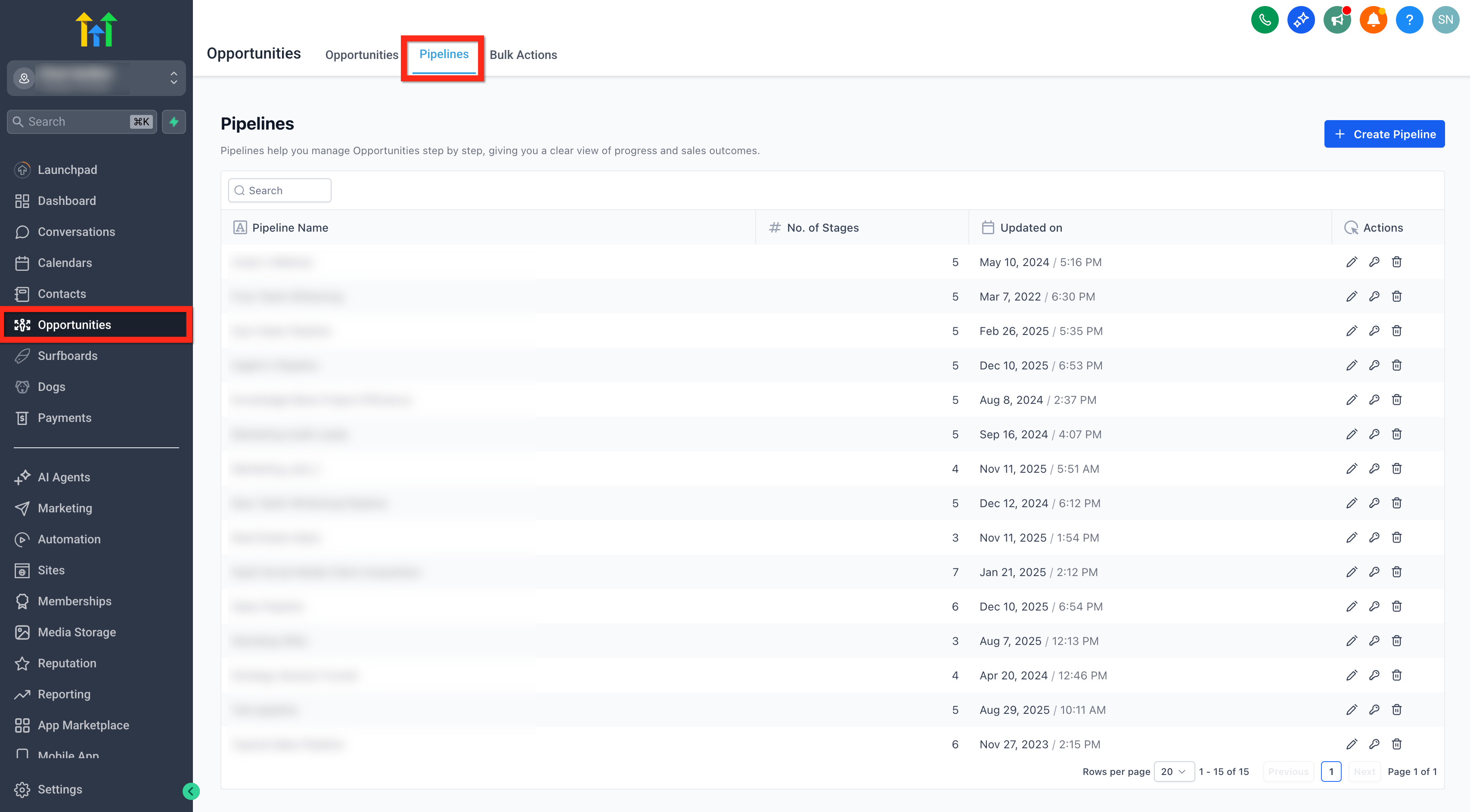
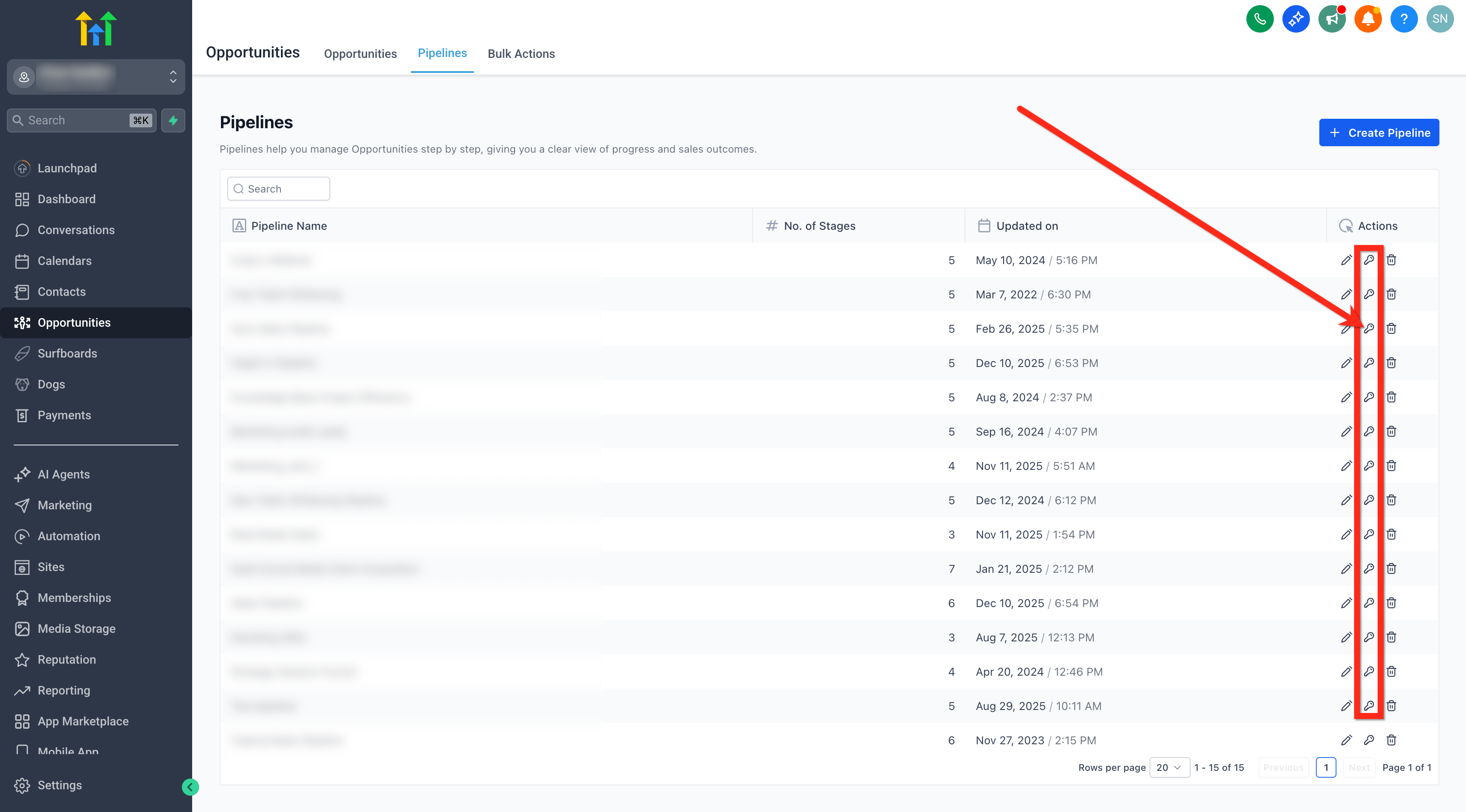
The feature lives under Opportunities > Pipelines. A key icon beside each pipeline opens the permission manager where the sharing mode, access levels, and optional share link are configured. All changes are recorded in the audit log for sixty days.
03How businesses use pipeline permissions
- Real estate brokerage. The broker selects the Share with Selected Users mode and gives agents View Only access to the residential pipeline while granting the office manager Edit rights. This keeps agent commissions private and lets the manager adjust stages.
- SaaS startup. Founders use the Exclude specific users mode to hide the enterprise pipeline from interns. Interns receive No Access, so the pipeline does not appear in their dashboards or API responses.
- Consulting firm. Project leads are given Edit access to the consulting pipeline, while support staff get View Only access. The firm copies the direct link to share the pipeline with remote consultants who already have permission.
04The numbers and rules that matter
- Audit logs retain 60 days of history.
05How to set up and use pipeline permissions in HighLevel
Configure who can see or edit each pipeline
- Open Opportunities and go to Pipelines.
- Click the key icon next to the pipeline you want to configure.
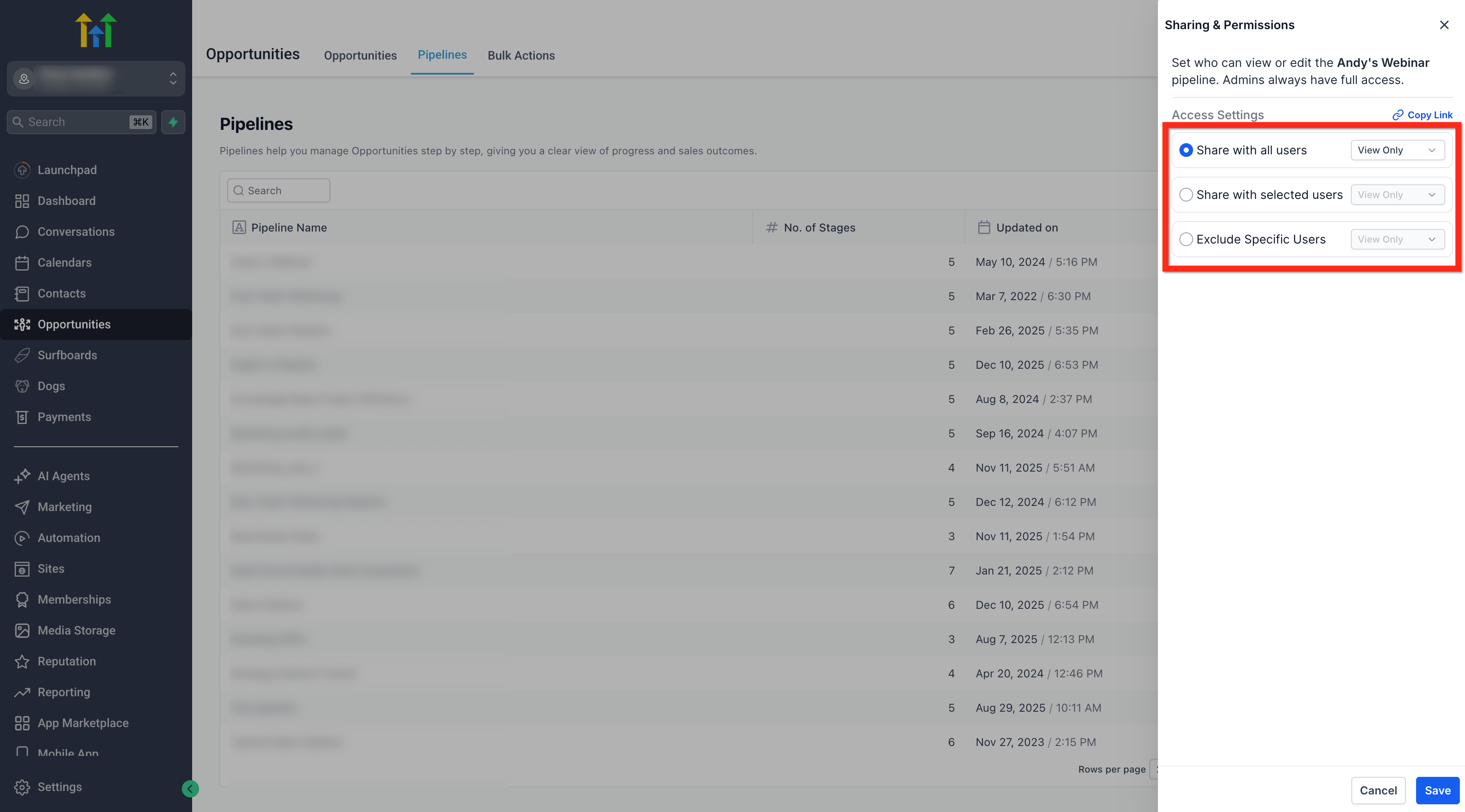
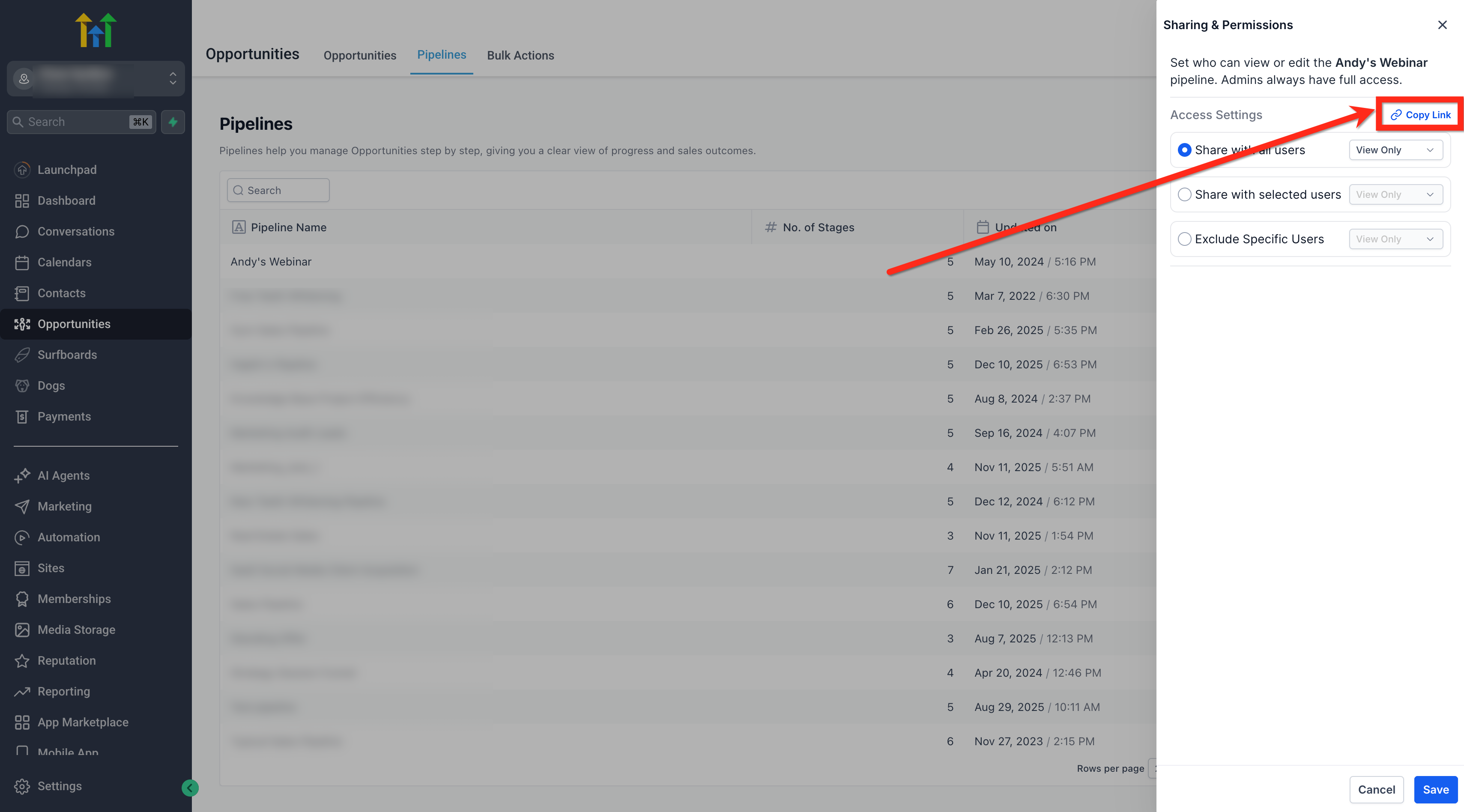
- Select a sharing mode, Share with all users, Share with selected users/roles, or Exclude specific users.
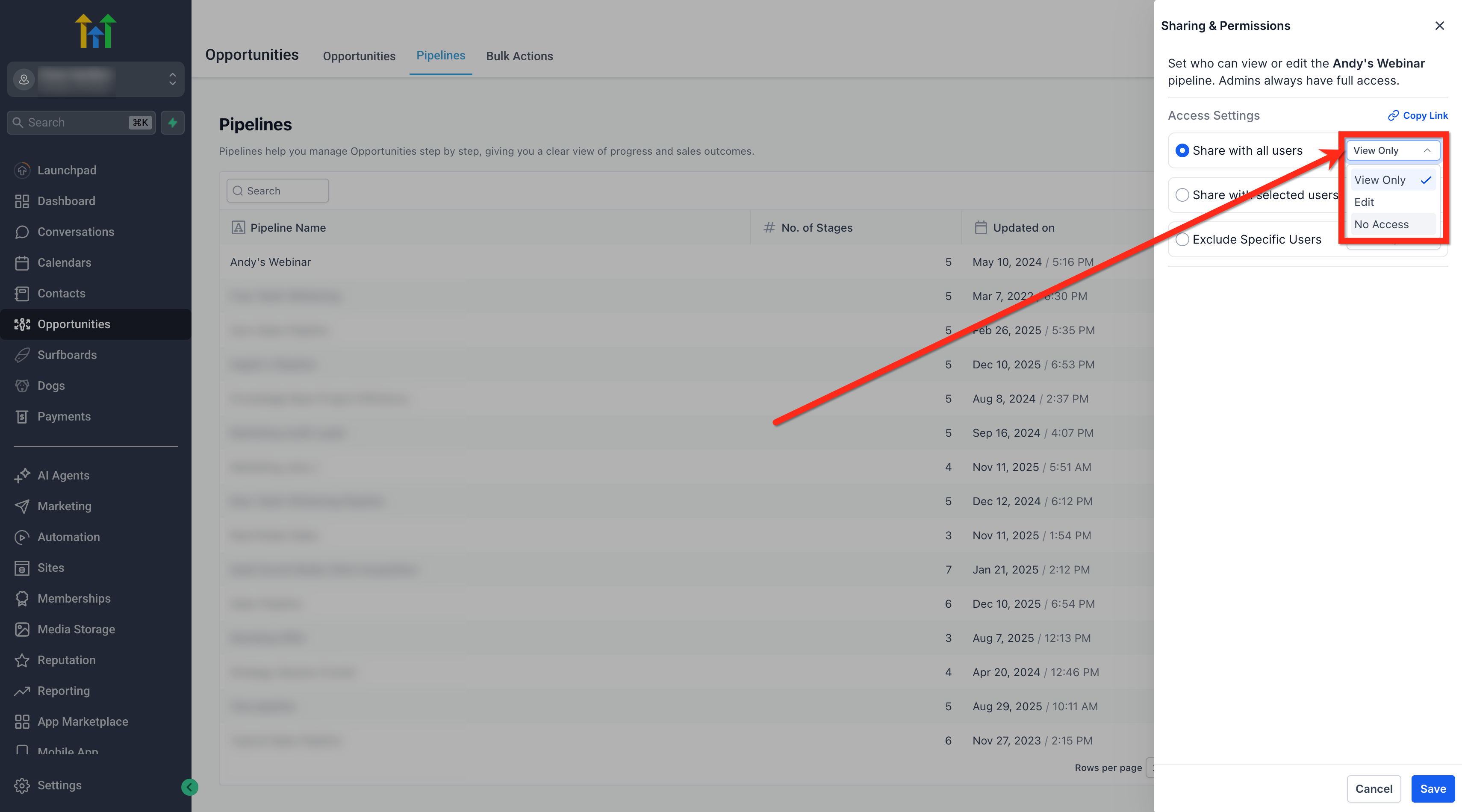
- For each included user or role, set an access level of View Only, Edit, or No Access.
- Optionally press Copy link to generate a shareable URL for teammates who already have permission.
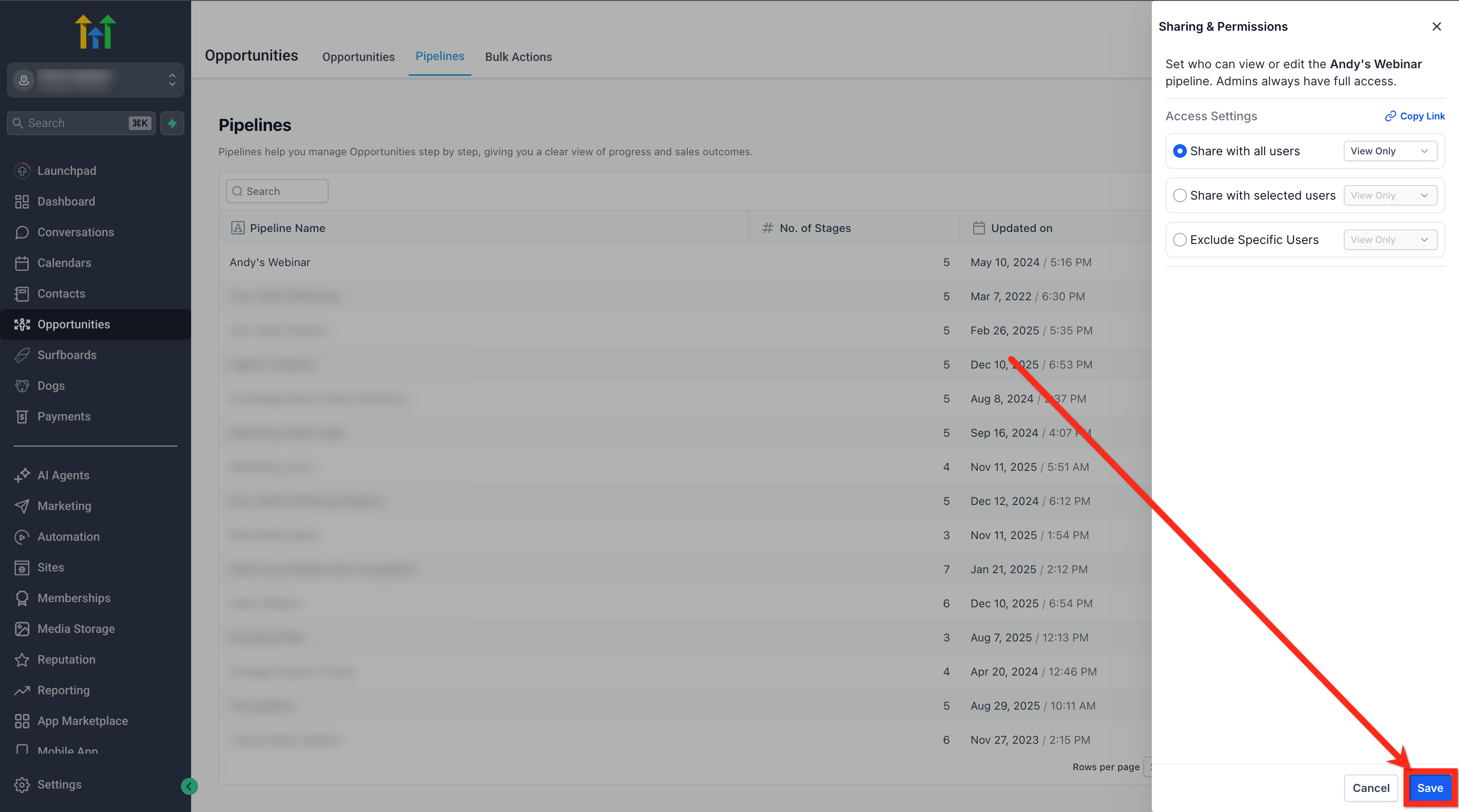
- Click Save to apply the changes.
Review permission changes in the audit log
- Navigate to Settings > Audit Logs.
- Filter by User, Module, Pipeline Permissions, Actions, and Date Range to see who changed what and when.
06What it looks like in HighLevel
07Settings that matter
- Sharing mode. Determines whether the pipeline is visible to everyone, only chosen users or roles, or to all except listed users.
- Access level. Specifies what permitted users can do: View Only lets them move opportunities, Edit allows full stage management, No Access hides the pipeline completely.
- Copy link. Creates a direct URL that can be sent to teammates who already have the appropriate permission.
08Things to know before you rely on it
- Admin users always retain full access regardless of other settings.
- The system blocks removal of access from a user who currently owns opportunities in the pipeline; those opportunities must be reassigned first.
- No Access removes the pipeline from web, mobile apps, and API responses.
- Audit logs keep a record of all permission changes for sixty days.
09If something goes wrong
- Attempting to set a user to No Access while they own opportunities in the pipeline.. Reassign or delete the user's opportunities before removing their access.
10How it connects to the rest of HighLevel
- Set up pipelines and stages before assigning permissions. Create pipelines
- Use roles to bulk assign permissions instead of selecting each user. Roles for permissions
- Review who changed permission settings in the audit log. Audit logs
Michael's take

When you have a mix of senior reps, contractors, and new hires, the time you spend cleaning up who sees what can add up quickly. Pipeline permissions lock down revenue data and keep dashboards clean, so each person only sees the deals they need to work on.
If your team is tiny and everyone already shares all deals, the extra steps to set up permissions may not bring enough benefit to justify the effort. In that case you might stick with the default view and revisit permissions only when your organization grows or you bring on external partners.