
01Who this is for
- Sales managers who need to track proposal links or contract dates on each deal for quick reference.
- Customer success teams that assign multiple users to an opportunity to give followers access without changing ownership.
- Marketing specialists that want visual service selections, using images on checkbox or radio fields to indicate package choices.
02Expanded custom field types, explained
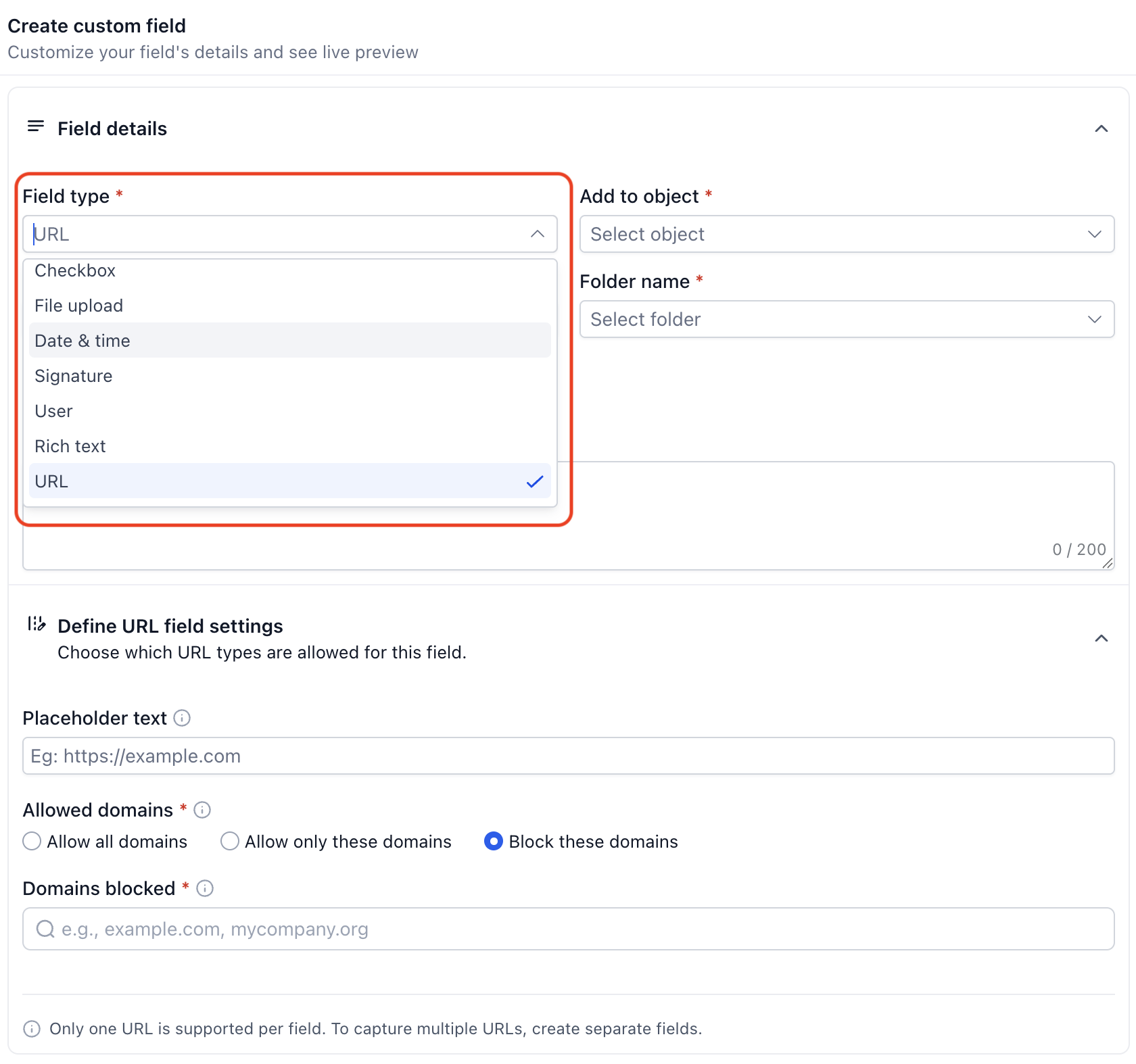
The feature introduces six new field types, URL, Date & Time, Rich Text, User, Checkbox and Radio Select, when creating custom fields for the Opportunity object. Each type offers configuration options such as domain restrictions for URLs, date controls for Date & Time, formatting tools for Rich Text, follower level access for User fields, and image choices for Checkbox and Radio Select.
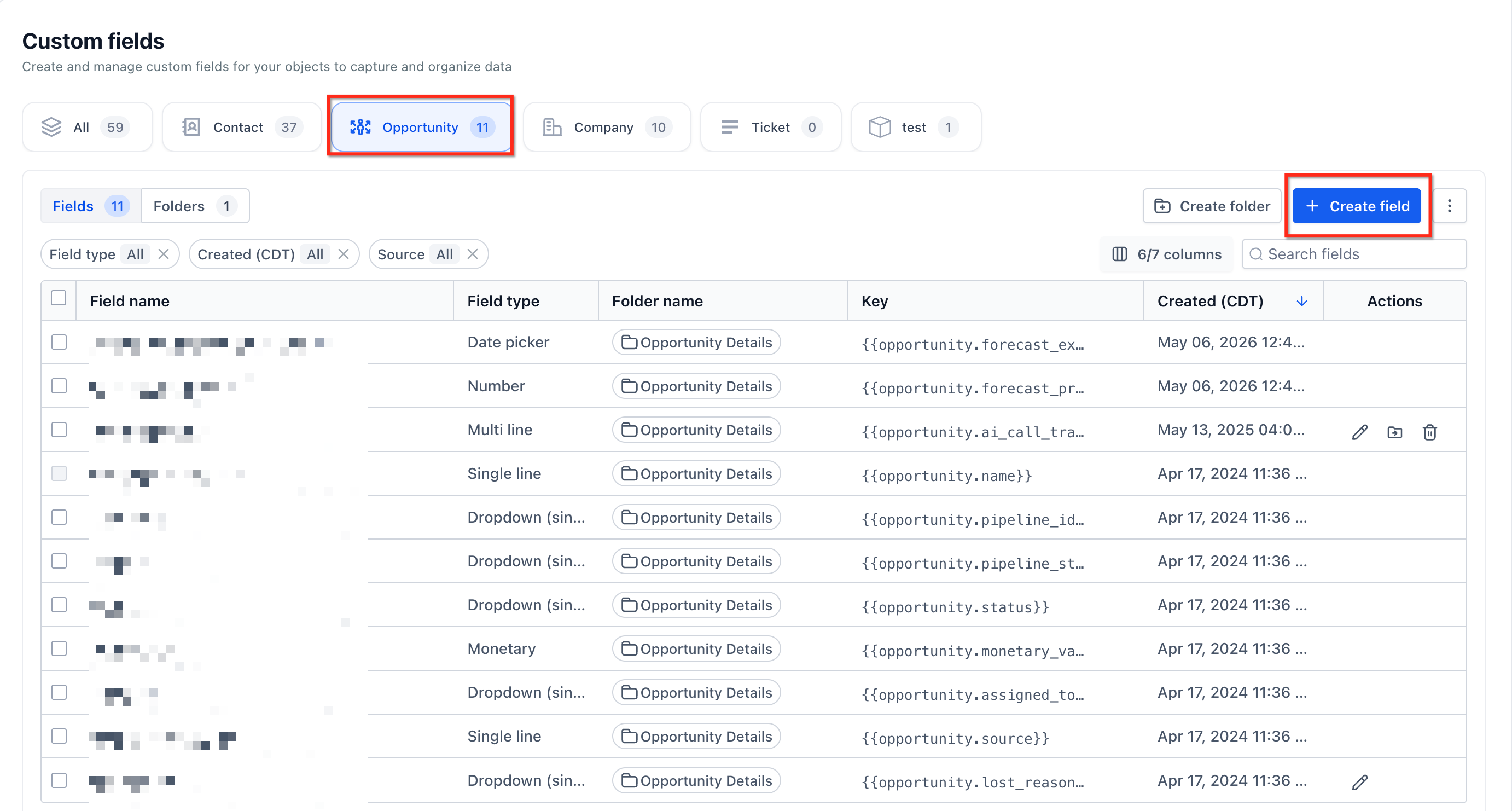
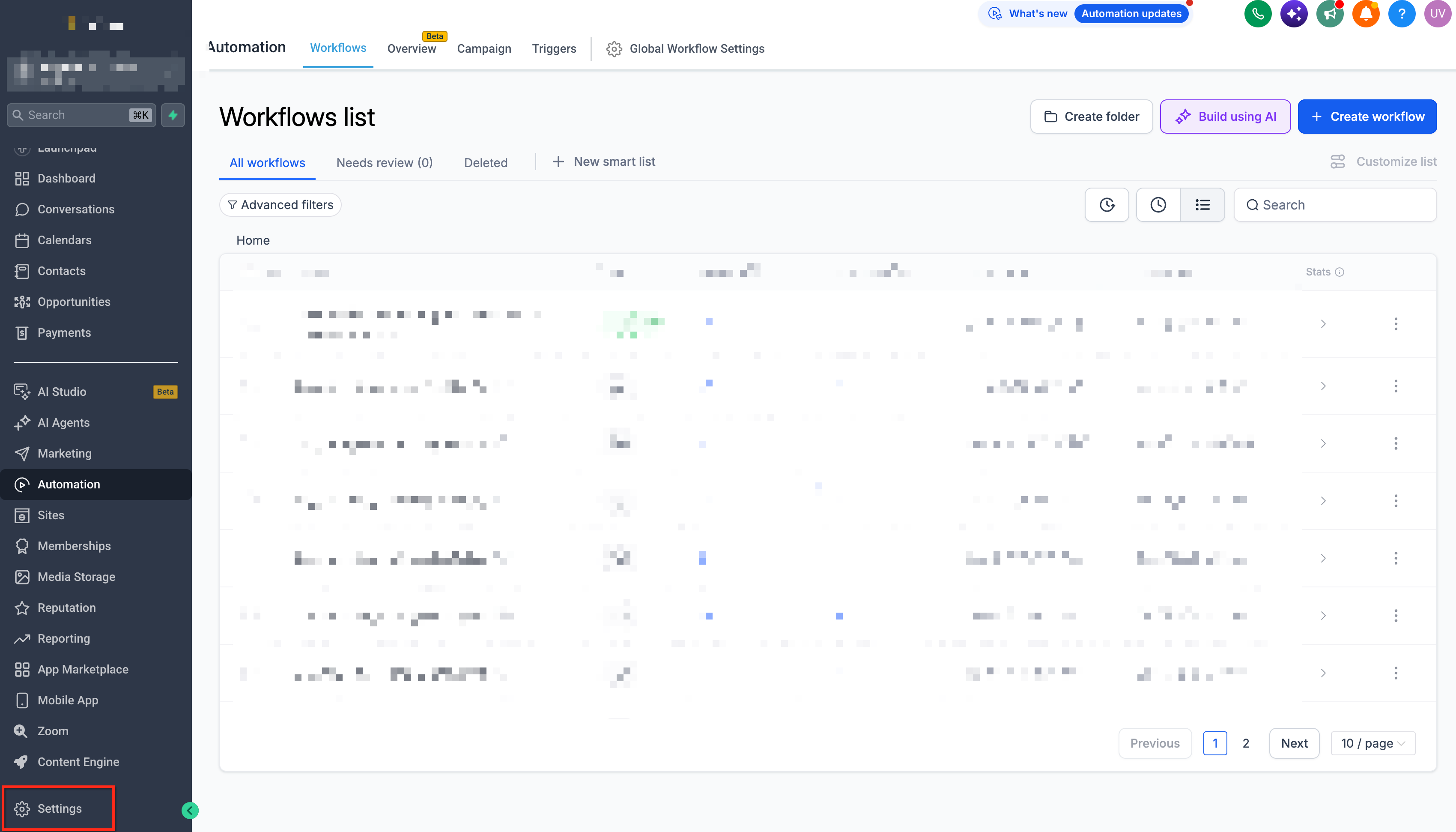
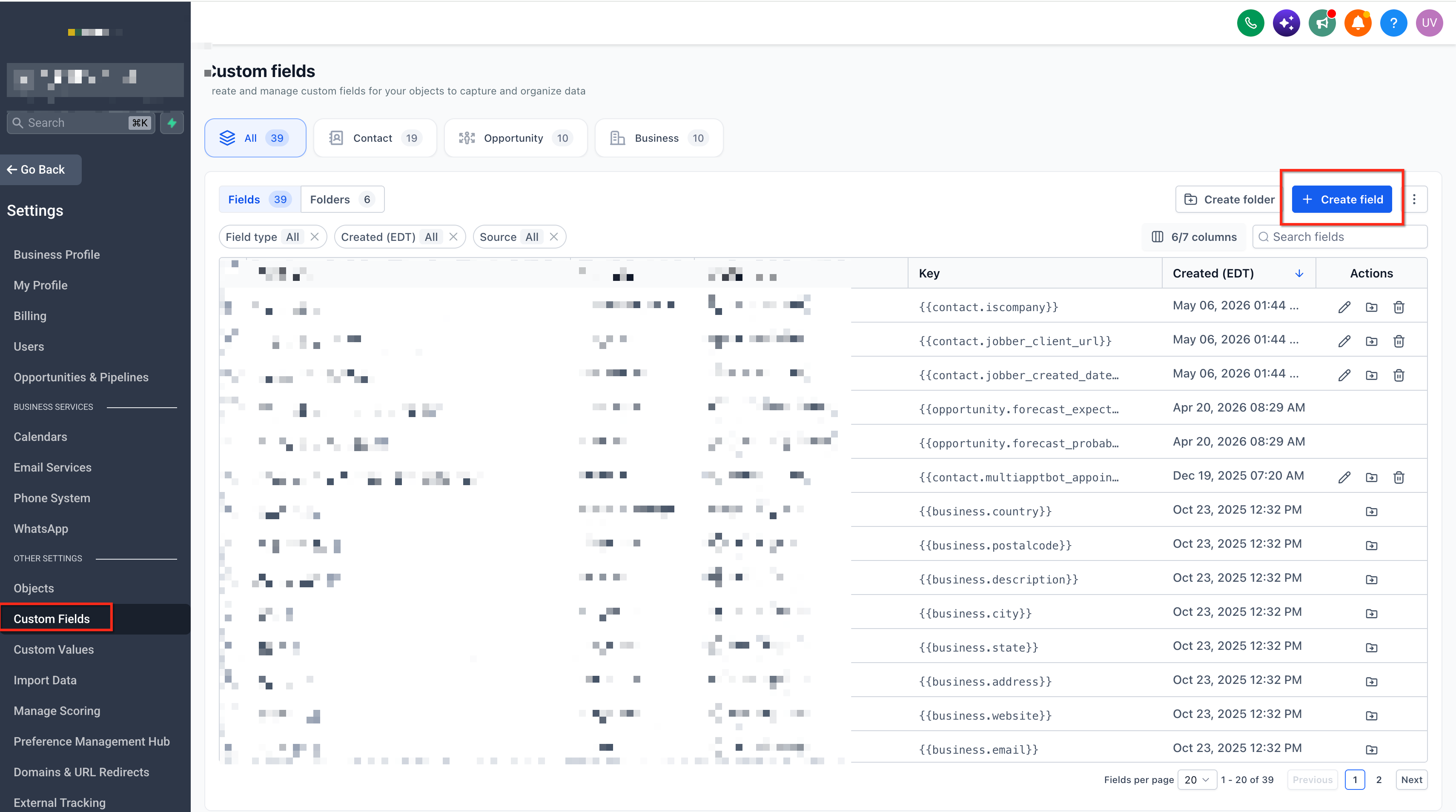
Fields are created from Settings > Custom Fields, then the Opportunity object is selected before clicking Create Field. After saving, the fields appear in the Fields area of any opportunity record and can be edited on desktop or via the mobile app.
Custom fields can be added as columns in Opportunities > List View and used in Advanced Filters. This lets users sort or filter deals based on the values entered in those fields, although column visibility does not guarantee sorting capability.
03How businesses use expanded custom field types
- Real estate brokerage. Create a URL field to store the virtual tour link for each property deal. Add the field to the list view so agents can see the link directly. Use Advanced Filters to find opportunities where the tour URL domain matches the agency’s website.
- Software implementation firm. Add a Date & Time field for the project start date and set it to "Future Dates Only". Populate the field on each opportunity and filter the list view to show only deals with start dates within the next month.
- Digital marketing agency. Set up a Checkbox field with images representing different service packages. Select the appropriate images when logging the opportunity, then display the field in list view so the team can see at a glance which services are included.
04The numbers and rules that matter
- Supported field types: URL, Date & Time, Rich Text, User, Checkbox, Radio Select.
05Before you start
- Your HighLevel location must be enabled for the Opportunity First private beta to see the expanded custom field types.
06How to set up and use expanded custom field types in HighLevel
Set up expanded custom fields for opportunities
- Open Settings and choose Custom Fields.
- Select the Opportunity object and click Create Field.
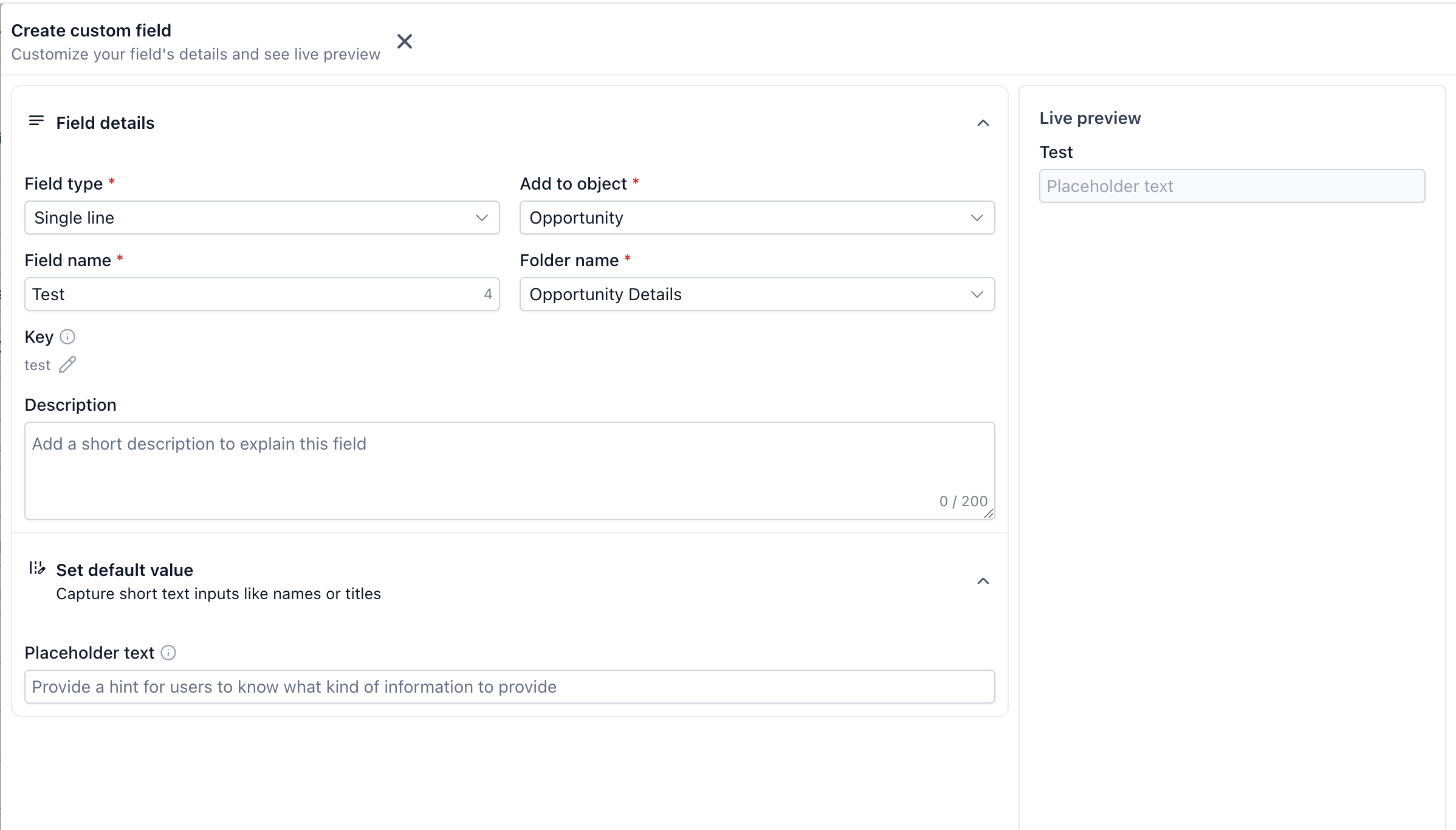
- Pick one of the new field types: URL, Date & Time, Rich Text, User, Checkbox, or Radio Select.
- Enter a field name and adjust the general settings.
- If using Checkbox or Radio Select, choose the visual option (Text with image or Text with icon).
- Assign the field to a folder and click Create custom field.
- Save the custom field.
- Open an opportunity record, locate the Fields section, and enter data into the new custom field.
Display and filter custom fields in opportunity list view
- Go to Opportunities and open the List View.
- Select Manage Fields.
- Check the boxes next to the custom fields you want to appear as columns.
- Open Advanced Filters in the Opportunities screen.
- Choose the custom field you wish to filter on.
- Pick a filter condition and provide a value.
- Click Apply to see the filtered set of opportunities.
07What it looks like in HighLevel
08Settings that matter
- URL. Controls which web addresses can be saved, with options to allow all domains, whitelist specific domains, or block certain domains.
- Date & Time. Determines whether the field captures dates only, times only, or both, and lets you restrict selections to past, future, specific ranges, or weekdays.
- Rich Text. Enables formatted text, headings, lists, links, emojis and other styling within the field.
- User. Allows linking one or multiple platform users to an opportunity, granting them follower level access without changing the record owner.
- Checkbox. Provides multiple selectable options that can include an image next to each choice.
- Radio Select. Offers a single choice option list that can display an image or icon with each answer.
09Things to know before you rely on it
- The expanded field types are only available to locations participating in the Opportunity First private beta.
- A URL that does not meet the configured domain rules is rejected with the message: "This URL isn't allowed. Use an allowed domain."
- Future Dates Only excludes the current day; choose Any Date if today should be selectable.
- The Allow multiple users setting on a User field cannot be altered after the field is created.
- Adding a custom field as a column does not automatically enable sorting for that column.
- Custom field availability can vary based on the object or area where the field is being used; confirm that the selected field type is available for the intended object before building a process.
10If something goes wrong
- Expanded custom field types are not visible for opportunities.. Confirm that your HighLevel location is enabled for the Opportunity First private beta.
- Unable to allow multiple users after creating a User field.. The multiple user option must be selected when the field is first created; it cannot be changed later.
- Today's date cannot be selected in a Date & Time field.. Use the Any Date option or adjust the date range, because Future Dates Only excludes today.
11How it connects to the rest of HighLevel
- How to set up and use custom fields for opportunities Custom fields guide
- Understanding opportunities in HighLevel Opportunity overview
- HighLevel pricing and plans Pricing page
Michael's take

Jumping into expanded custom field types without checking beta access can leave you stuck, because the features only appear for locations that have the Opportunity First private beta turned on. If you miss that step, none of the new field options will show up in your pipeline. When the beta is active, you can keep proposal URLs, contract dates, and formatted deal notes right on the opportunity record instead of scattering them in notes or contact fields.