
01Who this is for
- Agency owners managing multiple SaaS brands, need distinct sender domains for each brand's automated messages.
- Digital marketing consultants handling two client sites, want client notifications to appear from each client’s own domain.
- White label SaaS providers offering two product lines, require separate email identities to match each line’s branding.
02Notification email domains, explained
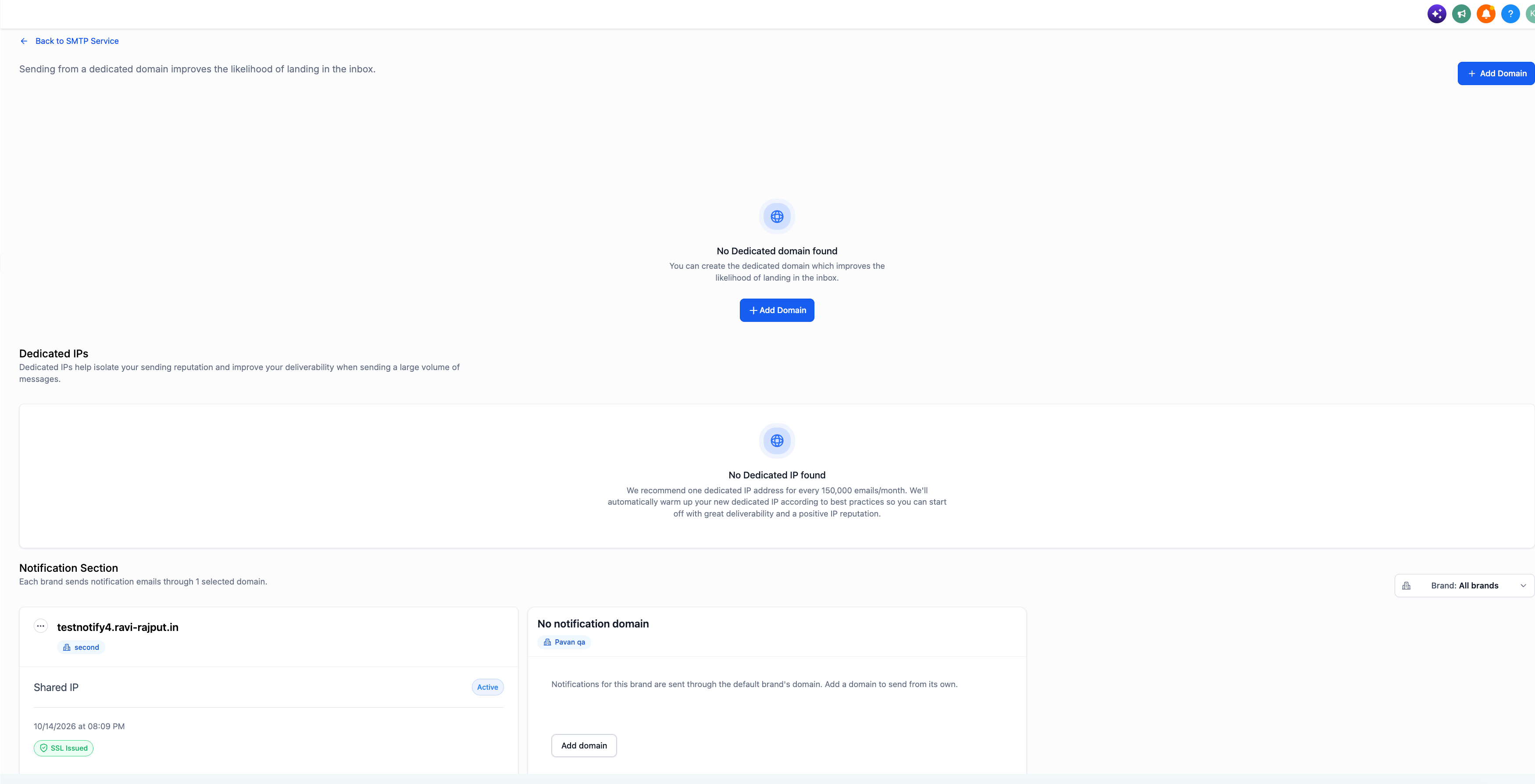
The feature adds a Notification Section in Agency Settings where each SaaS brand can be assigned its own notification email domain. When a brand has a verified domain, all system generated notifications for that brand are sent from that address; otherwise the default brand’s domain is used. The configuration path is Agency Settings > Email Services > Dedicated Domain and IP > Notification Section, where you can view domains, verification status, and make independent changes for each brand. Verification depends on DNS records you add at your domain registrar.
03How businesses use notification email domains
- SaaS agency. The agency opens the Notification Section, adds a domain such as notify.agencyone.com for Brand A, follows the DNS steps, and verifies the record. Once verified, Brand A’s system emails come from that custom address.
- Digital marketing firm. The firm creates a subdomain like alerts.clientx.com for the client’s brand, enters it in the Notification Section, adds the required TXT and CNAME records at the client’s DNS host, and confirms verification. The client’s email alerts now use the client specific address.
- White label education platform. The platform sets up notify.courseportal.com for one of its product lines, copies the DNS values, updates the DNS zone, and watches the verification status change to successful. After that, all enrollment and reminder emails for that line use the new domain.
04The numbers and rules that matter
- SaaS MultiBrand Management supports up to two brands.
05Before you start
- Your agency must be using SaaS Multi Brand Management, which supports up to two brands.
- The brands you want to configure must already exist in the account.
- A domain or subdomain is prepared for each brand, for example notify.brandname.com.
- You have access to the DNS provider for each domain to add the required records.
06How to set up and use notification email domains in HighLevel
Configure a notification email domain for a brand
- Log in to the HighLevel agency account, switch to Agency View, and navigate to Settings > Email Services.
- Select Dedicated Domain and IP and scroll down to the Notification Section.
- If the Brand filter is available, use it to locate the brand you want to configure.
- Find the brand that needs a domain and click Add domain to open the configuration screen.
- Enter the desired domain or subdomain for that brand and continue to the DNS step.
- Copy the DNS records displayed, add them in the domain’s DNS provider, then return to HighLevel and run the verification process. DNS changes may take time to propagate; if verification fails, double check that the records match exactly.
- Return to the Notification Section and confirm the domain appears with a successful verification status.
07What it looks like in HighLevel
08Settings that matter
- Notification Section. Shows each brand’s notification domain and whether the domain has been verified.
09Things to know before you rely on it
- Only two SaaS brands can be managed in a single account.
- A brand without its own domain will use the default brand’s notification domain.
- Domain verification depends on correct DNS records and may require time for propagation.
- The feature is available only to agencies that have enabled SaaS Multi Brand Management.
10If something goes wrong
- Domain does not verify after adding DNS records.. Check that the DNS records you entered exactly match the values displayed in HighLevel and allow time for DNS changes to propagate before checking verification again.
- Verification status remains pending.. Return to the Notification Section, confirm the records are still correct, and re run the verification step.
11How it connects to the rest of HighLevel
- Manage notification settings for subaccounts in HighLevel. Subaccount notification settings
- Explore all notification related features in HighLevel. All Notifications
- Review pricing and plan options for agencies using HighLevel. Pricing
Michael's take

Skipping the set up of brand specific notification domains can lead to confusing email senders and dilute brand trust. When customers see a generic address that doesn’t match the brand they interact with, they may question the legitimacy of the message.
When you do assign a dedicated domain to each brand, the professional look of your emails reinforces each brand's identity. It’s a straightforward way to keep communications clear and consistent across the two brands you manage.