
01Who this is for
- Email marketers who need quicker ways to create mobile optimized newsletters, because hiding whole layouts saves time.
- Small business owners who segment contacts and want sections to appear only for certain audiences, using conditional rules.
02Layout visibility controls, explained
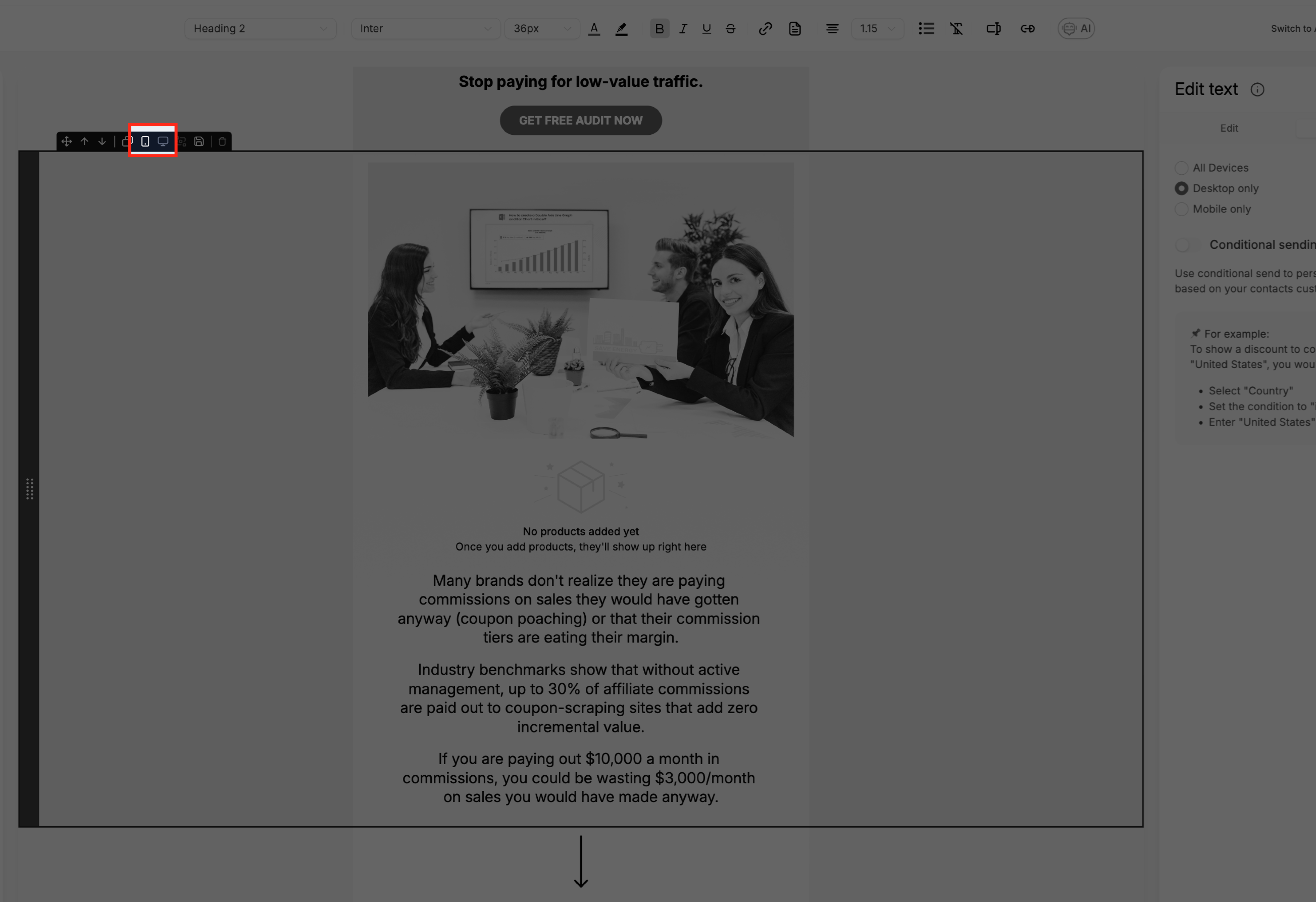
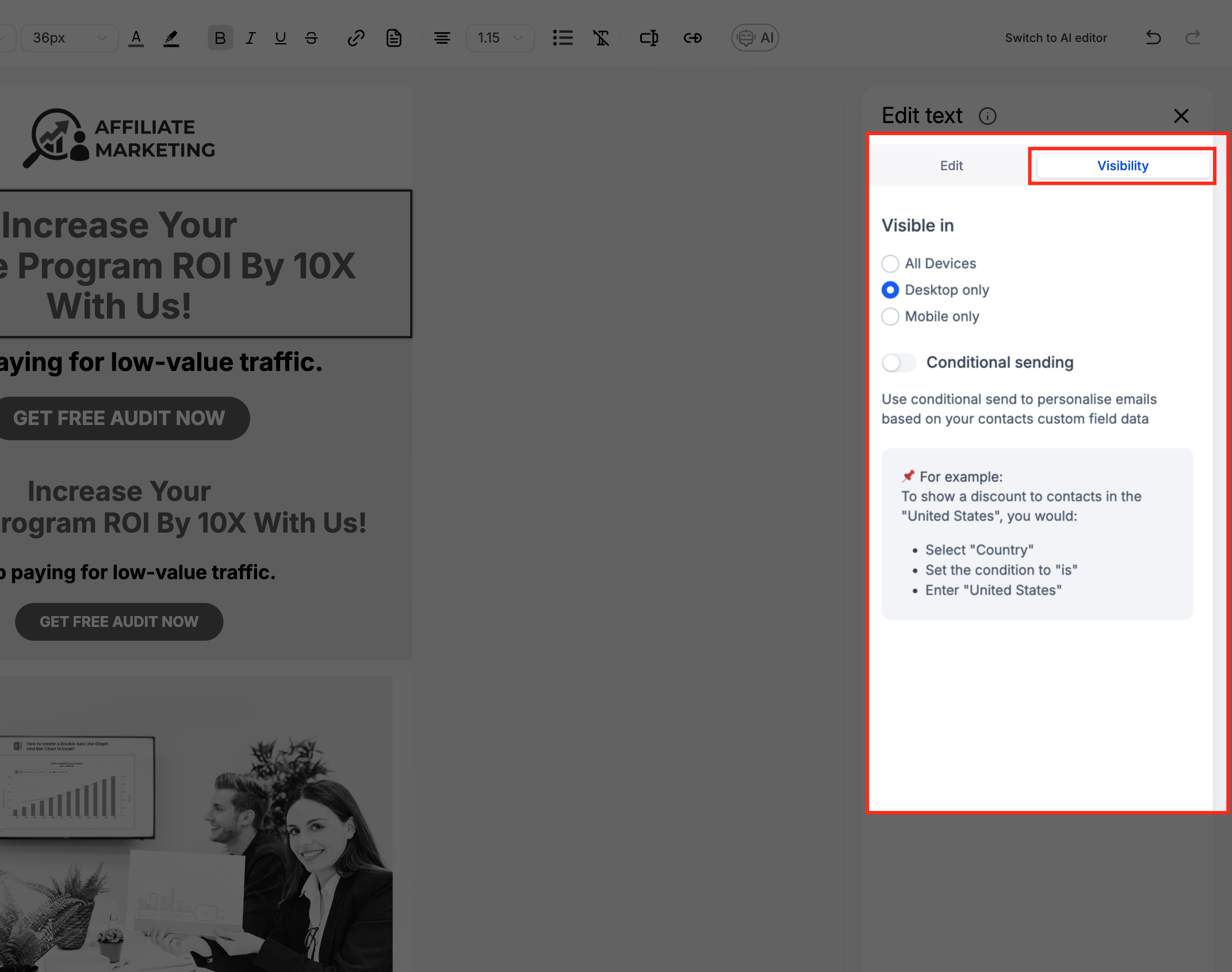
The feature adds a visibility option to layout blocks inside the email builder. You can click a desktop or mobile icon on a layout to hide it on that device, or use the Visibility tab to manage the setting.
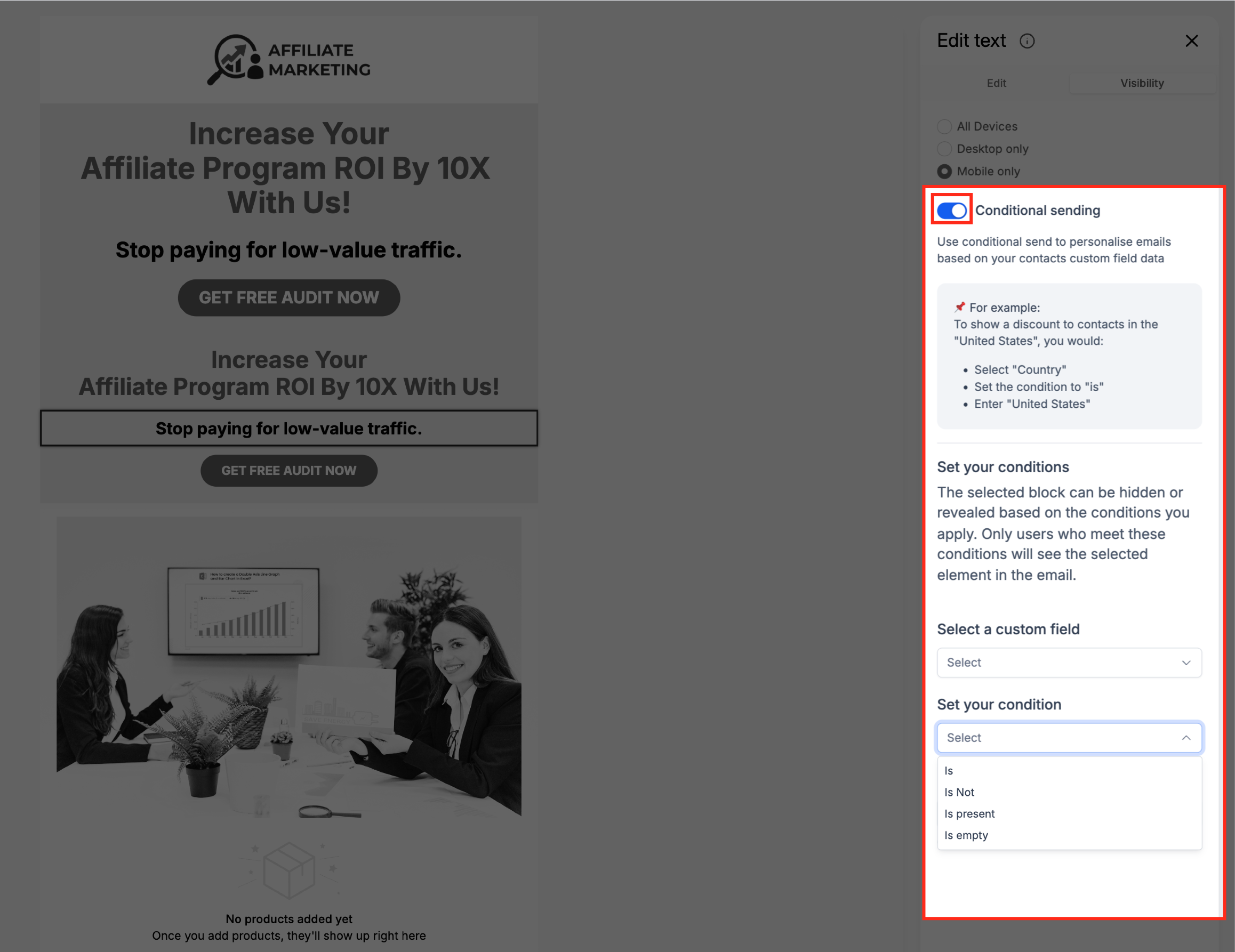
When a layout is hidden, any elements inside it are not rendered in the sent email. Visibility can also be driven by contact field conditions, so the entire block appears only when the rule matches.
03How businesses use layout level visibility
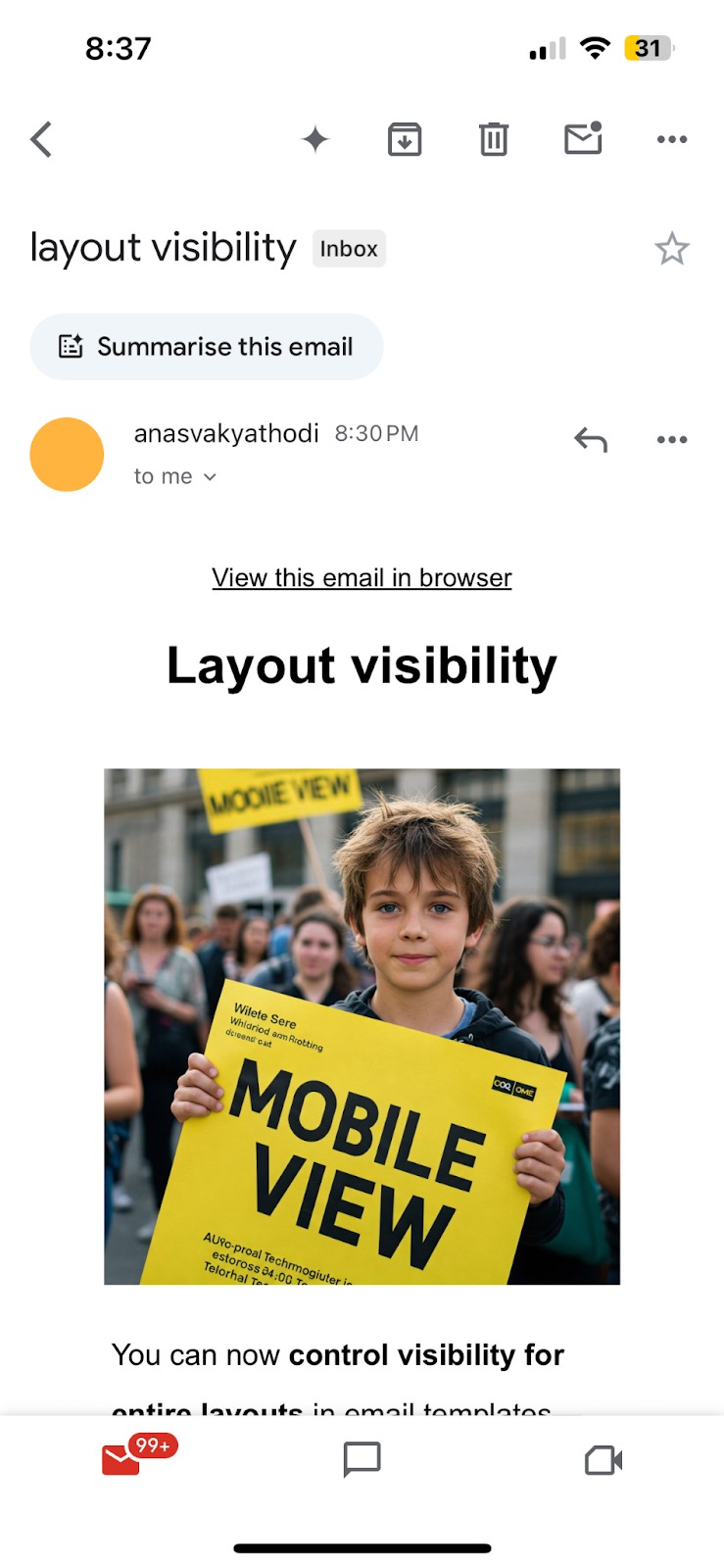
- Online retailer. The retailer creates a desktop only layout for a wide product carousel and a mobile only layout for a single column promotion. They toggle the icons to hide each layout on the opposite device, then preview and send a test email.
- Fitness studio. The studio adds a layout that displays a special class schedule only for members whose "membership_type" field equals "Premium." They enable conditional visibility, select the custom field, choose "Is" and enter "Premium," then save.
- Consulting agency. The agency builds a layout containing a client testimonial that should appear only when the contact's "industry" field is not empty. They turn on conditional visibility, pick the field, select "Is Not" and leave the value blank, then save.
04How to set up and use layout level visibility in HighLevel
Toggle layout visibility
- Open an existing email template or start a new one in the drag and drop builder.
- Insert a layout block where you want the section to appear.
- Hover the cursor over the layout to reveal desktop and mobile icons.
- Click the desktop icon to hide or show the layout on desktop devices.
- Click the mobile icon to hide or show the layout on mobile devices.
- Notice that a grayed out icon means the layout is hidden for that view.
- Or select the layout and open the Visibility tab in the left panel to adjust the settings.
- Preview the email in desktop and mobile modes and send a test email to verify.
Set conditional visibility on a layout
- Select the desired layout or section inside the Email Builder.
- Open the Visibility tab from the left hand panel.
- Enable the conditional visibility toggle.
- Choose the custom field that the rule will evaluate.
- Pick a condition such as Is, Is Not, Is Empty, or Is Present.
- If required, type the value that the condition should match.
- Save the changes to apply the rule.
05What it looks like in HighLevel
06Settings that matter
- Visibility tab. Provides controls to toggle device visibility and to enable conditional visibility for a layout.
- conditional visibility. When turned on, it lets a layout be shown or hidden based on the value of a selected custom field.
07Things to know before you rely on it
- If a layout is hidden for both desktop and mobile, it will not be sent in any view.
- When a layout is hidden, the visibility settings of any inner elements have no effect.
08If something goes wrong
- Layout does not appear in any sent email. Make sure at least one device view (desktop or mobile) is set to visible for the layout.
09How it connects to the rest of HighLevel
- Hide email elements on mobile view and across devices Device visibility
- Learn how to move the Email Builder edit panel for easier access Edit panel guide
Michael's take

Michael ReimerFounder of CRM Pros, HighLevel Commander and Certified Admin
The temptation to dive straight into layout level visibility can lead to hidden sections that never reach a subscriber’s inbox. Overhiding, especially when both desktop and mobile views are disabled, means the whole block is omitted from the send.
Get More InformationOpens on HighLevelPublished November 2, 2026 · Updated November 17, 2026