
01Who this is for
- Email marketers who store contact timezone information and need deadlines to appear at the same local time for each recipient.
- Funnel builders who want visitors from different regions to see a countdown that ends at the same clock hour in their own timezone.
- Website owners who display time sensitive offers and want the timer to adjust automatically based on the visitor’s IP location.
02Timezone adaptation in countdown timers, explained
The feature adjusts the end point of a countdown timer according to the viewer’s timezone. When the timer is placed in an email, HighLevel checks the contact record for a timezone value. In a funnel or on a website, the platform determines the timezone from the visitor’s IP address.
If the system cannot locate a contact timezone or an IP derived timezone, it reverts to the timezone that was selected in the timer’s settings when it was built. The fallback zone remains relevant even after adaptation is enabled.
03How businesses use timezone adaptation in countdown timers
- Ecommerce store. Create a flash sale timer and enable adaptation so shoppers in each region see the sale ending at the same local hour. The store sets a fallback timezone for cases where a visitor’s IP cannot be resolved.
- Online course platform. Add a timer to enrollment emails and turn on adaptation. Each student receives the deadline adjusted to the timezone stored in their profile, while prospects viewing the landing page get the timer based on their IP location.
- Event registration service. Place a countdown on the event signup page and enable the setting. Registrants from different cities see the registration cut off at the same clock time in their own area, with the configured timezone serving as a backup.
04Before you start
- A countdown timer must already exist or be created in the platform.
- The timer needs to be placed in a supported email, funnel or website location.
- For email adaptation, contact records should contain timezone data.
05How to set up and use timezone adaptation in countdown timers in HighLevel
Enable timezone adaptation for a countdown timer
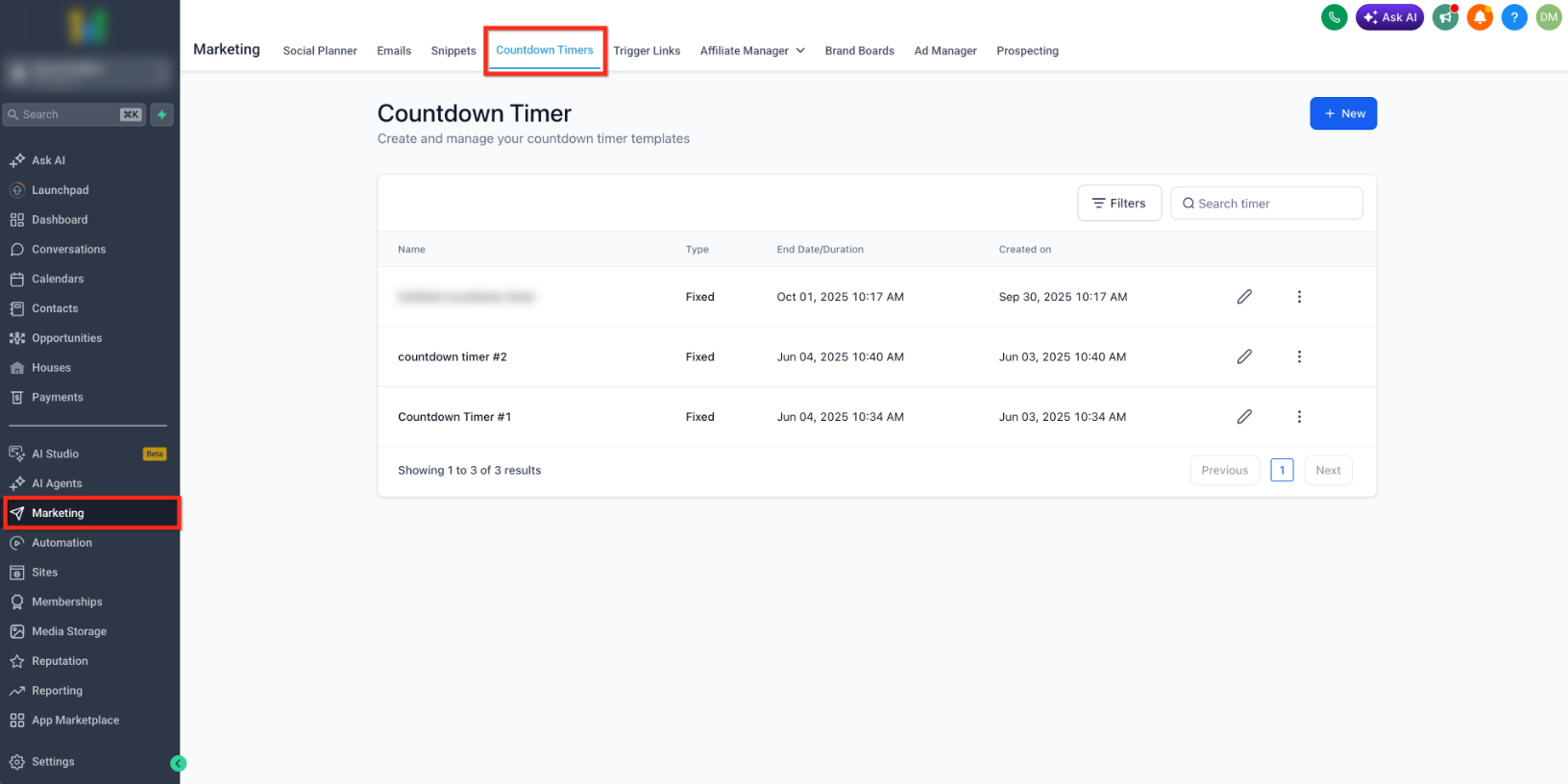
- Open Marketing > Countdown Timers and select the timer you wish to modify, or start a new timer.
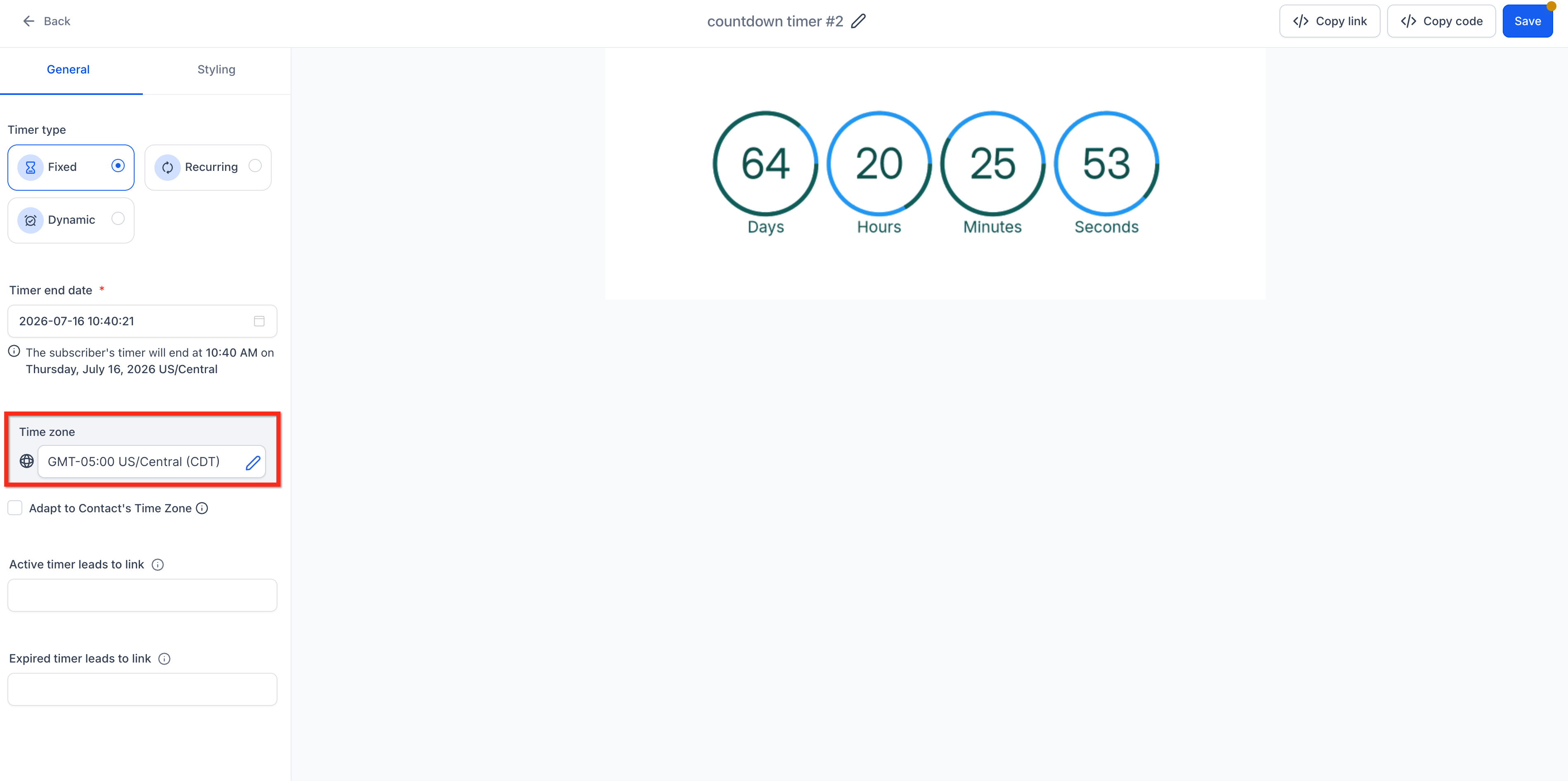
- In the timer configuration, choose a timezone that will act as the fallback option.
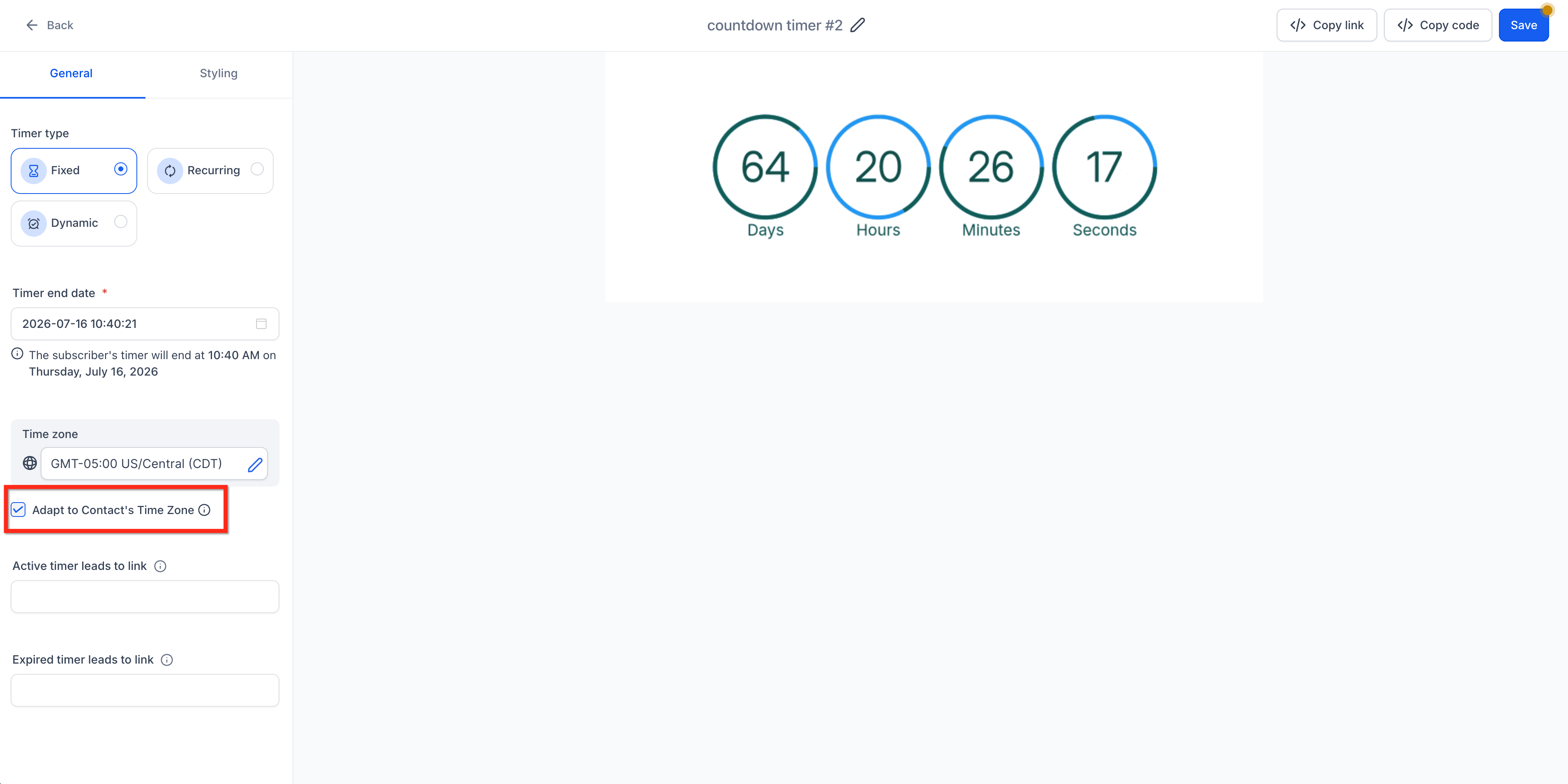
- Mark the Adapt to Contact Time Zone checkbox.
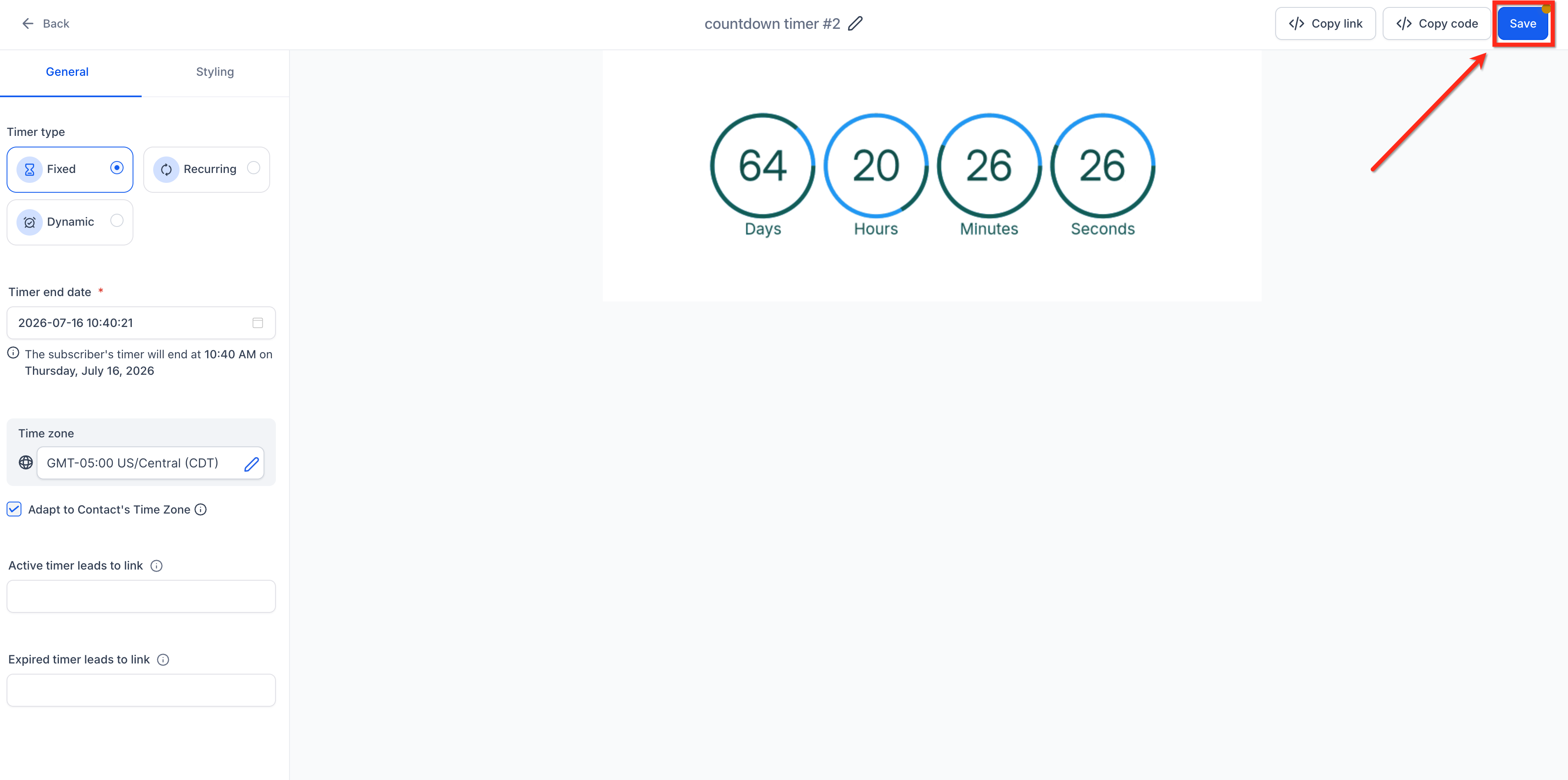
- Click Save to store the changes.
06What it looks like in HighLevel
07Settings that matter
- Adapt to Contact Time Zone. When checked, the timer uses the contact’s stored timezone for emails or the visitor’s IP derived timezone for funnels and websites.
- Time zone. Defines the fallback timezone the timer will use if no contact or visitor timezone data is available.
08Things to know before you rely on it
- The fallback timezone is applied only when the system cannot determine a contact or visitor timezone.
- Adaptation works in supported email, funnel and website placements; other locations do not use the feature.
09How it connects to the rest of HighLevel
- Getting started with countdown timers Countdown timer basics
- Using countdown timers in emails Email placement guide
- How to use countdown timers in funnels Funnel placement guide
Michael's take

When the deadline is tied to each person’s daily routine. Like a flash sale that ends at 8 pm local time. The feature can create a personal sense of urgency.
If your campaign relies on a single worldwide cut off. Say a live webinar that starts at the same moment for all attendees. The extra complexity can outweigh the benefit, and you might prefer a fixed timezone.