
01Who this is for
- Marketing managers who need real time insight into brand sentiment and conversation volume.
- Social media agencies that monitor multiple client accounts and want to automate alerts for metric changes.
- Small business owners who want to track local mentions and quickly spot emerging topics.
02Social intelligence, explained
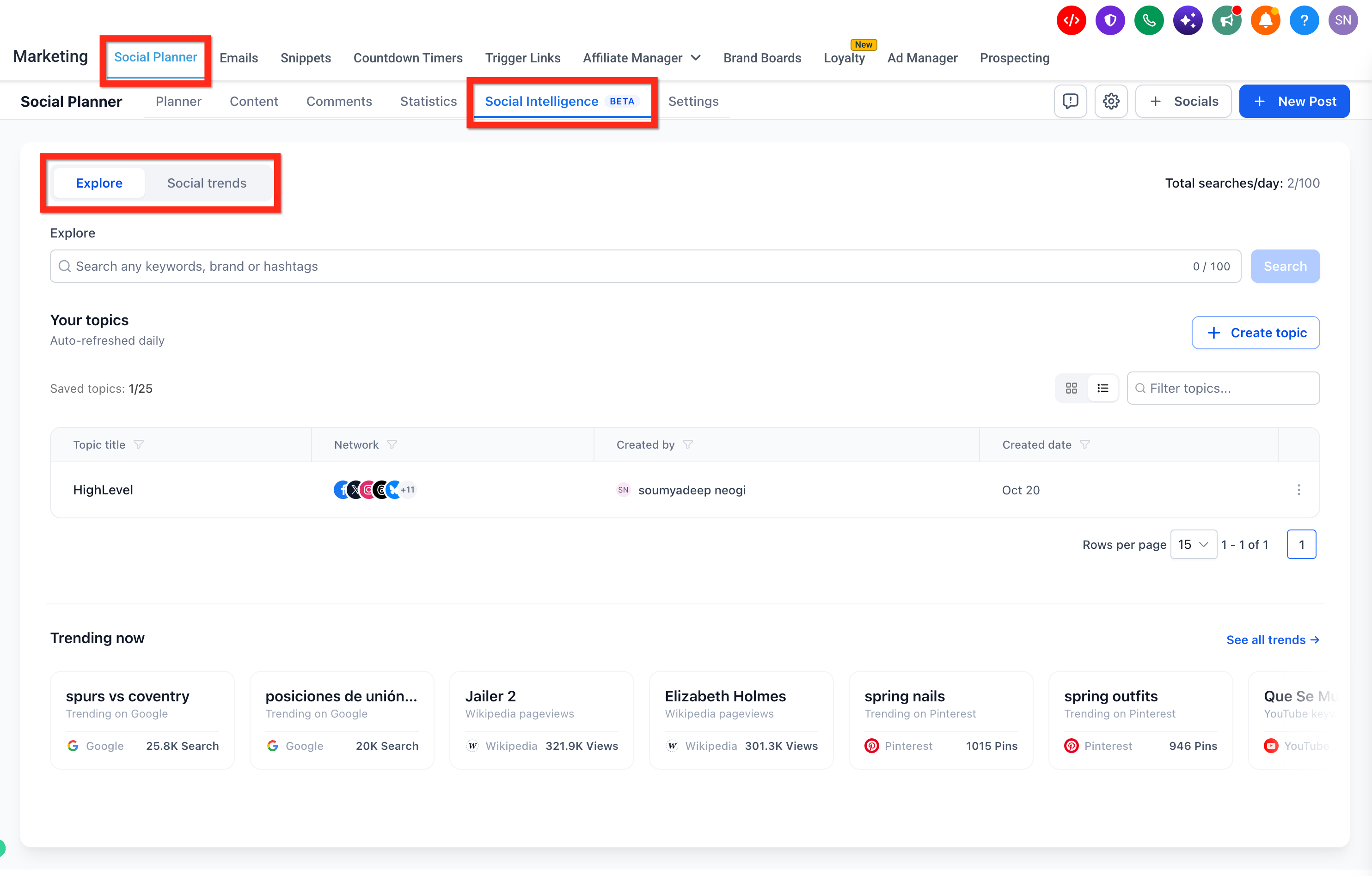
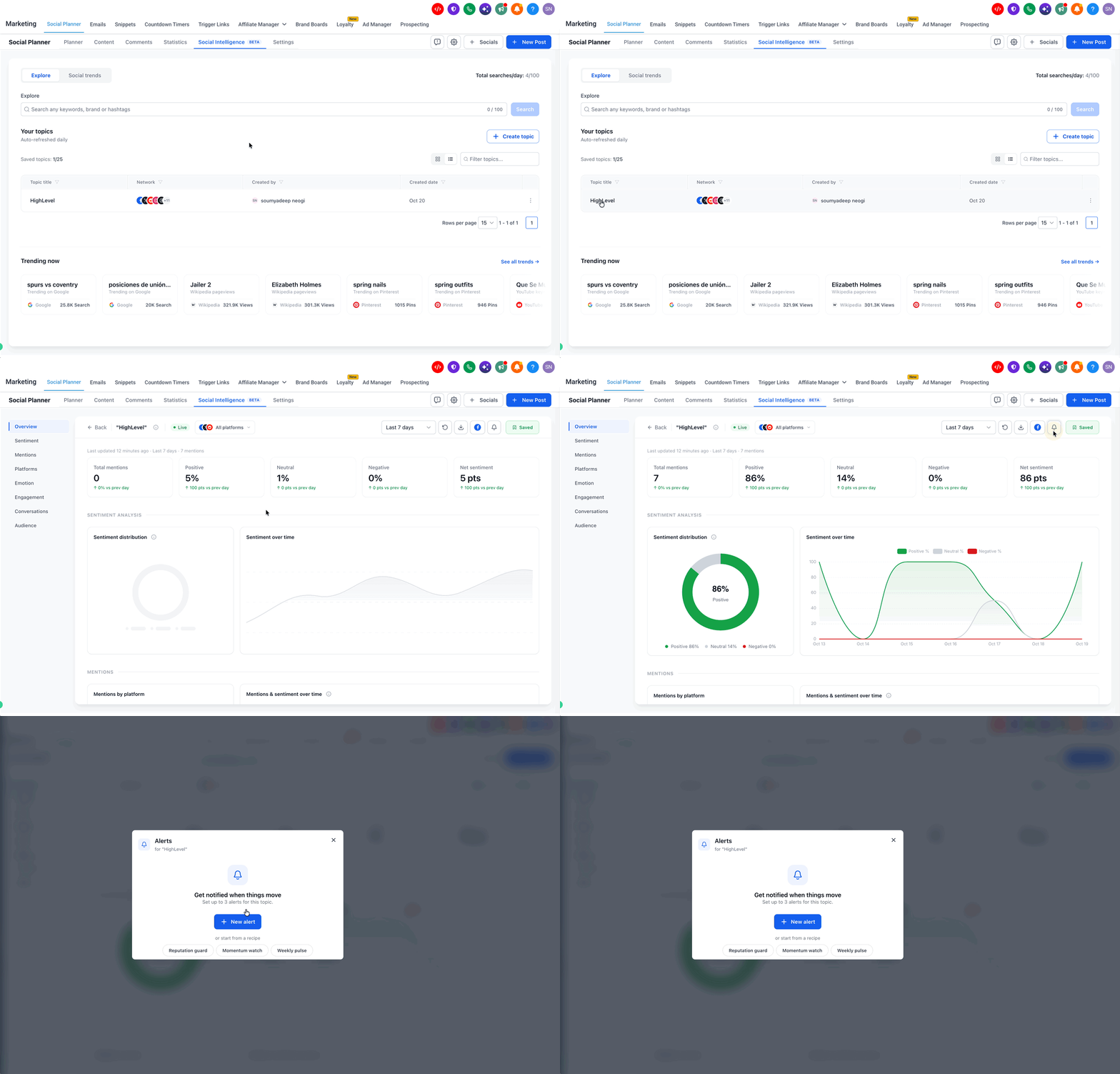
Social Intelligence lives in the Social Planner workspace and is offered to accounts that have Limited Beta access. From the Social Intelligence tab you can either explore specific keywords or view broader social trends. The Explore view lets you type a brand, keyword or hashtag, see conversation volume, sentiment and platform activity, then save that search as a monitored topic. Saved topics appear under Your topics for later analysis.
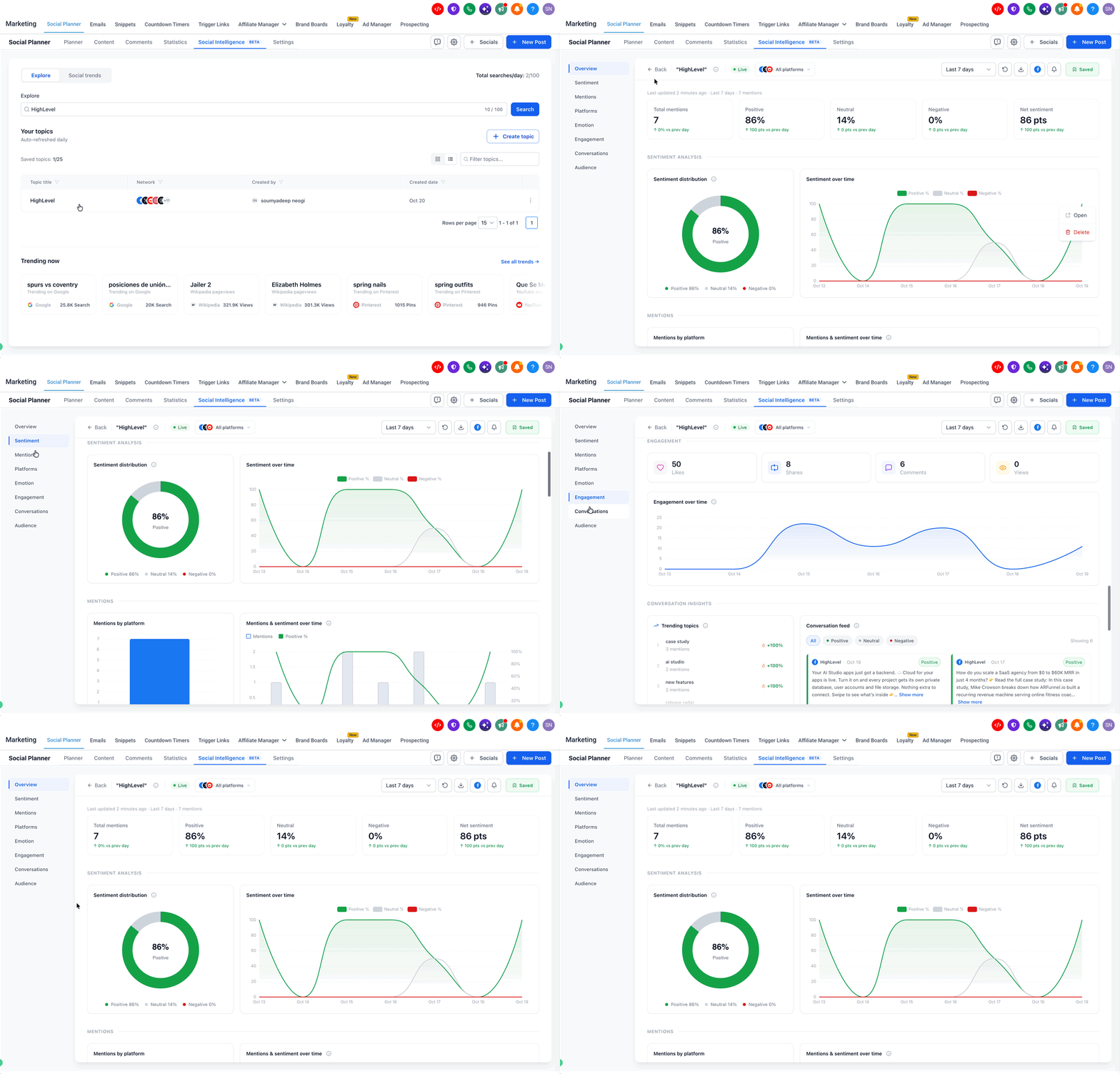
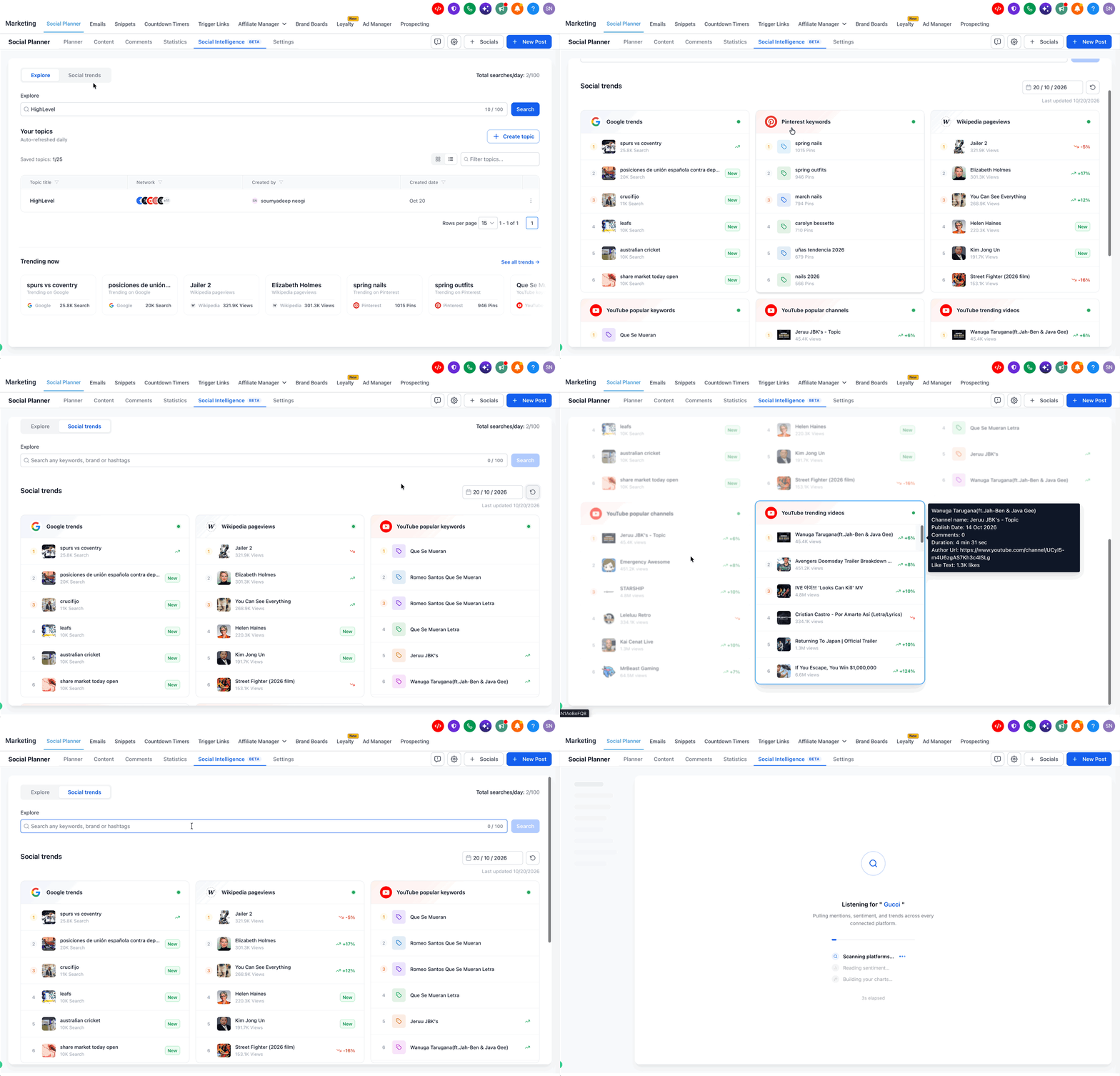
When you open a saved topic you can apply a date filter for the last 7, 15 or 30 days and review a set of analytics panels such as Overview, Sentiment, Mentions, Platforms, Emotion, Engagement, Conversations and Audience. The Social Trends view aggregates data from sources like Google Trends, Pinterest Keywords, Wikipedia Pageviews and YouTube, letting you filter by date and scan trend cards for content ideas. Alerts can be created per topic to watch metrics such as mentions or sentiment, set a sensitivity level, choose daily or weekly email delivery and select recipients.
03How businesses use social intelligence
- Fitness studio. The studio searches for its brand name and local fitness hashtags, saves the query, and checks the sentiment panel to see how members feel about classes. It also sets a weekly alert for drops in mention volume to stay aware of any negative buzz.
- Local restaurant. The restaurant explores keywords related to its cuisine, saves the topic and reviews the engagement analytics to see which dishes generate the most social shares. An alert monitors sentiment so the owner receives an email if negative comments rise.
- SaaS startup. The startup tracks its product name and relevant industry hashtags, saves the topics and uses the audience panel to view language and location insights. It configures daily alerts for share of voice changes to keep an eye on competitive positioning.
04The numbers and rules that matter
- Historical insights initially support up to 500 posts.
- Up to 10 new posts per refresh.
- You can configure up to 3 alerts per topic.
- Trend sources include Google Trends, Pinterest Keywords, Wikipedia Pageviews, YouTube.
05Before you start
- The account must have access to the Limited Beta for Social Intelligence.
- Social Planner must be available in the Marketing menu.
06How to set up and use social intelligence in HighLevel
search and save topics
- Open the Social Intelligence tab and select Explore.
- Enter a brand name, keyword, or hashtag in the search field; you may also pick from five suggested keywords.
- Press the Search button to load relevant conversations.
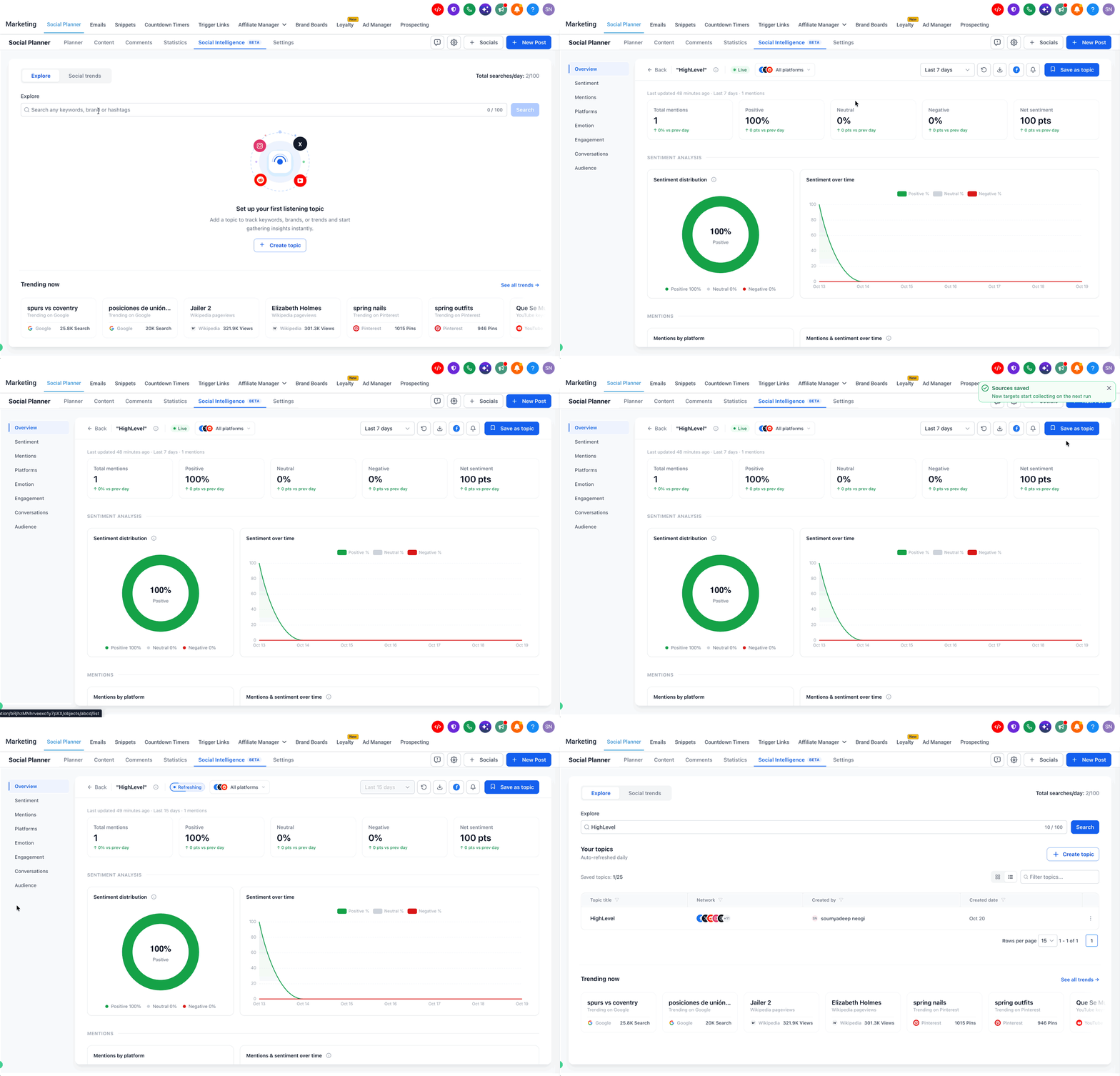
- Examine the displayed results, noting volume, sentiment and platform activity.
- Click Save as topic to store the search for ongoing monitoring.
analyze social intelligence insights
- Navigate to Marketing > Social Planner and open Social Intelligence > Explore.
- Choose a saved topic from the Your topics list.
- Apply the date filter for the past 7, 15 or 30 days.
- Review the analytics sections such as Overview, Sentiment, Mentions, Platforms, Emotion, Engagement, Conversations and Audience.
explore social trends
- Go to Marketing > Social Planner and open the Social Intelligence tab.
- Select the Social Trends option.
- Pick a trend source like Google Trends, Pinterest Keywords, Wikipedia Pageviews or YouTube.
- Use the date filter to set the period you want to examine.
- Read the trend cards to find topics that could inform your content plan.
create and manage alerts
- Open a saved topic inside Social Intelligence.
- Click the Alert (bell) icon.
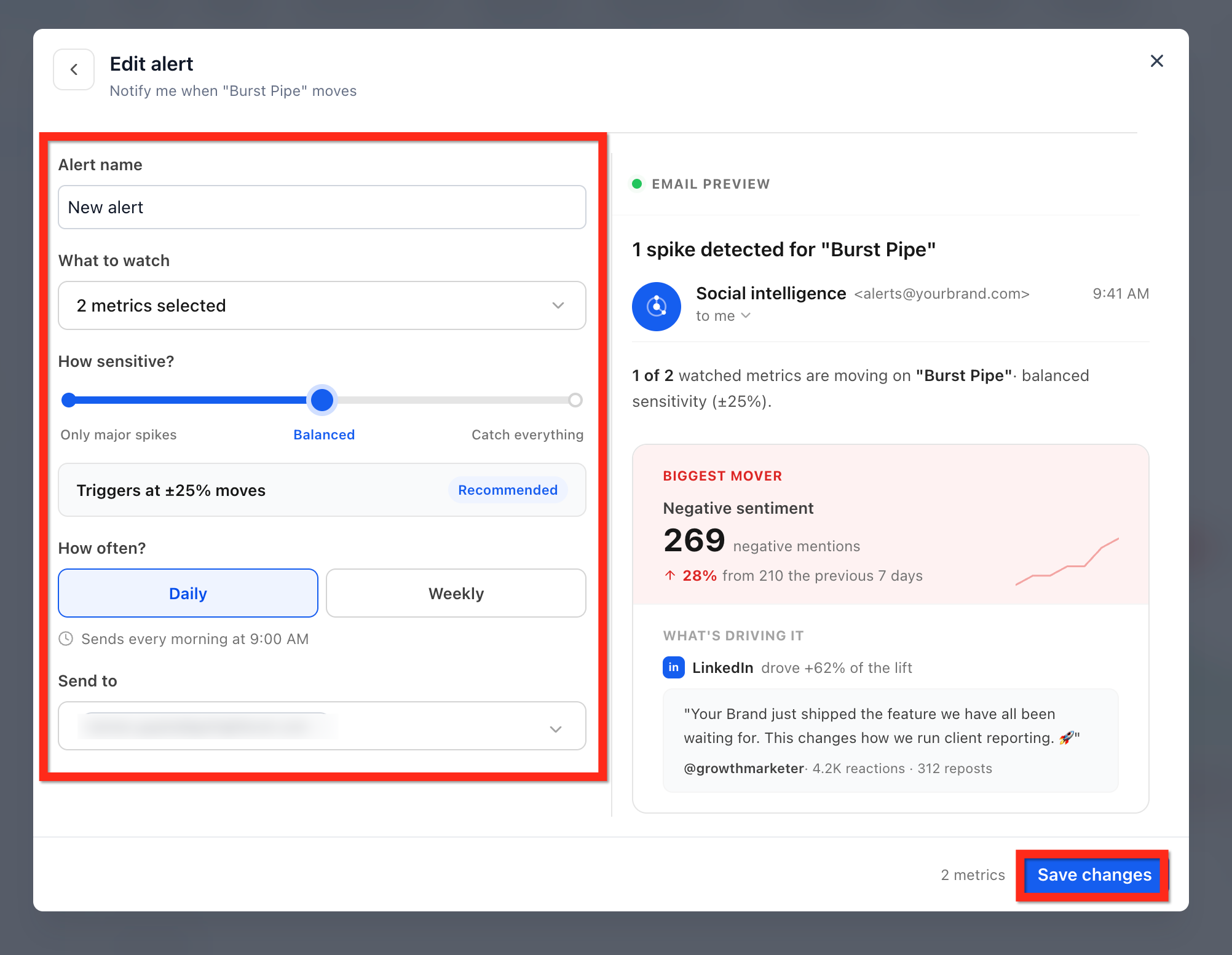
- Enter a name for the alert in the Alert name field.
- Choose the metrics to watch under What to watch.
- Move the sensitivity slider in How sensitive? to define the change threshold.
- Select Daily or Weekly in How often? for email delivery.
- Pick the email addresses in Send to.
- Review the Email Preview to see the notification layout.
- Click Save to finish creating the alert.
07What it looks like in HighLevel
08Settings that matter
- Alert name. Defines the label that identifies the alert in the list of topic alerts.
- What to watch. Specifies which metric, such as mentions, sentiment, impressions, engagement or share of voice, triggers the alert.
- How sensitive?. Controls the size of metric change required before an alert is fired.
- How often?. Sets the frequency of email notifications, either daily or weekly.
- Send to. Determines the email recipients who will receive the alert notification.
09Things to know before you rely on it
- Historical insights start with a maximum of 500 posts and then add up to 10 new posts each refresh.
- Each saved topic can have up to three alerts configured.
- The feature is offered only to accounts with Limited Beta access, and platform coverage depends on data availability from supported Infegy sources and Facebook Pages.
10How it connects to the rest of HighLevel
- Learn how to attach a Facebook page to the Social Planner for broader monitoring. Connect Facebook pages
- Set up a chat widget on your website to engage visitors while they browse social content. Chat widget guide
- Review pricing and plan eligibility if you need to enable Limited Beta access. Pricing and plans
Michael's take

Social intelligence can feel overwhelming at first, especially if you’re not used to monitoring multiple platforms in a single view. The data volume and the need to fine tune alerts may lead to noise if you’re not selective about what you watch.