
01Who this is for
- Marketing managers can place consistent social links in newsletters without manually coding each icon.
- Small business owners benefit from quick brand exposure by adding social profiles to promotional emails.
- Design teams can reuse styled social blocks across templates, ensuring uniform appearance.
02Social elements, explained
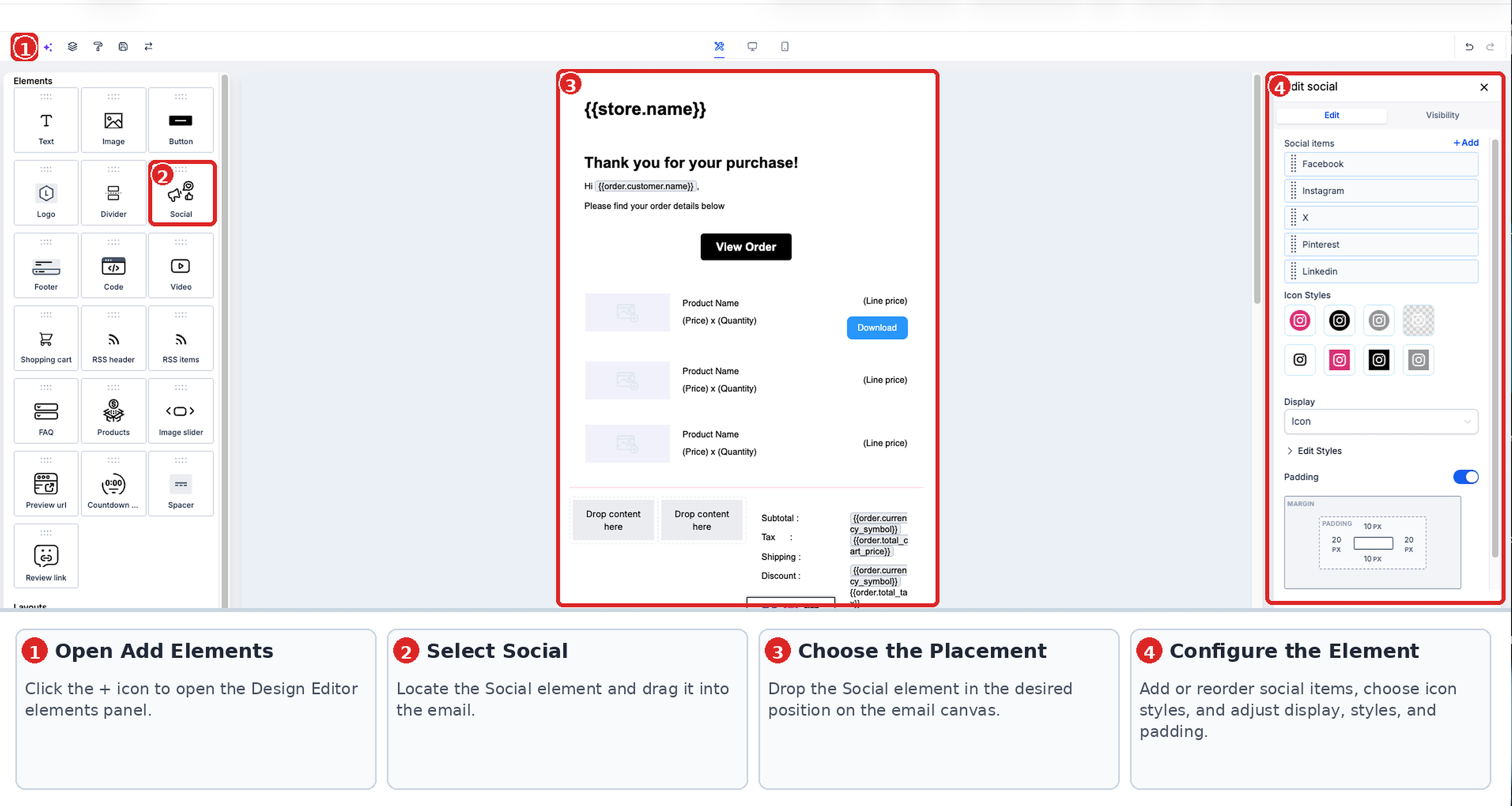
The Social Element lives in the Design Editor of the Email Builder. When you drop the block into a template, you can add the social platforms you want and provide the profile URL or supported handle for each item. The element handles the creation of clickable icons or text labels, so you do not need to build individual links.
Visibility can be limited by device type or by Conditional Sending rules that reference contact fields. The element follows the same preview controls as other blocks, offering desktop, tablet and mobile views. Because email clients render responsive styling differently, a test email is recommended to verify final appearance and link destinations.
03How businesses use the social element
- Boutique clothing retailer. The retailer drags the Social Element into their monthly look book email, selects Instagram and Pinterest, and chooses the icon and text display. They set the alignment to center and preview on mobile before sending a test email to confirm the icons open the correct brand pages.
- Local coffee shop. The coffee shop adds a Social Element to its weekly promotion, selects Facebook and Twitter icons, and configures device based visibility to hide the block on mobile. They send a test email to ensure the links work and the block stays hidden on smaller screens.
- Online tutoring service. The service uses Conditional Sending to show the Social Element only to contacts that have a ‘Subscribed to Updates’ flag. They pick the icon only display, adjust spacing, and test the email to verify that only the appropriate recipients see the social links.
04How to set up and use the social element in HighLevel
Add and test the Social Element
- Navigate to Marketing > Emails > Templates and open an existing template or start a new one using the Design Editor.
- Click the Add Elements (+) button, find the Social element, and drag it to the desired spot in the email.
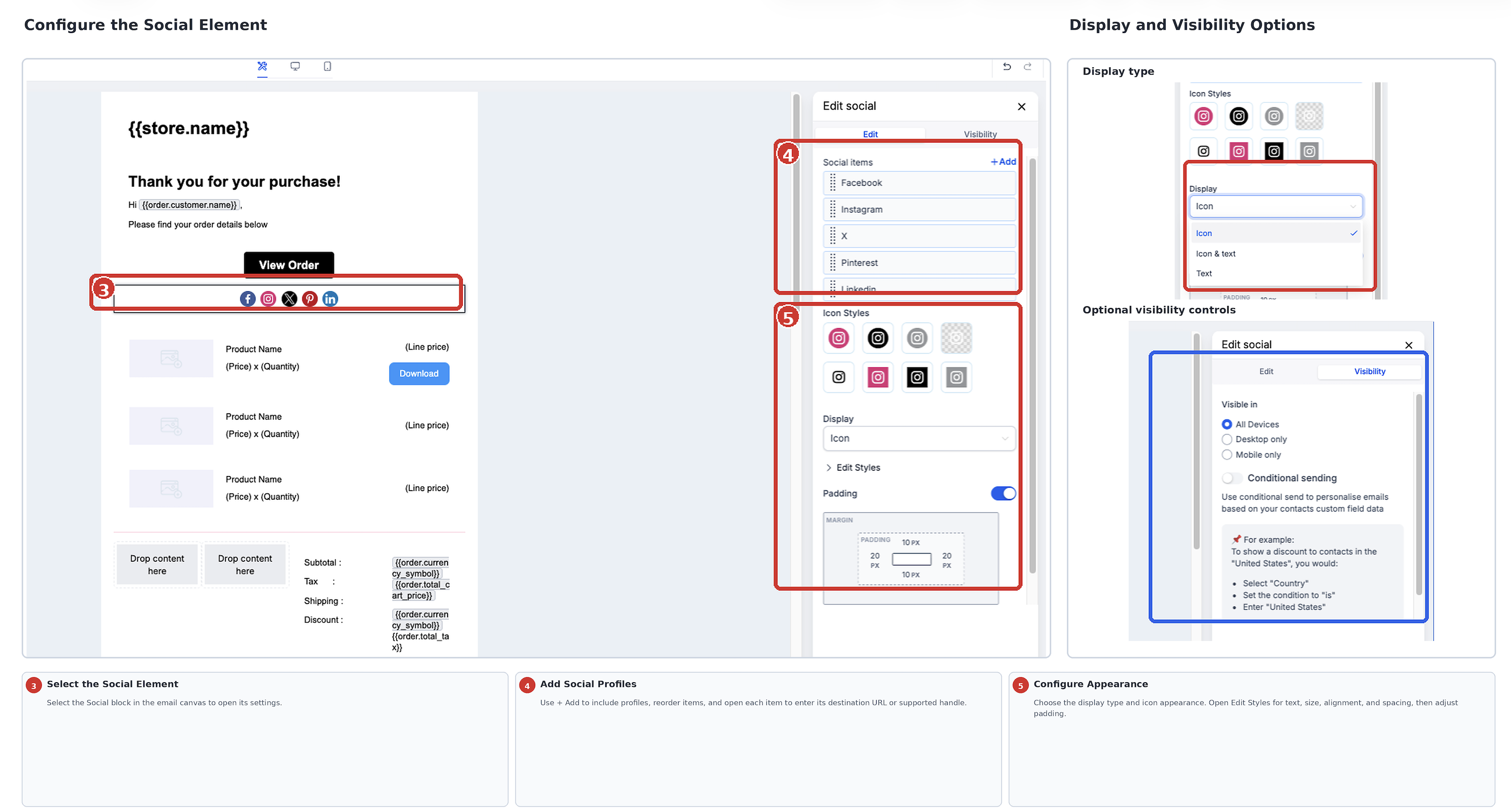
- Select the placed Social Element to open its configuration panel.
- Enter each social profile you want to display, providing the correct URL or supported handle for every item.
- Adjust the display type, choose an icon style, set text options, size, alignment, spacing and padding as needed.
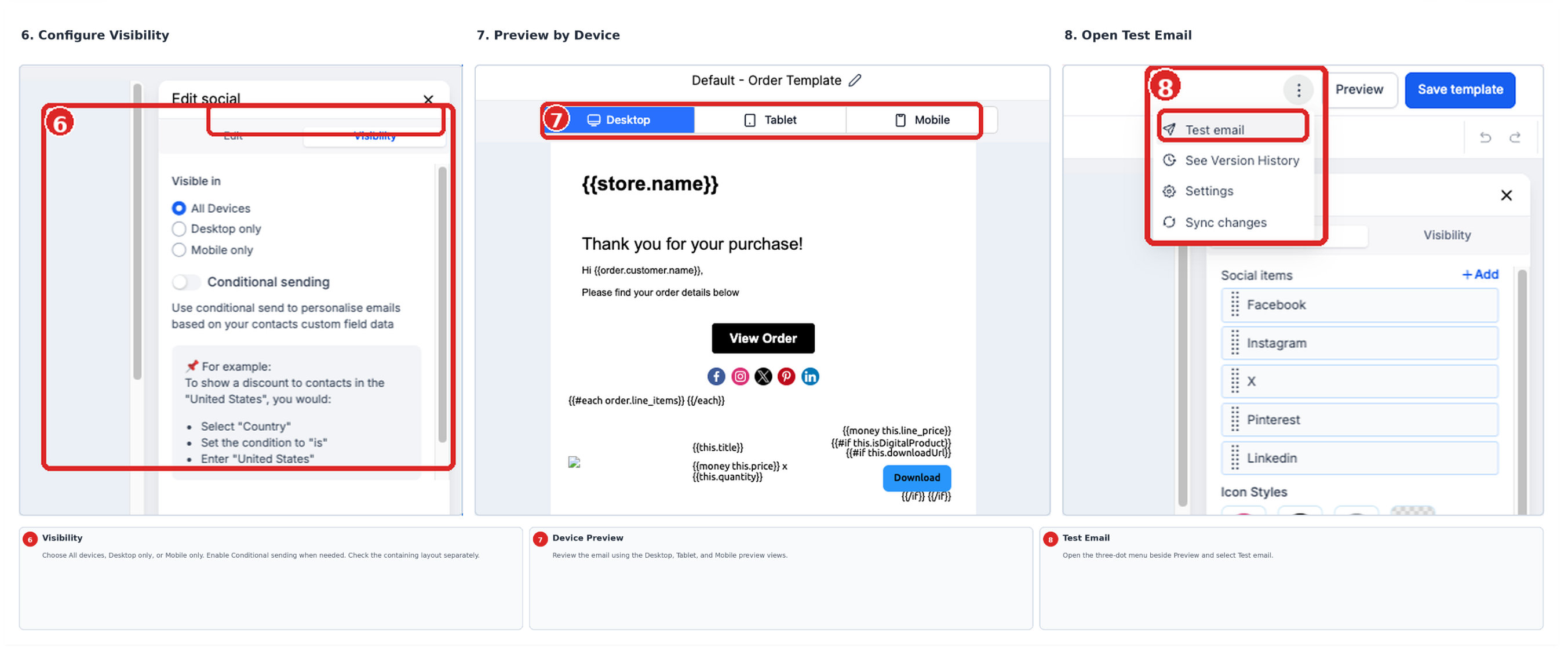
- If required, set device based visibility or Conditional Sending rules, and also verify that the parent layout is visible.
- Preview the email using the desktop, tablet and mobile view options.
- Open the three dot menu next to Preview and choose Test Email.
- Fill in the sender, recipient, subject, preview text and any other test email fields, then send the test.
- Open the received test email and click each social link to confirm it opens the intended profile.
- Return to the template, make any needed corrections, and save the changes.
05What it looks like in HighLevel
06Settings that matter
- Social Profiles. Defines which social platforms appear and the URL or handle each icon links to.
- Display Type. Selects whether the element shows icons, text labels, or both together.
- Icon Appearance. Controls the visual style of the social icons provided by the editor.
- Text Settings. Sets the font and text colour for any displayed social labels.
- Icon Size. Adjusts the pixel dimension of each social icon.
- Alignment. Positions the whole Social Element left, centre or right within the email layout.
- Spacing. Changes the space between individual social items.
- Padding. Adds space around the Social Element inside the surrounding layout.
07Things to know before you rely on it
- Available social platforms, icon styles and appearance controls may change as the Email Builder is updated.
- If a needed platform is not listed, you must use a linked Image Element instead.
- A hidden parent layout also hides any Social Element inside it.
- Device based visibility and mobile formatting are separate settings; each controls a different aspect of display.
- Email clients may render responsive styling differently, so the final email can look slightly different from the preview.
08If something goes wrong
- A social icon opens the wrong page. Check the URL or handle entered for that social item, correct it if needed, then send another test email to verify.
- Some recipients do not see the social links. Review the element’s device based visibility, any Conditional Sending rules, and the visibility of its parent layout.
- Social icons look different in the inbox than in preview. Remember that email clients render responsive styling uniquely; rely on a test email to confirm actual appearance.
09How it connects to the rest of HighLevel
- How to use the Email Builder and its in line editor Email Builder guide
- Using conditional elements in email campaigns Conditional elements
Michael's take

Wondering whether adding social icons to every email is worth the effort? The Social Element gives you a quick, repeatable way to attach your brand’s social presence without fiddling with individual images. It stays in line with the rest of your design, so you keep a consistent look across newsletters and promos.