
01Who this is for
- Email marketers who need data driven send times, because Smart Send removes guesswork.
- Founders of small businesses that send regular newsletters, to improve open rates without extra tools.
- Growth teams managing multiple locations, since eligibility is tracked per location.
02Smart Send, explained
Smart Send is a recommendation engine built into the Send & Schedule workflow. It reviews each recipient’s activity, opens, clicks and other engagement events, collected over the previous 60 days and predicts the time most likely to generate interaction for the upcoming campaign.
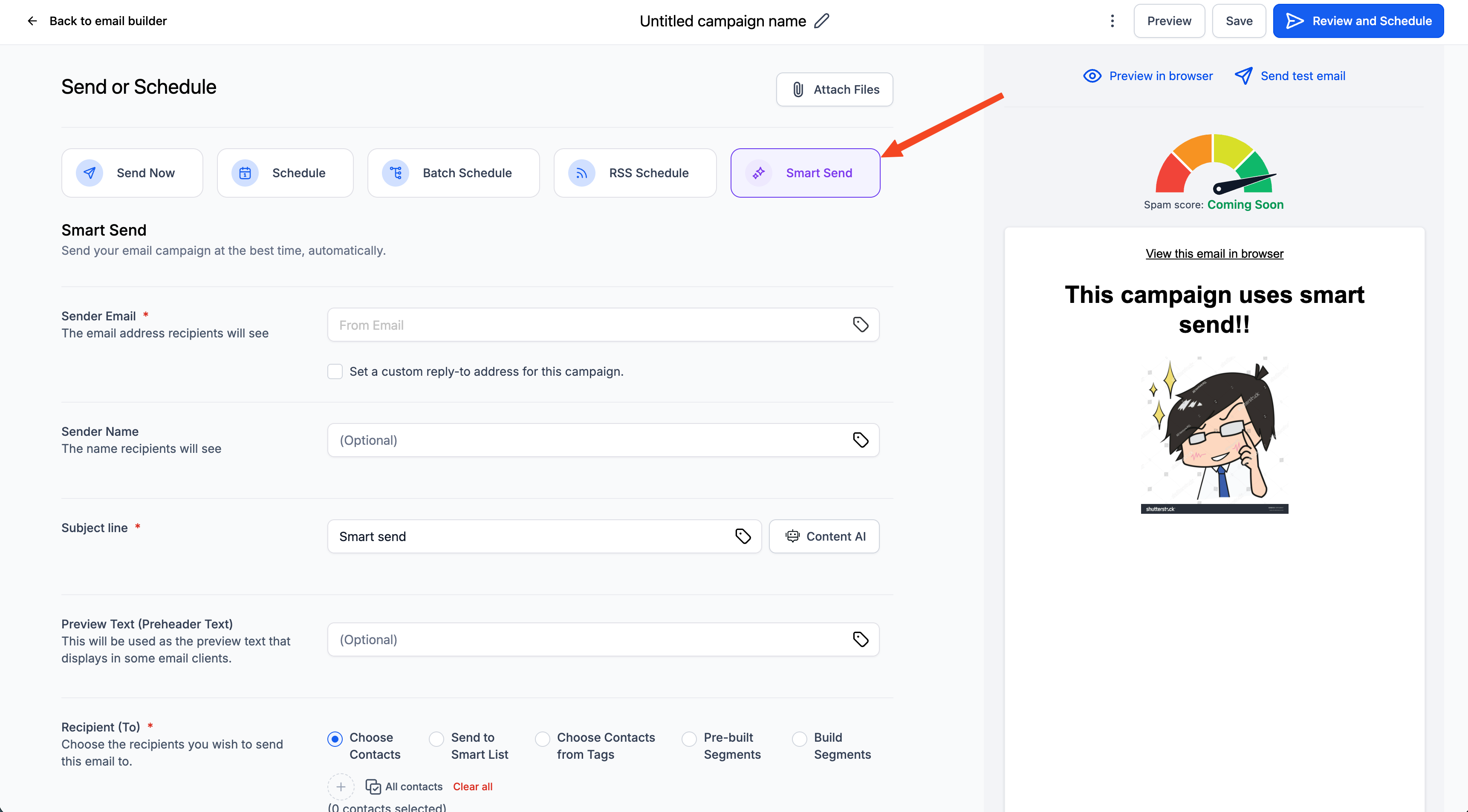
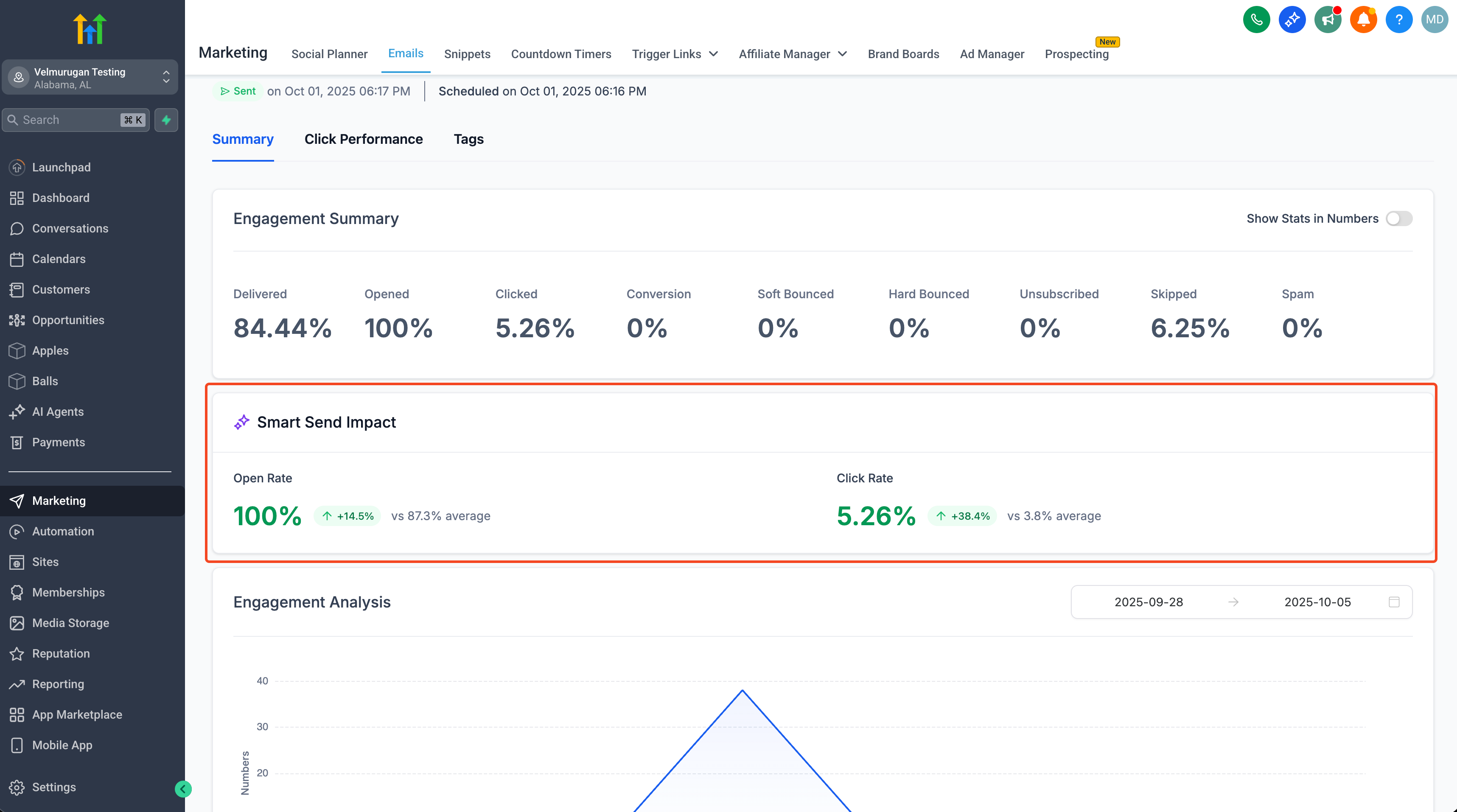
The feature becomes visible as a fifth option on the Send & Schedule screen when the account meets the minimum data requirement. Users can either accept the suggested time or manually choose a different date and hour. After the campaign is sent, the analytics dashboard reports how the Smart Send recommendation performed compared with average engagement metrics.
03How businesses use Smart Send
- Ecommerce store. The store creates a promotional email, selects Smart Send on the schedule screen, clicks Get Recommendation, and then launches the campaign at the system suggested time to reach shoppers when they are most active.
- Local service provider. After building a reminder email, the provider picks the Smart Send option, lets the platform compute the best send time, and either accepts it or sets a custom time that fits their appointment schedule before sending.
- Non profit organization. The organization drafts a fundraising appeal, uses Smart Send to obtain a recommended send window, reviews the after sending analytics to see the lift, and refines future outreach based on those insights.
04The numbers and rules that matter
- At least 1,000 delivered emails within the last 60 days for the given location are required.
- No eligibility: Smart Send is disabled (greyed out). Progress bar shows the minimum requirement (1,000 delivered emails in the last 60 days).
05Before you start
- At least 1,000 emails must have been delivered from the given location in the prior 60 days.
06How to set up and use Smart Send in HighLevel
Send campaign with Smart Send
- Navigate to Marketing > Email Builder.
- Select Campaigns and create a new campaign.
- Click the Send or Schedule button once the campaign is ready.
- Choose the Smart Send option from the list of send methods.
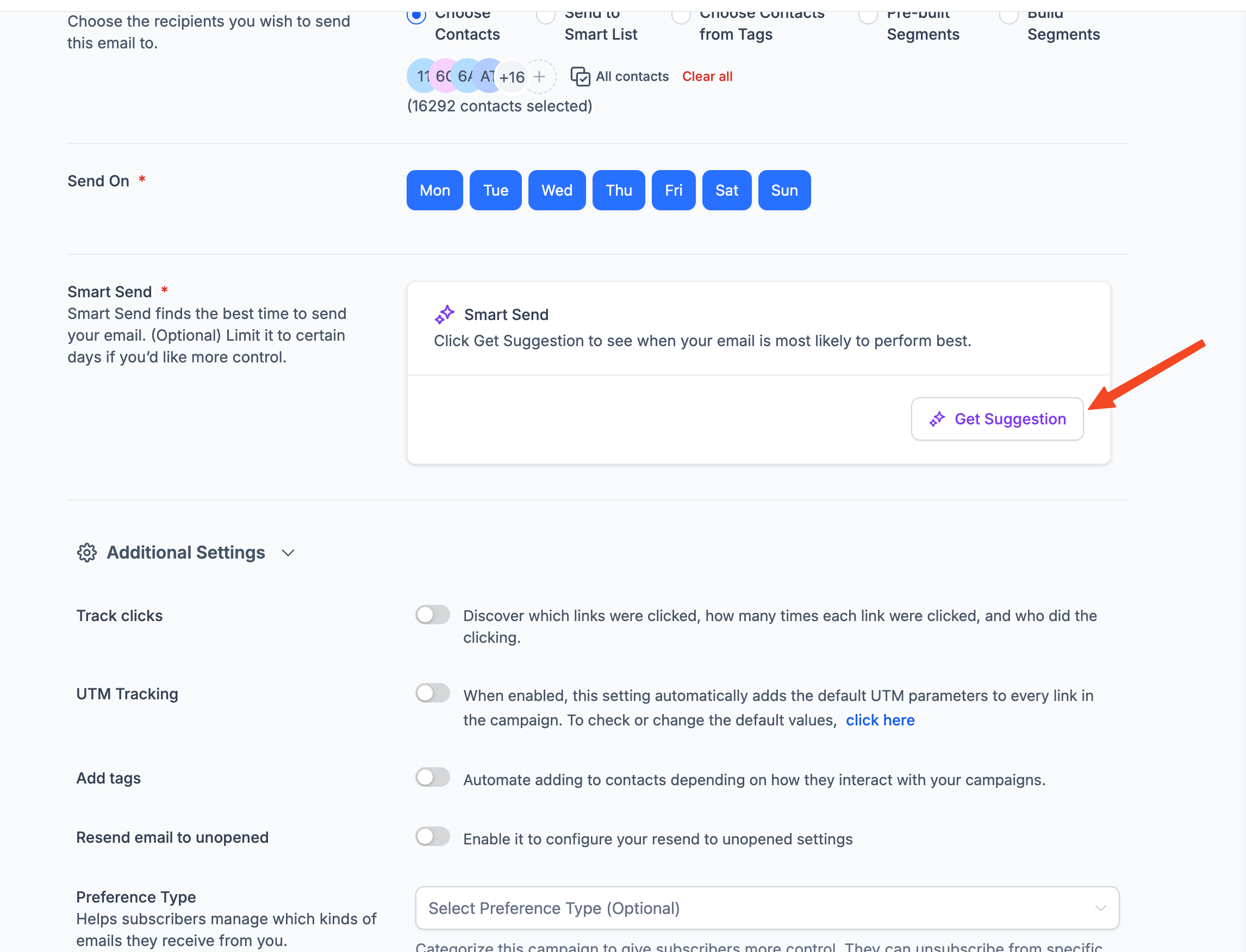
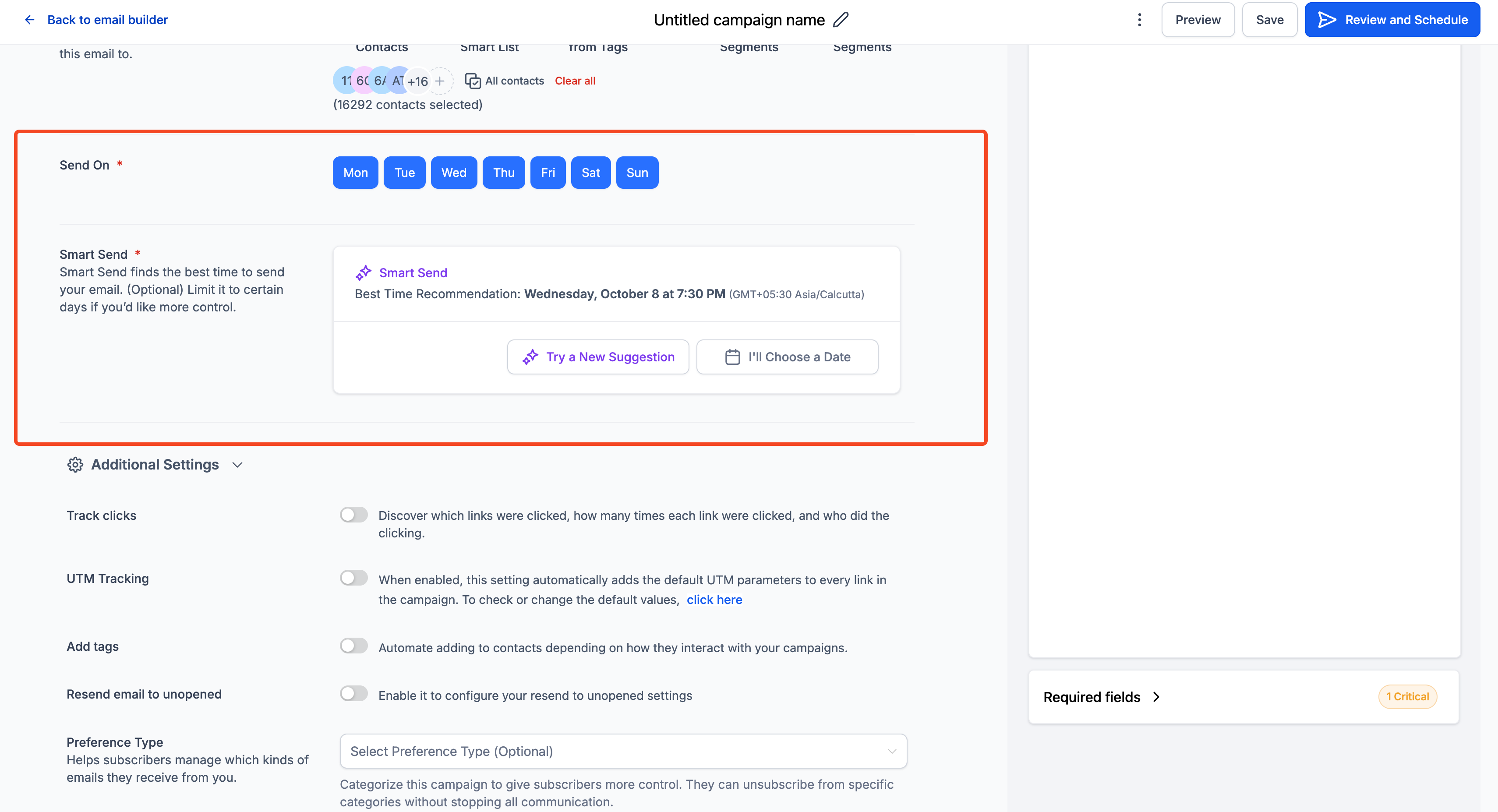
- Enter the required fields and press Get Recommendation to let the system analyze engagement data.
- If the recommendation falls in the past, the system nudges you to click “Try New Suggestion” to get a future time.
- If a banner appears with “Something went wrong. Please try again.”, click the button to re fetch the recommendation.
- If no recommendation is available, manually select a custom send date and time.
- Start the campaign using the recommended time or a custom time you set.
- After sending, open the analytics view to compare the Smart Send performance with previous results.
07What it looks like in HighLevel
08Settings that matter
- Smart Send. Controls whether the platform provides a recommended send time based on recent recipient activity.
09Things to know before you rely on it
- Smart Send is disabled unless the location has recorded at least 1,000 delivered emails in the past 60 days.
- If the recommendation falls in the past, the system prompts you to try a new suggestion.
- When data cannot be retrieved, a banner appears with “Something went wrong. Please try again.”
- If no recommendation can be generated, a warning advises selecting a custom date and time.
10If something goes wrong
- Banner shows “Something went wrong. Please try again.”. Click the button to re fetch the recommendation.
- No recommendation is available for the campaign.. Manually choose a custom send date and time.
- Recommendation is in the past.. Click “Try New Suggestion” to generate a future send time.
11How it connects to the rest of HighLevel
- How to send or schedule a regular email campaign in HighLevel Send or schedule email campaign
- How to preview and test email campaigns in HighLevel Preview and test campaigns
- How to access and understand email statistics in HighLevel Email statistics
Michael's take

Smart Send feels like a small convenience that can become a real shift for any business that relies on email to stay in touch with customers. It removes the guesswork of timing and gives you data driven confidence that your message lands when people are most likely to see it.
A local restaurant that sends weekly specials could use Smart Send to find the sweet spot when diners check their inbox.