
01Who this is for
- Digital marketers who run multiple campaigns and need a quick starting point for each new ad.
- Small business owners who connect only one Facebook page and want it to be pre selected for every campaign.
- Agencies managing several client pages, allowing them to set the most frequently used page as the default.
02Facebook page default, explained
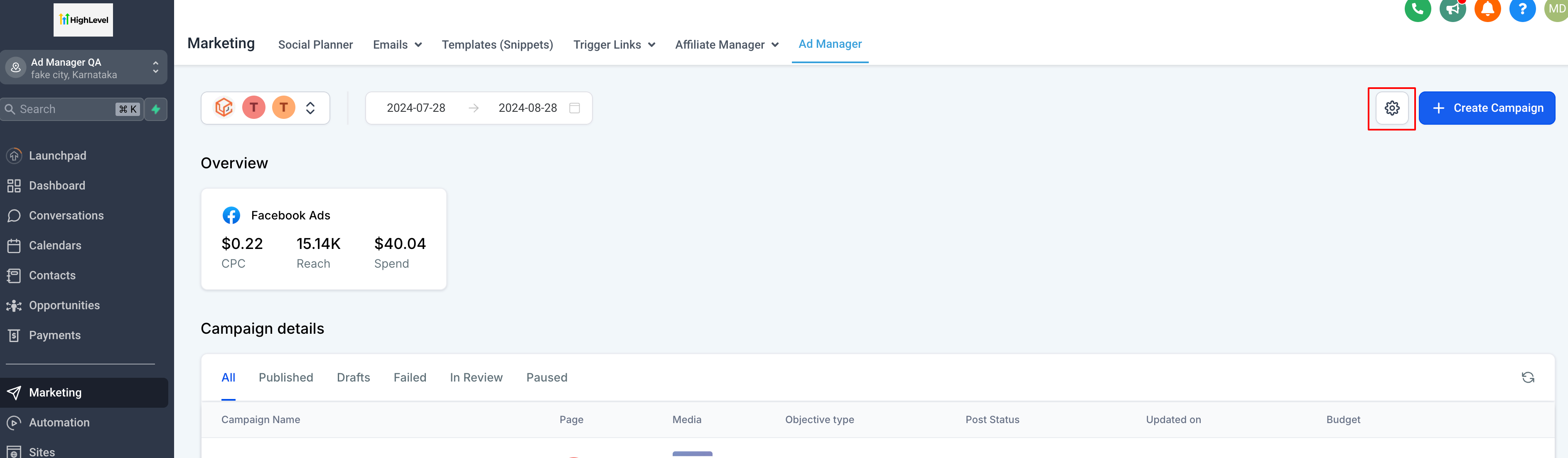
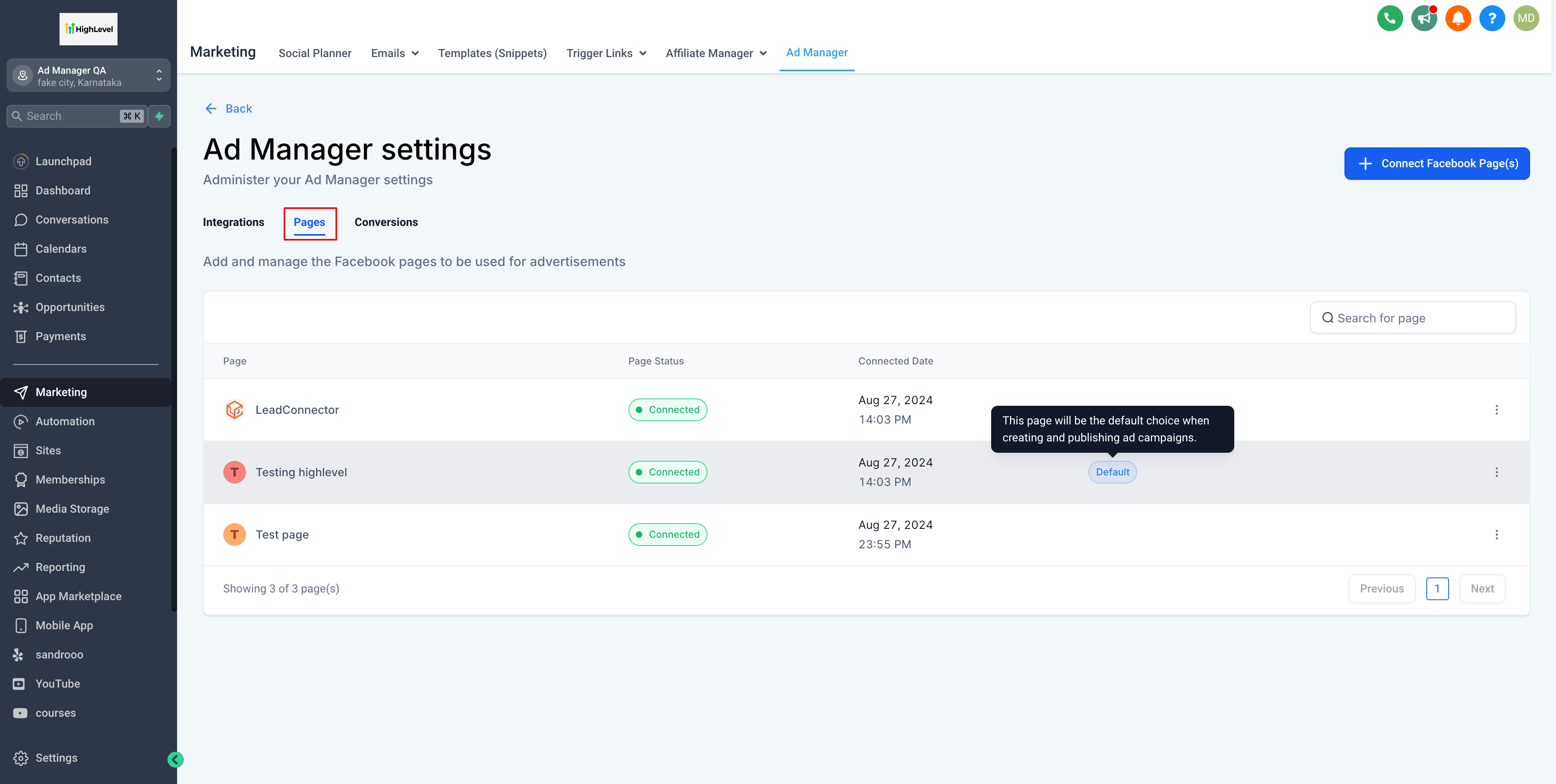
The feature lets you choose one of the Facebook pages already linked to Ad Manager and mark it as the default. When you begin building a new ad, that page appears pre selected in the publishing section, but you can still switch to any other connected page. The default status is managed from the Pages tab in Ad Manager settings, accessed via the gear icon on the home screen. Only one page can hold default status at a time, and if the default page is removed, another connected page automatically becomes the new default.
03How businesses use Facebook page default
- Ecommerce store. The store links its Facebook shop page to Ad Manager and marks it as default. When launching product ads, the shop page is already selected, and the owner can still change the page for seasonal promotions.
- Local service business. A plumber connects its primary Facebook business page and sets it as default. New service ads default to that page, ensuring consistent branding, while the plumber can choose an alternate page for a special campaign if needed.
- Marketing agency. An agency links a client’s main Facebook page and makes it the default for the client’s ad account. When creating many client ads, the agency starts with the default page each time, but can switch to another page for specific promotions.
04Before you start
- At least one Facebook page must be connected to Ad Manager.
05How to set up and use Facebook page default in HighLevel
Set a Facebook page as default
- Open the Ad Manager home screen.
- Click the gear icon in the top right corner to open settings.
- Select the Pages tab to view all connected Facebook pages.
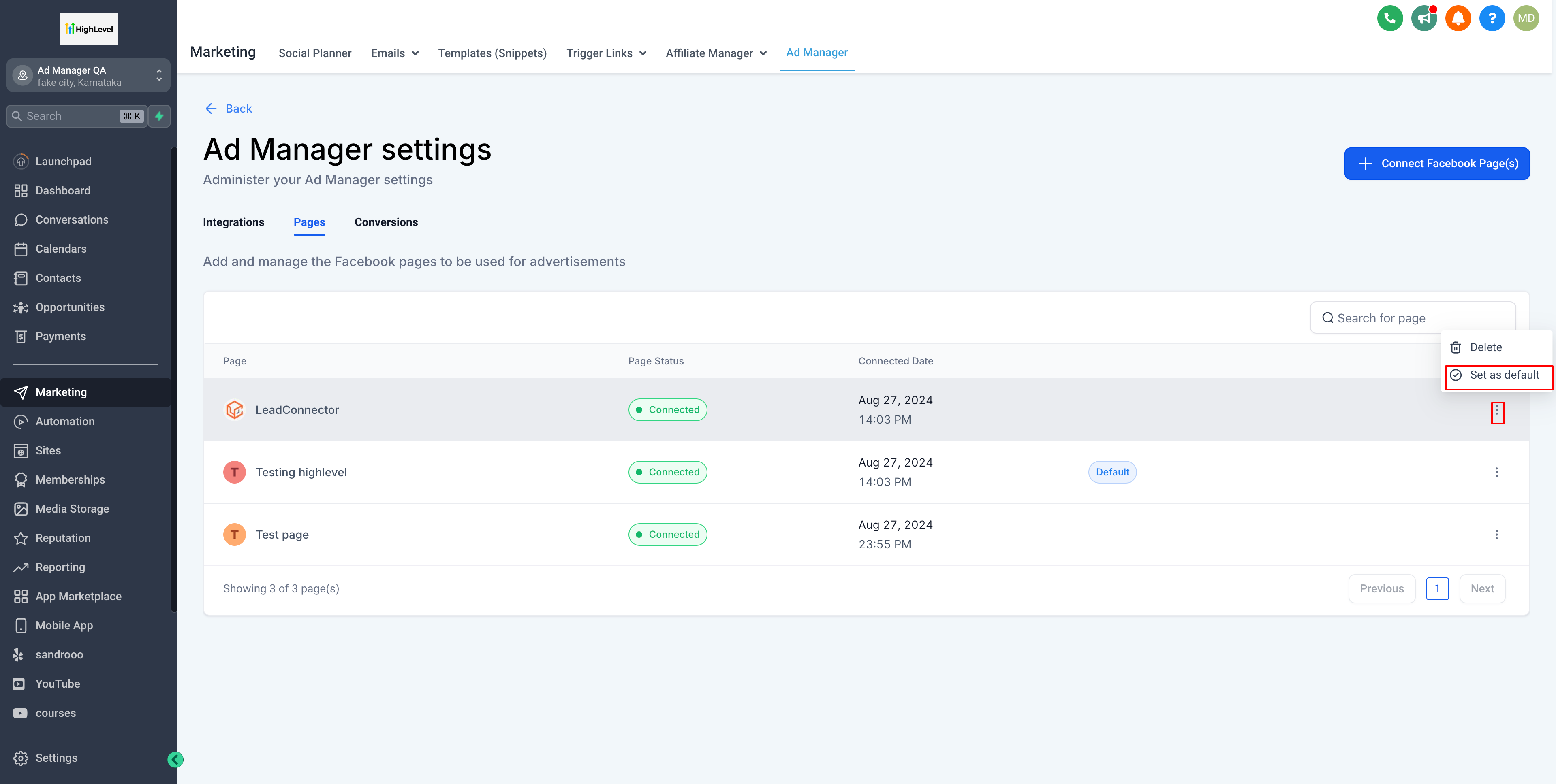
- Locate the row for the page you want to set as default.
- Click the ellipsis on the far right of that row.
- Choose the "Set as default" option from the menu.
06What it looks like in HighLevel
07Settings that matter
- Set as default. Determines which connected Facebook page will be pre selected when starting a new ad campaign.
08Things to know before you rely on it
- Only one default page can exist among all connected pages.
- The first Facebook page linked during onboarding automatically becomes the default.
- If the default page is deleted, the next connected page becomes the new default.
- During campaign creation the user can still pick any other connected page.
09How it connects to the rest of HighLevel
- How to connect a Facebook business account to Ad Manager Connect Facebook
- Getting started with Meta campaigns in Ad Manager Meta campaigns guide
- HighLevel pricing and plans Pricing
Michael's take

Michael ReimerFounder of CRM Pros, HighLevel Commander and Certified Admin
I like to double check the selected page each time I start a new campaign, just to be sure it’s the one I intend to use.
Get More InformationOpens on HighLevelPublished November 2, 2026 · Updated November 17, 2026