
01Who this is for
- Marketing managers at agencies benefit because they can handle multiple client Pages from one Ad Manager view.
- Small business Founders gain a single place to run Meta ads, reducing the need to manage separate Facebook accounts.
- Ecommerce owners can link their storefront Page and ad account to quickly launch product promotions.
02Facebook business accounts, explained
The Facebook connection feature links a Facebook profile, a Meta ads account, and at least one Facebook Page to the HighLevel Ad Manager. Once linked, the assets appear in the platform’s campaign builder, allowing you to select them when creating Meta ads.
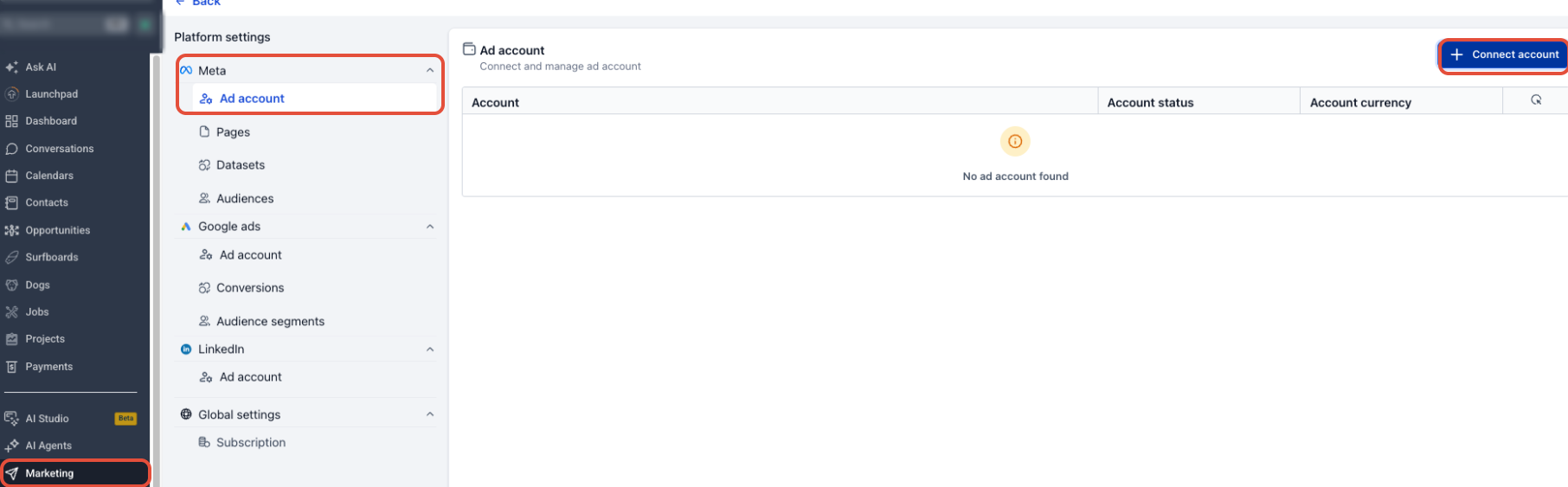
The connection is configured inside the subaccount that has Ad Manager enabled. You navigate to Marketing > Ad Manager, activate the manager if needed, and then follow the Facebook authorization flow. After the initial setup you can add more Pages through the Settings > Platform settings area.
The feature does not create any new ads automatically; it simply makes the selected Meta assets available for use in HighLevel’s advertising tools.
03How businesses use the Facebook connection
- Real estate agency. The agency logs into its HighLevel subaccount, connects the brokerage’s Facebook profile, selects the Meta ads account that runs property ads, and links the agency’s Facebook Page. Future listings are promoted using those assets directly from Ad Manager.
- Fitness studio. The studio adds its main Facebook Page during the initial connection, then later connects a second Page for a new location via the + Connect Facebook Page(s) option. Both locations can run separate campaigns without leaving HighLevel.
- Online retailer. The retailer connects the Facebook profile that holds its product catalog, selects the active Meta ads account, and links the brand Page. When launching a sale, the team picks the catalog enabled Page and ads account inside Ad Manager to build the campaign.
04Before you start
- Access to the correct HighLevel subaccount with Ad Manager enabled.
- A valid Meta Business Portfolio, Meta ads account, and Facebook Page.
- The required Facebook permissions for the chosen profile.
05How to set up and use the Facebook connection in HighLevel
Connect Facebook to Ad Manager
- Open the correct HighLevel subaccount.
- Navigate to Marketing > Ad Manager.
- If prompted, select Activate Ads Manager.
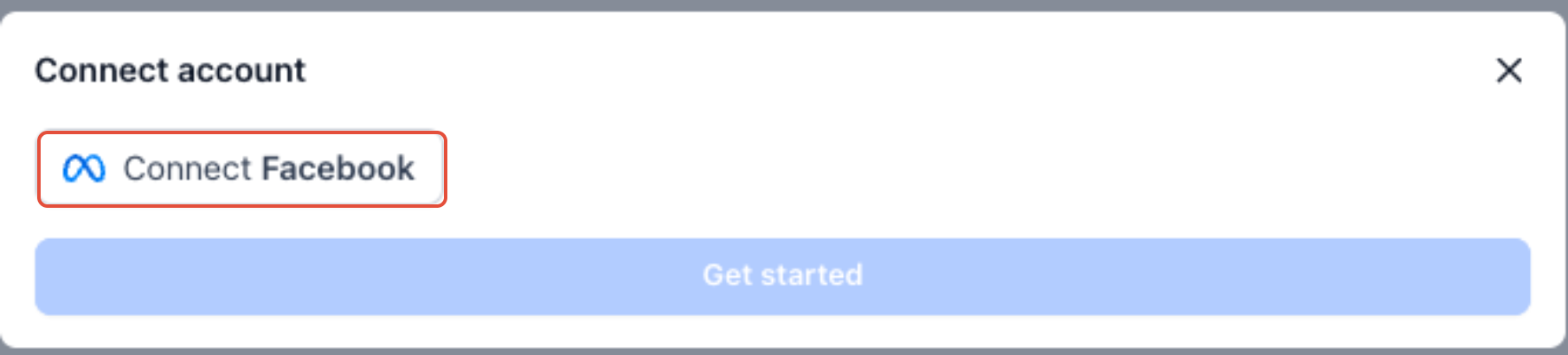
- On the setup screen, click Connect Facebook.
- Sign in with the Facebook profile that has the needed assets.
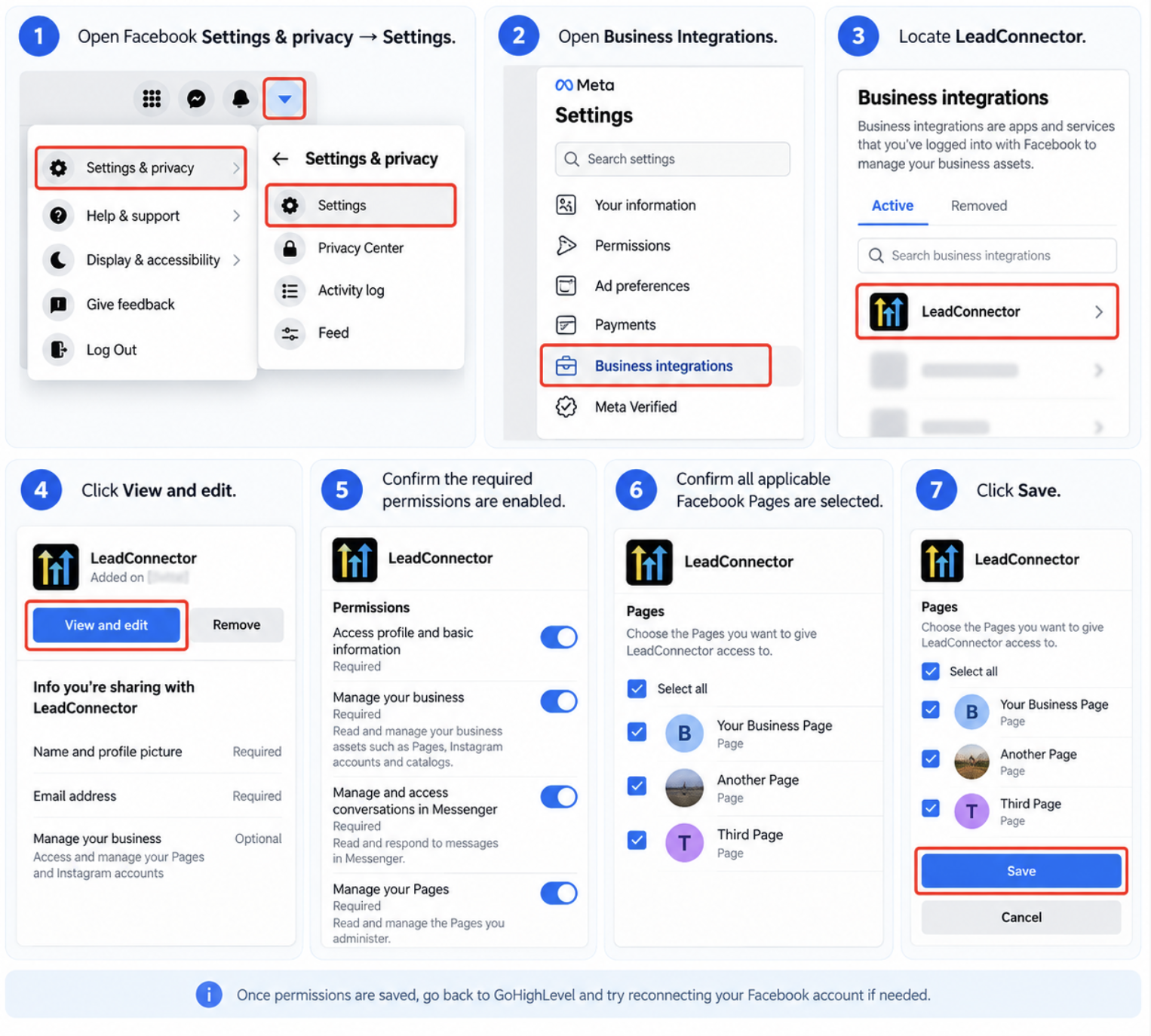
- During Facebook authorization, keep all applicable Pages selected.
- Choose the Meta ads account you want to use.
- Select the Facebook Page to associate.
- Press Connect to finish linking.
- Click Get started after both assets appear as connected.
Connect additional Facebook Pages
- Open Marketing > Ad Manager in the desired subaccount.
- Open Settings > Platform settings.
- Locate the Facebook pages section.
- Click + Connect Facebook Page(s).
- Complete the Facebook sign in and authorization flow.
- Select the new Page(s) while keeping previously authorized Pages selected.
06What it looks like in HighLevel
07Settings that matter
- Facebook pages. Controls which Facebook Pages are linked to HighLevel Ad Manager and appear as selectable assets when building Meta campaigns.
08Things to know before you rely on it
- At least one Facebook Page and an active Meta ads account must be selected during the initial connection.
- If a previously authorized Page is deselected during re authorization, access for that Page is removed from the existing HighLevel connection.
- The Connect button remains disabled until a valid Meta ads account and a Facebook Page are chosen.
09If something goes wrong
- Facebook Page or Ads Account Is Missing. Verify you are signed into the correct Facebook profile, ensure the profile has access to the required Meta Business Portfolio, and confirm the Page and ads account are active. Then reconnect Facebook.
- Get Started or Connect Button Is Disabled. Make sure a valid Meta ads account is selected and a Facebook Page is connected, and confirm that Facebook authorization completed successfully.
- Wrong Facebook Profile Was Connected. Log out of the incorrect Facebook profile, sign in with the profile that holds the needed assets, return to Ad Manager, and reconnect Facebook selecting the correct ads account and Page.
10How it connects to the rest of HighLevel
- Set a default Facebook page for Ad Manager Set default Facebook page
- Start Meta campaigns after connecting assets Start Meta campaigns
- View HighLevel pricing and plan options Pricing details
Michael's take

I find that ensuring the Facebook profile already has access to the Business Portfolio, ads account, and all needed Pages makes the connection step go smoothly.