
01Who this is for
- Founders who run their own marketing need a single place to set up Meta ads and avoid juggling external tools.
- Marketing agencies managing multiple client accounts benefit from a centralized workflow that links each client’s Meta assets once.
- Local service businesses can quickly connect their Facebook page and ad account to launch geo targeted campaigns.
02Ad Manager, explained
Ad Manager lives inside the Marketing area of HighLevel. Once activated, it provides a dashboard where you can view and edit Meta campaigns, monitor performance, and adjust settings. The activation flow asks you to connect a Meta ads account and a Facebook page. After those links are confirmed, the Get started button appears and you enter the Ad Manager workspace. All subsequent campaign creation, budgeting, and reporting happen inside this workspace, keeping your advertising activity within the HighLevel interface.
03How businesses use Meta campaigns in Ad Manager
- Digital marketing agency. The agency opens Ad Manager for each client subaccount, activates the feature, and connects the client’s Meta ads account and Facebook page. After setup, the agency builds and manages campaigns for each client directly from HighLevel.
- Ecommerce store. The store’s owner opens Ad Manager, activates it, and links the store’s Meta ads account and business Facebook page. With the connections in place, the owner creates product ads and monitors results without leaving HighLevel.
- Local service business. A plumber accesses Ad Manager, runs the activation flow, and connects the business’s Facebook page and Meta ads account. The plumber then sets up geo targeted ads to attract nearby customers.
04Before you start
- Access the correct HighLevel subaccount.
- Ensure Ad Manager is enabled for that subaccount.
- Log into the intended Facebook profile in the browser.
- Confirm the Facebook profile can reach the Meta Business Manager, the Meta ads account, and the Facebook page.
- Make sure the Meta ads account is active and, if required, has a payment method attached.
05How to set up and use Meta campaigns in Ad Manager in HighLevel
Activate Ad Manager and connect Meta assets
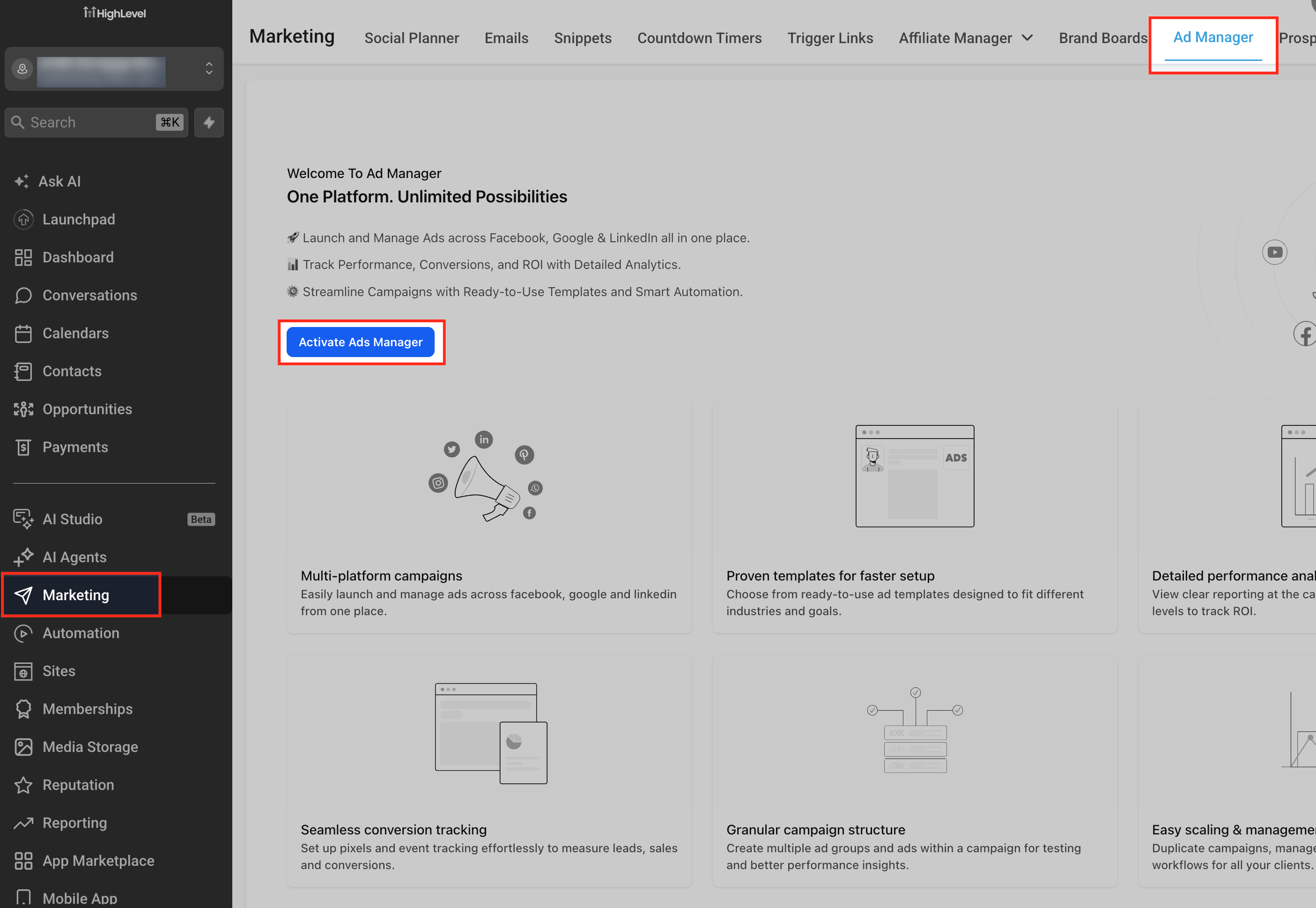
- Open the Ad Manager area from the subaccount via Marketing > Ad Manager.
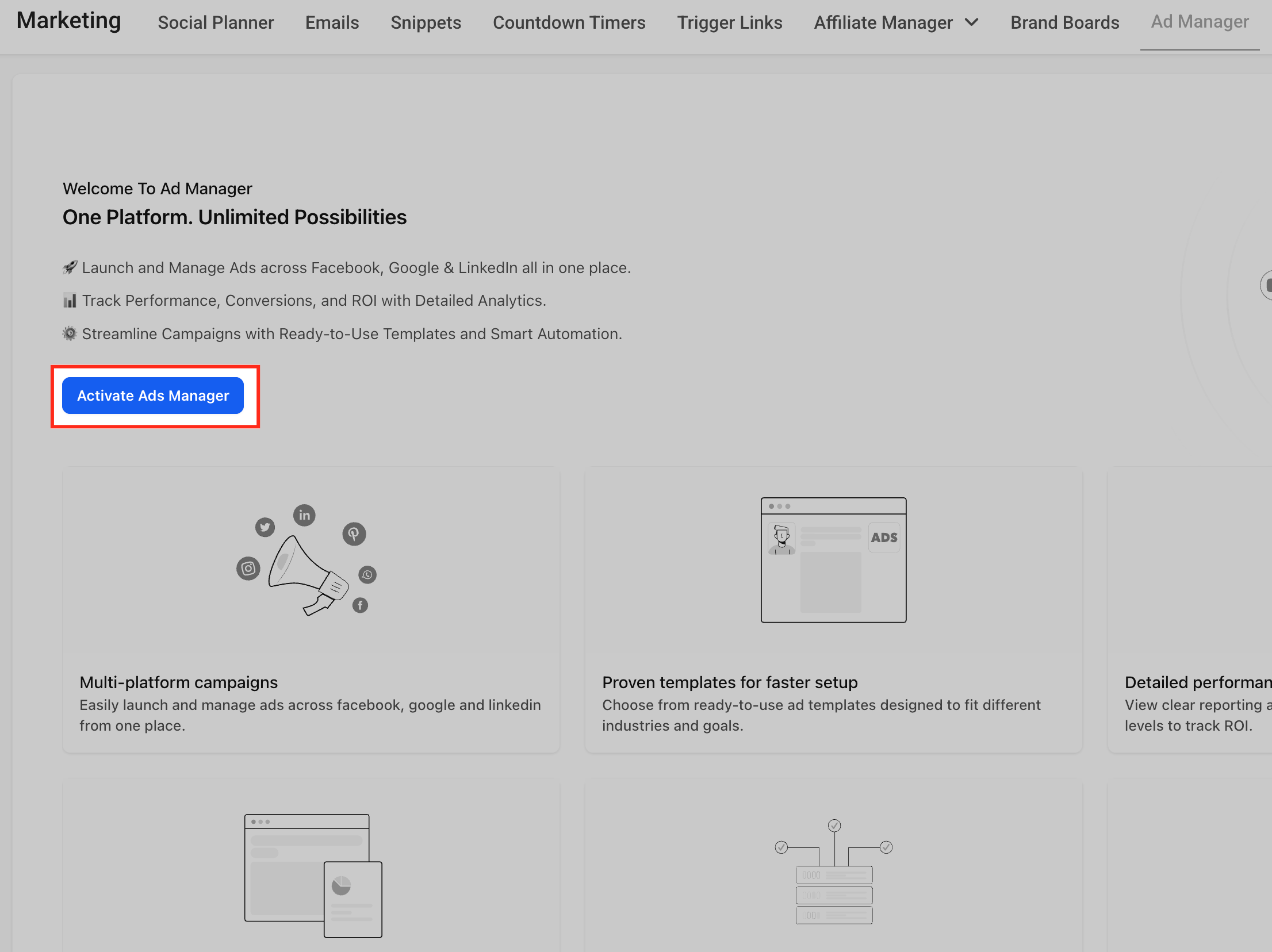
- On the welcome screen, click Activate Ads Manager.
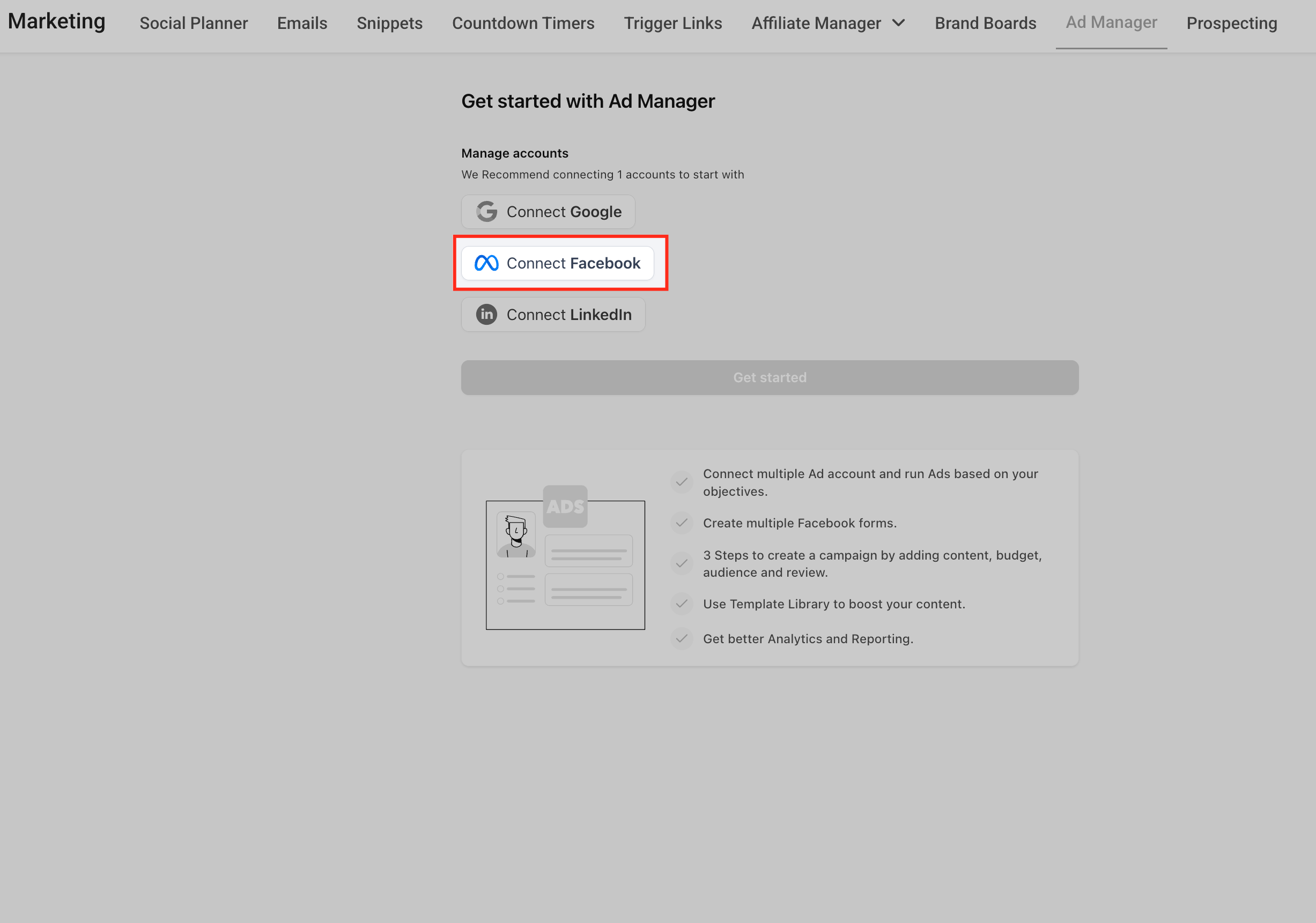
- In the Get started screen, select Manage accounts, click Connect Facebook, and complete the Facebook login and permission steps.
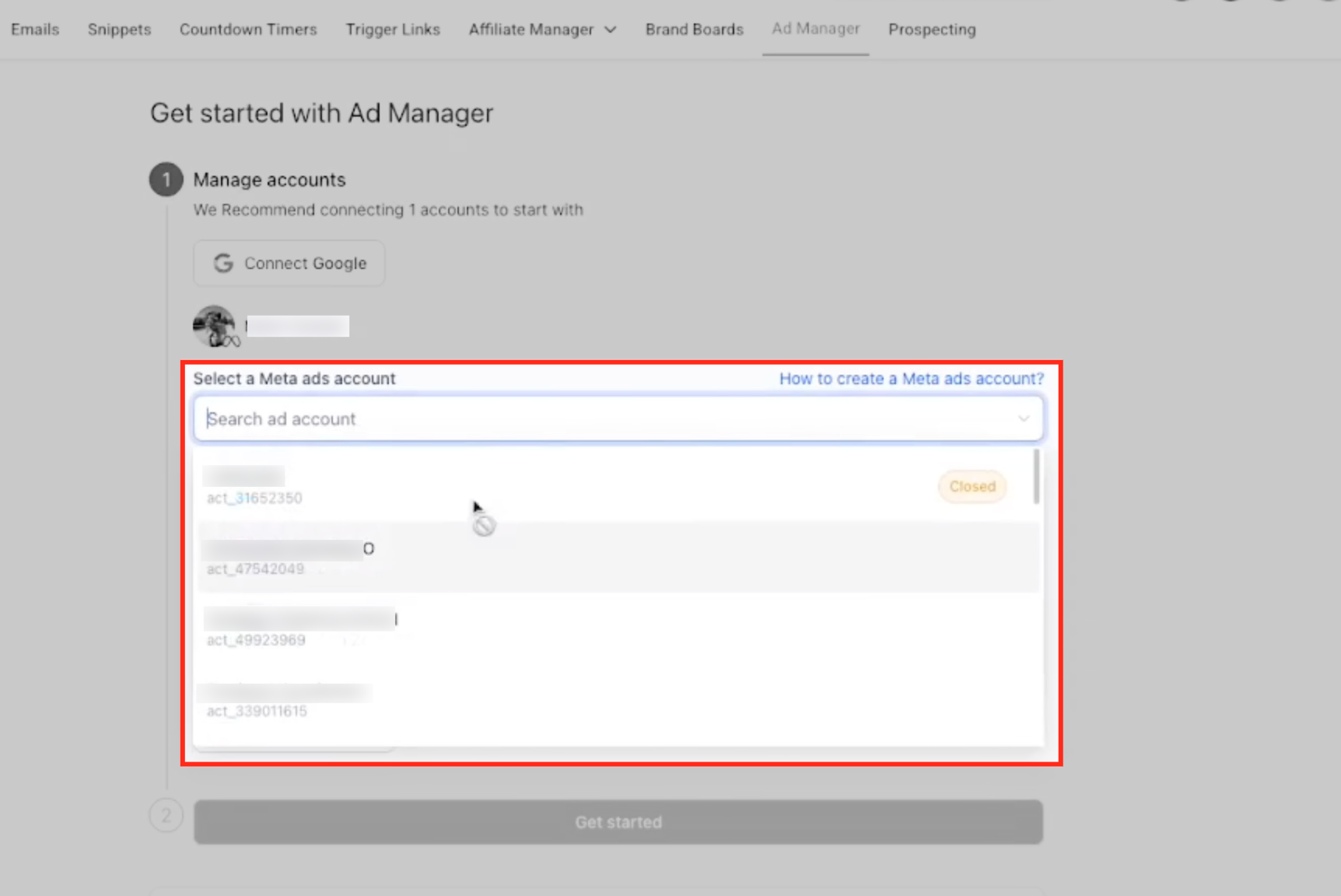
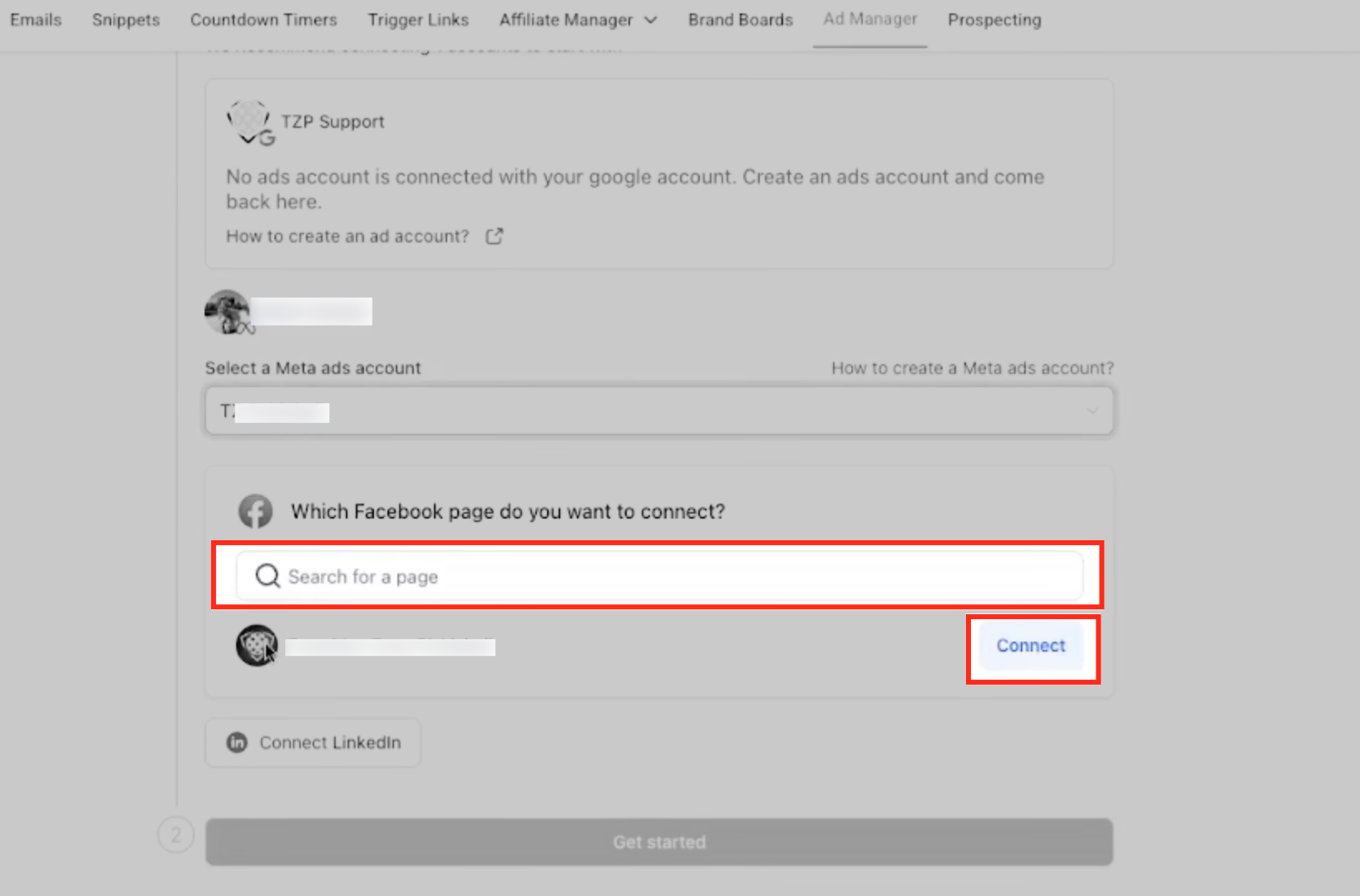
- Return to HighLevel, go to Select a Meta ads account, open the dropdown or search field, and choose the desired ads account.
- Under the Facebook page selection area, locate the correct page and press Connect.
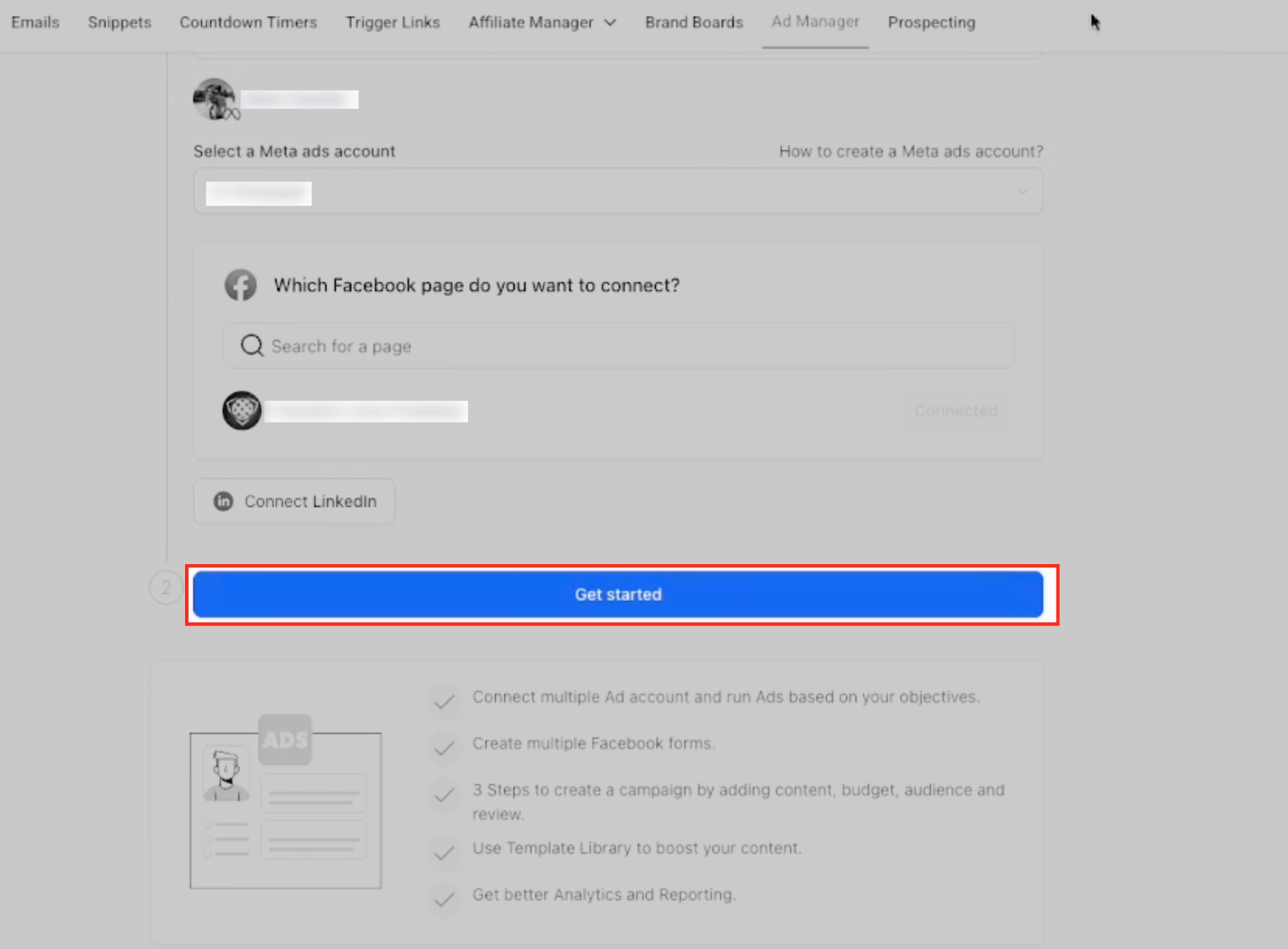
- Verify the page shows as connected, then click Get started to enter the Ad Manager workspace.
- To add more Facebook pages later, navigate to Marketing > Ad Manager > Settings > Platform settings and use the + Connect Facebook Page(s) option.
06What it looks like in HighLevel
07Settings that matter
- Platform settings. Controls the area where additional Facebook pages can be linked to the already connected Meta ads account after the initial activation.
08Things to know before you rely on it
- Ad Manager activation is separate from Meta ad spend; billing for ads is handled by Meta on the payment method tied to the selected ads account.
- A Meta ads account must be active and may need a payment method before it can be used.
- Ad Manager must be enabled for the specific HighLevel subaccount before activation can begin.
09If something goes wrong
- Meta ads account does not appear. Make sure you are logged into the correct Facebook profile, that the profile has access to the Meta Business Manager and the ad account, and that the ad account is active.
- Facebook page does not appear. Confirm the Facebook profile has the required page permissions, and review the Facebook Business Account connection and permissions guide if needed.
- Connect button is unavailable. Ensure a valid Meta ads account is selected and the page is accessible; missing permissions or incomplete Facebook authorization can block the button.
- Get started button is disabled. Select a Meta ads account and connect a Facebook page; the button activates only after those steps are completed.
- Wrong Facebook profile was connected. Log out of the incorrect Facebook profile in the browser, sign in with the correct one, and repeat the connection flow.
10How it connects to the rest of HighLevel
- Use the guided flow to link your Facebook business account for ad creation. Connect Facebook Business Account
- Set a default Facebook page for all future campaigns. Default Facebook Page
- Explore the full set of marketing tools available in HighLevel. Marketing features
- View pricing options and plan details for HighLevel. Pricing
- Start a free 30 day trial to test Ad Manager and other features. 30 day trial
Michael's take

Ad Manager is worth the effort for a small business that wants to keep its ad workflow inside HighLevel and avoid juggling multiple dashboards.
Don’t start the flow without confirming you’re logged into the right Facebook profile.